|
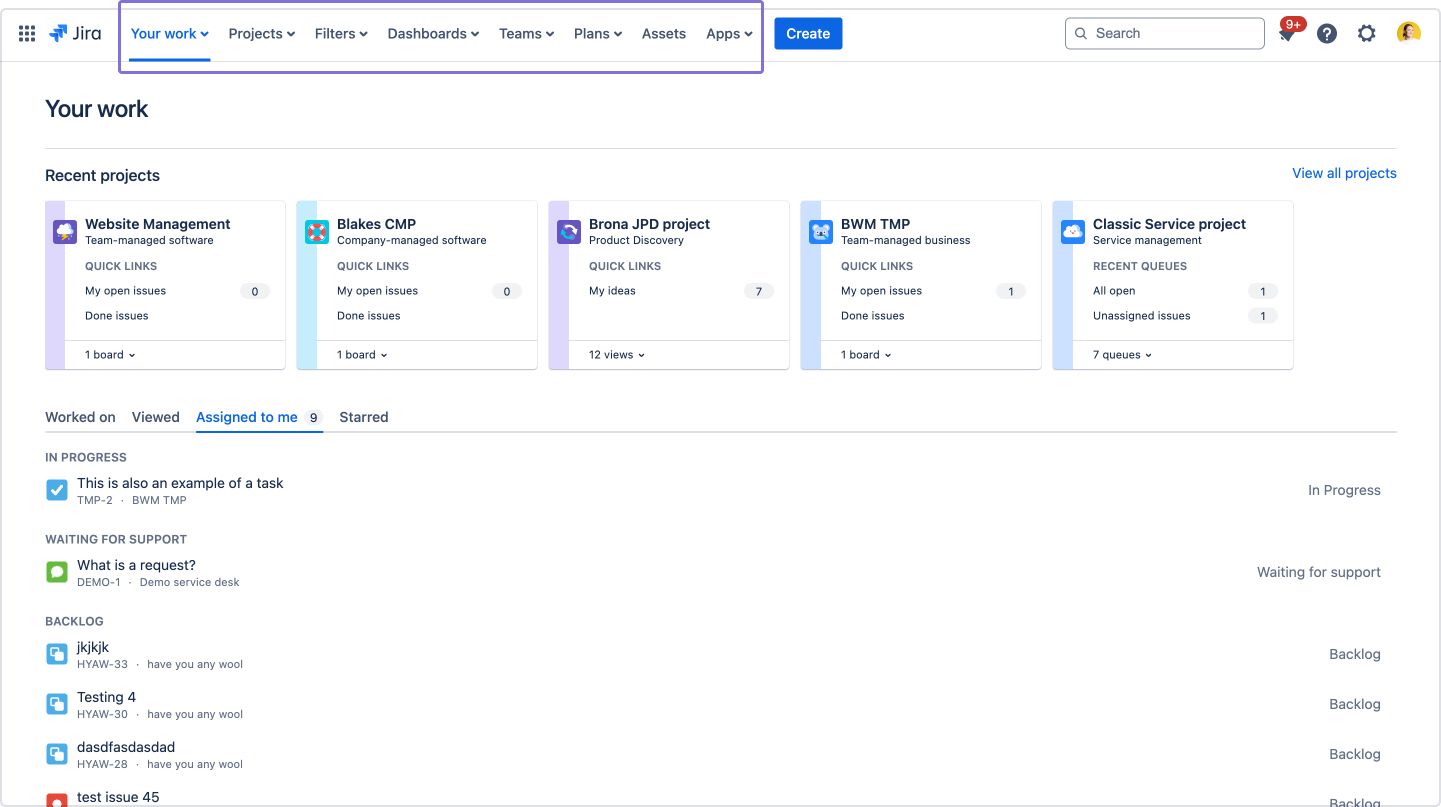
Before
|
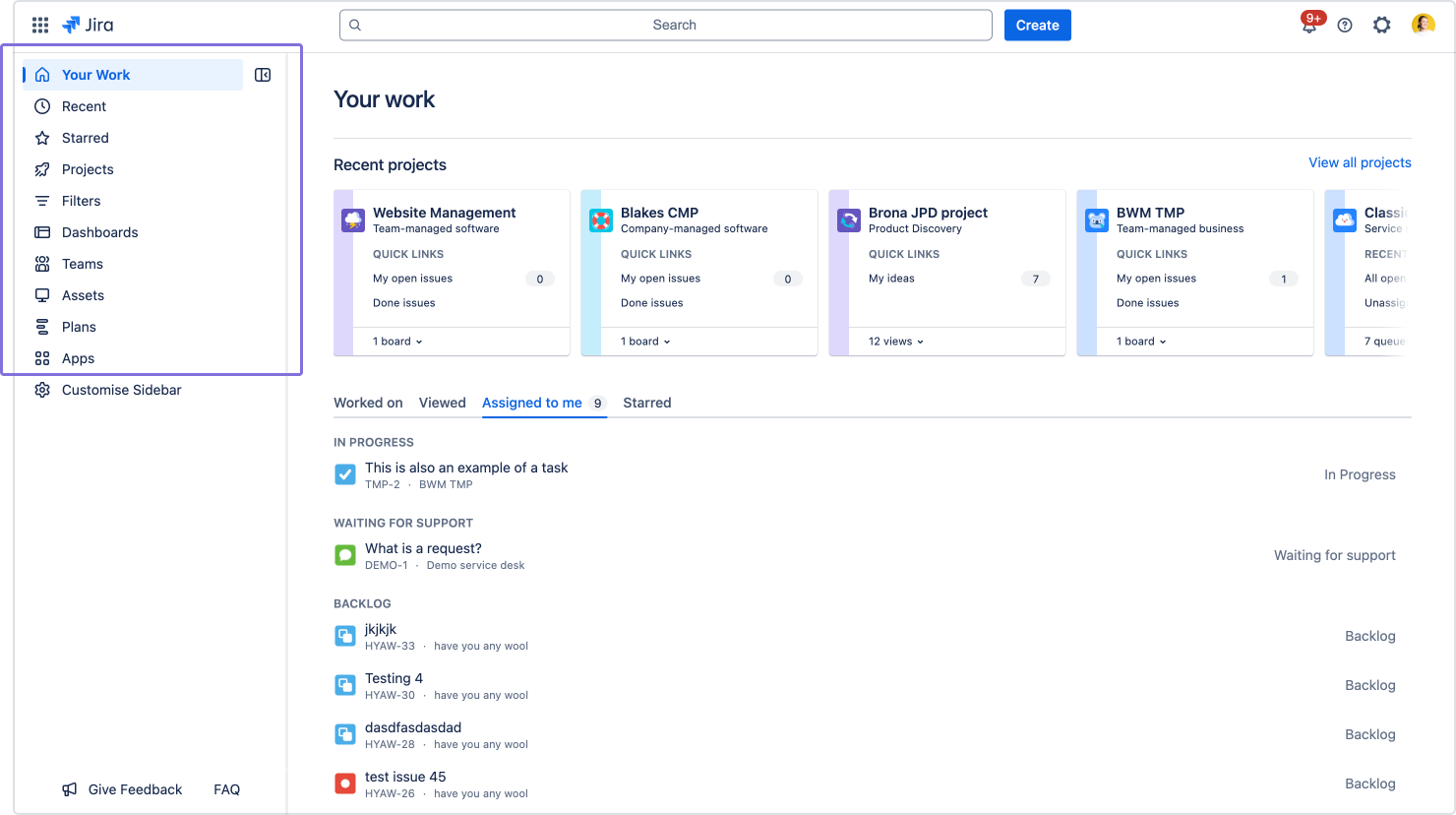
After
|
|---|
Product-level navigation
-
Product-level navigation items like Your Work, Projects, Filters, Dashboards, Teams, Plans, Assets, and Apps have been moved from the top navigation to the left sidebar.
|
 |
 |
Your work
The Your work page helps you resume work and find things you’ve interacted with, like issues, projects, boards, and queues you’ve visited, work assigned to you, and your starred items.
|
|
-
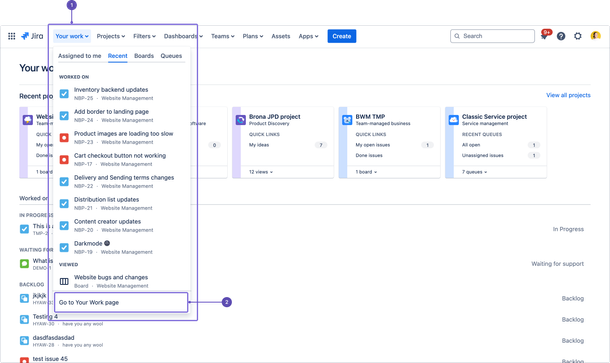
Access Your work from the top navigation.
-
Selecting Go to Your Work page takes you to a dedicated page that shows an overview of your work.
|
-
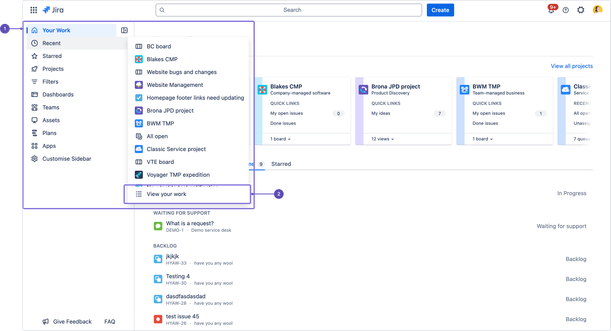
Access Your work from the left side navigation or sidebar.
-
Selecting View your work takes you to a dedicated page that shows an overview of your work.
|
Recent items
|
|
-
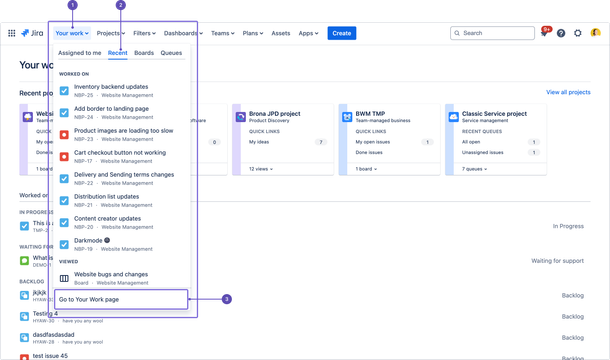
To access recent items, you’ll need to select Your work from the top navigation.
-
Recent is a tab under Your work
-
Selecting Go to Your Work page takes you to a dedicated page that shows an overview of your work.
|
-
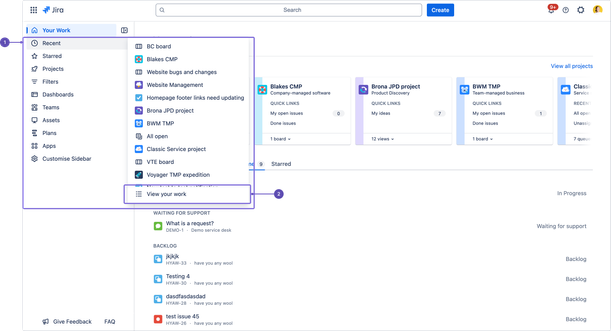
To access recent items, select Recent from the left sidebar.
-
Selecting View your work takes you to a dedicated page that shows an overview of your work.
|
Starred items
|
|
-
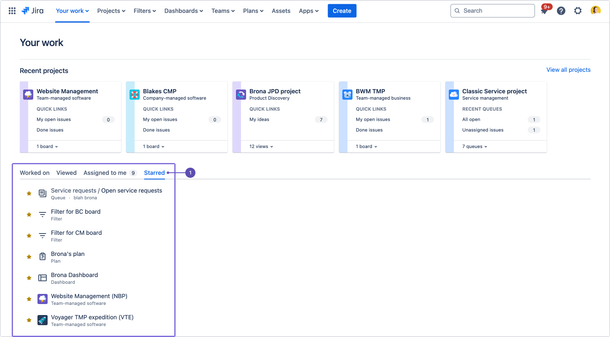
To access starred items, you’ll need to select Your work from the top navigation and then go to the Starred tab.
|
-
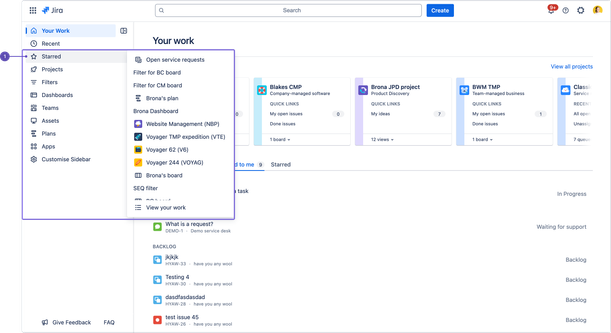
Get to your Starred items from the left sidebar.
|
Assets and its actions
Learn more about Assets
|
|
|
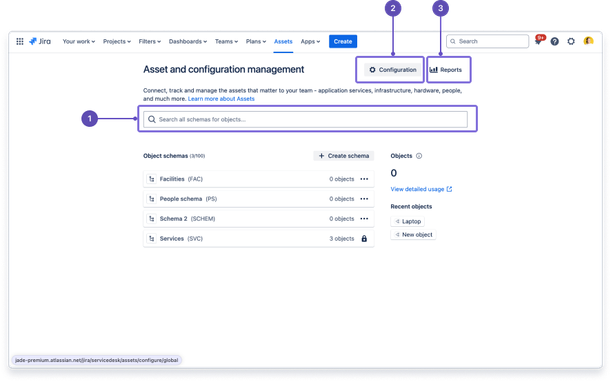
From the top navigation, select Assets to go to Asset and configuration management.
-
Search schemas for objects
-
Configure assets
-
Get insights into your assets and configuration data with Reports
|
-
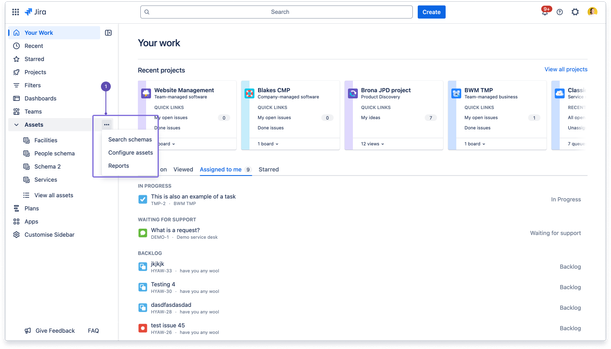
From the left sidebar, select Assets >  (three dots) for actions like searching schemas, configuring assets, and managing reports. (three dots) for actions like searching schemas, configuring assets, and managing reports.
Note: The Configure assets feature isn’t enabled on the Chrome extension. To use this feature, toggle the extension off.
|
Navigation in a project
|
|
-
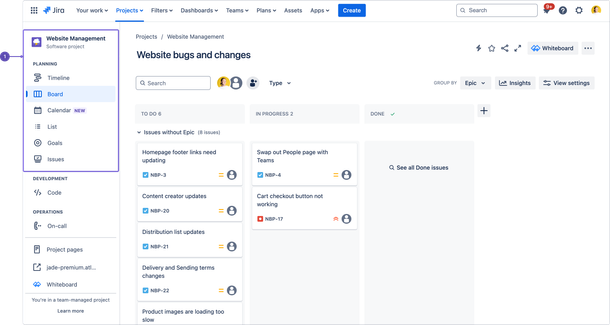
Project navigation items like Timeline, Board, List, Goals, Issues, etc., are on the left side navigation.
|
-
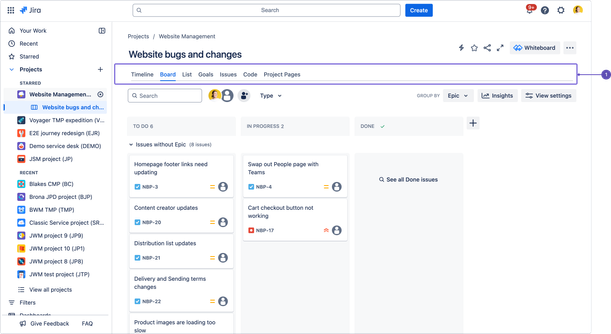
Project navigation items like Timeline, Board, List, Goals, Issues, etc., are tabs at the top of a project's navigation.
|
Apps
|
|
-
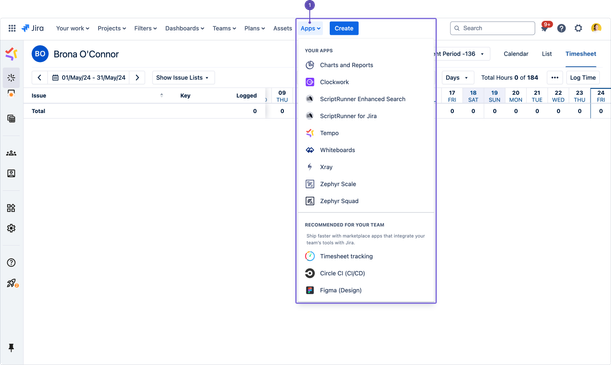
Select Apps from the top navigation to access your apps and recommendations.
|
-
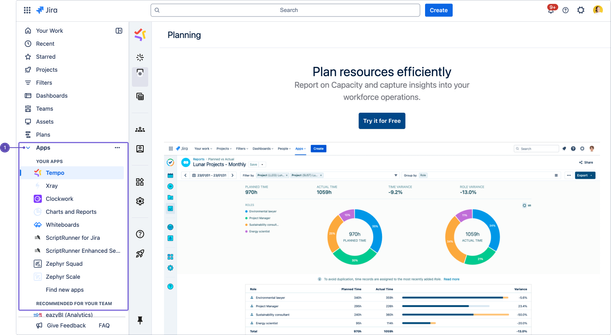
Select Apps from the left sidebar to access your apps and recommendations.
|
Explore and manage Apps
|
|
-
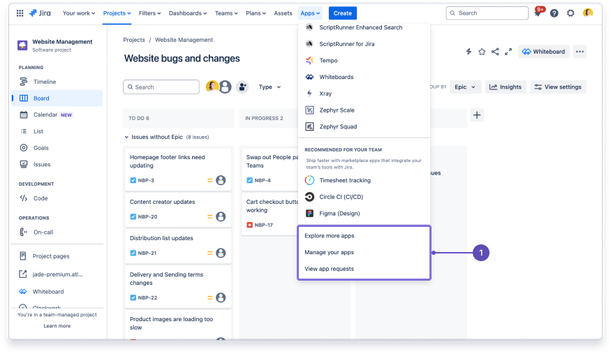
Select Apps from the top navigation to explore more apps, manage apps, and view app requests.
|
-
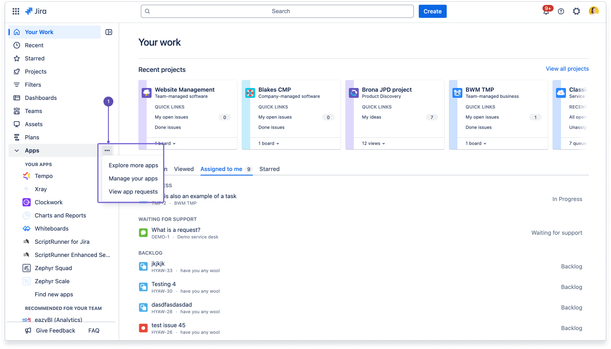
From the left sidebar, select Apps > (three dots) to explore more apps, manage apps, and view app requests.
Note: Apps and features can have unintended behavior as this is not supported in the Chrome extension.
|
Collapsible left side navigation
|
|
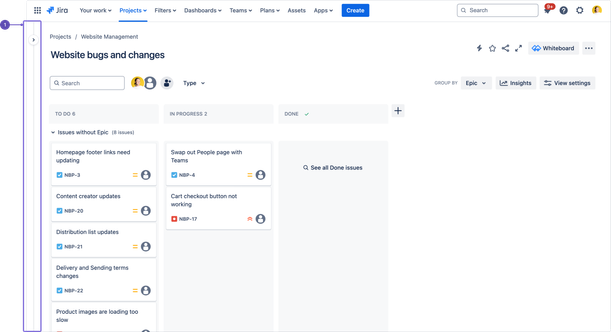
-
Collapsing the left side navigation will hide the navigation items. You’ll have to expand the navigation to access the items again.
|
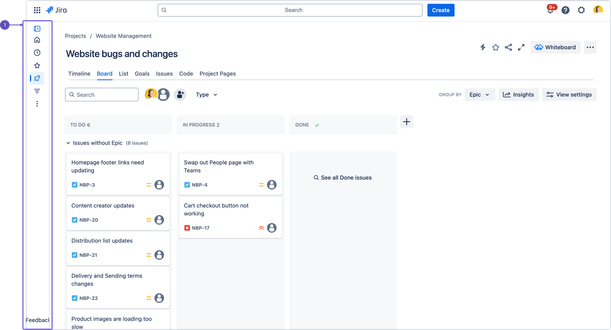
-
Collapsing the left sidebar won’t hide the navigation items completely. You can still access the left sidebar items by selecting the icons.
|
Sidebar customization
You can show, hide, and reorder the navigation items on the left sidebar.
|
|
|
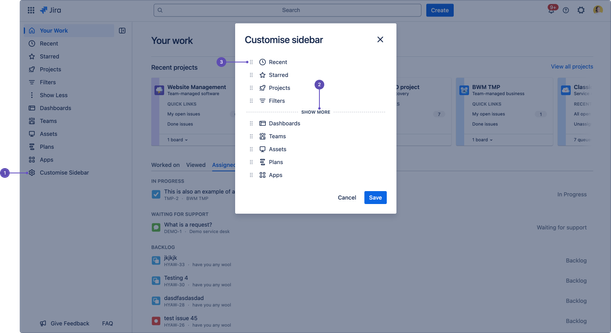
-
Select Customise Sidebar to personalize your left side navigation.
-
Drag the Show more line up or down to show or hide the navigation items.
For example, Recent, Starred, Projects, and Filters will be shown in the sidebar, while Dashboards, Teams, Assets, Plans, and Apps will be hidden.
-
You can select  (drag handle) to drag the navigation item to the desired position or move it below or above the Show more line. (drag handle) to drag the navigation item to the desired position or move it below or above the Show more line.
For example, the navigation items shown and the order of items on the sidebar when you select Save will be:
-
Recent
-
Starred
-
Projects
-
Filters
|


