Efficiently managing and tracking progress in Jira often requires sorting issues based on various criteria. One common requirement is to filter issues by their associated epic. This article provides a step-by-step guide on how to accomplish this, ensuring you can effectively manage your project's workflow.
- Click on “Issues” in the top menu.
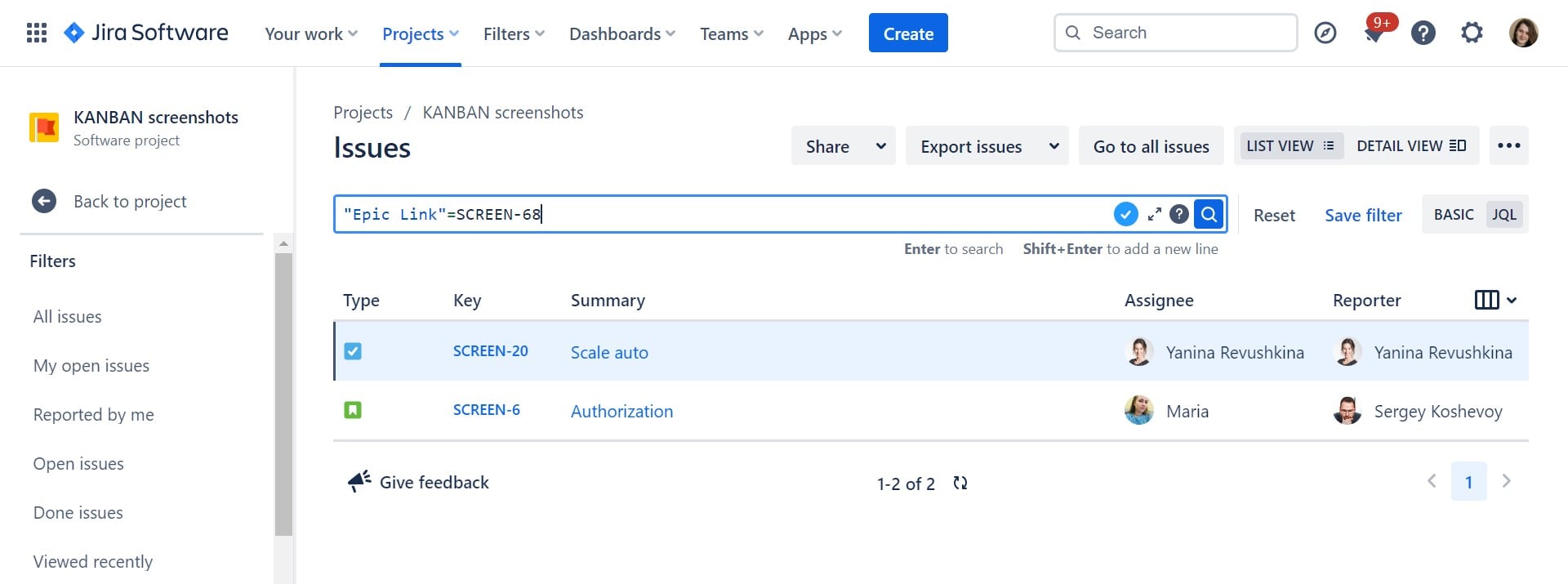
- Choose the advanced JQL search modes
- In the search bar of the , type the query to filter issues by a specific epic. For example: "Epic Link" = EPIC-KEY, where EPIC-KEY is the identifier of your epic.
- You can refine the search by adding more criteria, such as status, assignee, or due dates. For instance, "Epic Link" = EPIC-KEY AND status = "In Progress".
- Once you have the desired results, you can save this search as a filter for future use.
Filter issues on the timeline
If you are working with the timeline view and want to streamline your work with epics, then check out some Planyway features.
As soon as Planyway visualizes all Jira issues by default, you can use Planyway filters to have only epics visible.

The other option is to group your timeline by epics which is super helpful when you want to see which issues are linked to certain epics.


