Starting today, use Jira automation’s powerful engine to create rules powered by emoji in Slack. As long as you have Jira Service Management chat set up, you can visit to your automation settings to get started.
This new functionality replaces chat’s emoji shortcuts, which were based on Halp’s legacy recipe feature. By creating emoji rules in Jira automation, your teams can save time:
What’s changing?
We’ve relied on Halp’s legacy platform to support emoji shortcuts in chat for Slack. By moving to Jira automation, we’re simplifying the experience so you can see all of your rules in one place. This allows for easier rule management, helps you spot potential contradictions, and unlocks additional functionality that wasn’t possible before.
When is this happening?
If your projects rely on existing emoji shortcuts, you have until June 4, 2024, to create similar rules in Jira automation. You can edit your existing shortcuts or create new ones until this date, however, we’d recommend creating new rules in automation instead.
If your projects don’t have any custom emoji shortcuts, start creating new rules in your automation settings today!
How does this impact my bill?
Every Jira Cloud instance includes automation at no extra cost. There are usage limits, however, that determine how many times rules can be executed per month, depending on the plan you’re on.
With Jira Service Management chat, the ticket emoji (used to trigger the ticket creation flow) comes out of the box and does not impact your monthly automation usage limits. All other emoji-triggered automations are counted towards your monthly usage limit.
How do I get started with emoji rules in automation?
You can use a template or create your rules from scratch.
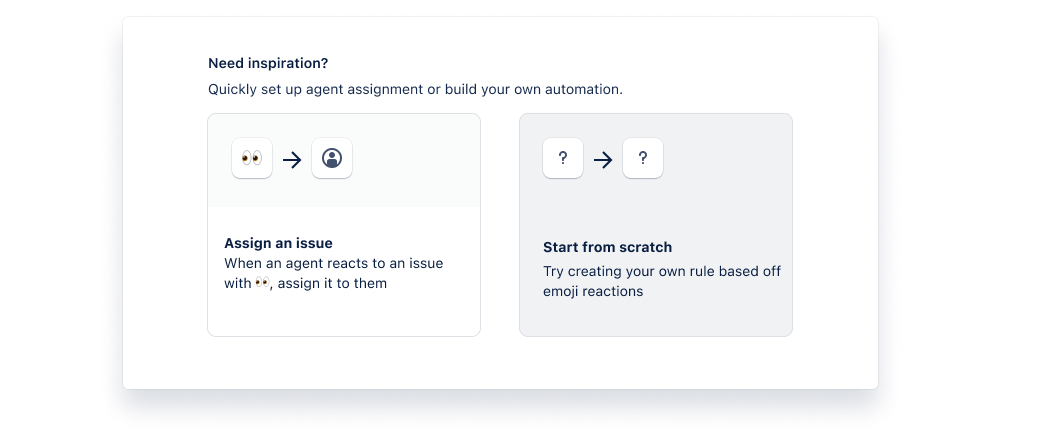
From a template
To set up emoji rules in automation from a template:
-
From your project settings, select Automation.
-
Select Templates.
-
Select the issue assignment template titled When a user reacts to the issue created by Assist in Slack → assign issue to the user who reacted.
-
Review and Turn on rule.
From scratch
To set up emoji rules in automation from scratch:
-
From your project settings, select Automation.
-
Select Create rule.
-
Select Emoji reaction to Slack message as your trigger.
-
Select Turn on rule, name your rule, and then Turn on rule again to save.
Test and enable
To help test your new emoji rules, you can now turn off emoji shortcuts in chat without deleting them:
-
Set up your emoji rule in automation.
-
From the Emoji shortcuts tab in chat settings, find the rule to turn off.
-
Use the toggle to turn off the rule.
-
Test to your satisfaction.
Thanks for your time, and please let us know if you have any feedback or questions. We’d also love if you share some ideas for emoji rules in automation  !
!


