Recently, I had a requirement to create a series of linked issues in different projects as part of the automation for a client's business process. Being a software developer, it pains me to write the same code over and over, like a list of "Create Issue" and "Link Issue" actions, each identical except for the target project. Not only is this incredibly ugly, but it is hard to maintain when you need to change something, like adding a new field to the new issue or changing the link type.
What I wanted to do was to have a list of Project Keys and loop through them to create the linked issues. There is just one problem - you can't specify a Project Key in the Create Issue action. You have to provide the Project Id, which can be hard to find and makes maintenance even more difficult.
Just to make things a little more complicated, I wanted to specify a different Summary for each issue. Here is the solution that I came up with. I am sharing it in the hope that this will save you some frustration and encourage you to share some of your more creative solutions.
The first step is to create a variable called "Tasks" from a string of Summary/Project. My string format looked like this: "Summary1:Project1;Summary2:Project2;Summary3:Project3" Note that I separate the Summary from the Project by a colon ":" and the Summary:Project set from each other by a semicolon ";". You can use any separator you want. This was just what I chose.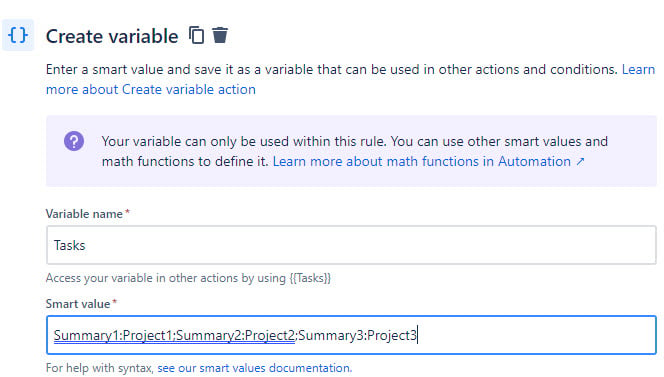
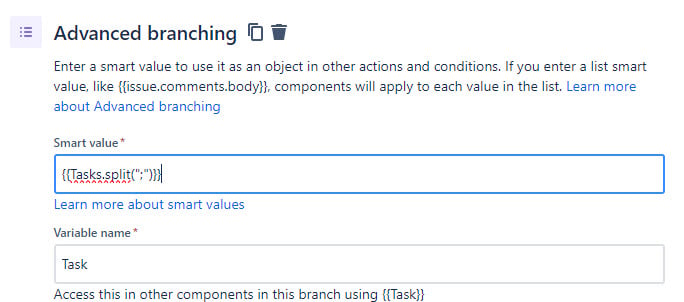
Step 2 is an Advanced Branch in which I loop over the Summary:Project items by passing the smart value {{Tasks.split(";")}} to a new variable that I called "Task" (singular). Now I have the Summary:Project pair in my new variable.
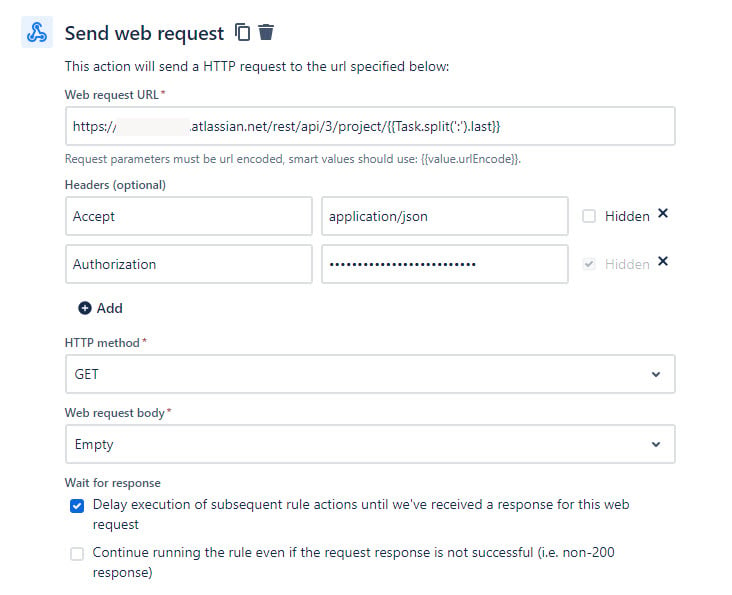
Step 3 is to call a Webhook that returns the Project Id. The URL is <Jira Base>/rest/api/3/project/{{Task.split(':').last}}. Notice the "last" at the end. This splits the Summary:Project into a first and last part. Also, it is essential that you check the "Delay execution..." box so that it waits for the result of the GET call.
Step 4 is to create a variable called ProjectId from the webResponse that comes back from Step 3. ProjectId is created from {{webResponse.body.id}}, which is the Project Id. It is not required to create this variable as you can access the information directly, but I think it makes the routine somewhat more readable.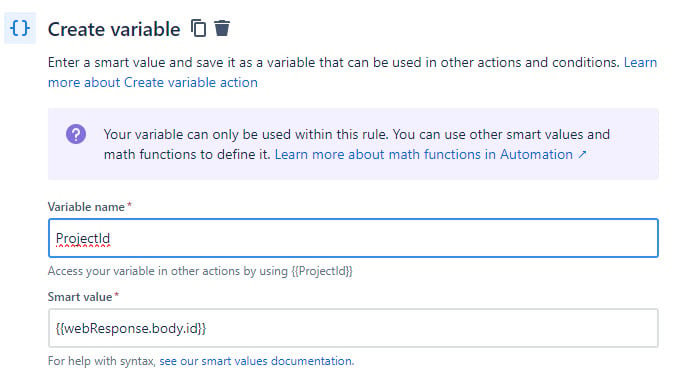
Step 5 is to create the new Issue using the {{ProjectId}} key. I set the Summary to {{Task.split(':').first}}. In my case, I also copy a bunch of fields from the Trigger issue.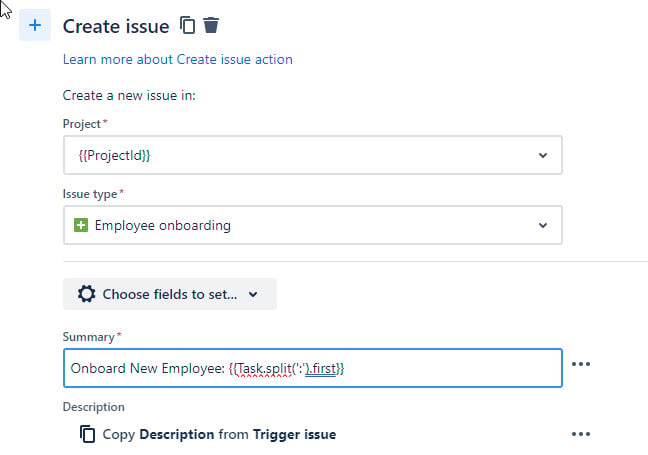
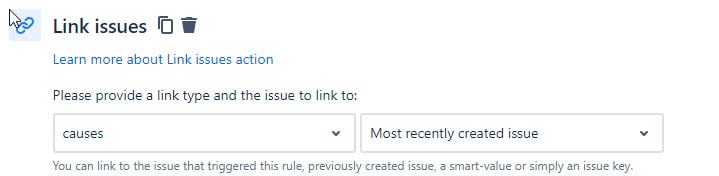
Finally, Step 6 is to link the newly created issue to the original issue. This is straightforward.