How about more automation and less routine work? Jira automation offers a variety of options for streamlining your workflows, minimizing manual labor, and project completion on schedule. The due dates for issues are one of the most important indicators of sticking to your project deadline. In this article, you will find some helpful examples of Jira automation for due dates and how to monitor due date changes efficiently.
How can you use automation for due dates in Jira?
Adding automation to Jira issues can be like some kind of magic. You set the rule once, and it does the work for you. It is a flexible tool that can be customized to meet your unique requirements. You just need to define which triggers and conditions are and what the action will be based on that triggers. Try out several automation workflows and rules to determine the best configuration for your projects.
Let’s look at a few examples.
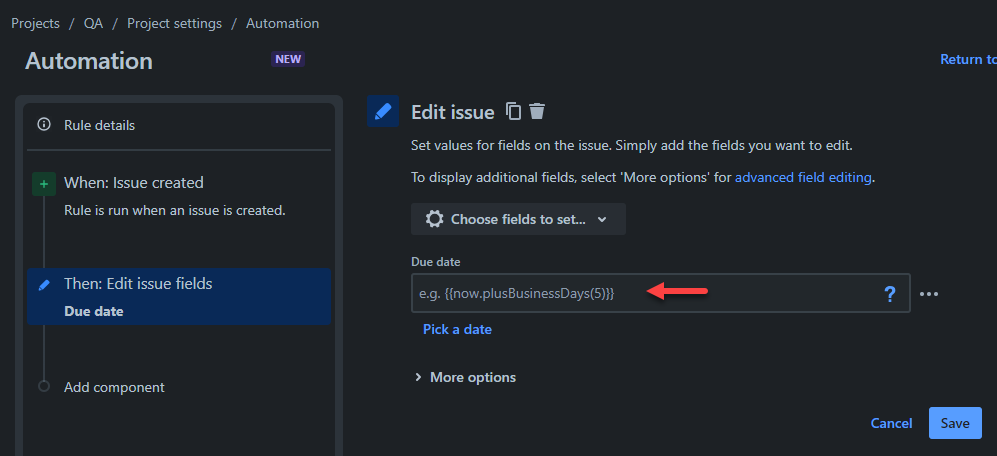
✅ Example 1. When an issue is created, set a due date within 5 days from the moment of creation
Trigger → WHEN: Issue Created
Action →THEN: Edit issue fields
Due Date
*Choose smart value {{now.PlusBusinessDays(5)}}
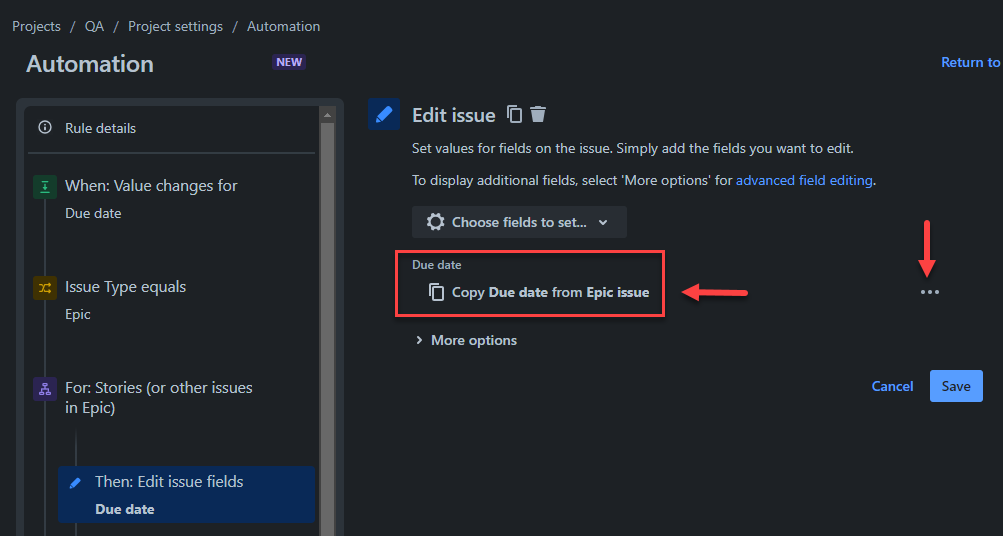
✅ Example 2. If the epic due date is changed, change the due date of the subtasks
Trigger → WHEN: Value Changes for
Due date
Condition → IF: Issue Type equals
Epic
Condition → IF: Branch rule / related issues
For Stories (or other issues in Epic)
Action →THEN: Edit issue field: Due date
*Set the due date as copy from Epic Issue
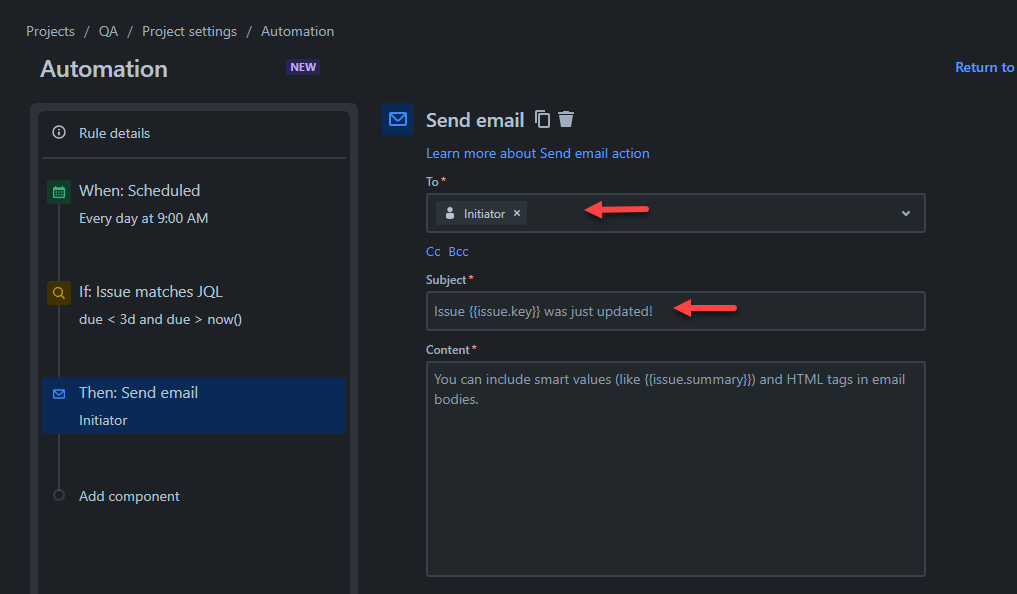
✅ Example 3. Send an email to the assignee 3 days before the due date expires
Trigger → WHEN: Scheduled
Every day at 6 PM
Condition → IF: Issue matches JQL
due < 3d and due > now()
Action → IF: THEN: Send email
*Choose the assignee and subject
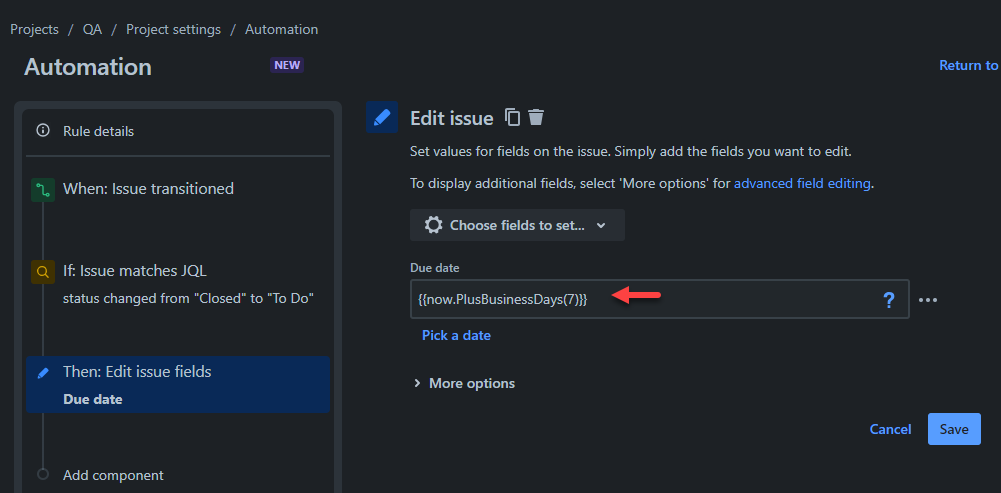
✅ Example 4. Extend the due date when an issue is reopened
Trigger → WHEN: Issue transitioned
Trigger → IF: Status changed from "Closed" to "To Do"
Trigger → THEN: Edit issue (Due Date) by adding a smart value:
{{now.PlusBusinessDays(7)}}
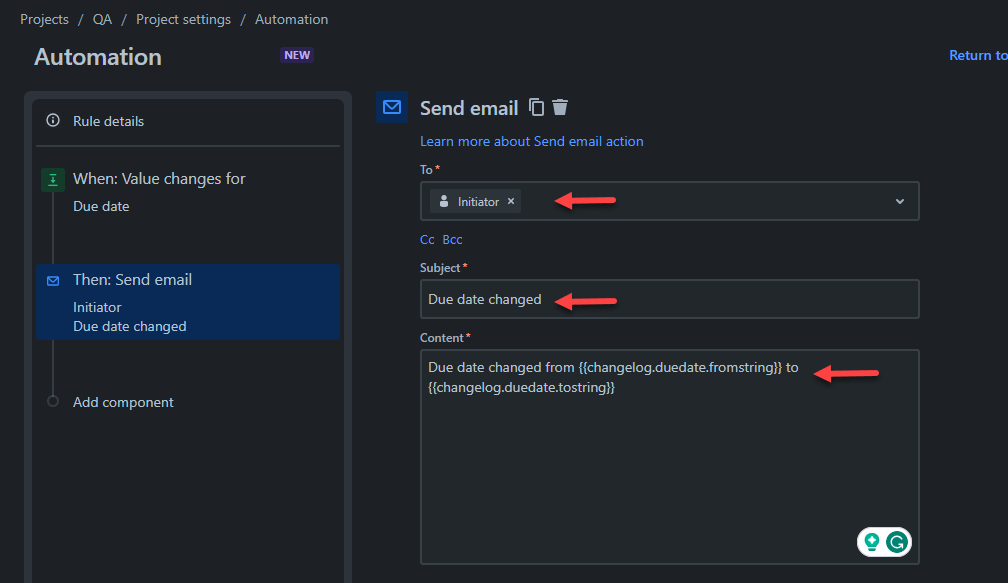
✅ Example 5. When the due date changes, get an email notification
If you want to receive notifications when someone changes the task’s due date without notice, try this rule:
Trigger → WHEN: Value changes for
Due date
Action → THEN: THEN: Send an email
*Write a subject for the email and who will receive it.
It’s also possible to include the initial and new dates in the email content, so you will know the date before the change.
To do so, add the changelog smart value:
Old Value: {{changelog.duedate.fromstring}}
New Value: {{changelog.duedate.tostring}}
🟢 Monitor all due date changes in Jira
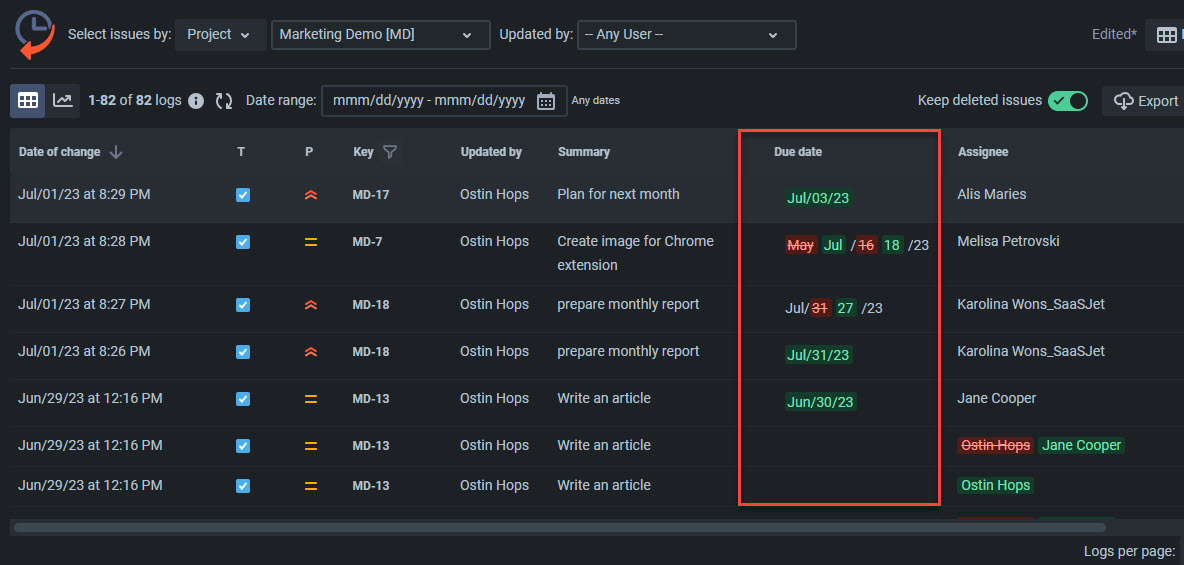
- Bonus solution. If you want to track due date changes for some project, assignees, dates, etc., on a daily basis, check out Issue History for Jira. It’s actually a journal of all past activities, but you can adjust the report to your needs by adding Jira issue fields to the table columns. It can be the due date or any other standard/custom field.
Example for due dates:
Read more about the history of due date changes How to see due date changes in Jira
In Summary
Jira automation for due dates is a must-have for effective teamwork, as it can help you to control project deadlines and focus on more prioritized tasks. These examples aim to inspire you can to create your own rules. Jira automation features allow you to build more complex rules based on your particular requirements and custom fields.
Some helpful materials to create your own rules:
Examples of using smart values with dates
How to trigger an automation rule based on a due date field
Here is a 30-day free trial to track due date changes or any other field changes for required issues.
Now, it would be great if you could share some examples of automation rules with the community members. Let us know if this article was helpful by hitting the like button 💚


