Hello community members! Have you ever made some changes to your Jira issues (work items) and needed to revert to the previously saved version? We have. Multiple times! The most recent accident happened to our PM, who erased the description of the task and, after some time, realised he still needed this description for another task. Today, we want to share our experience and how our SaaSJet team solved this problem.
What you’ll find in Jira’s issue change log
A description is the heart of the task. It provides all the essential information about the assignment expected from the specified employee/employees. You can add as many details as needed, including tables, links, images, etc. So, the assignee will know what should be done, when, and how.
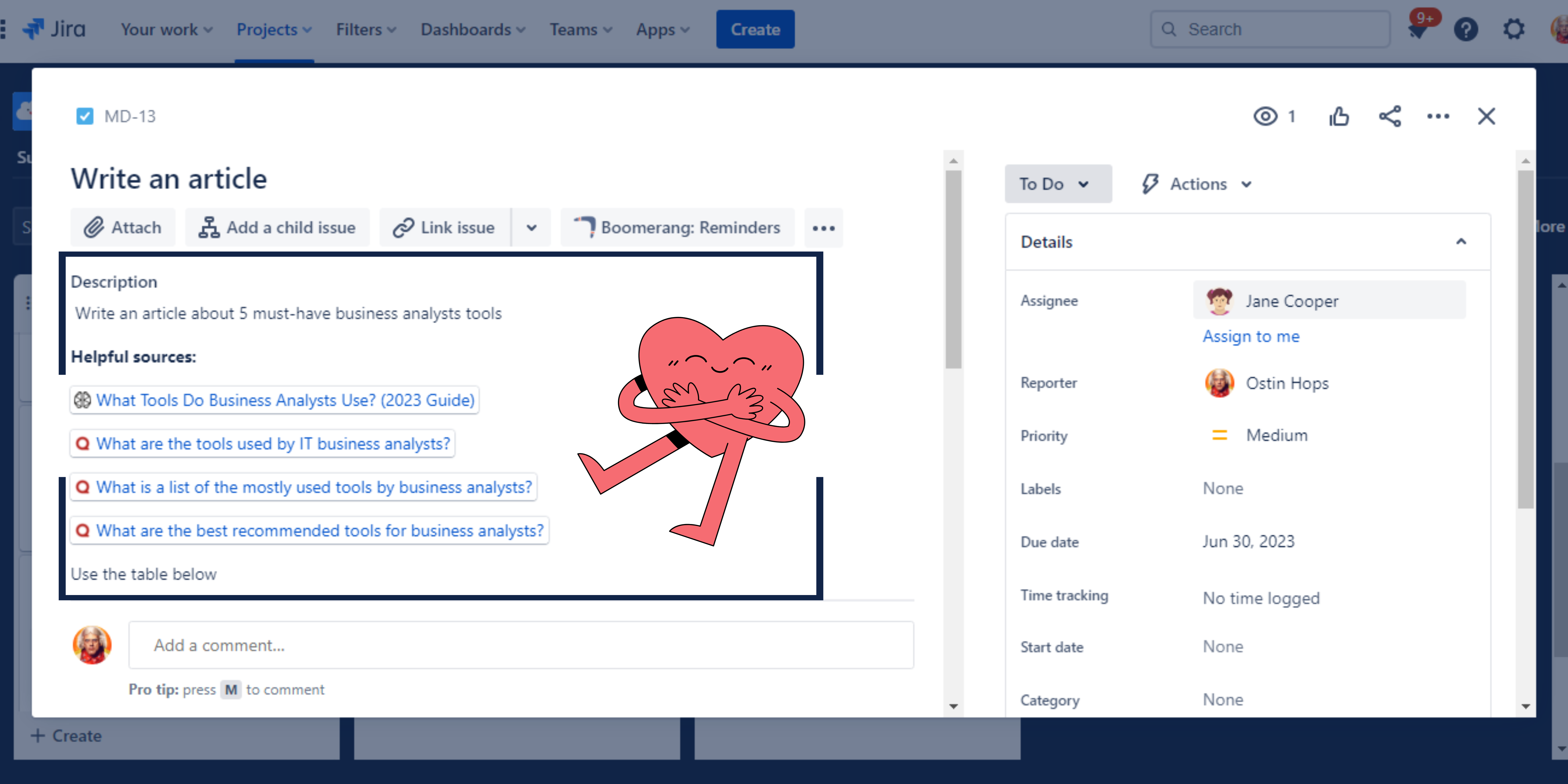
What our PM says:
“The most important part of any issue for me is the description. I describe the technical requirements and all possible details there. I can work on the task for several days, constantly updating the description, changing the requirements, and adding new information. Therefore, I am a little concerned every time some of my colleagues make changes to my description.
In my practice, there were times when I mistakenly deleted important data in the description, or one of my teammates decided to "improve" the requirements for the task and changed/added a new description. The result of these actions was wasted time restoring the previous version.”
♻️ How to view previous versions of the description in Jira
Jira has a wonderful option to keep any changes in the history log. You can always find what updates were made, by whom and when. This information is available at a single-issue level: open a task → scroll down → select History under the Activity section.
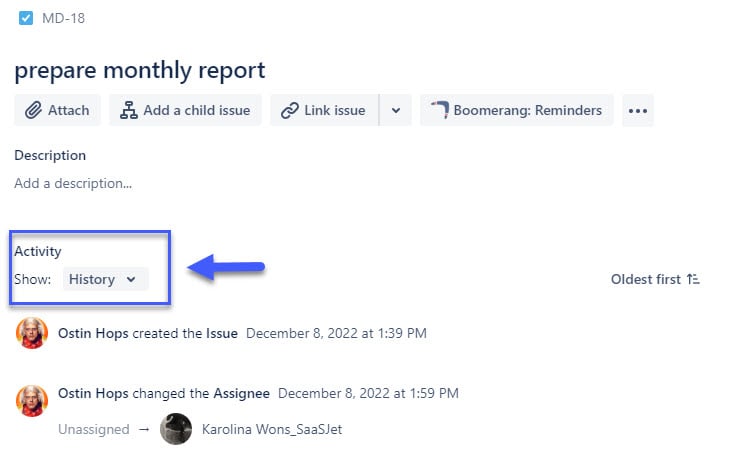
So, you can check the issue history and find the previous version of its fields. But the formatting, which is especially important for the description field, would be lost. This applies to text formatting, tables, and color changes.
Compare how the description looks in the task VS how it looks in history.
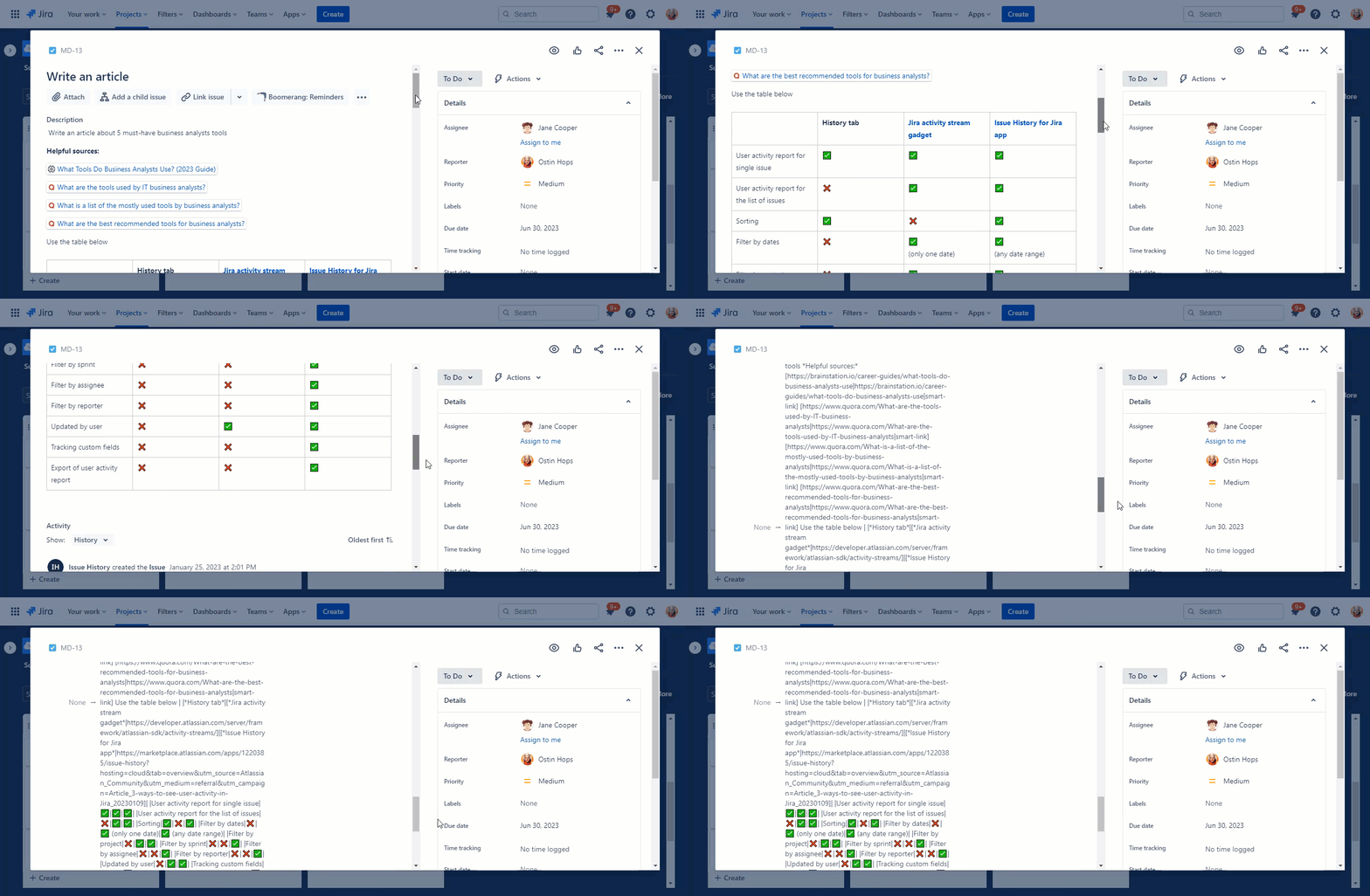
Even though you see the changes, it is quite problematic to restore them in a well-looking form or copy them into the task description.
If you are looking for how to find the changed description for multiple issues, check out How to search for changed descriptions in Jira?
Revert changes with Issue History for Jira
“It would be very useful to allow for changes in the description field to be rolled back to the previous state.” – Our team received many similar requests from our Issue History for Jira users. So, we decided to implement it for our users, team members and everyone who wants to revert description changes to the previous version easily. And the most important – formatting will be saved 😉
Step-by-step: How to revert description in Jira
- Open the Issue History for Jira (Work Item History) app. If you haven’t installed it yet, a free 30-day trial is available on the Marketplace.
- Add a description to the table columns.
- Select the project, sprint, assignee, date range, etc., to narrow the issue list.
- Find the required issue. If you know what issue you exactly need to revert to, you can select it in the issue filter.
- Review the changes you are about to revert in the pre-revert window. Click “Revert”✨
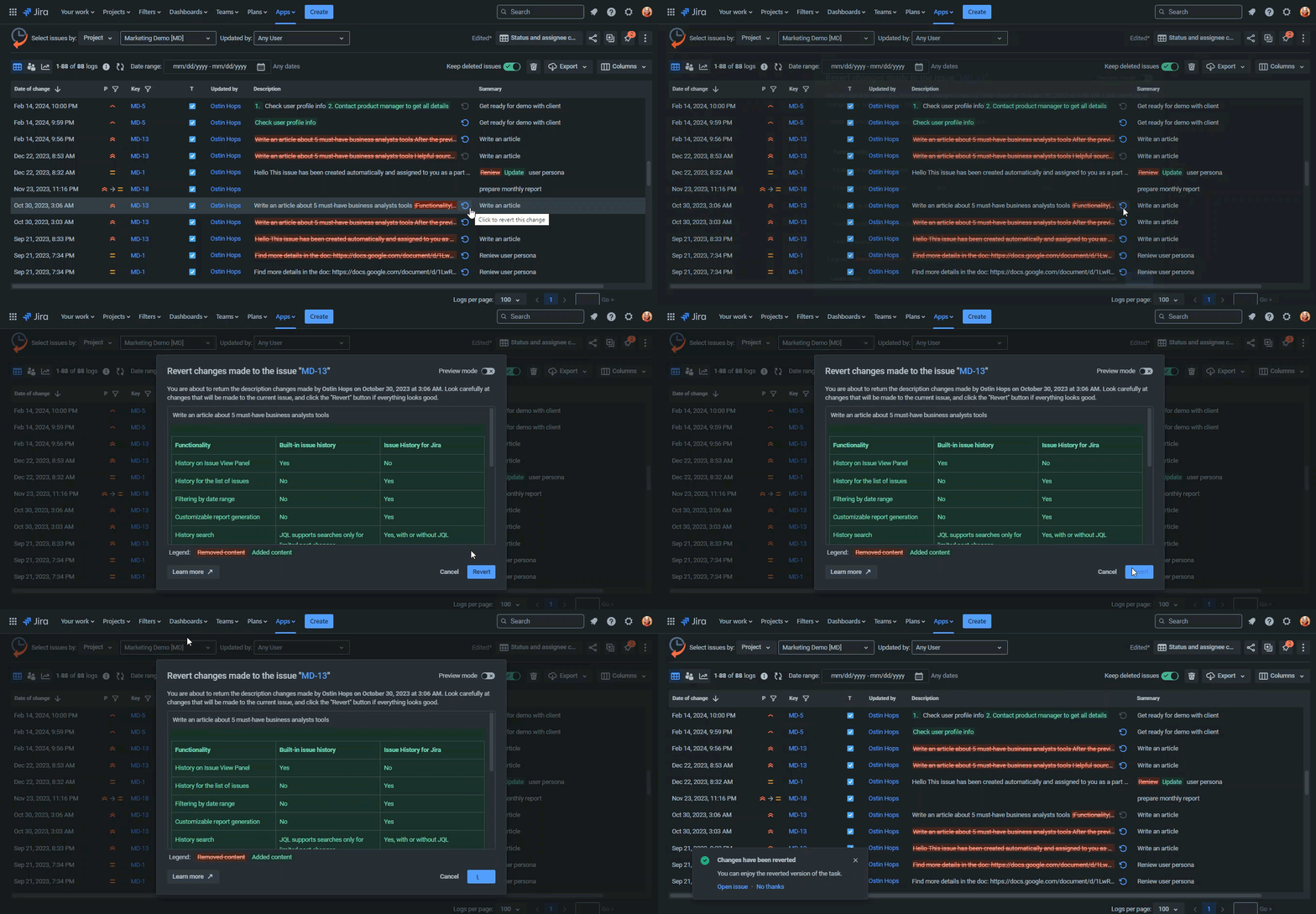
As a result of the revert operation, you will roll back the changes to the moment in time that you chose to restore the changes. Text formatting (bold, color, lists, tables) will be preserved. The only exception is attachments. As Jira does not store attachments after removal, you can only return the name of the removed format.
Doesn't it look cool with the dark theme? ♥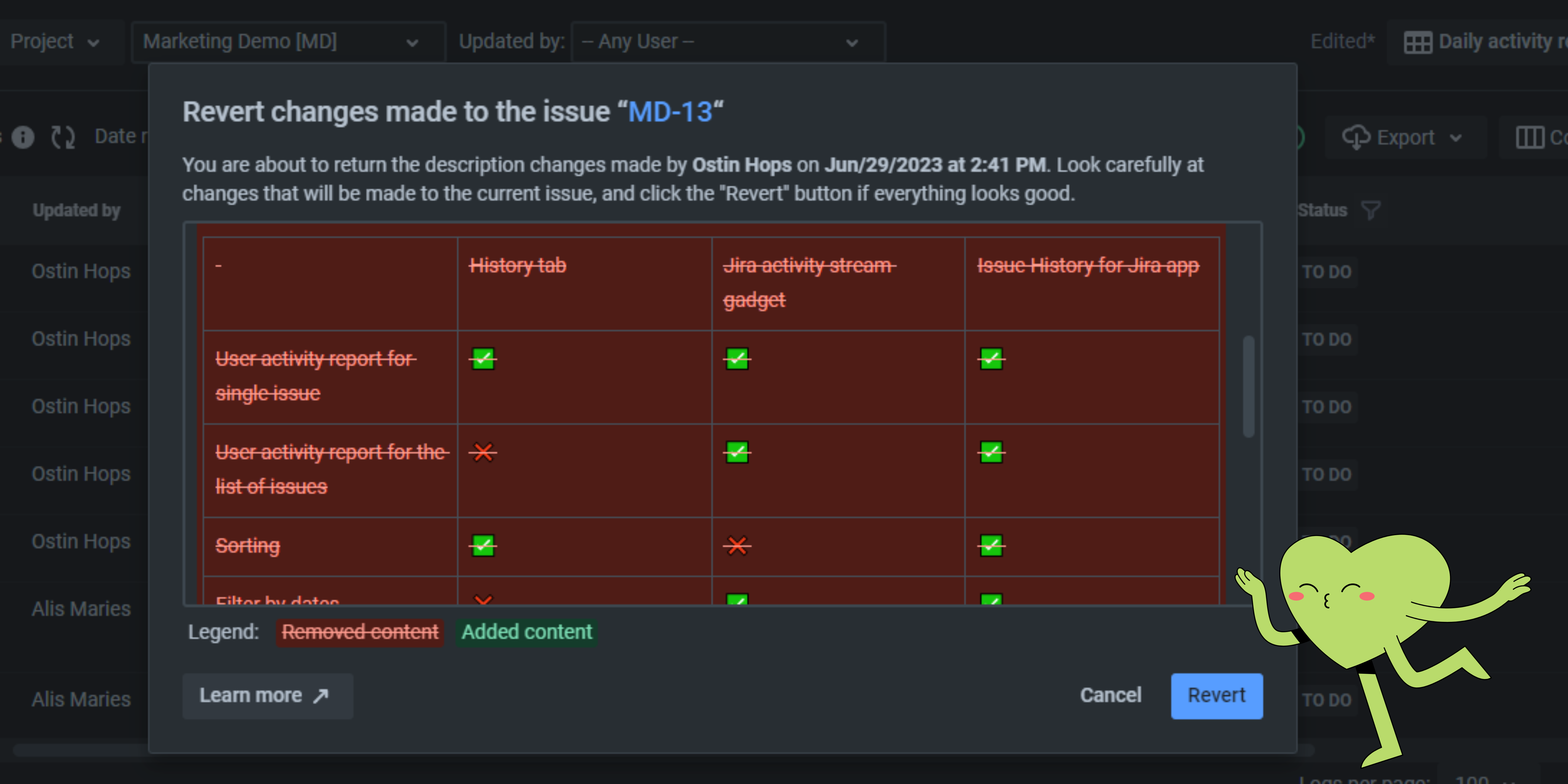
There are several options to test how it works:
- Start a free 30-day trial and play with all add-on options.
- Schedule a live demo, and our expert will show you how everything works.
In Summary
We created this option to revert changes made to the description, but it’s also possible to revert updates made to any issue field. Imagine you can revert the whole task (with priorities, due dates, assignees, etc.) to the previous version. Would it be helpful for you? Let us know in the comments.


