How does your team progress? One way to answer this question for Jira users is to monitor the status changes. There are many options, and each of them answers different questions. Depending on your needs, you might find helpful one or another or all of them. Let’s see how to track Jira status changes with built-in options and plugins.
1. JQL: How to get status changes?
Jira Query Language is the most popular option for searching for something in Jira. Luckily, JQL supports history searches for the status field with WAS and CHANGED operators. Look at the few examples below:
If you would like to get the list of issues where the status changed from In Progress to Done after some date:
status CHANGED FROM "In Progress" TO "Done" AFTER "2022-01-01"
If you would like to get the list of issues where the status changed from In Progress to Done and from In Progress to On Hold during some particular dates:
status CHANGED FROM "To DO" TO "In Progress" AND status CHANGED FROM "In Progress" TO "On Hold" DURING (("2023/03/01","2023/04/01")
* Search for issues that were last updated on, before, or after a particular date (or date range). Note that if a time component is not specified, midnight will be assumed. Please note that the search results will be relative to your configured time zone (which is, by default, the Jira server's time zone).
These examples will be handy if you know which specific status transitions you want to see.
2. Status changes for one particular issue
It’s easy to find status changes if you only want to see them for a specific task. Then, you just need to open the History option in the Activity section. You will see all changes made to that issue, including status updates.
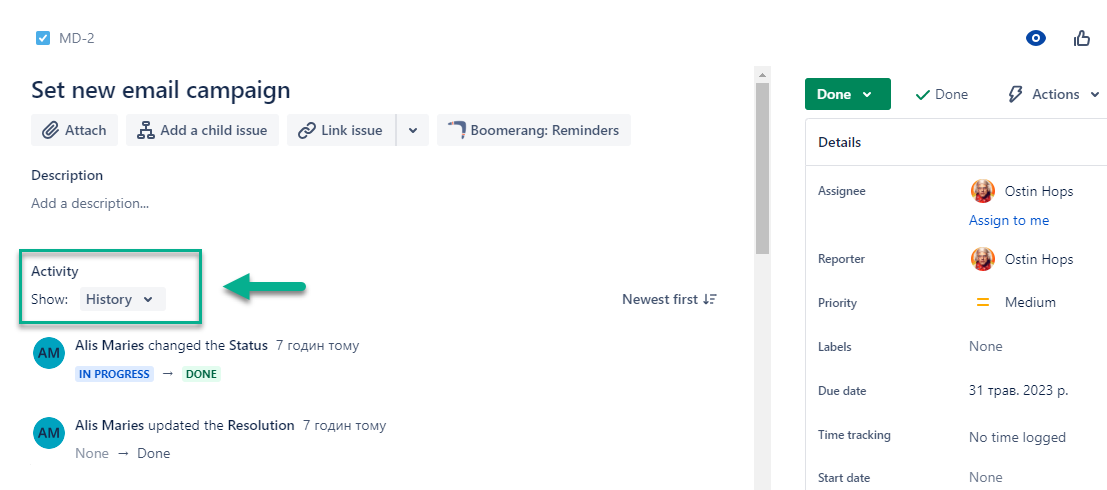
3. Status changes for the list of issues
If you need to get status updates for some project, sprint, assignee, etc., check out Issue History for Jira app. It provides a bunch of filters, and you can build the report you need. It helps to see general status changes for the filtered list of issues or select particular status transitions.
You can create any report you need: to track status changes for some assignee, to see all status updates in your project, or for one issue in a neat and well-structured report.
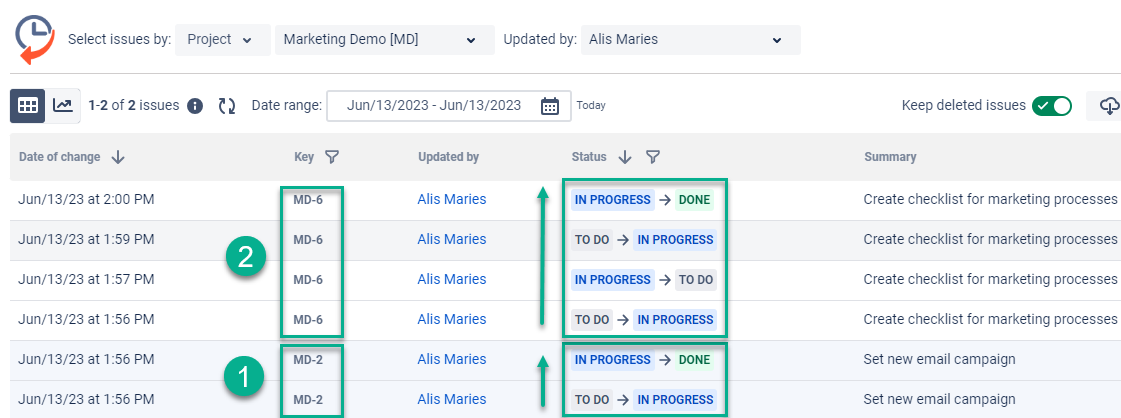
To get status changes:
- Add the status field to the columns
- Filter issues by project, sprint, reporter, etc.
- Select the person who updated the tickets if you need
- Choose the date range
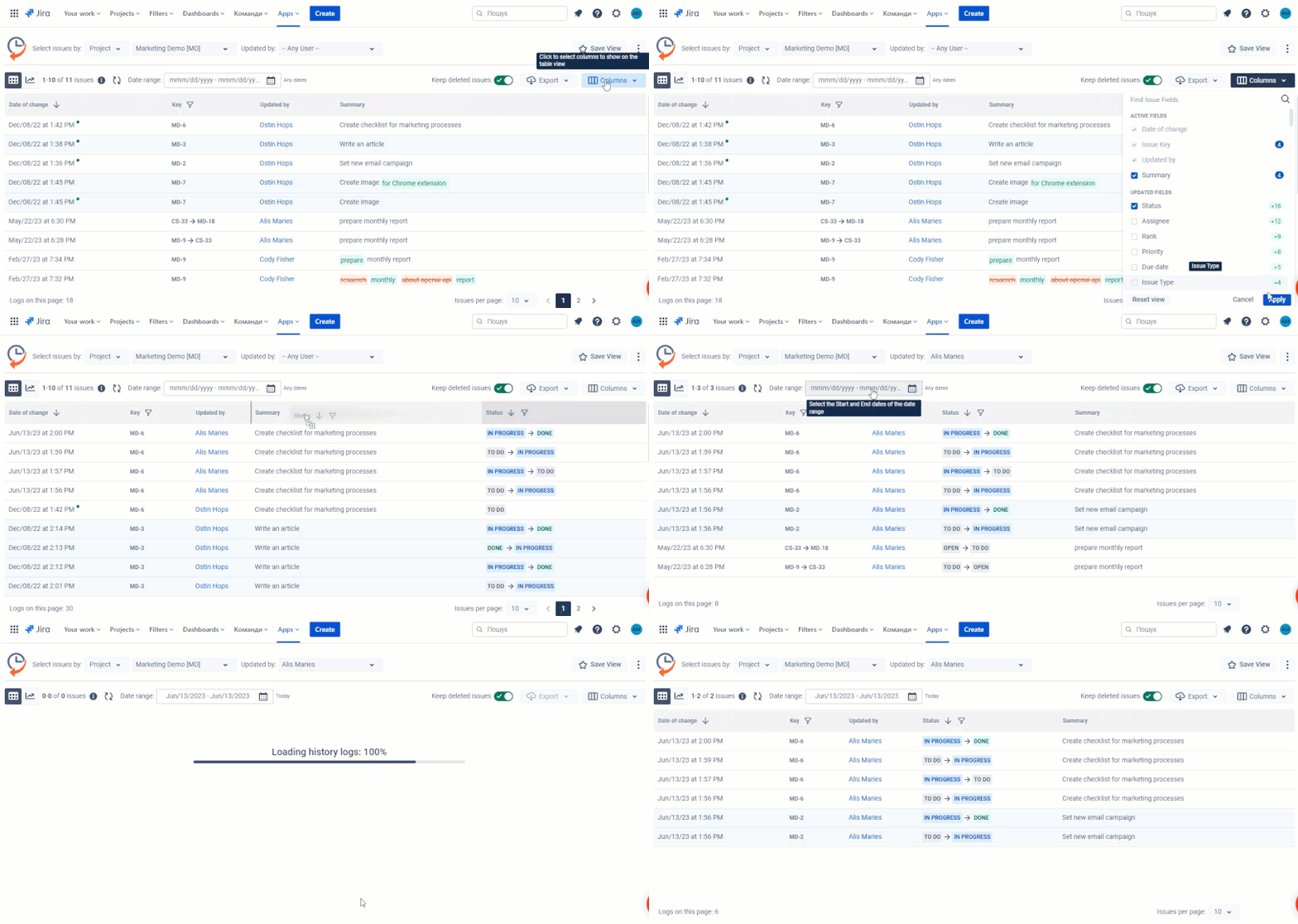
View status changes with Issue History for Jira
Also, you can select status transitions. You can find more details in this article: How to track status changes in Jira?
4. Issue Statistic Gadget: How many issues are in each status?
This option can also be helpful in checking how the team is progressing each day. This gadget allows displaying data for different issue fields.
Steps:
-
Go to Dashboards → Create/Open one → Add Issue Statistic Gadget
-
Select the status as a type of statistic to display for this filter.
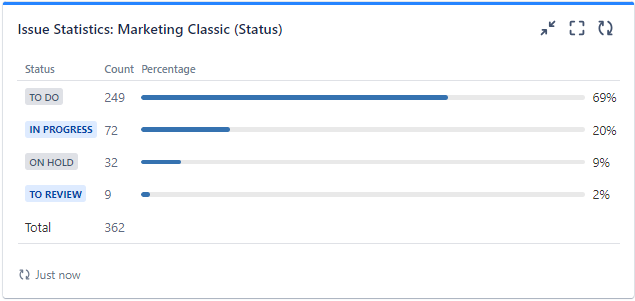
You will see if the team is moving fast enough to complete all issues by the end of the Sprint.
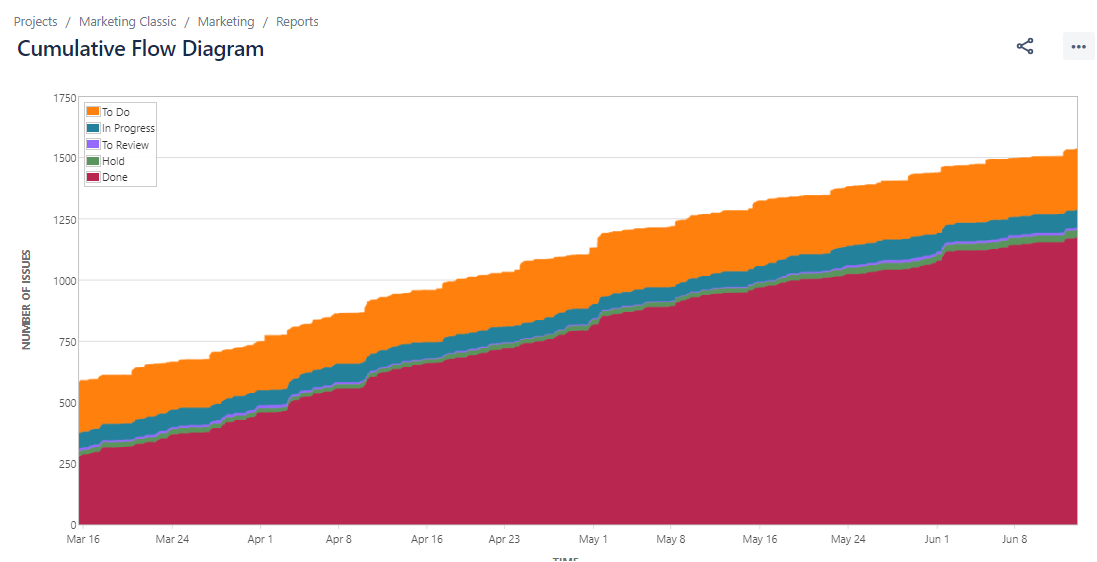
5. Cumulative Flow Diagram: status progress over time
The Cumulative Flow Diagram displays the progress of issue statuses over time. This aids in locating possible bottlenecks that require research. You can find it in the left-side menu in the Reports section. Configuration allows you to select dates and statuses you want to see in the chart.
6. Chart for Dynamic Status Change
This chart is available with Issue History for Jira app. So, you will get two options to monitor Jira status changes: in the table (see point 3) + in the chart.
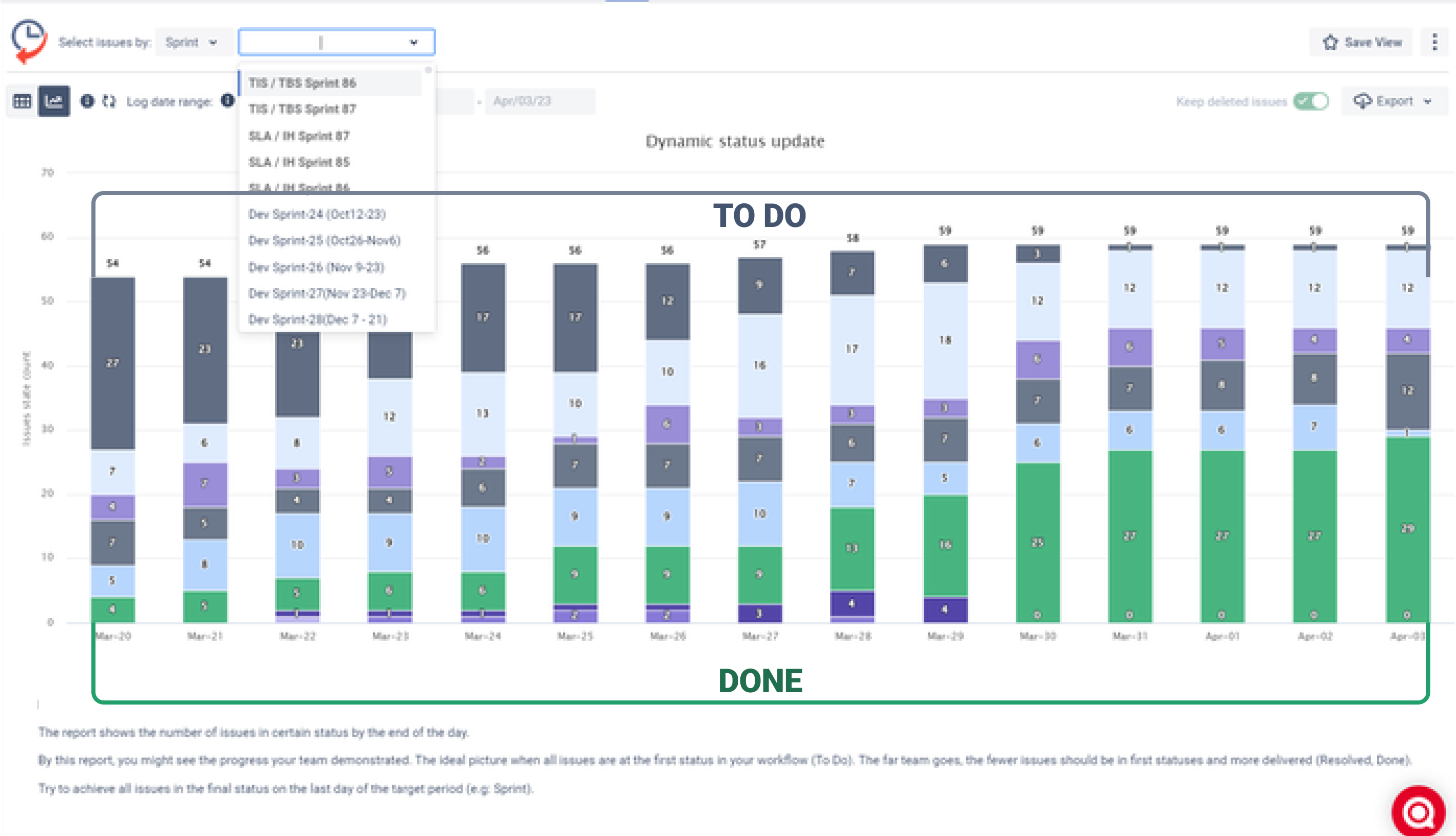
The report provides an overview of the development your team has demonstrated. The ideal situation is when all issues are listed as "To Do" on the first day. As you move forward, fewer issues should be listed as "To Do," "In Progress," or other similar statuses, and more should be listed as "Done." On the final day of the Sprint, try to get every issue marked as "Done."
Takeaway
The options listed above provide different perspectives to help you observe your team's progress.
With Issue History for Jira, you will obtain a 2-in-1 opportunity (table+chart) to monitor status updates and maximum customization to get the report you need.
Have you tried the options from the list? Write in the comments which one is your fav or your tips ✨


