If you accidentally delete the assets object schema, or you just want to revert some changes or backup an older version of the schema, currently there is no native functionality to do this.
Our newly updated plugin Insight Assets Backup & Migration is the only way to do daily backups of the asset object schemas.
The addon has the functionality to schedule automated backups using the cron expression. Set up assets backup with the user-friendly interface in a few clicks and enjoy your asset management with no fear of losing any data.
Here is a step-by-step instruction to install the application, schedule schema backups, and restore the backed-up schemas to the desired environment.
Log into your Jira instance.
Click the Apps dropdown and choose Find new apps.
Search for Insight Assets Backup & Migration and click on the app title and install it.
After clicking Assets Backup & Migration, if it is the first time when the app is accessed, you will be walked through the initial Setup process. fill all mandatory fields and click the save and continue button.
The next step is to choose the desired database. You can use the Vendor’s secured database or your local database.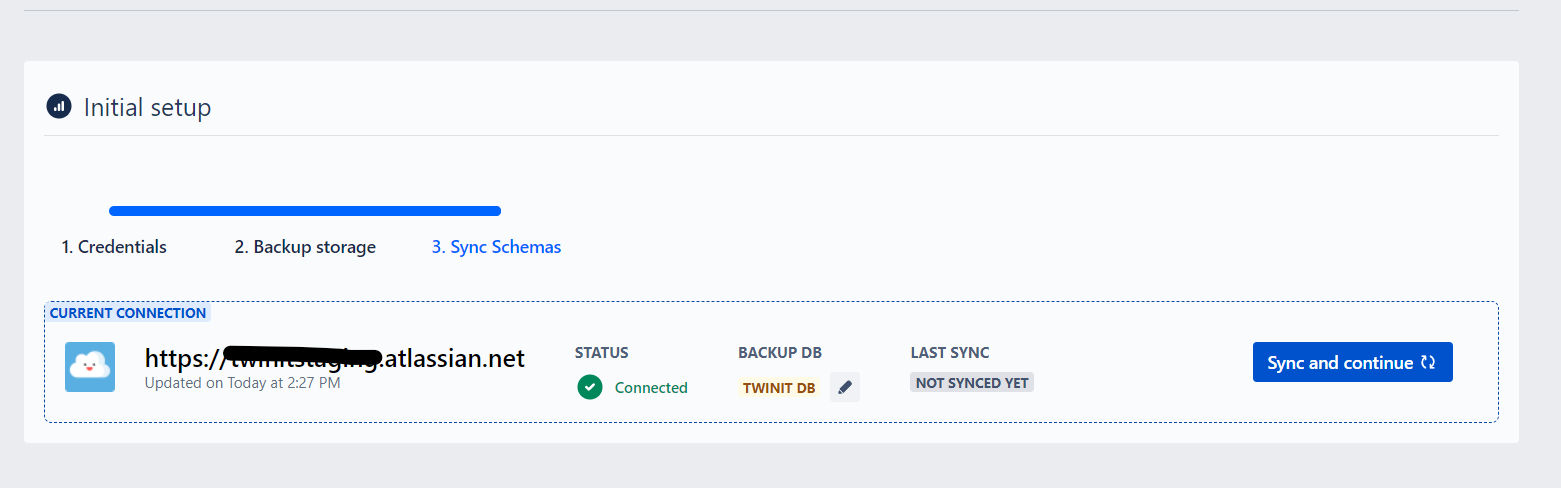
When the backup database is chosen, you will see the Current Connection information and can Sync the existing schemas by clicking Sync and Continue button.
After the sync is completed, you will be navigated to the main screen. You will see Synced Schemas where you will be able to see all assets object schemas existing in your instance.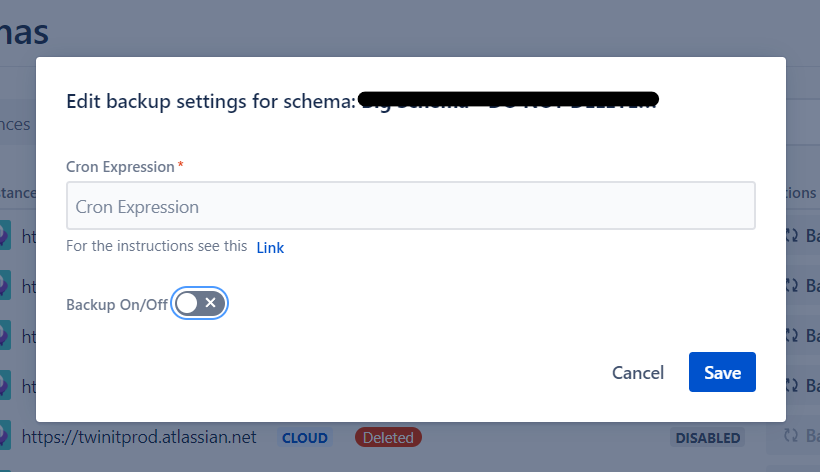
In the list of schemas, you can manually back up specific schemas, or schedule backup using cron expression. To add a cron expression, click three dots for the specific schema and click schedule backup, write a desired cron expression, turn on the backup toggle, and save.
To restore backed-up assets object schema, click on the restore for the specific schema
After clicking the restore button, choose the desired backup for the schema and click select. After selecting the backup, choose desired destination instance or object schema and fill in all mandatory fields, after that click on Restore.
After the restore is completed, you can see the schema in the Assets.
Here you can see the full documentation for the application.
Insight Assets Backup & Migration has the ability to migrate object schema from the data center or server instance to the destination cloud instance. For more details, view the article https://community.atlassian.com/t5/Jira-Service-Management/How-can-Assets-be-migrated-from-Jira-Data-Center-to-Cloud-or/m-p/2382324#M3782
If you have more questions or suggestions feel free to contact Twinit support.


