
Automation Rules can be exported and imported as JSON files, which is useful if you wanted to copy/share rules across Jira instances. But this feature can be exploited for some other tasks probably not intended by the Code Barrel guys.
Some examples, which I've detailed below:
- Finding all rules where a user is being set to Assignee or another user field. Very helpful when someone leaves the company. (Thankfully Atlassian saw fit to add a Transfer User option, which lets you replace all references to one user with another. If you need to perhaps do this selectively, then my tips on that might still be helpful.)
- Validating repeated elements in rules, like link types.
- Cataloging your rules in Confluence.
Some other ideas, not explored here:
- Using tools like diff or even Bitbucket to track changes in rules.
- Bulk-creating rules based on templates.
Note - this was primarily tested on Automation for Cloud, but Automation for Server/DC also allows export and import of rules.
Tools that you will need:
- jq - an incredibly powerful command-line tool that can read JSON files. It can be tricky to learn and use, but is incredibly powerful.
Optional
- JSON Viewer (Chrome extension for viewing JSON files)
- You'll need to enable it to "Allow access to file URLs" to view downloaded rules.
- Firefox's built in JSON viewer
Export Automation rules from Jira
So you can export all of the rules from the global configuration page for Automation (great for backups), but you can also export an individual rule:
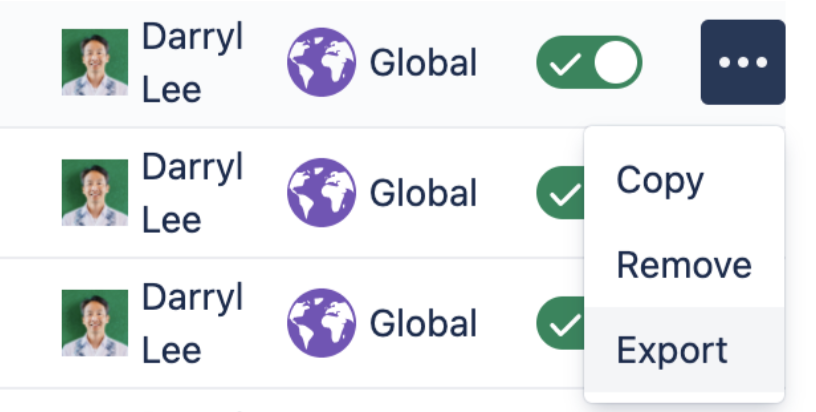
Parse Automation Rules
Either way, when you download the exported rule(s) from Jira, they will not have any linebreaks, so it will be very hard to read or edit them. Firefox has a nice JSON parser/viewer built-in, so if you just wanted to read the rule, you could drag it there, or into Chrome if you have the JSON Viewer extension installed.
To parse the file into something editable, you can use a very basic jq filter to reformat the JSON and then write that into a file for editing:
jq . automation-rule-1128847-202009232238.json > nicelyformatted.json
|
So, within that JSON you can see things like:
"name": "CI -> IN PROGRESS - Create Request (SDES): SAP",
"state": "ENABLED",
"description": "Create SAP Task (ATLAS-1621, ATLAS-1481)",
"authorAccountId": "557058:5...",
|
You can look up that AccountId by appending it to the end of your directory URL, like this https://MYSITE.atlassian.net/jira/people/557058:5..., you’ll see that’s me:
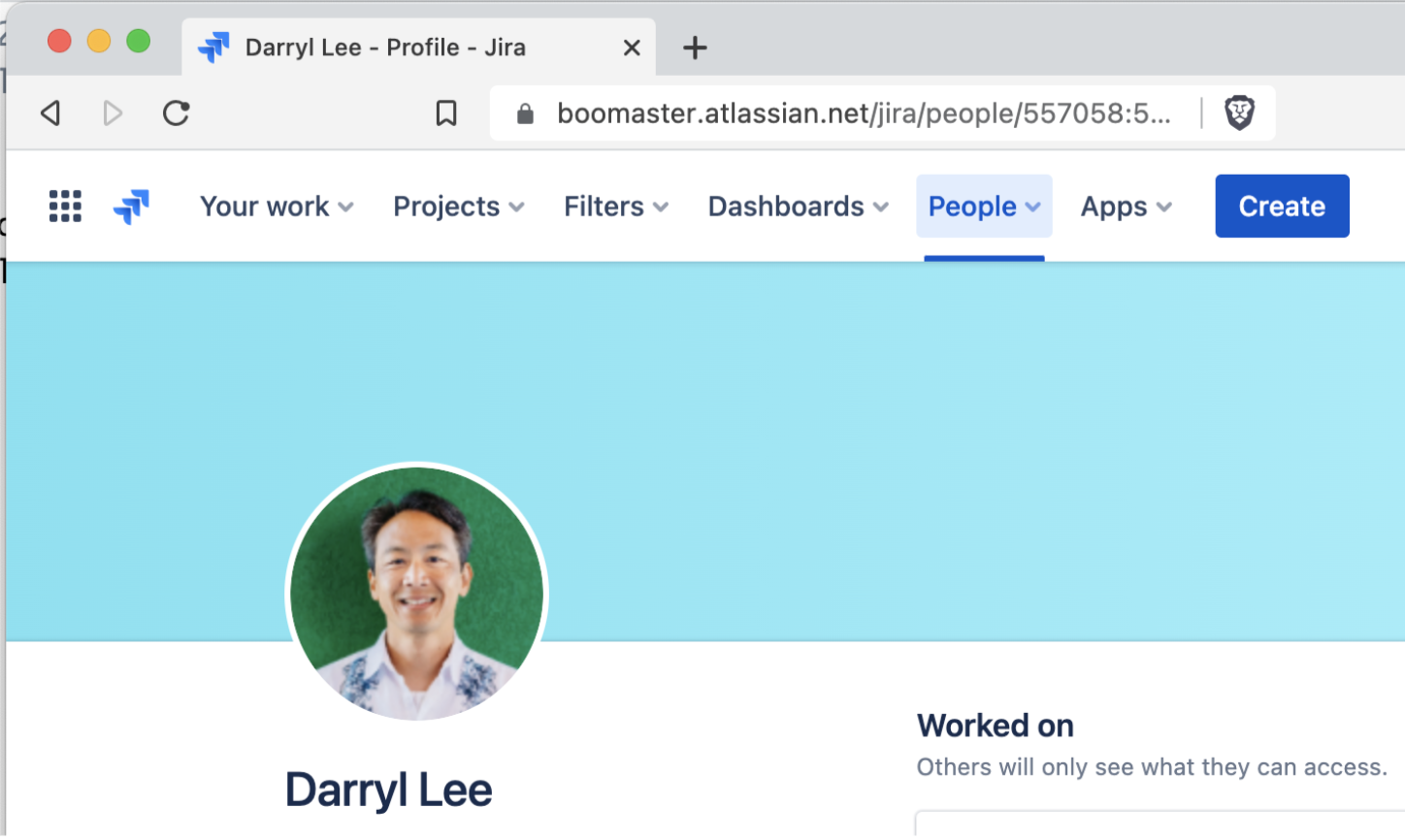
You will also see Ids like this for assignee, which is useful below:
Look for an user in all rules
Instead of all the work below, it's probably better to look at the Transfer User feature that lets you do a global replace of a user who has left. It includes a Preview function that will let you see all the rules where a user is currently referenced, and even if you have to reassign rules/user fields to different people, if it's not too many rules, you could probably do it manually.
So, if you can export all the rules, and you can parse those rules, then you can find every rule where a user is set to Assignee. Handy when somebody leaves and you’re not sure what rules they are included in.
There is probably a very elegant way to use jq to walk through the JSON structure and search for assignees, but I’m not very elegant, so I did this:
jq . automation-rules-202008312215.json |egrep '^ "name":|ACCOUNTIDFORKELLY' |less
|
What that does is print the Name of every Rule, and if it finds the ACCOUNTIDFORKELLY, it prints that too. So you end up with output listing all the Rules, and some of them have that Kelly's account ID, meaning they are referenced somewhere in that rule.
Here’s an excerpt:
      "name": "Auto assign on transition",
      "name": "Balance support load for team",
                  "value": "ACCOUNTIDFORKELLY"
...
      "name": "Offboarding - Sub Tickets Creation",
                  "value": "ACCOUNTIDFORKELLY"
                  "value": "ACCOUNTIDFORKELLY"
                  "value": "ACCOUNTIDFORKELLY"
                  "value": "ACCOUNTIDFORKELLY"
                  "value": "ACCOUNTIDFORKELLY"
|
If you open those rules up, you’ll see that Kelly is somehow in those rules, as part of a User List for balancing assignments, or as the main assignee for sub-tickets.
Bulk replace an Assignee
Again, instead of all the work above/below, it's probably better to look at the Transfer User feature that lets you do a global replace of a user who has left. It includes a Preview function that will let you see all the rules where a user is currently referenced.
Now, if somebody’s replacement was going to take over all of their ticket assignments, it’s fairly easy to do a search and replace across all the rules in the JSON export with the text editor of your choice, and then import that back into Jira.
Validate Link Types
So maybe somebody has hand-crafted 88 rules(!) each of which can create 5-6 different subtasks. But halfway through creating them, they realized they incorrectly set the link type for each of those subtasks to "Blocked by" (inward link) instead of "Blocks" (outward), and they had to go through the previous 40-some odd rules (by hand) to change the link type (in 5-6 different subtask creation blocks).
And when they were done, they wanted to validate that all link types were properly set.
Well, it would be nice if all of the rules were in the same project, so you could select for just those, but no, these are all global rules. Luckily the creator used a standard naming convention for all the rules (# - SCRXXX ... ), so we can filter that way. Let's get to it:
Ok, let's make sure we're only getting rules that match the naming convention:
jq '.rules[] | select(.name | contains(" SCR")) |.name' automation-rules-202009302350.json
|
Returns names for 88 rules.
And if we remove the last .name part we will get all the rules. Let's pipe those through less:
jq '.rules[] | select(.name | contains(" SCR"))' automation-rules-202009302350.json |less
|
So looking inside one of those rules, we see this bit:
          "component": "ACTION",
          "parentId": "22954403",
          "conditionParentId": null,
          "schemaVersion": 9,
          "type": "jira.issue.create",
...
                "field": {
                  "type": "ID",
                  "value": "issuelinks"
                },
                "fieldType": "issuelinks",
                "type": "SET",
                "value": {
                  "issue": {
                    "type": "COPY",
                    "value": "trigger"
                  },
                  "linkType": "outward:10000"
                }
|
A quick check of the Issue linking confirms that "linkType": "outward:10000" is Blocks
Then it's just a bit of grep goodness:
jq '.rules[] | select(.name | contains(" SCR"))' automation-rules-202009302350.json |grep '"linkType"'|less
|
And there we have all the linkTypes for all of those rules, and can confirm that they are all "linkType": "outward:10000".
Importing JSON rules
The Import functionality in Automation Rules is pretty smart, in that if it detects a JSON of multiple rules, it will let you select which ones you want to import. Additionally, if there is already an existing rule by that name, it will rename the rule “Copy of…” (although in some recent testing this did not happen.)
Most importantly though, any imported rules are Disabled by default. So you should be able to review them to confirm the new assignee, etc. before enabling the new rule and disabling the one you’re replacing.
Cataloging Automation Rules
csvrules.pl takes a full export of Automation Rules and converts it to a CSV with Name, Link, Description, Enabled, Project Key, and Project Name that is suitable for parsing with the Confluence Advanced Tables add-on (hyperlinks Rule Name to the link for the rule.)
It references projects.csv to lookup Project Names by IDs.
I use Bob Swift's CLI to generate that list:
acli --action getProjectList --columns "id,key,name" > projects.csv
|
But you could also look them up via an API endpoint:
https://YOURSITE.atlassian.net/rest/api/3/project/search
Although if you have more than 50 projects you'll need to do the whole pagination thing. Once you get the JSON though, jq can output it as nice CSV:
jq -r '.values[] | [.id, .key, .name] | @csv' projects.json


