Our team has been working very hard to build this new app helping you bring your Jira Cloud issues into Microsoft Teams.
Main features:
- Personal Notifications - choose when you want to be notified depending on tickets you report, are assigned to, are mentioned on, or are watching right in Teams.
- Search for issues - search Jira issues or view recent Jira issues right from the Teams message extension, so you can stay focused on the context at hand.
- Create an issue from a comment within a chat - convert a chat message to a new Jira issue or add a comment to an existing Jira issue in just a few clicks.
- Add Jira to a tab - create a central view of Jira issues in Teams by adding a tab to a chat or channel and selecting a Jira filter. In the tab, you can view and edit existing issues and create new issues.
- View issues within a Meeting - visualize your personal Jira tickets in a Teams meeting in the side panel and sort by “worked on”, “viewed”, or “assigned.”
I'm in! How do I get started?
*You will need permission from your organization to use this app so please send this permission link to your Microsoft Teams Admin for approval*
This link will open the new app directly in your Teams instance. If you run into any installation issues, please log in via your web browser. You can also follow the directions below.
*There is a Microsoft Teams bug that won't allow you to configure or subscribe to personal notifications successfully. PLEASE LOG IN THROUGH YOUR WEB BROWSER AS A WORKAROUND.*
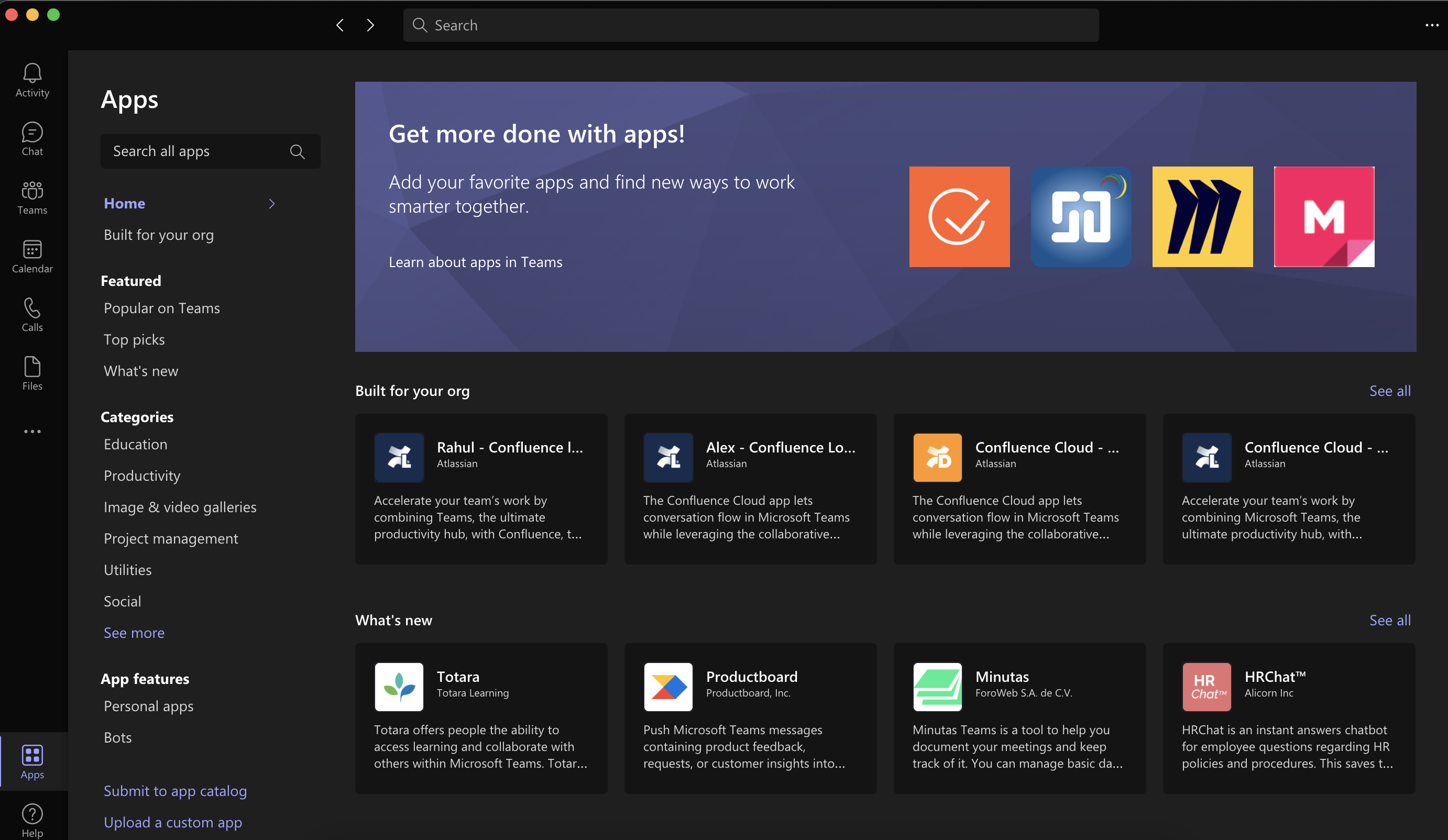
1. Log into Microsoft Teams and then navigate to the bottom left corner for your apps.
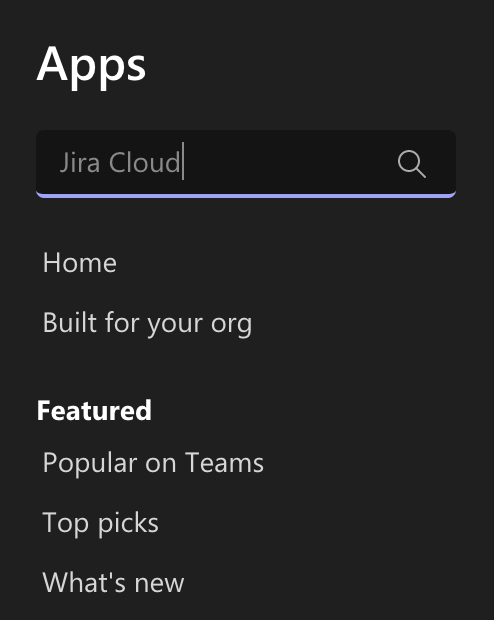
2. Use the search box in the top left to find "Jira Cloud."
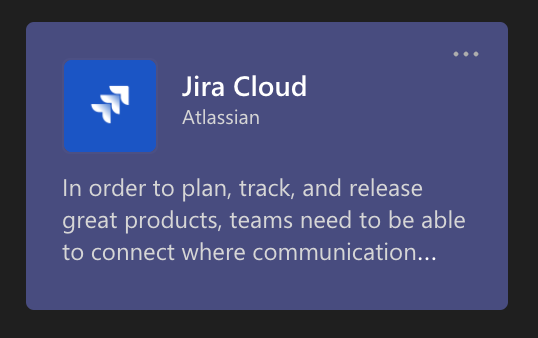
3. Select the Jira Cloud app
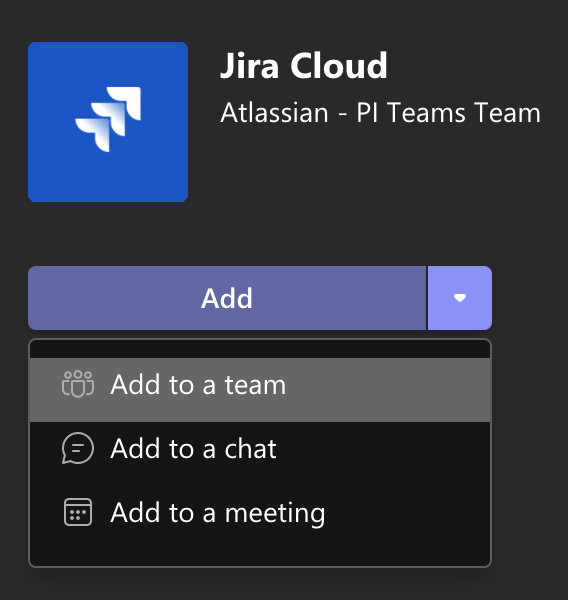
4. You'll see a quick preview of the app like below
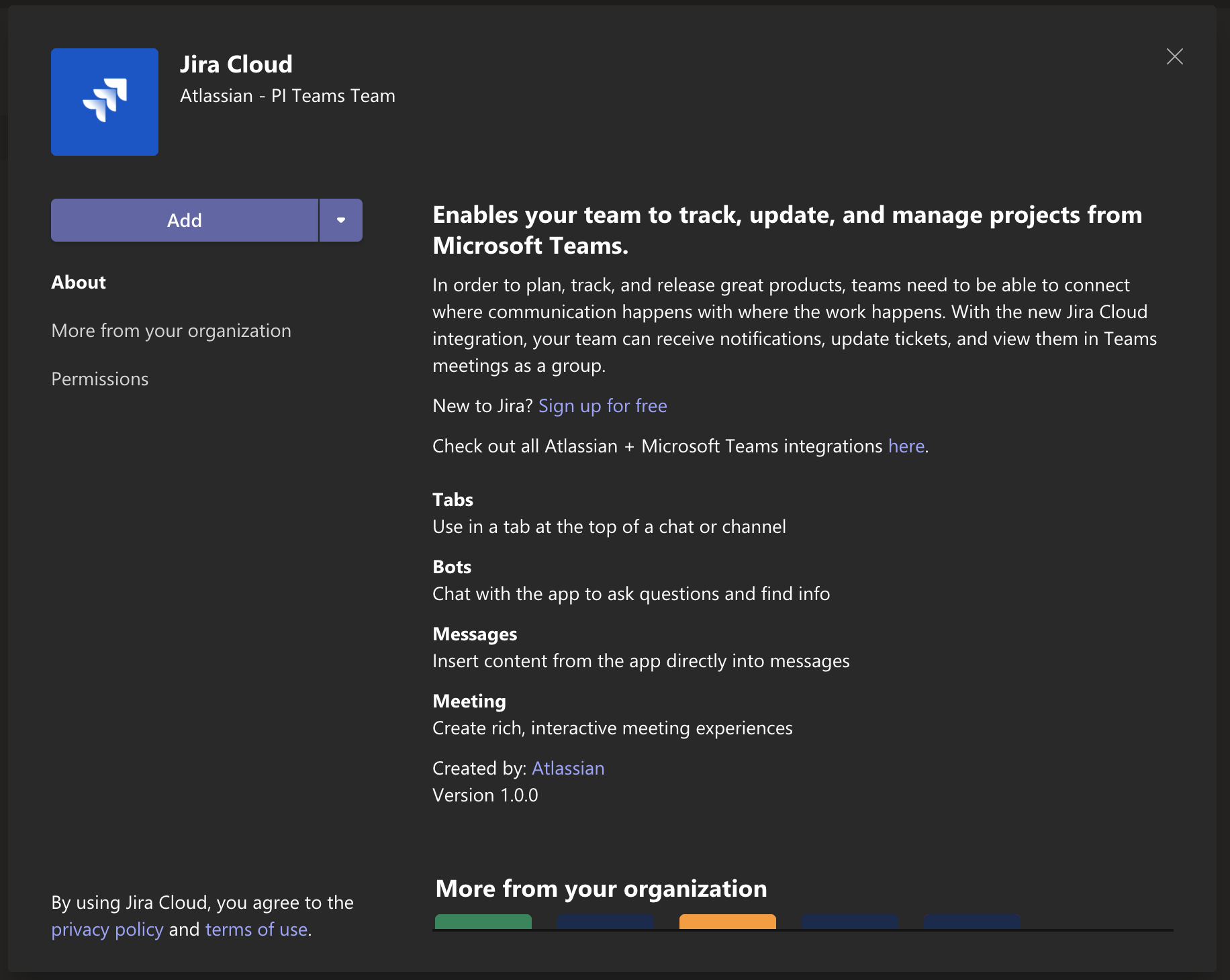
5. You have a few options for how to add this to Microsoft Teams. We recommend adding the app to a Team Channel as most of your collaborative work takes place there. It will also install the bot to your personal view automatically so that you can set up your own personal notifications.
6. Follow the prompts for permissions and log in. You will then see a notification in the Chat tab letting you know the bot has been installed.
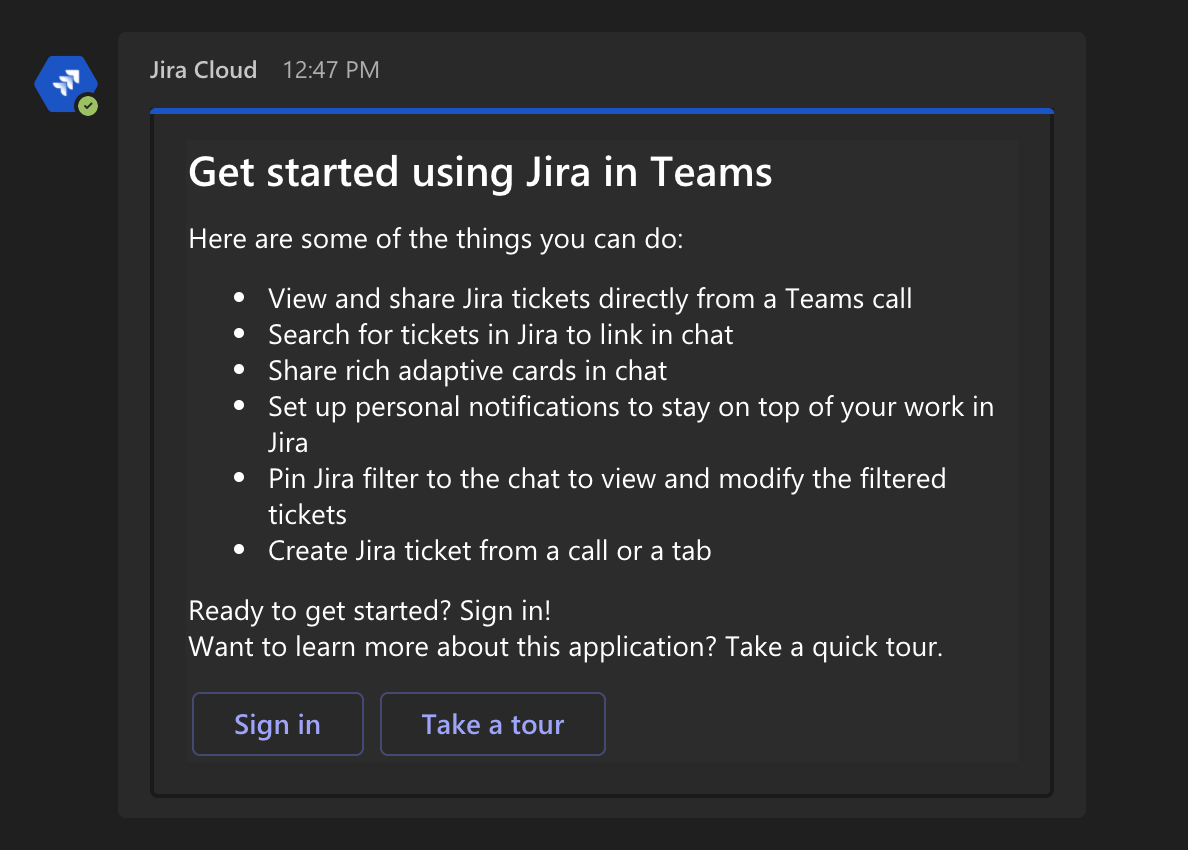
7. You'll see a card sent from our bot confirming the installation like below. We recommend you Sign In and set up Personal Notifications to get started and then begin to explore! 
Additional feature instructions can be found here. Drop a comment below and let us know what you think! We'd love to hear your feedback.