I am currently struggling setting up space screens with the right fields as in Cloud it only shows the Name when searching for field to add. Which is not helpful when managing spaces for multiple areas who use similar naming conventions but different field types.
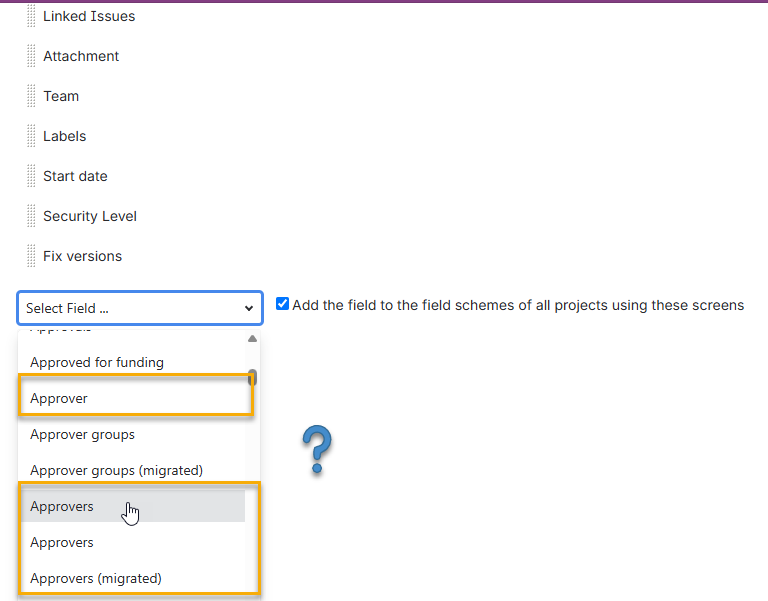
In Data Centre I was unlikely to get this issue as the field type is visible when selecting the Field name from the list.
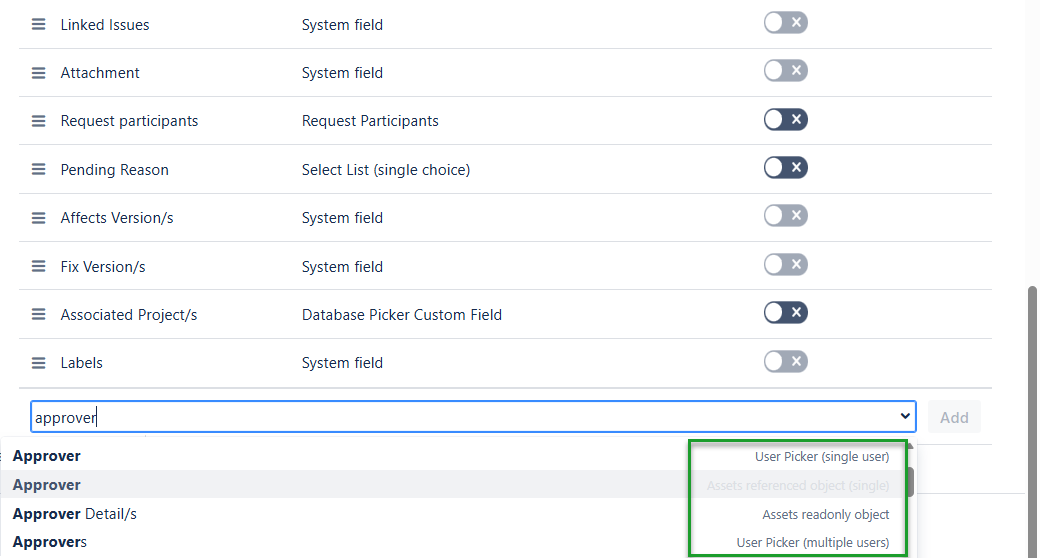
I know that I can go to the fields administration area and add the field to the relevant screen there, but that is per field. Would be less work (as I was doing in Data Centre) to go to screen and bulk add the fields there. As long as I pick the right one that is.
Almost at the stage of adding a * or # at the end of field names as identification markers.
Has anyone found other solutions to this in Cloud?
Hi @Sara Phillips
I agree that this is particularly difficult when the instance contains multiple fields with identical or similar names.
I have found this suggestion, which was closed as Won't Fix.
https://jira.atlassian.com/browse/JRACLOUD-74117
The request below that is still open asks Atlassian to prevent duplicate custom-field names and specifically calls out the confusion this causes when selecting fields for screens and reports. I'd recommend voting for and watching that request.
https://jira.atlassian.com/browse/JRACLOUD-68370
Hi @Sara Phillips, both suggestions asking for exactly that were closed Won't Do in August 2024, JRACLOUD-79781 and JRACLOUD-81712. The 74117 link above is a different one, that's the picker for adding a field to a dashboard gadget, and 68370 only blocks new duplicate names being created. The more current answer is on Carol Low's Fields rollout post, where someone asked her this same question in March and she replied "For adding fields to screen, while we aren't working on that, I find a way around it is to go to the Field, and use the action menu to Add field to Screen". So the per-field route you already found is Atlassian's own answer to it. You haven't missed a setting.
Staying on the screen page, Benjamin's inspect trick gives you the IDs in the picker, and this tells you what each ID actually is:
https://yoursite.atlassian.net/rest/api/3/field/search?query=Team&expand=screensCount
Ctrl+F your field name. Every entry carries typeDisplayName as a plain label, plus how many screens that field sits on. On my site the two Team fields come back as Team on 137 screens and Short text (plain text only) on 2, which settles it in one look. The label is there for app-provided and system fields as well.
The same map is on the Fields admin page if yours is the rebuilt one, where the Columns button turns on a field id column and you can filter by type.
On the * or #, the field name is what "will appear on the work items across your site" per the create-a-field doc, so the marker lands in front of every user. A rename that says which one is which costs you the same edit. Either way, saved filters and boards store field names as plain text, so anything pointing at the old name wants checking afterwards.
You must be a registered user to add a comment. If you've already registered, sign in. Otherwise, register and sign in.
there is one way to check this without the need to rename the fields, and I'll tell you it's not the most beautiful one, but it works 😉.
1. Open the screen you want to edit
2. navigate to the field select list --> right click on the input box --> inspect
3. Developer console will open, go to elements tab and check that the following row is selected:
<input autocomplete="off" role="combobox" aria-autocomplete="list" class="text aui-ss-field ajs-dirty-warning-exempt" id="field-picker-field" type="text" aria-haspopup="true" aria-expanded="false" placeholder="Select Field ..." aria-invalid="false">
4. few rows below that one is this one:
<select id="field-picker" name="fieldId" multiple="multiple" class="aui-ss-select" style="display: none;">
See the images below:
Regards,
Benjamin
You must be a registered user to add a comment. If you've already registered, sign in. Otherwise, register and sign in.