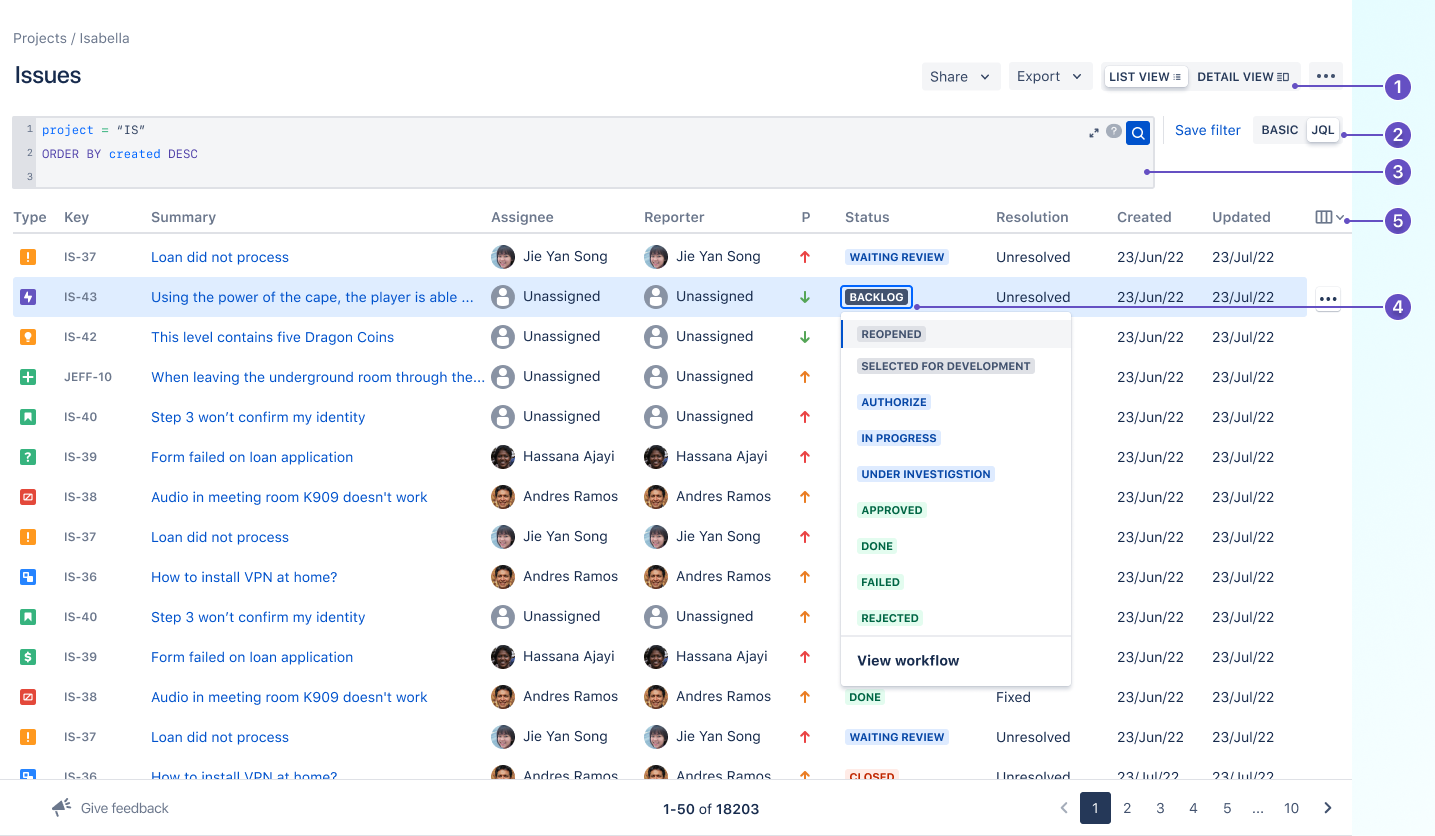
Say hello to a faster way of searching for issues in Jira as we’ve modernized and optimized this experience. While we haven’t made changes to the way you search for issues, we’ve improved the search performance in Jira, redesigned it, and added new features. With improved keyboard accessibility, everyone can search for issues without any hassles.
-
Switch between views
-
Switch between basic and JQL modes
-
New JQL editor
-
Edit status without opening issues
-
Configure columns
What’s changed?
Read on to learn more about the new issue search experience, its features, its differences from the old experience, and information to make your transition to the new experience easier.
Search for issues faster
Keeping performance and scale in mind, we’ve backed the new issue search experience with a modernized technology stack so that you can search for issues in no time.
The new JQL editor
Build powerful searches using the Jira Query Language (JQL) to deep dive into data, create tailored views of issues for dashboards, and much more.
Fix errors in real-time
The new JQL editor can validate syntax fast, and highlights errors in red with detailed information on how to fix them.

Smart syntax highlighting
The new JQL editor helps you build queries in real time by analyzing your query structure, identifying entity types, and highlighting them as you type. This makes queries more readable, and easier to edit as you write.

Enhanced autocomplete
We’ve improved the autocomplete experience to give more insightful feedback as you type. The editor shows keywords and functions at the top, while loading the data in the background.
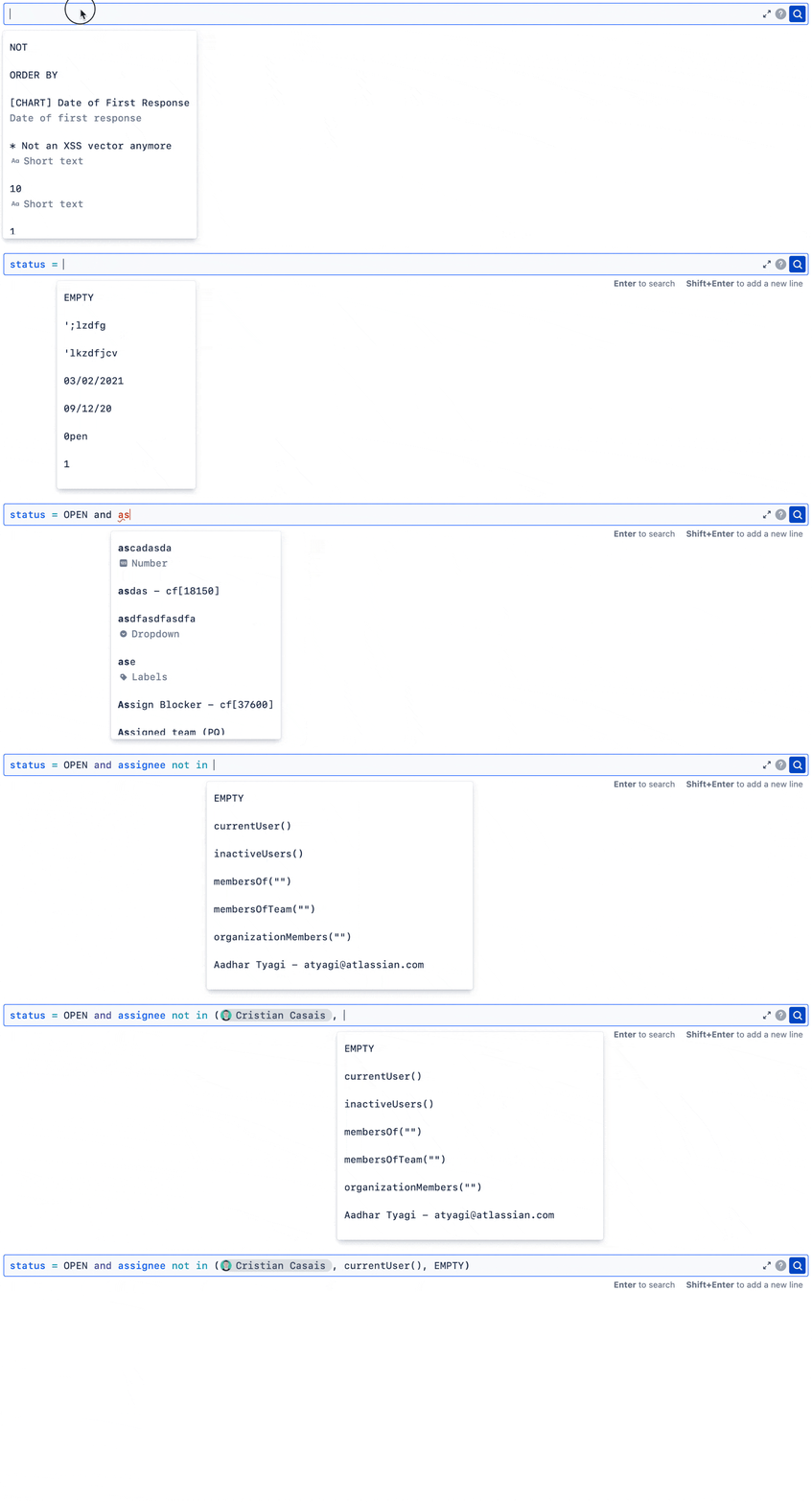
Expandable editor
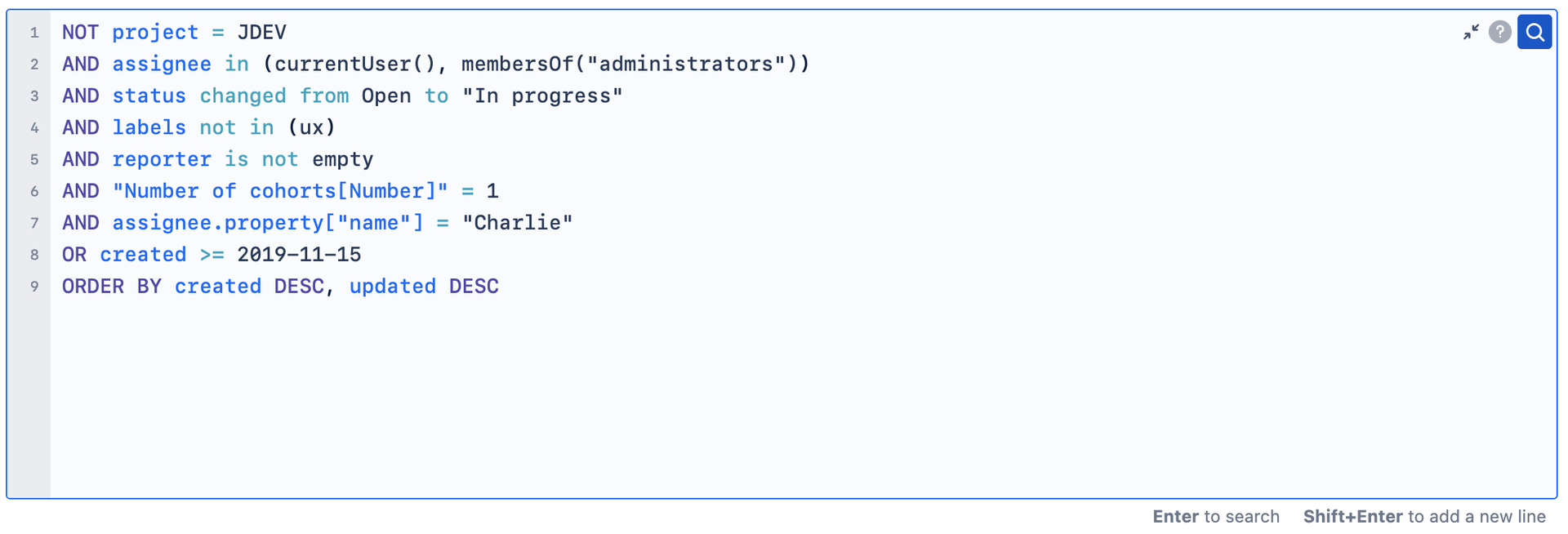
You can expand the editor to allow space for editing longer queries. The numbered lines make it easier to read the query and find where potential errors are. Additionally, you can add a new line as you type (Shift+Enter).
Edit status without opening issues
In list view, you can quickly change the status of an issue without opening it. Find the issue you want to update and simply select the status to change it.
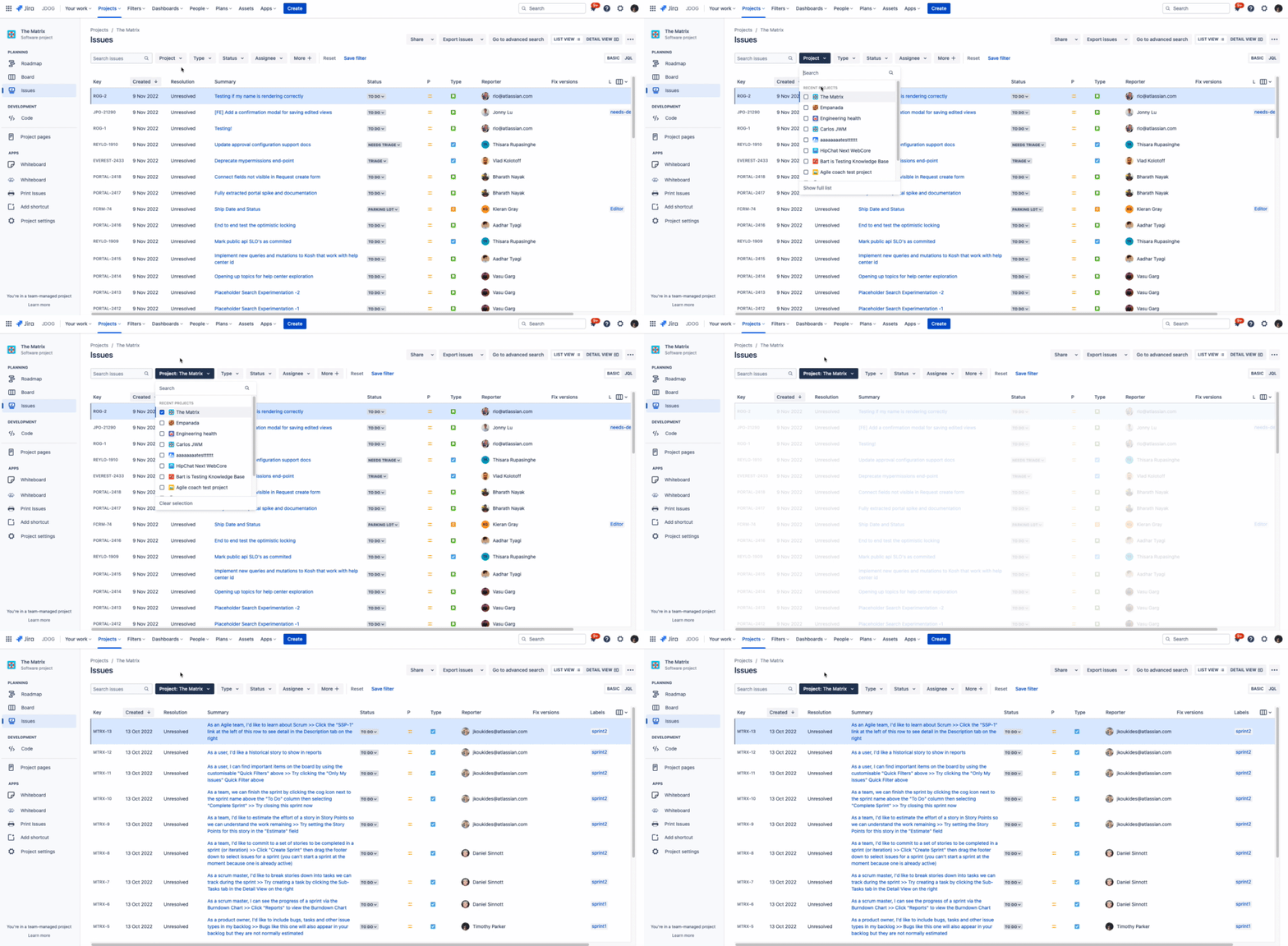
Search across multiple projects
Add or remove projects that you want to search your issues from.
Configure and reorder columns
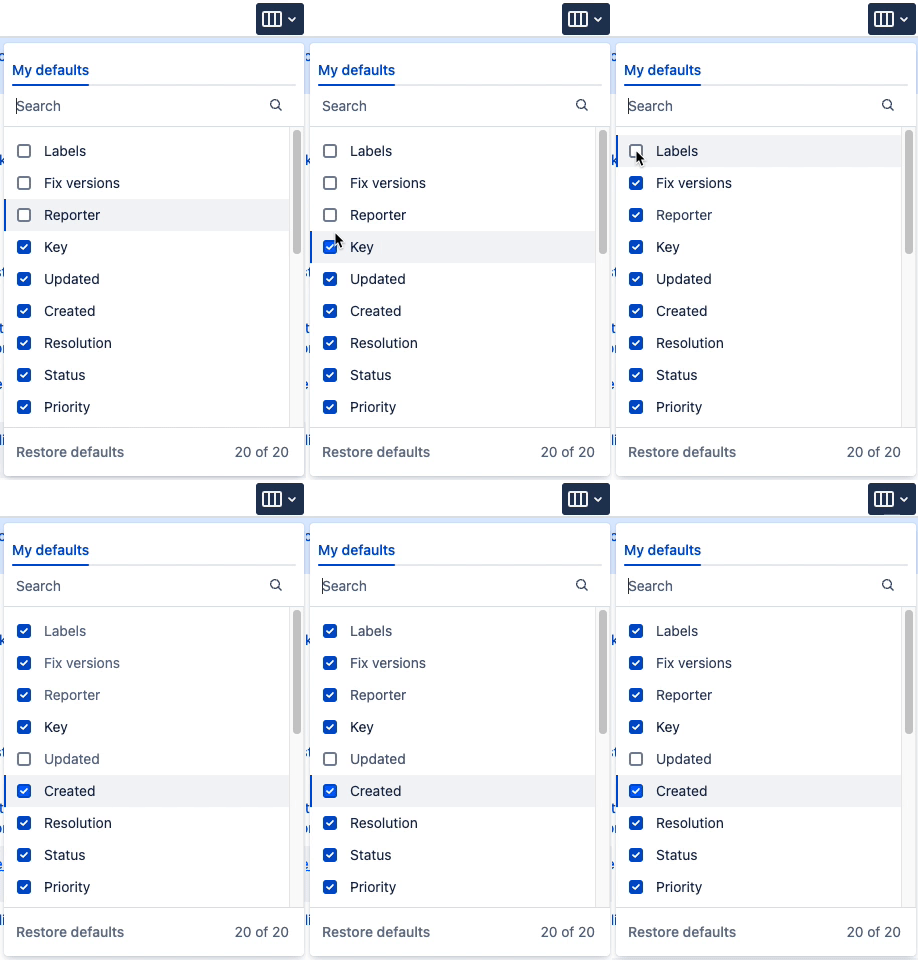
Add or remove columns to see your most important fields with issues in list view. Select Configure columns to add these fields.
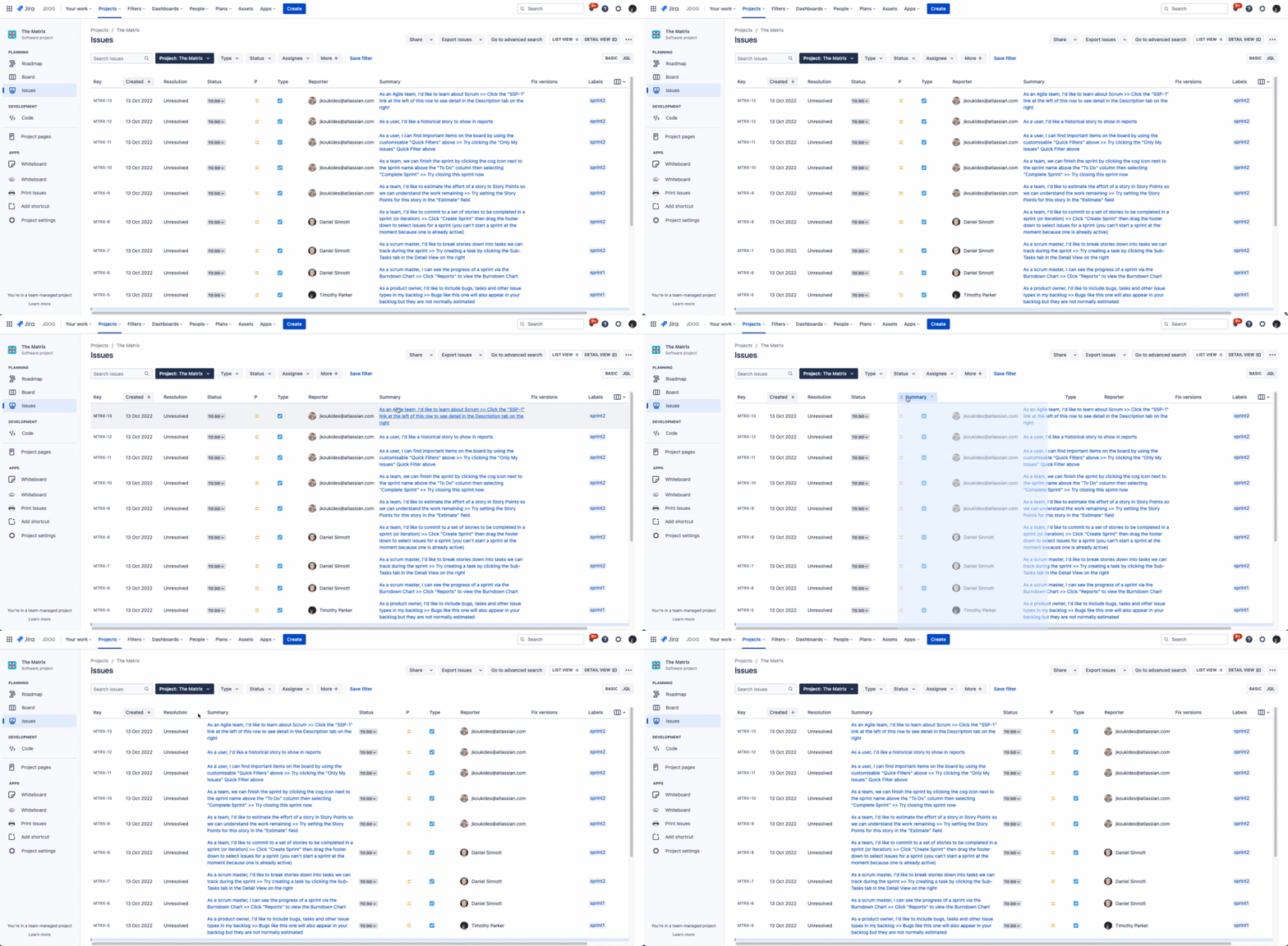
You can also reorder your columns and customize your views as per your preference by simply dragging the columns to the right position.
What’s next?
We’ll begin moving all users on the old issue search (currently called the Advanced issue search) to the new issue search in Jira Cloud products (Jira Software, Jira Service Management, and Jira Work Management). Eventually, we’ll remove access to the old issue search. We’ll let you know about the key dates and upcoming changes well in advance.
Update
We're excited to announce that we're moving all Jira users to the new issue search experience by the end of March 2024.
We also support the following features making your search experience even more powerful.
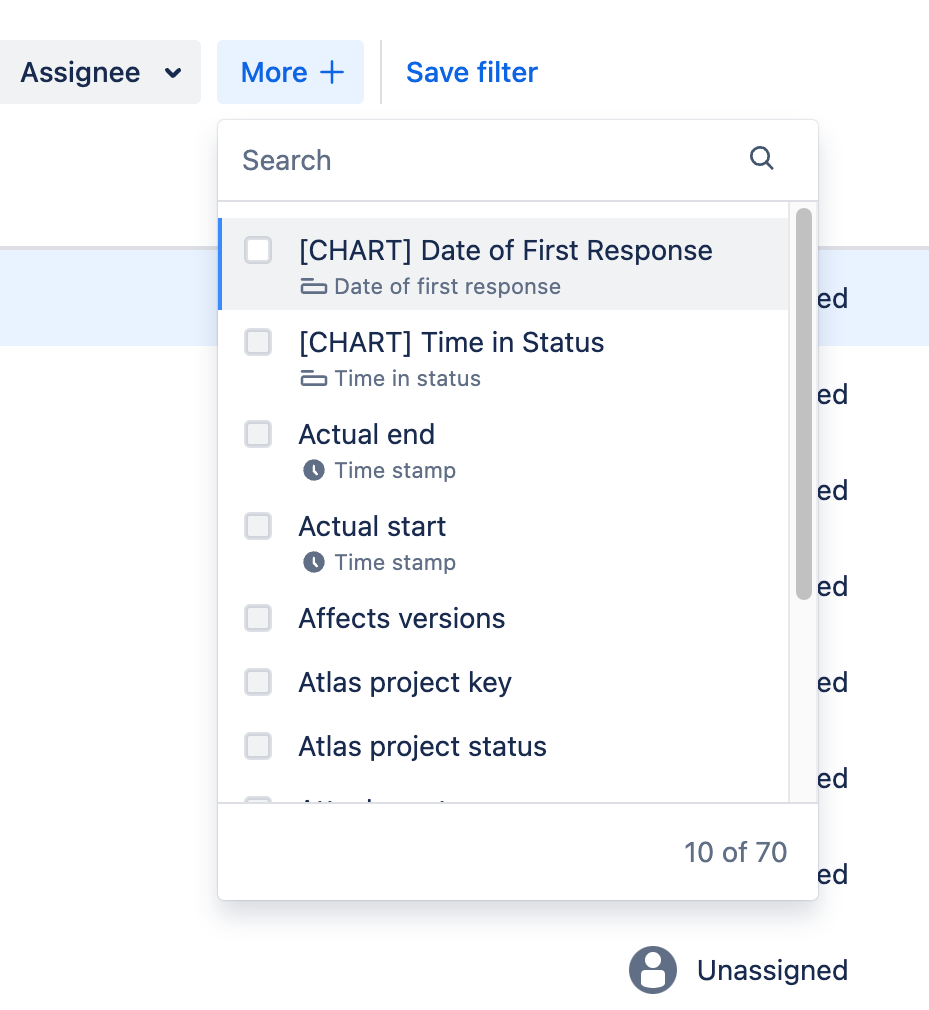
Improved support for all fields
You can refine your search results further to find all the fields you need. To try it, select Issues > More+.
Configure more than just your default columns
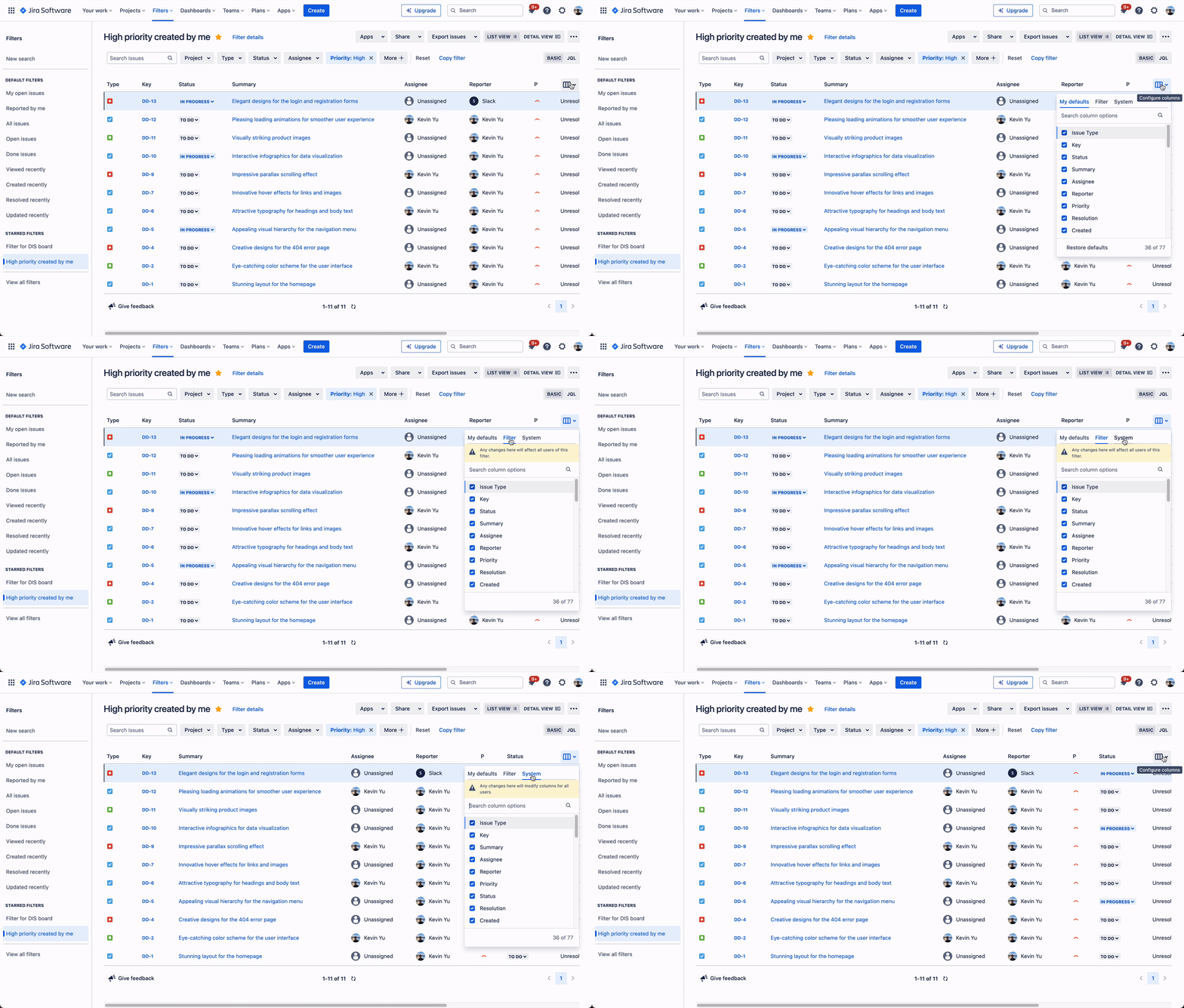
Configure columns within your starred filters with just a few clicks. Select Configure columns > Filter to select the columns you want to see.
Admins can select Configure columns > System to quickly modify columns across projects for all users within their site.
Export only the issues you need
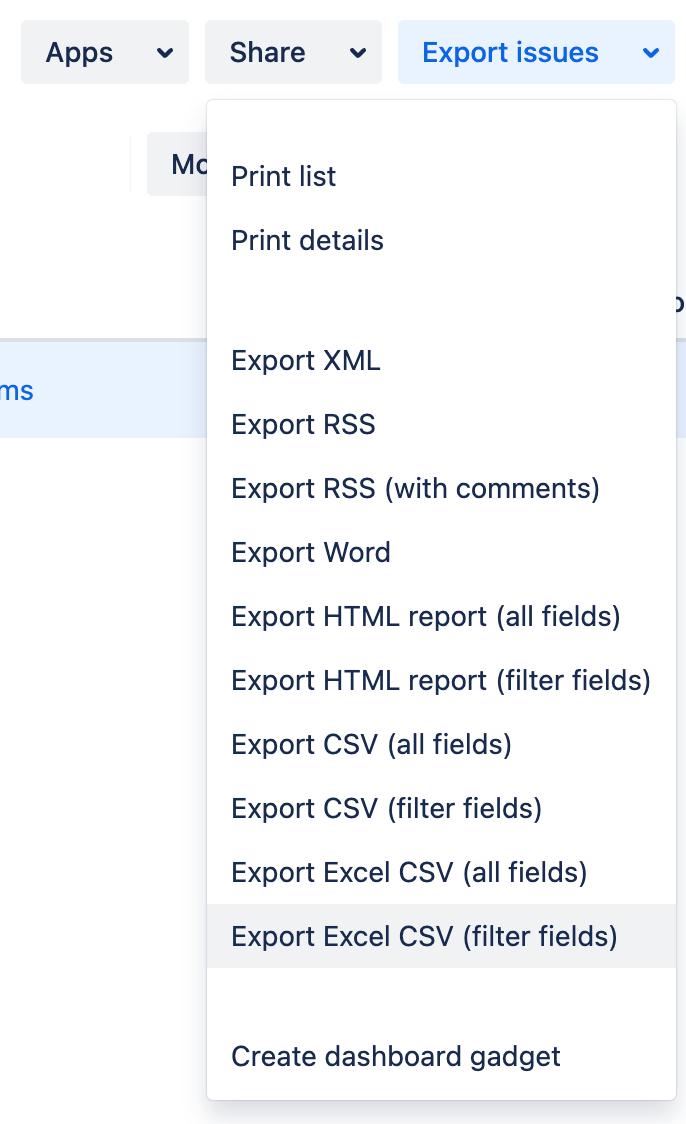
| We’ve added more options to simplify your export. When using a filter, select Export issues to export filtered fields in the format you want. |
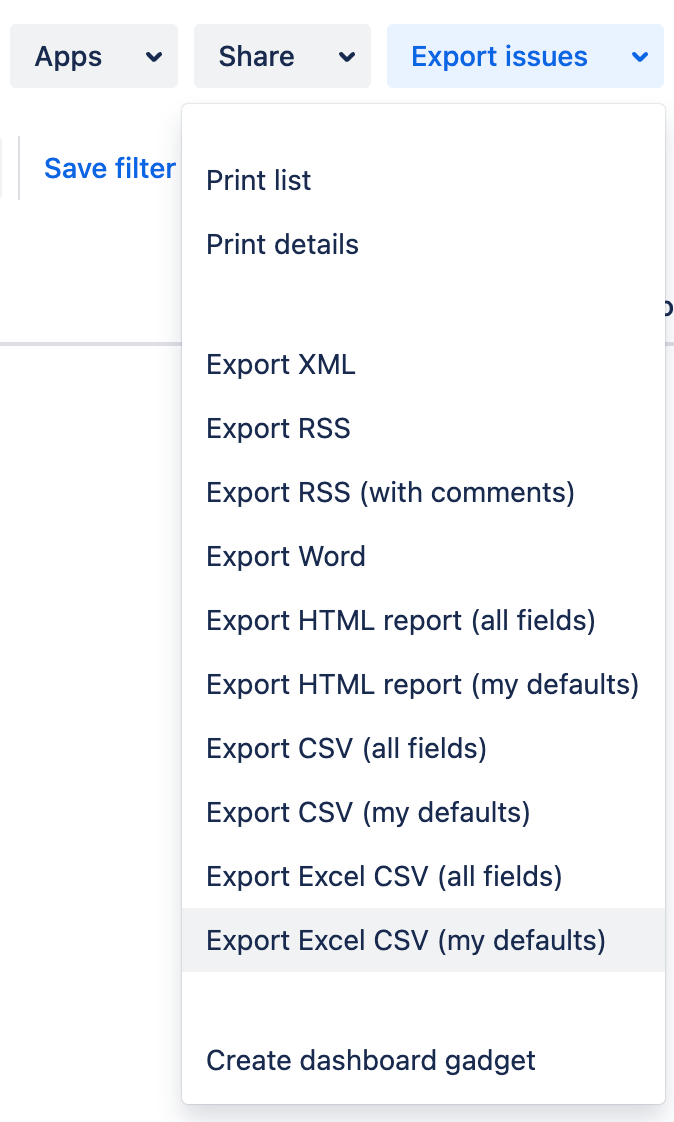
When not using a filter, you can use Export issues to export your default fields in different formats. |
 |
 |
Huge thanks to all our users for your feedback and continued support over the past year. We’ll keep you updated on further changes soon.


