Happy Wednesday Community! Today I'd like to share an exciting topic:
How To Use TeamBoard TimePlanner for Accurate Cost Tracking
---
Accurate cost tracking is essential for effective project management, helping teams stay within budget, optimize resources, and maintain transparency with clients. TeamBoard TimePlanner offers a powerful solution to streamline this process by enabling you to set up rates, track billable hours, and generate detailed cost reports. This guide will show you how to use TeamBoard TimePlanner for precise cost tracking, helping you manage project finances efficiently and with ease.
👉 Here's a Step-by-step Guide:
Step 1. Grant Permission
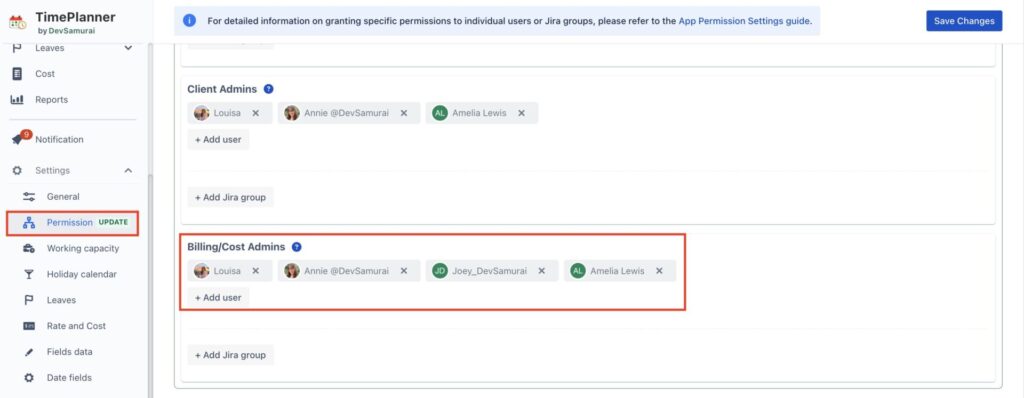
To manage costs and adjust cost settings, the user must have Billing/Cost Admin permissions. To grant this permission, go to Settings → Permission → Add user to Billing/Cost Admins → Save Changes.
Step 2. Setting Up Rates and Costs
By setting up rates and costs, you can establish the foundational elements for cost tracking, enabling accurate management of rates for resources and projects.
To set up, navigate to the setting you will find the “Rate and Cost” section.
-
General Rate Settings: In General Rate Settings, you can set the default rate type for your system. Options include Resource Rate, Resource Group Rate, Project Rate, and Project Group Rate.
-
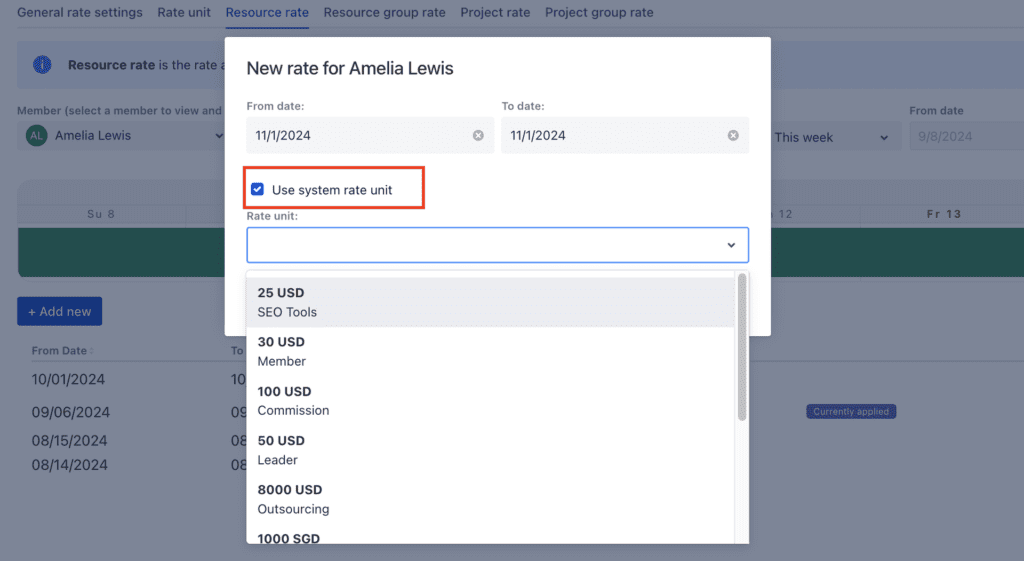
Rate Unit: The Rate Unit is the base unit for defining other rates. By creating a Rate Unit, you can use it to configure and standardize rates across various resources and projects.
-
Resource Rate: The Resource Rate is applied to individual resources. Resource rates can’t overlap and you can only add new rates for future dates.
-
Resource Group Rate: Allowing you to assign one rate to a group, avoiding repetitive setups.
-
Project Rate: The Project Rate applies to all tasks within a specific project.
-
Project Group Rate: Perfect for applying the same rate across multiple projects
Step 3. Tracking Billable Hours
To ensure accurate cost tracking by linking defined rates to the actual work performed.
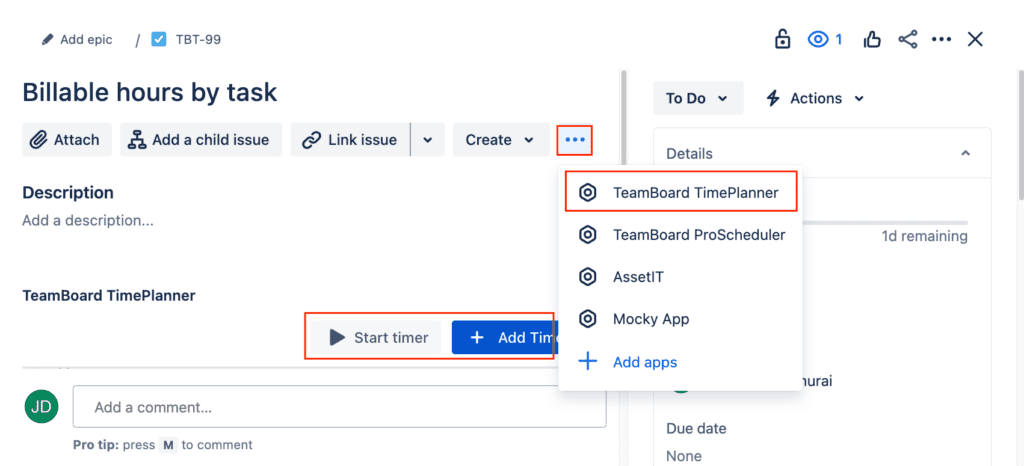
Tracking billable hours is essential for converting planned work into billable tasks that reflect real costs. TeamBoard TimePlanner offers flexible tools to help you accurately record and manage billable hours, ensuring that all work is accounted for and correctly billed.
-
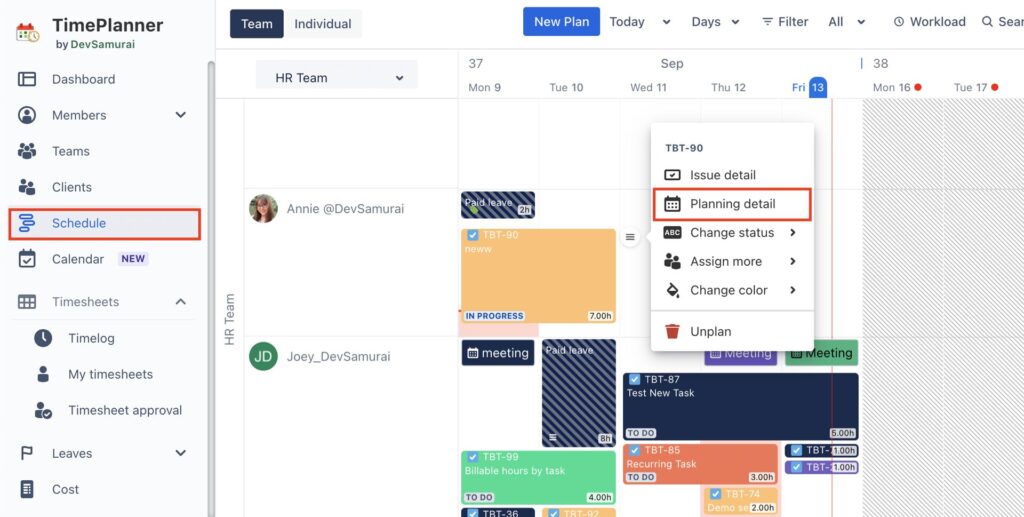
Navigate to the Schedule to define billable tasks
-
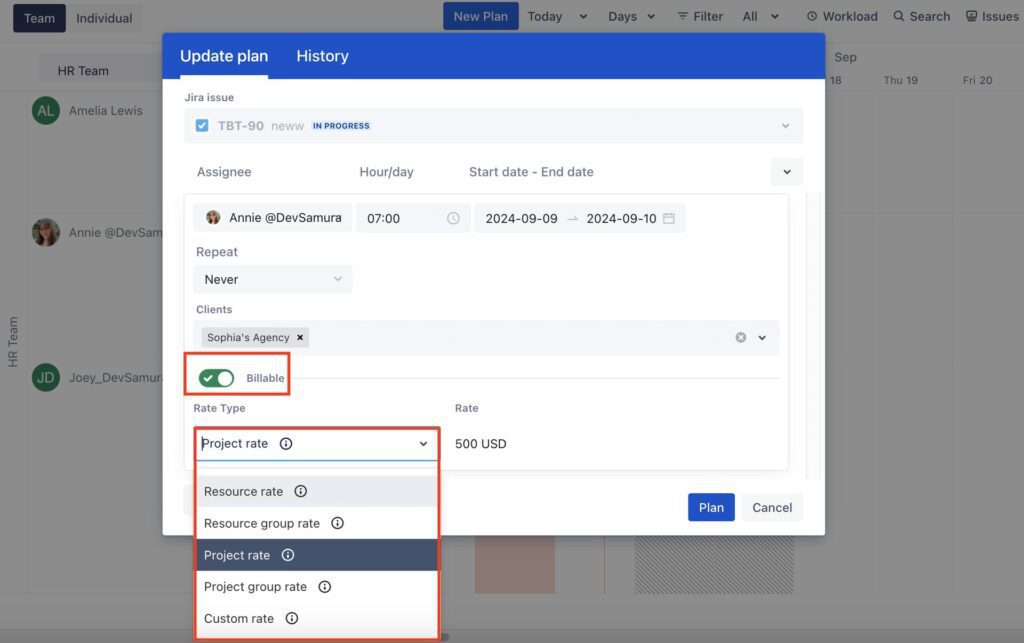
Mark tasks as billable and select the rate type to track scheduled cost
-
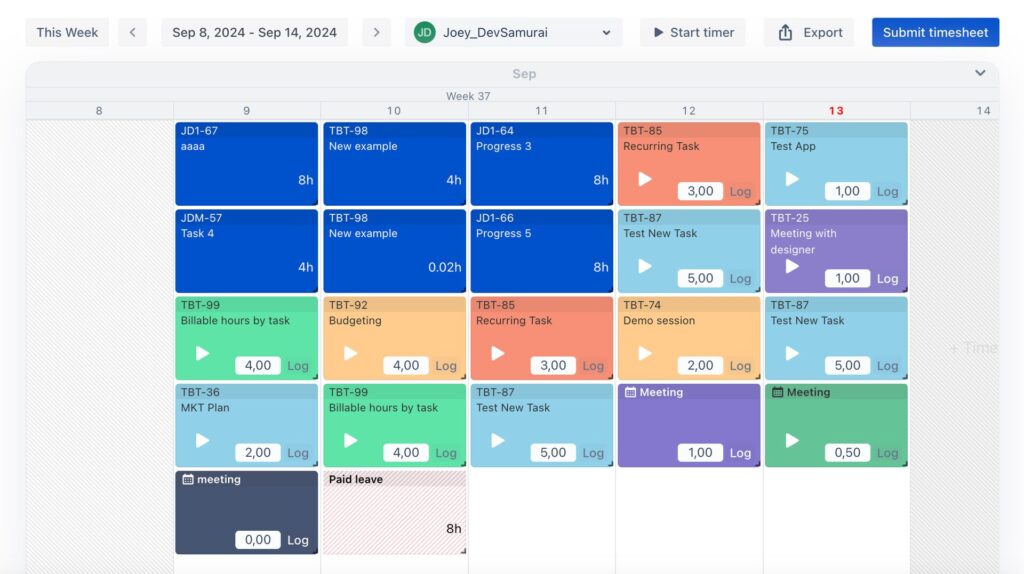
Log time To track actual costs
Step 4. Generating Cost Reports
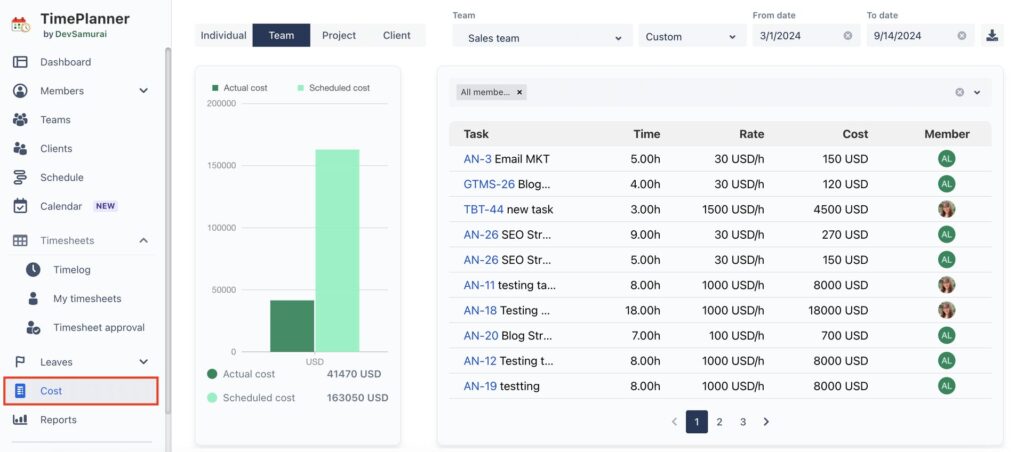
Utilize TeamBoard TimePlanner’s cost reporting features to perform detailed cost analysis and streamline client billing. These reports provide insights into both projected and actual costs, helping you manage finances effectively and maintain transparency with stakeholders.
-
Navigate to the Cost section
-
View Cost Reports
-
View cost by Individual/ Team/ Project/ Client
-
Use the search bar to quickly locate a particular member, team, project, or client.
-
Customize Date Range
Accurate cost tracking is essential for effective project management, and TeamBoard TimePlanner simplifies this process with its comprehensive tools. By setting up rates, tracking billable hours, and generating cost reports, you can manage project finances accurately and transparently. These steps not only streamline billing but also improve financial oversight and client communication. Use TeamBoard TimePlanner to optimize your cost management and maintain control over your project budgets. For further assistance, explore additional resources or contact support.
If you have any questions, please feel free to reach out to our support team or schedule a demo call to get personalized assistance.
🗓 Request a demo call
🆕 Try it now on Sandbox
🙋 Contact Support
🌟 Customer Portal
🌐 Visit teamboard.cloud