So previously, I'd asked the question on how to get page numbers in PDF exports so that they appear when you use the > export PDF feature from a page in a space.
The solutions I previously used appeared to stop working after recent updates to Confluence CLOUD in 2018. Other things like: font sizes for an exported PDF similarly stopped working. And posts I found in searching for an answer, unfortunately were all from 4 or 6 years ago, so those solutions didn't work either.
Here's what I found DID work to get the PDF export to consistently display page numbers on exported PDF's and the body text font-size I wanted. And -- to be clear, I am speaking about exporting to a PDF from an actual PAGE in a workspace (*not about 'global pdf' settings). Screenshot:
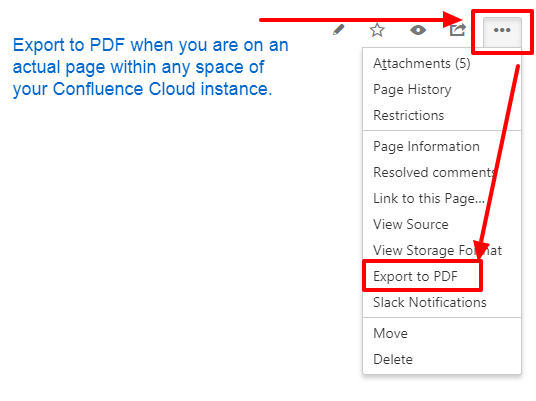
So to have pages numbers (and other formatting) for my exported PDF, here's the steps that worked for me. A SCREENSHOT is included at end of this post to show this also.
1. From space settings (the COG icon), click on 'LOOK AND FEEL' and then > 'PDF STYLESHEET'.
2. Paste in your page counter code (and/or other code you wish to apply to the stylesheet). I've included code I used as an example below.
For page numbers ONLY: *The below example puts the page number on the OUTPUT (exported) PDF to 'bottom right' side of the page. You could change that to @bottom-left for example. Also note: you do NOT have to include font-family, font-size, or padding... you can change or delete those attributes your preference. But I left it in here for example purposes.
@page
 {

   @bottom-right{
    content: "PAGE" counter(page); /* Page + number counter to appear bottom right of page */
    font-family: ConfluenceInstalledFont, Helvetica, Arial, sans-serif;
    font-size: 8pt;
    padding-bottom: 3em;
    }

}
For other styles like: adjust body margin, add page number, and specify 'body text' font size on the output PDF: *The below will adjust the printable pdf to have specific margins, a larger body font size than the page number in the footer, and changed the body font line-height. Again all these you can change or delete to your preference, but I'm including it as example:
@page
{ margin: 0.7in;

@bottom-left
 {
 content: "SOME TEXT HERE"; /* Content to appear bottom left side of page */
 font-family: ConfluenceInstalledFont, Helvetica, Arial, sans-serif;
 font-size: 8pt;
 padding-bottom: 3em;
 }
@bottom-right
 {
 content: "PAGE" counter(page); /* Page and page NUMBER counter to appear bottom right side of page */
 font-family: ConfluenceInstalledFont, Helvetica, Arial, sans-serif;
 font-size: 8pt;
 padding-bottom: 3em;
 }

}

/* Body font pdf export */
body,p,li,td,table,tr,.bodytext,.stepfield
{
 font-size: 10pt;
 line-height: 1.25 !important;
}
Here's a screenshot of how this looks in the PDF Stylesheet pane to illustrate:
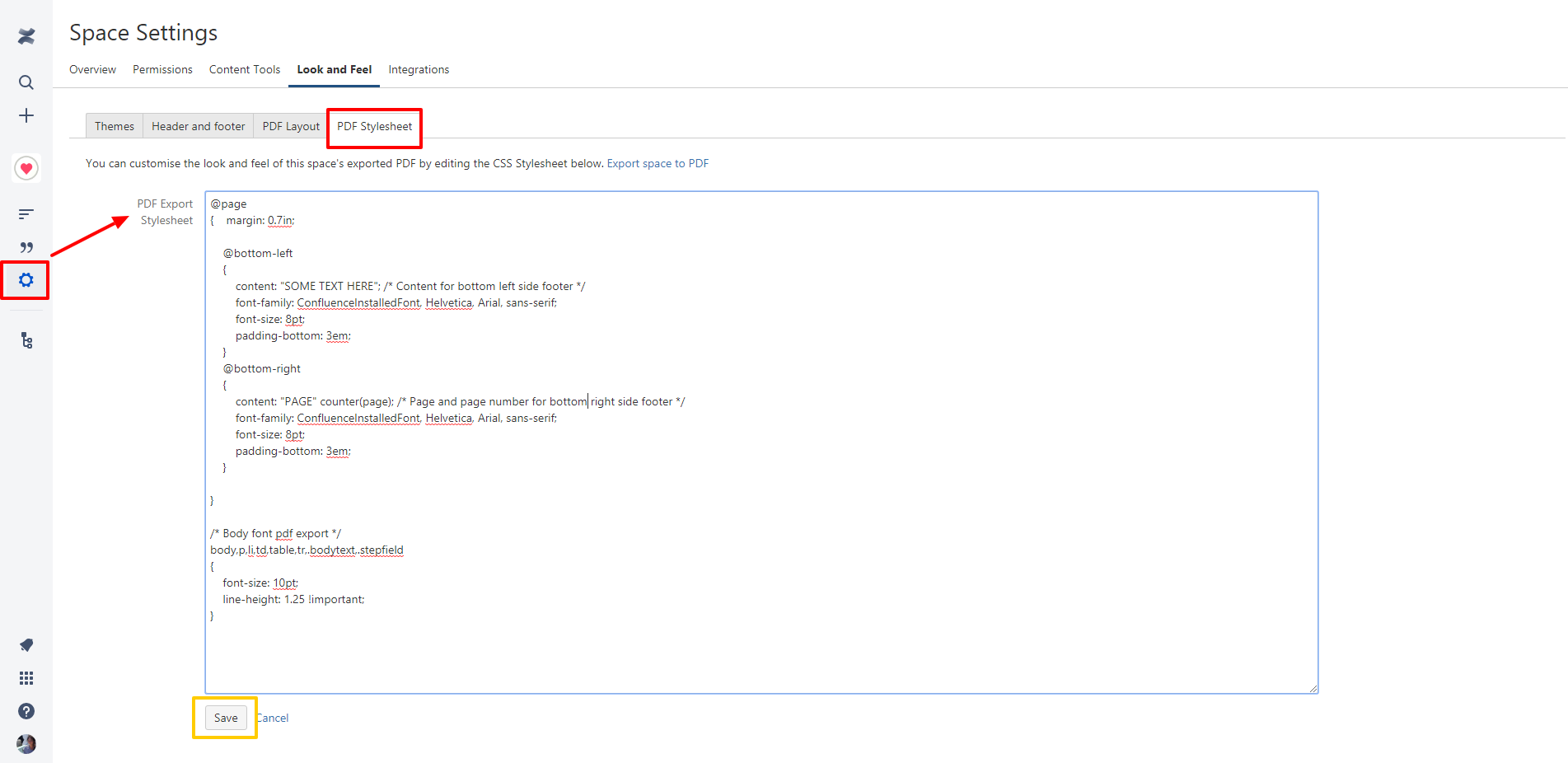
***End note: When combining the style for the PDF @page and body font size, it only worked when body {} was at the END of the stylesheet and not before. This is why I have body font separately at end and after the @page call.
As of right now, the above is what worked for me (again I am using CLOUD version so there's no direct server access to custom code exactly which others may be able to do in a self hosted instance).... Additionally: If you have applied any PDF style settings in GLOBAL settings (from Atlassian > App > Confluence) that is a different pathway than the one I outline above. What I did here was apply settings directly from within a SPACE (not global). Any global settings you apply may impact or otherwise 'override' what you put in space settings. Mentioning ....
Anyway, I hope this may help someone else.
Thanks!


