🔹69% of knowledge workers struggle to keep Confluence spaces organized and easy to navigate
🔹 62% find it hard to locate important documents
🔹 54% want better review and approval processes
These were the results of a live poll we ran during our recent webinar, “The HR Guide to Smarter Information Sharing in Confluence.”
Confluence is a powerful collaboration platform - but when it comes to managing documents that go through drafting, reviews, and publishing, things can get messy fast. Spaces grow, structure gets inconsistent, and key documents become hard to track.
At AppFox, we’ve seen these challenges firsthand across countless customer calls, use cases, and live demos. That’s why I’ve pulled together a few tried-and-tested best practices to help you turn Confluence into a smart, scalable documentation hub - with the help of Workflows for Confluence by AppFox.
✅ Separate Drafts from Published Documents
Keep your drafts and published documents in separate spaces.
For example:
- Draft Space: Editable by authors, reviewers, and approvers only.
- Master Space: Read-only space with final, approved versions for employees or end users.
This approach avoids confusion about which version is current and helps enforce structure from the start.
🔐 Restrict Access to Drafts
Limit editing and viewing permissions in your Draft Space to the relevant team- HR, Legal, Compliance, etc.- while keeping the Master Space open for company-wide access once documents are finalized.
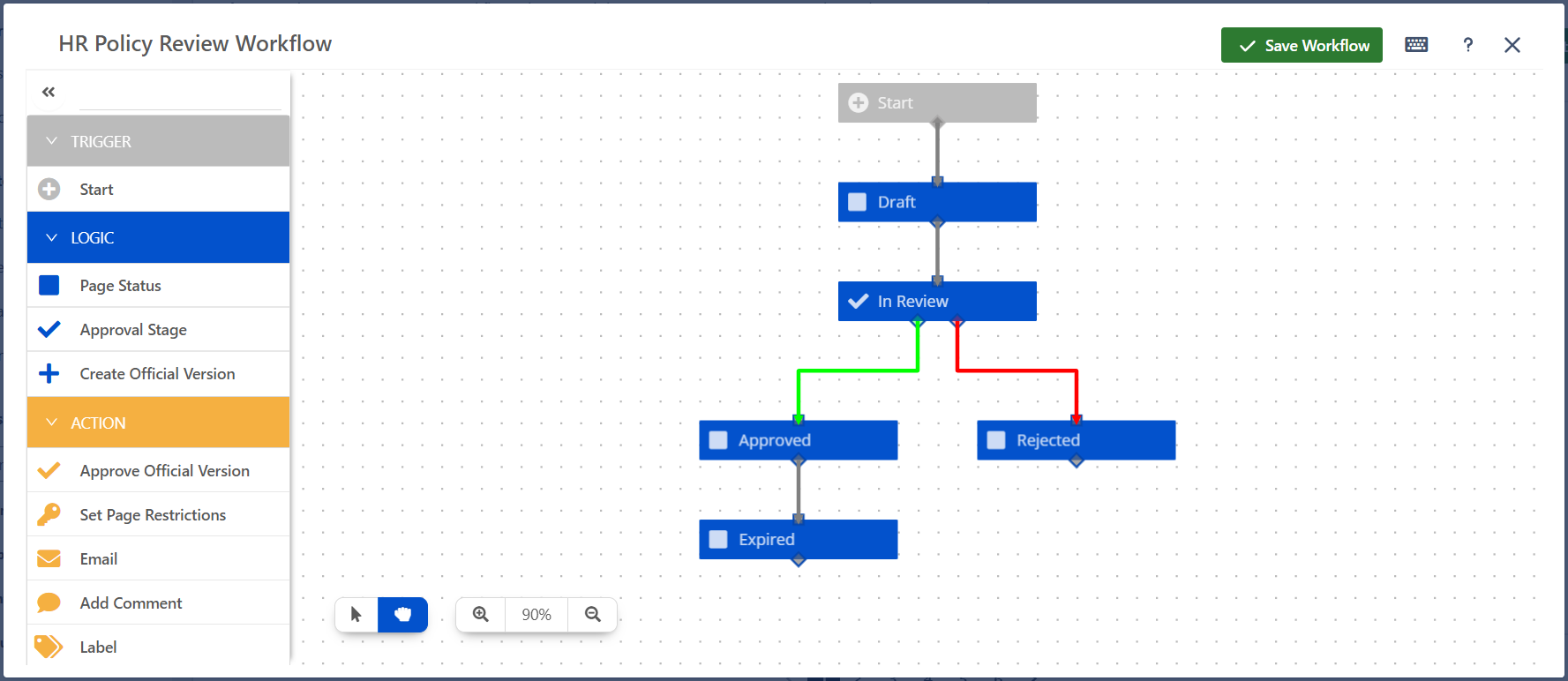
✅ Add Approvals with Workflows
Before publishing, make sure your documents are reviewed and approved.
Use Workflows for Confluence to:
- Set up multi-stage approvals
- Automatically notify reviewers
- Track the status of each document (e.g., In Review, Approved, Rejected)
No more chasing people over Slack or email - approvals are visible, structured, and logged.
📄 Use Templates with Metadata and Labels
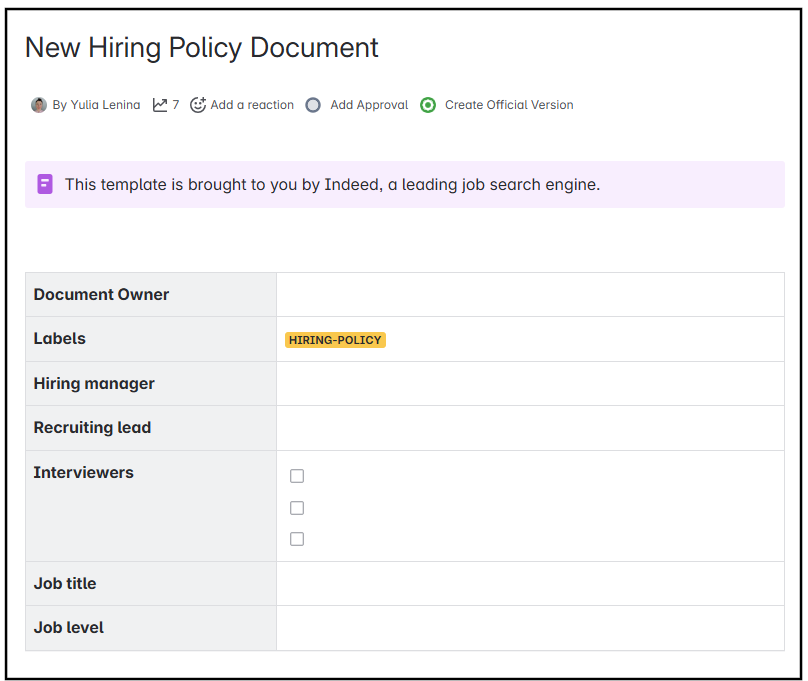
Standard templates bring consistency and speed.
You can:
- Pre-define required sections (e.g., Purpose, Owner, Review Date)
- Include metadata macros to show document details
- Add labels that automatically trigger workflows (e.g.,
policy-doc or draft-sop)
🔁 Publish Automatically Between Spaces
Once approved, documents don’t need to be copied manually.
Workflows for Confluence lets you configure automatic cross-space publishing - moving content from your Draft Space to your Master Space with a single workflow transition.
No more laborious copying and pasting. No risk of outdated duplicates.
🔍 Add Traceability with Metadata and Workflow Reports
Transparency is key to successful document management.
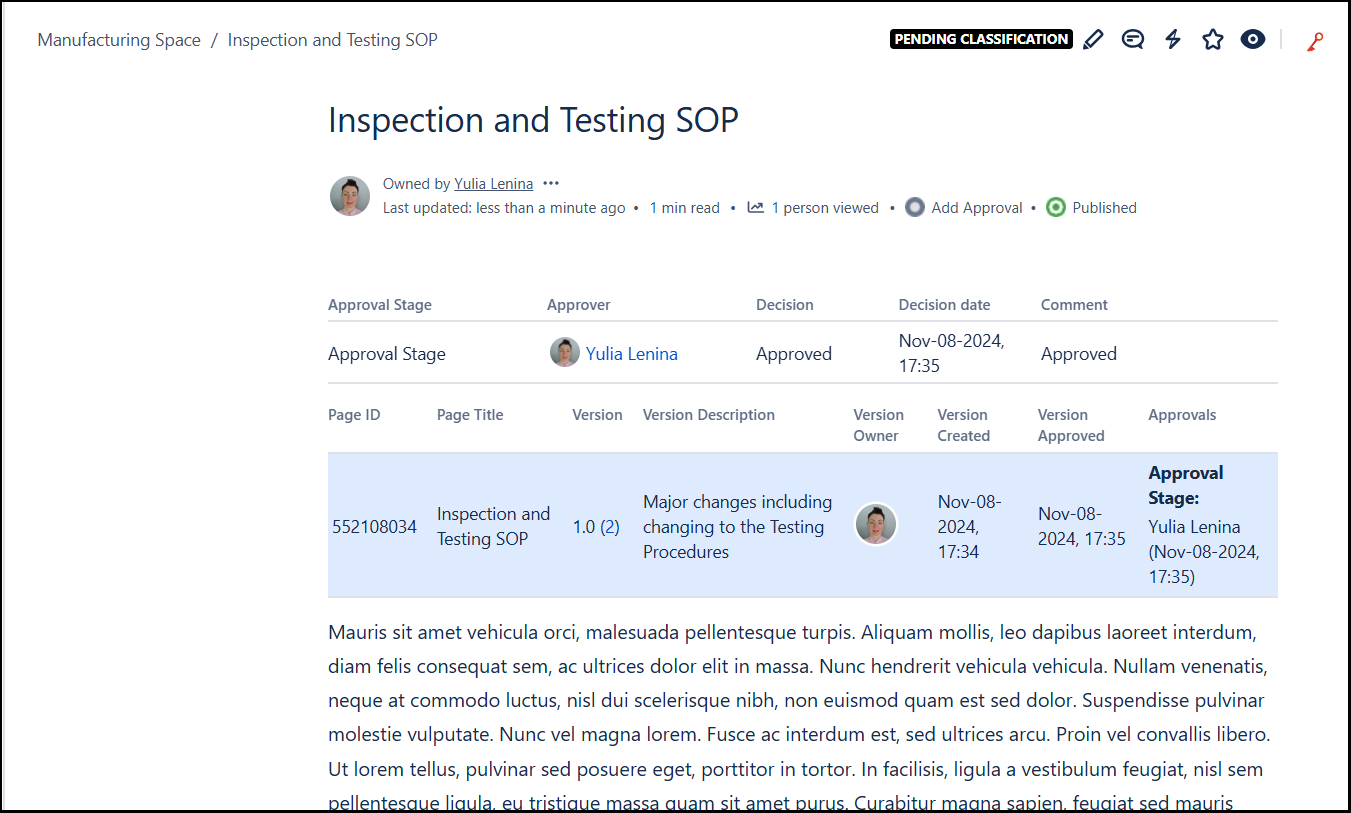
With the right macros and tools, you can:
- Display metadata such as document owner, review date, or approval status
- Use Workflows Approvers Metadata macro to list all document stages and approvers
- Use Workflows Search to find any page in Confluence with a workflow assigned to it and easily view the current workflow status. Use the additional filters to narrow down your search.
🛠 Pro Tips to Take It Further
If you want to level up your document management setup, consider these advanced practices:
🕓 Version Control Practices
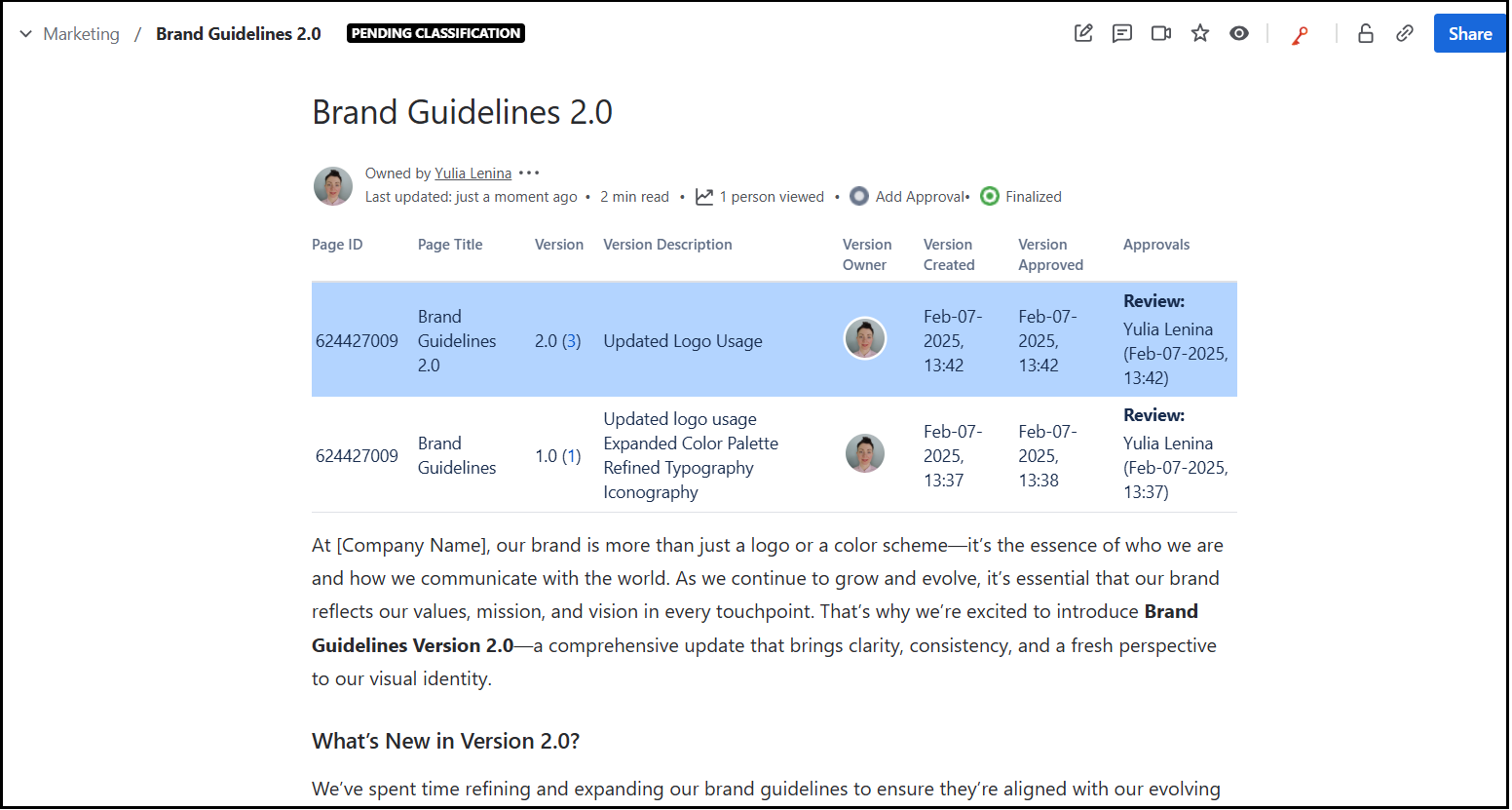
Confluence tracks versions by default, but it’s not always enough.
- Use Workflows for Confluence to manage clear major and minor versions.
- Encourage meaningful change summaries.
- Add labels like
v1.0, draft, or final in titles or metadata.
- Move outdated pages to an archive space to reduce clutter.
This keeps content tidy, current, and easy to navigate - especially in fast-changing or regulated environments.
📅 Review and Expiry Dates
Avoid “set it and forget it” documents:
- Include review due dates in templates
- Set up timed transitions in Workflows for Confluence that automatically move a document to a “Needs Review” status after a set period.
- Use Workflows Search in Workflows for Confluence to see which pages are for review.
Especially useful for compliance-driven teams or ISO-certified environments.
🧑🤝🧑 Define Roles and Responsibilities
Make it clear who owns what:
- Assign page ownership in metadata fields
- Use templates that require the author to fill in responsible person(s)
- Configure Workflows for Confluence to send automatic emails to the Page Owner when a document reaches a certain workflow stage (e.g., “Needs Review” or “Approved”) or when a page expires.
- Rotate ownership when team members change
This helps avoid “orphaned” or outdated documentation.
Final Thought
Whether you’re managing HR policies, IT procedures, or quality documentation, these practices help you stay organized, compliant, and efficient in Confluence.
If you’re using Confluence for documentation, what practices work for your team? I'd love to hear your tips - or your challenges!
💬 If you'd like a copy of the white paper “HR’s Digital GPS: Guiding Teams to the Right Information in Confluence” just drop me a comment below - I’ll be happy to share it with you!


