This feature is part of the Jira Product Discovery Premium plan.
👉 Start your trial here 👈
Other features of the plan are described here and here's an implementation guide.
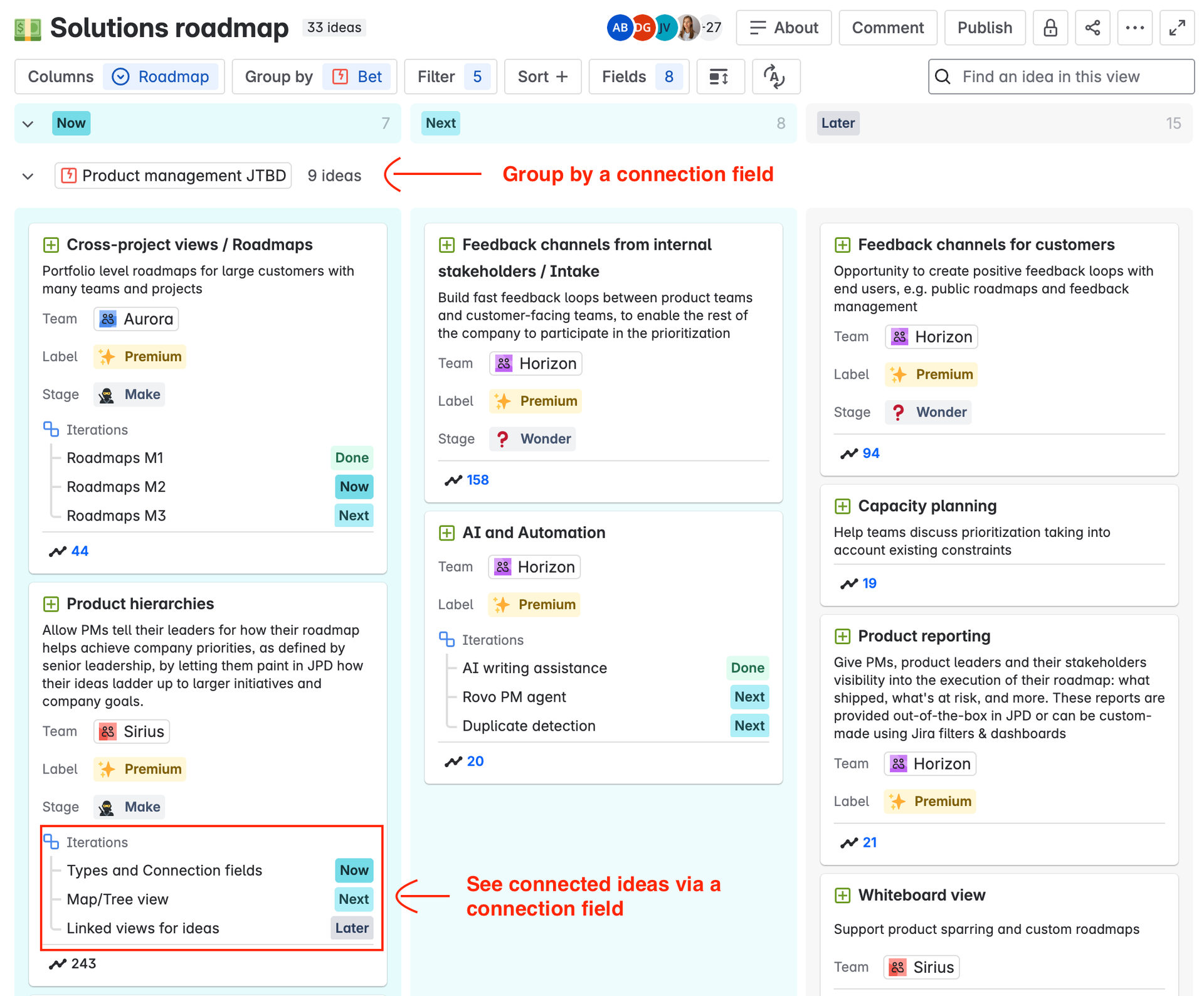
In the Free and Standard plans, Jira Product Discovery only supports a flat model, where every idea is at the same level. As part of the Premium plan of Jira Product Discovery we’ve introduced a feature that lets you create custom product hierarchies - for example this view that shows Opportunities, Solutions and Experiments and how they ladder up. In a board view:
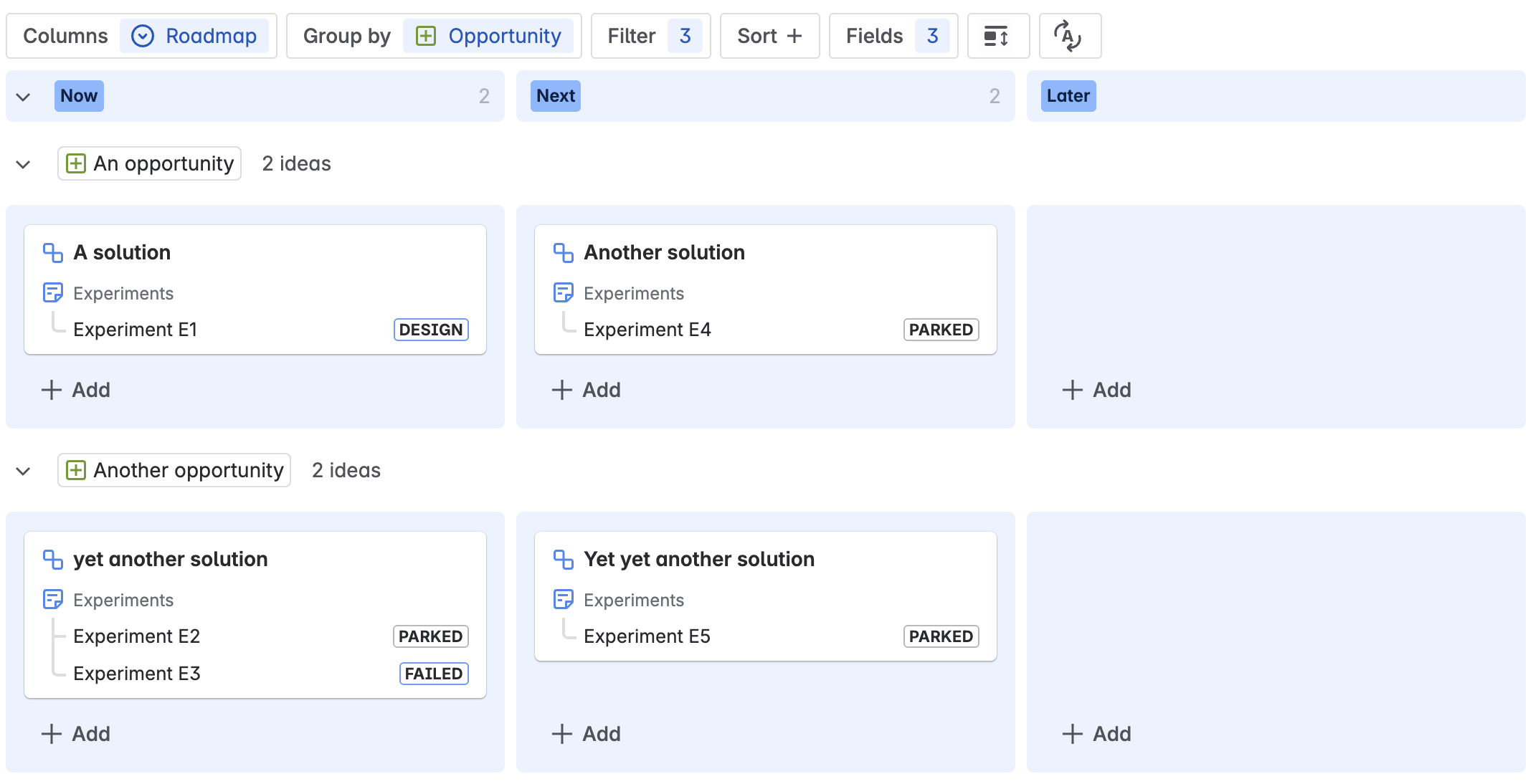
Or in the tree view:
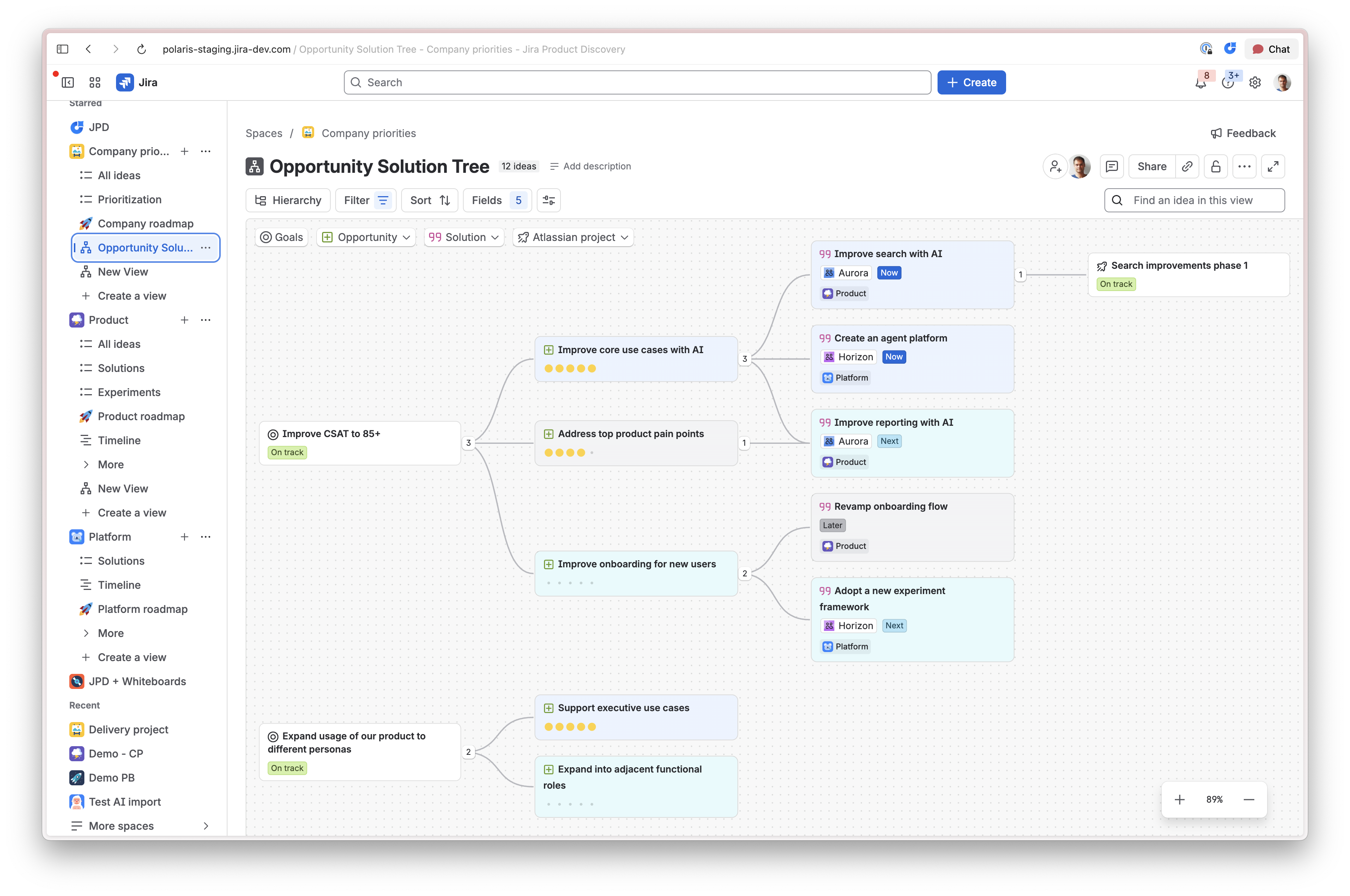
And this is a view we use in the JPD space where the JPD team manages the JPD roadmap 🙂
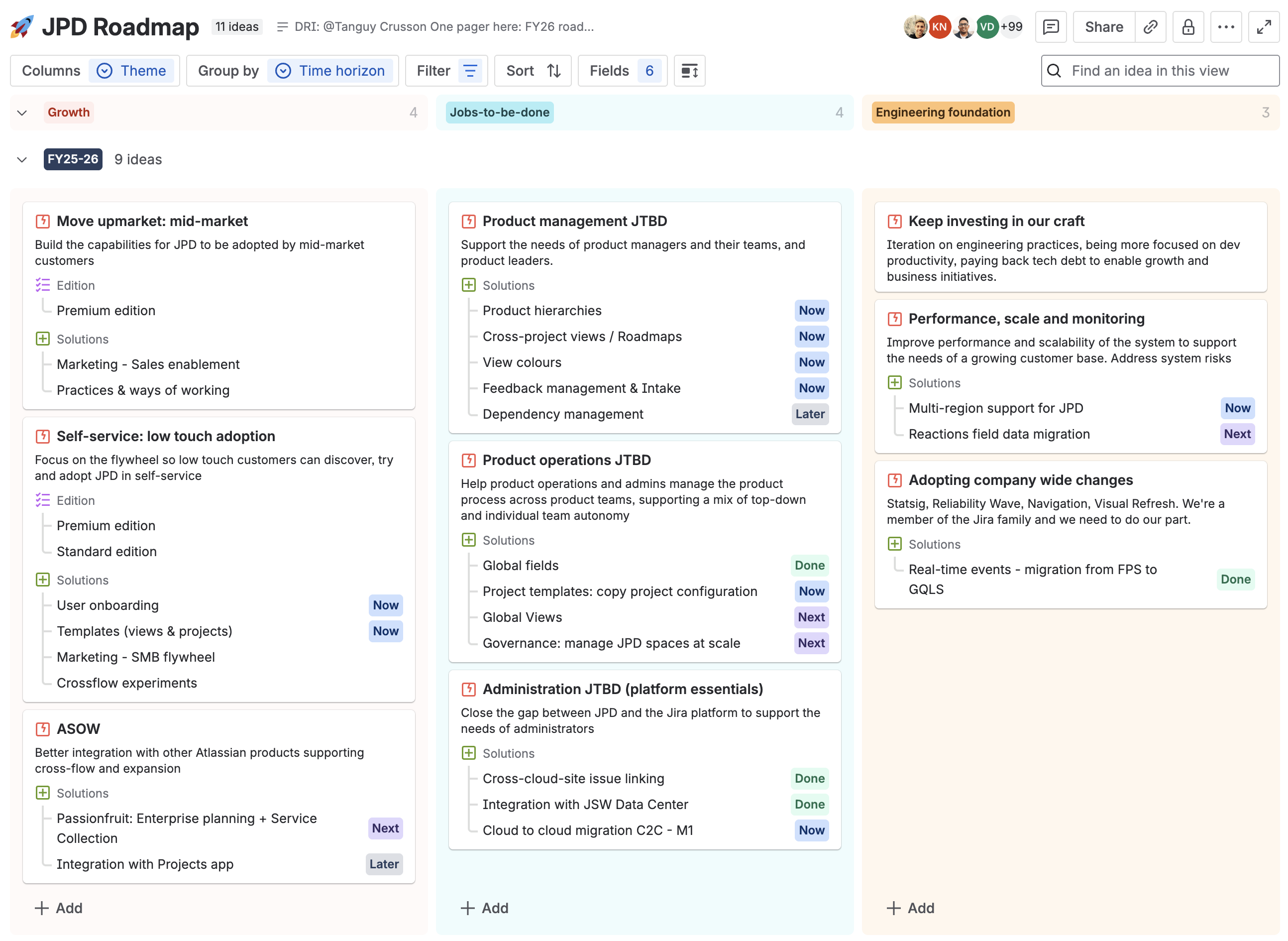
The following demo walks you through use cases, how it works and how to set it up in your space:
Here's an shorter version so you can grasp the concept in 2 minutes.
How it works
In Jira Product Discovery you have spaces, spaces have ideas, ideas have fields, fields have values, and you can create views that help you visualize ideas based on field values. This system works with different types of fields: select, multi-select, rating, votes, etc.
Here we have introduced two new concepts so you can create hierarchies:
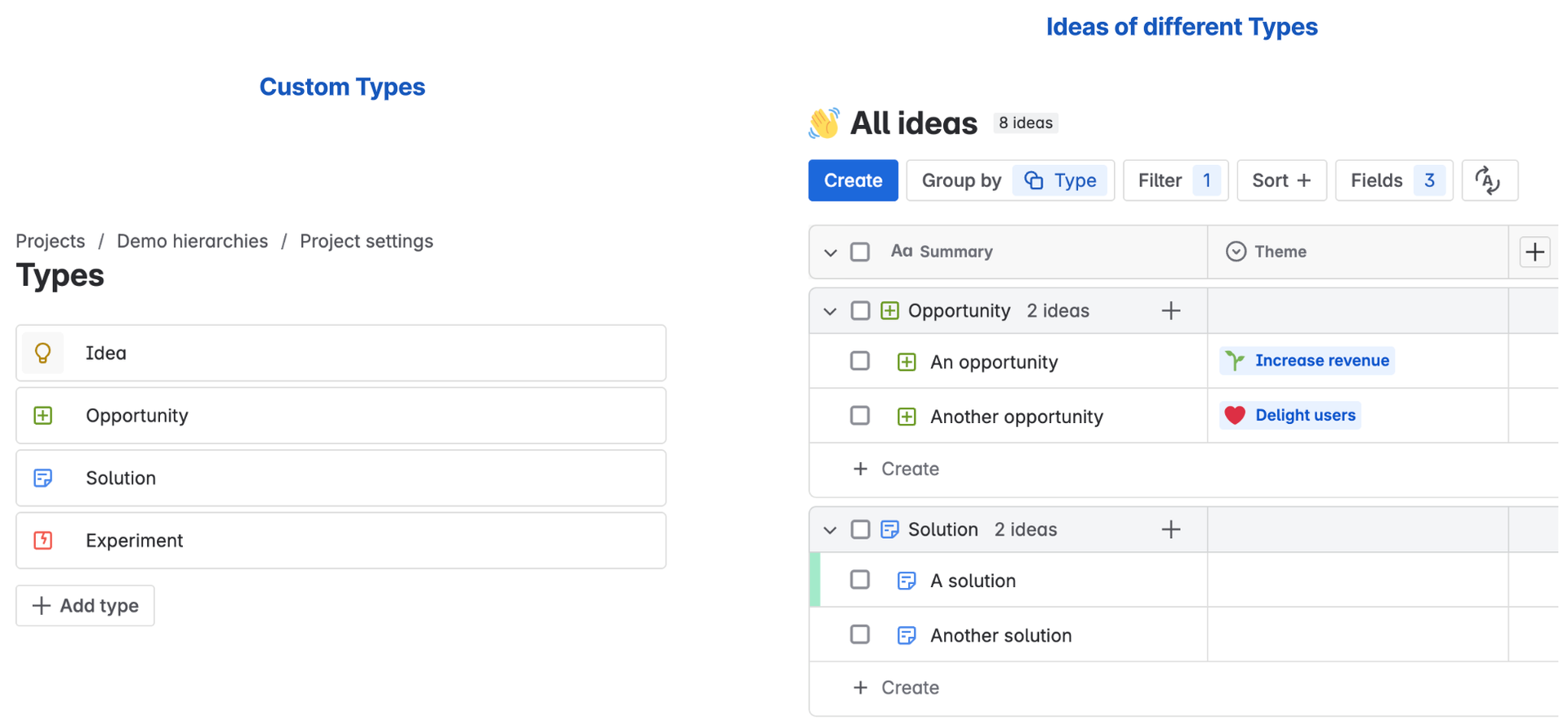
- A new type of field: Connection - which lets you connect ideas of different types. The easiest way to think about this: ideas can be field values for other ideas. For example an Opportunity called “An opportunity” can have the field value “A solution” for its field “Solution”.
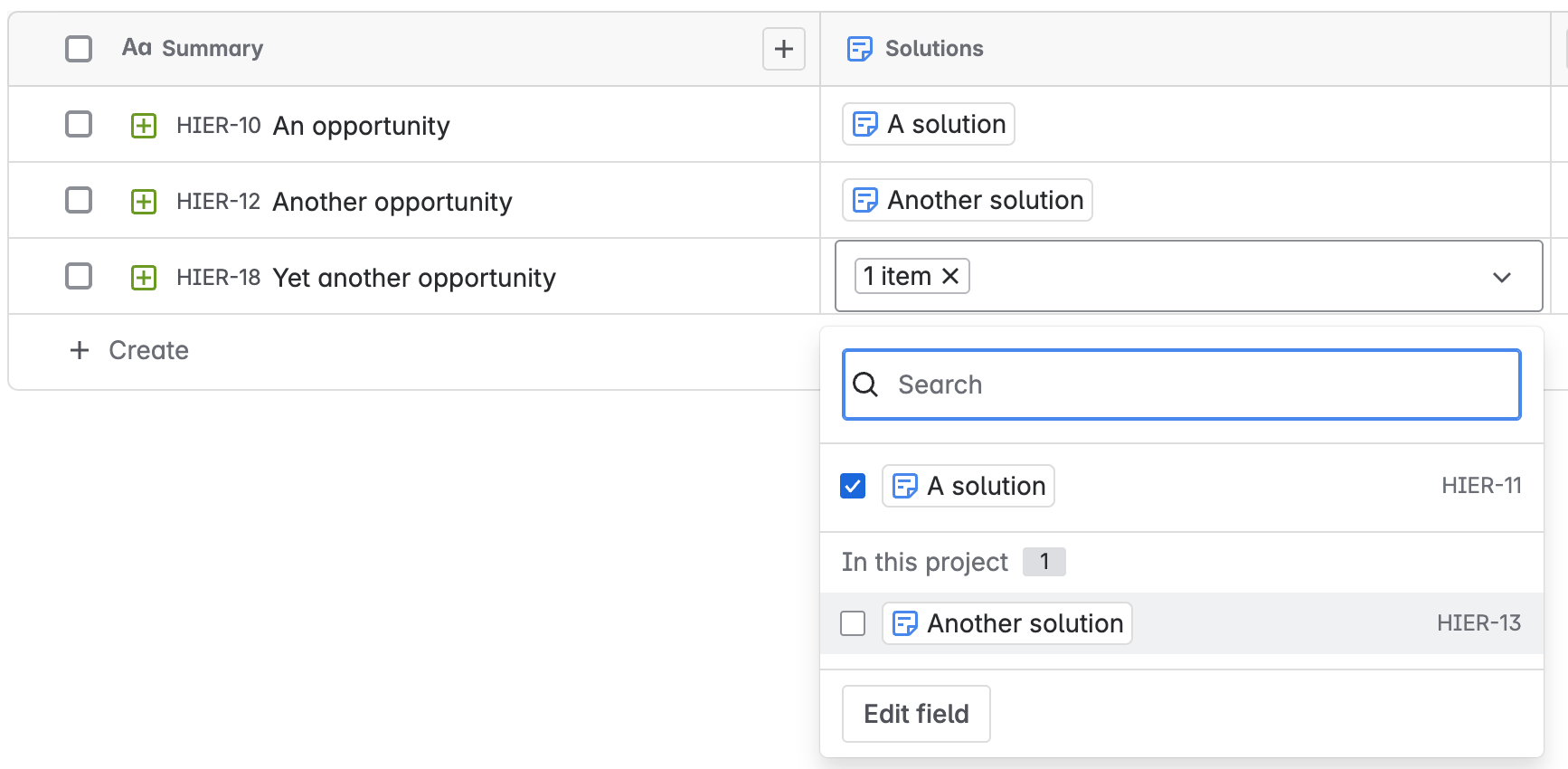
- Integration of these fields into JPD views: you can use Connections fields as you would any other field in JPD to create custom views. For example in a list view:
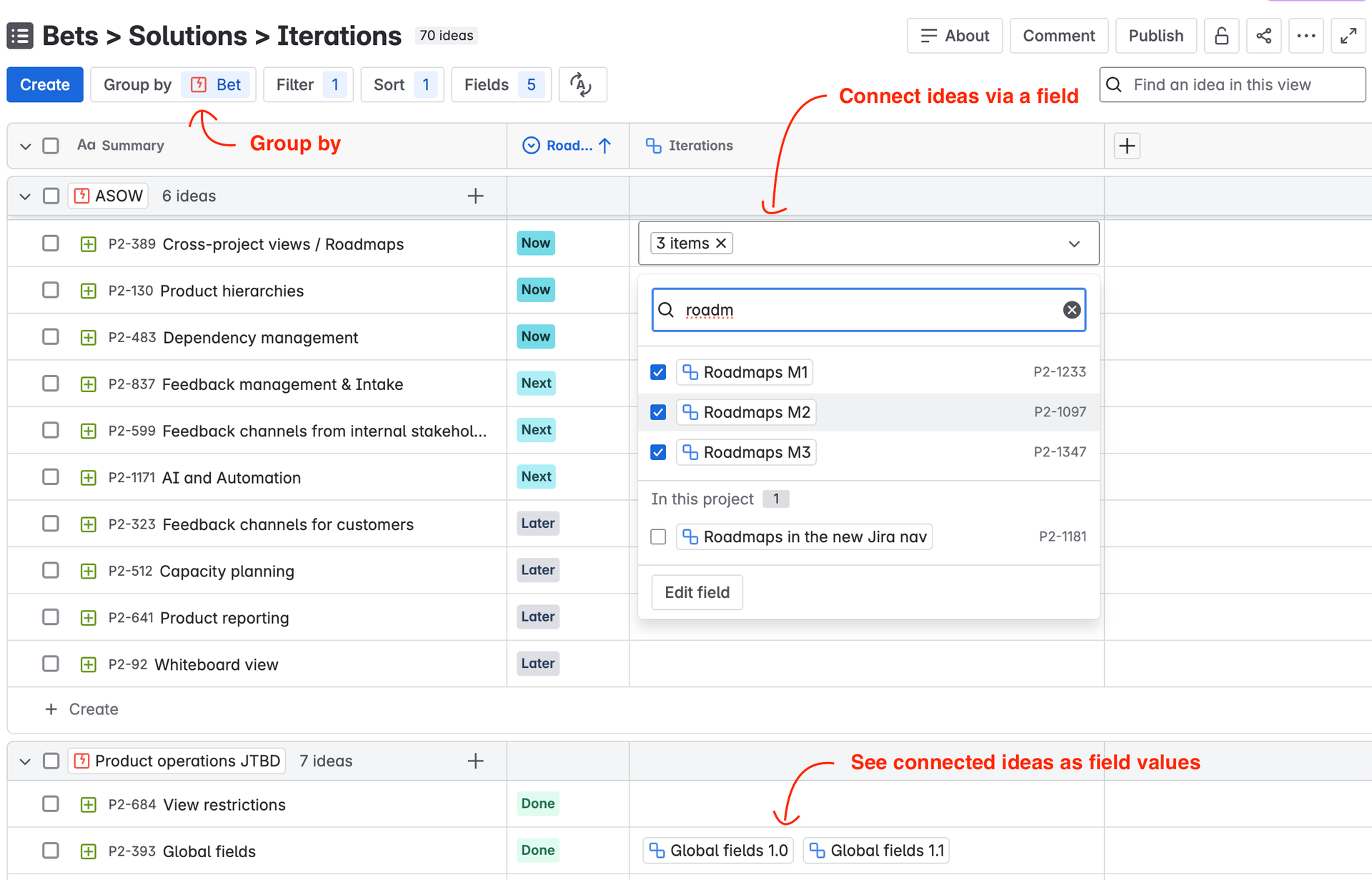
Or in a board view:
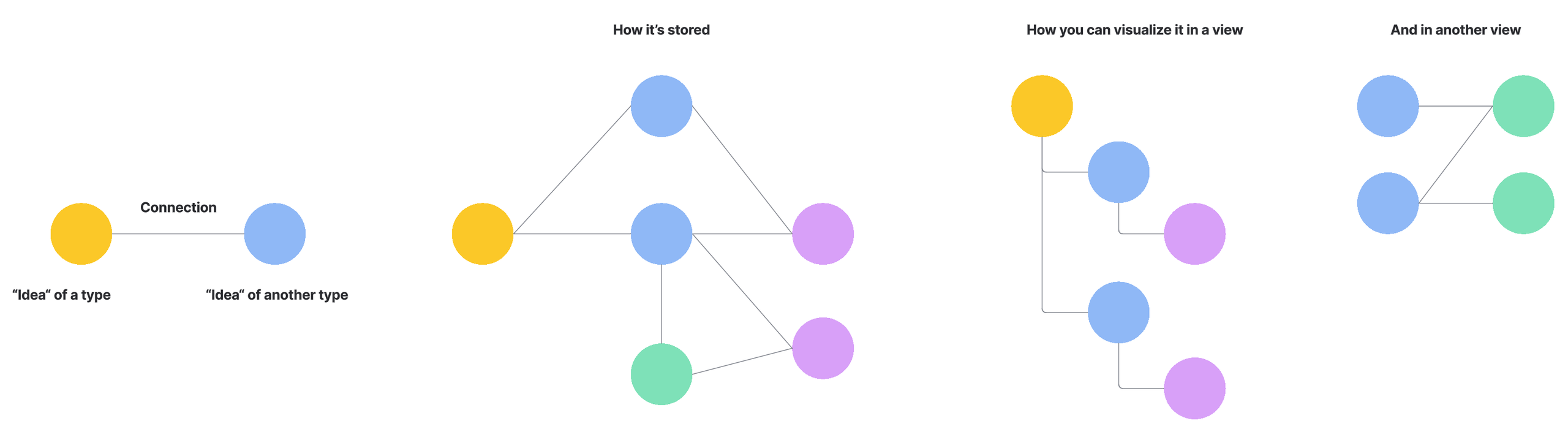
Under the hood connections between ideas are stored as Jira issue links. It’s still a flat model, where all ideas are at the same level in a graph, but you can use views to visualize them in a hierarchy:
When you connect ideas via a connection field, this connection will show on both ideas - it’s bi-directional:
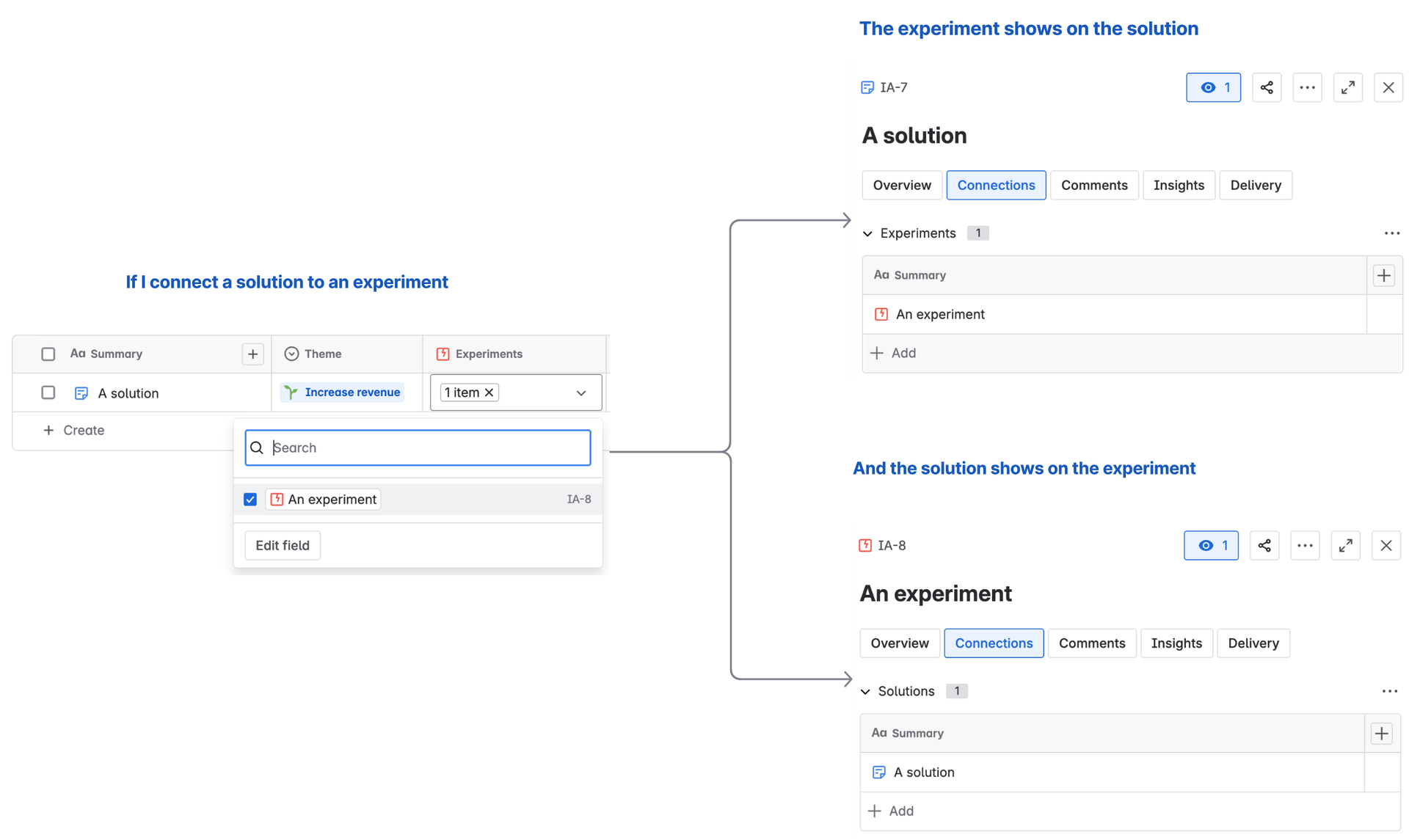
Connection fields behave a bit differently to other JPD field types (select, multi-select, etc.) in that they don’t really store any value - the connections between ideas are stored as Jira issue links.
How to set it up
Create types and connection fields
You need to create one type and one connection field for each type. For example if you have 2 types, Opportunity and Solution, the steps are:
-
Create a Type “Opportunity”
-
Create a Connection field “Opportunity” pointing to that Type
-
Create a Type “Solution”
-
Create a Connection field “Solution” pointing to that Type
Here’s a demo for how to do that.
Here are a few things you should be aware of:
-
Make sure you create one Connection field for each type - otherwise if you connect 2 ideas the connection will only show on one of them, not both. There’s no point creating more than one Connection field for each Type - because it stores connections as Jira issue links, if you connect ideas via one Connection field, it will also show in any other field pointing to the same Type
-
Pro-tip: You can create connection fields as Global or Space fields, depending on your overall set up. It’s OK if you don’t get it right from the first go: you can create a Global field, add it to the space, and delete the space field - and ideas will still be connected as before.
Configure views
You can then set up a view to show up to 3 levels of ideas, e.g. Opportunity/Solution/Experiment:
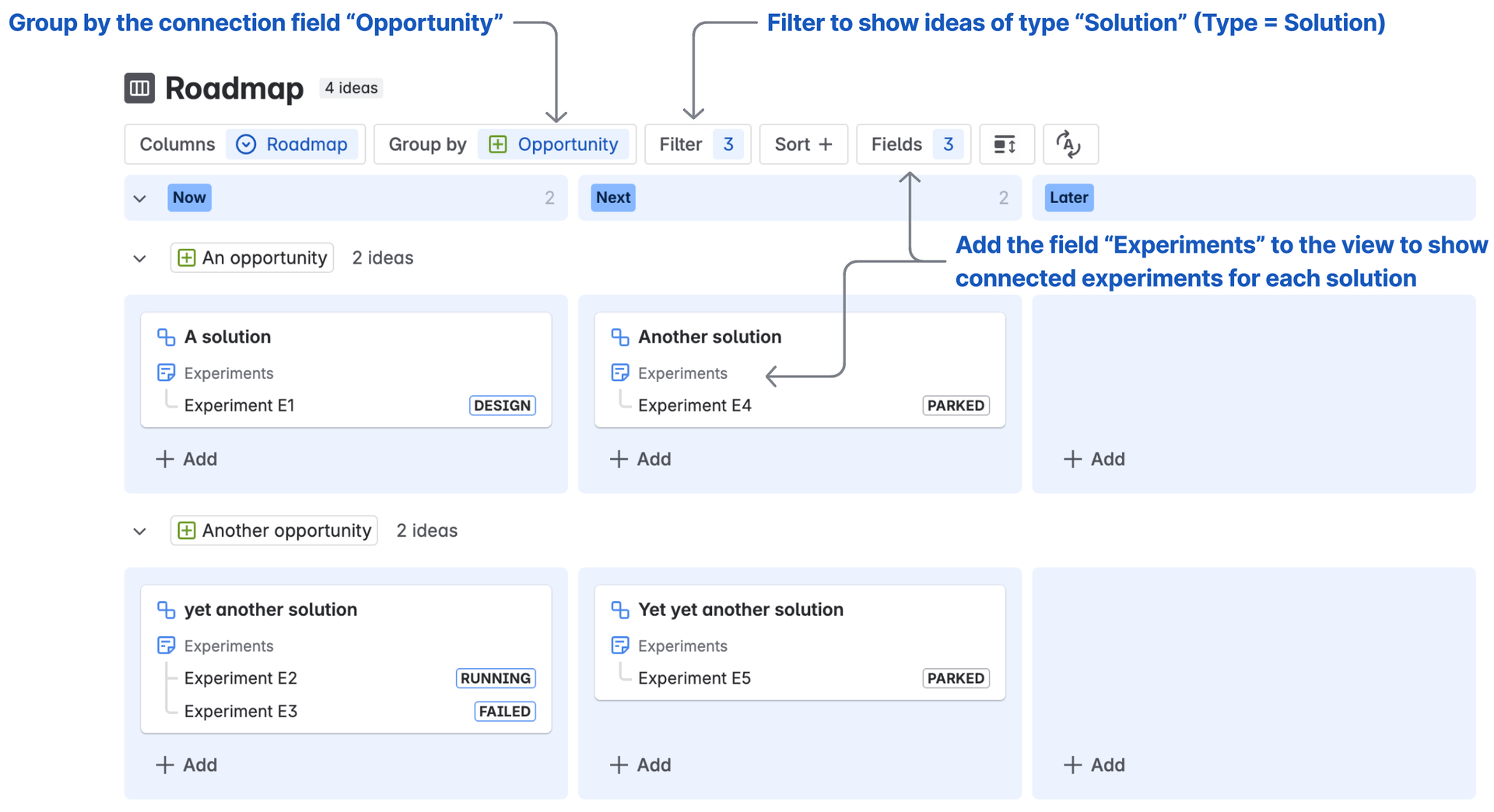
To do so:
-
Create a filter to only show ideas of a specific Type (Solution) - this “focuses” the view on Solutions
-
Group by a Connection field (Opportunity) - it shows Opportunities as “Parents” of Solutions
-
Add a Connection field to the view (Experiments) - it shows Experiments as “Children” of Solutions
Watch this demo for how to reproduce this view.
Understanding filtering
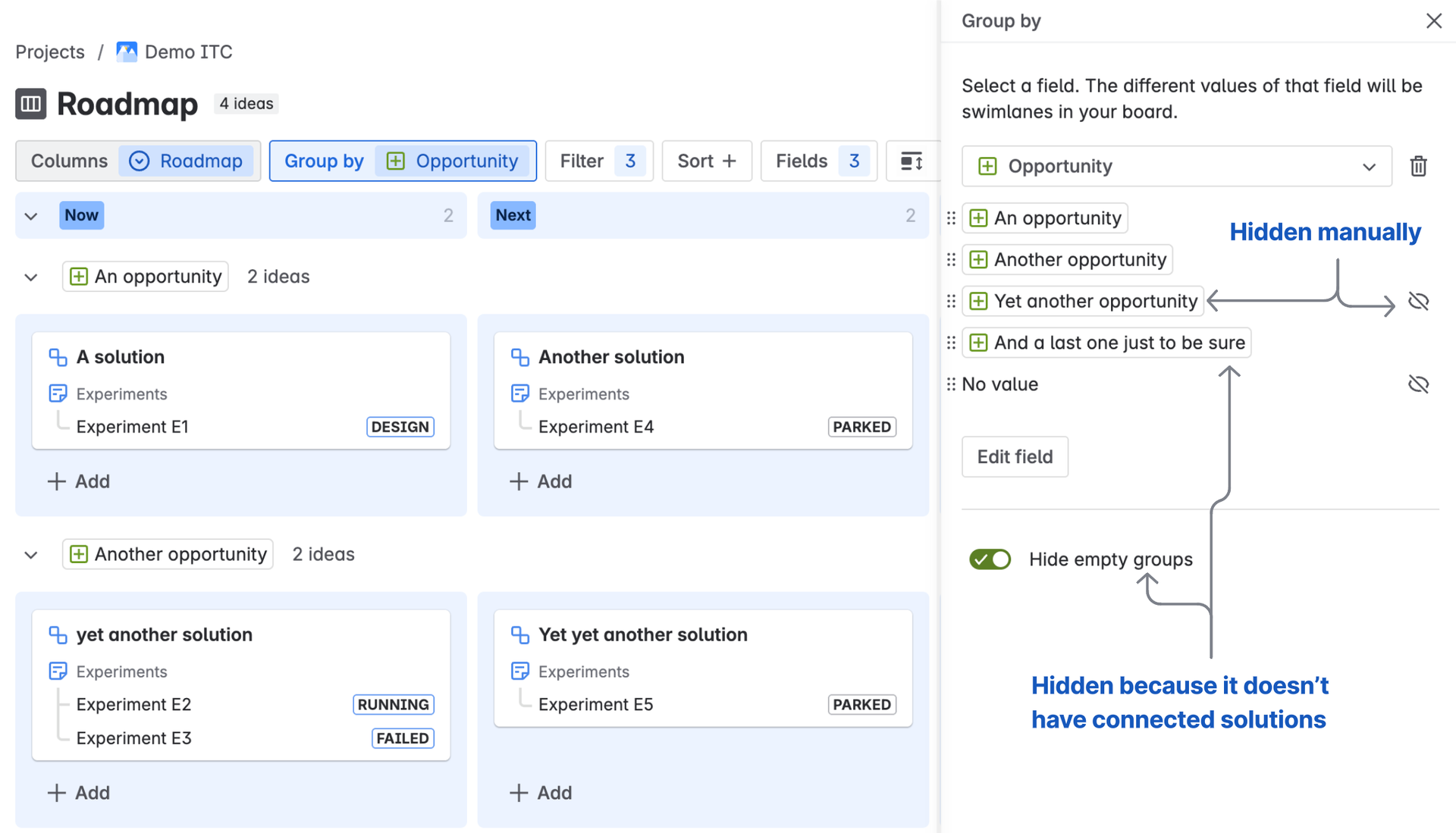
You can filter ideas at 3 levels:
-
Ideas that are shown on the view (e.g. Solution)
-
Ideas that show in a connection field (e.g. Experiments) - you can filter them using field values (like for ideas on the view) or by matching field values for groups and columns: see this 3min demo video to understand how that works
Set up automation rules
If you want to use Connection fields in Automation rules and/or JQL, just remember that connection fields don’t really store any value - the connections between ideas are stored as Jira issue links.
Here’s a demo of an automation rule with connection fields.
Connect ideas from different spaces
You can connect ideas from different Discovery spaces. Let’s take the example of a set up where you have:
-
A Discovery space that has opportunities at the company-level
-
2 Discovery spaces, one for each team, that have solutions
-
And you want solutions that teams work on to be connected to company-level opportunities
You can achieve this with connection fields:
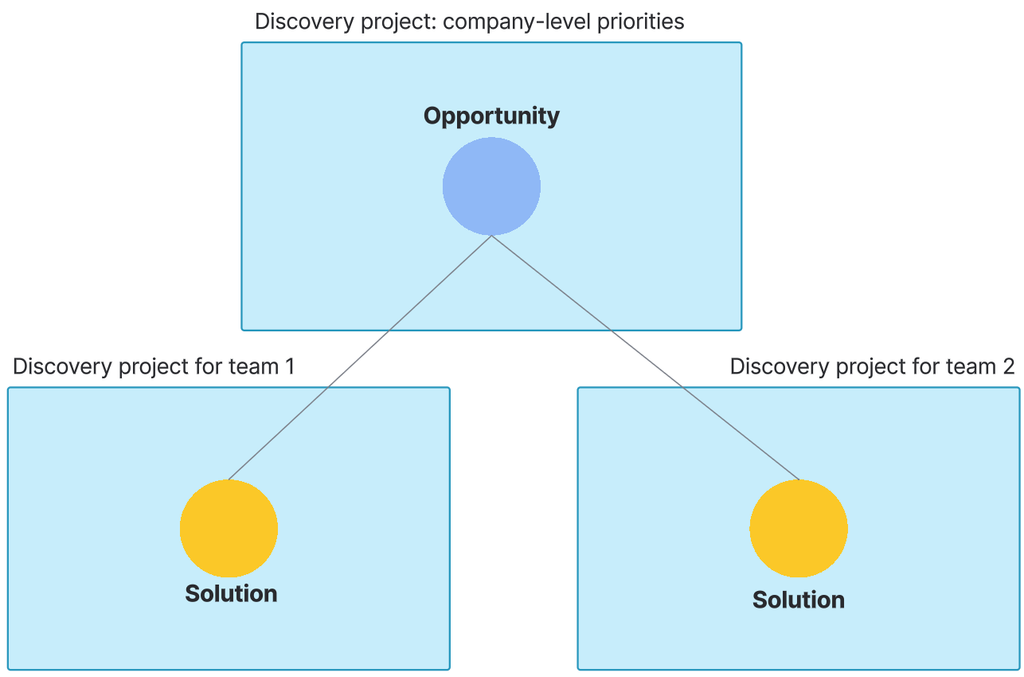
In this sample view in the company space, you can see how opportunities connect to solutions from the two separate team spaces:
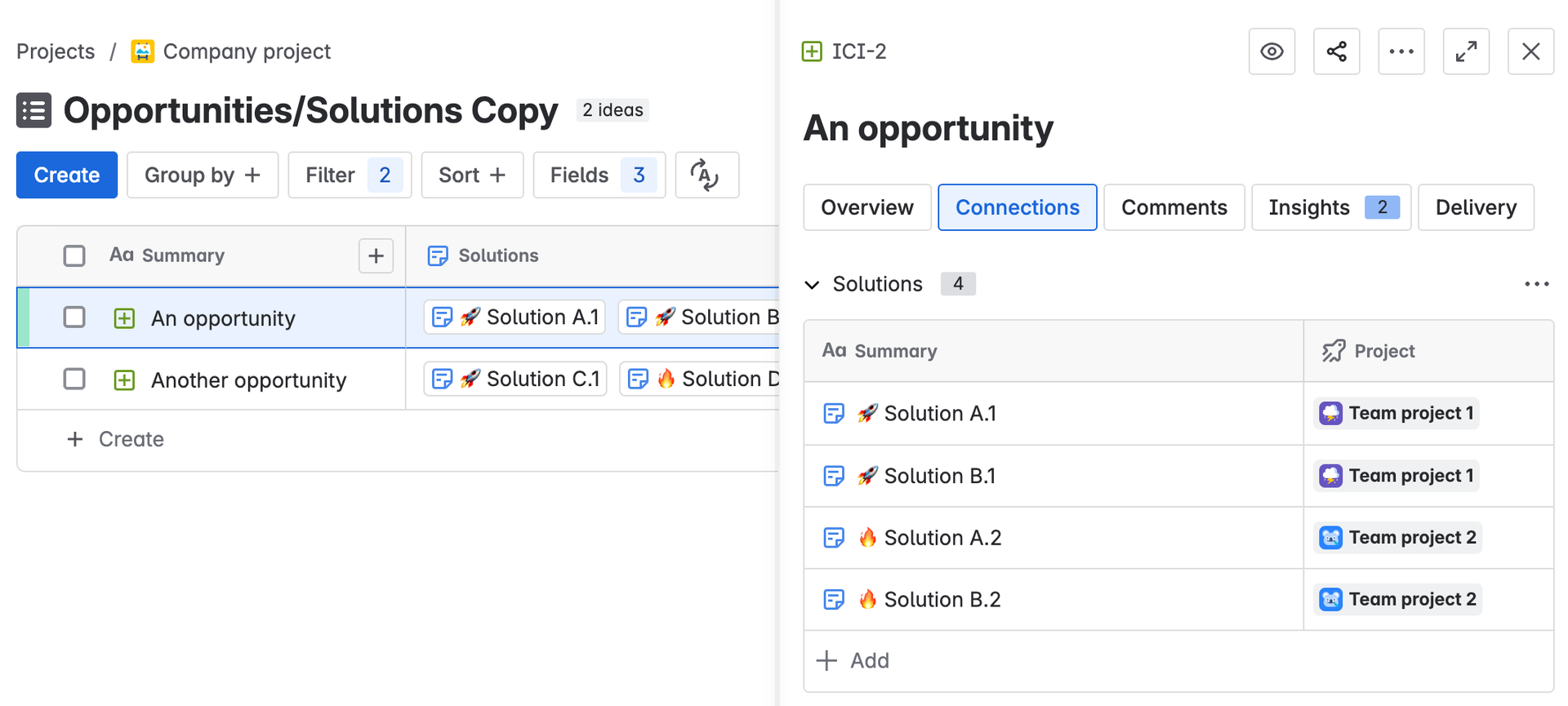
Here’s a demo for to replicate this set up:
Using the new tree view
As of 22 June 2026 we've introduced the tree view to help you better visualise your hierarchies in JPD:
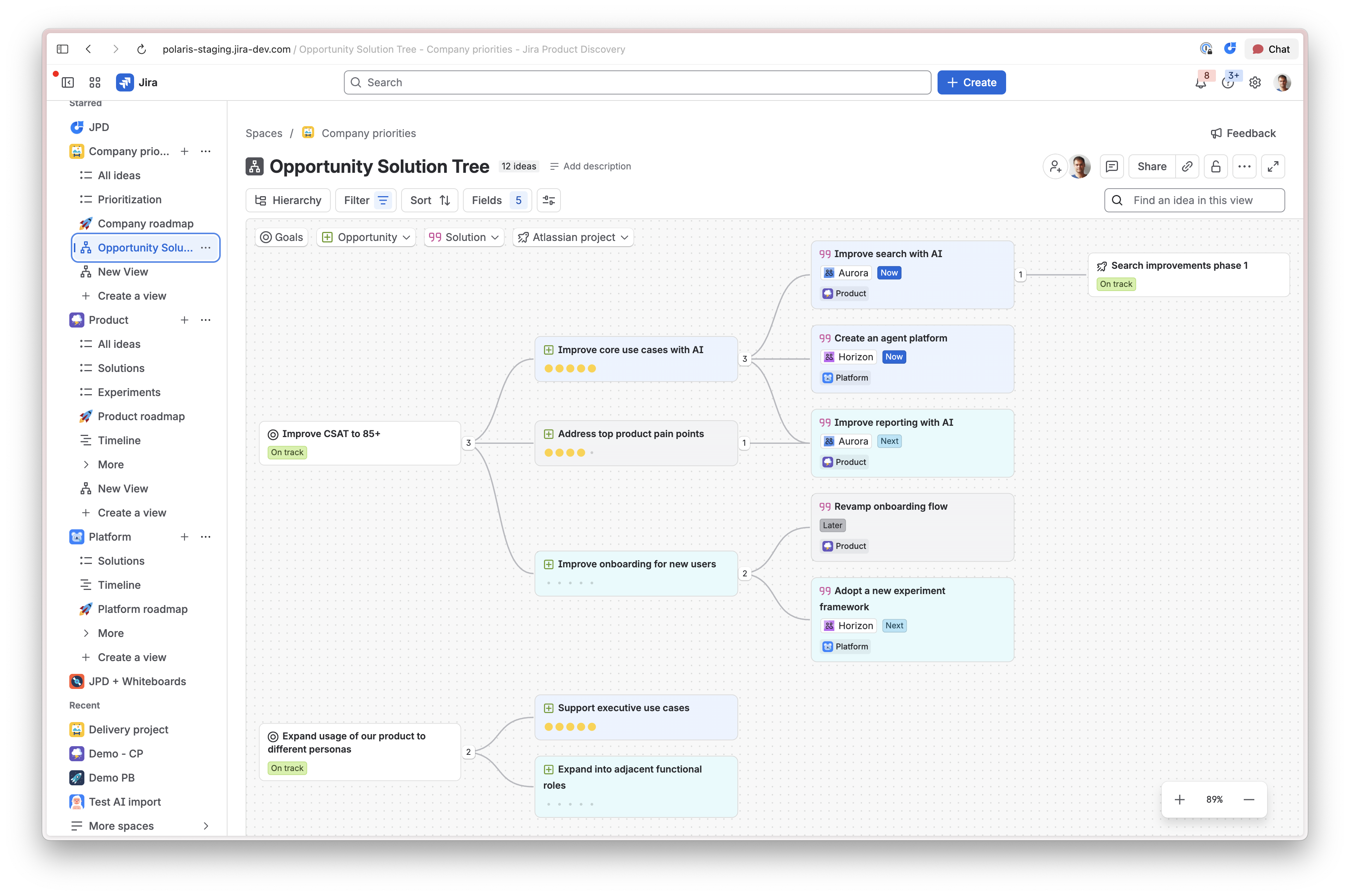
See instructions for how to use it here.
Using Connection fields in Roadmaps
You can use Connection fields in Roadmaps as long as you create them as Global fields.
Jira Product Discovery was built on Jira team-managed spaces, which means that we don’t yet support Global Types. This means that if you want to use a Type called “Solution” in 2 different spaces you’ll need to create that Type in both spaces. But then you can point the Global Connection field to both these Types as long as they have the exact same name.
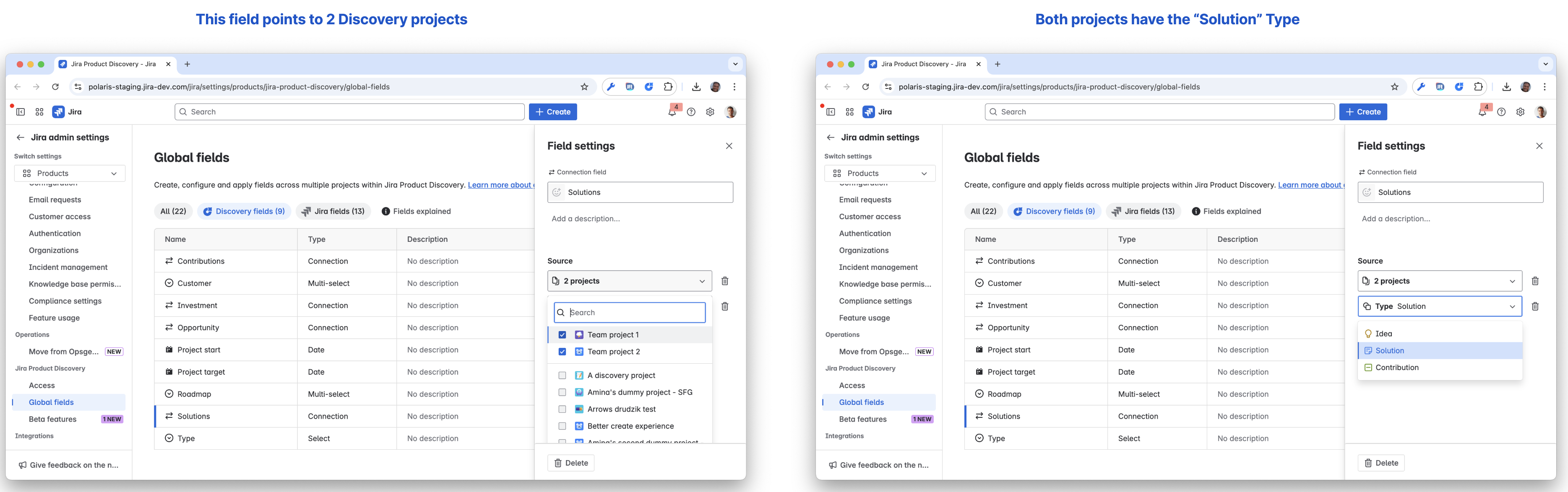
You can use these global fields in Spaces and in Roadmaps. The best way to understand when and how to do that is to watch this 4min demo:
FAQ
How do I show a field for each connection on a board card?
See this Loom
Current limitations
Here are current limitations and what we're doing about them:
- Product hierarchies are not yet integrated with Jira Plans.
- Connections are not inherited: e.g. if you connect A to B, and B to C, it doesn't connect A to C. But you can do that via an automation rule with a bit of fiddling.
- You can't yet roll up fields at different levels of the hierarchy


