This article provides an overview of your community profile, including how to link accounts and change your privacy settings.
What is a community profile?
In March 2025, we launched a new, unified community profile. Read more about the new experience
Your community profile combines your activities and achievements from Atlassian Community Forums, Atlassian Learning (and soon, Atlassian Community Events) into a single profile.
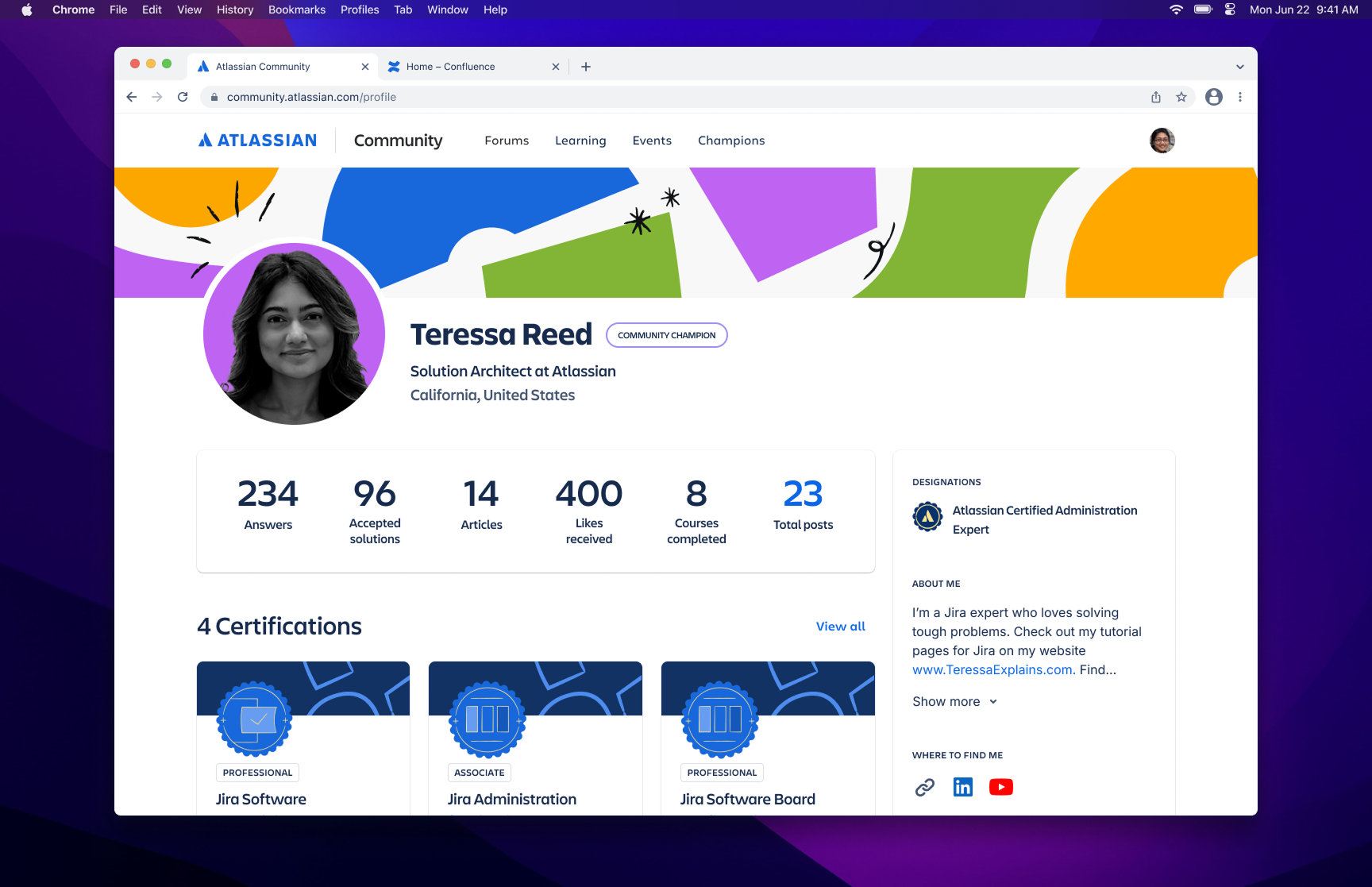
Get to know your profile
Personal details
Your profile displays the public name and profile picture associated with your Atlassian account.
If you have linked accounts, it will display the public name and profile picture associated with your primary account. You can edit your profile and add:
Groups
Displays the Atlassian Community Forums groups you’re part of.
Activity
Displays an overview of your activity and achievements across community:
-
Answers – total number of answers you’ve contributed on Atlassian Community Forums.
-
Accepted solutions – total number of solutions that have been accepted on Atlassian Community Forums.
-
Articles – total number of articles you’ve published on Atlassian Community Forums.
-
Likes received – Total number of likes you’ve received on Atlassian Community Forums.
-
Courses completed – Total number of courses you’ve completed on Atlassian Learning (formerly Atlassian University).
-
Total posts – Total number of posts you’ve created on Atlassian Community Forums. You can select this to view all activity aggregated across all linked accounts.
Certifications and designations
Displays any Atlassian Learning certifications you’ve earned. If you’ve achieved an Atlassian Certified Designation, this will display on the right-hand side.
Badges
Displays both Kudos and milestone badges you’ve earned, as well as the Atlassian Learning courses you’ve completed.
Kudos
Displays your community forums level, and any peer Kudos you’ve received.
Access your profile
Previously, you would access your community profile by logging in and selecting your avatar, then selecting View profile from the dropdown menu. The new experience is much the same.
To access the new unified profile:
-
Log in to your account at community.atlassian.com .
-
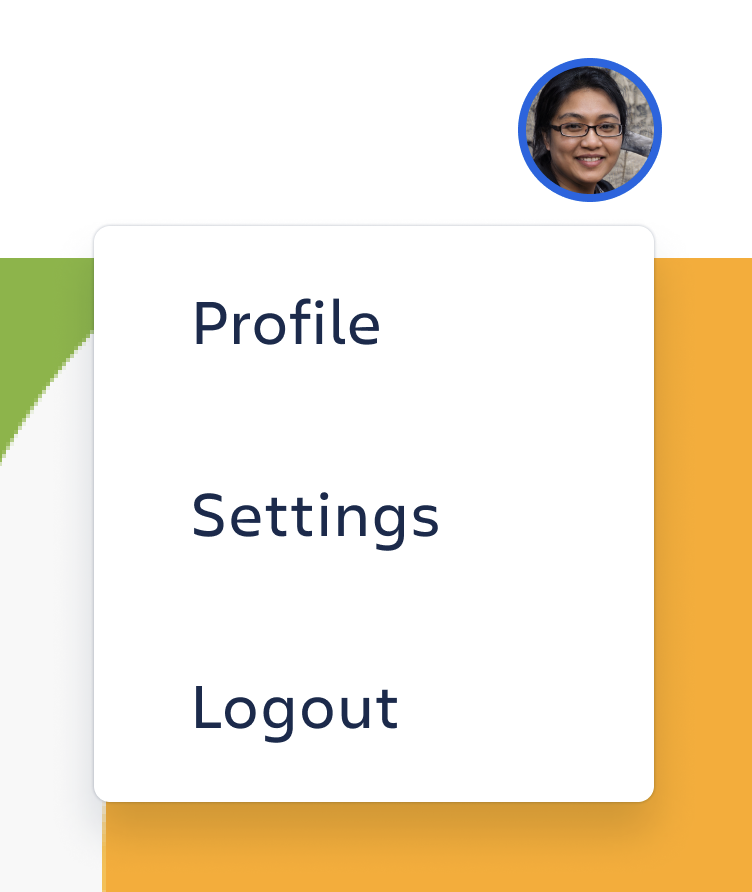
Select your profile avatar in the top right.
-
From the dropdown menu, select Profile.
Edit your profile
To edit your profile:
-
Log in to your account at community.atlassian.com.
-
Select your profile avatar in the top right.
-
From the dropdown menu, select Profile.
-
Select the Edit profile button.
-
Make your updates, then select Save changes.
How profile privacy settings work
By default, your profile will be public, but you can choose to make it private. When your profile is private:
-
Your name and profile picture may still be public. Your community profile reflects the privacy settings you’ve set in your Atlassian account.
-
Your profile information and data will only be visible to you.
-
Your activity on Atlassian Community Forums (for example, posts, likes, and comments) will remain publicly visible on forums.
Currently, we only offer the option to switch your profile to public or private, but we may introduce more privacy settings in future.
Make your profile private
To update your profile’s privacy:
-
Log in to your account at community.atlassian.com.
-
Select the profile avatar in the top right.
-
From the dropdown menu, select Profile.
-
Select Edit profile.
-
Under Privacy, select the Private radio button.
-
Select save changes.
How does account linking work?
You can link multiple community accounts together so you retain and grow your achievements over time. All activity from your linked accounts is combined together in your profile stats.
To link accounts, you need a primary account. A primary account must be a community account that uses a personal email address. It serves as the anchor account to which all other accounts are linked.
Here are the definitions:
-
Personal account – a community account that uses a personal email address – one you own and manage yourself. (For example sallysmith@gmail.com)
-
Managed account – a community account that uses an email address managed by an external organization (for example, sallysmith@acmecorp.com)
-
Primary account – a personal account that you’ve selected to be your primary ‘anchor’ account.
We highly recommend adding a primary account, so you’re set up and ready if you change jobs or create additional accounts. As long as you have access to your primary account, you can retain the connection with any other accounts you’ve linked.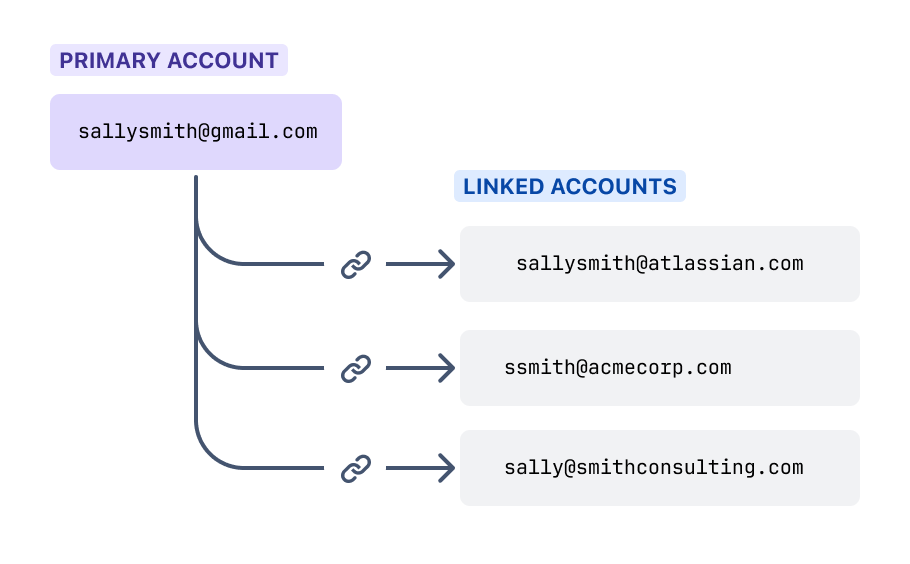
You can link as many accounts together as you’d like. If you have multiple personal accounts linked to each other, you’ll need to select one personal account as your primary account.
You can unlink accounts at any time.
What happens to your data when you link accounts
Once your accounts are linked:
-
Your data (activity stats, certifications, designations, badges, Kudos) will be aggregated on your profile.
- Your forums activity will be displayed in one feed. You can see which account it was from based on the forums username.
-
The name and photo on your profile will come from your primary account.
-
Your profile will use content (such as your bio) and settings (including privacy settings) from your your chosen primary account.
- Your role label will be the highest ranked role of your linked accounts.
See the FAQ section for more info on aggregation.
Link an account
To link accounts:
-
Go to community.atlassian.com and log in with a personal account.
-
Select your profile avatar in the top right.
-
From the dropdown menu, select Settings.
-
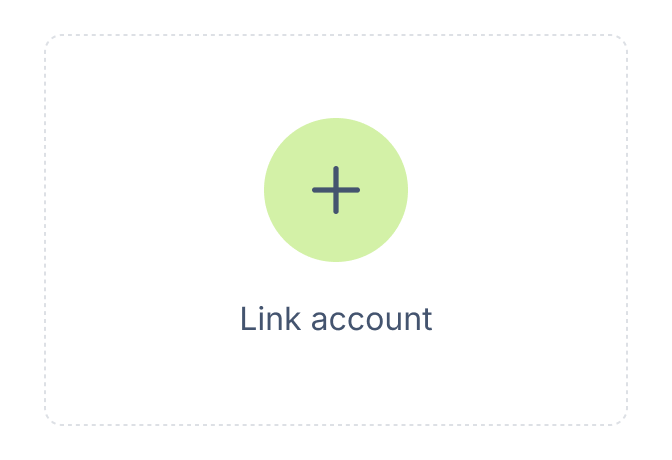
Under Linked accounts, select Link account, and follow the prompts.
Repeat the process with any additional accounts you’d like to link together.
Don’t have a personal account? Go to id.atlassian.com/signup to create an Atlassian account that uses a personal email address.
Unlink an account
To unlink an account:
-
Go to community.atlassian.com. Make sure you’re logged in with your primary account.
-
Select your profile avatar in the top right.
-
From the dropdown menu, select Settings.
-
Under Linked accounts, go to the account and select the more options (…) icon.
-
Select Unlink account.
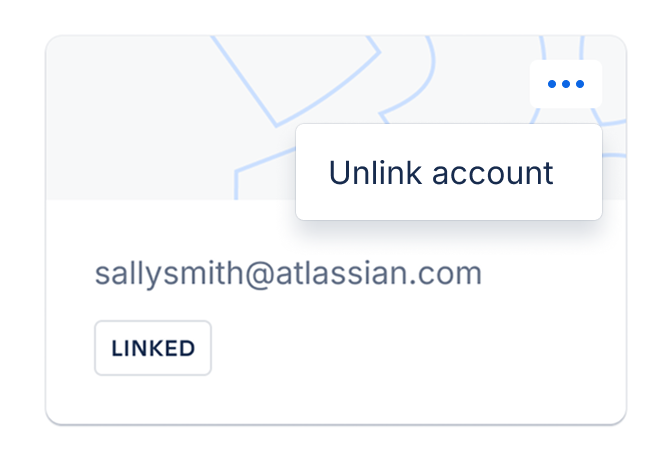
All of your previous data will still be associated to that account, but will no longer be aggregated into a single profile.
Change a primary account
To change which account is the primary account:
-
Go to community.atlassian.com. Make sure you’re logged in with your primary account.
-
Select your profile avatar in the top right.
-
From the dropdown menu, select Settings.
-
Under Linked accounts, go to the account you want to make your primary (it must be a personal account).
-
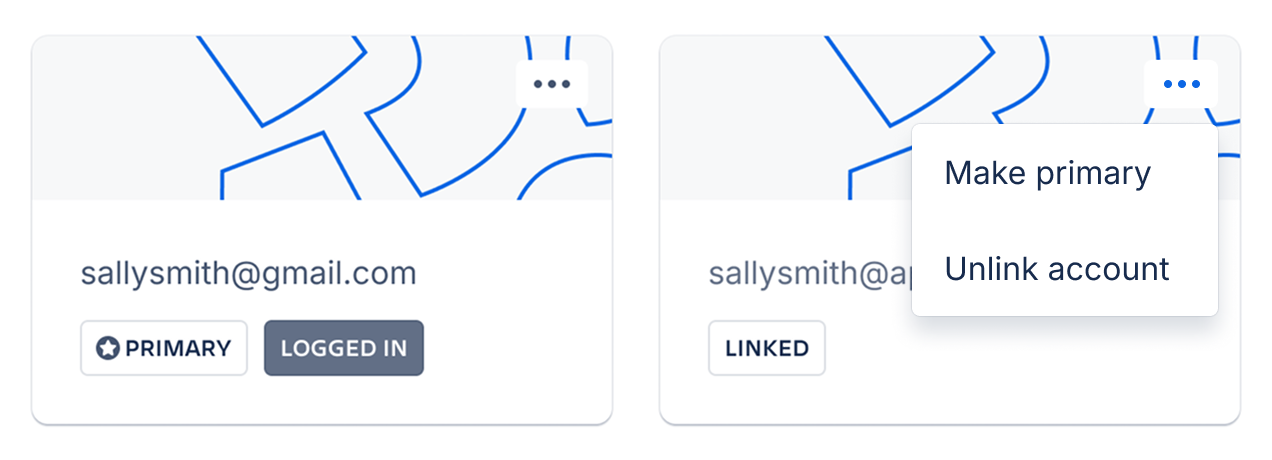
Select the more options (…) icon, and select Make primary.
-
The new account will display the label <span data-highlighted="true" data-vc="highlighted-text">PRIMARY.</span>
Frequently asked questions
Where did the link account button go?
If you're logged into a non-primary account (personal or managed), you will only be able to link a primary account to it. Log in to your primary account to link any additional accounts.
Which linked accounts can I use to access Atlassian Community?
You can choose to log in with any of your linked accounts.
What happens when I edit info on a linked account?
When you edit the About me info, where to find me, my products and privacy settings from any of my linked accounts, edits will be reflected in all of my linked accounts because it’s a shared profile across linked accounts.
Can I link an old account?
As long as you’re able to log in successfully to an account, you can to link it through the account linking feature.
How does data aggregation work?
Items that we aggregate
Your profile will show the combined total across your linked accounts:
Items where we remove duplicates
Special cases
For milestone badges (for example, accepted answers, like received) we add up the activity across your linked accounts, then show the corresponding milestone badges leading up to that total amount. Here’s an example:
sallysmith@gmail.com:
-
1, 10, 25 Badges
-
27 Answers
ssmith@acmecorp.com:
-
1, 10, 25, 50 Badges
-
57 Answers
In this case, the profile will display:
-
84 answers (57 + 27)
-
1, 10, 25, 50, 75 Badges
Troubleshooting account linking
Getting an error when you try to link accounts? This can happen if you’re trying to link two incompatible accounts. There are a few common cases:
Trying to link two managed accounts together
Trying to link two primary accounts
-
Problem: If two accounts have already been assigned as primary accounts, you can’t link them together.
-
Solution: Remove linked accounts from one of the primary accounts so that it is no longer a primary.
Trying to link an account that’s already linked to another primary
-
Problem: You can’t link an account which has already been linked to a different primary account.
-
Solution: Unlink the account from the other primary, and then link to the new account.



![Photo of Thorsten Letschert [Decadis AG]](https://us.v-cdn.net/6038660/uploads/avatars/d9/37/nd937b41897bc7e1dae3229cd2762ac70.png)


