Ready to turn Confluence into a powerful wiki? This guide will show you how to create a wiki, explain what makes it unique, and share tips for setting up your own.
📚 What is Confluence?
Confluence is a team collaboration tool for sharing knowledge, managing projects, and keeping everything organized. It’s also perfect for creating a wiki, where pages can grow and evolve with your team’s input.
🧩 What’s a Wiki?
A wiki is a collaborative space where users can create, edit, and update content easily. It’s ideal for:
- Team knowledge sharing
- Project documentation
- Internal or public knowledge bases
Wikis are flexible and built for ongoing updates, making them a great tool for dynamic content.
💡 Why Use Confluence for Your Wiki?
Confluence offers powerful features for a better wiki experience:
- Real-Time Collaboration: Edit pages together, leave comments, and keep everyone aligned.
- Customizable Layouts: Organize content to fit your team’s needs.
- Secure Permissions: Control who can view or edit your pages.
- Scalable Design: Works for small teams and large organizations.
🔍 Wiki vs. Knowledge Base
When setting up a space in Confluence, you’ll choose between a wiki (Collaboration space), a knowledge base, or a custom space.
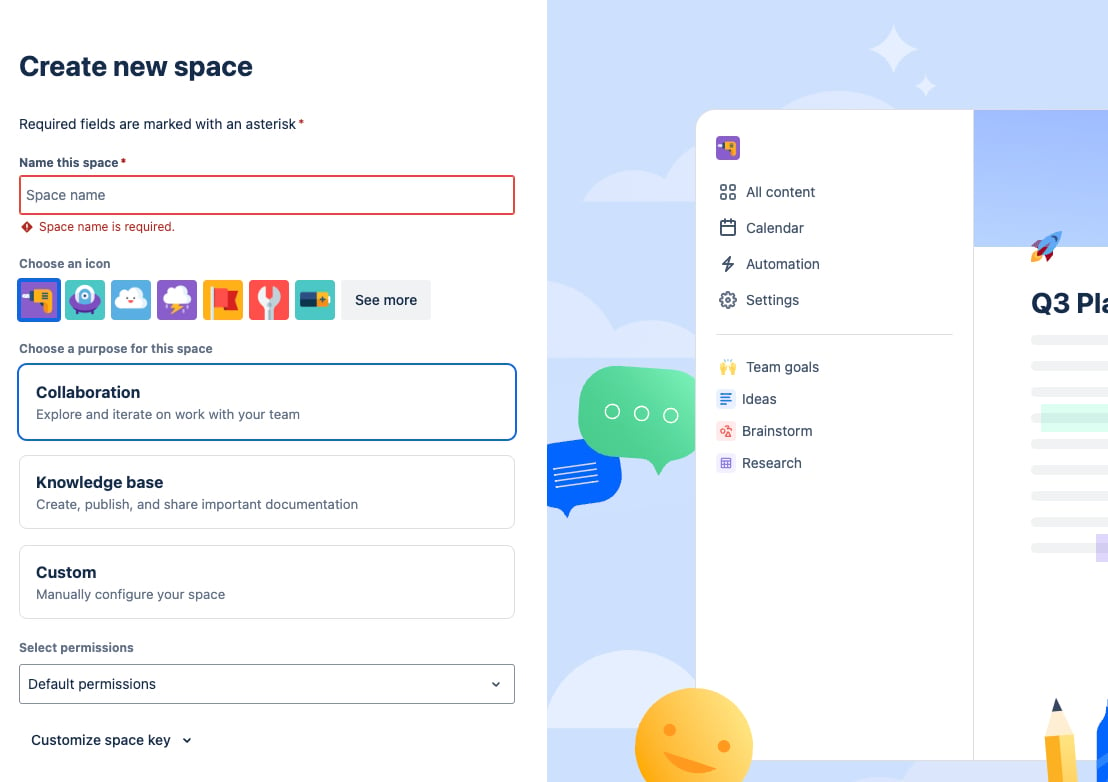
- Wikis: Collaborative, open for edits, and great for brainstorming or dynamic content.
- Knowledge Bases: Structured, controlled, and ideal for formal policies or guides.
Use both for the best results—wikis for teamwork and knowledge bases for finalized content.
🛠️ How to Build Your Confluence Wiki
1️⃣ Define Your Wiki’s Purpose
Decide what your wiki will focus on: team collaboration, project tracking, or company-wide resources.
2️⃣ Plan Your Structure
Organize by team, project, or topic. A clear layout helps users find what they need and makes future updates easier.
3️⃣ Create a Space
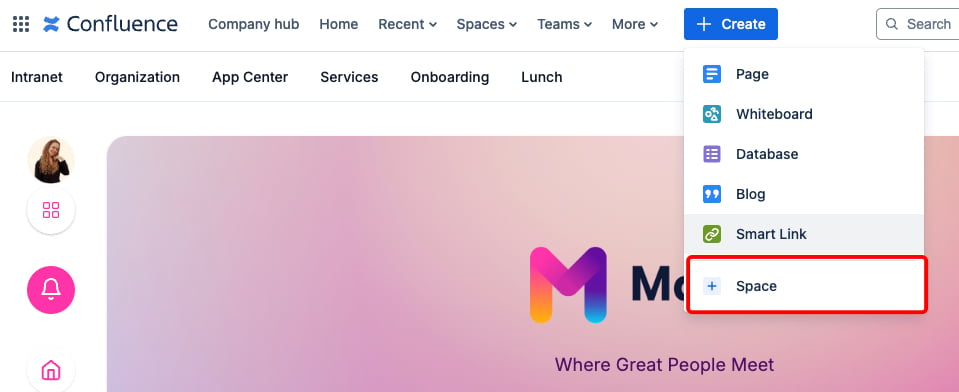
- Go to Spaces → Create Space.
- Use the Collaboration template for flexible setups.
- Name it clearly, like "Team Wiki" or "Project Hub."
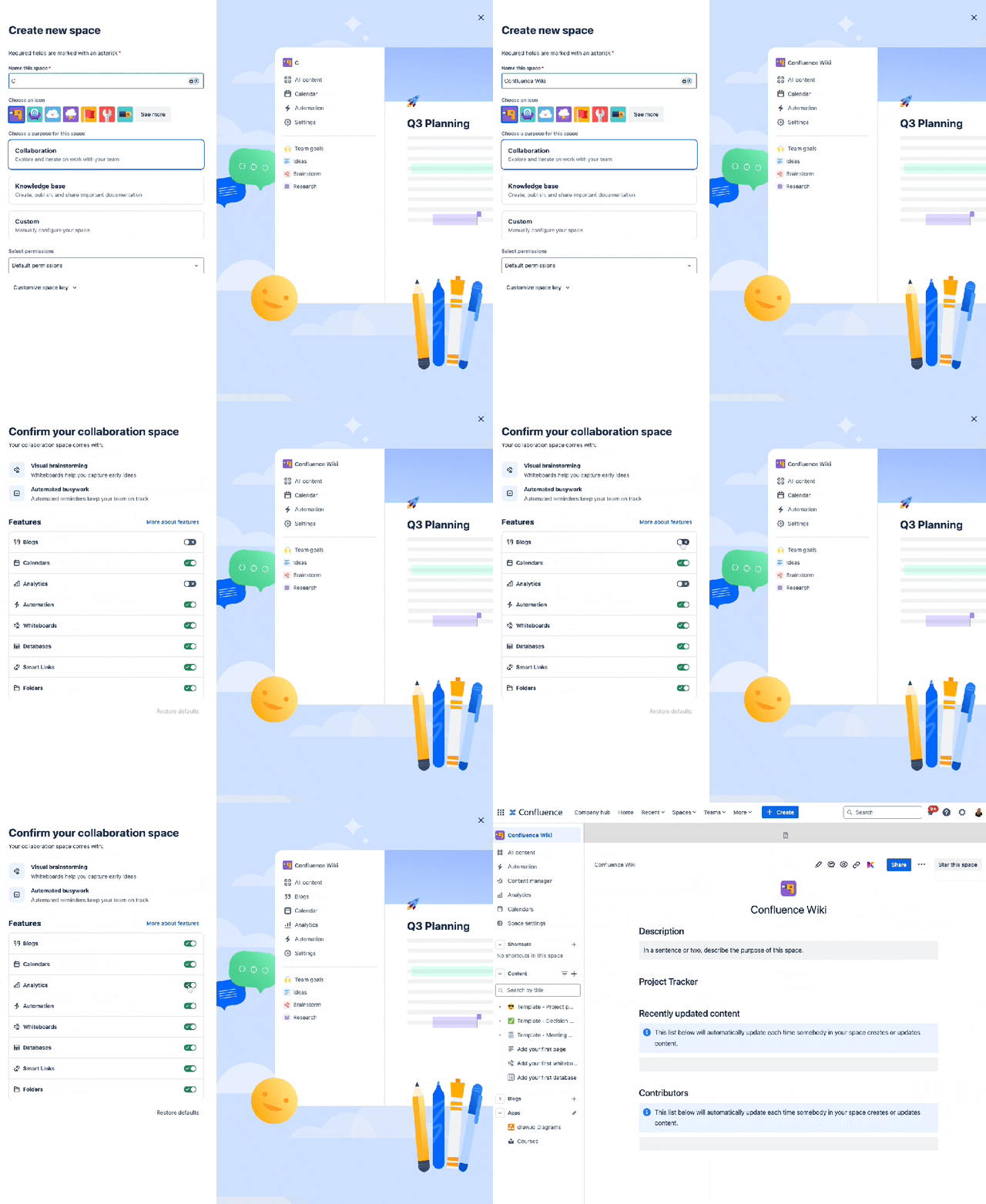
4️⃣ Add Content to your Confluence Wiki
Now that you’ve set up your space, it’s time to start adding content and building out your wiki. The key to a great wiki is creating pages that are informative, organized, and easy to update. Here’s how to get started:
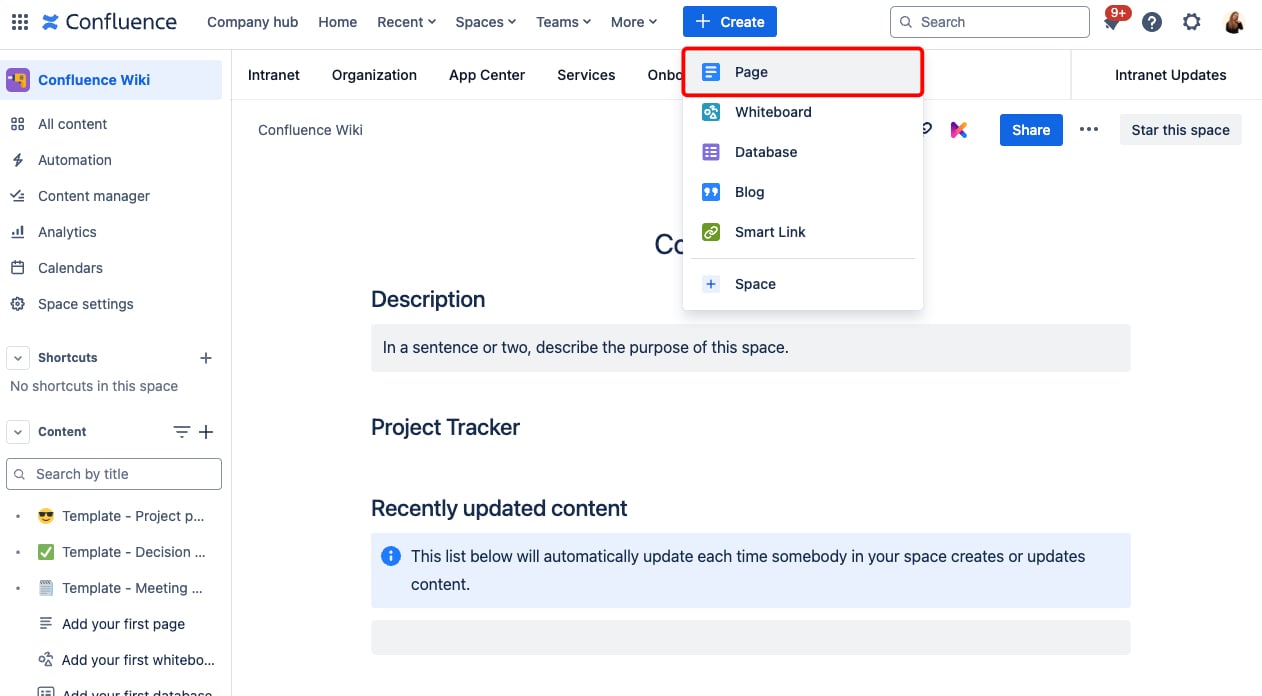
- Start with a page: Click + Create to begin.
- Group related pages with parent, folders and child structures.
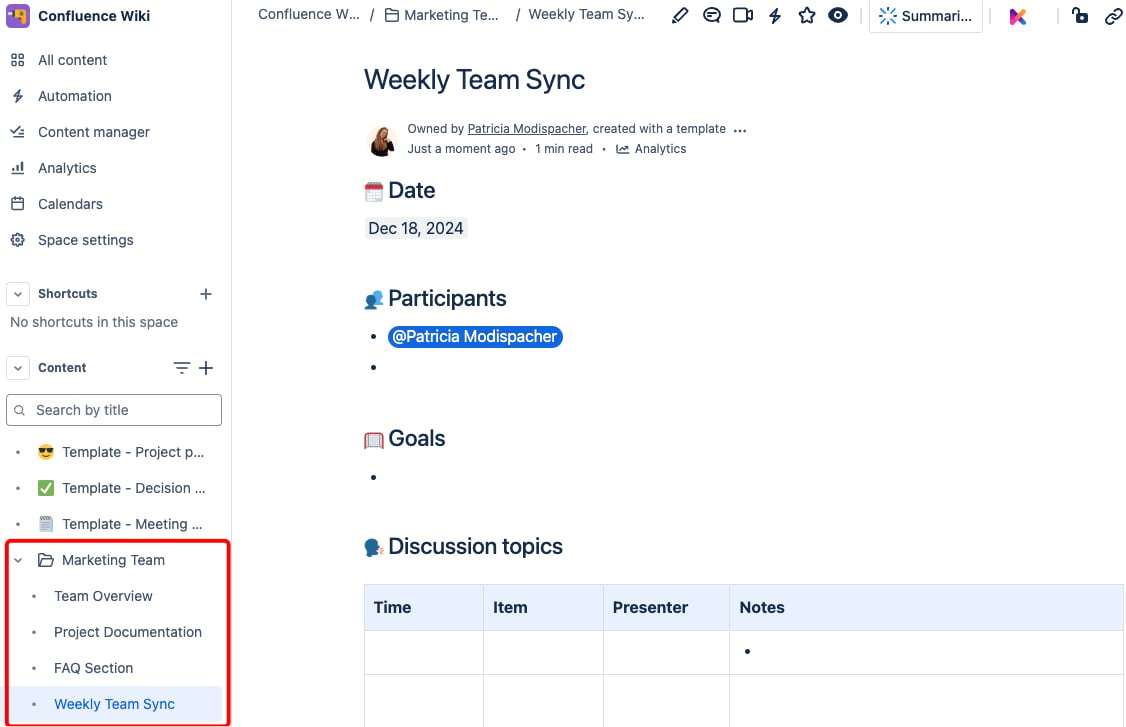
- Use labels for easy searching.
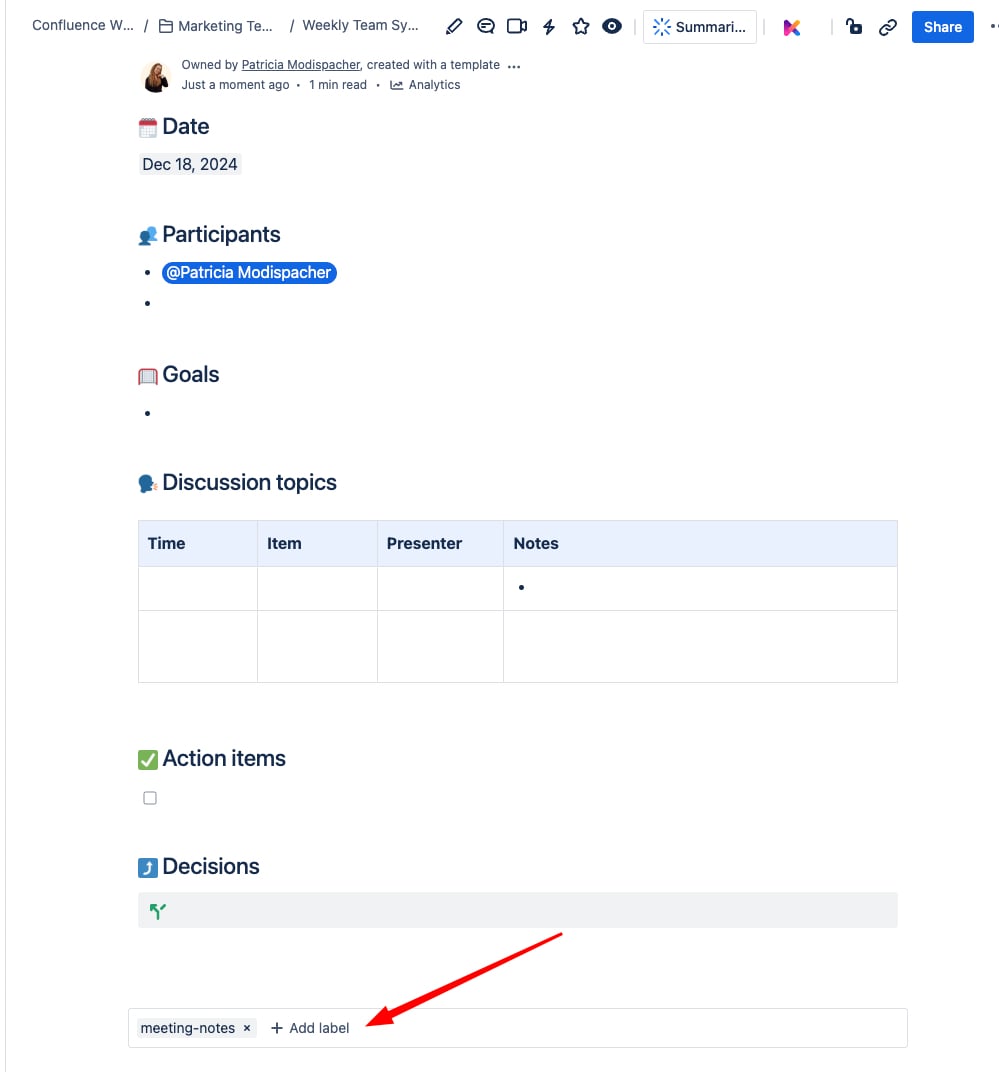
Keep your pages simple and easy to navigate. Use headings, bullet points, and visuals to organize content like marketing strategies or social media guidelines.
🎨 Add Features to Your Wiki
🔗 Interactive Tools
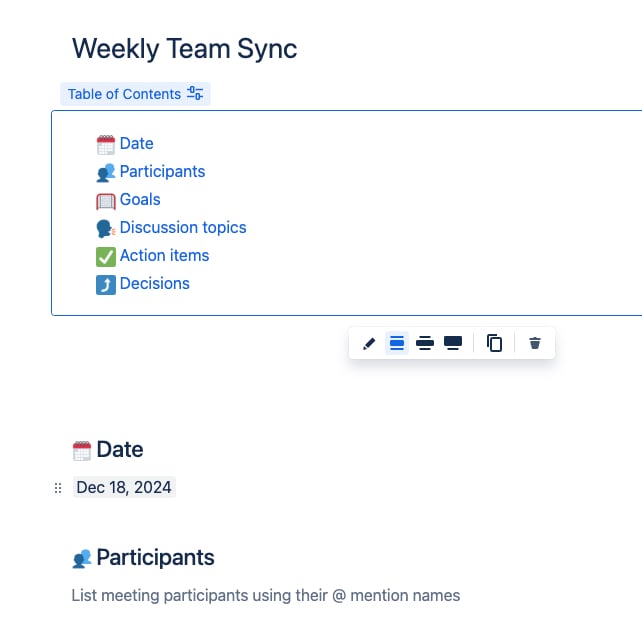
- Table of Contents: For long pages, the Table of Contents macro is a lifesaver. It automatically generates a list of headings from your page, allowing users to jump directly to the sections they need.
- Expandable Sections: Keep your internal Confluence wiki clean and user-friendly by using collapsible content. The Expand macro is ideal for FAQs, detailed instructions, or any content you don’t need to show all at once.

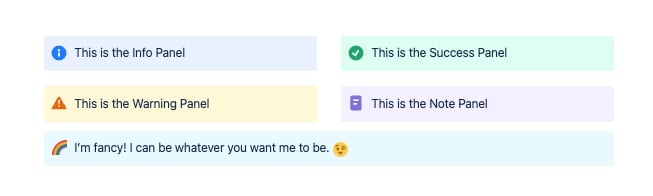
- Highlight Key Info:Make important updates or announcements stand out with the Panel macro. These colorful boxes are perfect for emphasizing critical details, deadlines, or calls to action.
✨ Take It to the Next Level with Aura
Aura Content Formatting Macros make your wiki more dynamic, engaging, and visually polished. Here’s what you can do:
📋 Aura Cards
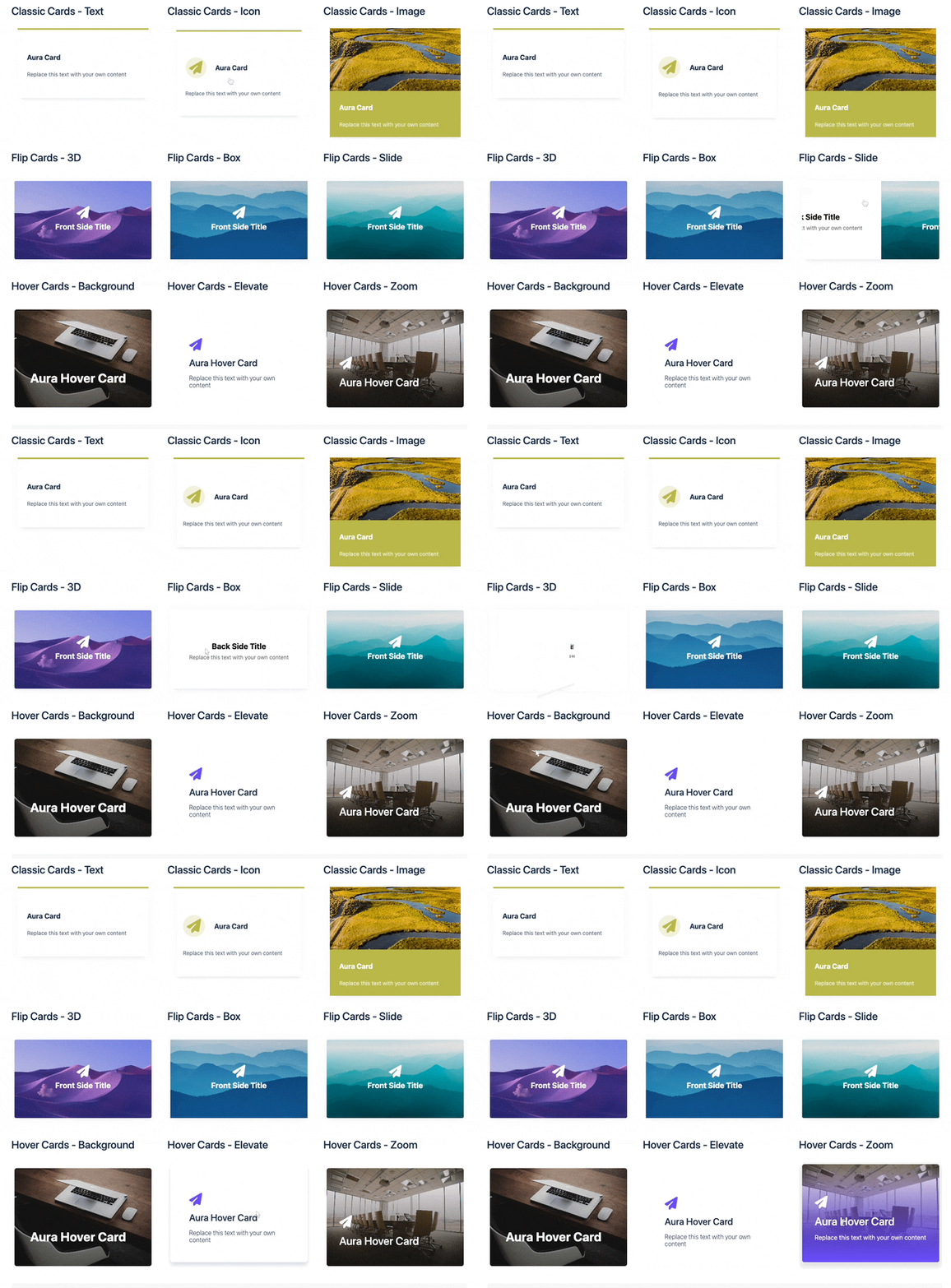
Create clickable, visually appealing sections for important links, goals, or resources with Aura Cards for Confluence. Add hover effects, custom colors, and icons to make navigation easy and professional.
📡 Aura Dynamic Content
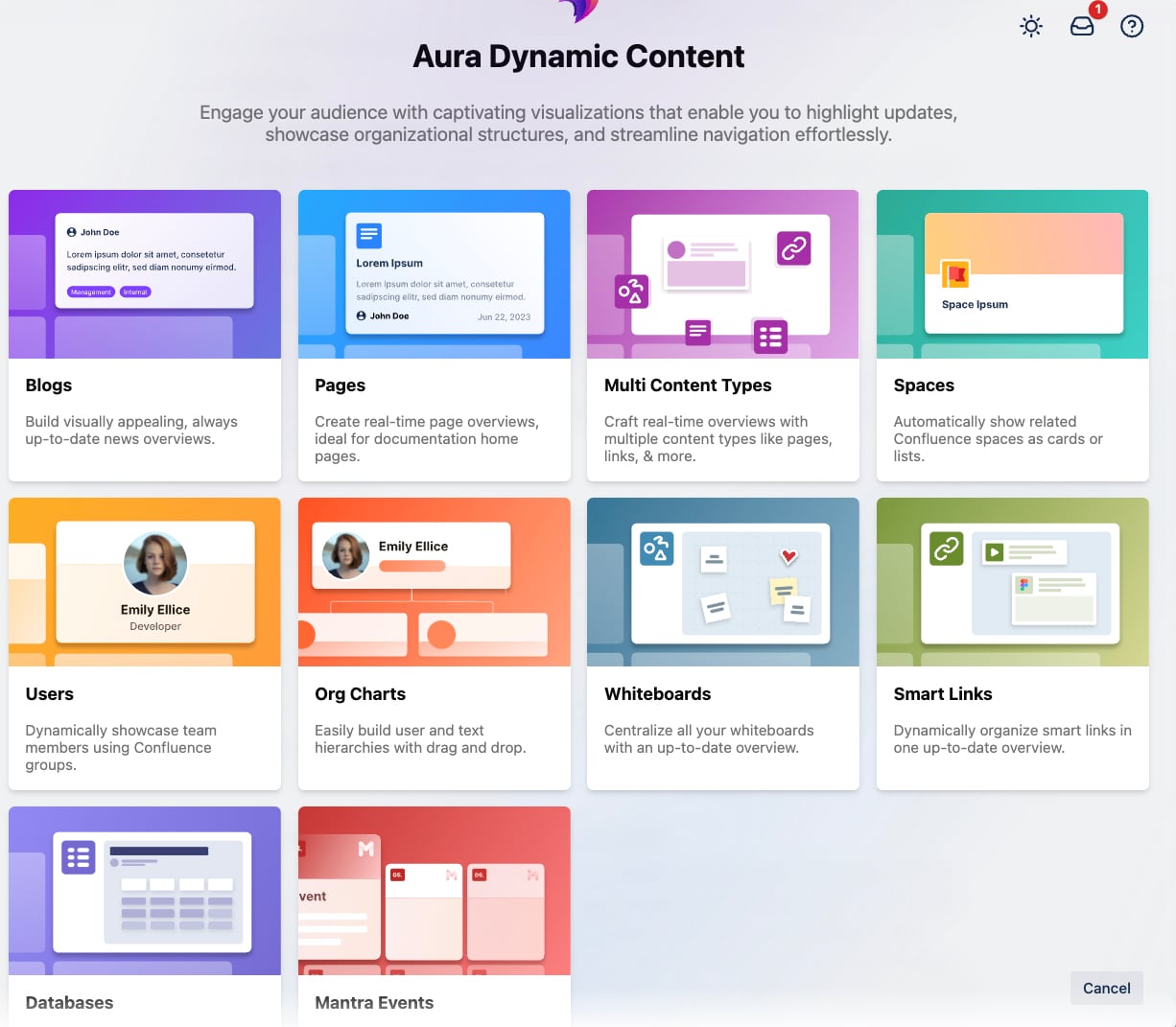
Keep your wiki fresh with real-time updates. Pull in blogs, recent edits, or external content to ensure your wiki always has the latest information. Filter and customize content for better relevance.
🗂️ Aura Child Tabs
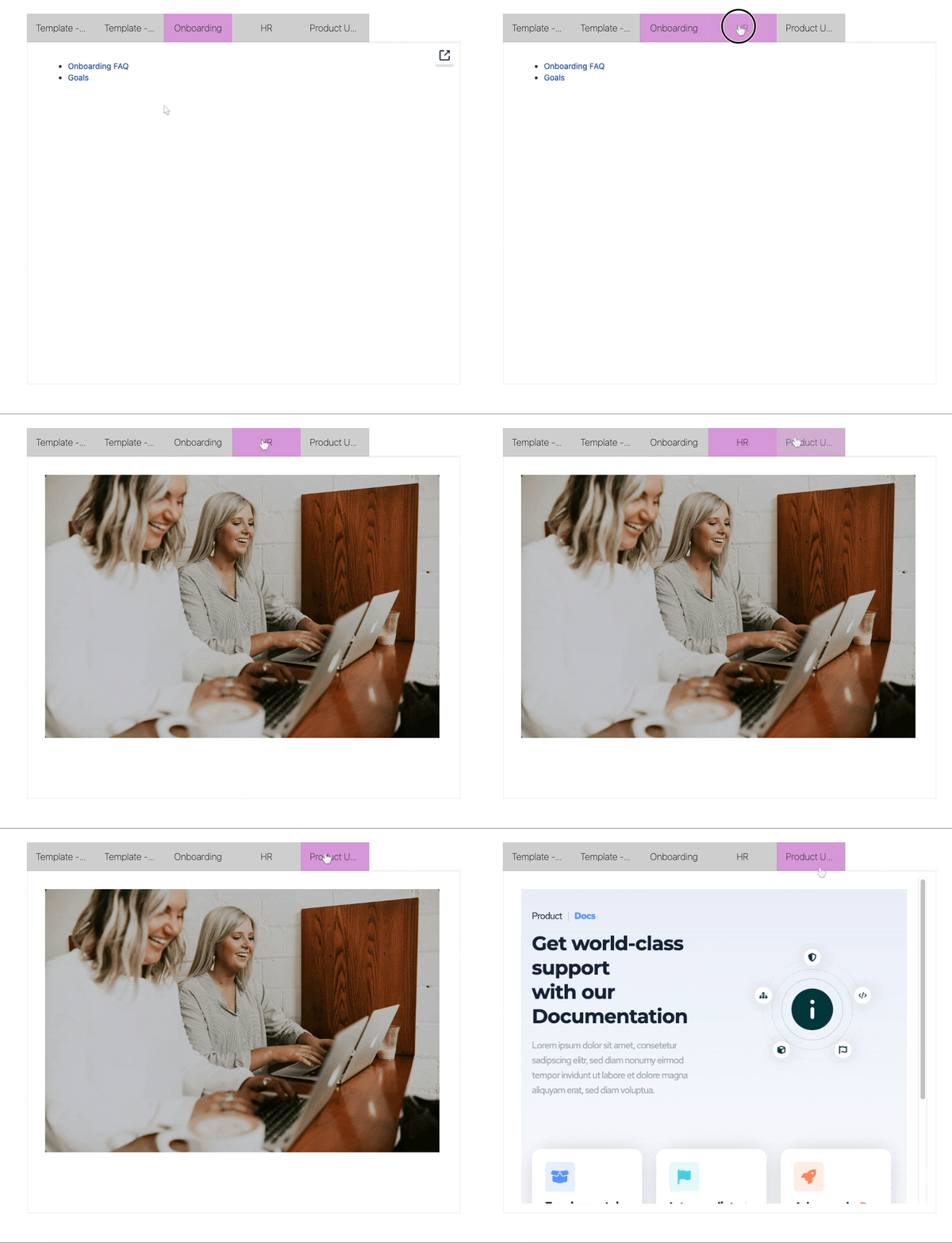
Display child page content directly on parent pages for seamless navigation. No need to click through multiple pages—everything stays in one place.
⬇️ Aura Expand
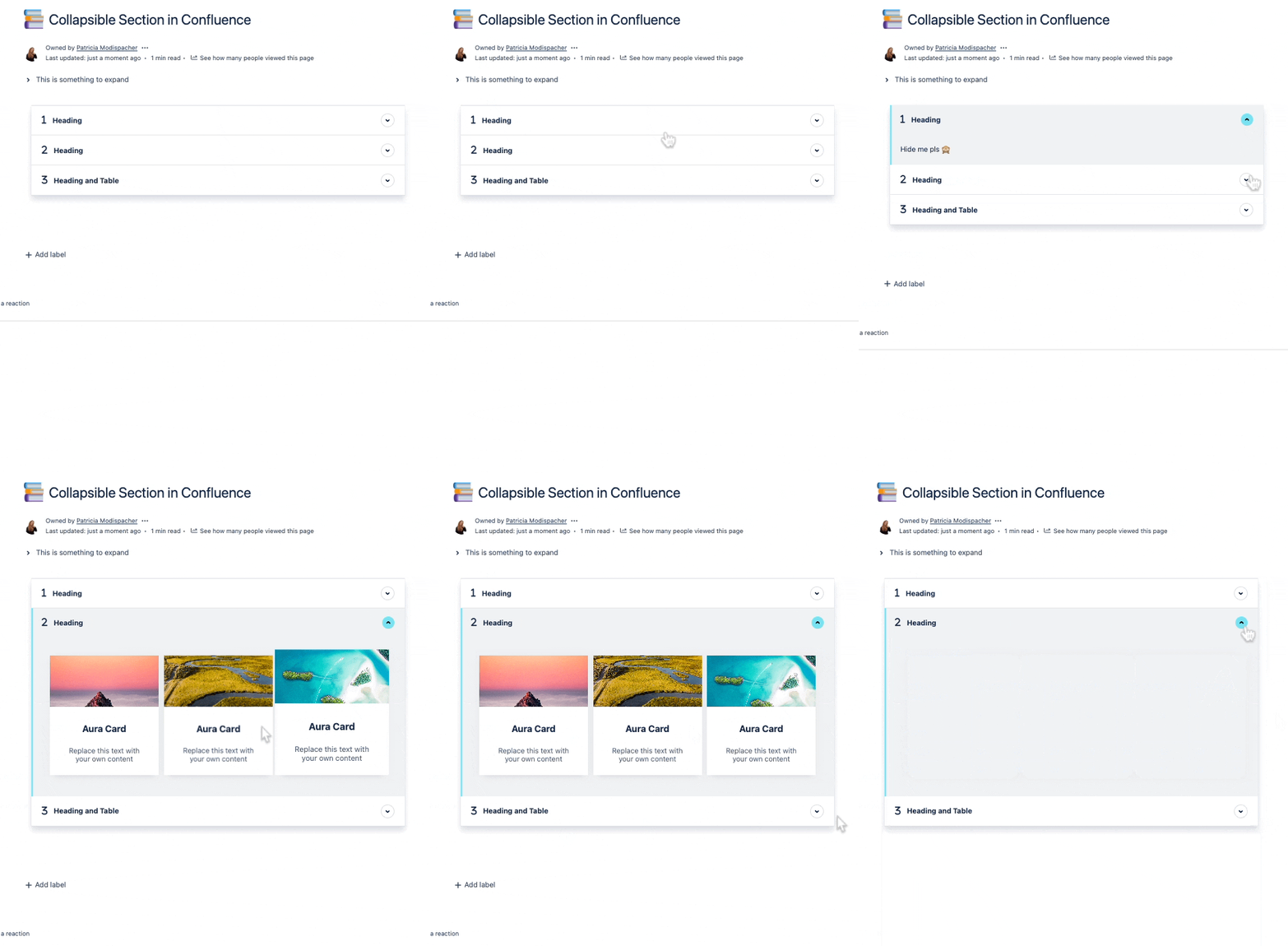
Create collapsible sections with custom styles, icons, and animations. Ideal for FAQs, guides, or detailed instructions. You can even nest expands or combine them with Aura Tabs or Cards.
🎨 Aura Panels
Add beautifully designed panels with custom backgrounds, gradients, and layouts. Nest macros like buttons or tables inside panels for extra functionality and style.
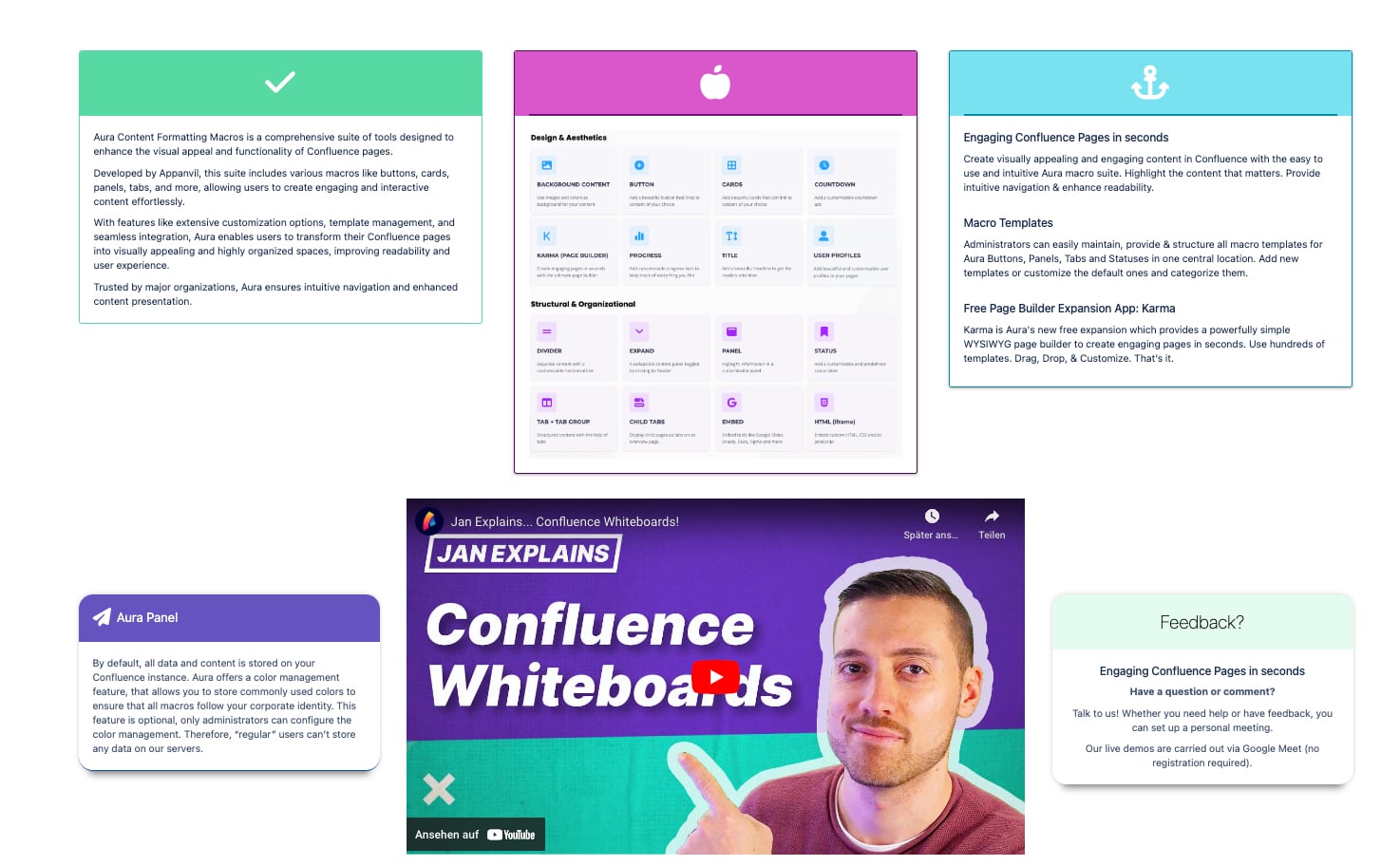
📖 Examples for Wiki-Inspiration
Here are some examples of the types of pages you can include in your Confluence wiki to make it an indispensable tool for your team:
Onboarding Wiki: Include guides, team info, and resources for new hires.

Help Center: FAQs, how-to guides, and troubleshooting steps for internal or external users.
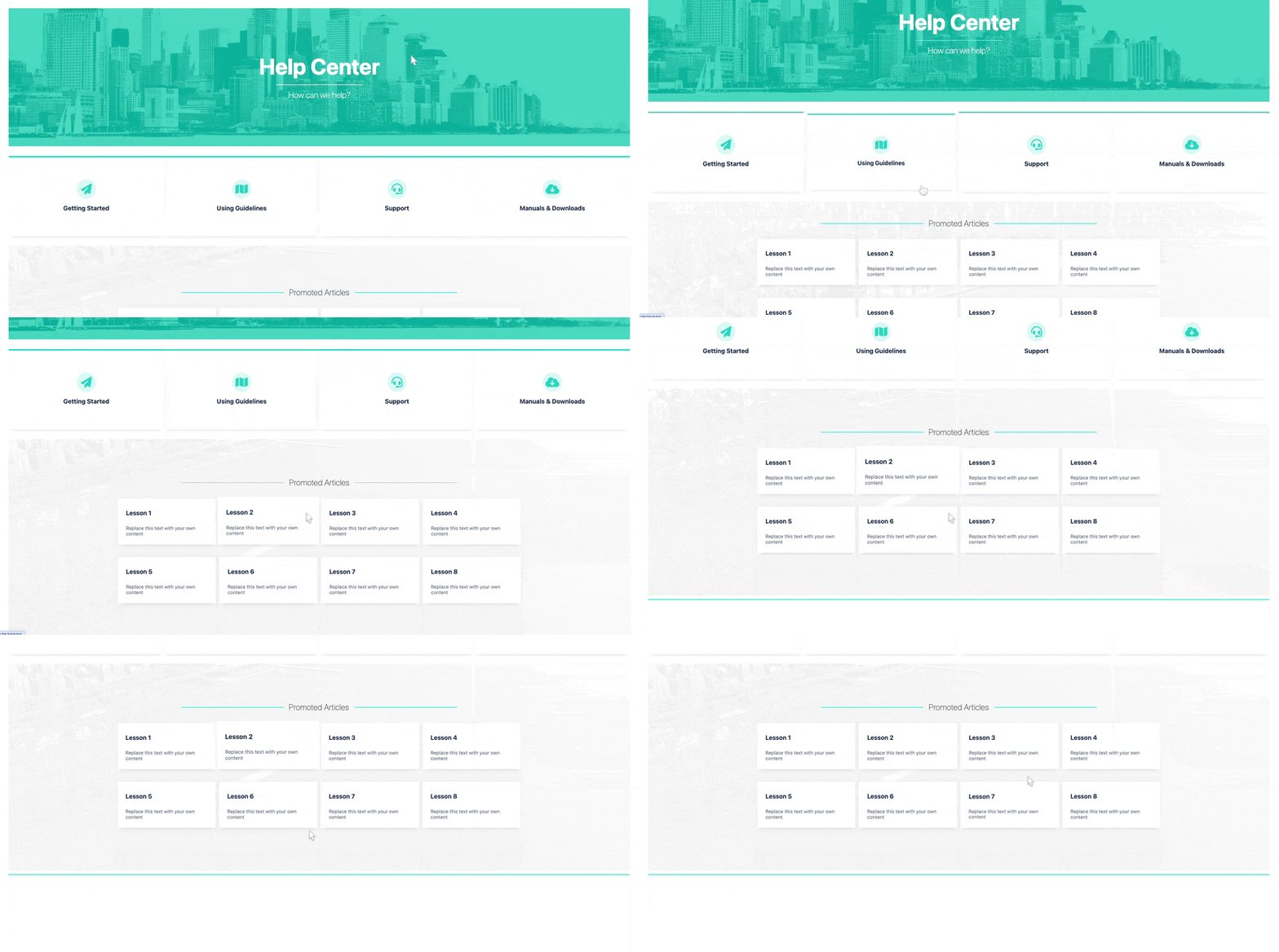
Knowledge Base: Organize policies, procedures, and technical documentation.

We used Aura and the free app Karma to create these designs. Interested in more designs? Take a look at more Confluence sample pages.
✅ Best Practices for Your Confluence Wiki
- Set Guidelines: Standardize page names and formatting.
- Stay Organized: Regularly review and update your structure.
- Encourage Contributions: Let team members add and update content.
- Use Visuals: Make pages engaging with macros and design tools.
🌟 Build Your Wiki Today
Confluence makes it simple to create an effective, easy-to-use wiki for your team. Start building, keep it organized, and let collaboration thrive.
Unlock the full potential of your Confluence wiki and empower your team with better tools for knowledge sharing. Try Aura now or get a free, customized demo!


