This article is designed to assist users in utilizing the new Forms Smart Values. With these, you can now manipulate form information effectively using smart values.
For more information, please refer to the features below:
 JSDCLOUD-10697 - Forms Automation: Access form fields with smart values (smartvalues)
These smart values allow you to access and manipulate data from forms and fields, providing enhanced automation and reporting capabilities.
Retrieve Submitted Form Data
 Note: Only smart values on forms that use the form submitted trigger can be accessed in this topic.
Accessing Forms with Smart Values
When employing the "Forms Submitted" automation trigger, you can retrieve forms associated with an issue using {{forms}}. This formats the forms into a list, which can be utilized within an automation rule. To target a specific form within this list, use automation list smart values.
Example: If the most recently submitted form is named "Purchase Order Request", utilizing {{forms.last}} will yield the formTemplateID associated with the "Purchase Order Request" form, for example “d6d3a06b-44c4-46aa-b58c-9a46743898dc".
Note: You can double-check the formTemplateID by going to the Forms page, simply click on the three dots (...) and select "Copy Form ID". This action will copy the formTemplateID to your clipboard, allowing you to paste it wherever you need:
Accessing Form Fields with Smart Values
To extract a smart value from a form field, you must know both the field type and its unique field key. This key can be customized within the form's configuration panel and is case-sensitive, including any spaces.
Example Automation Rule: John wants to automate a comment addition with purchasing total each time an "Purchase Order Request" form is submitted. First, he ensures the "Total" field has the field key total. He sets up an automation rule using the "Form Submitted" trigger for "Purchase Order Request" and includes the action "Comment on Issue", inputting {{forms.last.formFieldKey}}. For example:
Dear valued customer, the total amount is: {{forms.last.total}}
This ensures that the total value are added as a comment upon form submission.
Field Types and Their Smart Values
-
Text Fields: Supports Short Text, Long Text, Paragraph, Email, and URL. Use text string formatting {{forms.last.Text Field}}.
-
Choice Fields: Includes Radio Buttons, Checkboxes, Dropdown, Multiselect Dropdown, Cascading Dropdown, and Assets. Use list formatting for these fields.
-
Date Fields: Applicable to Date, Date & Time, and Time fields. Format as text.
-
Example: If a date field with key Due date is set to "10/01/24", {{forms.last.Due date.fullDate}} returns "Wednesday, October 1, 2024".
-
Number Fields: Use for Number field types and format as numerical values.
-
Example: If a number field with key Invoice has "100", ${{forms.last.Invoice}} returns "$100".
Please be aware that, unfortunately, the {{.asCurrency}} feature is not currently supported in Forms.
-
User Fields: Includes Single User and Multiple Users fields, formatted as user data.
-
Attachment Field: Use list formatting for Attachment fields.
-
Accessing asset objects:
This will work as I demonstrate on the screen recording below:
 https://www.youtube.com/watch?v=OIbaFVyoJK0
Retrieve Form Data
Accessing Smart Values Without the "Forms Submitted" Trigger
Use {{issue.forms}} to access the forms in an issue when using any Issue Automation triggers (issue commented, issue updated, etc).
Therefore, forms can be accessed using {{issue.forms.formTemplateID}}, utilizing automation list smart values. These forms are organized by their formTemplateID (akin to Universally Unique Identifiers, or UUIDs), which can be retrieved through the Forms REST API or via the Forms smart value {{issue.forms}}.
What should I do if I'm using the {{issue.forms}} syntax and no formTemplateID is being returned?
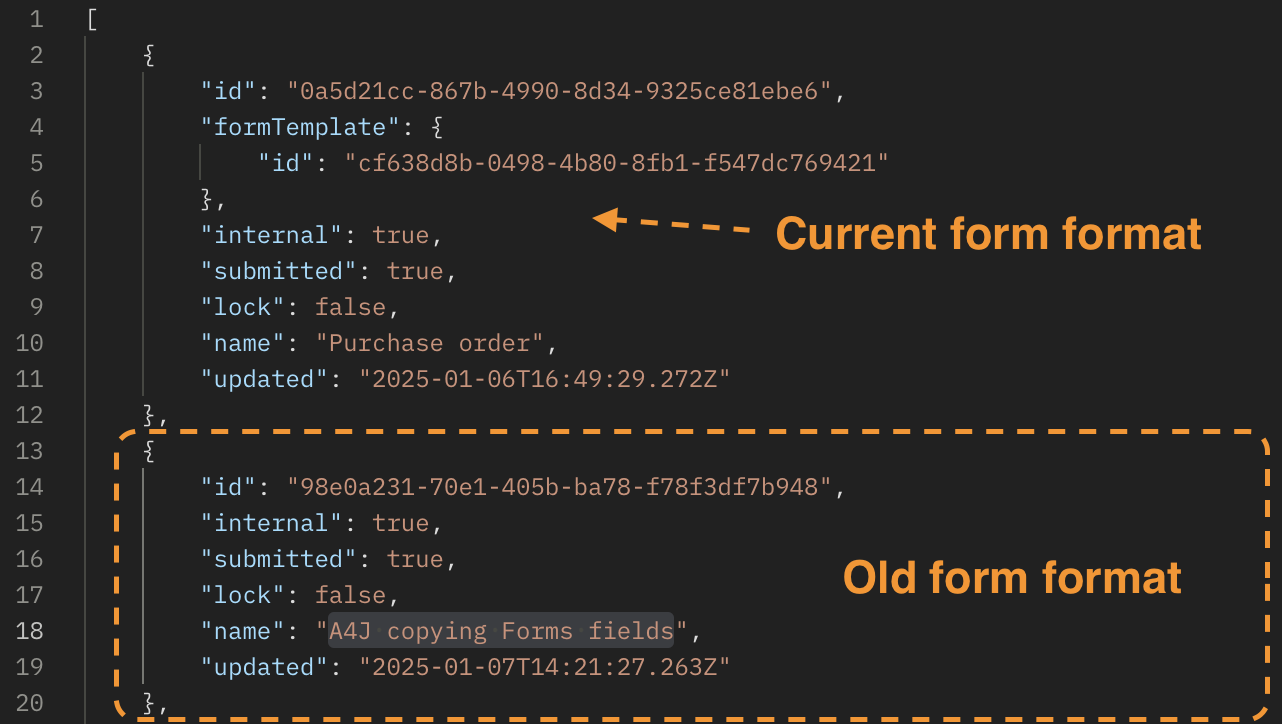
It’s likely that the form you’re using is an older version that hasn’t been updated in a while, which means it still uses the Proforma data structure format. For instance, I have a form that was last updated in 2022:

- In this structure, the form template ID is not present:
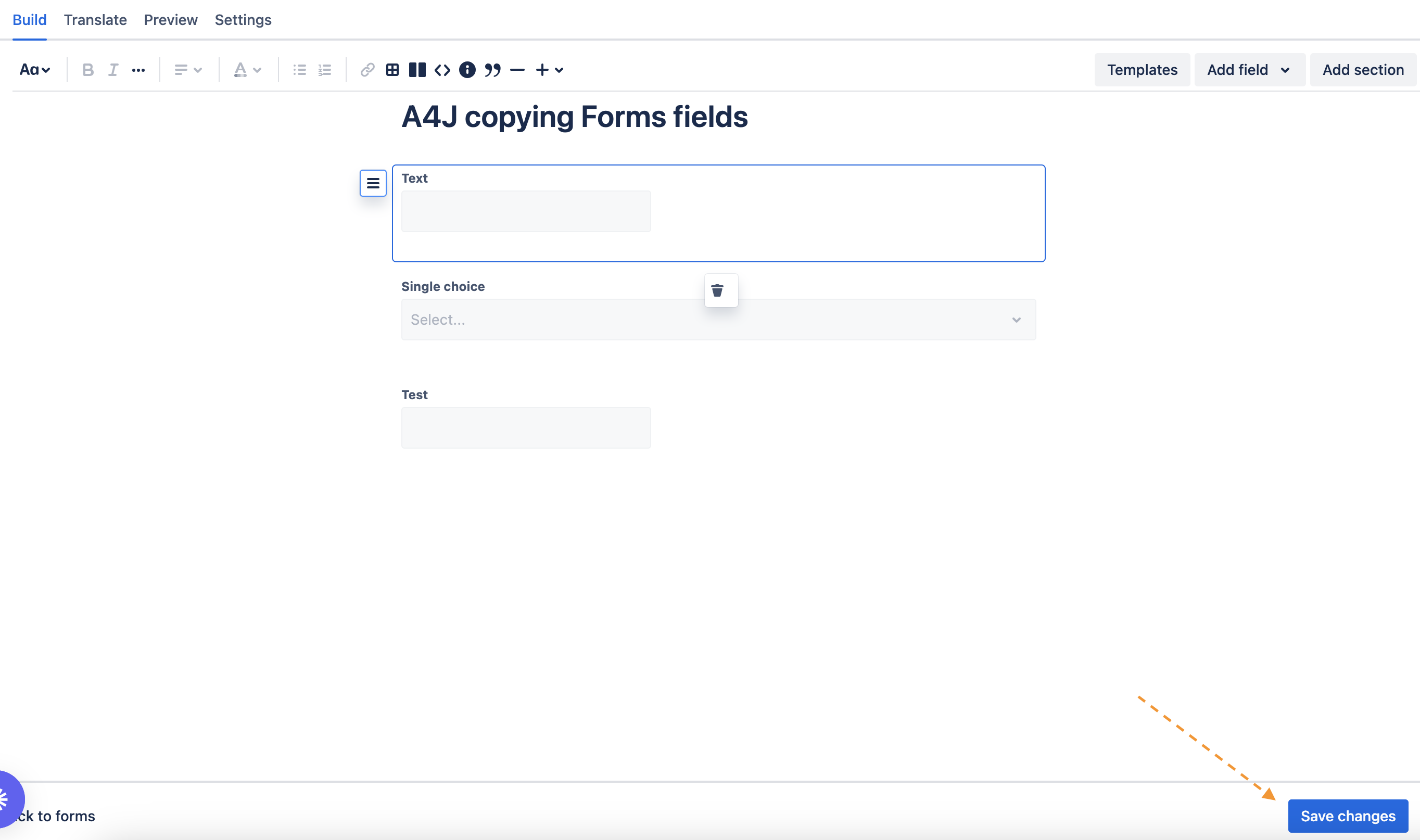
- To resolve this issue, you can simply update the form by accessing its edit screen and clicking the 'Save changes' button. You don’t need to make any modifications to the form itself:
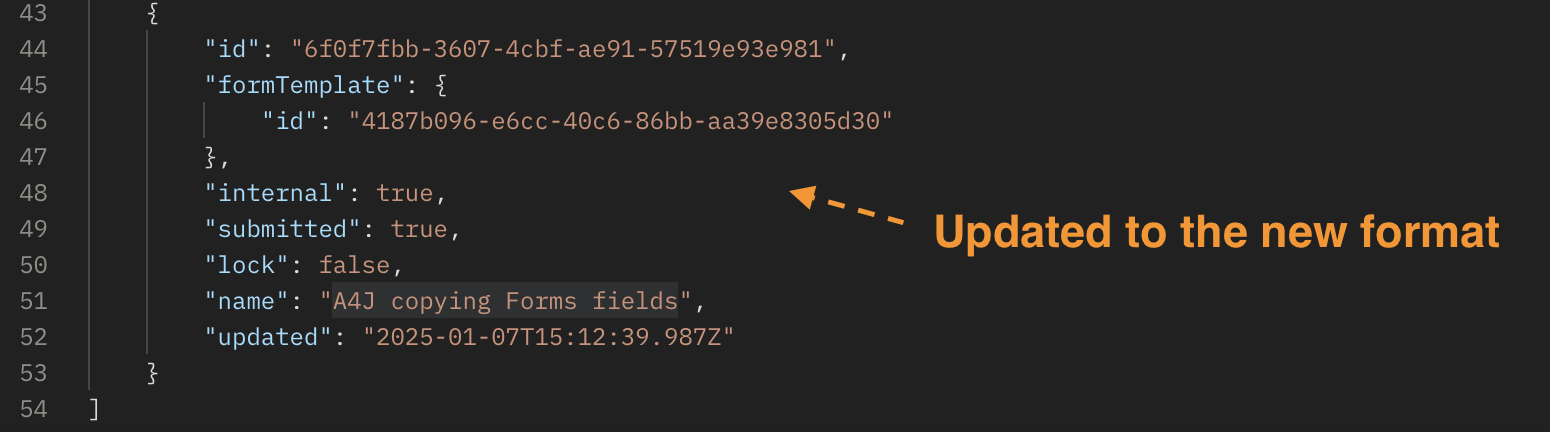
- This action will automatically update the form’s structure and generate a template ID for it:
Example Automation Rule: John aims to add an total of a order purchase from a specific form as a comment on an issue. He ensures the "Total" field in the "Purchase Order Request" form has the field key total. He sets up a manual trigger automation rule, using {{issue.forms.formTemplateID.formFieldKey}} to comment with the total value of the order "Purchase Order Request" forms exist on an issue. For example:
Dear valued customer, the total amount was updated to: {{issue.forms.d6d3a06b-44c4-46aa-b58c-9a46743898dc.total}}
This ensures that the total value is added as a comment upon the form update.
Access a particular form or manage multiple forms
Accessing form statuses
The glad tidings is that we already have an item in our development backlog aimed at improving this as well:
Please refer to the screen recording below for a demonstration of how this works:
 https://www.youtube.com/watch?v=6d9hFNzEXCE
Access field values using question IDs instead of Field keys
When a field key is added to a form template, only new forms created after the addition will include this new field key in their properties. To access fields in existing forms that lack the new field keys, you can use their IDs instead using:
- {{issue.forms.formTemplateID.get(x).questionID}}.
IDs are always available; they are generated when a new field is added to a form, are unique, and can be used even if field keys are present.
Regarding form functionality, each issue form retains a snapshot of the project form (template form) at the time it is added to an issue. Therefore, modifications to a project form will not affect issue forms created from that project form before the changes were made.
For instance, consider a “Purchase Order Request” project form with a “Total” field. If you add this form to an issue and then update the “Purchase Order Request” project form to assign a unique field key “total” to the “Total” field, this field key will not be available in the existing issue form added before the update. Consequently, you cannot use 'total' to access the field value in that issue form.
In these situations, you can access the "Total” field using its question ID in various ways, utilizing the Form smart value mentioned above (where the question ID for "Total” is “88”):"
{{issue.forms.d6d3a06b-44c4-46aa-b58c-9a46743898dc.get(0).88}}
Browser's network tab:
Forms REST API:
For any enhancements or future updates, stay connected with the Jira development community and keep an eye on the development backlog for ongoing improvements.
Thank you for reading, and we hope this guide assists you in maximizing the potential of Forms Smart Values in your projects.


