Every day, your team generates valuable insights—troubleshooting fixes, onboarding materials, best practices, and more. But without an organized way to store and share this knowledge, critical information can get lost in the shuffle, leaving teams to reinvent the wheel or spend hours searching for answers.
A well-structured knowledge base in Confluence can solve this challenge. It acts as a centralized hub for your team, keeping resources easy to find and knowledge sharing seamless. Let’s dive into how you can set up a robust Confluence knowledge base and how tools like Aura Content Formatting Macros and Karma can elevate it even further.
🤔 What Exactly is a Knowledge Base?
A knowledge base is more than just a repository of information; it’s a tool to empower your team. In Confluence, it becomes a home for FAQs, troubleshooting guides, product documentation, and much more.
Here’s why Confluence makes a great platform for your knowledge base:
- Centralized Storage: Everything your team needs in one secure location.
- Real-Time Collaboration: Confluence’s collaborative editing ensures knowledge stays current and accurate.
- Customizable Layouts: Tailor the structure to fit your team’s workflows.
🛠 Setting Up a Confluence Knowledge Base
Creating a knowledge base in Confluence is straightforward. Follow these steps to get started:
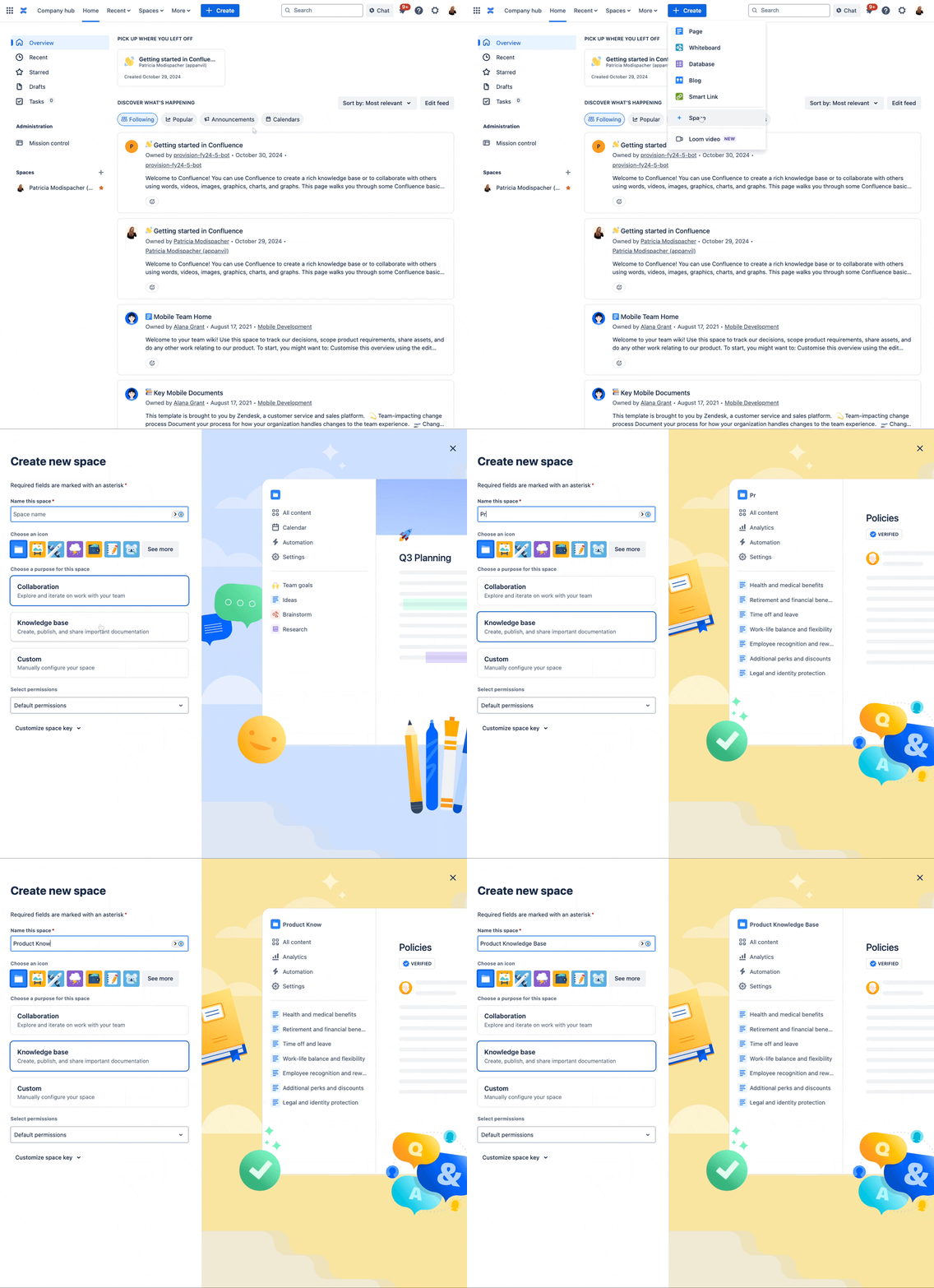
Step 1: Create a Knowledge Base Space
Choose a template like “Knowledge Base” or “Documentation” when setting up your space. Give it a clear name, like “IT Help Center” or “Product Docs,” and include a short description, so users know what to expect.
Step 2: Set Permissions
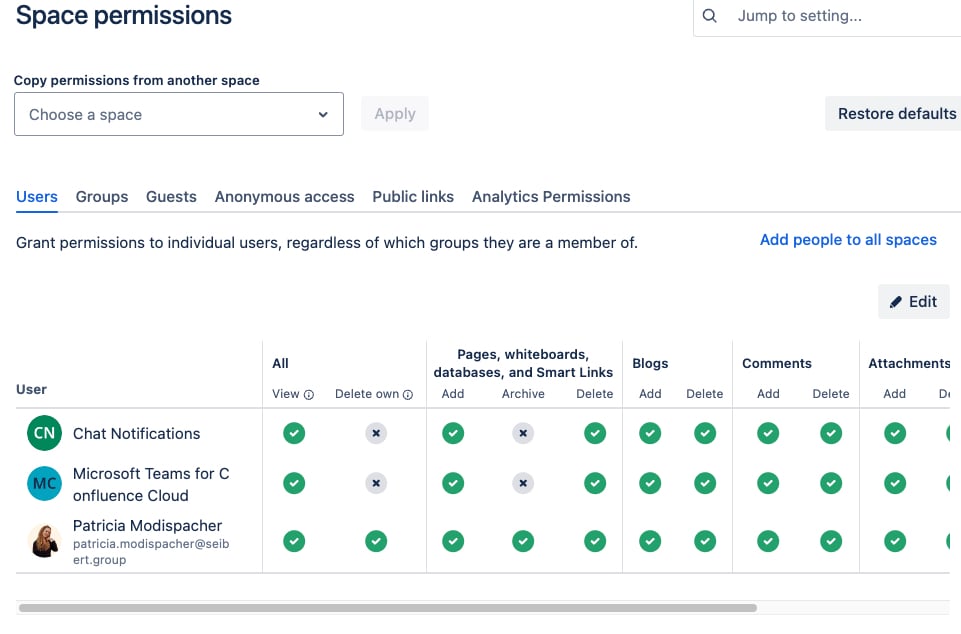
Control who can view, edit, or manage content to ensure your knowledge base remains accurate and secure.
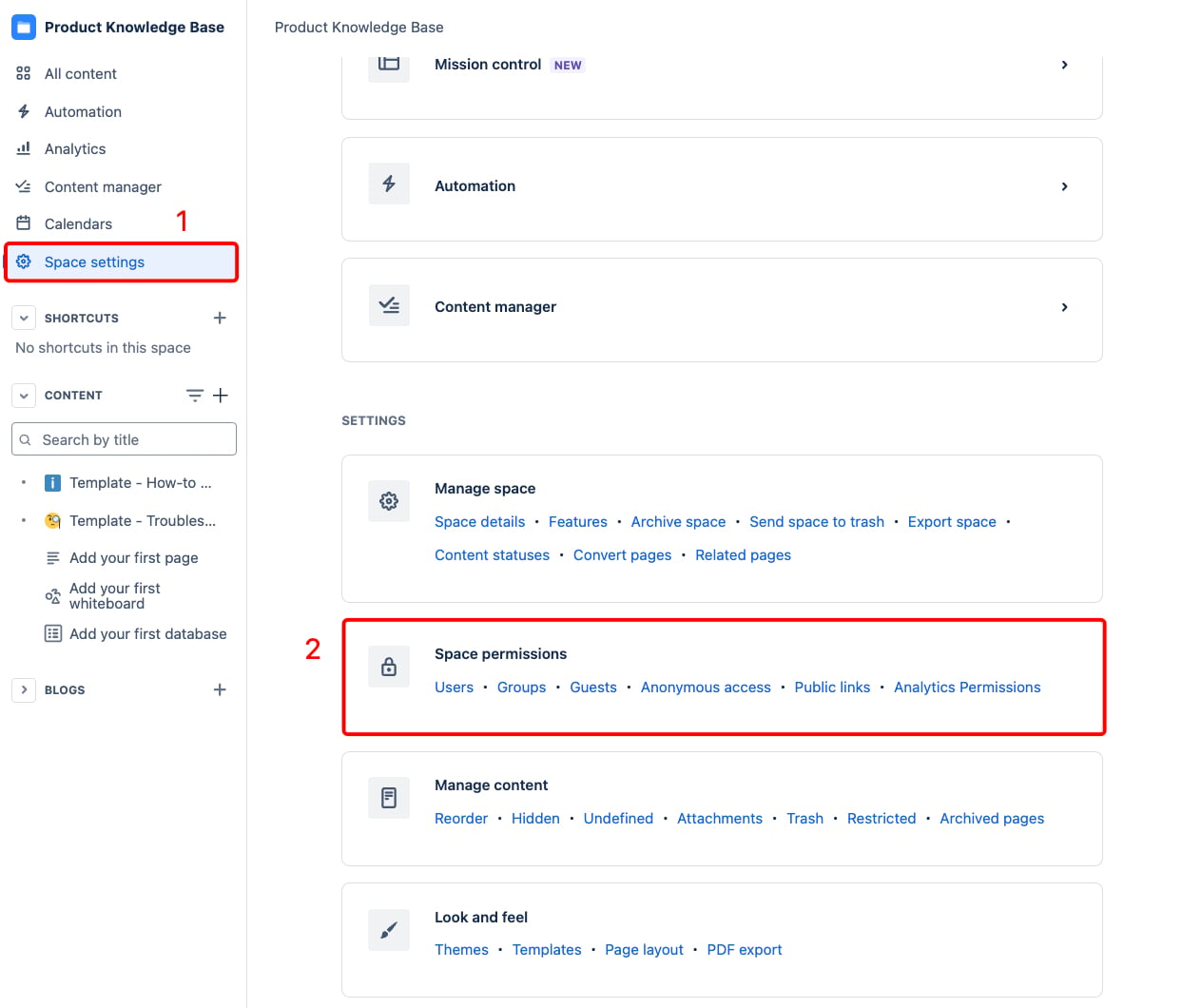
Apply space-wide rules and customize for specific user groups as needed.
Step 3: Customize Your Home Page
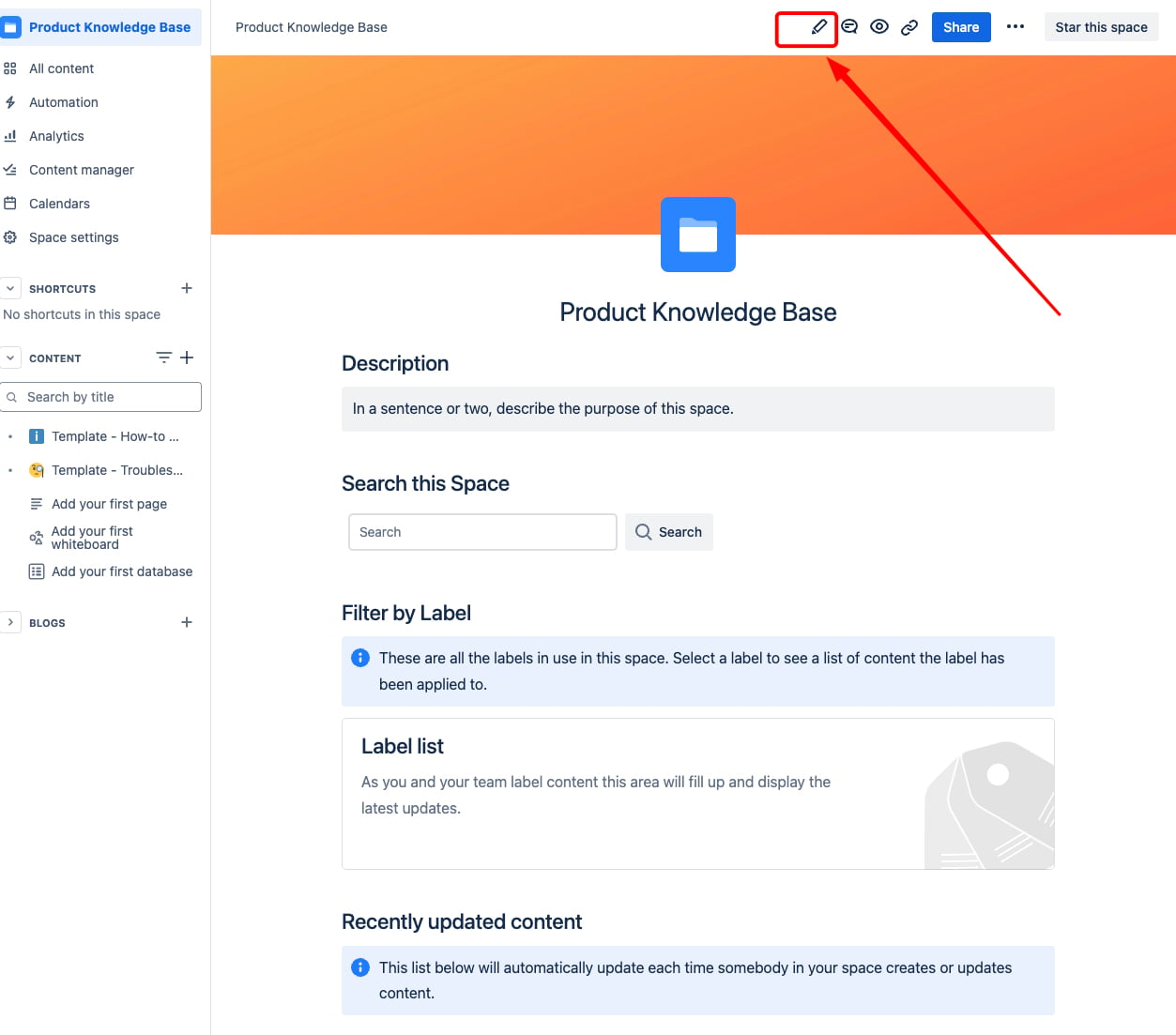
The homepage of your Confluence knowledge base is the gateway to all your valuable resources. As the first thing users see, it needs to be both inviting and intuitive, setting the tone for a seamless knowledge-sharing experience.
If you’ve selected the Confluence Knowledge Base space template, it comes pre-loaded with essential elements like:
- Search Bar
- Description Section
- Label List Macro
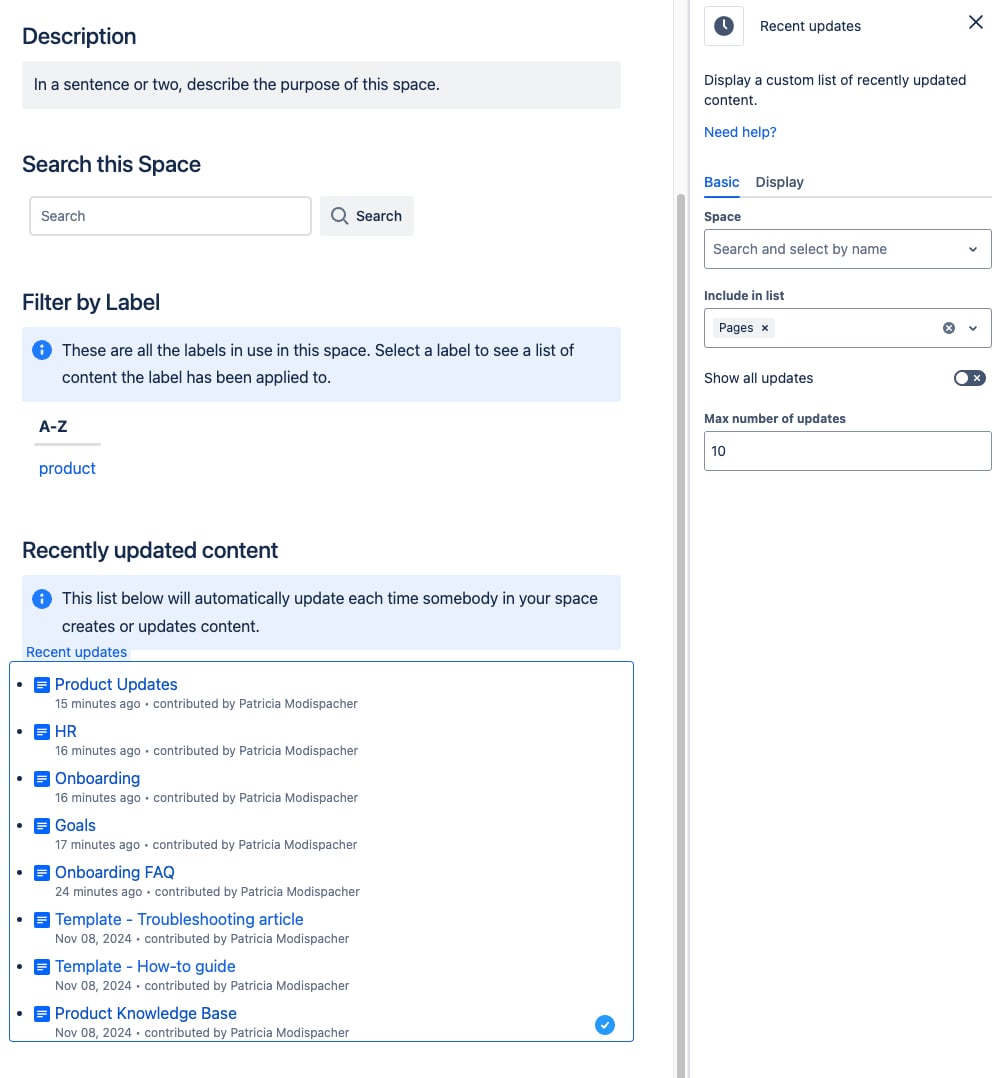
- Recent Updates Section
While these defaults are helpful, customizing your homepage ensures it aligns with your team's specific needs and brand. To do so, simply click the pencil icon in the top-right corner (or press “E” on your keyboard) to enter edit mode.
The nice thing about your individual knowledge base is that you are completely free to determine the content. Topics that are often found in knowledge bases:
-
FAQs
-
How-To Guides
-
Troubleshooting Articles
-
Product Documentation
-
Release Notes and Updates
-
Company Policies and Procedures
-
Glossaries or Knowledge Dictionaries
-
Training Materials
-
Best Practices
-
Community or Discussion Forums
-
Contact Information
-
Search and Filter Options
Step 4: Use Confluence’s Built-In Tools to Organize Content
- Page Trees: Build a clear structure with a table of contents in the sidebar.

- Labels: Tag pages for quick filtering and categorization.
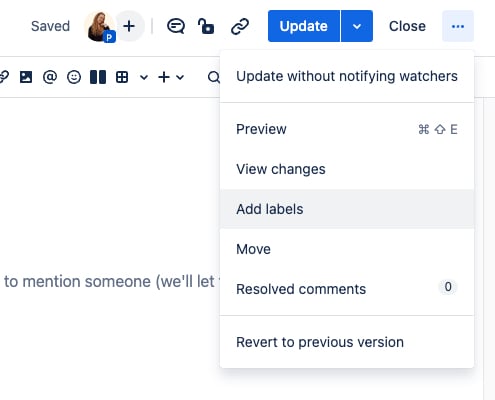
- Recent Updates Macro: Highlight new content to keep users informed.
✨ Elevate Your Knowledge Base with Aura and Karma
Creating a knowledge base in Confluence is a great first step toward streamlining team collaboration and communication. But if you’re looking to truly stand out and enhance both functionality and visual appeal, Aura Content Formatting Macros and Karma can take your pages to the next level.
Let’s explore how these tools can turn your knowledge base into a dynamic, visually stunning hub for your organization.
🚀 Aura: A Toolkit for Beautiful, Engaging Knowledge Bases
Aura offers a collection of powerful content formatting macros that add style, interactivity, and customization to your Confluence pages. Here’s how you can use some of its standout features to enhance your knowledge base:
📚 1. Organize Information with Aura Child Tabs
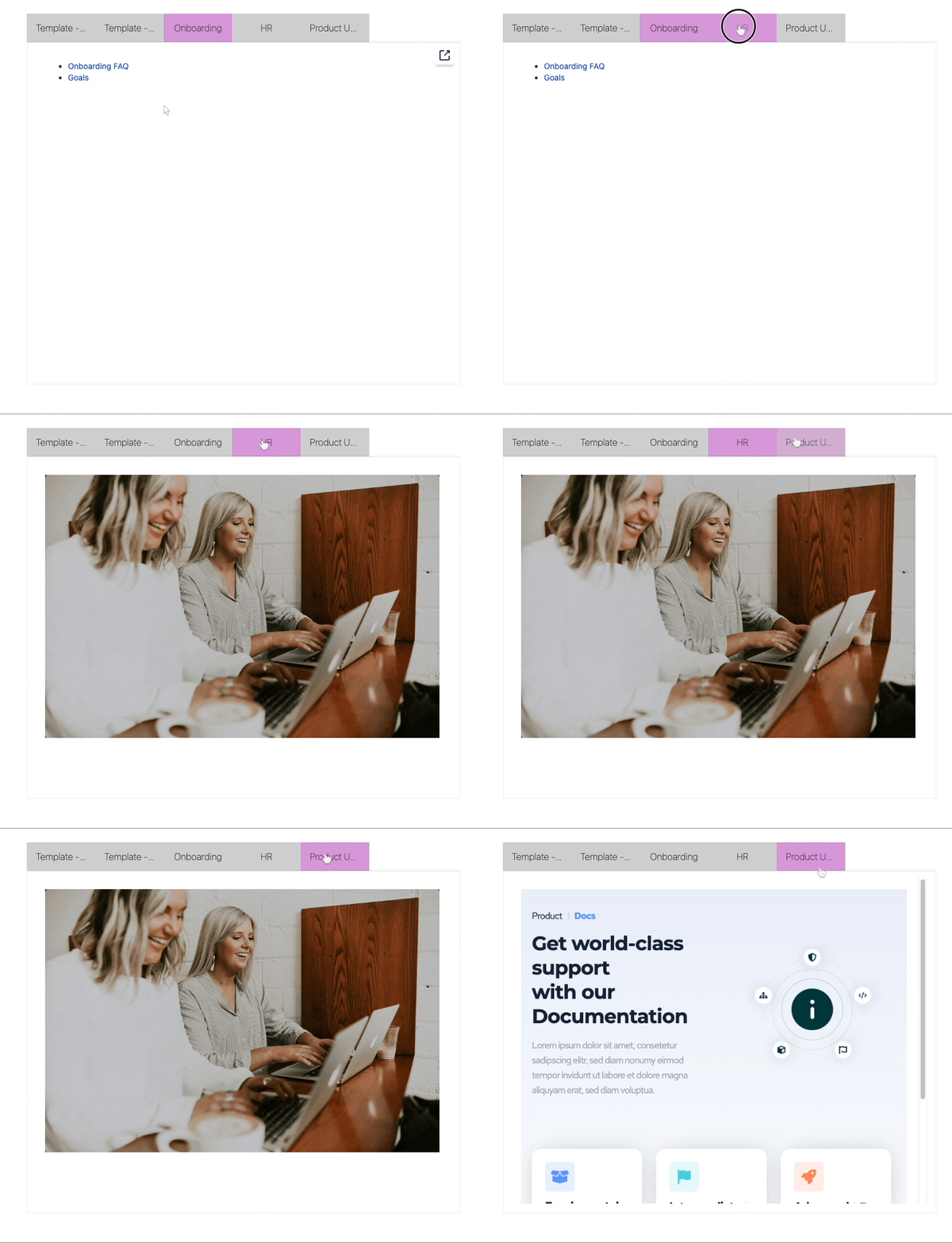
Segment your knowledge base into easily navigable sections with Aura’s Child Tabs macro. Unlike Confluence’s Child Display macro, Aura allows you to display the content of child pages directly on the parent page in a tabbed format.
For example, you could organize tabs for FAQs, Troubleshooting, and How-To Guides on one page. Users can access the information they need without navigating away, streamlining their experience.
🎨 2. Add Flair and Functionality with Aura Cards
Highlight key resources, quick links, or popular articles using Aura’s Cards macro. Compared to Confluence’s static card macro, Aura Cards allow for:
- A wide color palette (pick bold shades or create a rainbow effect).
- Interactive effects, like hover and flip animations.
- Fully customizable layouts, ensuring your cards align with your brand.
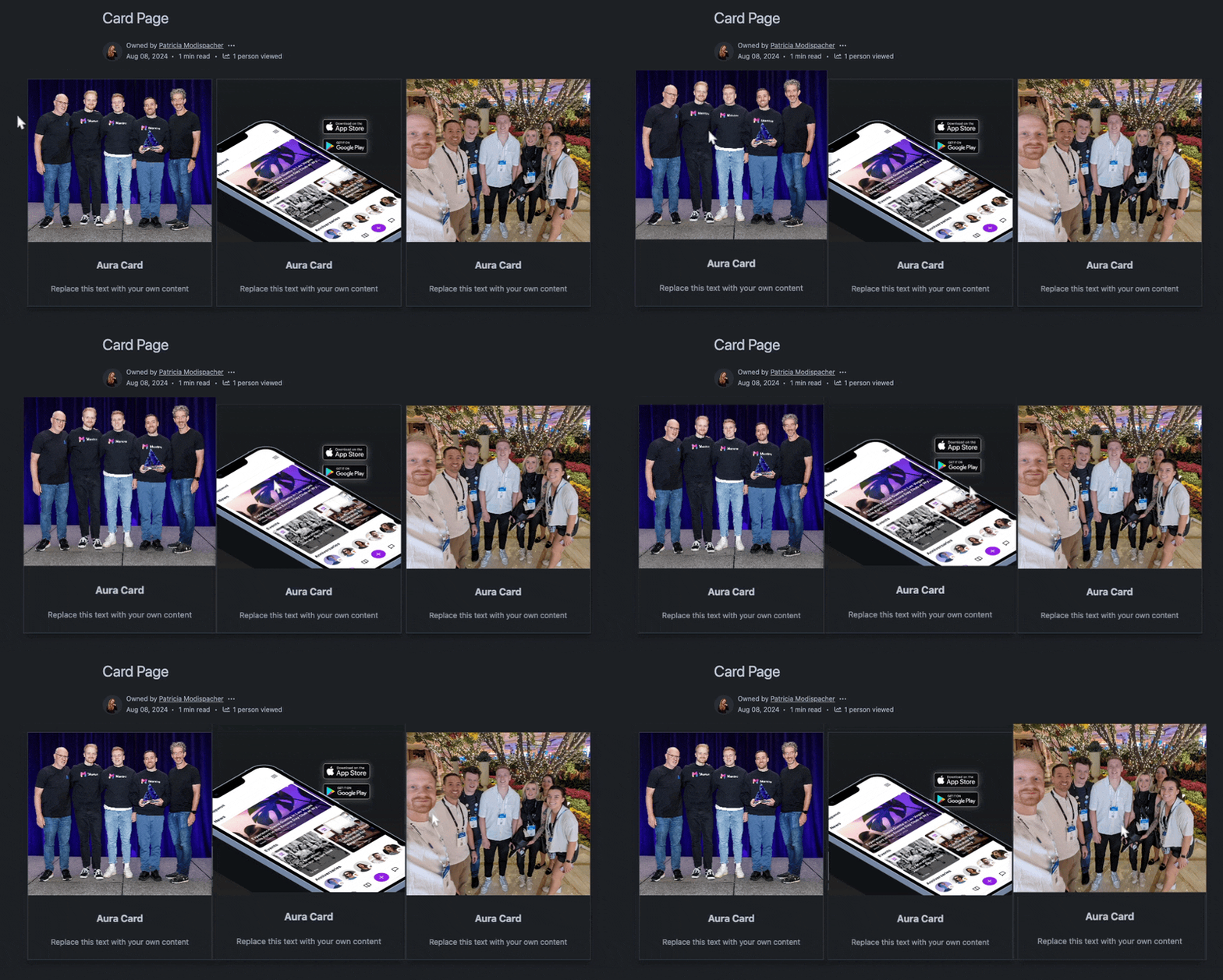
This flexibility makes Aura Cards perfect for structuring sections like employee shout-outs, featured articles, or department resources.
🔄 3. Automate Updates with Aura Dynamic Content
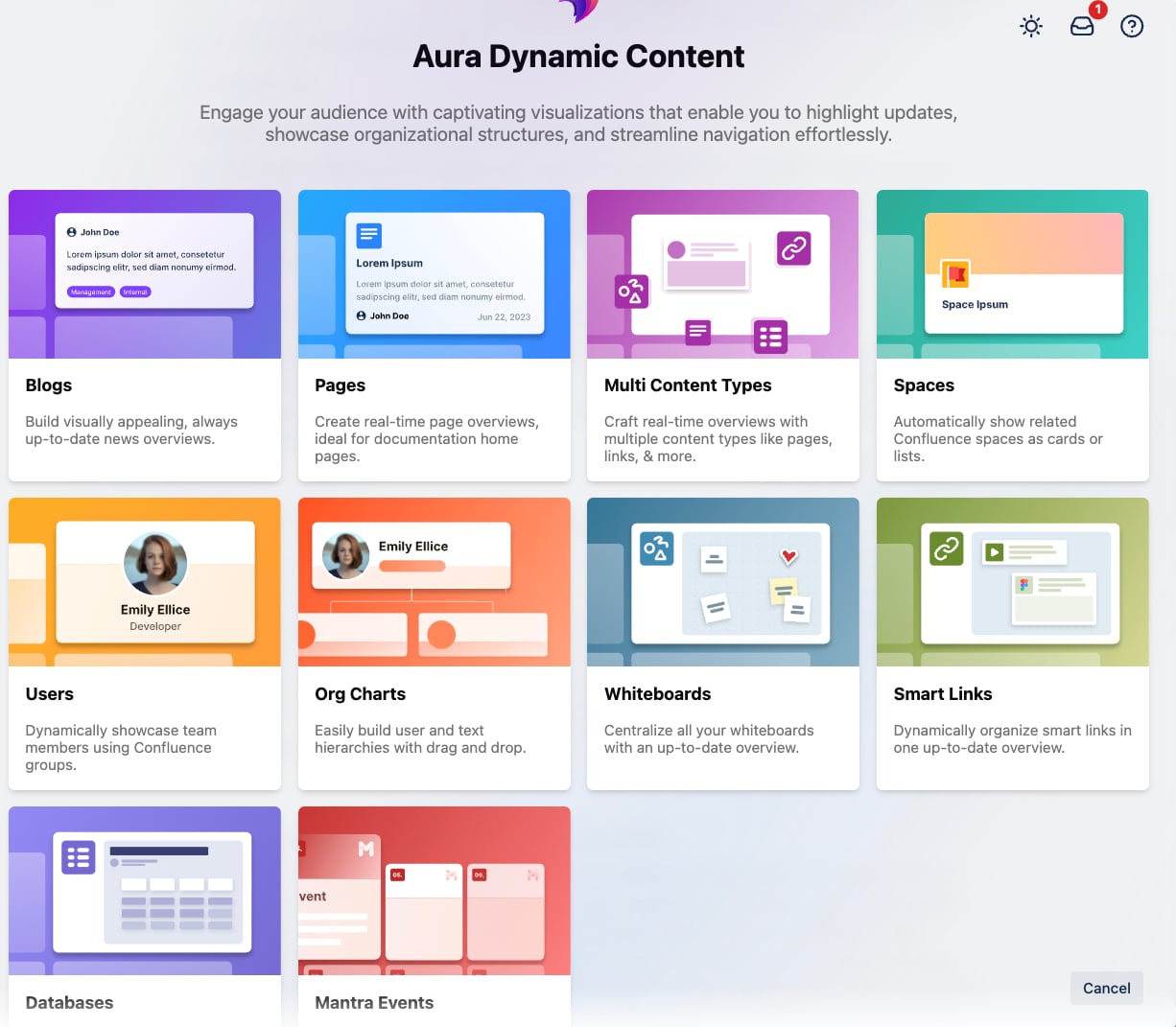
Manually updating your knowledge base can be stressful. With Aura’s Dynamic Content macro, you can easily pull in real-time information from across your Confluence page, including recent updates, blogs, pages, spaces, user profiles, PR charts, whiteboards, smart links, databases, and even Mantra events.
Filter and customize what’s displayed to ensure your knowledge base always feels fresh and relevant, saving time and keeping users engaged.
📝 4. Minimize Clutter with Aura Expand
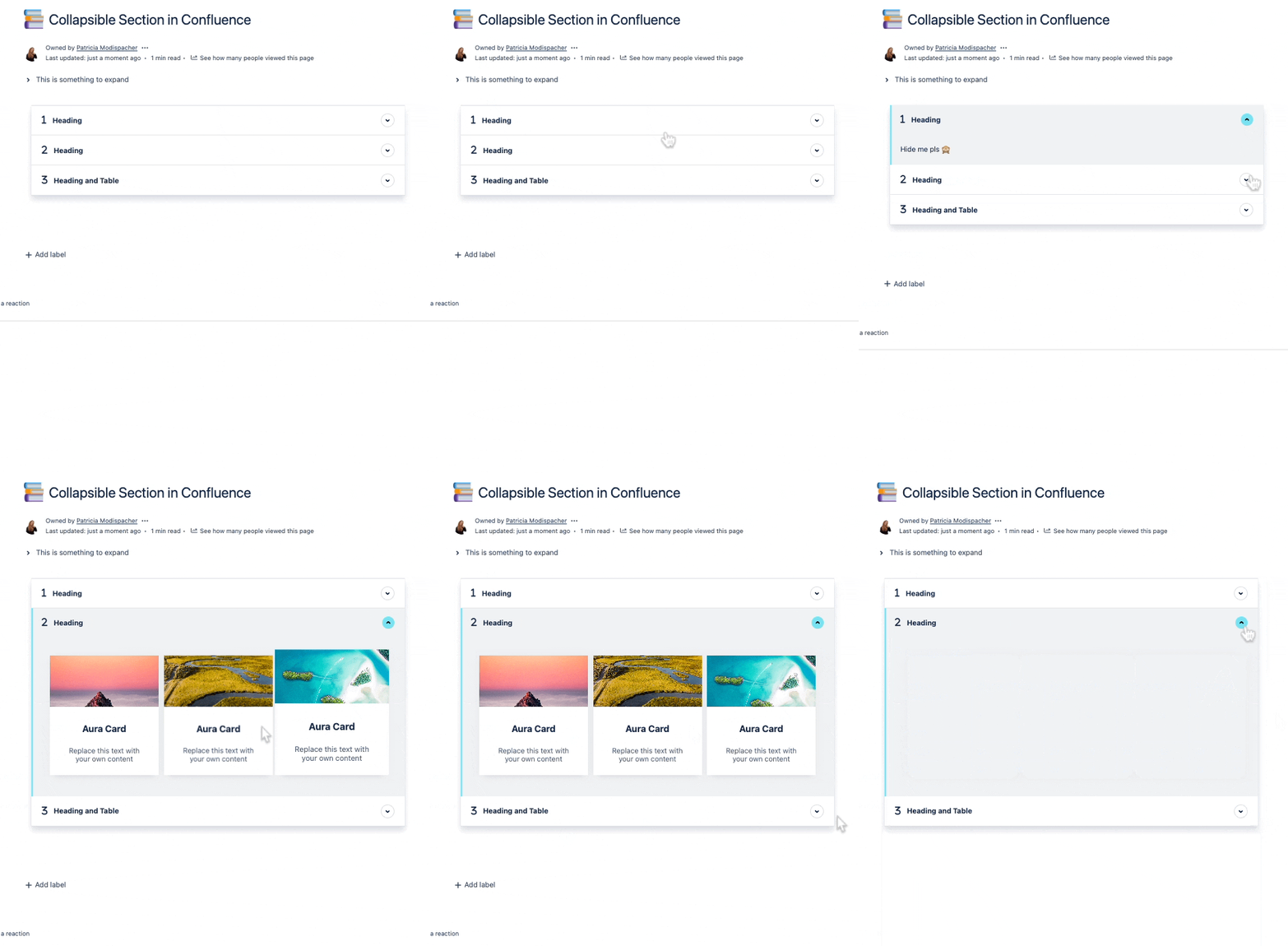
The Expand macro is ideal for FAQs, guides, or any content that doesn’t need to be visible at first glance. Users can click to reveal only what they need, keeping pages clean and easy to navigate.
Aura’s Expand macro goes beyond Confluence’s default with custom colors, icons, and animations, allowing you to match your brand. It also works seamlessly with other Aura macros like Tabs and Cards for a cohesive, professional layout.
✅ 5. Visualize Status with Aura Status Macros
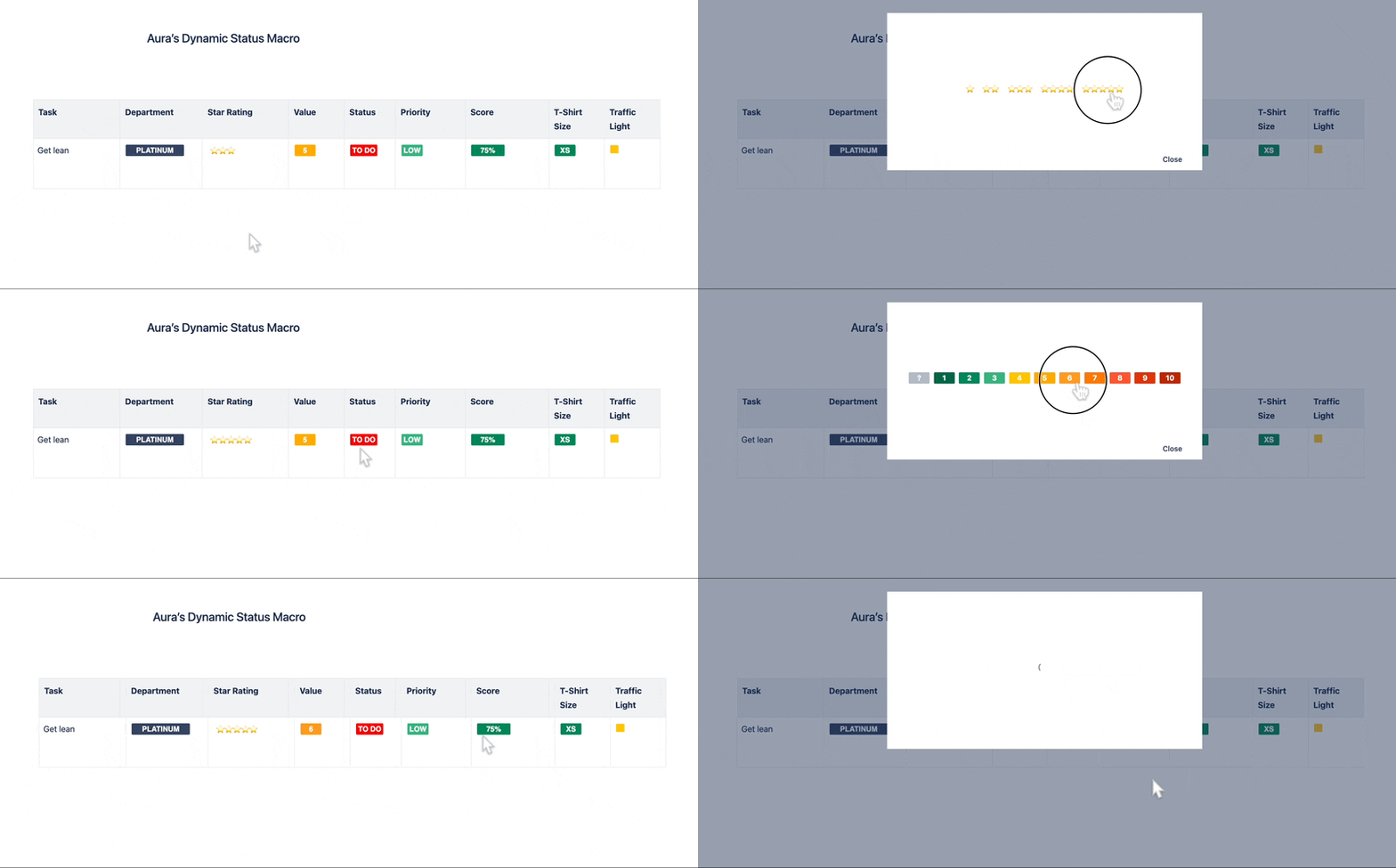
Need to show project or document status at a glance? Aura’s Status macro offers dynamic labels like “In Progress,” “Under Review,” or “Completed.” Compared to Confluence’s default status labels, Aura provides more customization:
- Choose from unique colors and icons that match your branding.
- Update statuses directly from view mode for quicker workflows.
⚡ Karma: A Free Page Builder Designed for Speed and Simplicity
Karma is a free, user-friendly page builder for Confluence Cloud that allows you to create polished, functional knowledge base pages in minutes. It’s perfect for teams looking to build a knowledge base without extensive design effort or coding.
Here’s why Karma stands out:
🕒 Pre-Made Templates Save Time
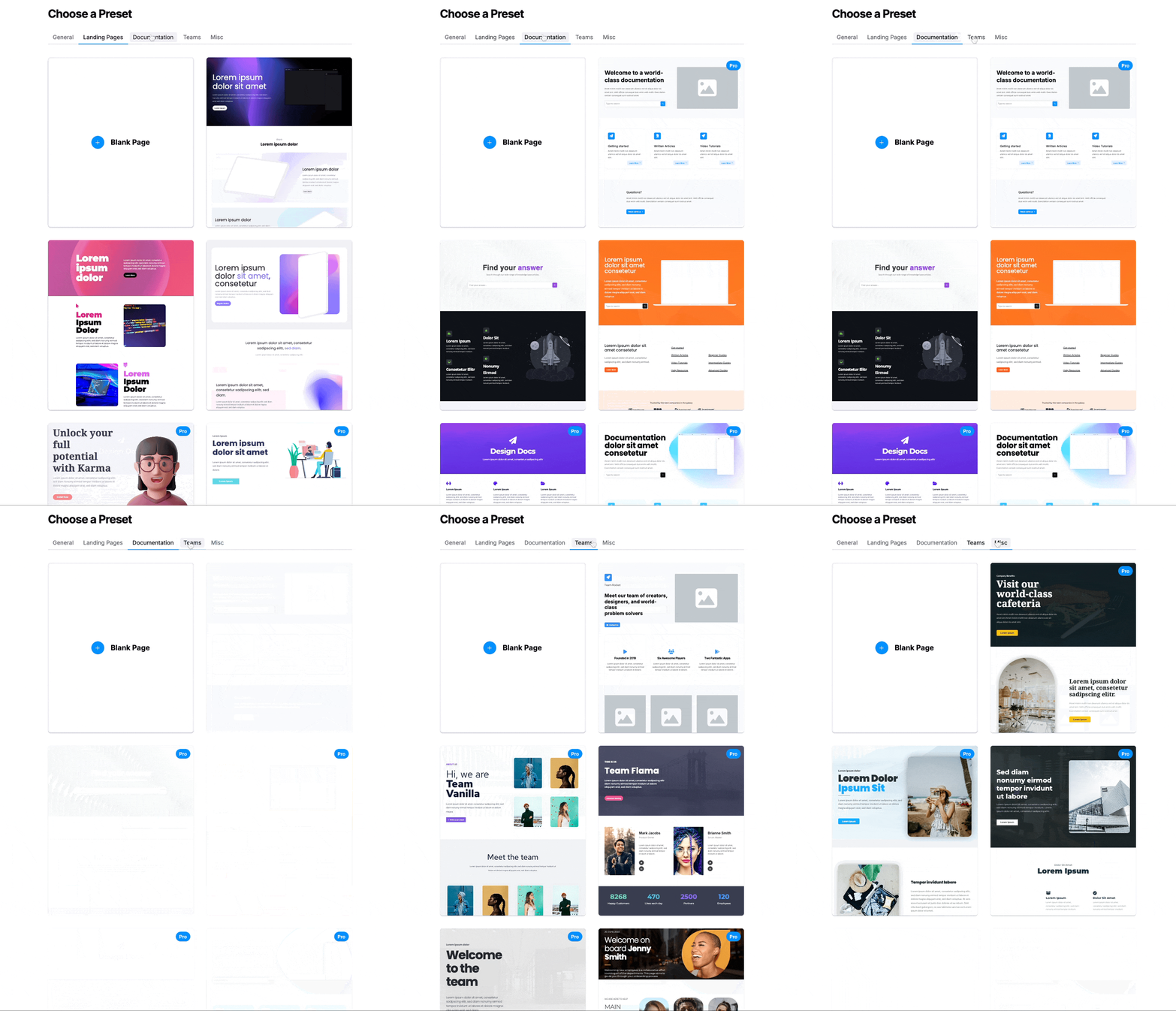
Karma’s library of pre-designed templates lets you hit the ground running. Whether you’re creating pages for FAQs, onboarding materials, or step-by-step guides, these templates eliminate the guesswork.
Simply pick a template, customize it to your team’s needs, and publish your page—no need to start from scratch.
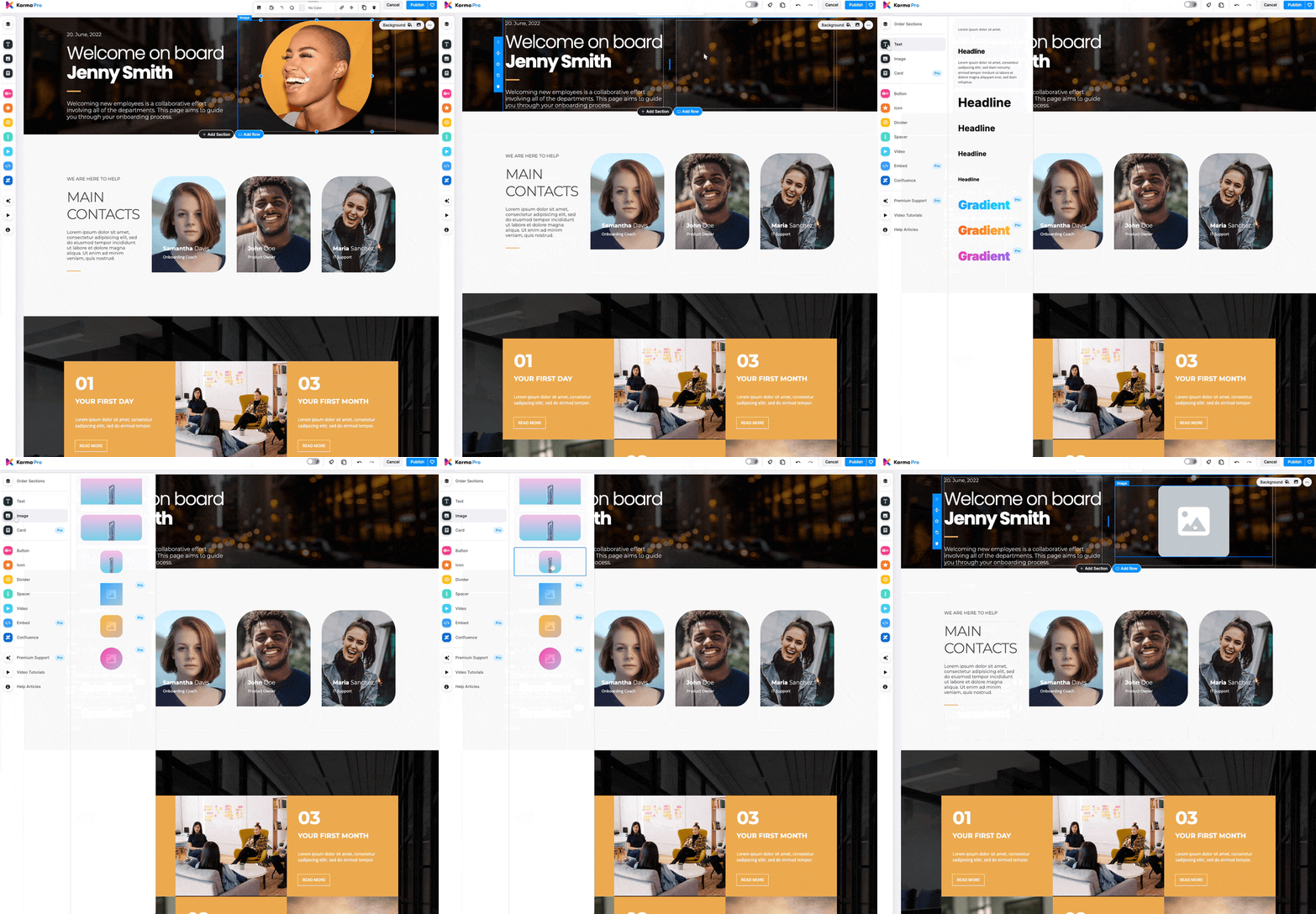
🎛️ Drag-and-Drop Simplicity
Karma’s drag-and-drop editor makes it easy to rearrange sections, add content blocks, and tweak layouts—all without coding. You can create visually engaging pages that feel intuitive and professional.
🖱️ Interactive Content Blocks
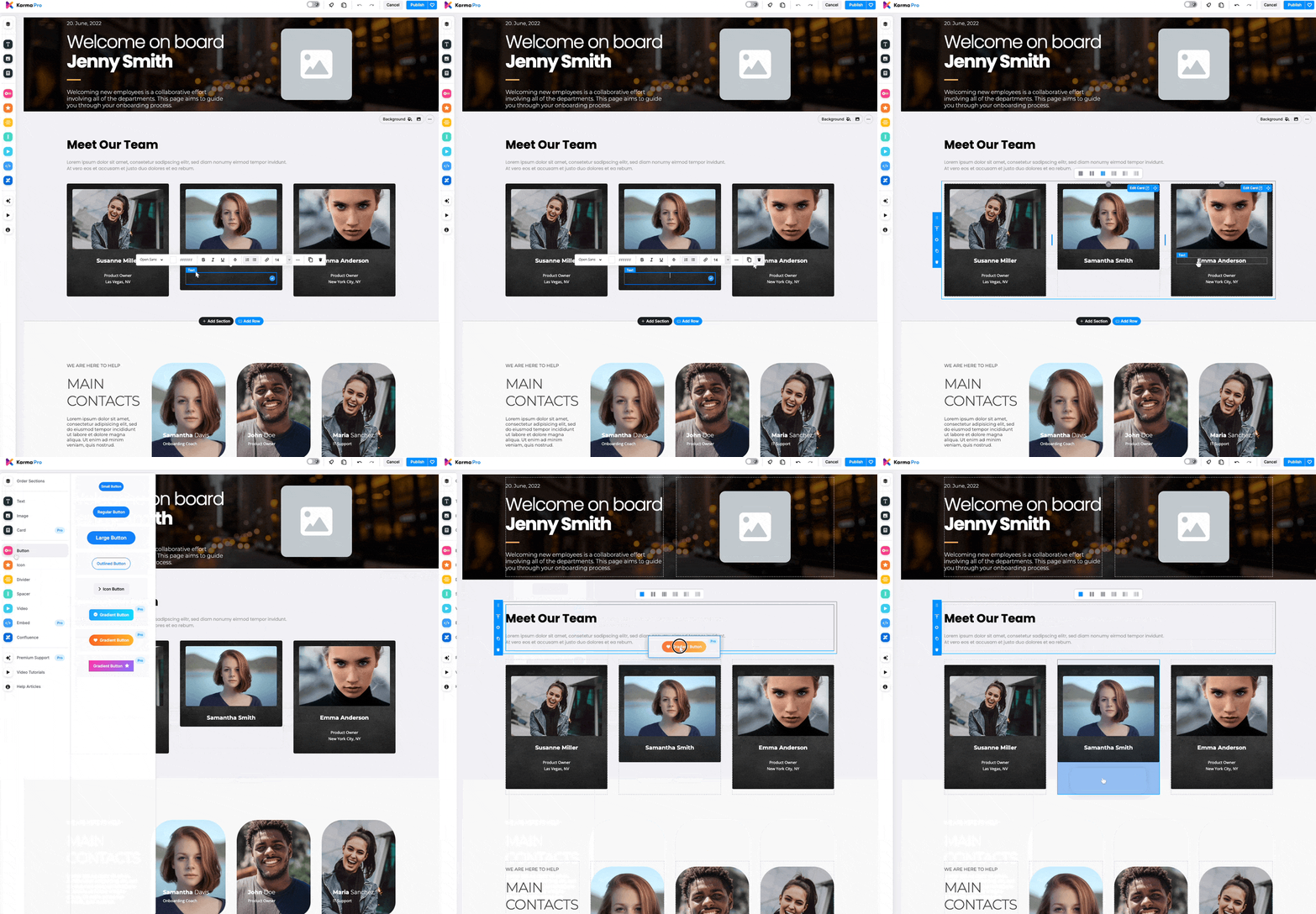
Add buttons, icons, and links to guide users through your knowledge base. For example:
- Use buttons to direct users to related topics or sections.
- Highlight critical updates with eye-catching icons.
These interactive elements improve navigation and ensure users can easily find the information they need.
🛠️ Ready-to-Use Sections for Fast Deployment
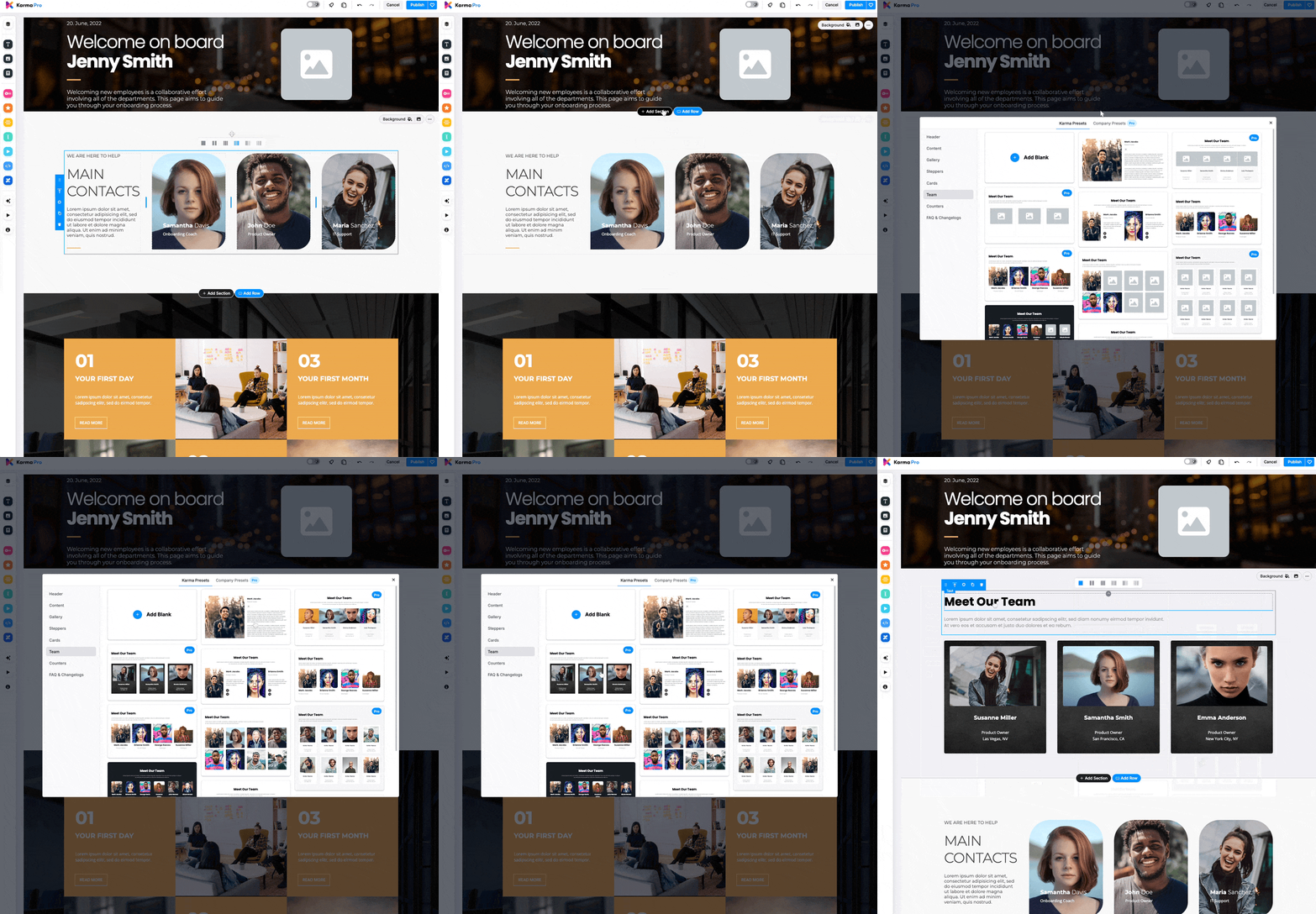
Save time by pulling in pre-designed sections directly from Karma’s template library.
🚀 Take Your Knowledge Sharing to the Next Level
A well-structured knowledge base in Confluence transforms how your team shares and accesses information. With tools like Aura and Karma, you can ensure your pages are not only functional but also engaging and visually appealing.
Ready to give it a try?
Make your Confluence knowledge base the go-to resource for your team—where information is always easy to find, beautifully presented, and up-to-date.


