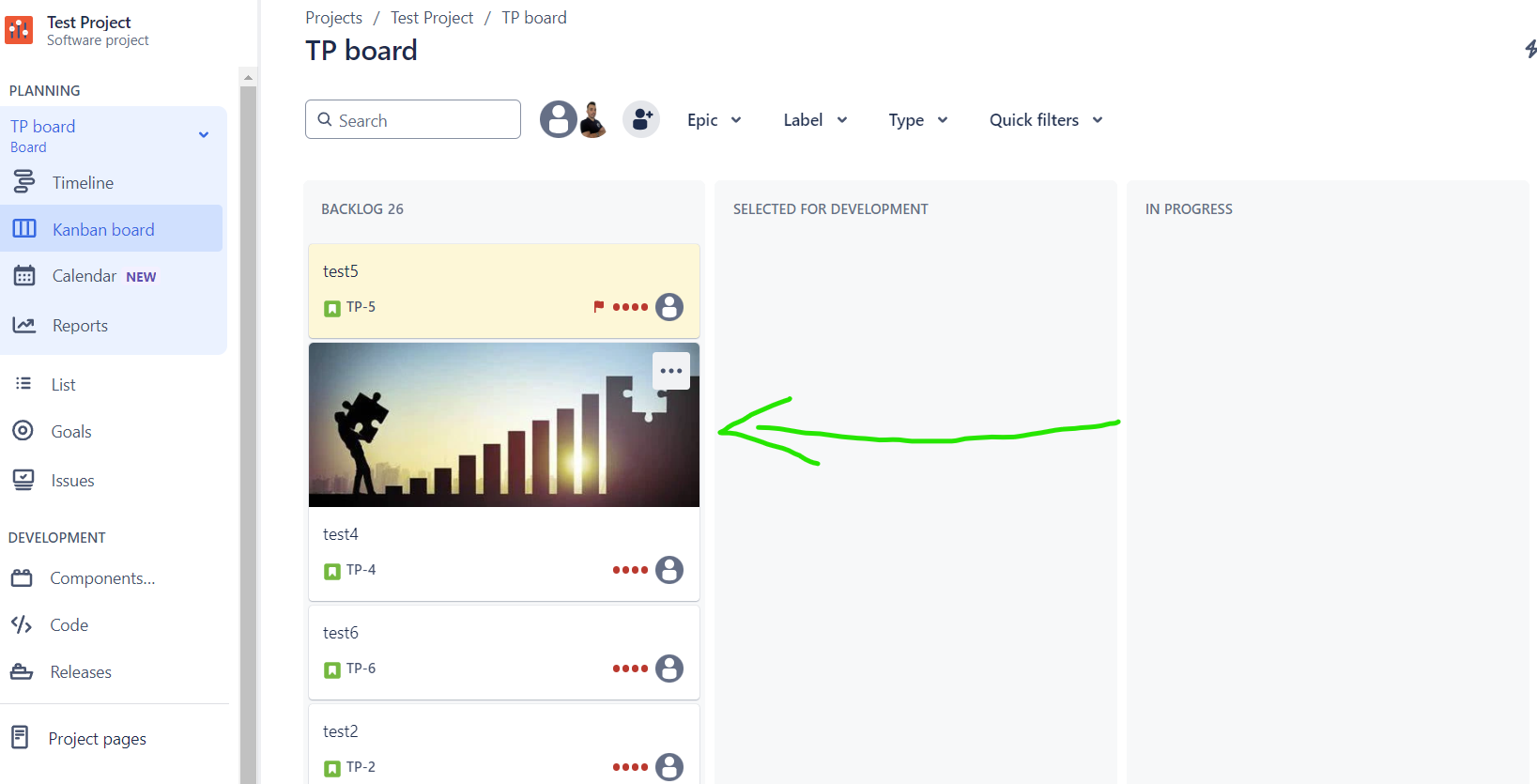
Customizing card covers in your Jira boards can enhance visual organization and help your team quickly identify issue types or priorities at a glance.
For more detailed information, you can also refer to the official Atlassian documentation on Customizing Cards in Jira.
How to Add or Change an Issue’s Card Cover
To personalize individual issue cards on your board, follow these steps:
-
Hover Over an Issue: Navigate to the board and find the issue you want to customize. Simply hover your cursor over the issue to reveal more options.
-
Select More Options: Click on the ••• (more) icon that appears on the issue. This will open a dropdown menu with additional actions you can perform.
-
Edit Cover: From the dropdown, select Edit cover. This option allows you to modify how the card appears on the board.
-
Choose a Color or Upload an Image: You will have the option to either:
- Choose a Color: Select a color from the palette to apply as the card cover.
- Upload an Image: Alternatively, you can upload an image as an attachment to the issue. This option is great for adding visual context or branding.
Your issue's card cover will now reflect the changes, making it easier for team members to recognize important information at a glance.