Confluence is a robust tool that organizations rely on for keeping teams aligned and informed. Yet, while the built-in child tabs feature does its job, it often falls short when it comes to visual appeal and customization. That’s where Aura Child Tabs steps in—a powerful macro that turns standard child page lists into eye-catching, customizable tabs that bring your content to life.
In this article, we’ll show you how to use Aura Child Tabs to elevate your Confluence pages, making them more engaging and easier to navigate.
🎨 Why Choose Aura Child Tabs?
Aura Content Formatting Macros offers a range of advanced tools designed to enhance your Confluence experience. The Aura Child Tabs macro allows you to transform plain child page lists into visually appealing, interactive tabs, making it easier for users to engage with your content.
With Aura, you can customize these tabs to align with your brand’s colors, add icons, and improve the overall user experience on your Confluence pages.

🌟 Key Benefits:
- Enhanced Visual Appeal: Give your Confluence pages a professional and attractive look.
- Improved Navigation: Allow users to easily find what they need without endless scrolling through links.
- Customization Options: Tailor your tabs with various colors, icons, and layouts to suit your specific needs.
- Increased User Engagement: More visually appealing pages keep users interested and make content easier to digest.
🛠️ How to Add the Aura Child Tab Macro
- Open your Confluence page.
- Click the "Edit" button (or just press “E”).
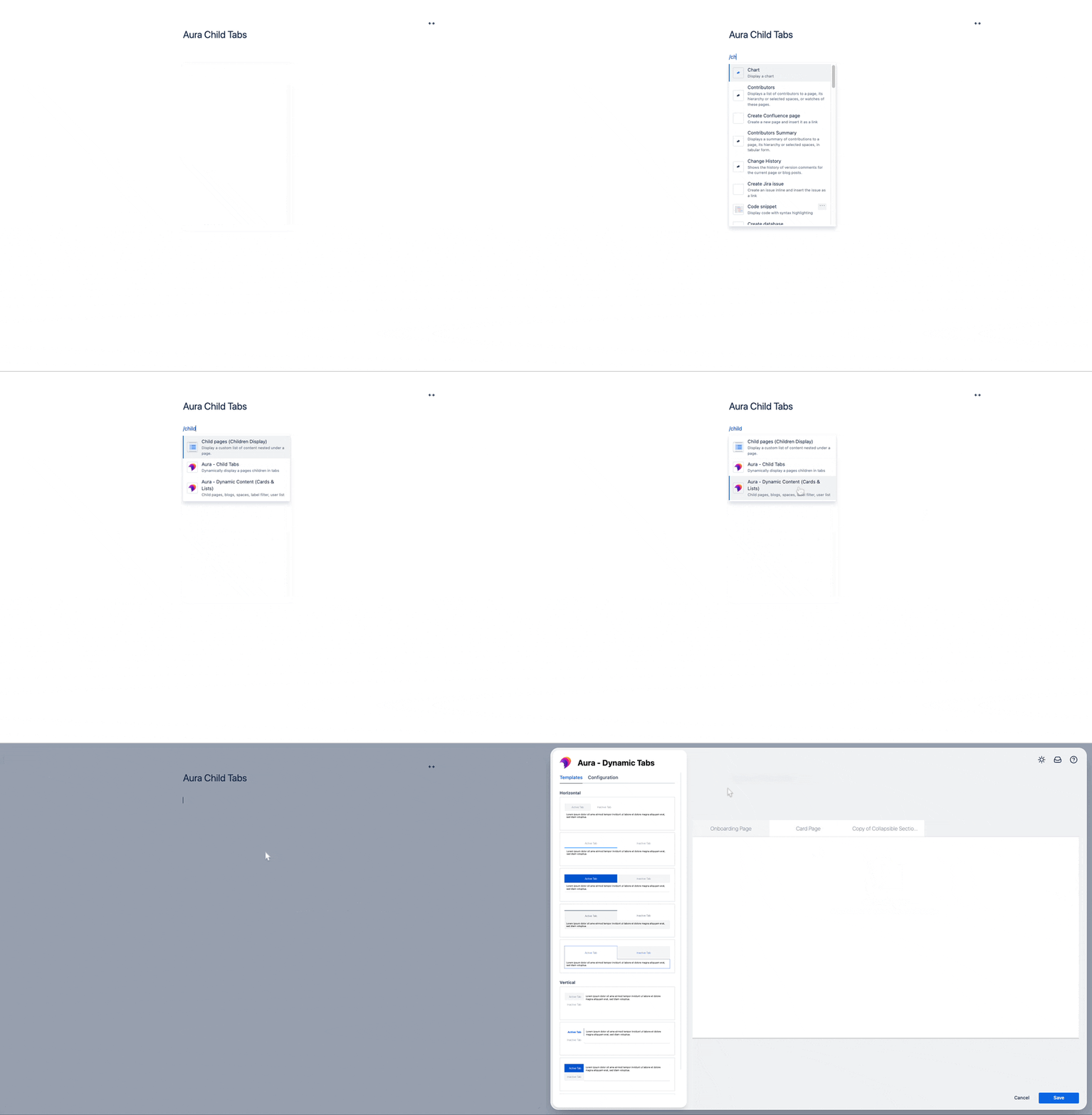
- Choose where you want the child tabs macro to appear, then start typing '/' followed by 'aura' and select the Aura child tab from the list.
🎨 Customizing Your Aura Child Tabs
Once you’ve added the Aura Child Tabs macro, you can begin customizing it to suit your content and style. Here’s how to make the most of the available options:
📑 Templates Tab:
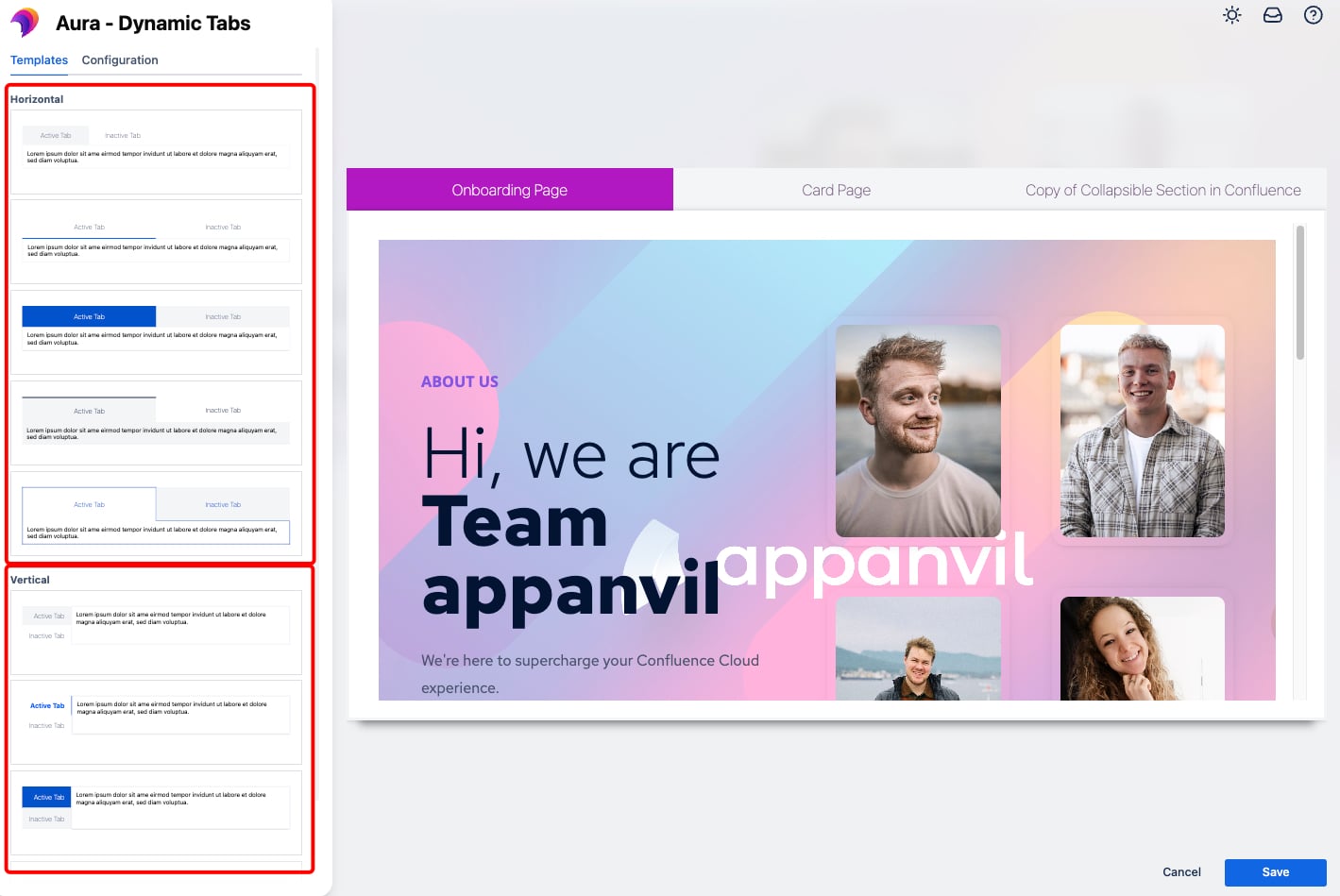
Start by selecting one of the predesigned templates to get up and running quickly. Each template can be further customized to meet your needs. You can also toggle between horizontal and vertical tabs, depending on your preference.
⚙️ Configuration Tab:
As you configure your tabs, here’s how to optimize each setting:
- Parent Page: Choose the parent page from which the child pages will be displayed.
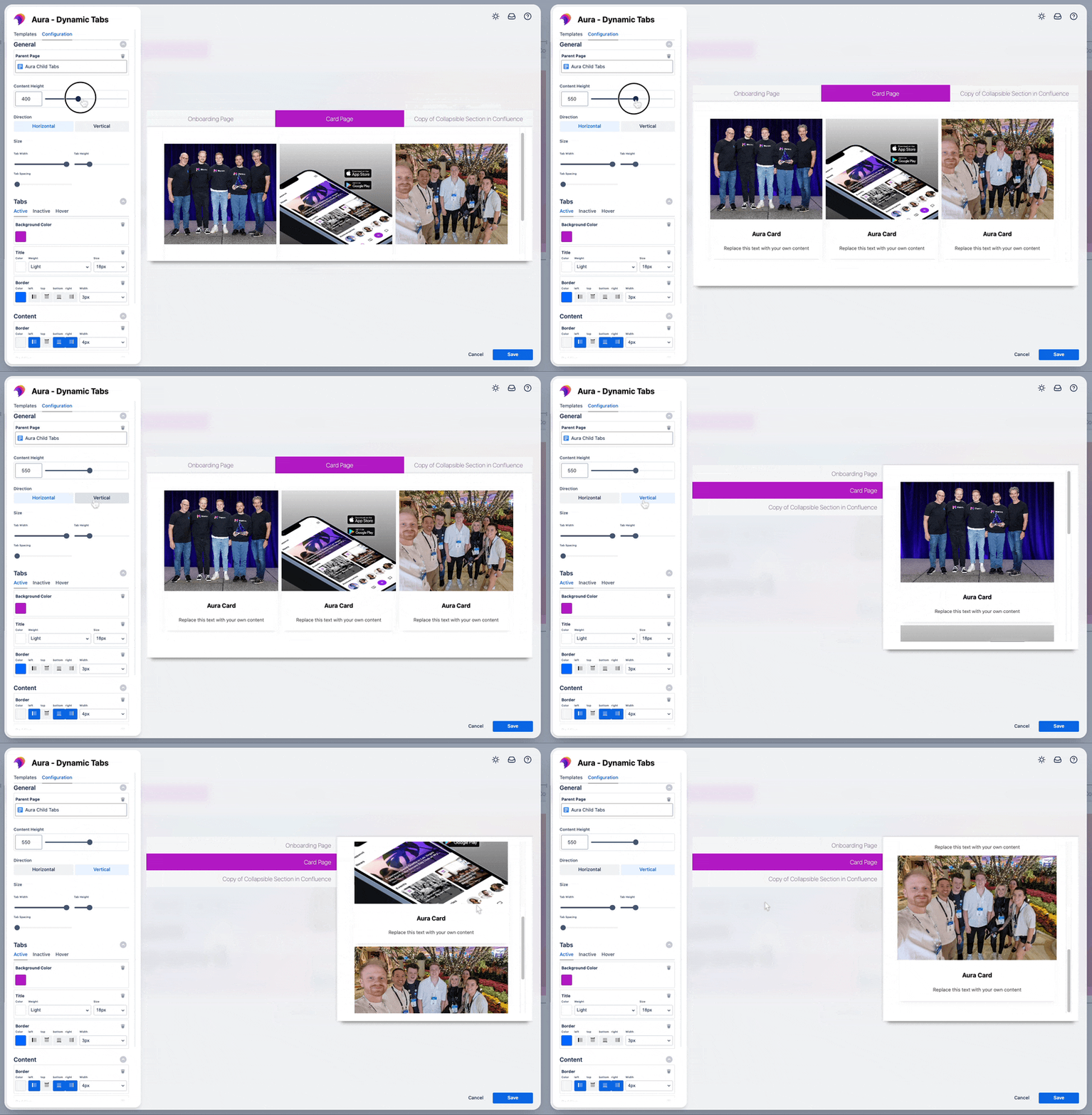
- Content Height: Set the height of the content area for your tabs.
- Direction: Opt for horizontal tabs for a traditional look, or choose vertical tabs for something a bit different—whatever suits your content flow best.
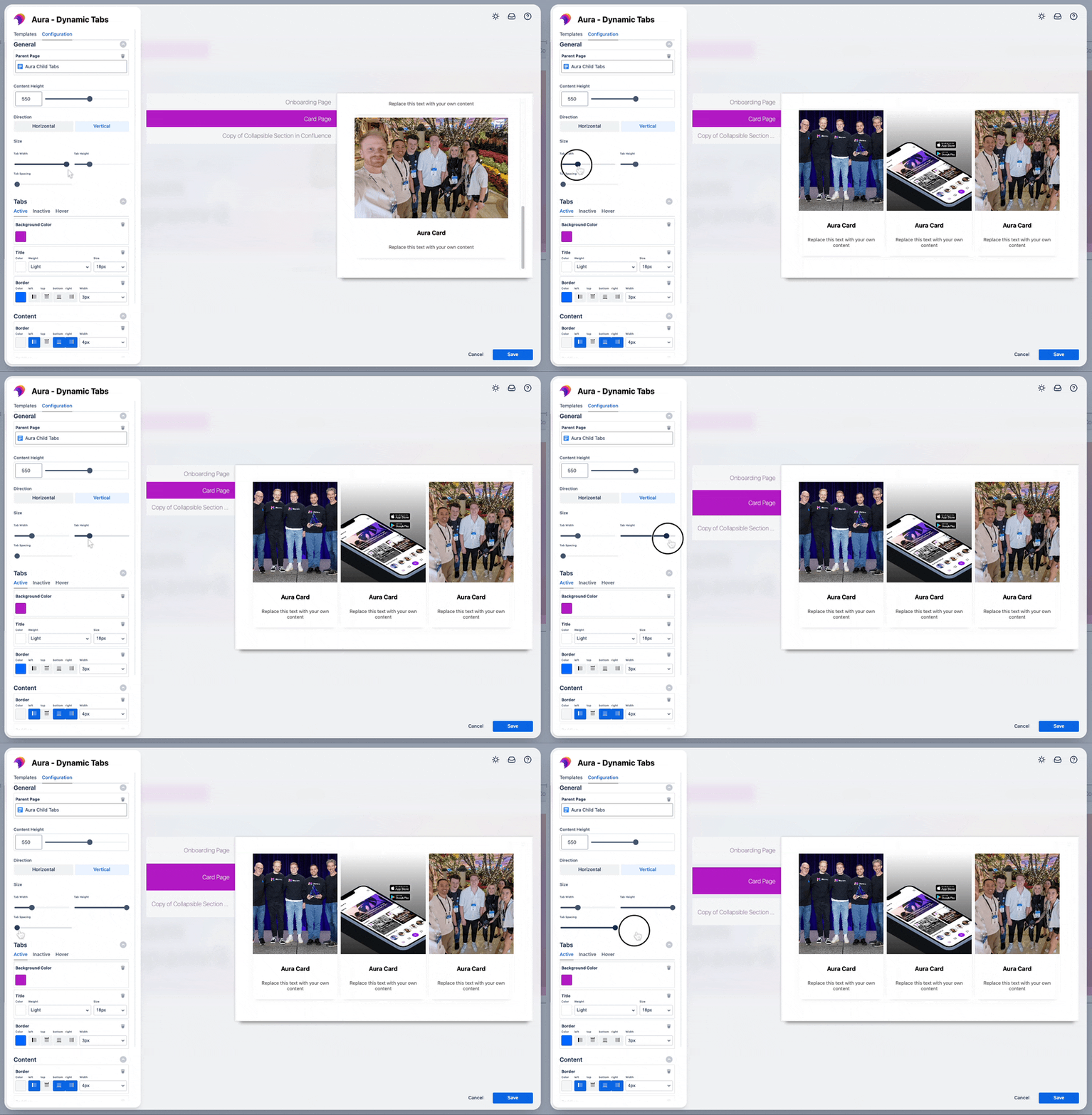
- Size: Adjust the size of your tabs by fine-tuning the sliders for 'Tab Width', 'Tab Height', and 'Tab Spacing' (note: size adjustments aren’t available for vertical tabs).
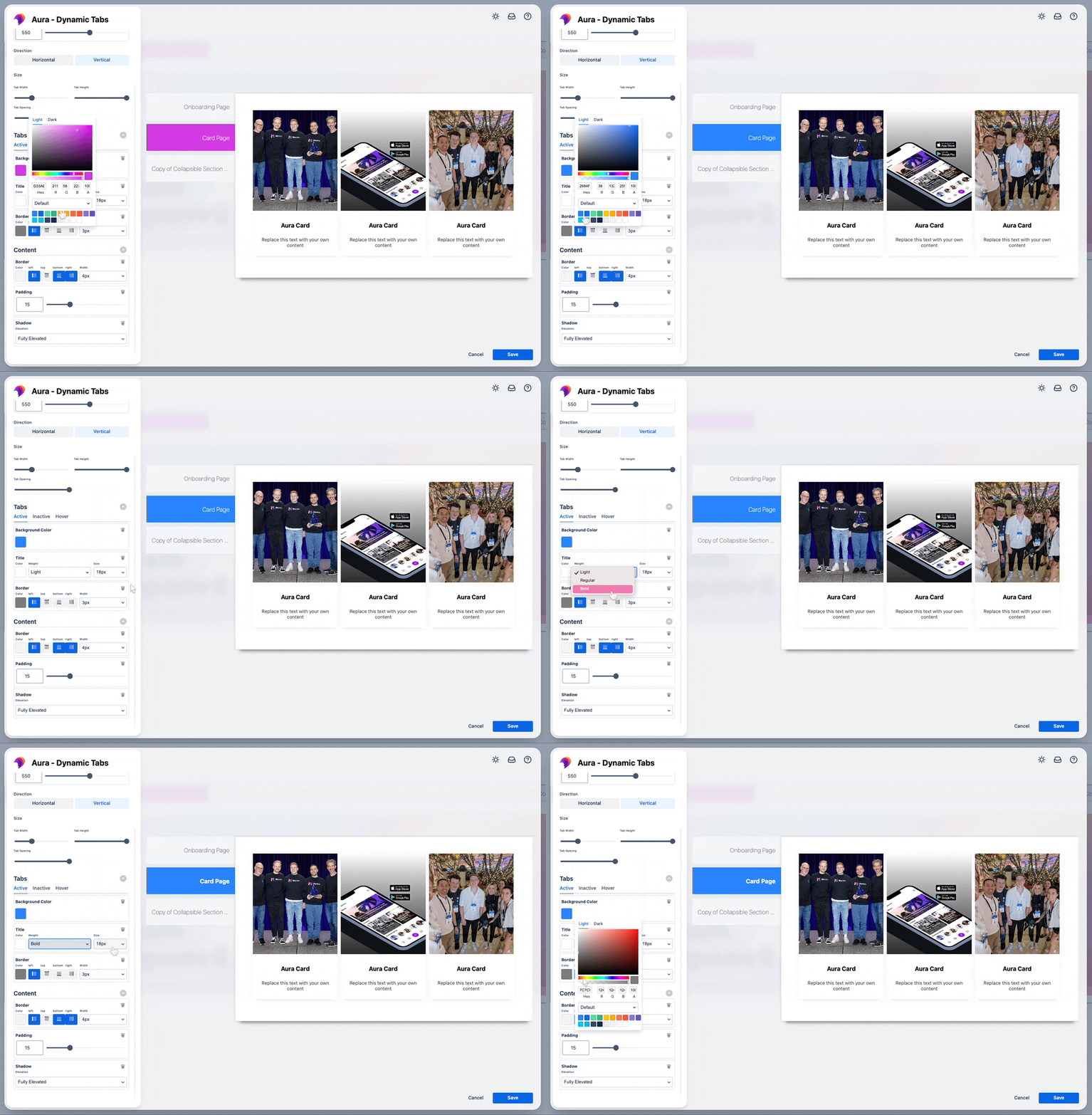
This is your chance to get creative. Customize the background color, style your titles, and set borders for your tabs in various states: active, inactive, and hover.
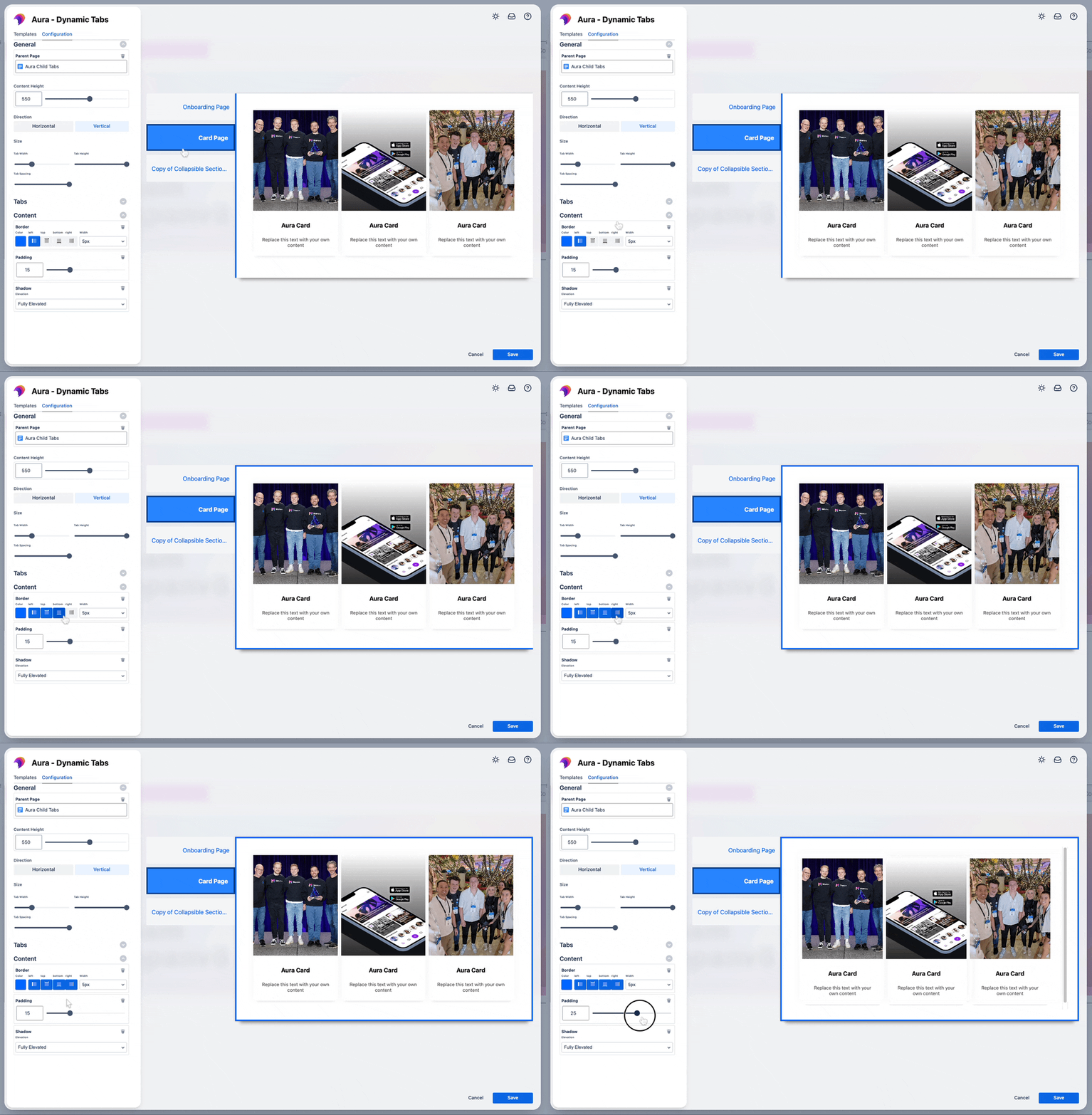
Now, it’s time to refine the Content area of your Confluence child tabs. Adjust the border, fine-tune the padding for a balanced look, and even add a shadow to give your content some depth and style. These final touches ensure that every part of your tabs looks polished and engaging.
👀 Real-Time Preview
As you adjust the settings in the configuration dialog, you’ll see a live preview of your tabs, giving you immediate feedback on how they’ll look. This feature is invaluable for ensuring your tabs are exactly as you want them before saving.
To further enhance the visual appeal of your Confluence pages, consider integrating additional features from Aura, like cards, panels, buttons, progress bars, or status indicators. Just check out more articles on our blog.
🚀 Examples of Aura Child Tabs in Action
Here are a few ways Aura Child Tabs can elevate your Confluence pages:
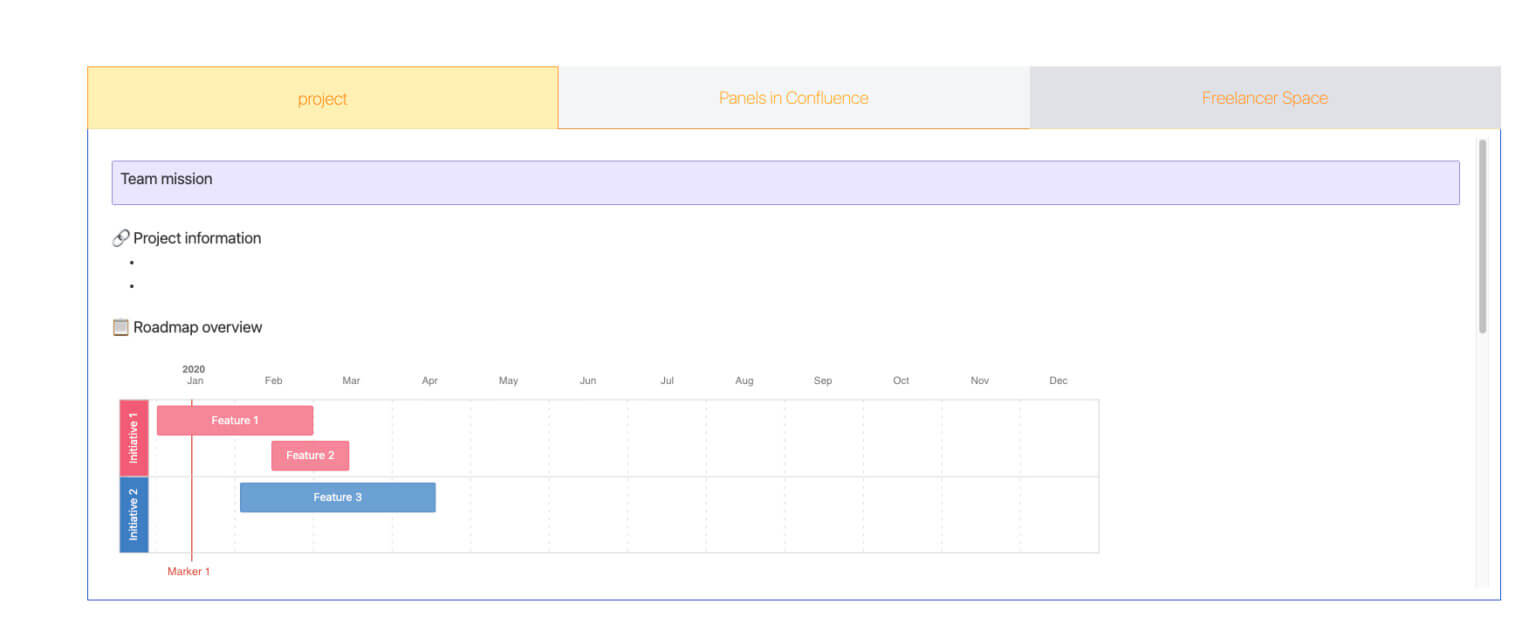
- Project Management Pages: Organize project phases or tasks into tabs, allowing team members to quickly navigate different parts of the project.
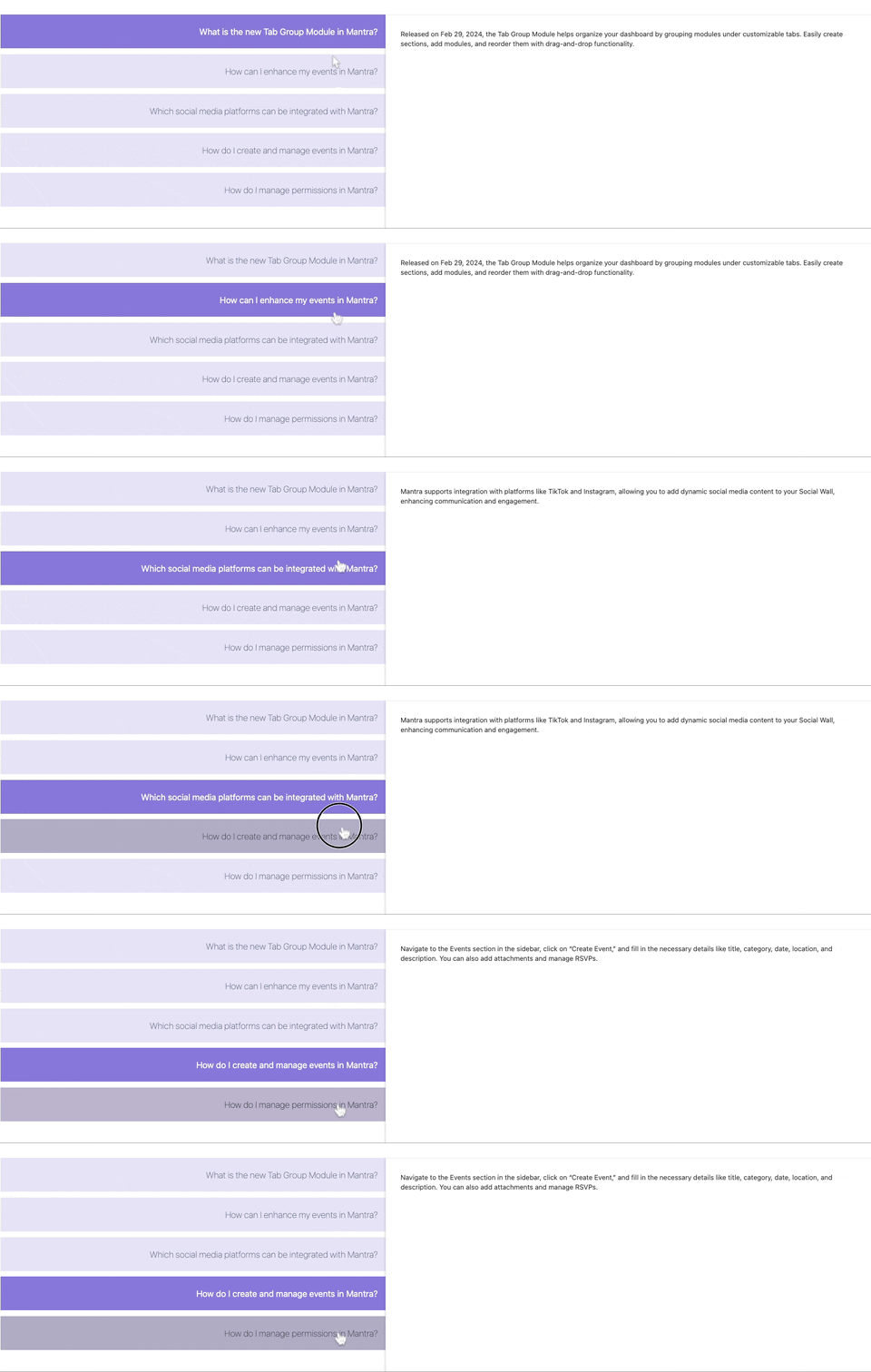
- FAQ Pages: Use tabs to divide FAQ sections, making it easier for users to find the information they need.
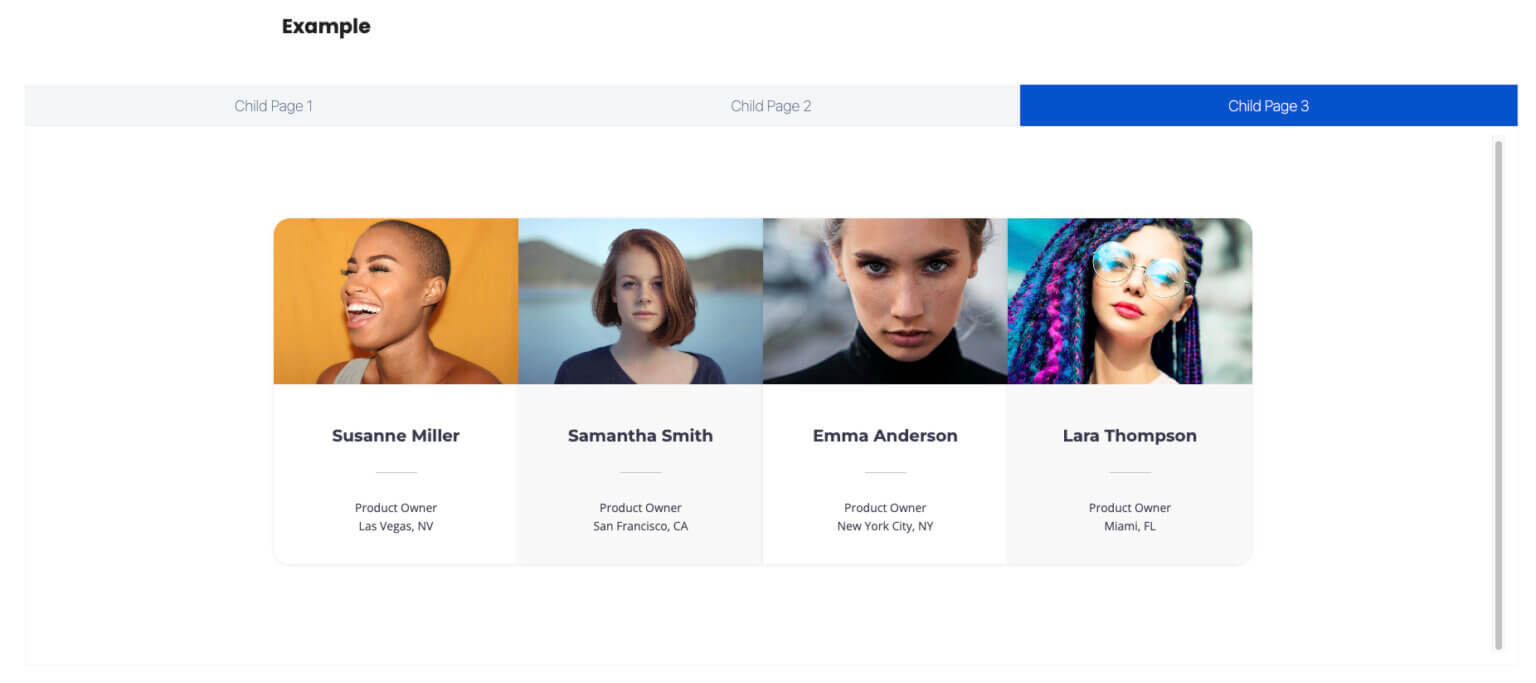
- Team Pages: Showcase team members, roles, and responsibilities in a visually engaging tab format.
🔓 Unlock the Full Potential of Your Confluence
Incorporating Aura Child Tabs into your Confluence pages is a game-changer for both style and function. With its powerful customization options, you can turn basic child page lists into dynamic, visually stunning tabs that enhance navigation and boost user engagement.
Ready to upgrade your Confluence pages? Book a free demo with our experts or give Aura a try today.
Discover how easy it is to create beautiful, user-friendly Confluence pages that your team will love!