Every new project at work can feel like an untouched canvas. While the fresh start is exciting, it can also be overwhelming and time-consuming.
Confluence templates act as your pre-drawn blueprint, giving you a head start while still leaving plenty of room for creativity. In this guide, we’ll explore why custom templates are essential and how you can create them with ease.
What Are Confluence Templates?
Confluence templates are pre-designed page layouts that make it simple to create consistent, organized content within your Confluence workspace. Rather than starting from scratch each time, templates offer a ready-made structure that you can tailor to meet your specific needs. They’re a real time-saver, helping you maintain uniformity across pages while ensuring your Confluence site looks polished and professional.
Whether you're crafting meeting notes, project plans, or detailed documentation, Confluence templates streamline your workflow, helping keep your team aligned and ensuring that all necessary details are captured efficiently.
Global vs. Space Templates 🌍🗂️
Confluence offers two main types of templates:
Global Templates: These are accessible across all spaces in your Confluence instance and are perfect for company-wide processes, like style guides or project kickoffs. Only Confluence admins can create or edit these.
Space Templates: Specific to a single space, these templates are ideal for teams or departments with unique requirements. Space admins can create and modify them as needed.
Do You Really Need Your Own Confluence Template?
Before you jump into creating a custom template, consider whether it’s necessary. Confluence already provides over 100 pre-made templates designed to suit a variety of needs. Start by exploring these options to see if any align with your requirements.
Confluence’s template library spans categories like Business Strategy, Design, Human Resources, Project Planning, Software Development, and Team Collaboration.
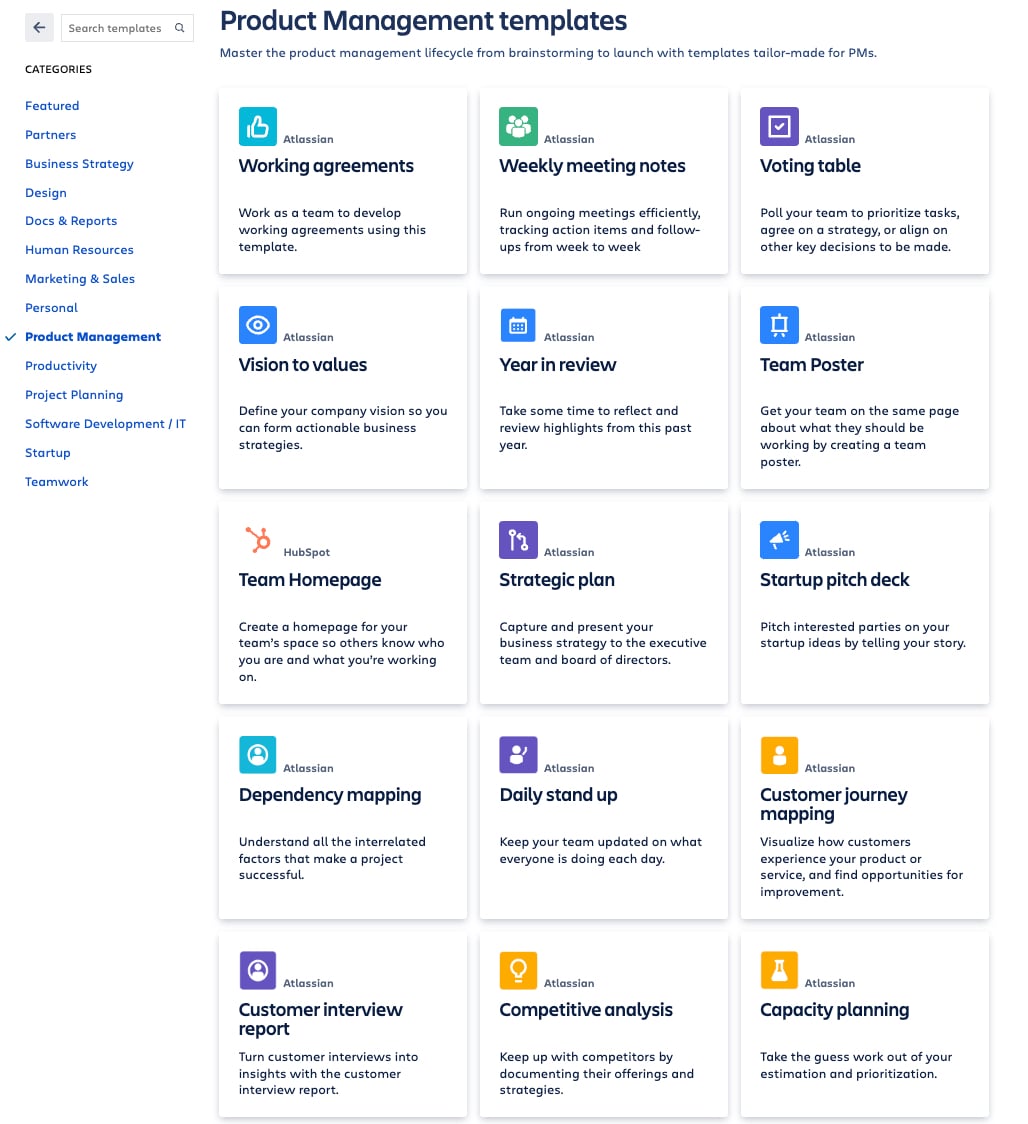
When starting a new Confluence page, simply select a template that suits your needs. Hover over each template to preview its layout.
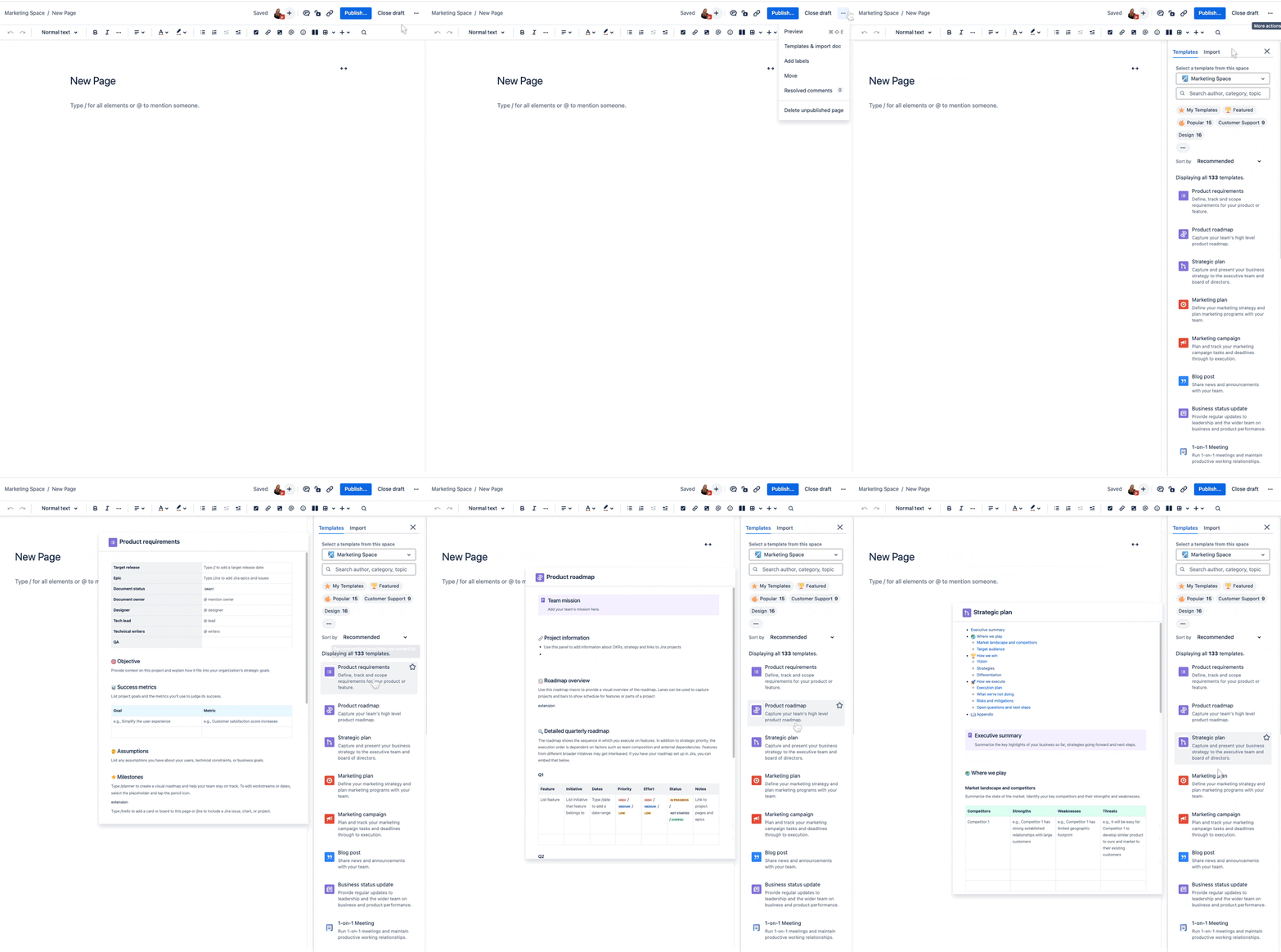
If none of the existing templates fit the bill, it might be time to create your own.
Here’s when custom templates come in handy:
- Repetitive Content: For content your team frequently uses, a template can save significant time.
- Specific Needs: If your requirements are unique and not covered by existing templates, creating a custom one is the way to go.
- Branding and Consistency: Custom templates help maintain a consistent look and feel across your Confluence space.
- Complex Documentation: For detailed projects, custom templates allow for specific sections, placeholders, and variables tailored to your needs.
Step-by-Step Guide to Creating a Space Template 🛠️
Since space templates are the more common type, here’s how to create one:
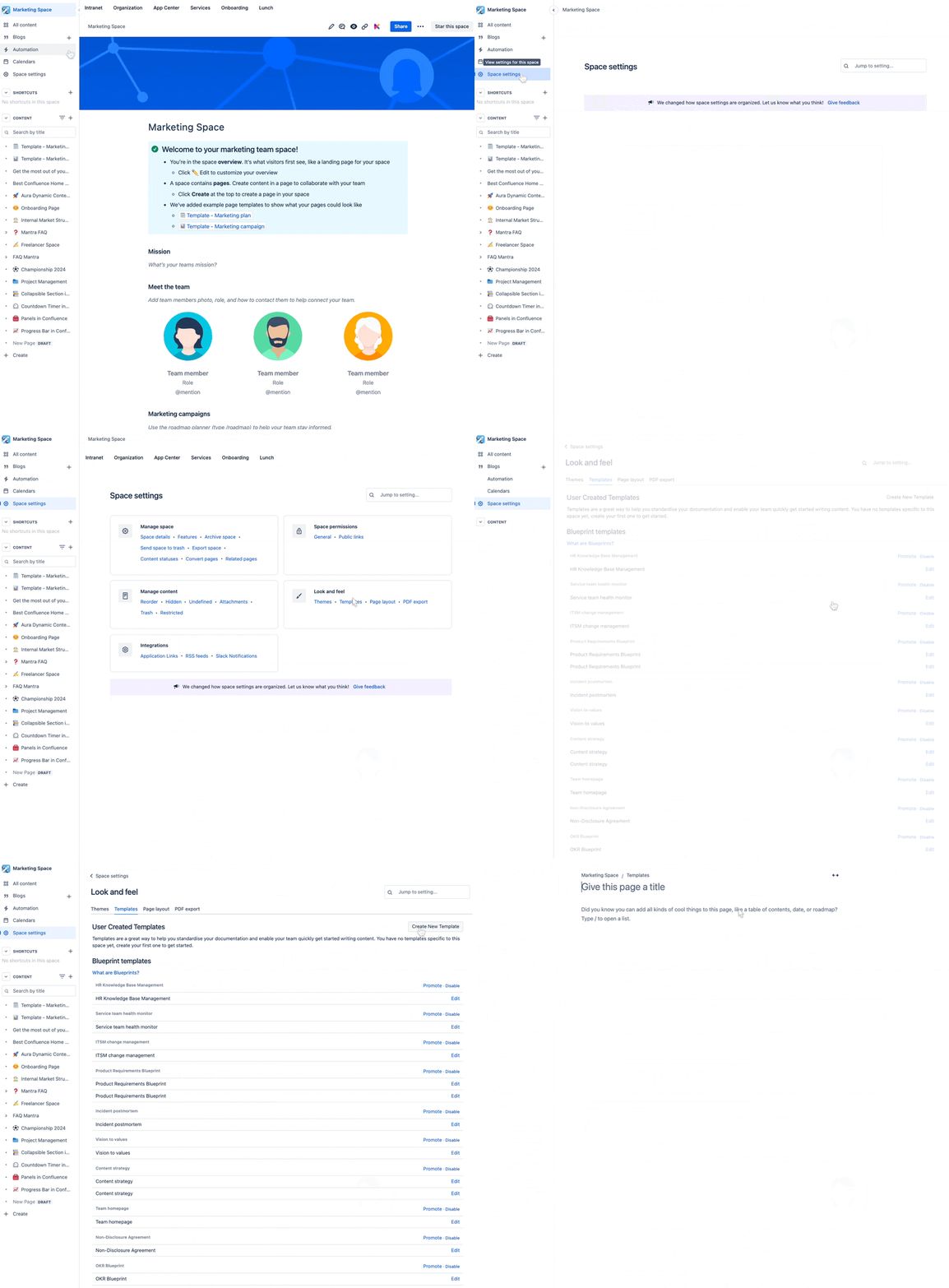
- Navigate to the Space Settings: Go to the relevant space, then click "Space Settings" in the sidebar.
- Select Content Tools: In Space Settings, head to “Look and Feel” and click on “Templates.”
- Create a New Template: Click "Create new template" to open the template editor.
Designing Your Template 🎨
In the editor, design your template by adding headings, text, variables, placeholders, and macros as needed.
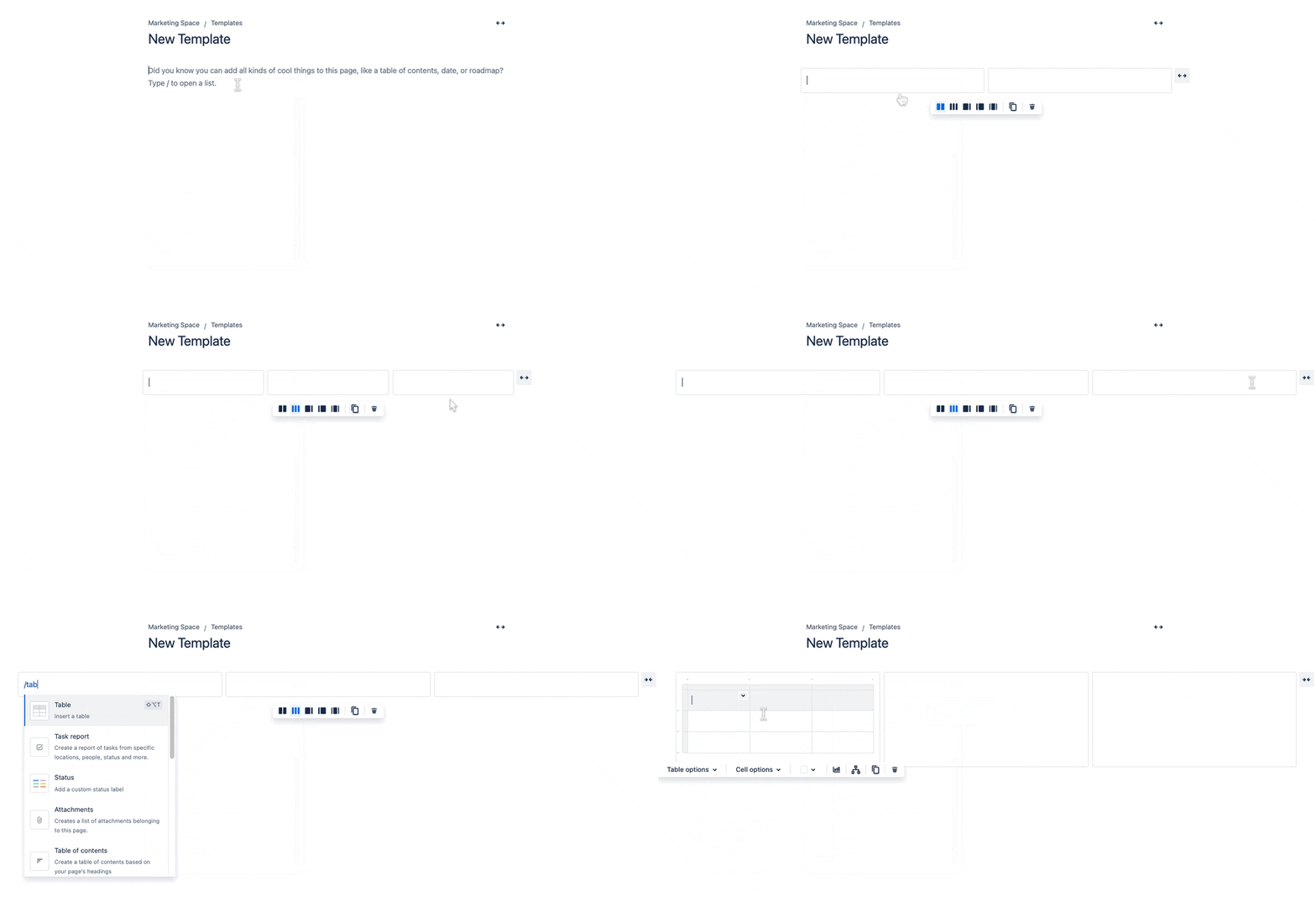
Layouts and Tables: Use Confluence’s layouts and tables to organize your content effectively. Setting up a clean layout with different columns can make your template look sharp and user-friendly. You can design your pages in full width or fixed width, with content centered for a modern look. For multi-column layouts, use the "/" command, or opt for tables when you need flexibility. Layouts are great for structuring content, while tables excel at sorting and numbering.
When structuring your content, think of the pyramid style: key details at the top (H1 and H2), with additional sections cascading down.
Enhance Your Templates with Built-In Macros
To make your Confluence templates more functional and visually appealing, add built-in macros. This transforms your templates into dynamic, interactive documents that enhance collaboration.
Here’s how to integrate some of the most useful macros into your templates:
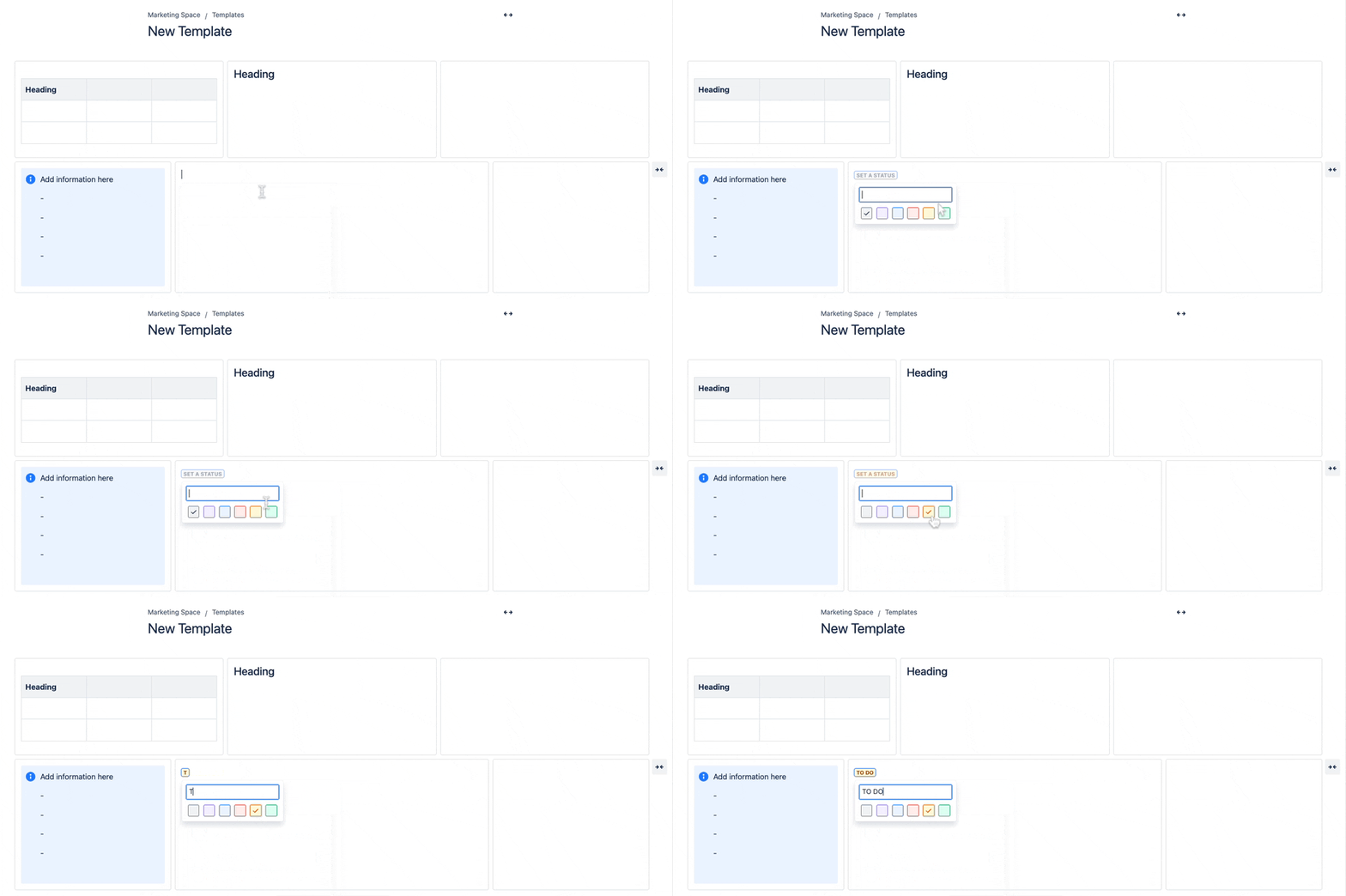
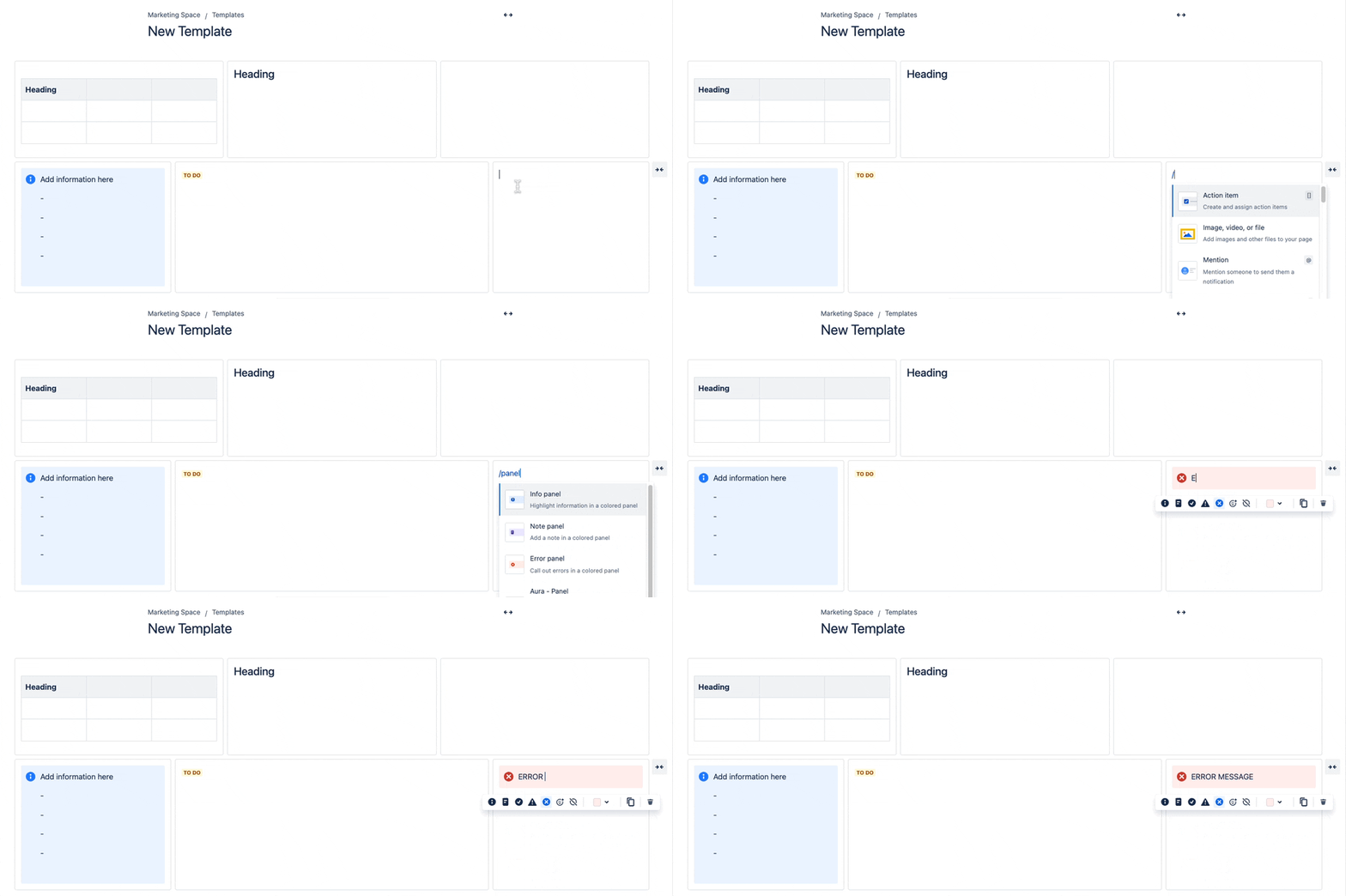
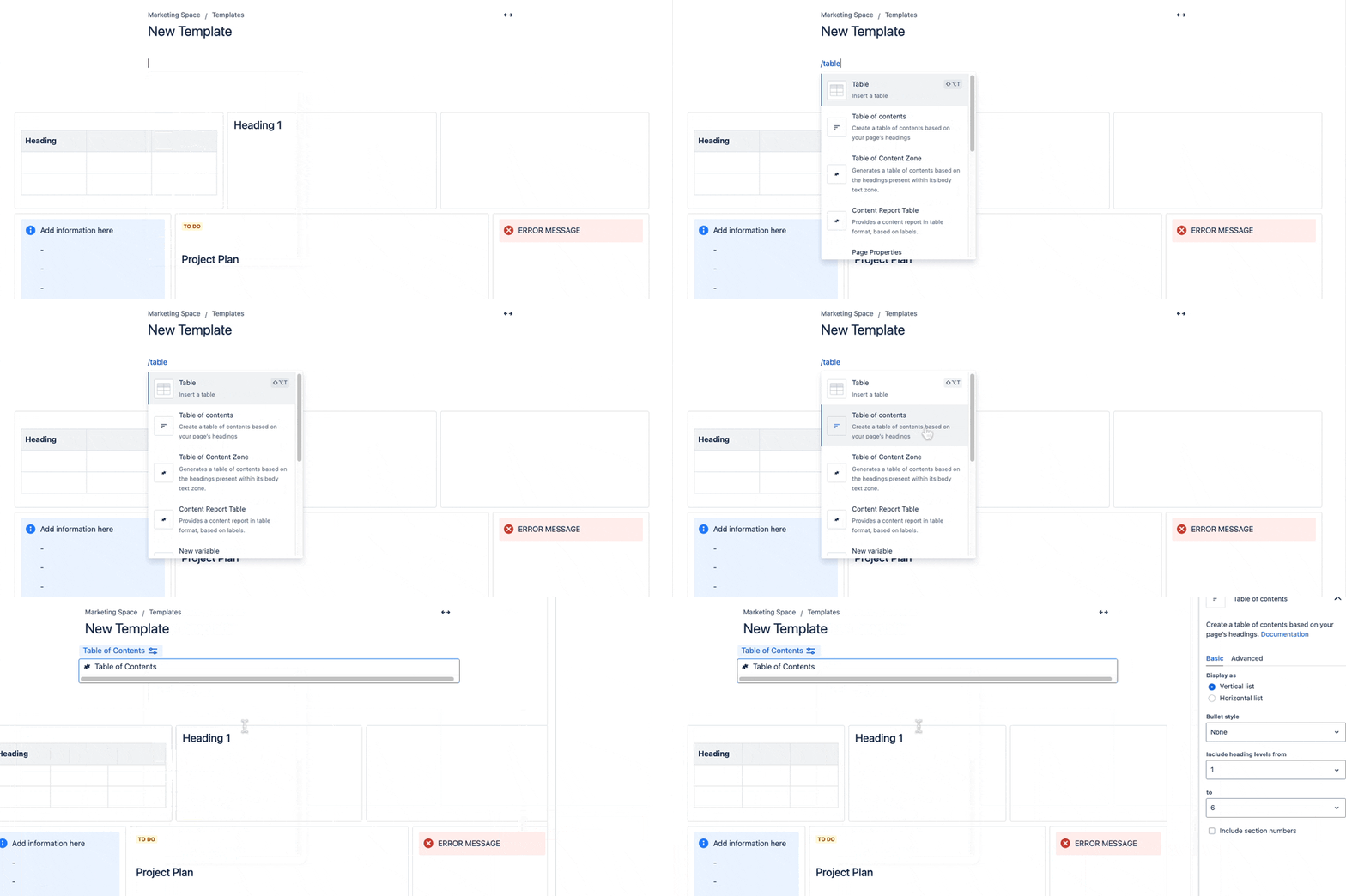
These are just a few of the many macros available. For meeting templates, consider including the date macro, page properties, attachments, expandable sections, or task lists.
Adding Variables to Your Template ✏️
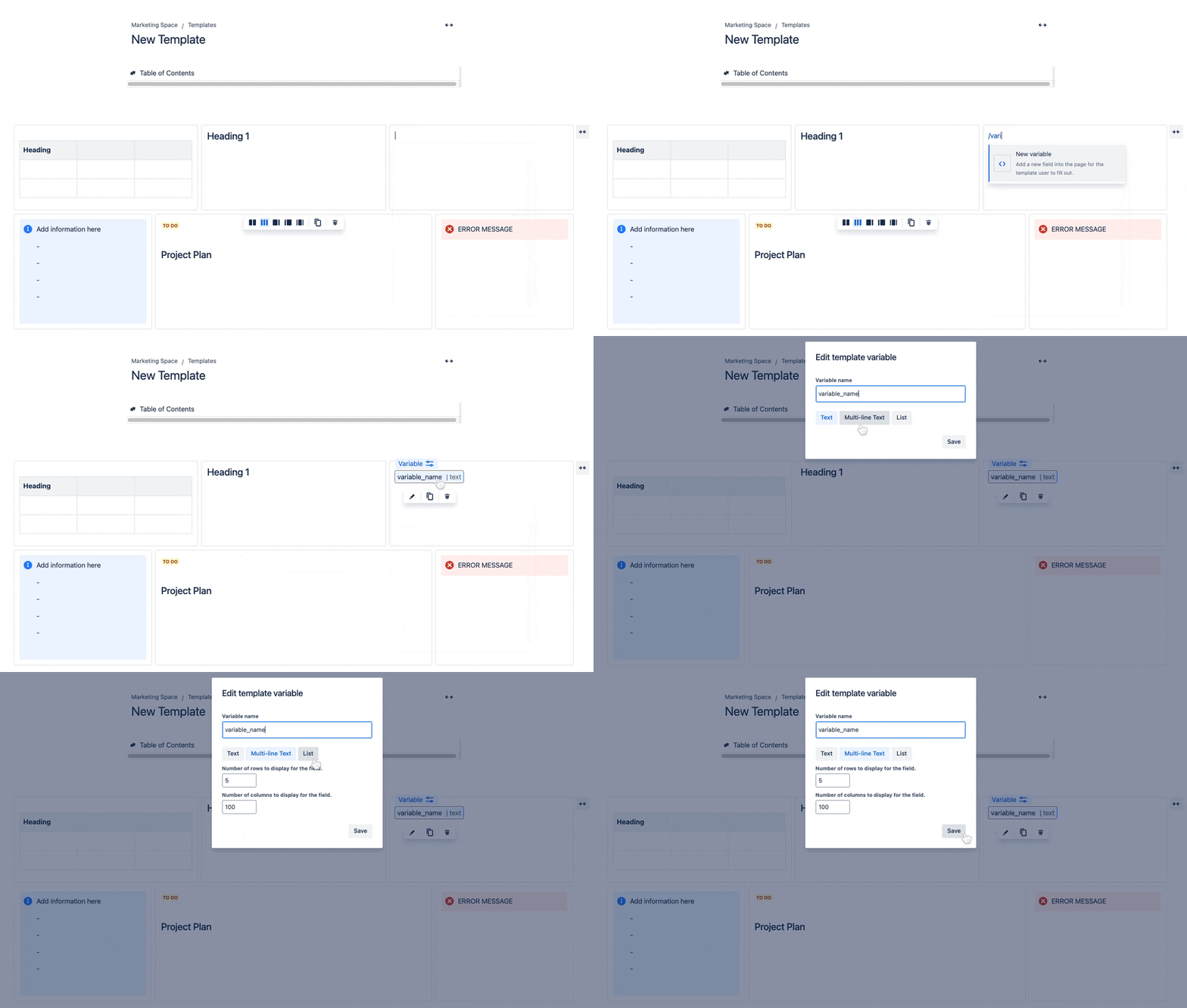
Variables make your templates dynamic. When someone creates a page from a template with variables, they’ll fill out a form, and the information will populate across all instances of that variable in the template. This ensures consistency and saves time.
To add a variable:
- Type /variable in the editor and hit Enter.
- Select the variable token, then click the pencil icon to edit.
- Enter a name and choose the input type (Text, Multi-line Text, or List).
- Save the variable to apply your settings.
|
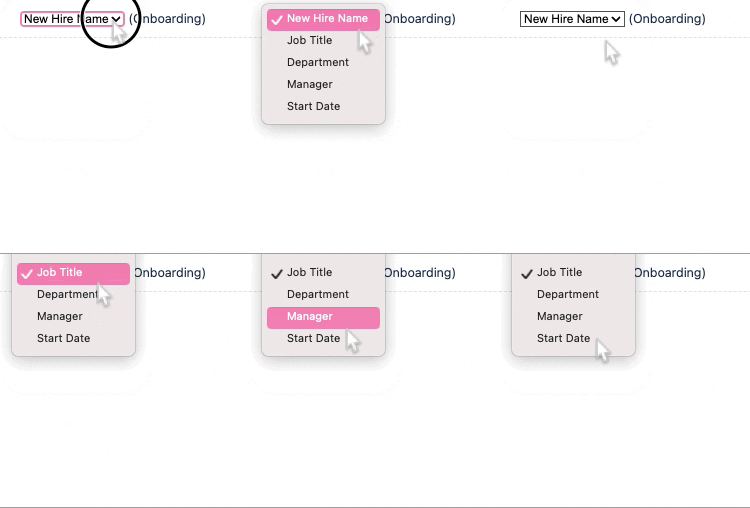
Imagine you’re creating a new hire onboarding template.
You might include variables for:
-
New Hire Name
-
Job Title
-
Department
-
Manager
-
Start Date
When using the template, it will look like this:
|
 |
Using Placeholders in Templates 📝
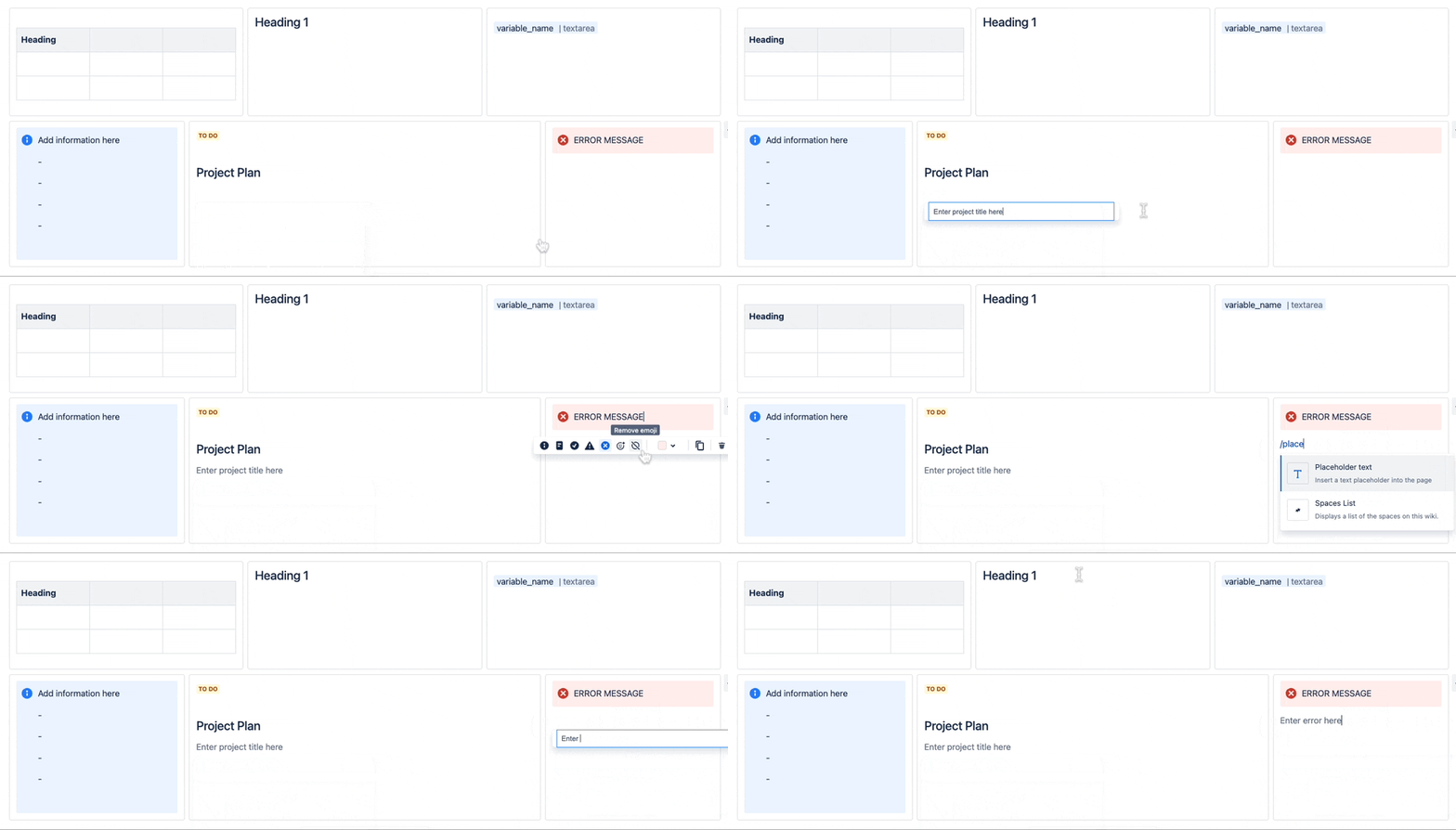
Placeholders in Confluence templates guide users on what information to input and where. Displayed in a greyed-out format during editing, they’re invisible in view mode, providing clear instructions without cluttering the final document.
To add placeholders:
- Type /placeholder where you want the instructional text.
- Hit Enter to insert the placeholder.
- Enter your placeholder text.
- Hit Enter again to finalize.
Placeholders vs. Variables: Which to Use?
Placeholders are perfect for providing guidance and static content, like instructions or examples. They’re ideal for sections needing detailed input.
Variables are better for dynamic, repeated information that must be consistent throughout the document, such as names, dates, or project titles.
Adding Labels to Templates 🏷️
Adding labels to your templates ensures every page created from that template inherits those labels, enhancing searchability and reporting. Labels help organize content, making it easier to find related pages and generate reports.
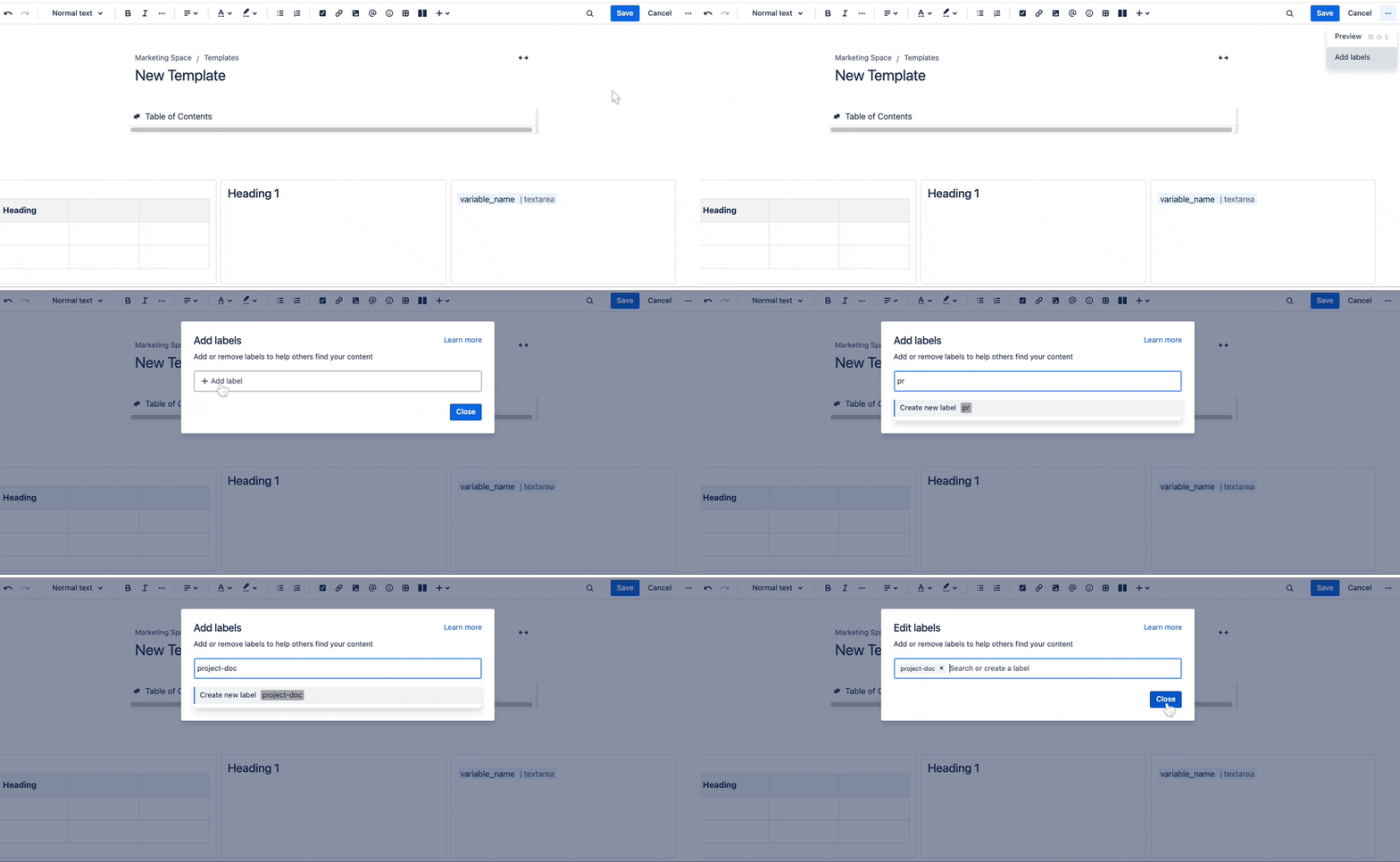
To add labels:
- Click on the ellipsis (three-dot menu) at the top right.
- Select "Add labels."
- Type the labels, separated by spaces.
- Click "Add" and then "Close."
Examples of Enhanced Confluence Templates 📚
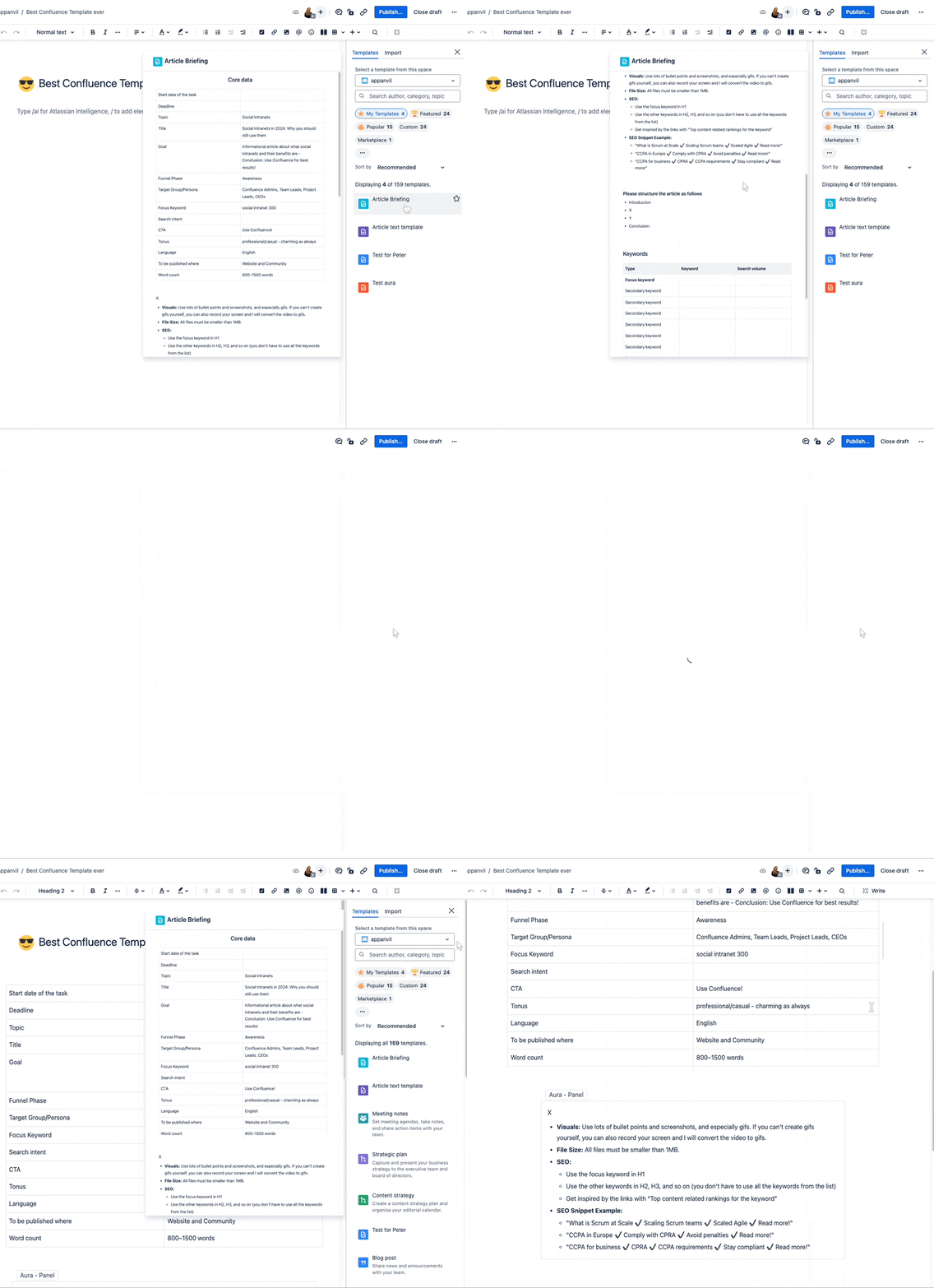
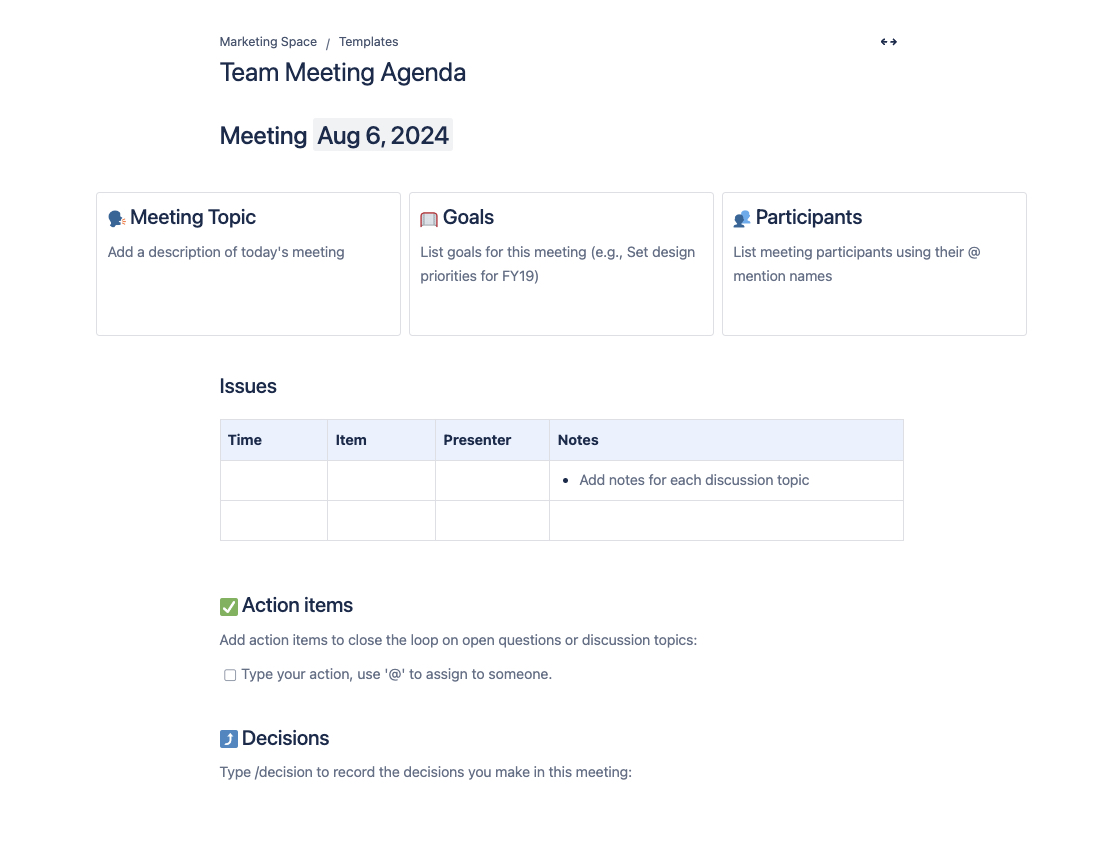
Here are some examples of how you can use custom Confluence templates:
-
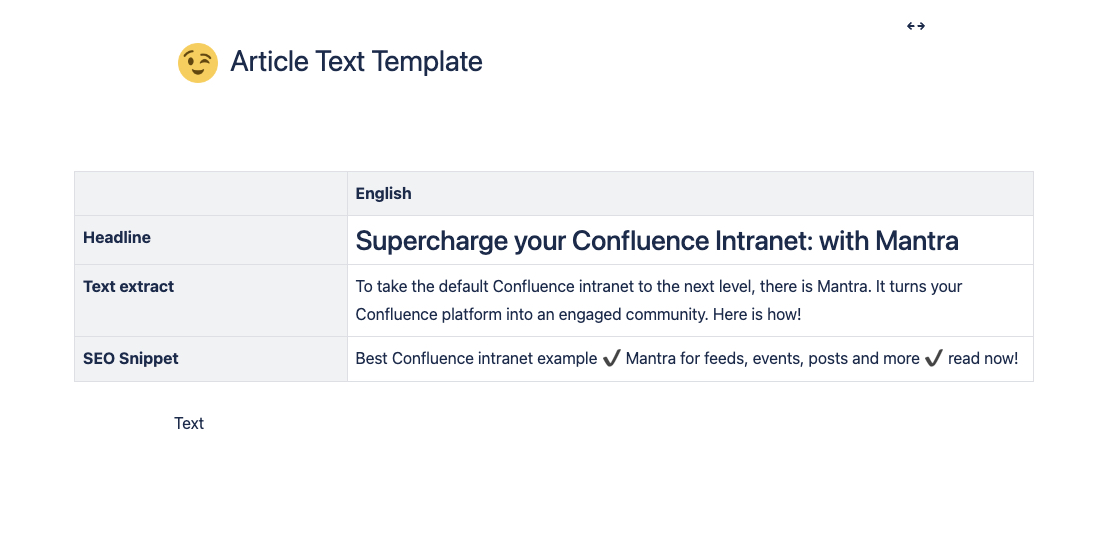
Article Text Template: Ensure consistency in your articles with a template that provides a structured format, including title, SEO snippet, and more.
Take Your Confluence Templates to the Next Level 🚀
Creating custom templates in Confluence is a powerful way to boost productivity, maintain consistency, and streamline your workflows. By following these best practices, you can design templates that meet your organization’s unique needs.


