We all know that feeling: you've crafted the perfect Confluence page, every word bursting with brilliance. But sometimes, a few sentences deserve a little extra bling.
Confluence offers a treasure trove of ways to make your text stand out.
Let's dive into the top 5 methods and unleash your inner highlighter extraordinaire!
1. Status Macros: ⚡ The "Action Station" Option
Deadlines, priorities, and statuses – oh my! Confluence has your back with its status macro.
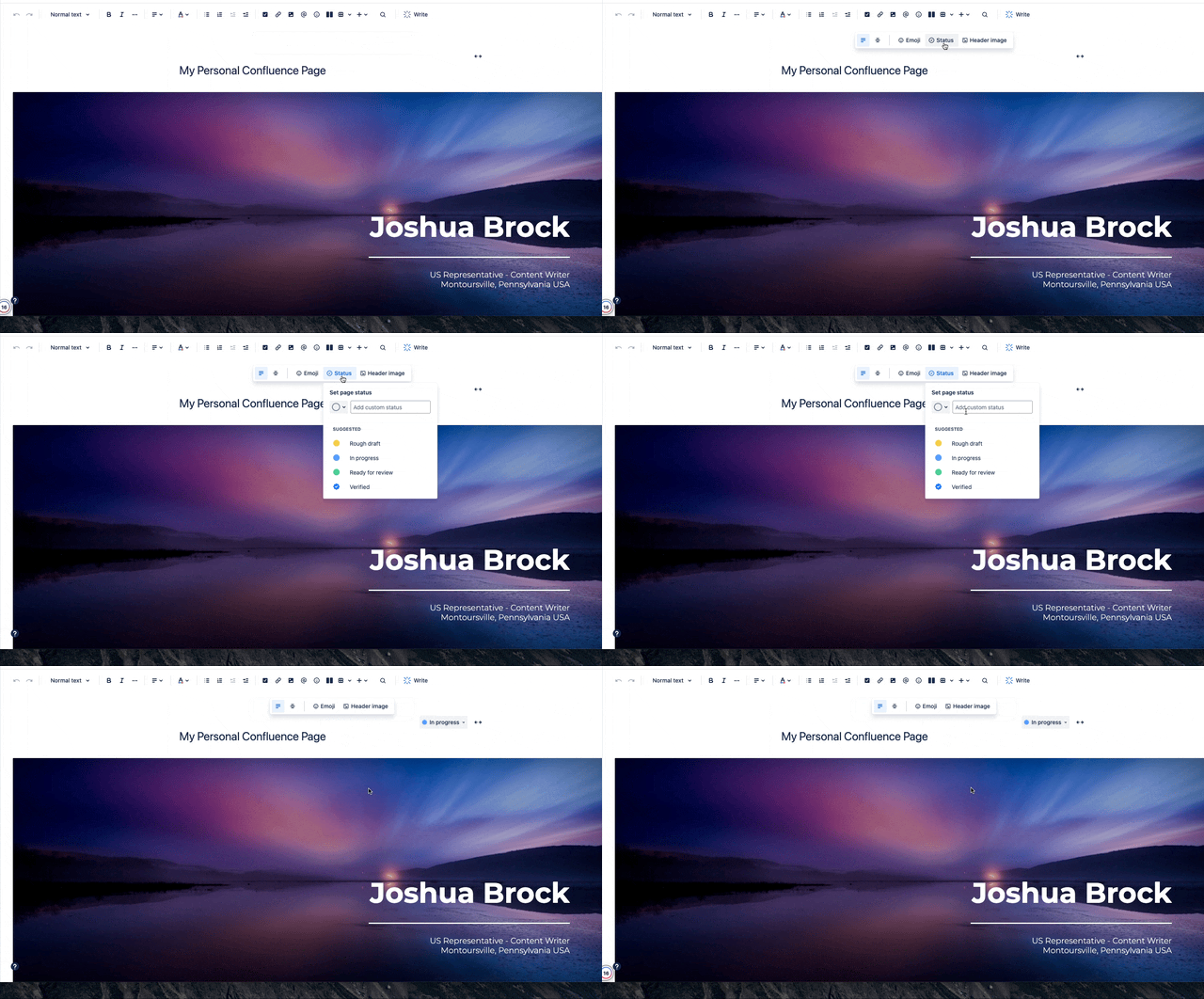
Step 1: Page Title Status
When editing a page title, you'll see a status option in the menu. Pick your status from the dropdown, and bam – instant highlight!
Step 2: In-Body Status
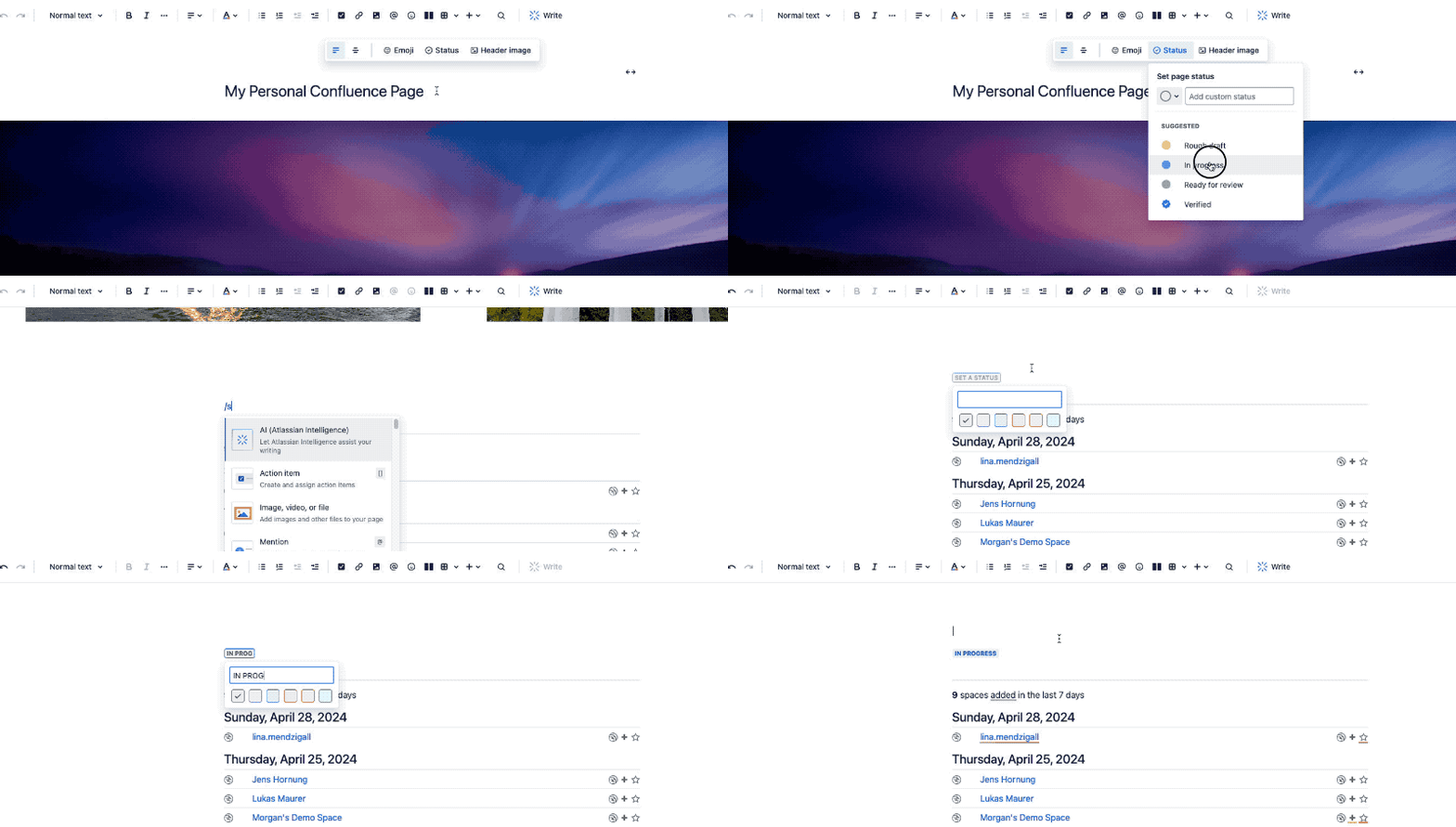
Deep in your content? Type "/" and then "status." Customize with one of five colors, name it, and you’re set. The status macro will display your highlight for all to see.
2. Feeling Colorful? 🎨 Change Your Text Palette!
This one's a quick and easy way to make your words pop.
Simply select the text you want to highlight, then pick a new color in edit mode. It's a simple trick, but a splash of color can break up text blocks and grab your reader's attention.

3. Panel Power: 🗂️ The All-Purpose Highlighter
|
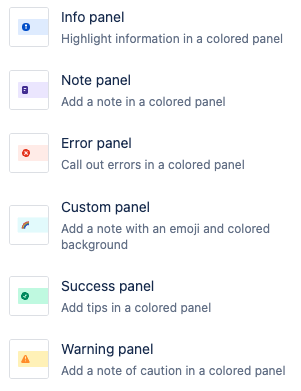
Confluence's Panel macro is like a highlight buffet – choose from info, note, error, custom, success, or warning styles!
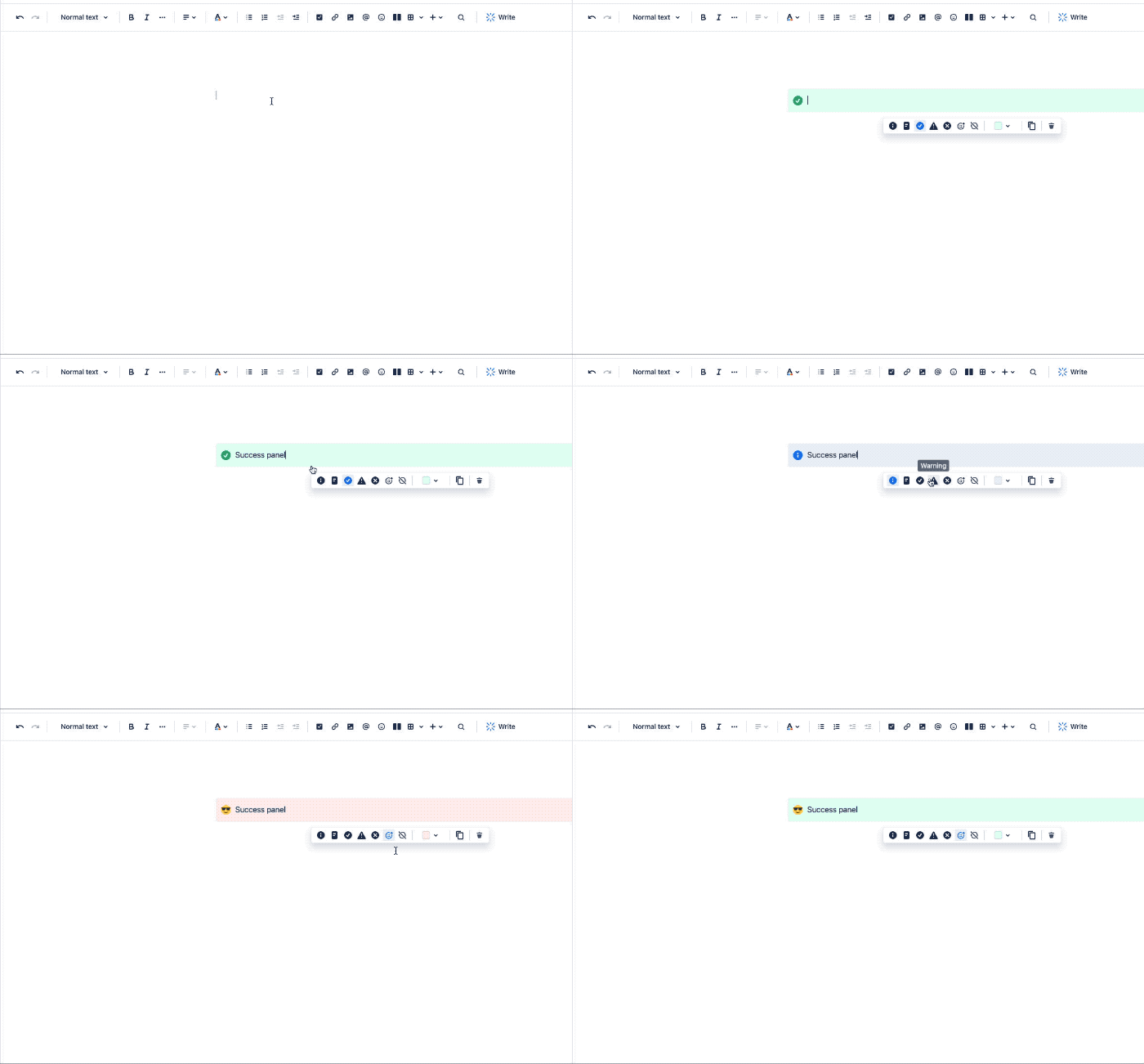
These colorful blocks can hold text and other content, and you can even customize the background color and icons.
Plus, they're flexible enough to hold multiple lines of text and adjust to your page width for a clean look.
|
 |
4. Page Comments: 🗨️ The "Insider Tip" Highlighter
This tip is more for the content creation crew. While not the most reader-friendly option, page comments allow you to highlight text for internal notes and discussions. Think of it like a digital sticky note – great for brainstorming and collaboration within your team.
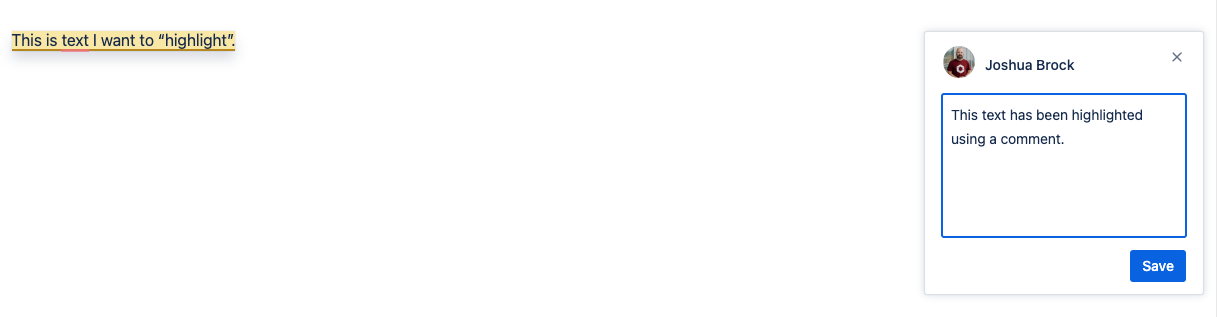
Pro Tip: Don't overdo it! A page littered with comments can be confusing to read.
5. Third-Party Apps like Aura 🚀
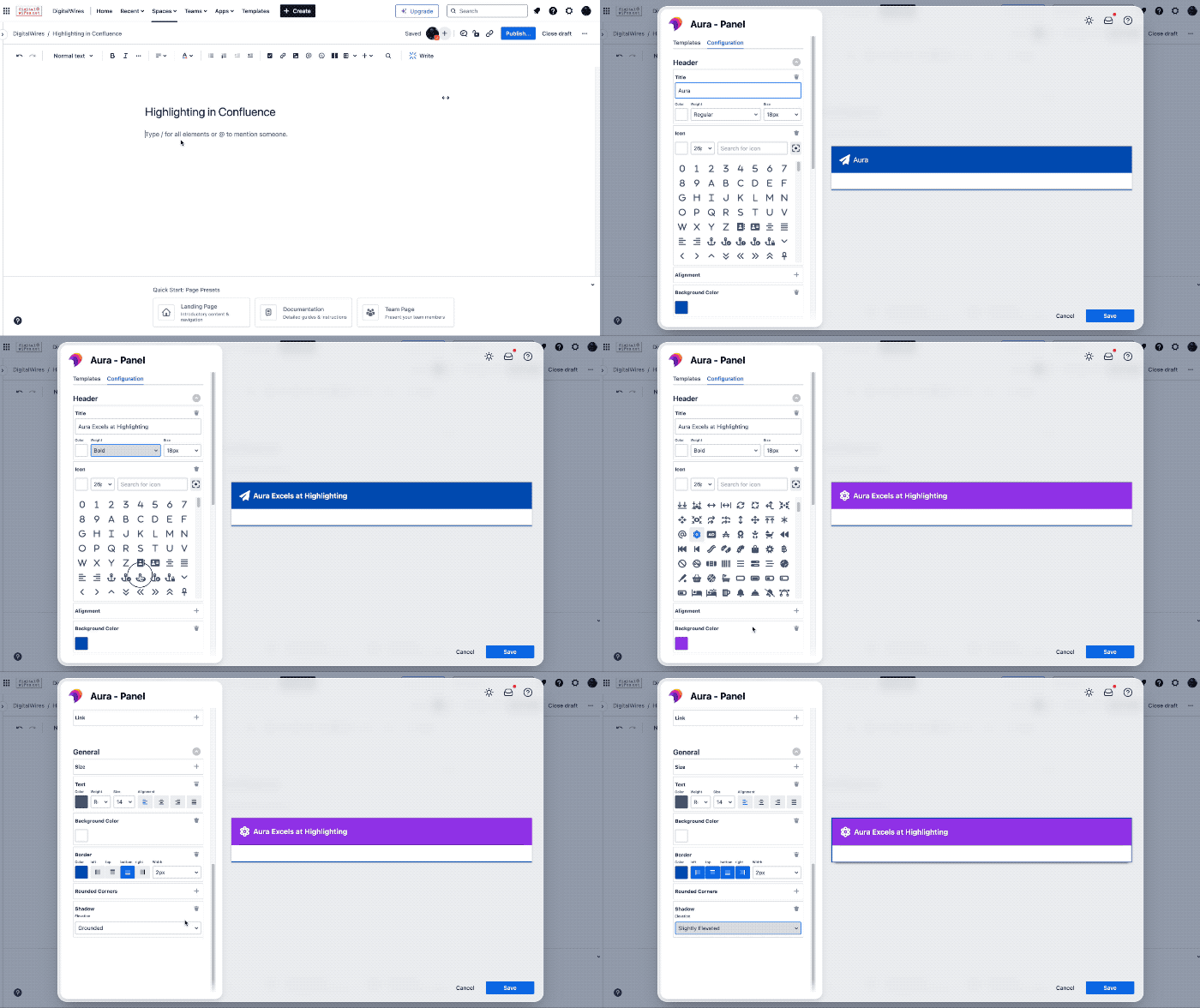
Confluence's built-in features are awesome, but if you crave even more highlighting firepower, check out third-party apps like Aura Content Formatting Macros.
This app gives you a whole arsenal of formatting tools, from fancy buttons and cards to customizable panels and backgrounds.
It's like a drag-and-drop playground for creating stunning Confluence pages.
Wrapping Up
Here’s a quick recap of the best highlighting tools in Confluence:
- Status Macros: Perfect for indicating urgency or status. Ideal for team projects.
- Text Color Change: Quick and easy for basic highlights.
- Panel Macro: Great for info sections and warnings. Perfect for concise highlights.
- Page Comments: Handy for internal notes, though not the best for readers.
- Aura Content Formatting Macros: Ultimate customization for visually engaging content.
Try them all and watch your Confluence pages transform from boring to brilliant. Happy highlighting!

