Hi Jira Community,
Starting August 19, we’ll be removing the dot menu in Jira and replacing it with the new and improved command palette.
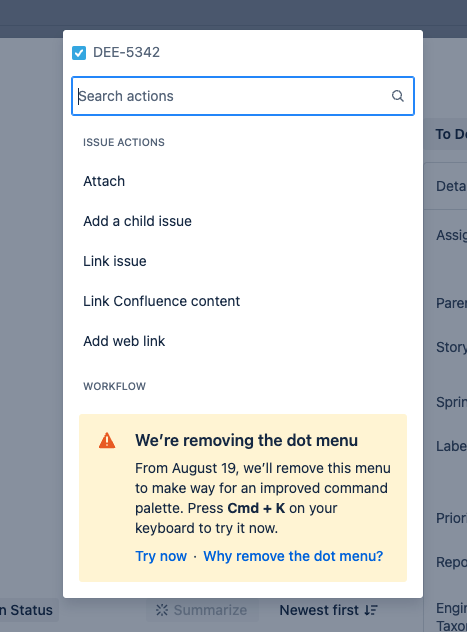
What is the Dot menu?
Jira’s dot menu allows users to quickly update issues and settings and is accessed by pressing . on your keyboard
What is the command palette?
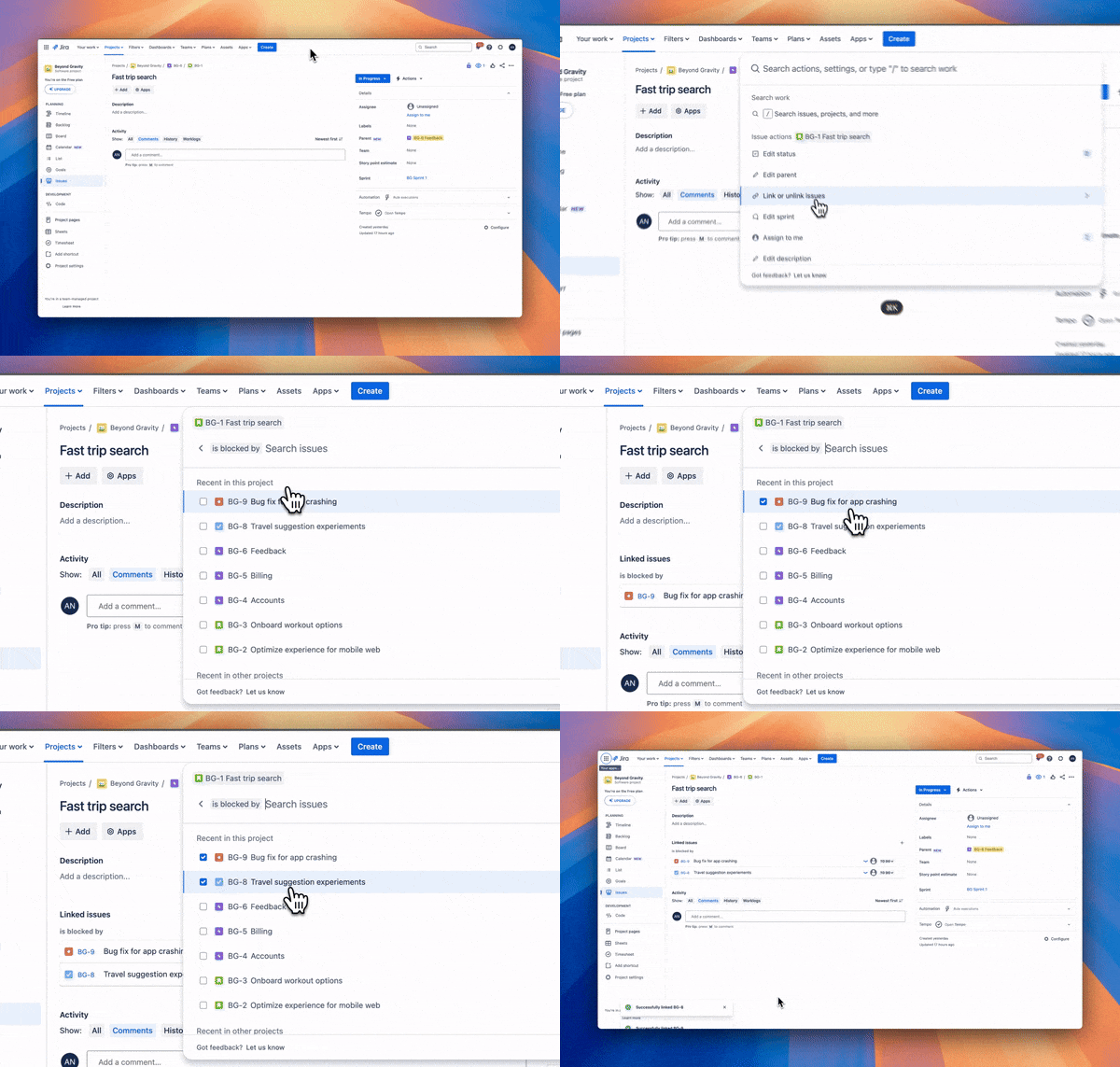
The command palette is a keyboard-first feature that allows you to search for your work in Jira, update your issues, manage admin and project settings, and more. It’s already available for use within Jira.
To get started with the command palette:
-
Open the command palette.
-
If you’re a Mac user, press command + K to open the command palette.
-
If you’re a Windows user, press Ctrl + K to open the command palette.
-
Search for commands in the search bar or use a forward slash / to search for your work.
More about the command palette
When and why is the dot menu being removed?
We’ll start removing the dot menu from August 19 2024. This will allow us to invest our efforts into the command palette and improve it based on your feedback. Unlike the command palette, the dot menu is constrained by its code, making it difficult to update. Furthermore, the dot menu is only available in parts of Jira while the command palette can accessed regardless of where you are in the product.
The command palette aligns with features already used by our customers in other applications and will provide more seamless and intuitive experience, not to mention a much quicker way to complete tasks.
Can I still do the same things with the command palette?
There are a few features that we haven’t brought over into the command palette yet, including:
-
converting to issues and subtasks
-
search criteria
-
connecting your issues to a Slack channel
-
actions related to Marketplace Apps
However, the command palette offers much more functionality than the dot menu. Depending on where you open the command palette in Jira, you can:
-
complete actions on your issues, including linking issues
-
update issue fields directly from the command palette, including:
-
-
sprint
-
labels
-
due dates
-
fix versions
-
components
-
search and navigate to your work, including issues, projects, boards
-
access settings
-
switch between light and dark themes
-
create issues
-
check notifications
-
open keyboard shortcuts and help menus
This is just a snapshot of what can be achieved with command palette - so make sure you start exploring it as soon as you can!
More about updating issues with the command palette
What do I need to do?
If you’re an admin, we recommend notifying your organization about the dot menu removal in advance and preparing users to switch over to the command palette.
If you’re a user, we recommend you start exploring the command palette for a quicker way of completing your work!
Thanks from the Atlassian team