Feeling overwhelmed by the content on your Confluence pages? We've all been there. But it doesn't have to be this way.
Let's chat about a game-changing solution: Confluence tabs.
This guide will break down what tabs are, the challenges of using them in Confluence, built-in options for organizing content, and why Aura Content Formatting Macros is the ultimate choice for creating tabs.
What Are Tabs?
Tabs are a brilliant way to organize and present content. They act as containers for related information, letting users view one tab at a time. Even if you’re not sure what’s inside, the label gives you a hint. This keeps your focus on relevant info and makes navigation a breeze, keeping your Confluence page clean and tidy.
Benefits of Tabs 🗄️
-
Organized Paradise: Split content into clear sections, making navigation easy-peasy. Jump between topics without drowning in a text ocean.
-
Hidden Treasures Revealed: Group related content in dedicated tabs to spotlight key info. Say goodbye to hunting for buried gems!
-
Enhanced Readability: Tabs improve user engagement by making info flow better and content look more appealing.
The Missing Piece: Confluence Tabs 🔍
Here’s the twist: Confluence doesn’t have built-in tabs. Yep, for those sleek, organized tabs, you’ll need some third-party help from the Atlassian Marketplace. Not keen on that? No worries, we’ve got workarounds.
Workaround 1: Expand Macro 💡
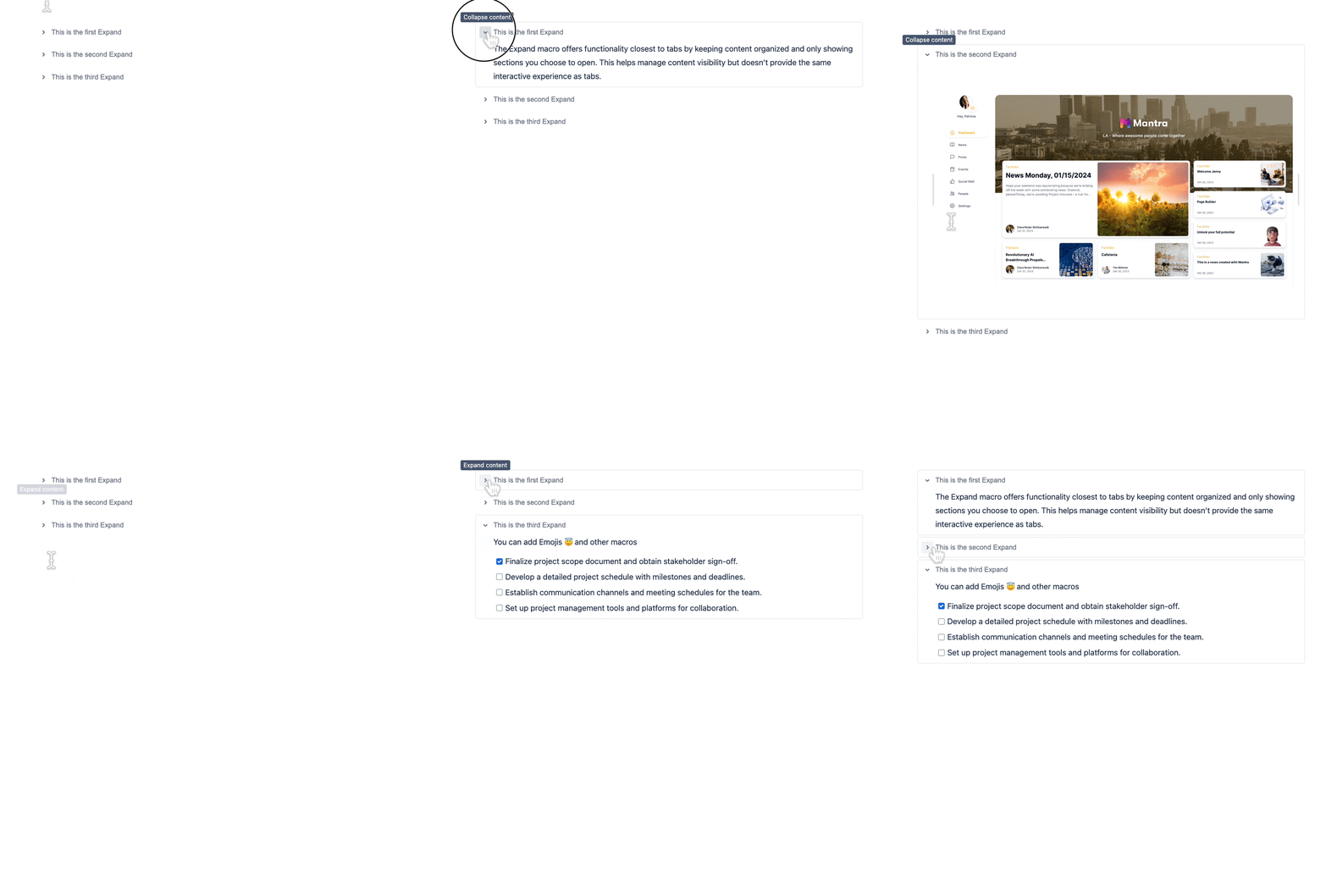
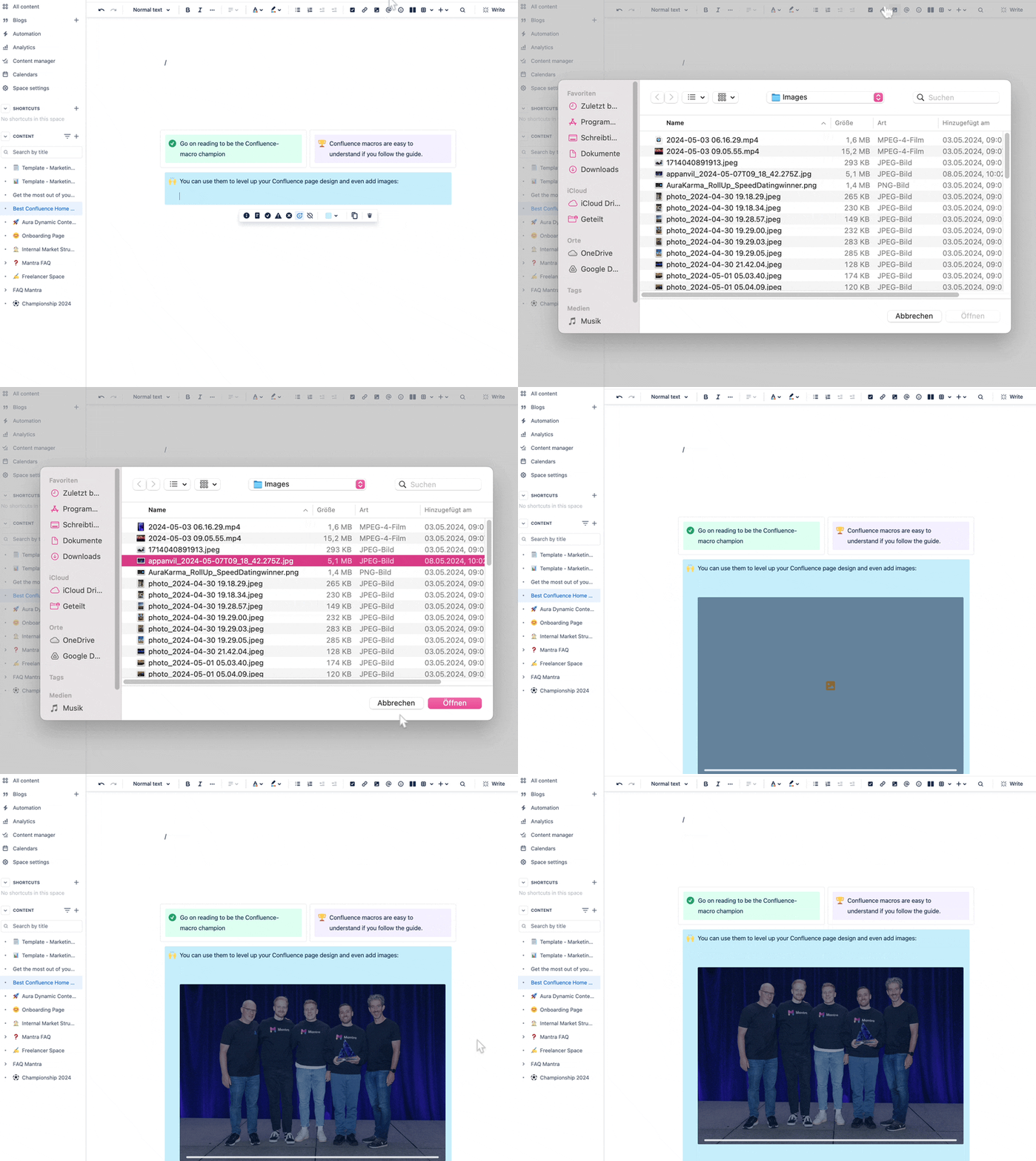
The Expand macro is your next best bet, keeping content organized and only showing sections you choose to open. It’s not as interactive as tabs, but adding emojis and images can jazz up each expand section.
Workaround 2: Panel Macro 📚
Panels are another simple way to organize your content visually. They separate sections with headers, making navigation smooth. You can even pack the panel macro into layouts and add images. But remember, panels don’t hide content like tabs do.
Best Option: Aura Content Formatting Macros 🏆
For a true tab experience, Aura Content Formatting Macros is your go-to solution. Aura lets you create stunning, customizable tabs that make content easy to navigate.
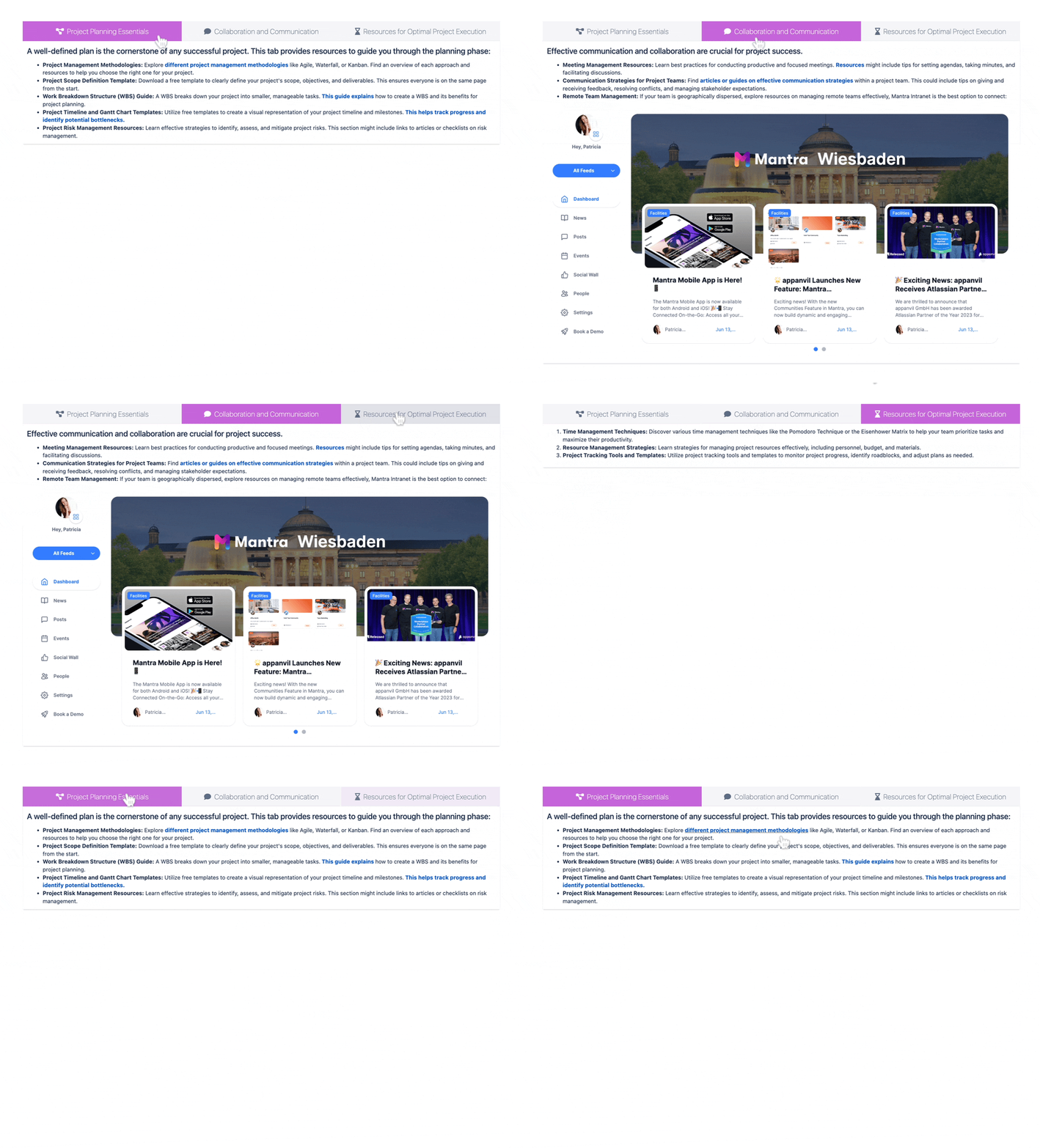
Aura's dynamic duo includes:
-
Aura-Tab Group Macro: Controls the design for all tabs within the group. Think of it as your tab stylist. While nested Tab Groups aren’t supported, Aura offers plenty of customization options.
-
Aura-Tab Macro: This is where the magic happens. Each tab uses this macro, letting you set titles, icons, and other settings to personalize your content.
How to Guide to Perfect Confluence Tabs 🎯
1️⃣ Insert the Aura-Tab Group
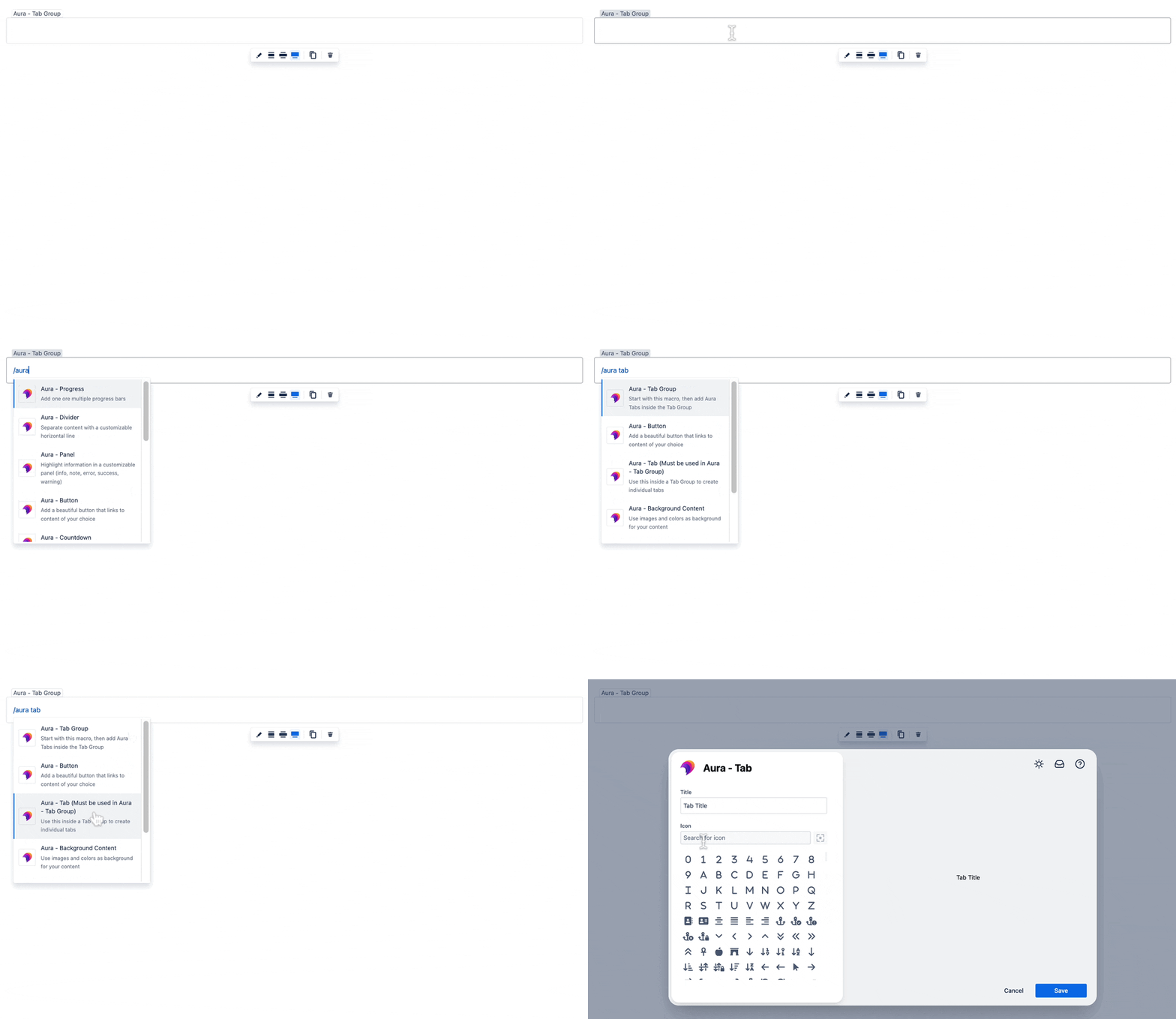
First, integrate the Confluence Macro: Aura-Tab Group on your page. Here's how:
- Go to the Confluence page you want to edit and enter edit mode.
- Use the shortcut key “/” to search for the macro.
- Type “Aura-Tab Group” and pick the macro from the list.

2️⃣ Configure Your Confluence Tab Group
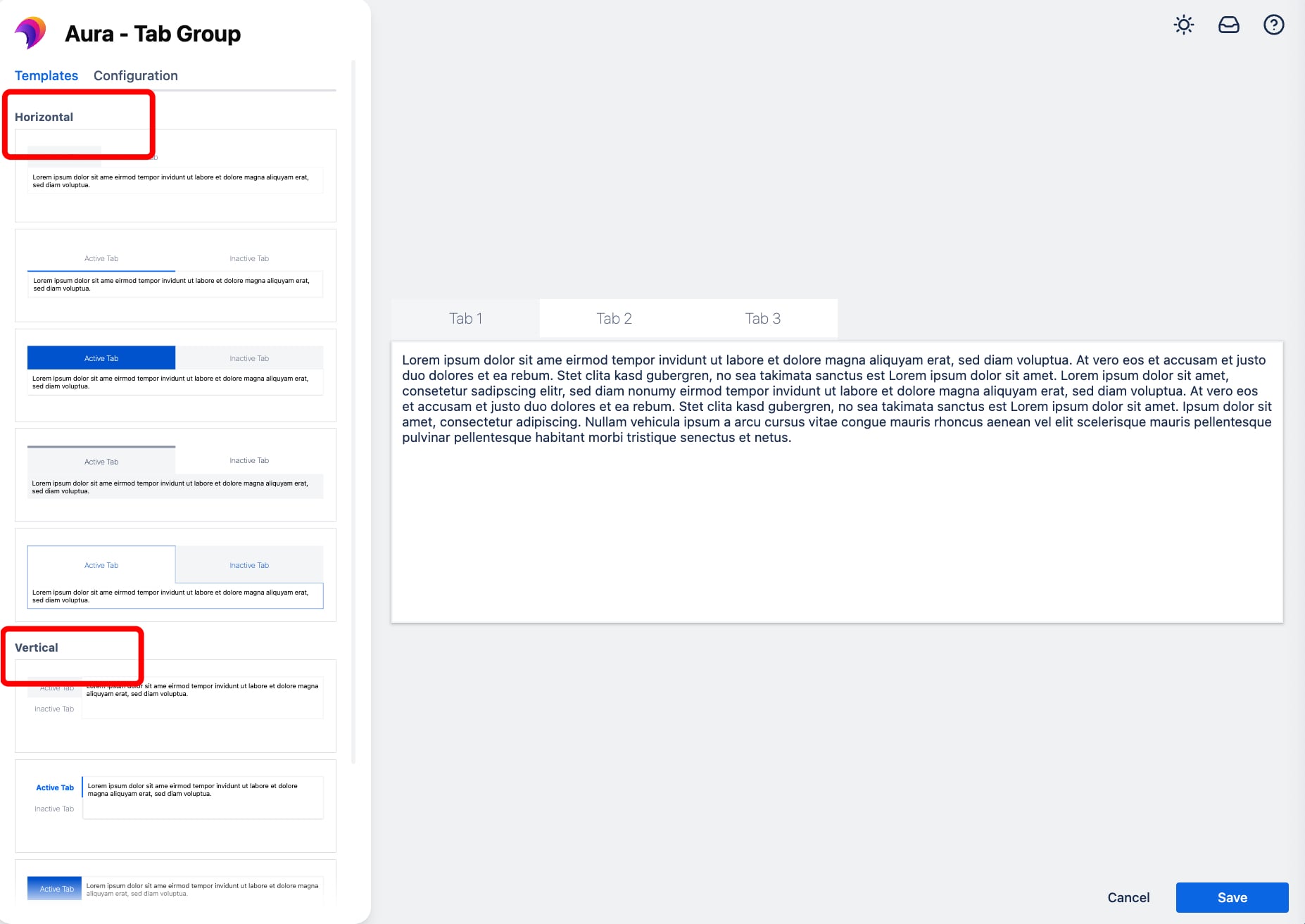
-
General Settings:
- Choose between horizontal or vertical tabs.
- Adjust the width, height, and spacing of your tabs.
-
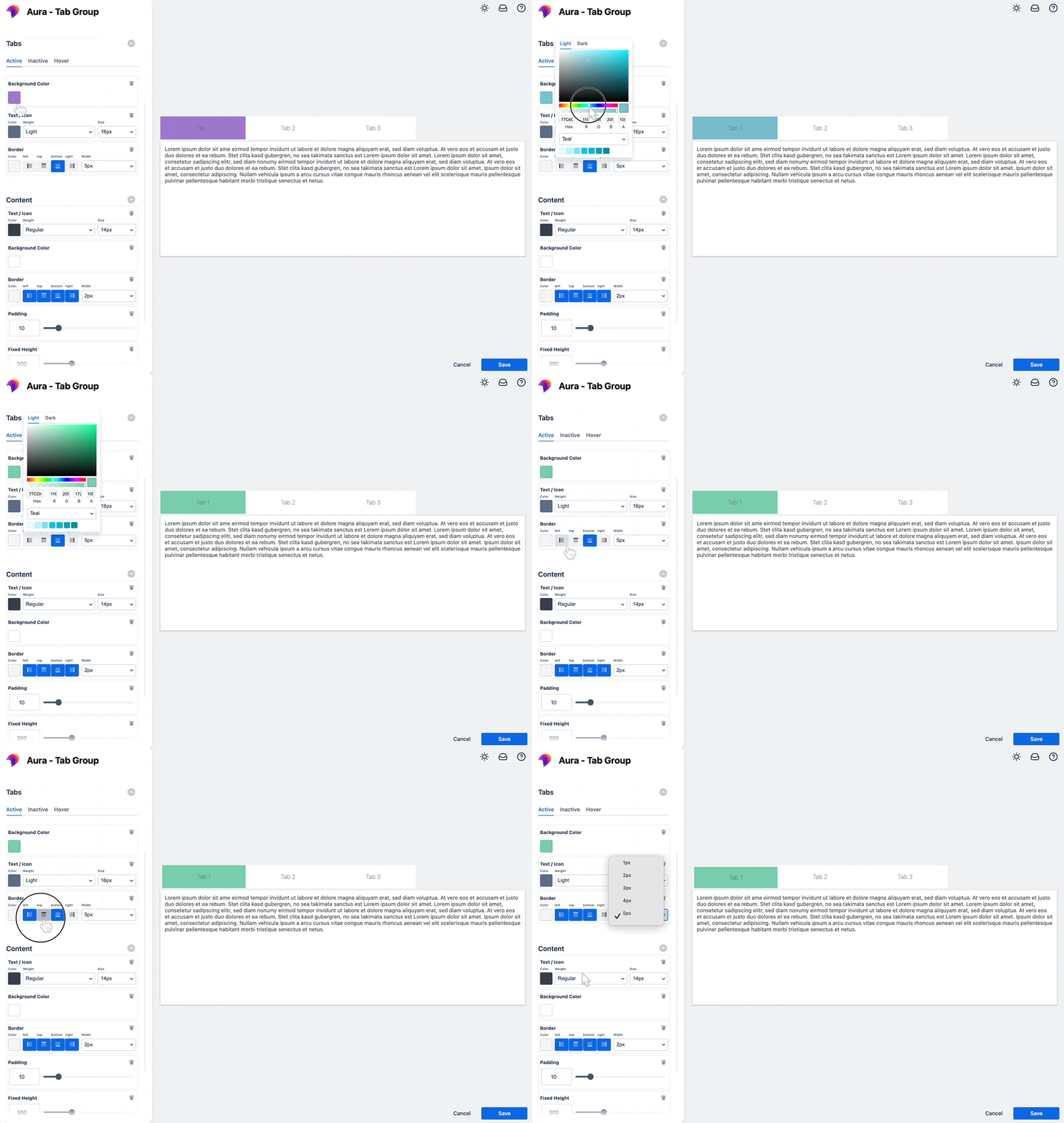
Active Tab Settings:
- Set a background color, border, and text/icon style for the selected tab.
-
Inactive Tab Settings:
- Customize the background color, border, and text/icon style for inactive tabs.
-
Hover Settings:
- Add interactivity with a background color, border, or text style for hovered inactive tabs.
-
Content Settings:
- Define the background color, border, padding, and optional shadow for your content area.
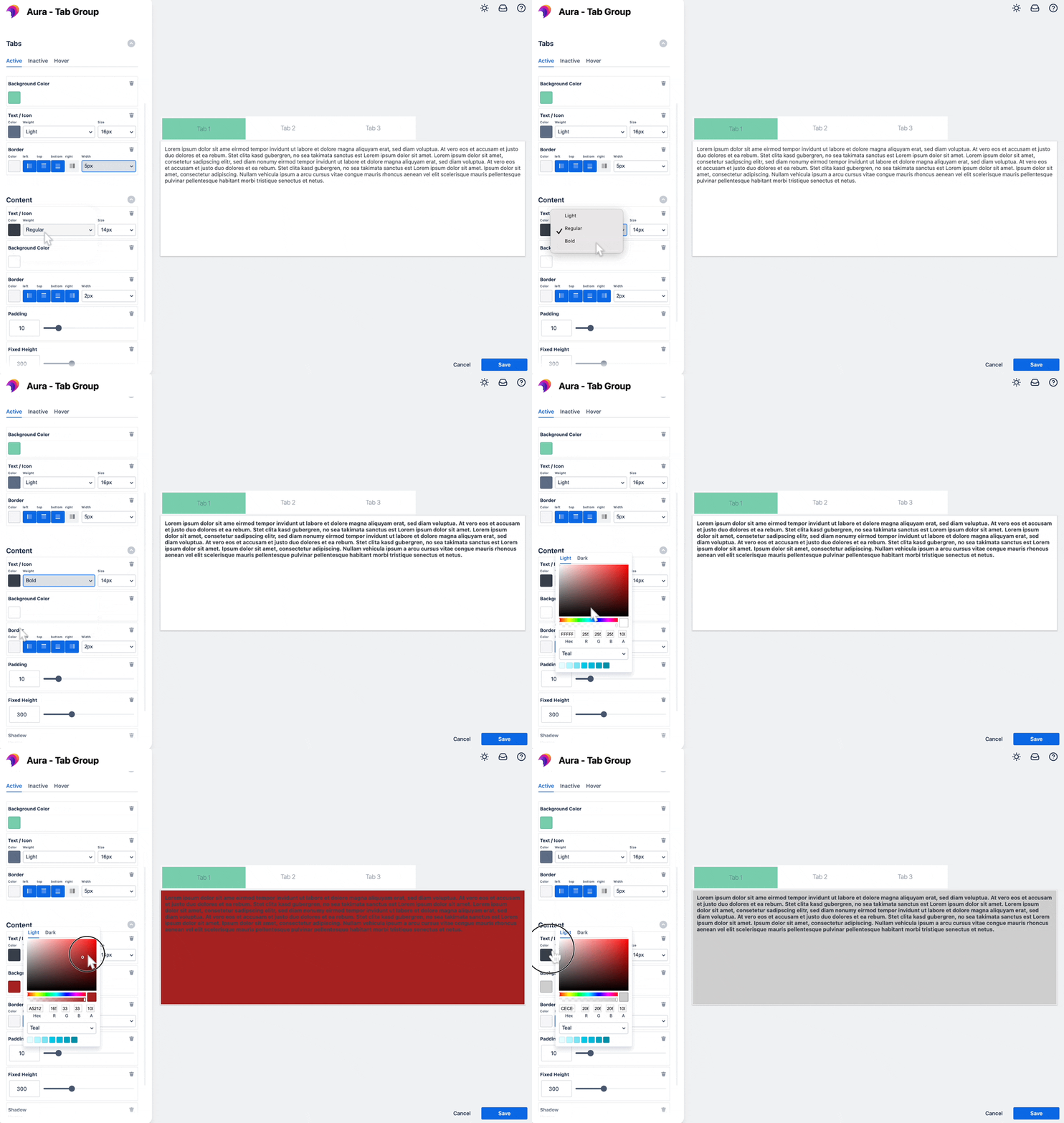
With Aura Content Formatting Macros, you get a live preview of all changes. Play around until it matches your style, then hit save.
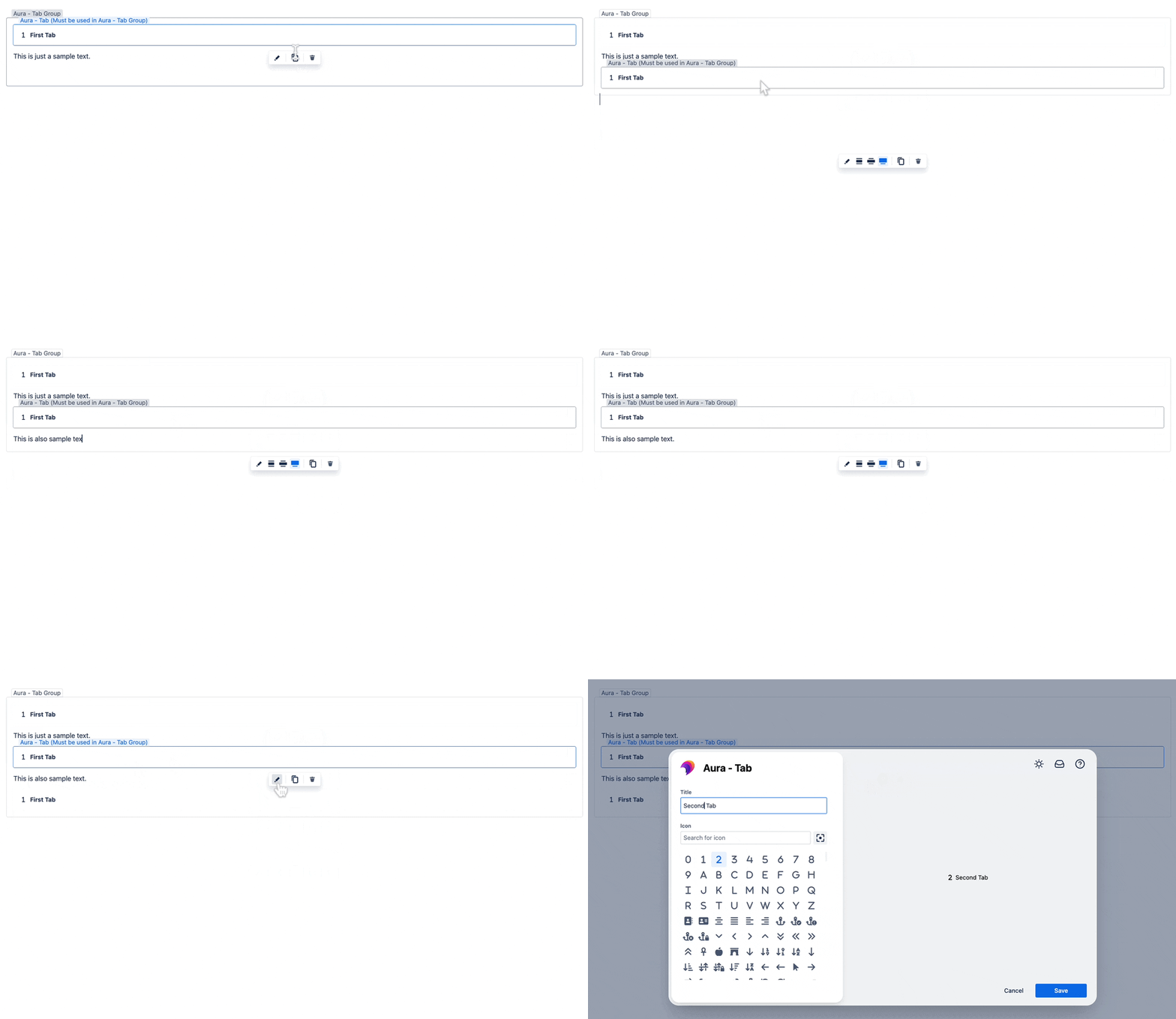
3️⃣ Add Your Confluence Tabs
- Click inside the Aura-Tab Group so the cursor appears within it.
- Type “/” and select “Aura-Tab” from the list.
- Configure each tab's settings.
4️⃣ Configure Your Content Tabs
- Title: Enter a clear, descriptive tab title.
- Icon: Choose an icon that represents the content.
- Content: Add text, tables, images, or other macros under each tab. Customize each tab to fit its content.
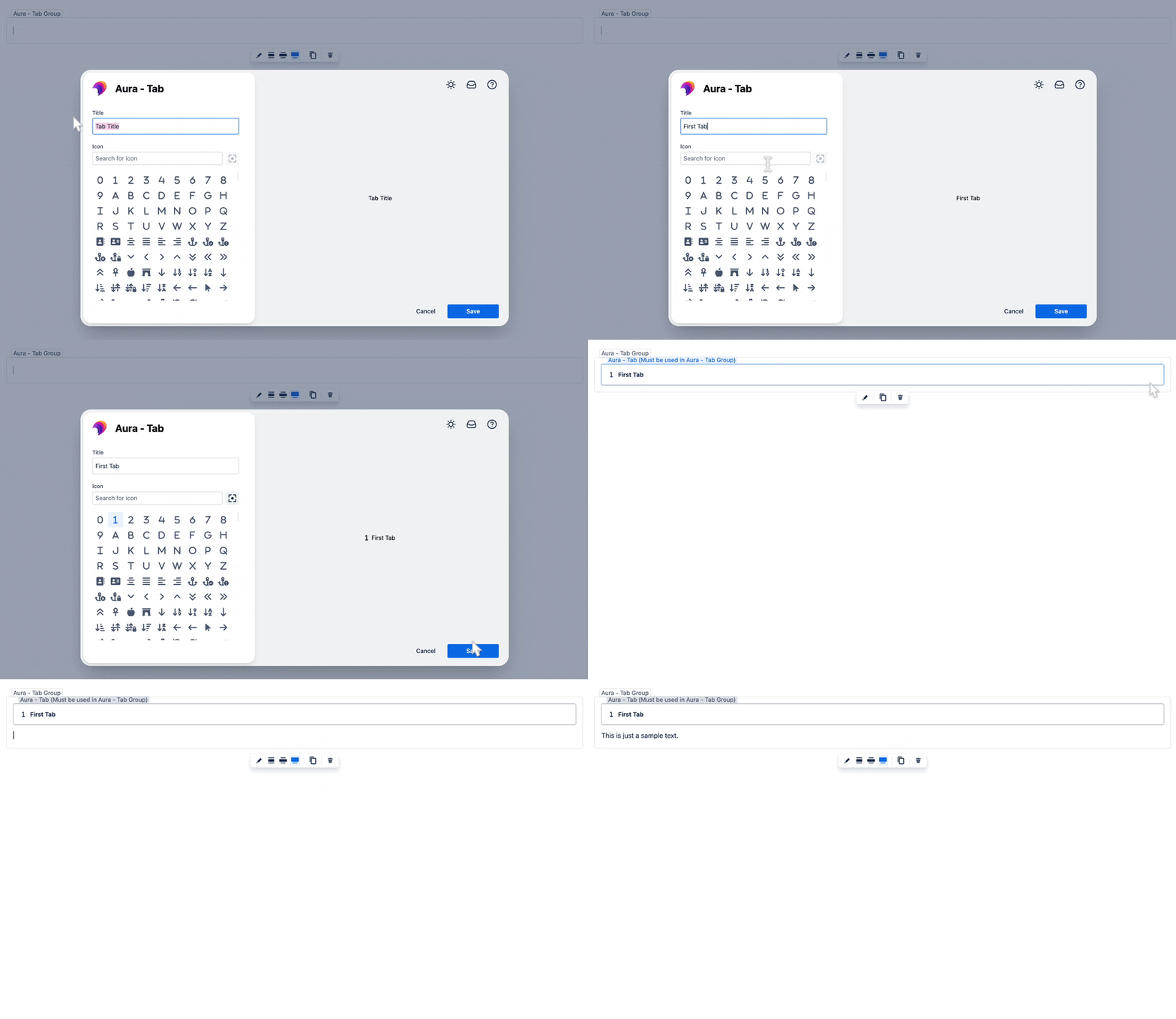
Repeat the steps for each additional tab, hit “save,” and you're done!
Enhance Your Confluence Tabs 🌟
With Aura Content Formatting Macros, you can include:
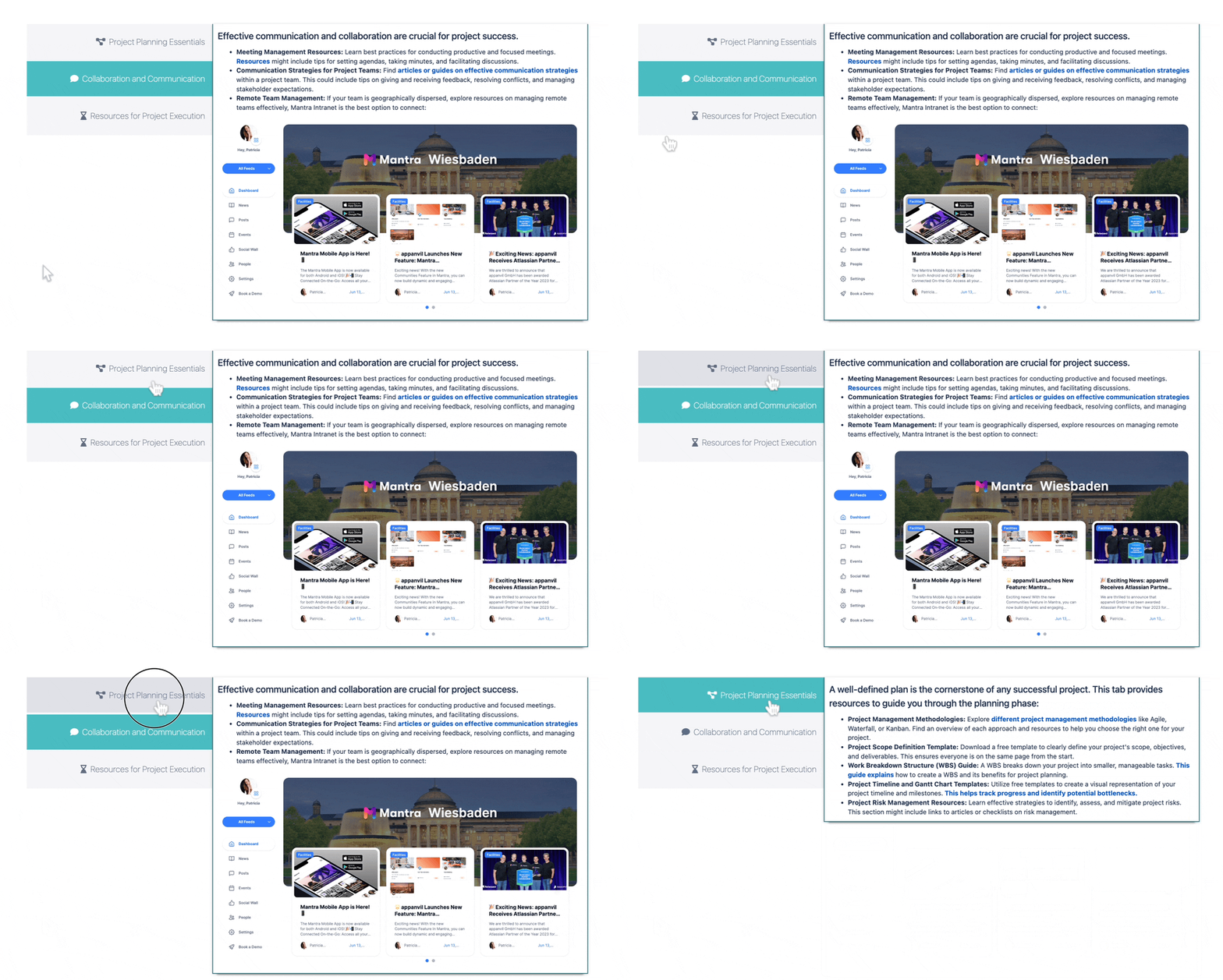
Take Control of Your Confluence Pages 💻
Tabs are a game-changer for organizing and presenting content on your Confluence pages, making your user experience smoother and more enjoyable. While Confluence might not have built-in tab functionality, Aura Content Formatting Macros swoops in to save the day! With this guide, you can create, customize, and manage tabs like a pro, keeping your pages neat, tidy, and super user-friendly.
Ready to level up your Confluence game? Dive into the world of tabs with Aura and watch your content shine like never before!


