If you use Jira and Confluence together, have you ever had to:
- Create a Jira issue, then
- Switch to Confluence to create a page, then
- Link said Confluence page to that Jira issue?
This involves a lot of tedious and manual steps, as well as switching between Jira and Confluence. The linking step requires you to manually specify the Jira issue and the Confluence page being linked to. Most of the current docs & guides available from Atlassian more or less follow this manual method:
What if I tell you, there is another secret way achieving the similar result?
In this article, I’ll introduce our AgileOps way of seamlessly integrating Jira and Confluence together, by leveraging the power of Jira Automation and REST API calls. We can trigger this automation process from a specific Jira issue and then have the Confluence page automatically created and linked back to Jira.
First, let’s see how the solution works in action. Then we’ll dive deeper into how to set it up.
The Demo
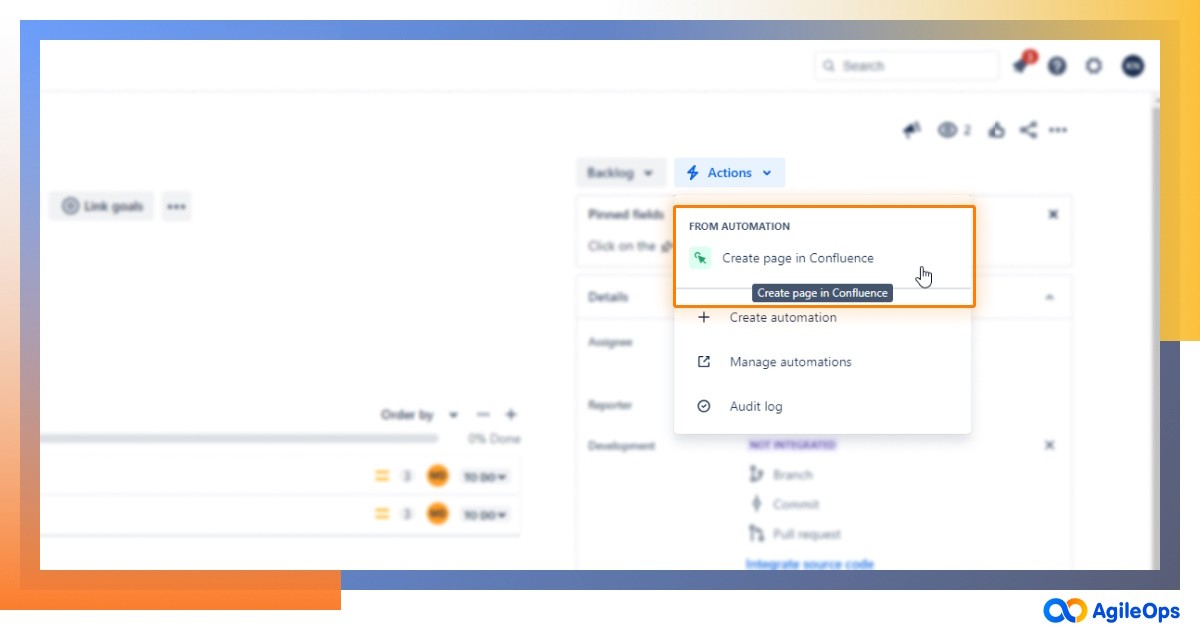
In any Jira issue, we trigger this Create page in Confluence automation rule. I’ll show you how to set it up in the next section The Setup:
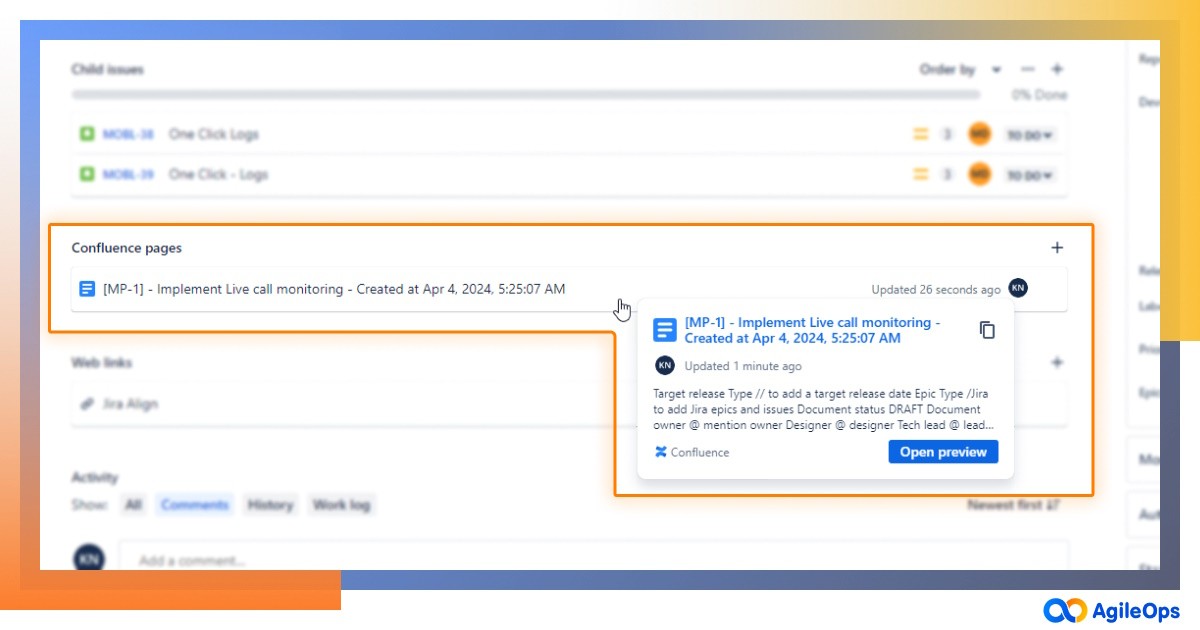
Voila, a new Confluence page is automatically created and linked back to the triggered Jira issue:
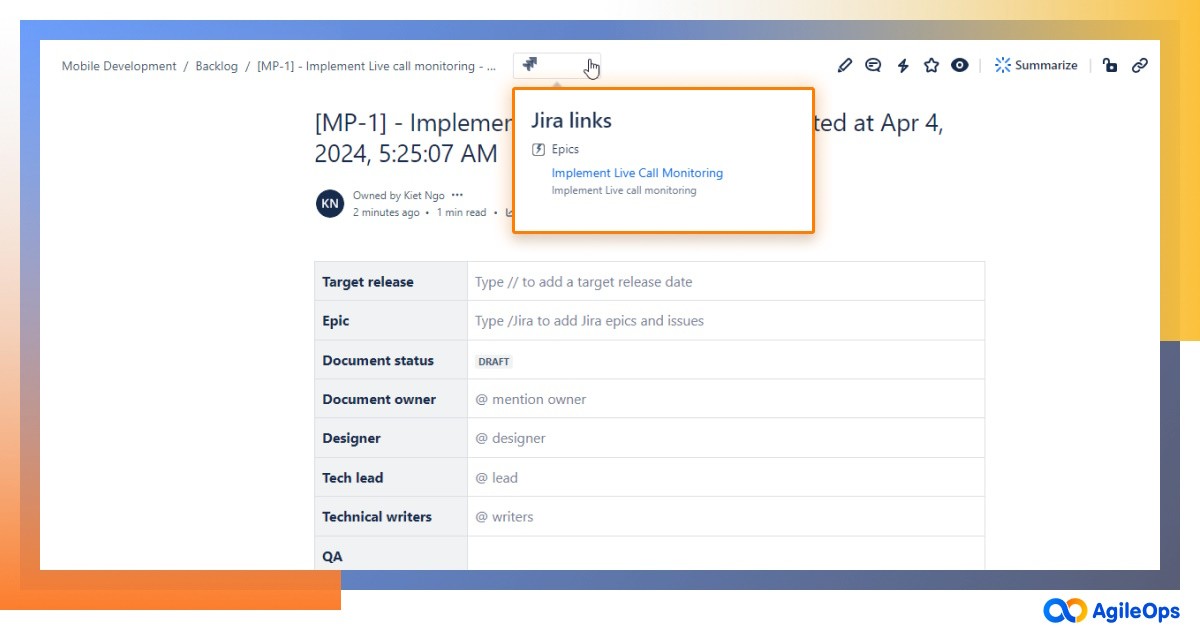
Navigating to the created Confluence page, we can see the page has been automatically linked to the Jira issue, resulting in a bio-directional link in one simple process.
This saves you the hassle of having to go back and forth between Jira and Confluence and manually linking Jira issue and Confluence page.
The Setup
Step 1: Create a manual Jira Automation rule
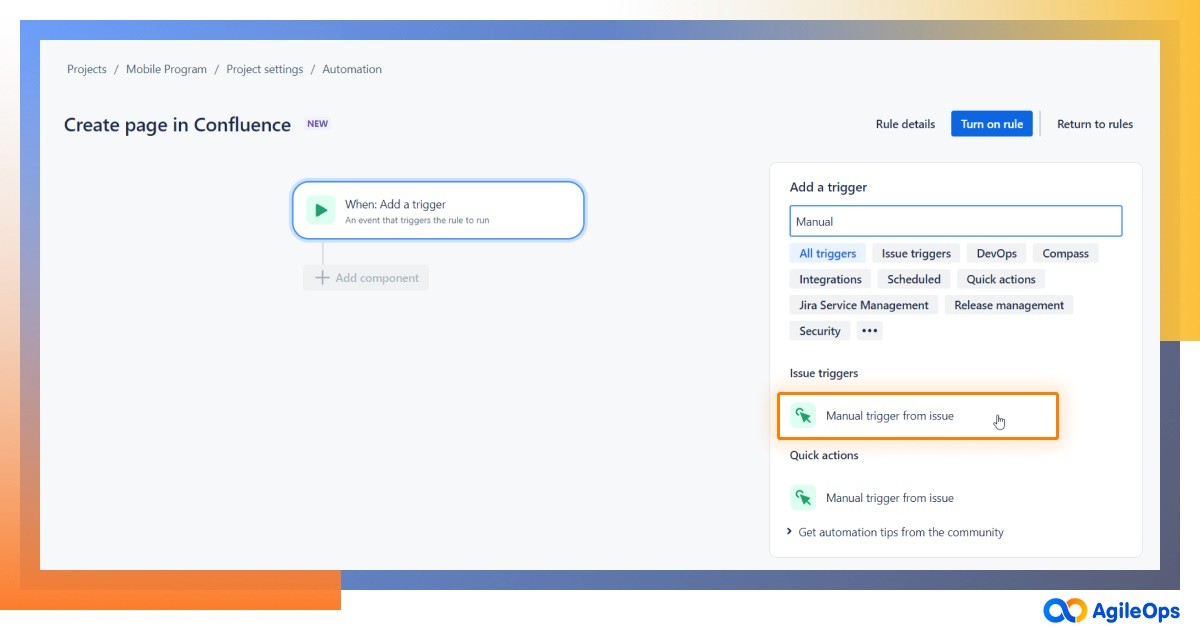
Click Create rule, then choose Manual trigger from issue as the trigger:
Step 2: Configure an action step to create Confluence page
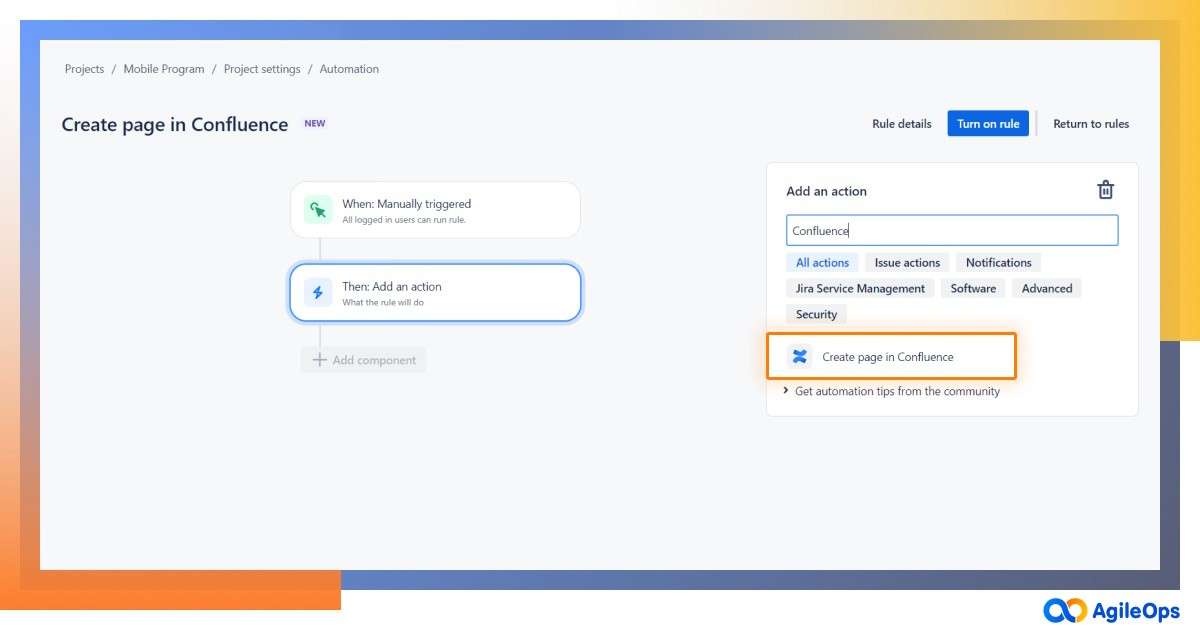
Add a new component, choose Create page in Confluence as an action:
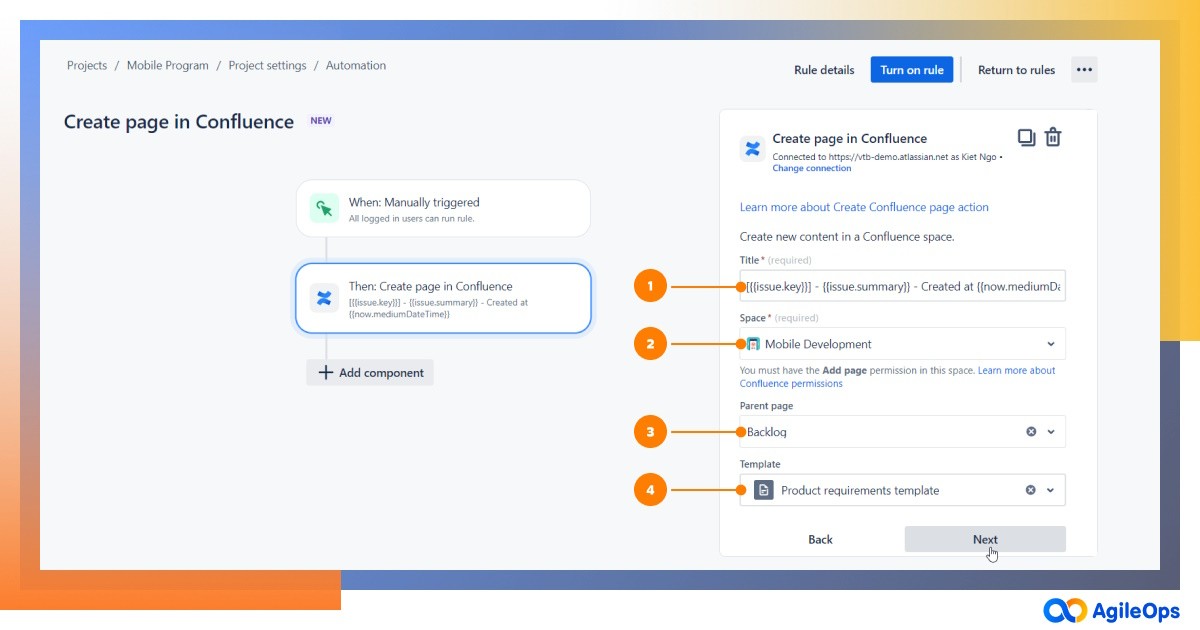
Then, click Connect to connect with the Confluence site we want to create page from, and configure the options as shown below:
- On the Title field, refer to Jira issues - smart values on how to extract data from the Jira issue, and populate the Confluence page title
- Choose the Space where you want to host the created page
- Choose Parent Page where you want the created page resides in
- On the Template field, choose a page template if you want to the created page to base on, or leave None to have it created as an empty page
When the rule is triggered on a Jira issue, this action step will create a Confluence page with the title populated from the Jira issue data.
Step 3: Link the newly created Confluence page to the triggered Jira issue using remote links REST API
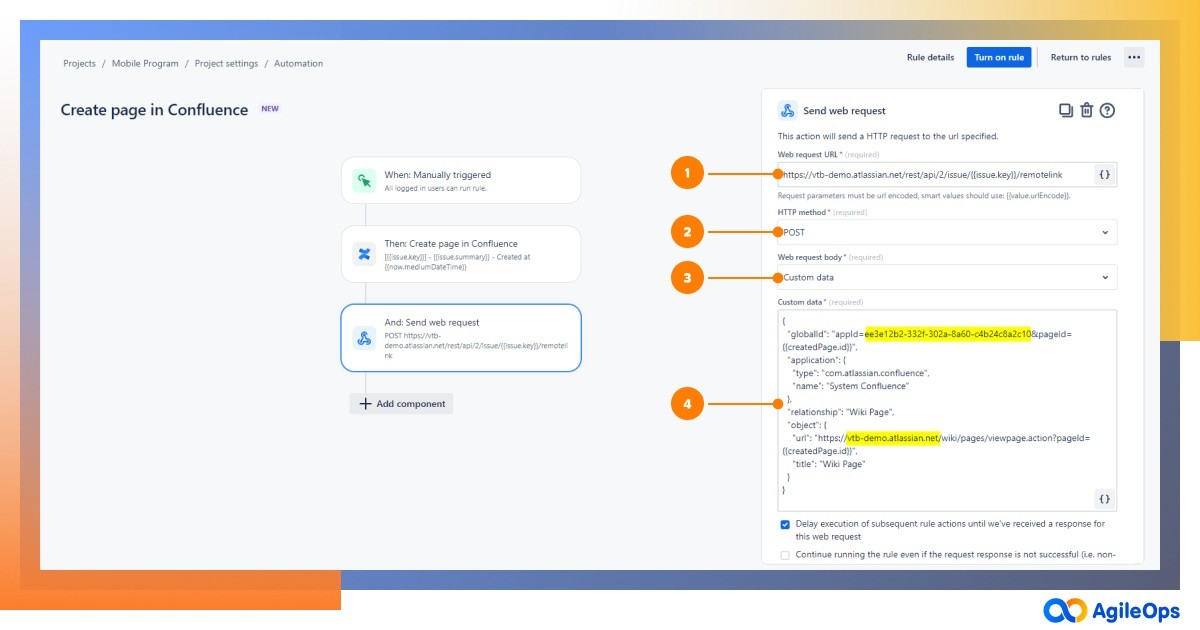
Add a new Send web request action step, then configure the options as shown below:
- In Web request URL, put https://YOUR_ATLASSIAN_SITE/rest/api/2/issue/{{issue.key}}/remotelink
- For HTTP method, choose POST
- For Web request body, choose Custom data
- In the Custom data field, put the following snippet:
{
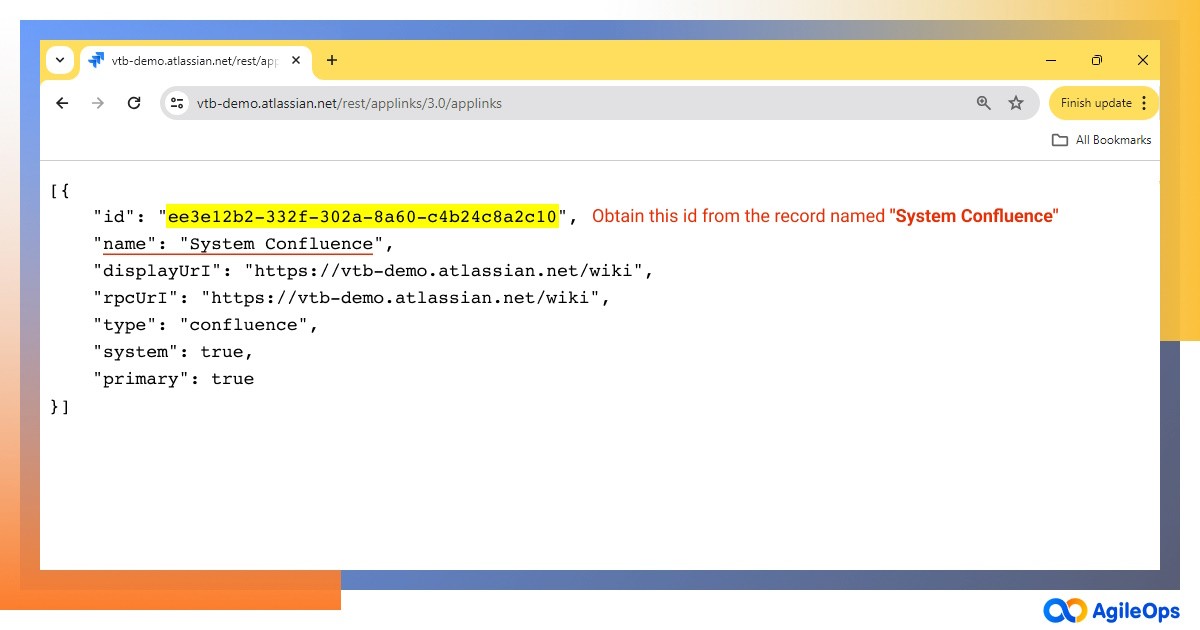
  "globalId": "appId=YOUR_CONFLUENCE_APP_ID&pageId={{createdPage.id}}",
  "application": {
    "type": "com.atlassian.confluence",
    "name": "System Confluence"
  },
  "relationship": "Wiki Page",
  "object": {
    "url": "https://YOUR_ATLASSIAN_SITE/wiki/pages/viewpage.action?pageId={{createdPage.id}}",
    "title": "Wiki Page",
    }
}Finally, publish the rule and turn it on.
The Result
Now, pick any Jira issue, run the published rule, and you should see everything works exactly like The Demo:
- A new Confluence page is automatically created, with title filled with Jira issue’s key, summary, and current timestamp.
- This new page will then be automatically linked back with the Jira issue.
The Uses Cases
This solution is a game-changer for various tasks:
- Social media marketing: Automatically create a detailed Confluence page for new article ideas through Jira. It simplifies tracking progress and organizing content.
- Software development: Log bugs in Jira and generate Confluence pages for them. This keeps track of bug details, affected users, and fix status in sync.
- IT service management: You can create a Confluence page for each incident or problem Jira issue, detailing the incident description, timeline, affected users, and resolution status.
To sum it up, using Jira and Confluence together, the way this article suggests, can really boost how well your team works together and cuts down on the back-and-forth between different apps. It's flexible enough to fit into any department's workflow.
I wrote blog posts about Jira, Automation, Atlassian ecosystem that help make business processes run more efficient:
Follow me and stay tuned for the upcoming articles on this topic:
- Pragmatic Jira Automation: Jira Governance Loop - Using Jira to Manage Jira
- Pragmatic Jira Automation: Document Generator with Jira, Automation, Confluence, and K15t Scroll PDF Exporter
- Pragmatic Jira Automation: How Did We Use Jira as a full-pledge CRM system