Update Feb 16, 2024
Following on from our last update, we’re happy to announce we’ve also released swimlanes for boards. A swimlane is a horizontal grouping of issues on your board which can be based on request types, assignees or other categories using Jira Query Language. Find out how to create swimlanes for your board.
Update Feb 8, 2024
We’re thrilled to announce that we’ve just added quick filters to boards. Quick filters allow you further filter the issues on your board. Your board comes with one pre-configured quick filter for “Only my issues”, and you can create more using Jira Query Language (JQL). Find out how to create quick filters for your board.
Hello Atlassian community!
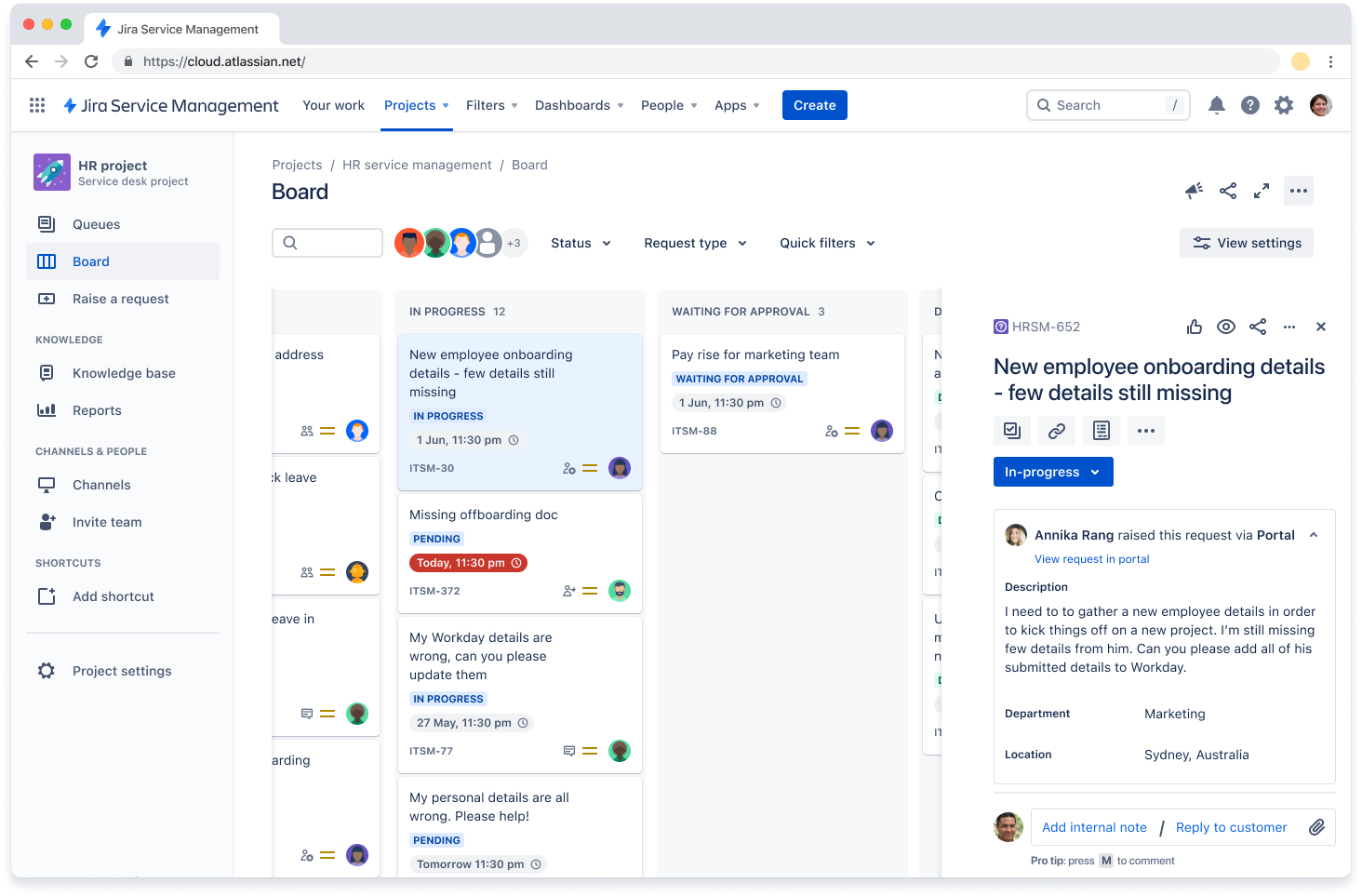
We’re excited to announce Board view of issues in Jira Service Management – one of your top requested features! From your Jira Service Management project, you'll be able to visualize work in a centralized kanban board so you can track, organize, and prioritize your service project’s issues. And it’s now available for users on all plans of Jira Service Management!
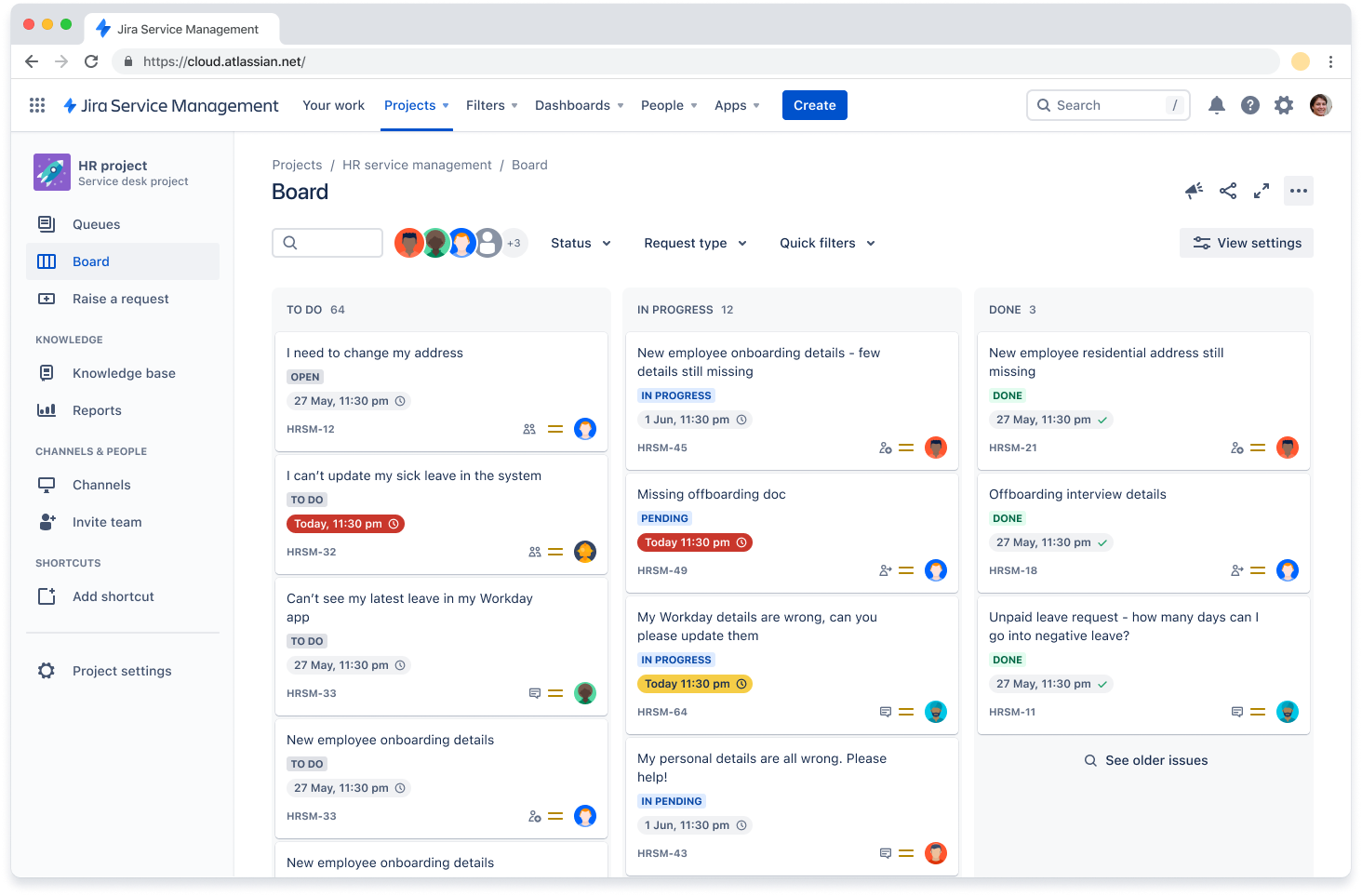
Getting set up
Existing projects - add a board to your project
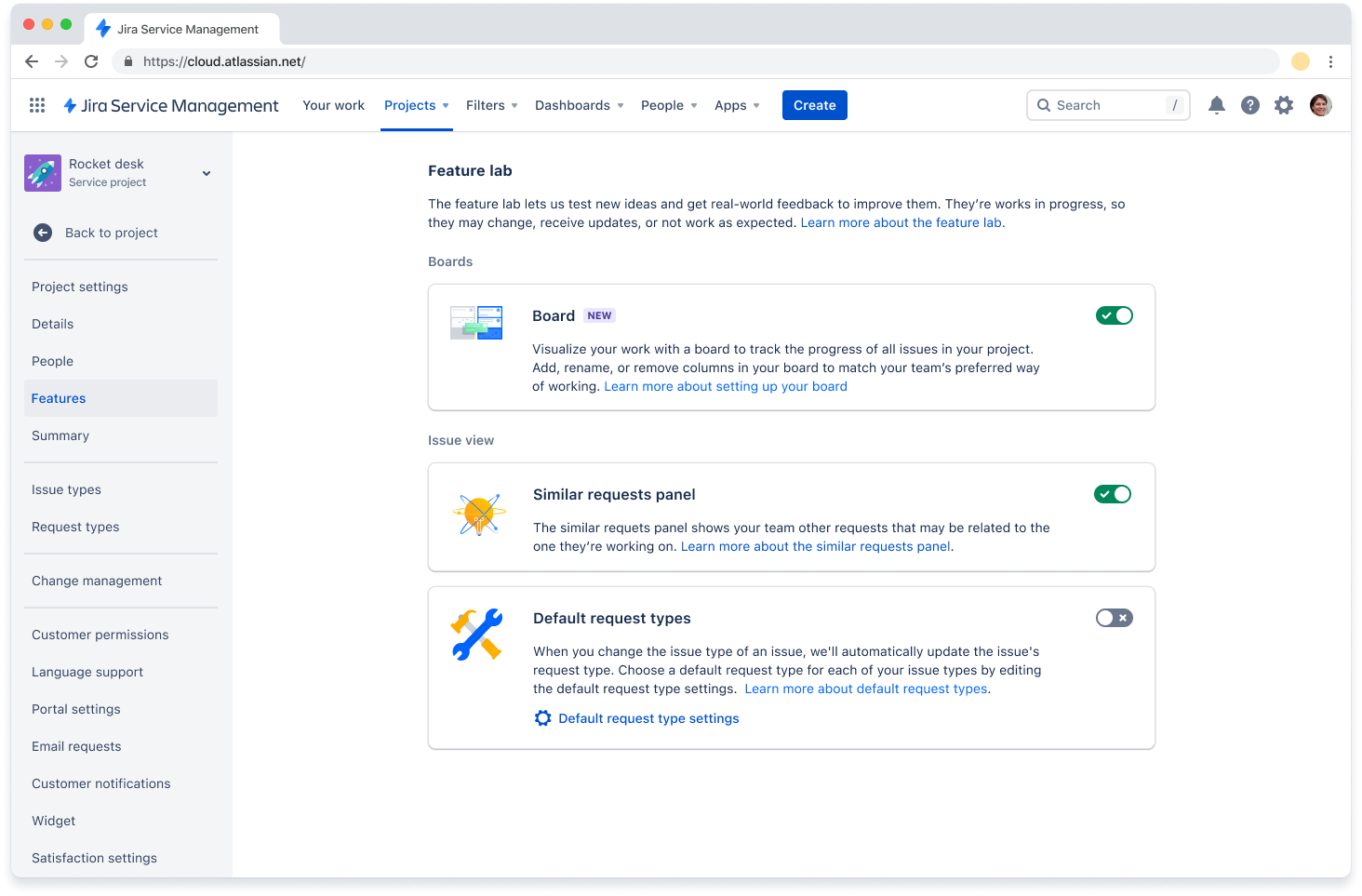
To add a board to your existing project, you’ll need to turn on the feature. You need to be a Jira or project admin to do this. To add a board to any of your current projects:
- Go to Project settings, then select Features.
- Use the toggle to enable Board under Feature lab.
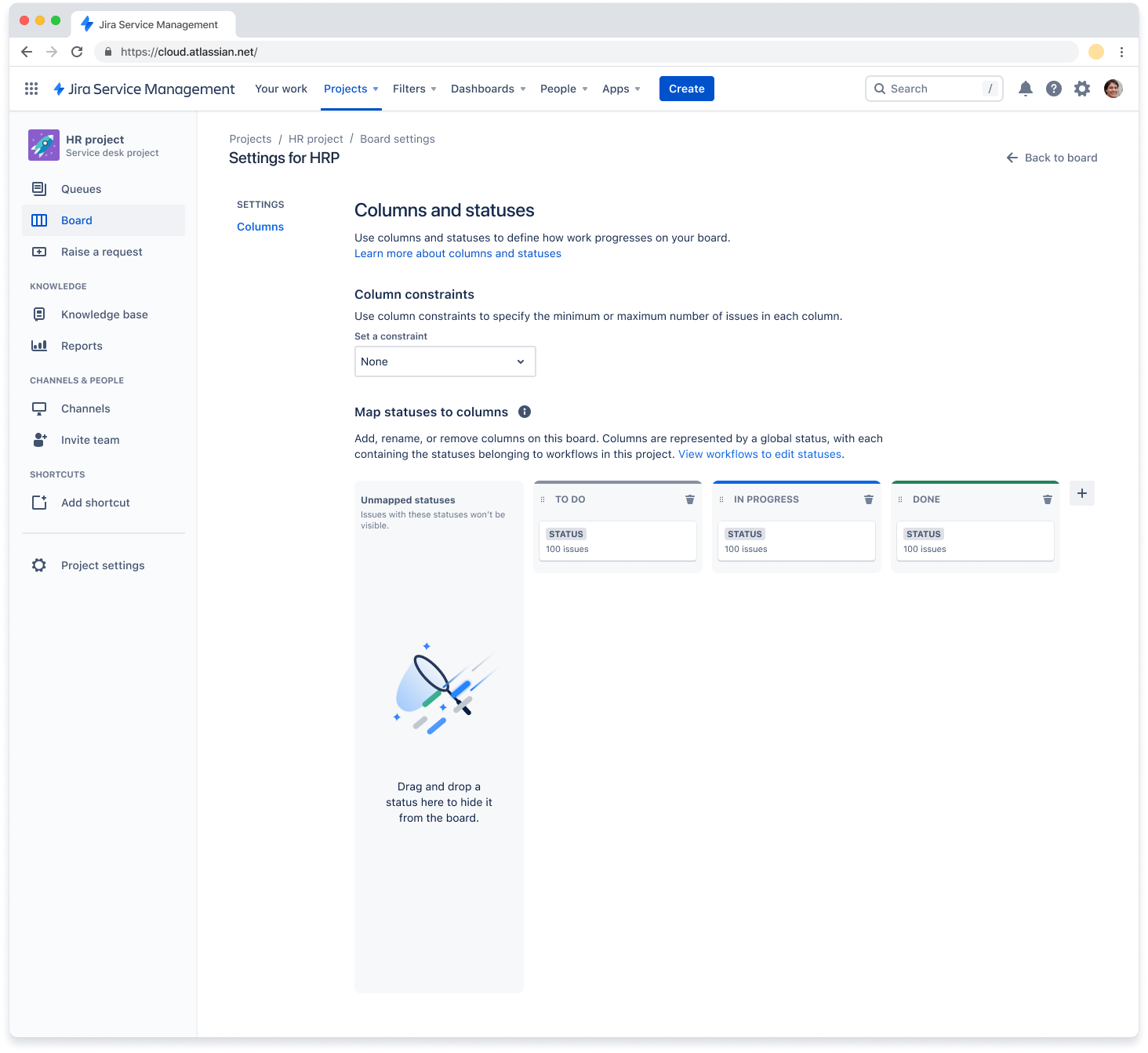
Set up your board’s columns
Your board comes with three columns: To Do, In Progress, and Done. You can rename these, or delete or add columns if you wish. You can also choose which workflow status or statuses each column is mapped to. You can assign multiple statuses to a single column, reducing the number of columns your team uses when moving cards across your board.
Using boards
Transition issues
You can transition issues simply by dragging and dropping cards. When you start dragging a card, you’ll see that the backgrounds of some columns turn blue. You can only drag the cards to these columns. To transition the issue to a new status within the same column, drag the card into the Transition to section at the top of the column.
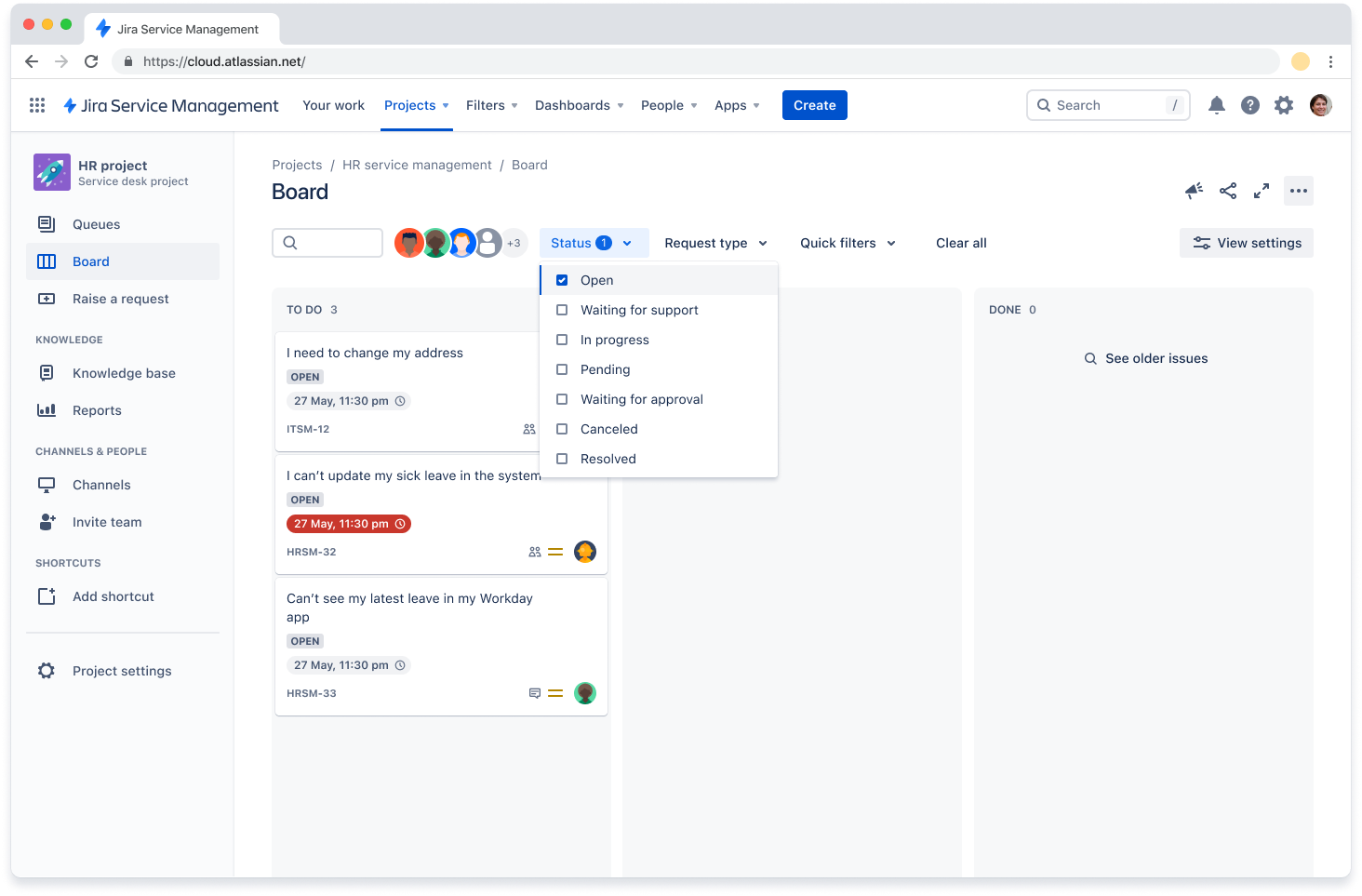
 Filter issues
You can use filters to make your board show only the issues you want to see. Initially you’ll be able to filter by the status of the issue, the request type or by issues that are assigned to you. We’ll be adding the ability to create your own filters soon.
Choose how to open issues
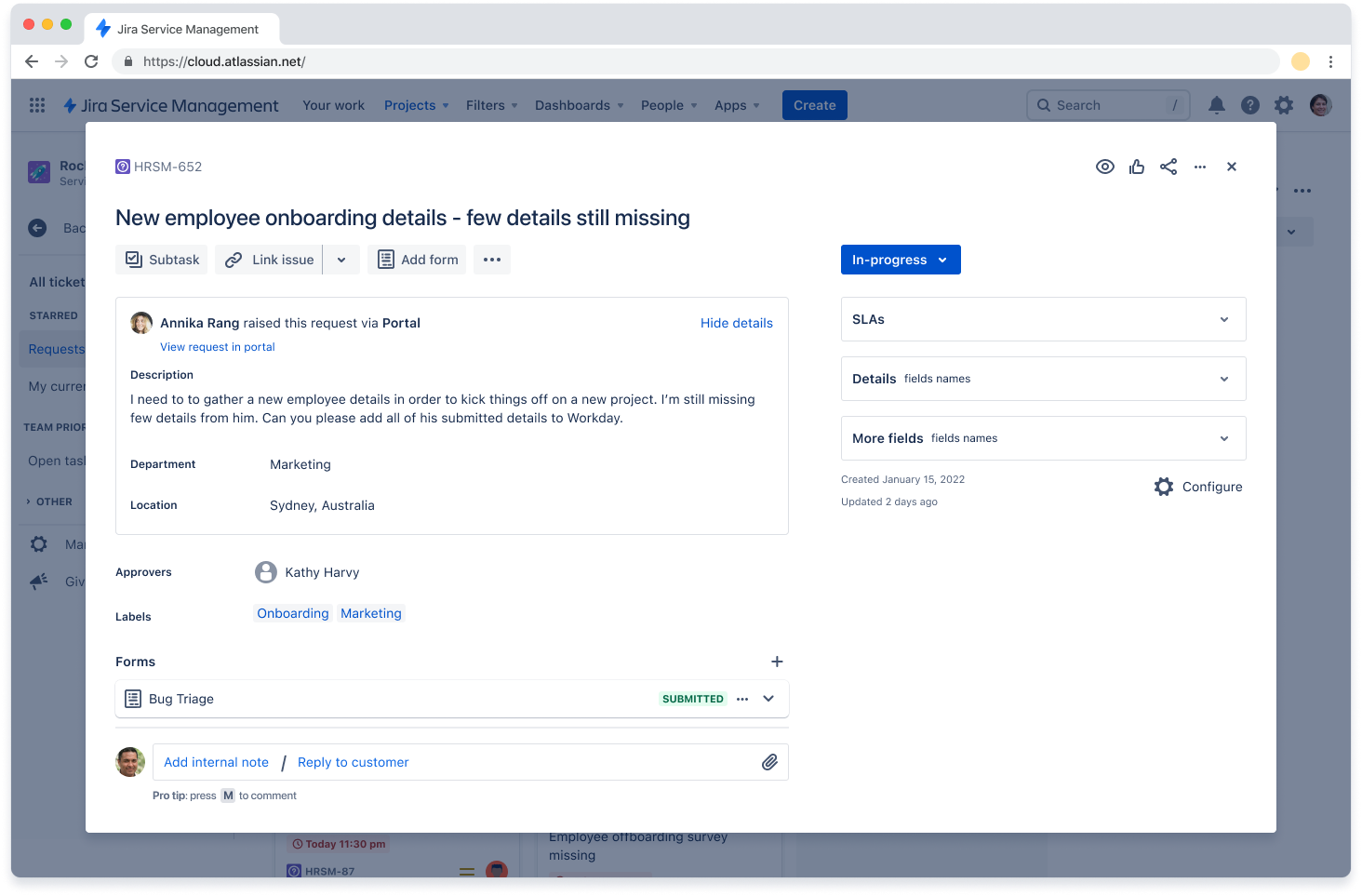
When you select an issue on a board, by default it will open up in a modal, giving you a focused view of the issue with all of the fields. If you prefer, you can choose to open issues in a sidebar view which allows you to quickly get more context on an issue without losing sight of the board.
What’s next
This is our first release of Boards for Jira Service Management and it won’t be our last!
More board settings
In the coming months we will be providing more settings options, for Project and Jira admins to configure boards further, including:
- swimlanes – group issues together
- card colors – assign colors to cards to help your team identify issues easily
- quick filters – create additional options for users to easily filter the issues on their board
- general settings – view and edit the board’s details and set permissions
- card layout – customize the fields that appear on cards
Limitations
There is currently a limit on Boards, which supports up to 5,000 open and recently closed issues per project. If you have a project of this size or larger, the board view will not currently work for your project. We’d love to hear from you via the comments if you have projects of this size or larger, as we work to resolve this limitation.


