Headings are vital for giving your Confluence page structure, but too many headings can make your content difficult to follow.
That's where numbered headings come in. They help you organise information into sections, improving the accessibility and navigation of your Confluence pages.
Though you can't automatically number headings using built-in Confluence tools, there are other solutions. We've covered three approaches — and why each might be right for you.

1. Number your Confluence headings manually
While you can manually number headings in Confluence, it can take a lot of time and energy. This is your primary option if you don't want to improve Confluence's functionality with a macro from the Atlassian Marketplace.
How to do it
📝Note: We refer to main headings as top-level headings in this article. Any headings below these are called subheadings.
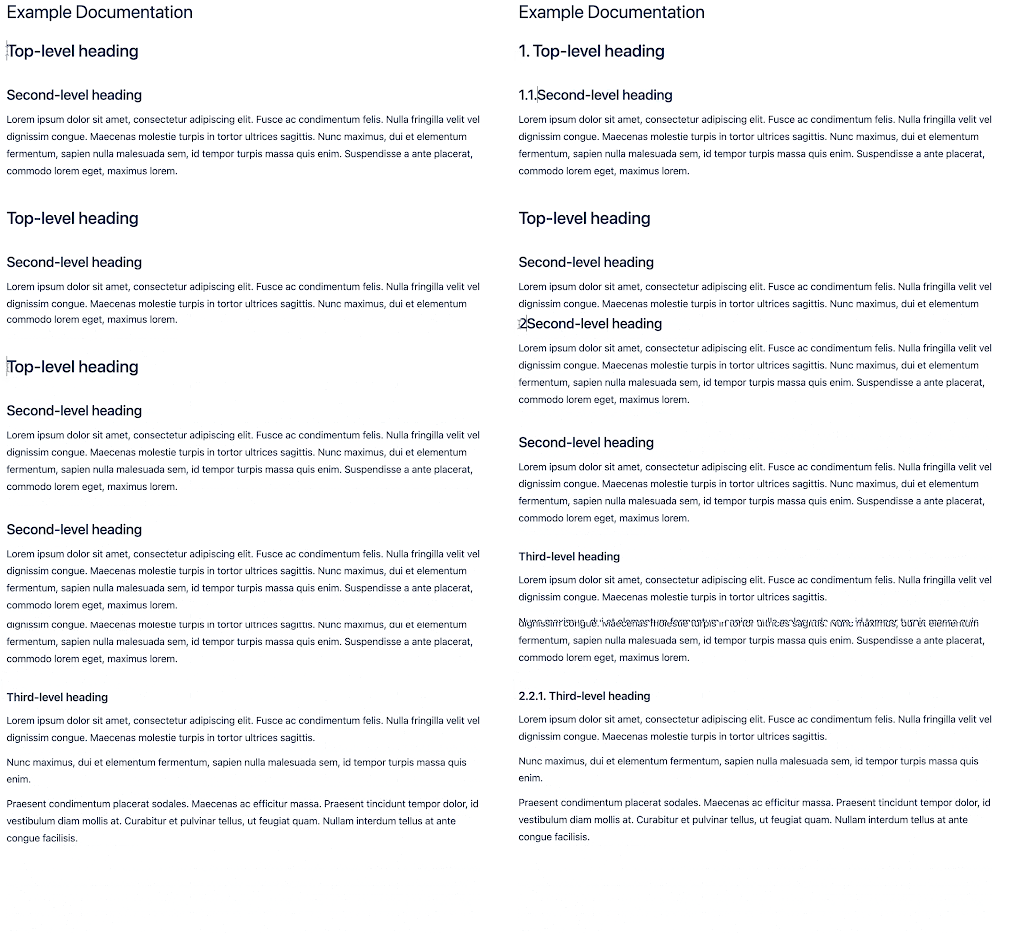
- In edit mode on your page, find your first top-level heading. Right before the heading name, type your first number and a period, followed by a space.
- If you have subheadings in this section, number them using the same format as the numbered headings
.
- Do this for each section in your Confluence page, with every top-level heading beginning with a new number.
Click Update to save your changes. Phew! Now admire your new numbered headings.
Downsides
The real drawback of this method is that it's fiddly and time-consuming. If you have lots of headings, it's easy to miss their correct order, so you might have to backtrack.
The problem with manually numbered headings is that they don't automatically update when your page changes. If sections are reordered or removed, your headings could end up numbered incorrectly, making the manual approach the wrong choice if you're collaborating with others on Confluence pages.
Manually number your headings if…
- You don't have many Confluence pages to edit.
- You only have a few headings/subheadings.
- You aren't collaborating on Confluence pages.
- Your content is static, and you're unlikely to update it.
If you're collaborating or working with more complex pages, keep reading for a better alternative.
2. Auto-numbered headings with a Confluence macro app
If you don't have the time to keep on top of manually numbered headings, a handy Confluence macro available on the Atlassian Marketplace will take care of that for you.
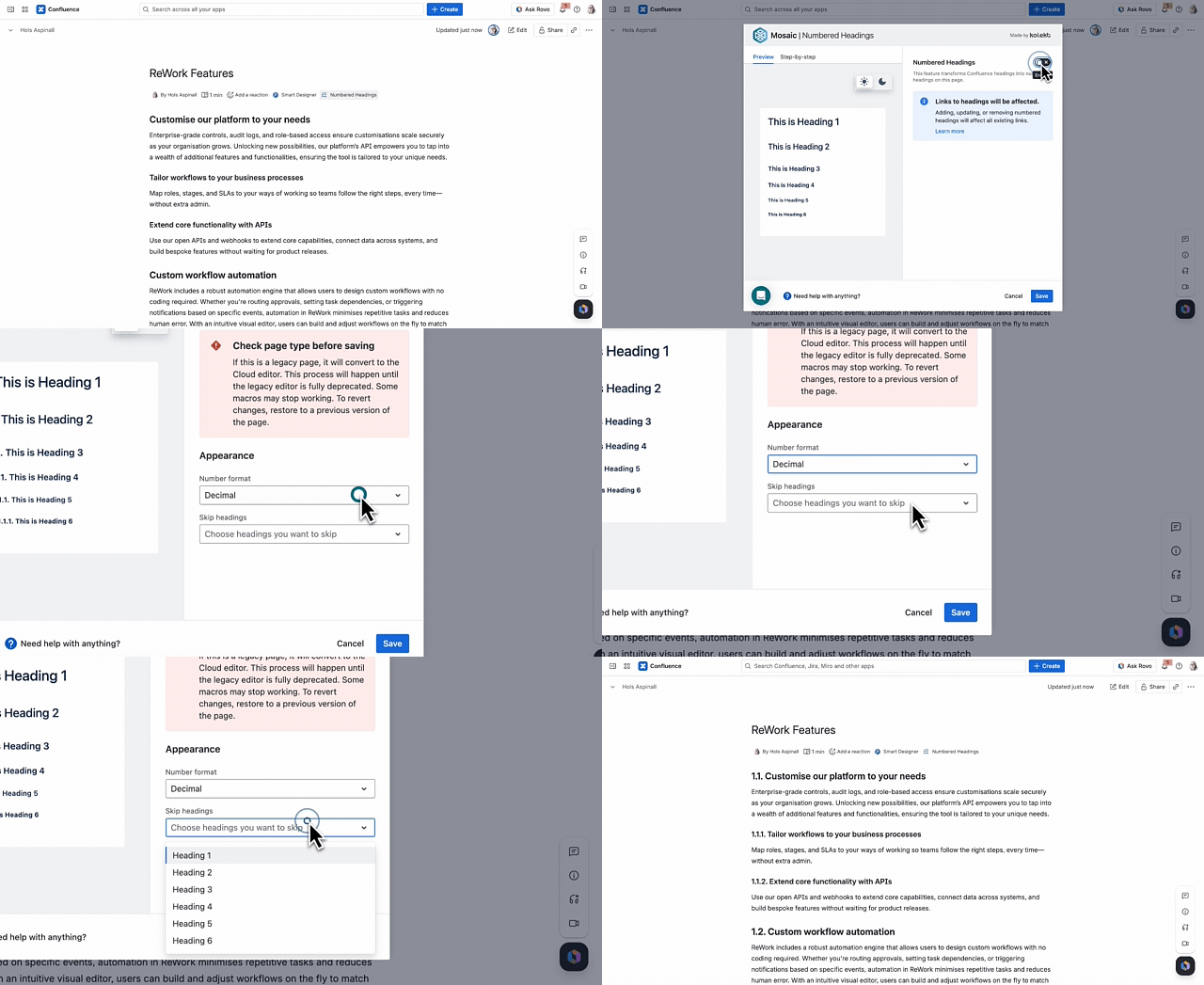
Want a simple but effective tool that takes the hard work out of numbering your headings? You can find a third-party app to do this for you on the Atlassian Marketplace.
One app we'll cover here is Numbered Headings. It adds a simple (but powerful) button beneath your page title, so you don't need to add any extra macros to your page.
Main features include:
- Numbers headings at the click of a button - no other macros needed
- Different numbering formats to tailor your page structure
- Roman and Latin heading formats
- Quick and easy to update headings when sections change or are removed
However, this option might not be the best choice if you need more features or functionality.
Are you planning to invest in extra macros to improve the structure and style of your Confluence pages? Save yourself some time, money, and complexity, and read on ⬇︎
3. Auto-numbered headings plus all-in-one Confluence styling
To save your team time and money on installing multiple add-ons for different macros, look for an all-in-one solution that provides a wide range of the most essential macros for content formatting.
One such app is Mosaic for Confluence – a complete Confluence solution that includes Numbered Headings, plus a collection of features designed to make day-to-day Confluence pages easier to create and more engaging to read.
How does Mosaic differ from the standalone Numbered Headings macro?
The Numbered Headings macro is just one of the many helpful tools included in Mosaic, and it’s still easily accessible from an easy-to-use button beneath your page name.
Mosaic additionally includes a wide range of features that can make your pages more interactive and user-friendly. This includes:
- Macros designed to work with Confluence, not against it: Tabs, Buttons, Background, Advanced Cards, LaTeX, Tooltips, and many more that work flexibly with Confluence's native features.
- Full-page templates for the most popular use cases, letting you create pages in minutes.
- Smart Designer, Mosaic's page designer that transforms text to visual macros in just a few clicks.
- Brand Kits (Mosaic Advanced Edition): Give users custom brand palettes, icons, and images at their fingertips.
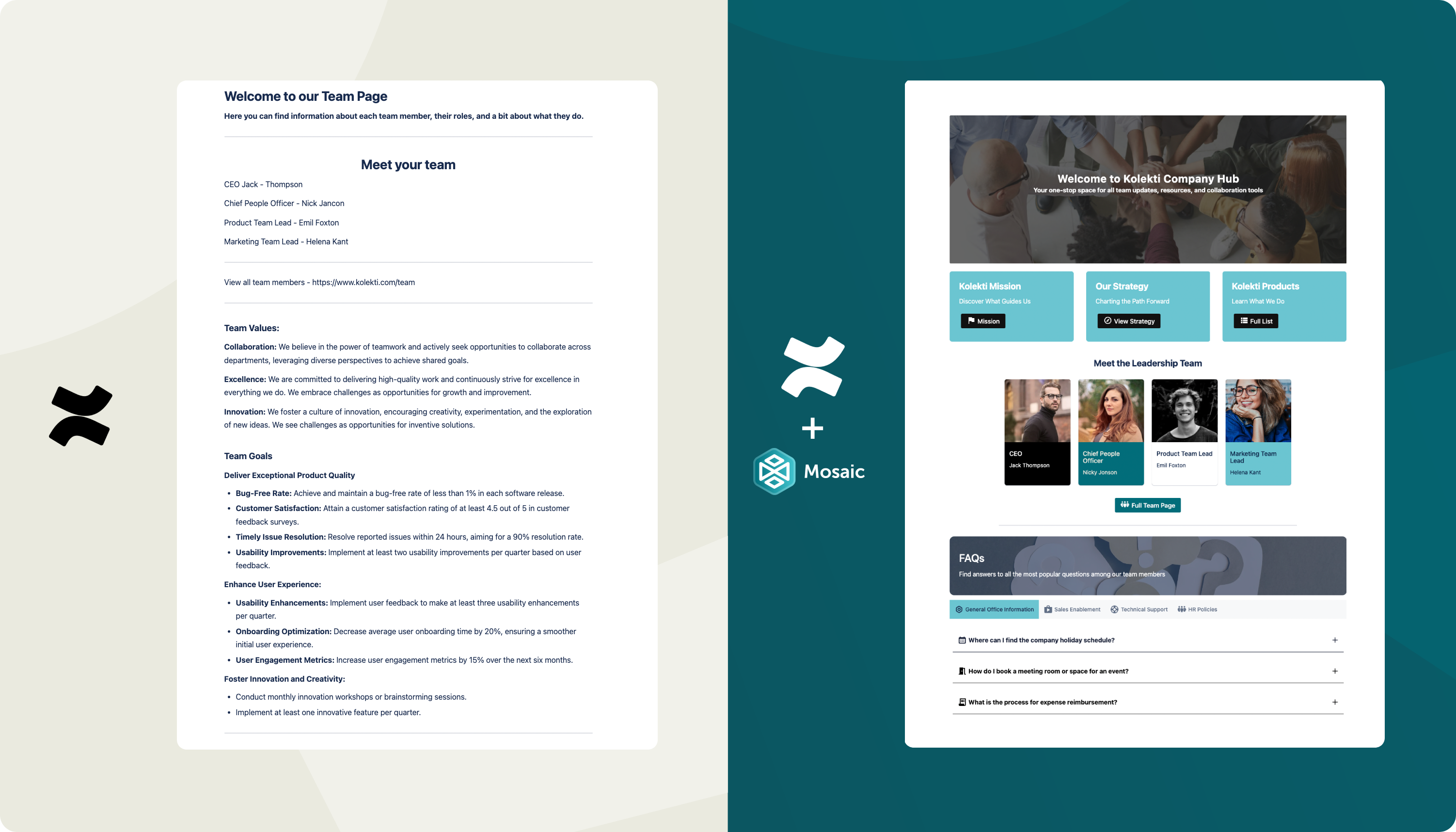
Whether you're improving your documentation's structure or making a knowledge base more visually appealing, you can use Numbered Headings with Mosaic's other macros and templates to make your Confluence pages even better.
Content formatting apps like Mosaic could be right for you if you want…
- To easily apply your company branding to your content.
- To make your Confluence pages more accessible and interactive to users.
- To take the pain out of day-to-day page design.
- To save money and reduce complexity with one app that does everything you need.
Note: These apps are compatible with Confluence for Cloud. Server/Data Center Users, don't worry! You can set up auto-numbered headings using the CSS Stylesheet in Mosaic for Server/DC - learn how with this guide.
Summary
If you're unsure which approach best suits your needs, remember you can try each solution and choose the one that works best for you. You can enjoy 30 days of unrestricted access to all of Mosaic's features, helping you decide whether you'll benefit from the features beyond Numbered Headings.


