There are two steps to downgrade Confluence Standard from standard to free. The process will take about five minutes to complete.
1. Remove product access from users until you reach the free limit of 10 users.
2. Change your plan from standard to free.
If you still have questions, head to the FAQs at the bottom of this page.
Here's how to downgrade:
STEP 1: REMOVE USER(S)
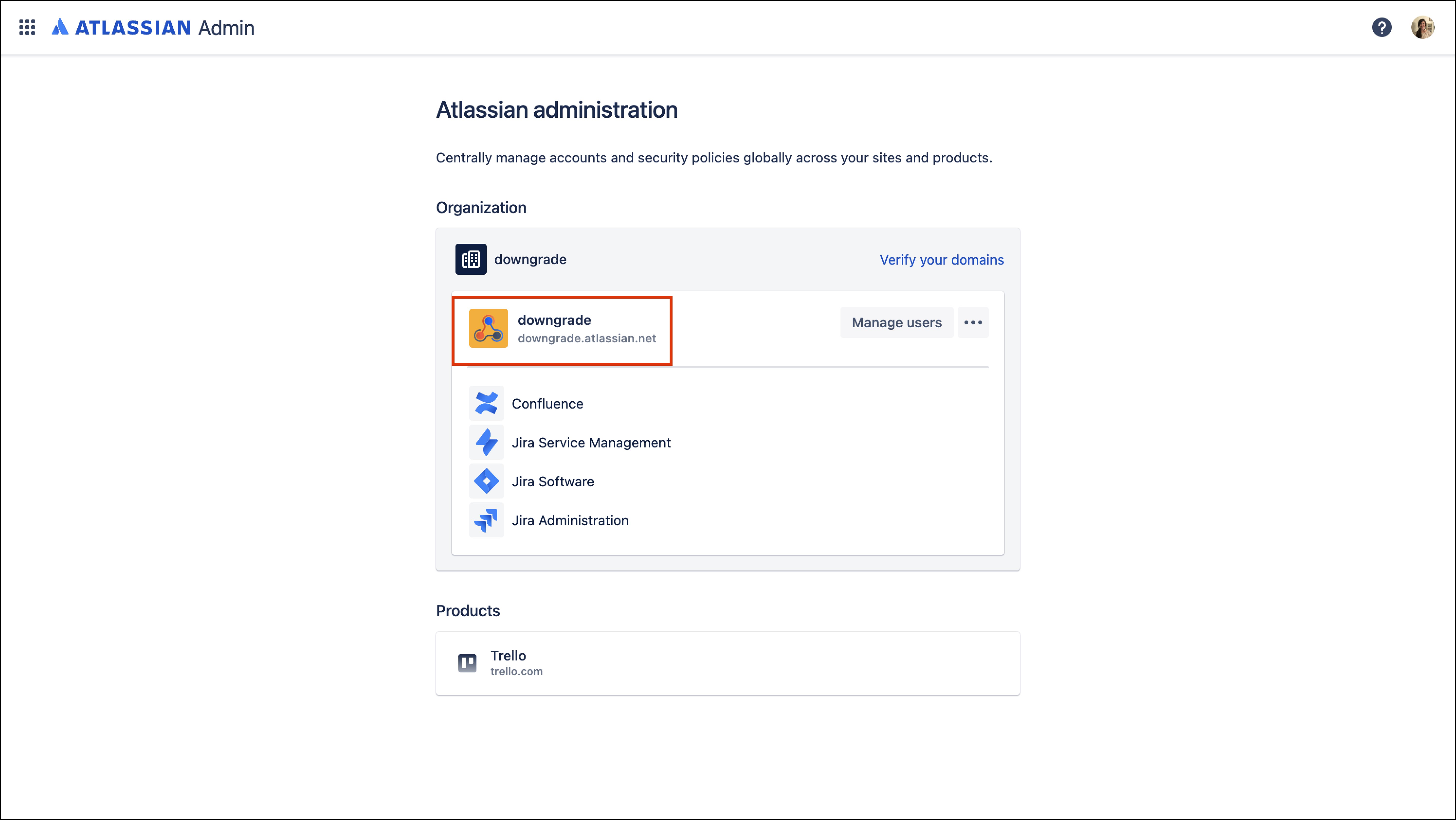
1. Go to admin.atlassian.com and click "Manage users" on the site that you'd like to remove users from.
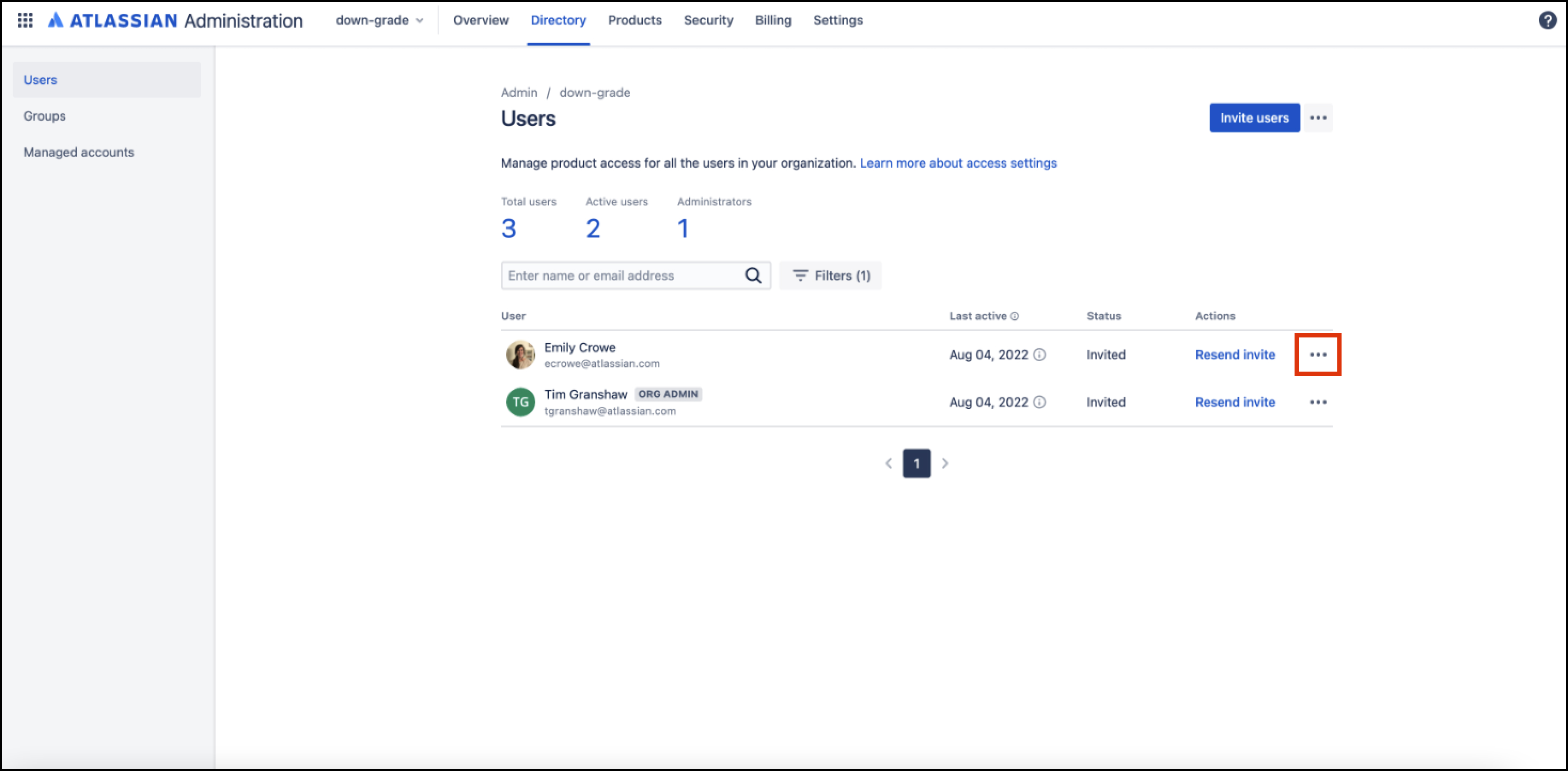
2. Select the user that you’d like to remove. Click on the three dots by their name.
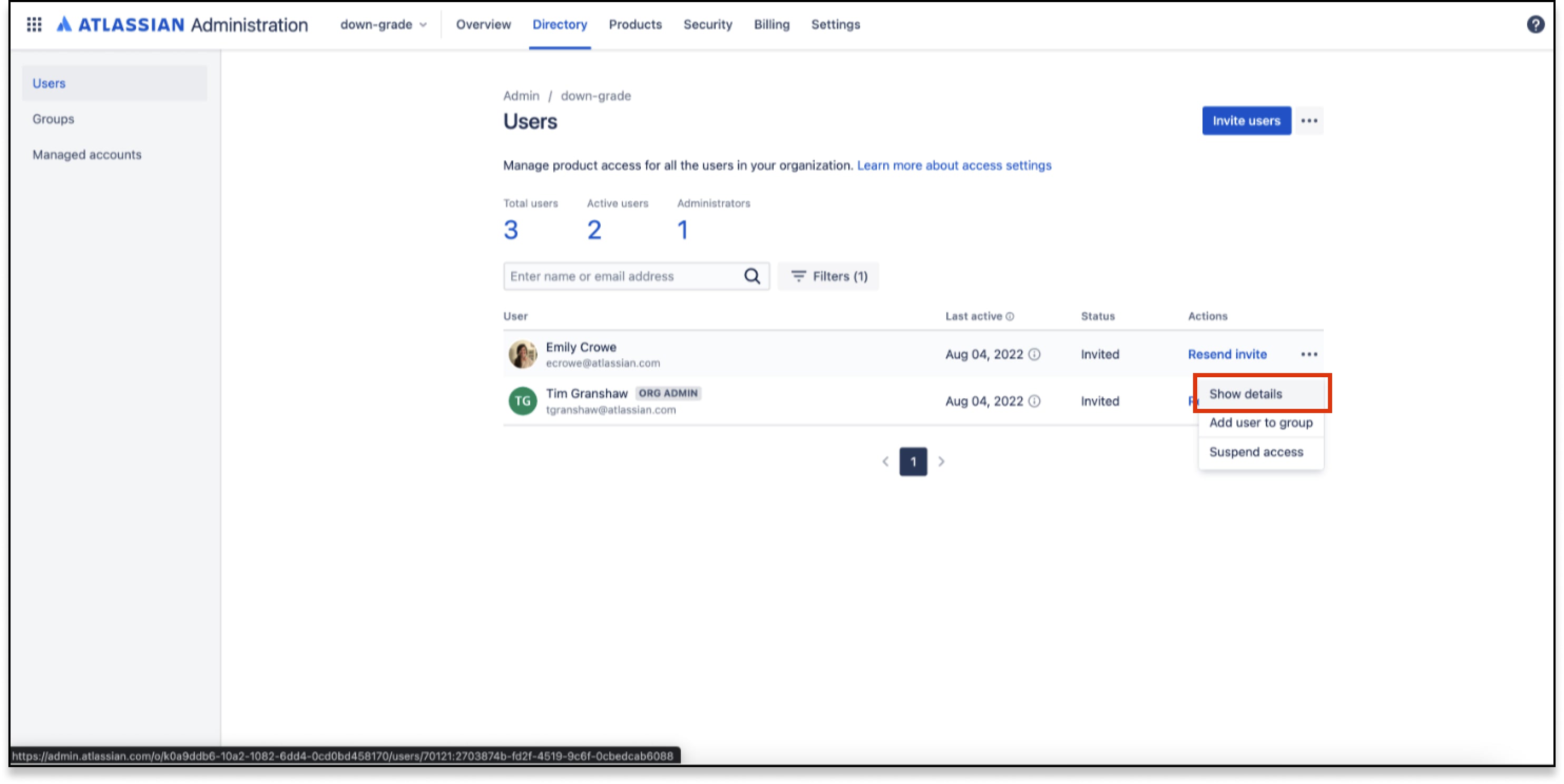
3. In the dropdown, select “Show details.”
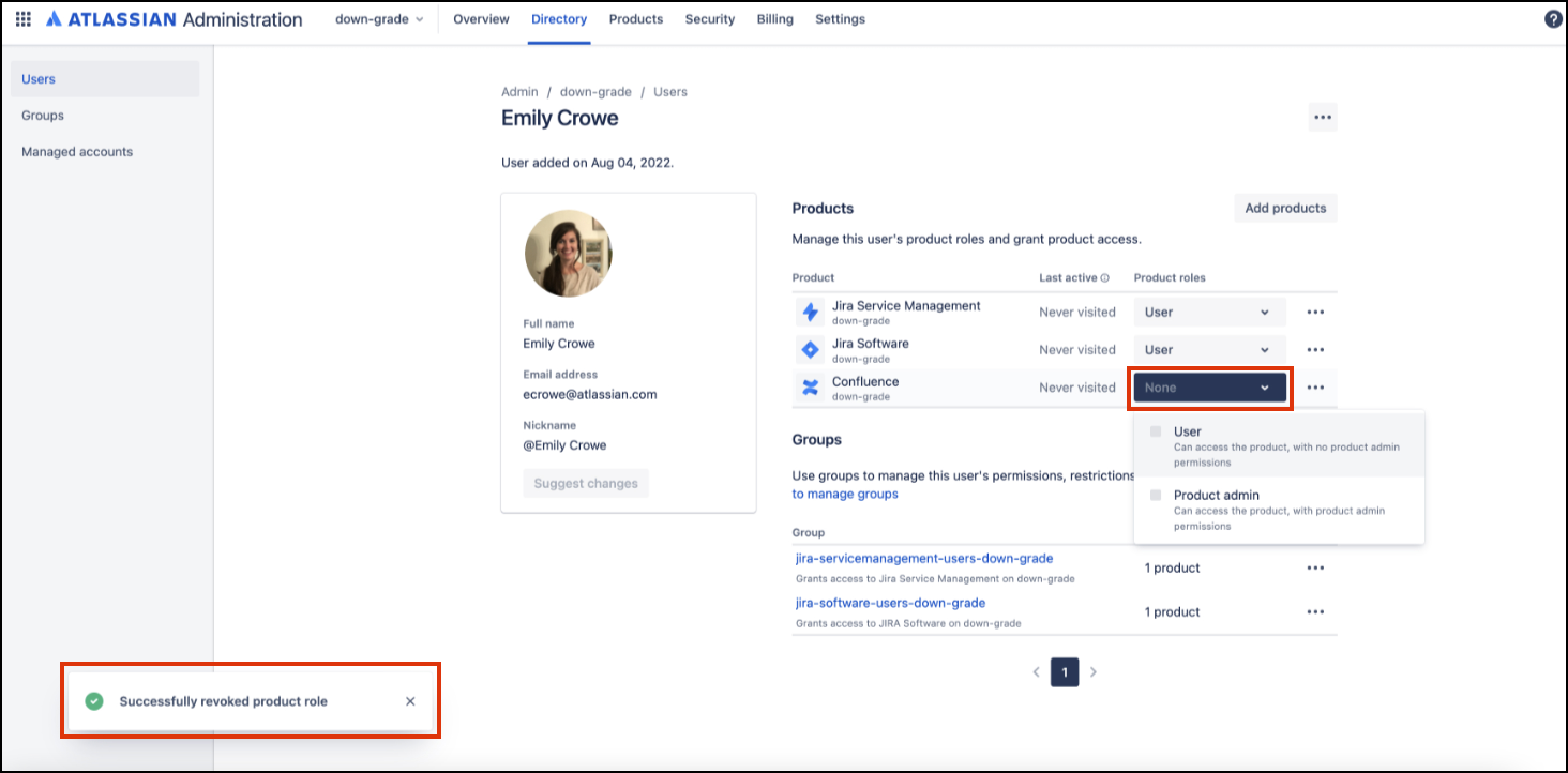
4. Under Product roles for Confluence, select “None.” You will see a confirmation pop up in the bottom left corner.
5. Continue steps 1-4 until you have 10 users or less listed for the product.
STEP 2: DOWNGRADE TO THE FREE PLAN
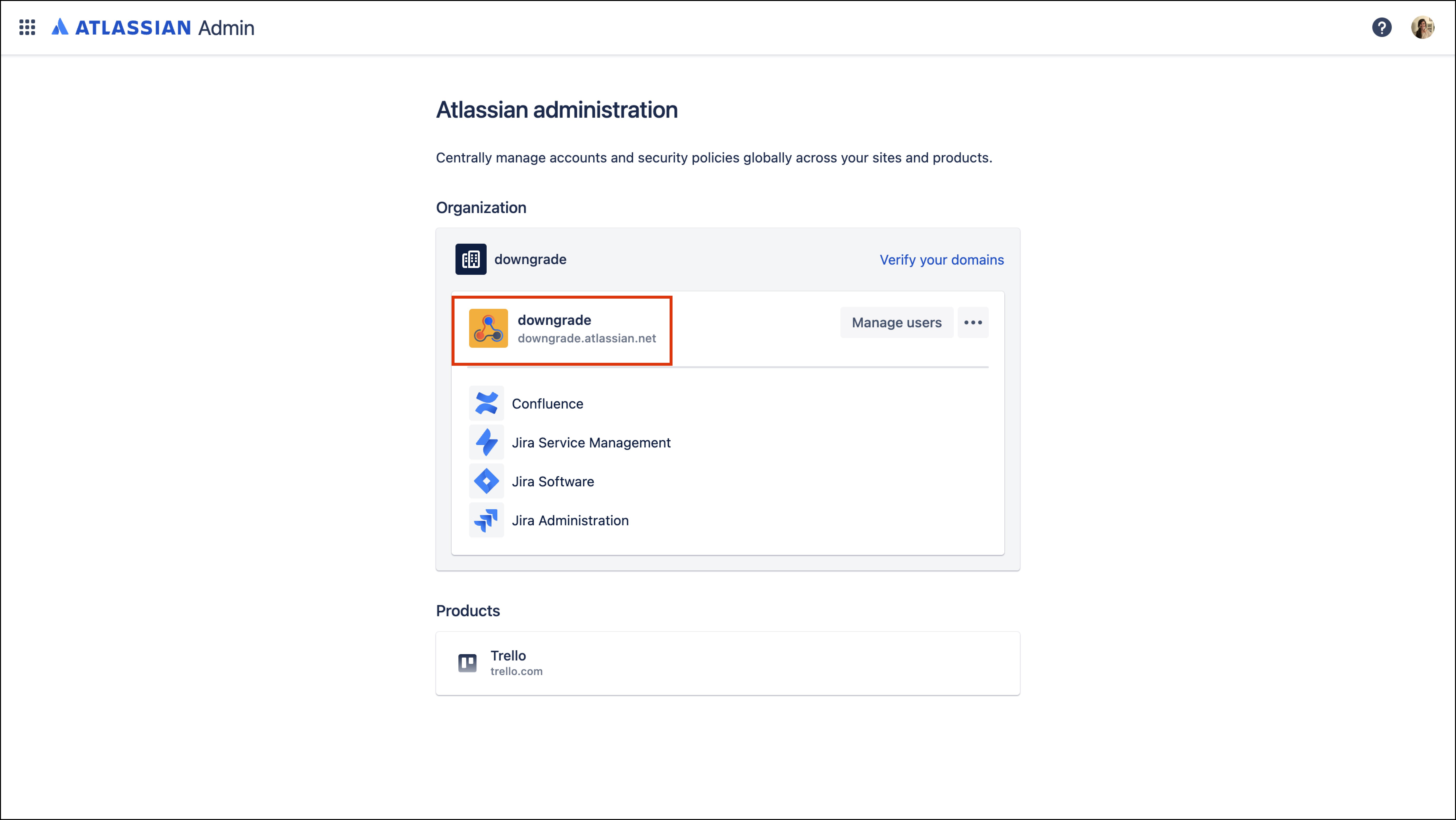
1. Go to admin.atlassian.com. Select the site's name of the plan you'd like to change.
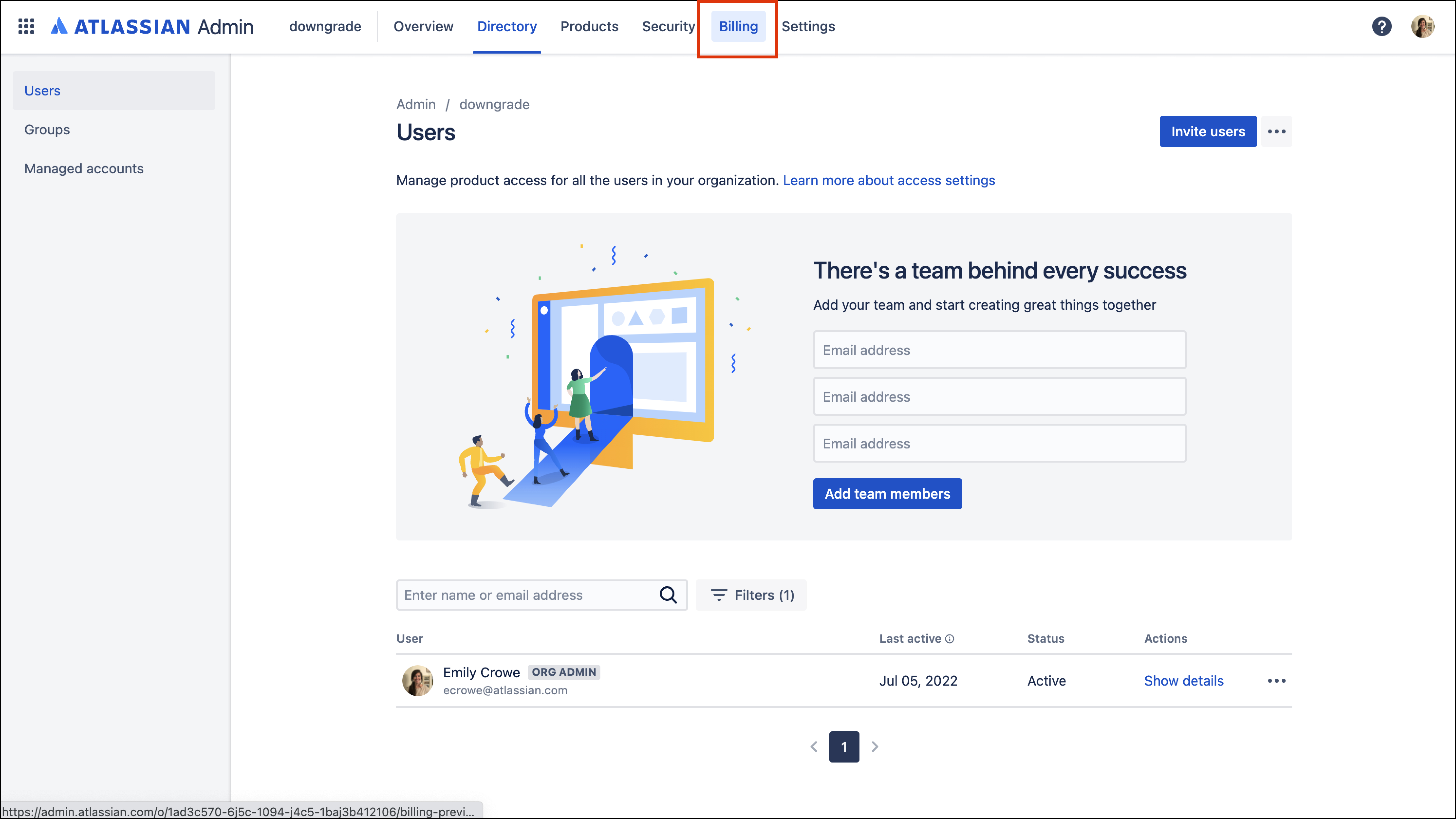
2. In the top navigation bar, go to “Billing.”
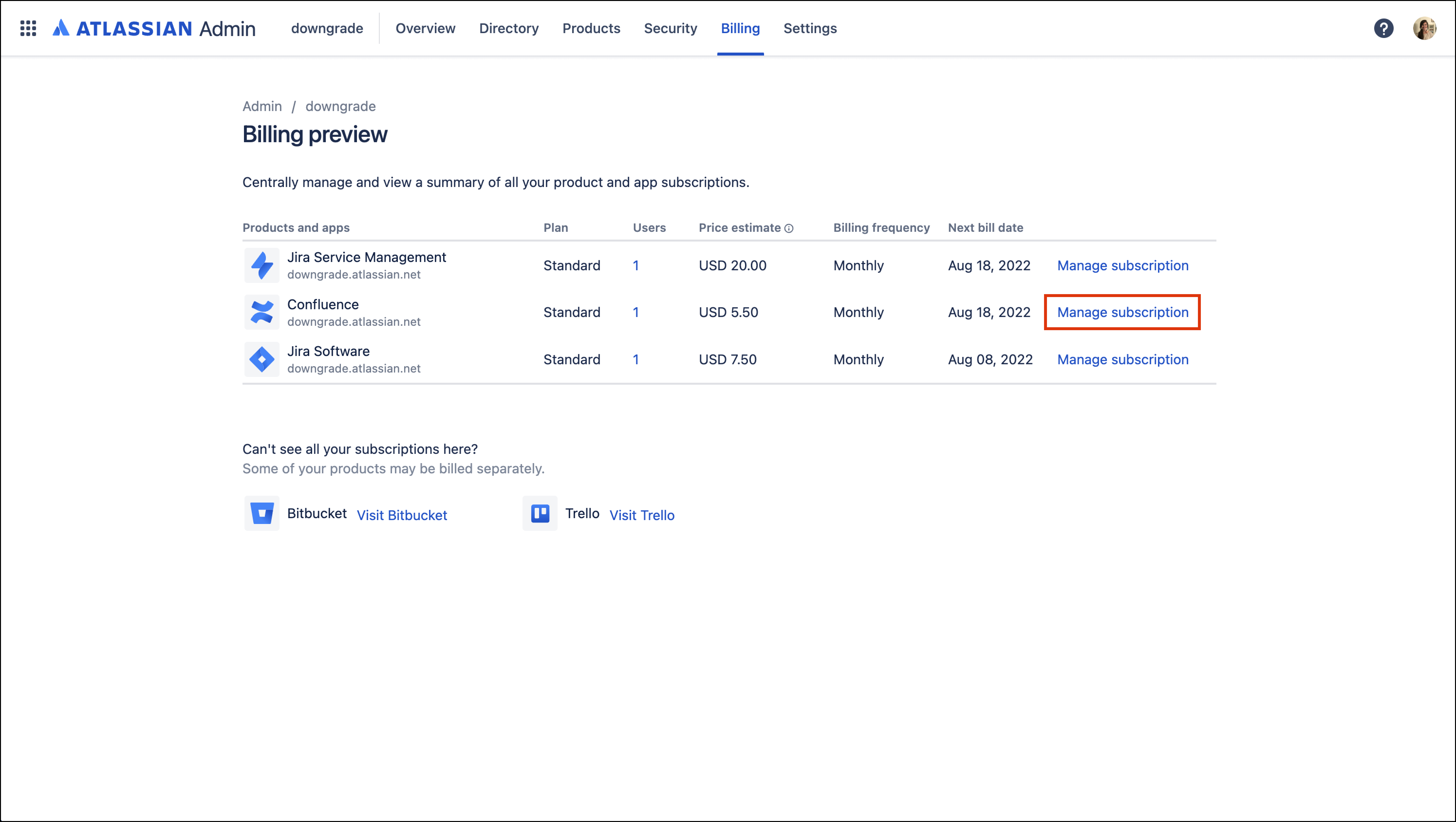
3. Click “Manage subscription.”
4. Click the “Change” link to change your plan type.
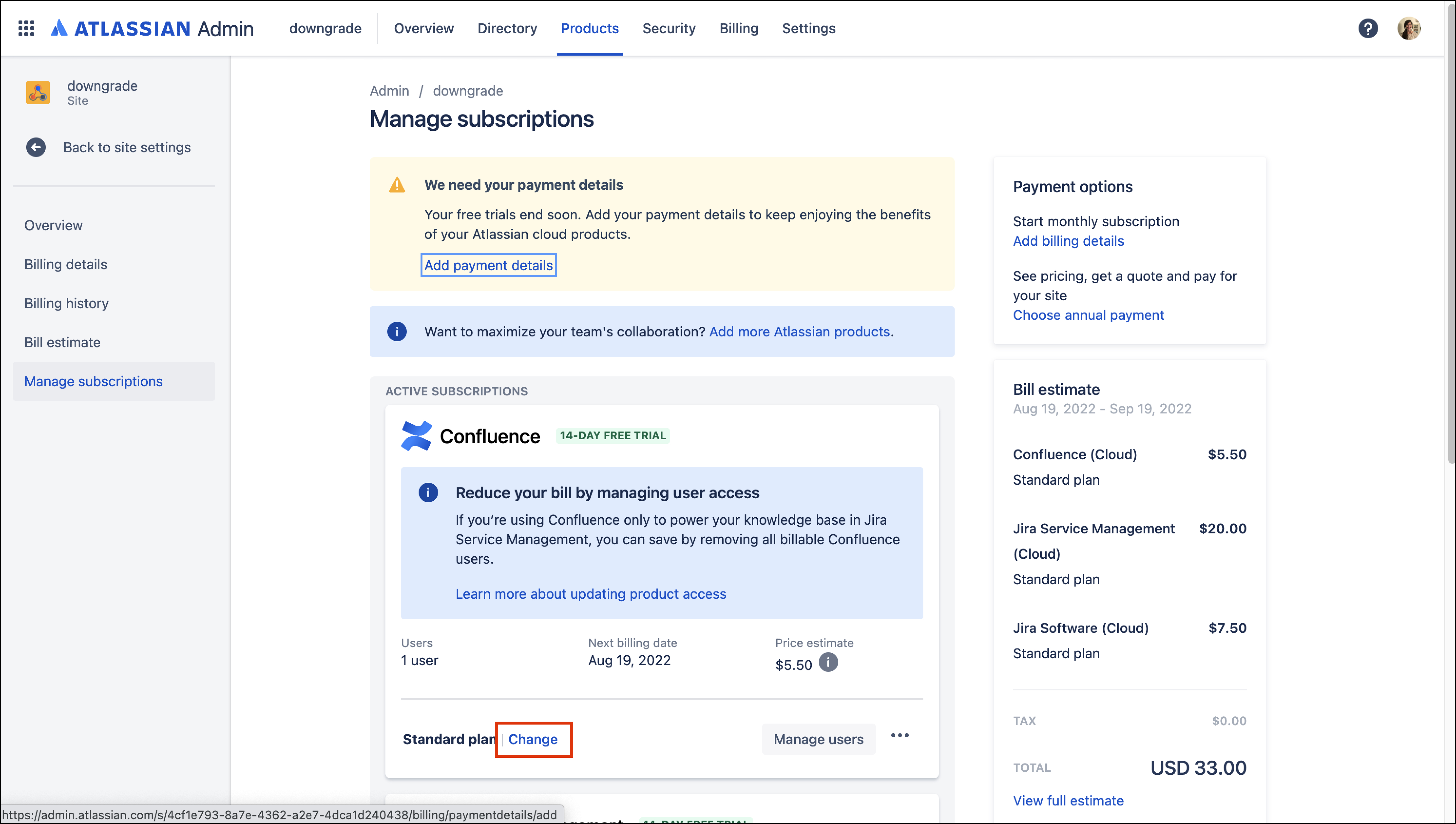
5. In the Manage subscriptions page, you will see the plan for each product under its subscription details. Click “Select Free.”
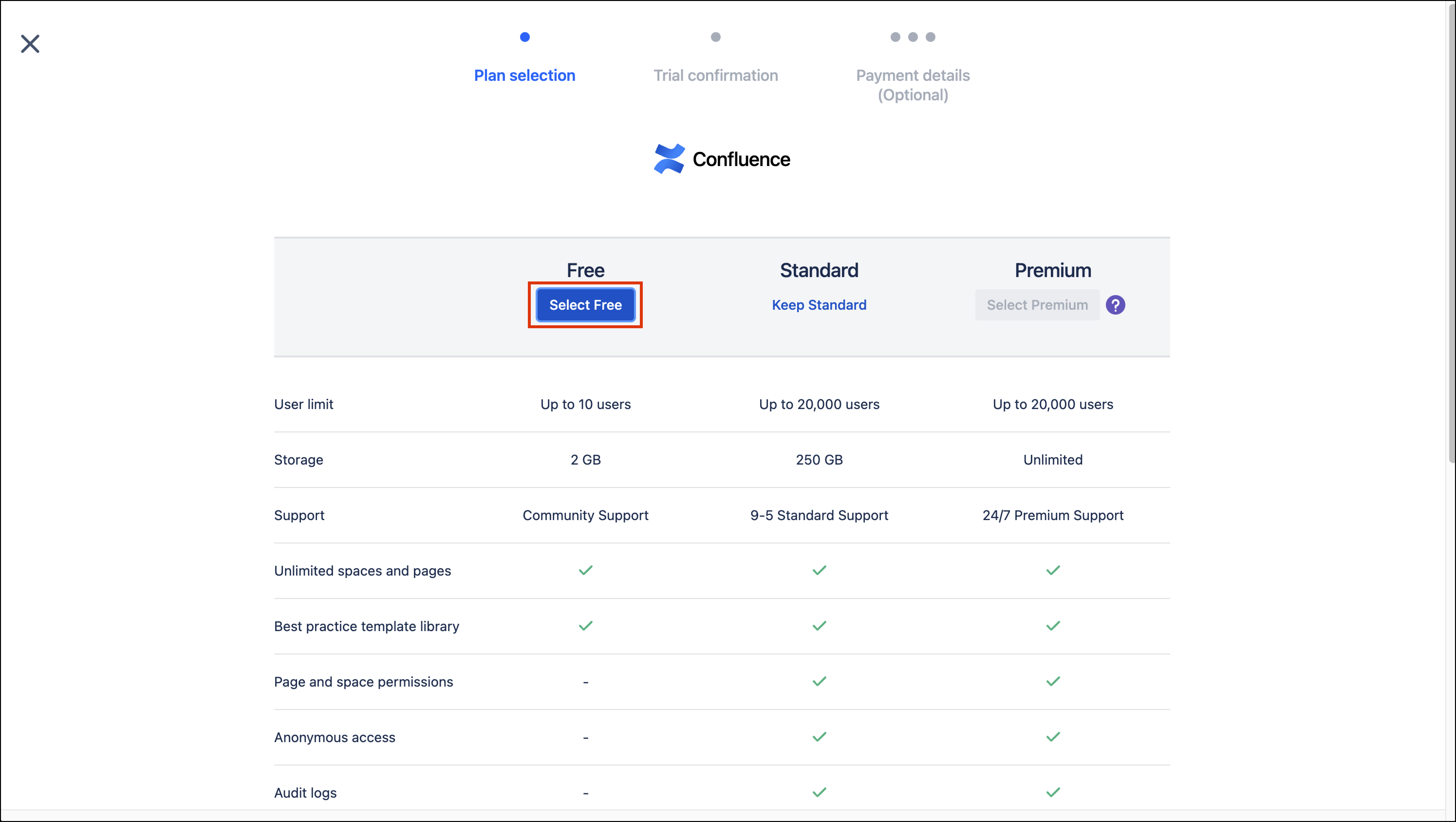
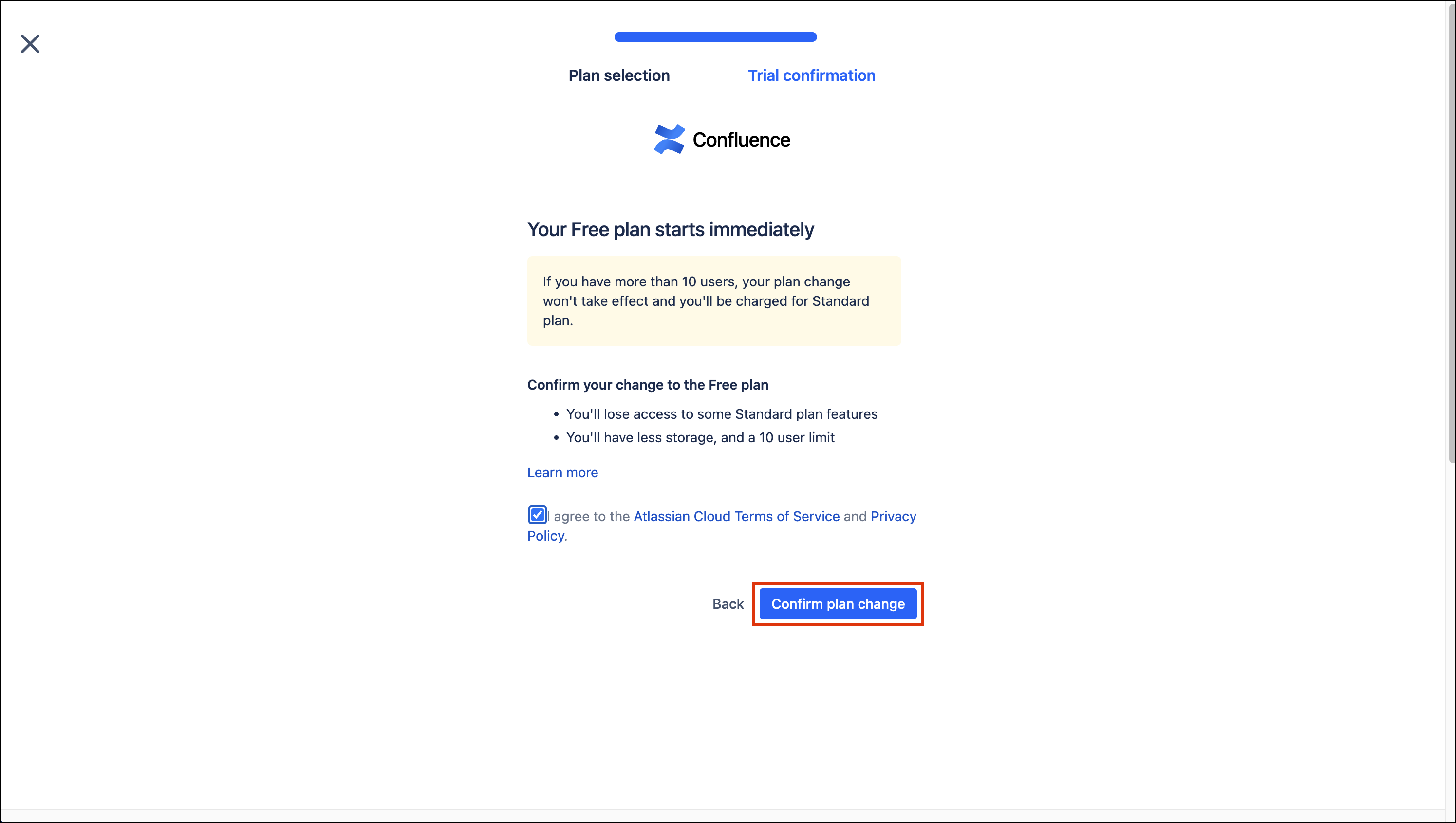
6. After you agree to the Atlassian Cloud Terms of Service and Privacy Policy, select “Confirm plan change.”
7. You’ll see a confirmation pop up in the bottom left window.
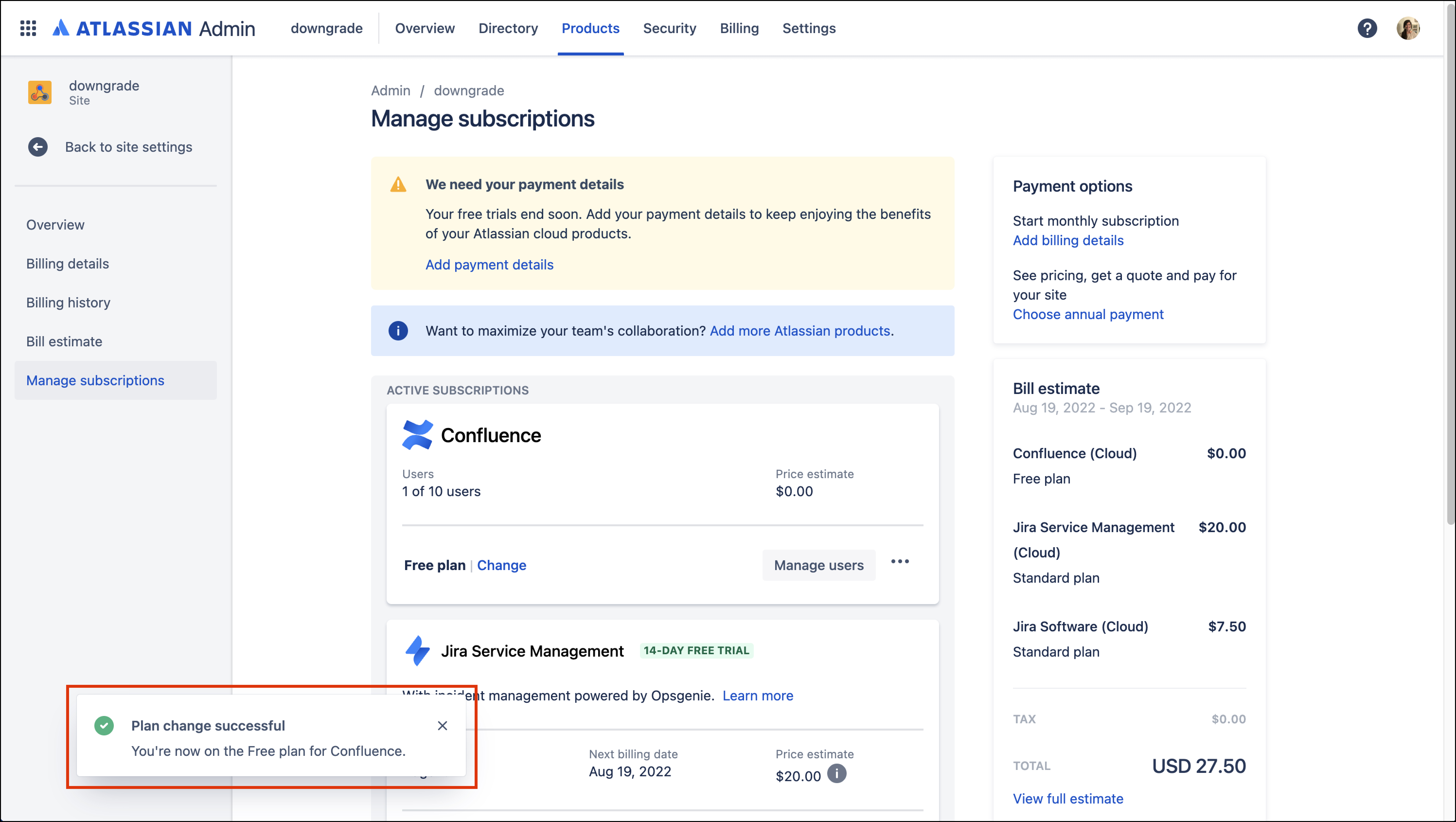
And that’s it, you have now completed the steps to downgrade your Confluence plan from standard to free.
FAQs
-
Why am I on a standard plan? I thought I was using the free version of Confluence.
-
What are the differences between Confluence Free and Standard?
-
I don’t think the message that I got about downgrading to free applies to me. Why did I get it?


