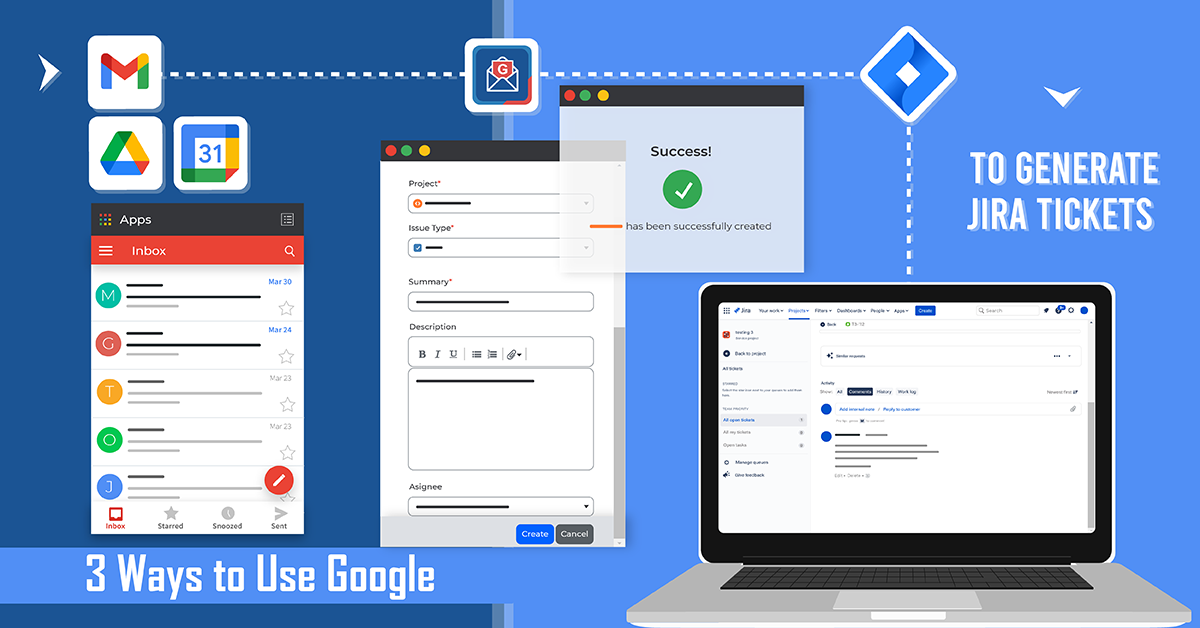
Efficiency is the hallmark of a productive work environment. So, to ensure it continues, there’s always a constant stream of technological developments coming out as a form of support. With difficult, grueling, and time-consuming tasks hindering a team’s productivity, more and more solutions are seeing the light each day to counteract them. As two of the most predominant work channels around the world, we decided to explain how to connect Google to Jira with GTJ to generate Jira tickets.
1. Putting the ‘work’ in work emails
It doesn’t matter whether you receive a lot of customer requests through email, get a lot of Gmail tasks, or simply get reminders of things you’d like to work on. What matters is, you can’t afford to lose track of the content of these messages. The best way to stay apprised of them all is by creating a Jira through Google ticket for each one, detailing what needs to be done with them.
Herein lies the problem, navigating between your email and Jira can waste some of your time. Not only that, things can get lost in the way, and details can be missed or entirely forgotten. To err is human, after all. But we’re here to eliminate the need for things to go awry in the transition, with a simple Google integration with Jira. This way, you can find the best of the available Jira Cloud plugins to create a direct connection with the entirety of your Google apps. Particularly, your Gmail.
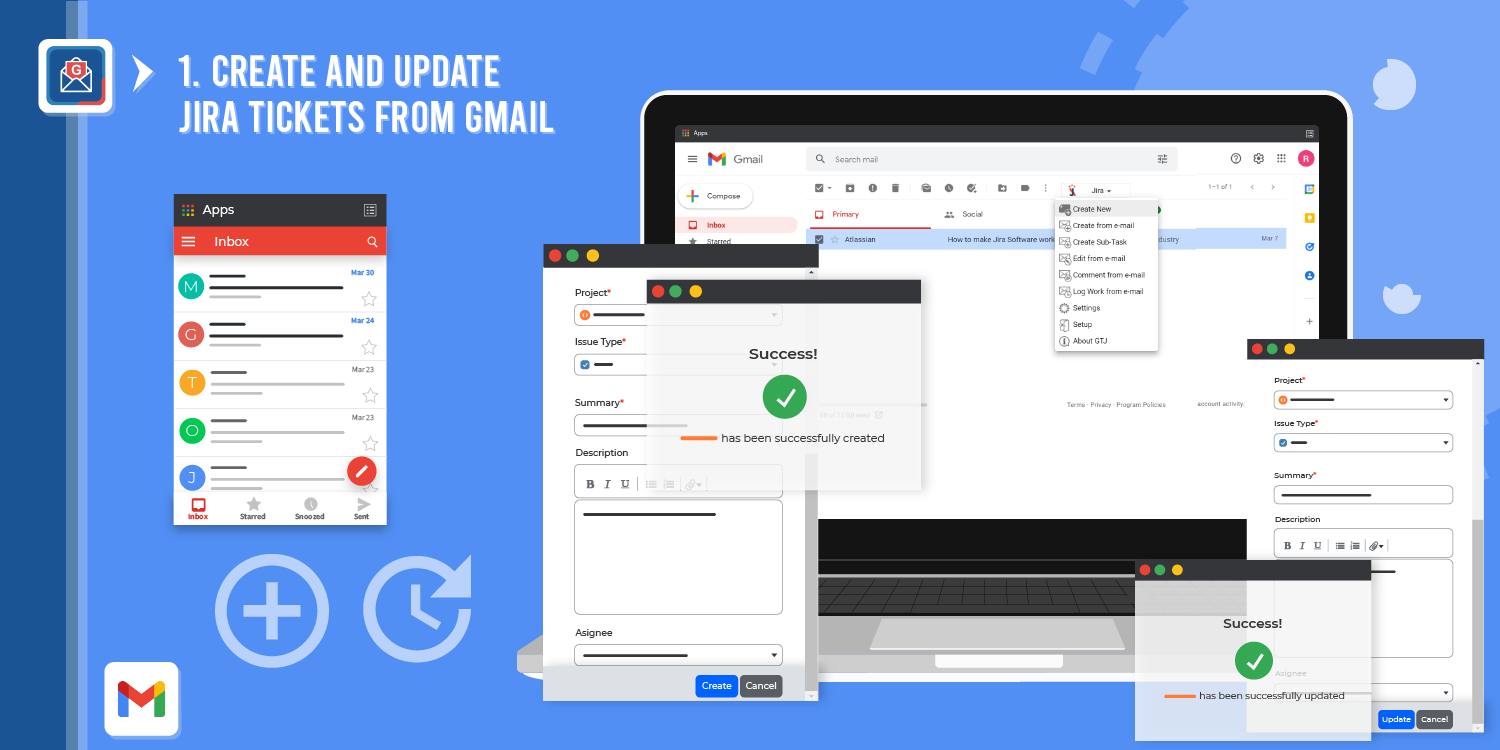
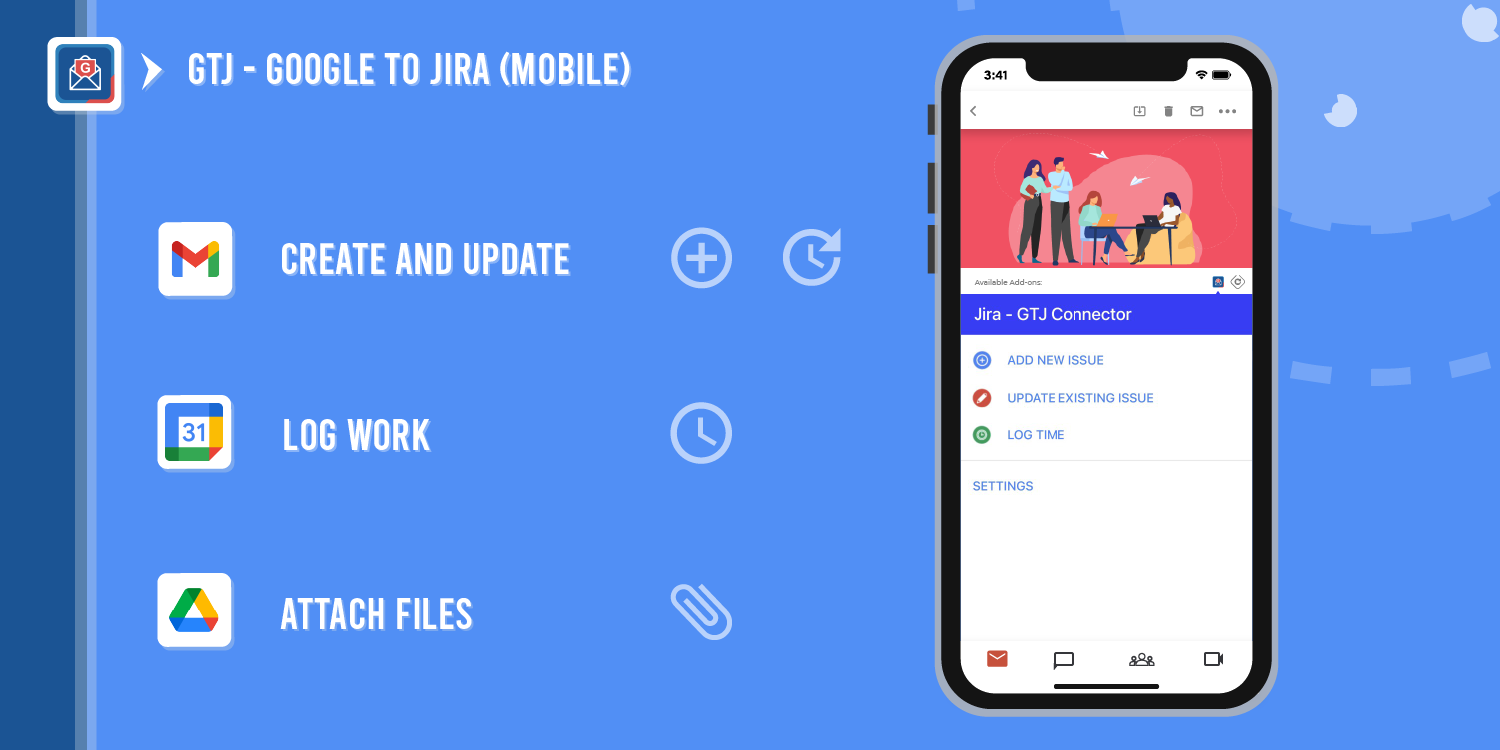
The integration has a lot to offer from within your Gmail. The most significant of which, is to create a Jira ticket. You can do that by simply:
- creating a ticket off the bat, or
- turning one of the emails into a ticket.
In addition, you can also:
- comment on a ticket through this Gmail extension,
- update tickets from your email,
- edit everything out whenever you like, and even
- create a task or sub-task.
With so much to do straight from your email, creating, updating, and editing tickets can take a load off your shoulders in terms of getting things done without the need for the back and forth between Google and Jira.
2. Logging time through Calendar
Something that people seem to miss regularly, is that meetings are part of the work process. As such, documenting them to ensure it is visible that work has been done, is vital, but is often overlooked. At times, it might be the extra work of going to Jira to write it down. Other times, it simply slips from your mind. Either way, that's not good. To rectify that, you now have a much easier connection with a Jira integration straight from your Google Calendar.
All you have to do is go to your Calendar, find the right time slot, and create a Jira ticket! Then, once the meeting or event is officially complete, you can upload everything related to it, from meeting minutes to documents or further comments, onto the ticket.
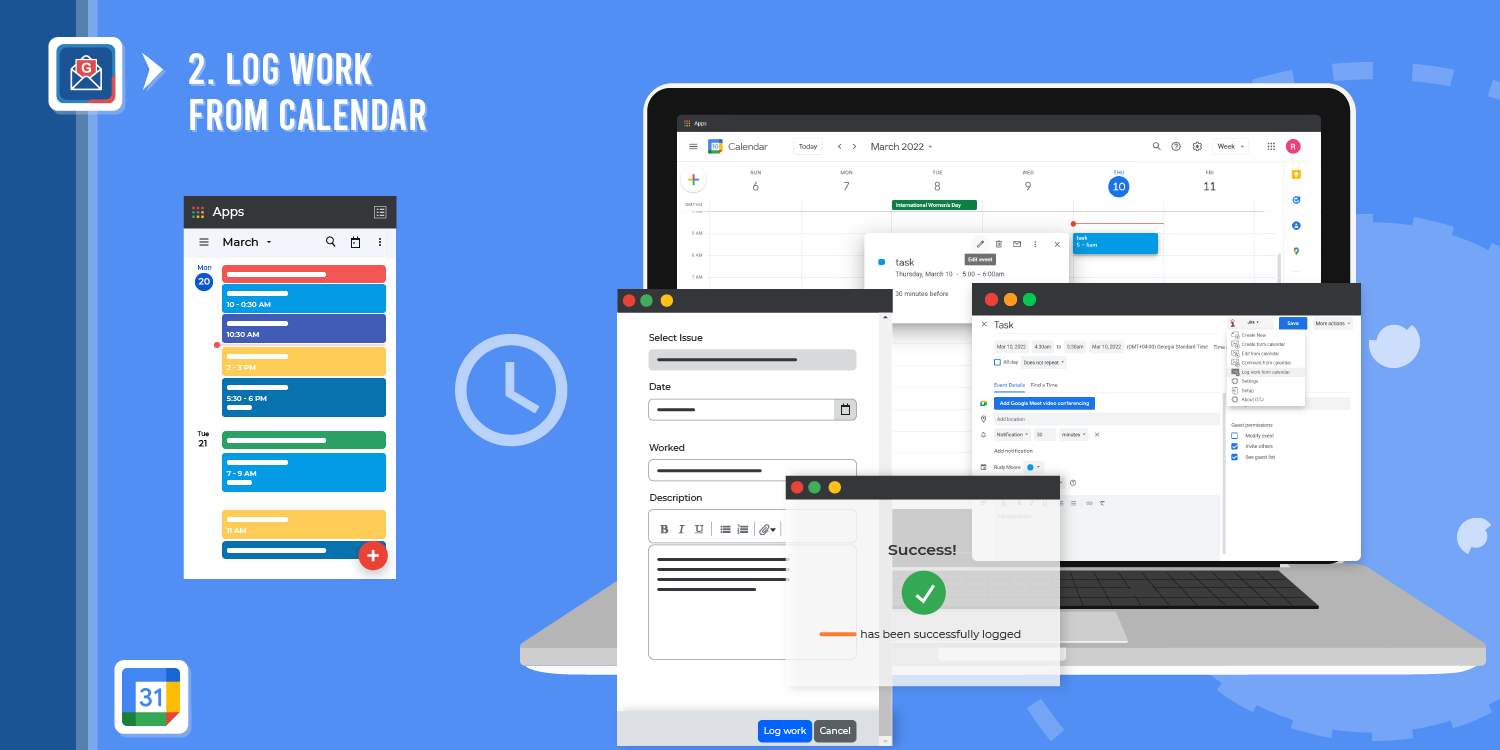
If that wasn't enough, you can also set things up so that the app can auto-detect event durations and dates to log the work for you, as well as track the time. It's the ideal solution for a hectic workday.
3. Bringing forth files from Google Drive
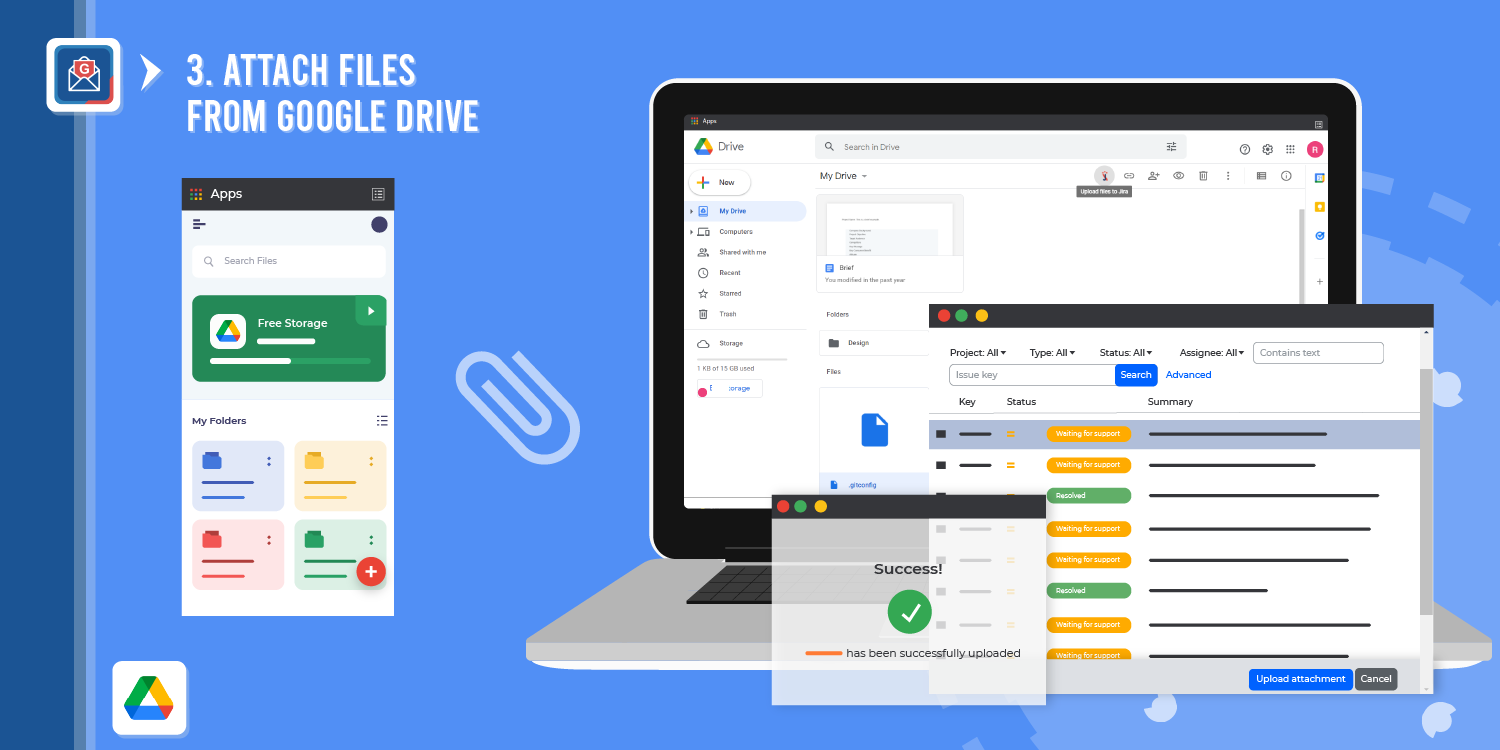
Another particularly handy use is being able to include any of your Google Drive files in your Jira tickets. With the app being accessible through your Drive, you can select whatever file you'd like to work on, or one that holds particularly important information prevalent to a Gmail task, and simply create a ticket with them as email attachments. This will ease up the process of sending them to Jira and have them uploaded there in just a few clicks.
How to integrate Google with Jira
Now that you know all you can do with this Google to Jira integration, how do we connect the two? That’s easy enough to do in just a few steps. You can use a handy tool, Google to Jira - GTJ that belongs to our team, Infosysta.
Step one:
Install the GTJ app from the Atlassian Marketplace.
Step two:
Access the app through one of two ways.
- The first is to head to the Chrome extension store and download the Jira Extension. This means you can only use this Gmail extension through Chrome. Without the web browser, you wouldn't be able to access its features.
- The second way is through the GSuit add-on. This Gmail add-on will allow you to access the app on whatever web browser you choose, as well as both on your desktop and your phone. The only caveat is that it is only available for Cloud users, while the Chrome extension is available for users on the Server, Data Center, and Cloud.
Step three:
Connect this extension to your Gmail.
Step four:
Go to your inbox, and you’ll find a new option, Jira, now available to you.
Step five:
Click on the Jira icon, scroll down to log in, and set up your credentials.
And now you’re all set!
Conclusion
It's safe to say that going back and forth between more than one work channel can cause unprecedented problems. We can't prevent them all from happening, but we can do our best to limit them down as much as possible. Combining separate workflows can do wonders to eliminate a lot of wasted time, as well as the possibility of missing something as you transition. As Google is a powerhouse, being used by thousands of companies worldwide, finding a solution that caters to this particular concern has become vital. With the right Jira tools, such as Google to Jira - GTJ, you can get your efficiency and work productivity back to where they need to be.


