The purpose of this post is to help people identify and resolve some of the most common problems that affect customer accounts in JSM projects.
1. Customers can't see their own requests in the portal
2. Customers can't log into the Help Center
Symptom: Customers get stuck in a loop when trying to log into the portal.
When they enter the e-mail address and click on Next, the option Log in with single sign-on appears. Clicking on this button takes the user back to the portal login page.
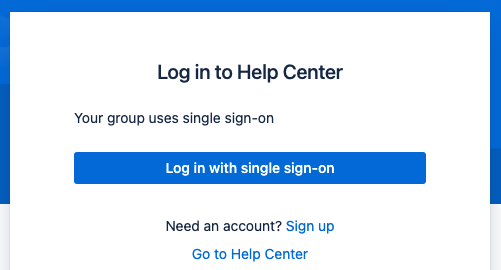
Cause: Similar to problem #1 - there are two existing accounts associated with the same e-mail address, but in this case, the Atlassian account's access to the site was revoked.
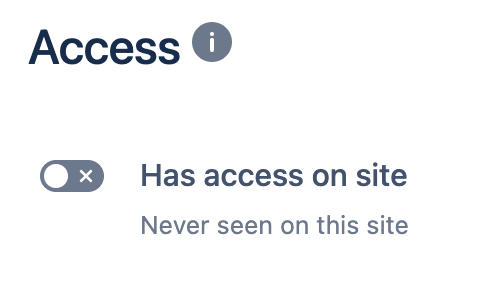
When users try to log into the portal using an e-mail address that is associated with an Atlassian account, it's expected that the Log in with single sign-on option will show. This happens because accounts of this type use a different authentication mechanism, so the user is redirected to https://id.atlassian.com/ to complete the login. The authentication fails because the account has no access to the site, so the user is redirected back to the portal, causing the loop.
Resolution: The solution is the same from problem #1 - merge the duplicated accounts. Go to the User Management (https://<instance>.atlassian.net/admin) > Jira Service Management > find the affected customer > click on the ellipsis (•••) and select Migrate to Atlassian account. After that, go back to Users, find that user and make sure that the Has access on site option is enabled.
3. An error appears when trying to invite a customer to a project
Symptom: When an agent or a project admin tries to invite a customer to a service project from the Customers page, an error message appears saying that the customer could not be added.
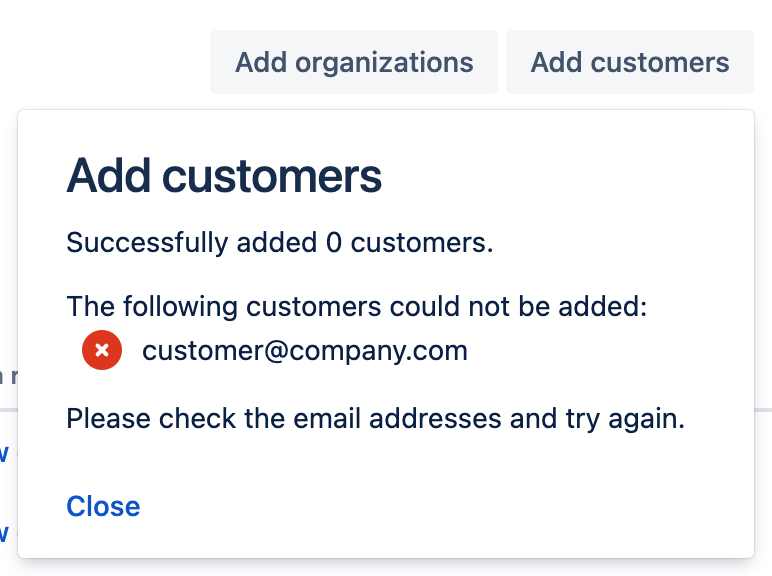
Cause: This error message appears when someone tries to add a customer to a service project using an e-mail address that is associated with an account that doesn’t have access to the site (Atlassian account or customer account).
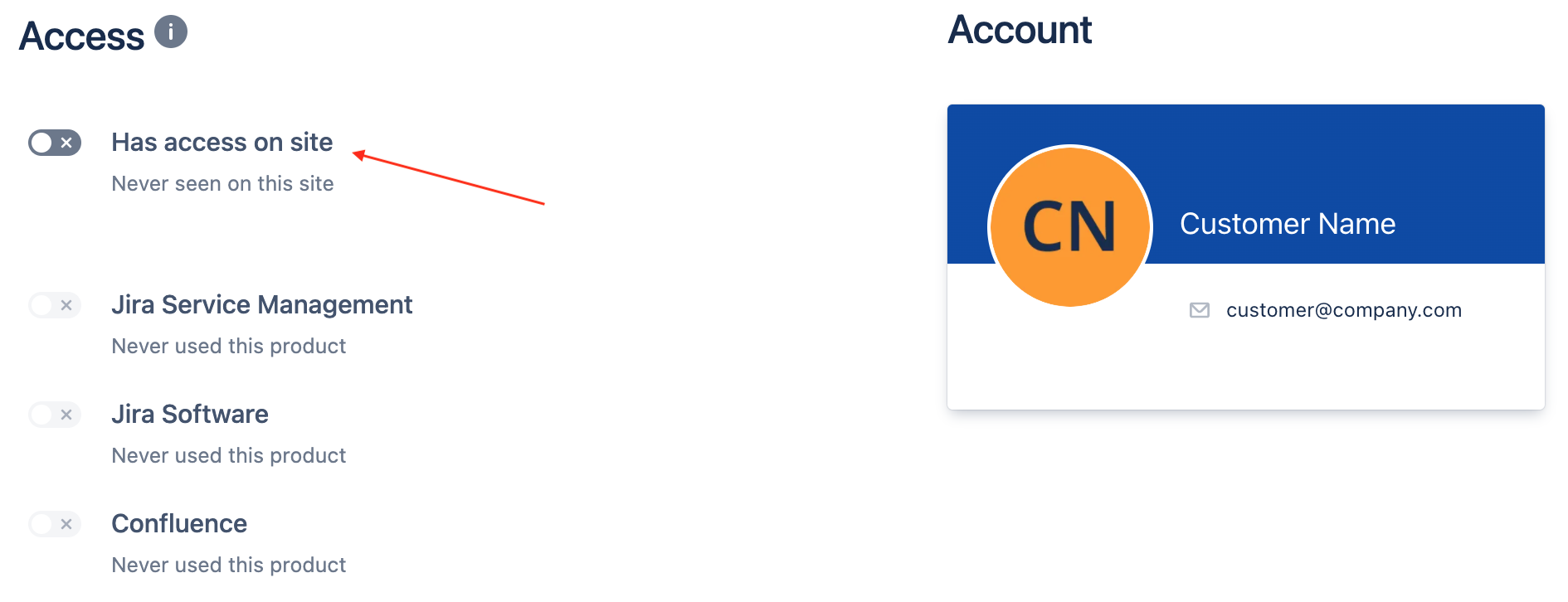

Resolution: To fix this problem and be able to invite this address as a customer, you can either remove the existing account from your site or grant it site access.
If it’s an Atlassian account: Go to the User Management > Users > search for the affected e-mail address and click on the profile > turn on the option Has access on site. Alternatively, click on the ellipsis and select Remove user.
If it’s a customer account: Go to the User Management > Jira Service Management > search for the affected e-mail address > click on the ellipsis and select Grant access (or Delete account).
Related bug report: Inviting an inactive user through the Invite Customer dialog shows an incorrect error message


