Often we need to export our work to spreadsheets so we can create graphics or more sophisticated reports, however, due to known limitations in Jira the export is capped at 1000 issues at a time. The workaround for this can be found here, unfortunately, this is not ideal.
Besides the CSV exports, we can export issues directly to Google Sheets and Microsoft Excel using the correspondent buttons for them:
Microsoft Excel
To export issues to a Microsoft Excel file or open them in Excel Online:
-
Select the Open in Microsoft Excel icon above the search results or by clicking on Apps if you are on the new UI.

-
Choose either:
-
Excel on desktop
-
Excel Online
If you use Excel Online, the issues will open in a new spreadsheet in your browser. If you're a desktop user, you'll get an Excel file to download.
Google Sheets
To open issues in Google Sheets:
-
Select the Open in Google Sheets icon above the search results
-
Log in and authorize Google Sheets to access your Jira data if you haven't done so already
The issues will open in a new spreadsheet in your browser.
By itself, these exports would still be capped at 1000 issues, but using Jira Cloud for Sheets we can export up to 10,000 issues just fine.
Install Google Sheets
From a Google Sheets spreadsheet:
-
Click Add-ons then click Get add-ons…
-
Search for “Jira Cloud for Sheets” then hover over the card and click +Free.
-
Follow the prompts to give the add-on access to your Google Sheets spreadsheet.
Connect your Cloud instance
-
Open a Google Sheets spreadsheet and select Add-ons → Jira Cloud for Sheets → Open…
-
Click CONNECT, this will open a new browser window.
-
Select the site you want to add from the list of available sites, and click Accept.

Once the authorization is successful you’ll be redirected to your Google Sheets spreadsheet and you should see something like the following (aka the hamburger menu):
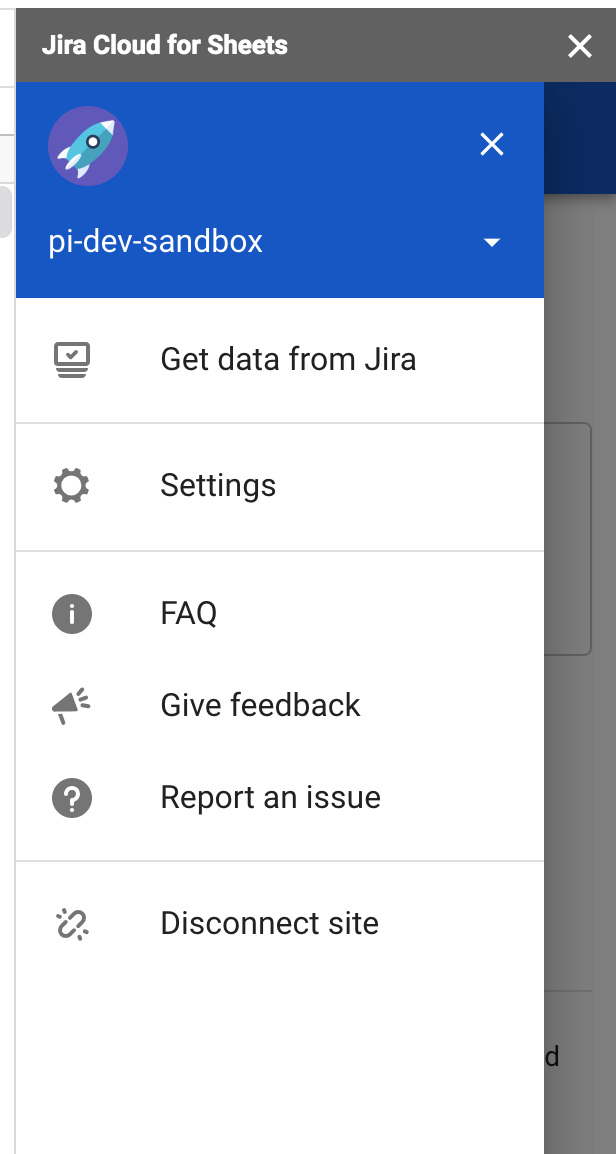
You can now import Jira issues to your spreadsheet by clicking on Get data from Jira and then using one of the following methods:
- Using JQL - If you don’t write a specific JQL query the system will import all issues from all projects
- Using filters - If you have filters defined on your Jira Cloud site, you can use them in the spreadsheet (Currently, we only support ‘ Starred Filters ’. Make sure the filter you plan to use is ‘Starred’ on your Jira Cloud site)
Jira will run the query and return all matching issues in the current sheet. It should look something like the following:

The max rows define the maximum number of issues that will be imported. Tested with 10.000 issues without a problem.
You can also schedule exports with this addon, and it is free.
Let me know if you have any questions about this.


