Page labels are a simple but powerful feature to categorize your content in Confluence. At K15t we love working with labels. Here are some reasons why:
- We group pages that belong together, but exist in different spaces or hierarchies.
- Labels are easy to add and remove without changing any content on the page.
- There's no limit to labels, you can add them to pages, attachments or spaces.
- Labels are user-defined and can be aligned to a use case, user group or other category.
In this 7 min video below, we showcase some of the powerful things that can be done with labels in Confluence, provide naming convention tips, and share some advice you can pass to your teams to ensure labels continue to provide value over time.
🎥 Check it out:
 https://www.youtube.com/watch?v=lnvTJCV2wB0
The video covers these topics below 👇
Start With a Label System
Labels can be added to pages, attachments and even spaces to structure your content. Develop a label system with a clear set of rules before you start using labels. This helps everyone in your team to comply. Here are our recommendations:
Use naming conventions
Naming conventions help keep your labels clean and consistent.
- Use abbreviations and prefixes: Define if and how you will use abbreviations and prefixes, such as 'kb' for knowledge base articles or 'how-to' for step-by-step guides.
- Stick with singular: We recommend naming labels in singular form only. Otherwise you end up with 'project' and 'projects' and you won't know which is the correct one.
- Keep it simple: Don't pack too much information into a label. Stick to single or short multi-word phrases, such as 'admin' or 'knowledge-base'.
- Separate your words: Make it clear how to separate words. A hyphen or underscore are the most common separators.
For your naming system, it's helpful to use commonly used search terms. Take a look at your Confluence analytics – if you work with Confluence Cloud Premium or Cloud Enterprise – to find out what other users are searching for. You'll find a list of search terms and can decide whether your existing label names suit what your users search for.
Appoint a label manager
Appoint a person to regularly monitor your labelling system to ensure that all defined rules are being followed. Have you already designated a Wiki Gardener for your Confluence spaces? Then perhaps this person can take on this task too.
Here are some tips that help a label manager to keep track of how labels are being used.
- Create an alphabetical list of your labels with the label list macro to receive a list of all your labels in an alphabetical order to spot typos and other irregularities easier.
- Create a heatmap to see which labels are most frequently used within a particular Confluence space
Use Cases for Labels
If you use Confluence page labels, you have access to different macros that improve the usability of your documentation.
Better search results
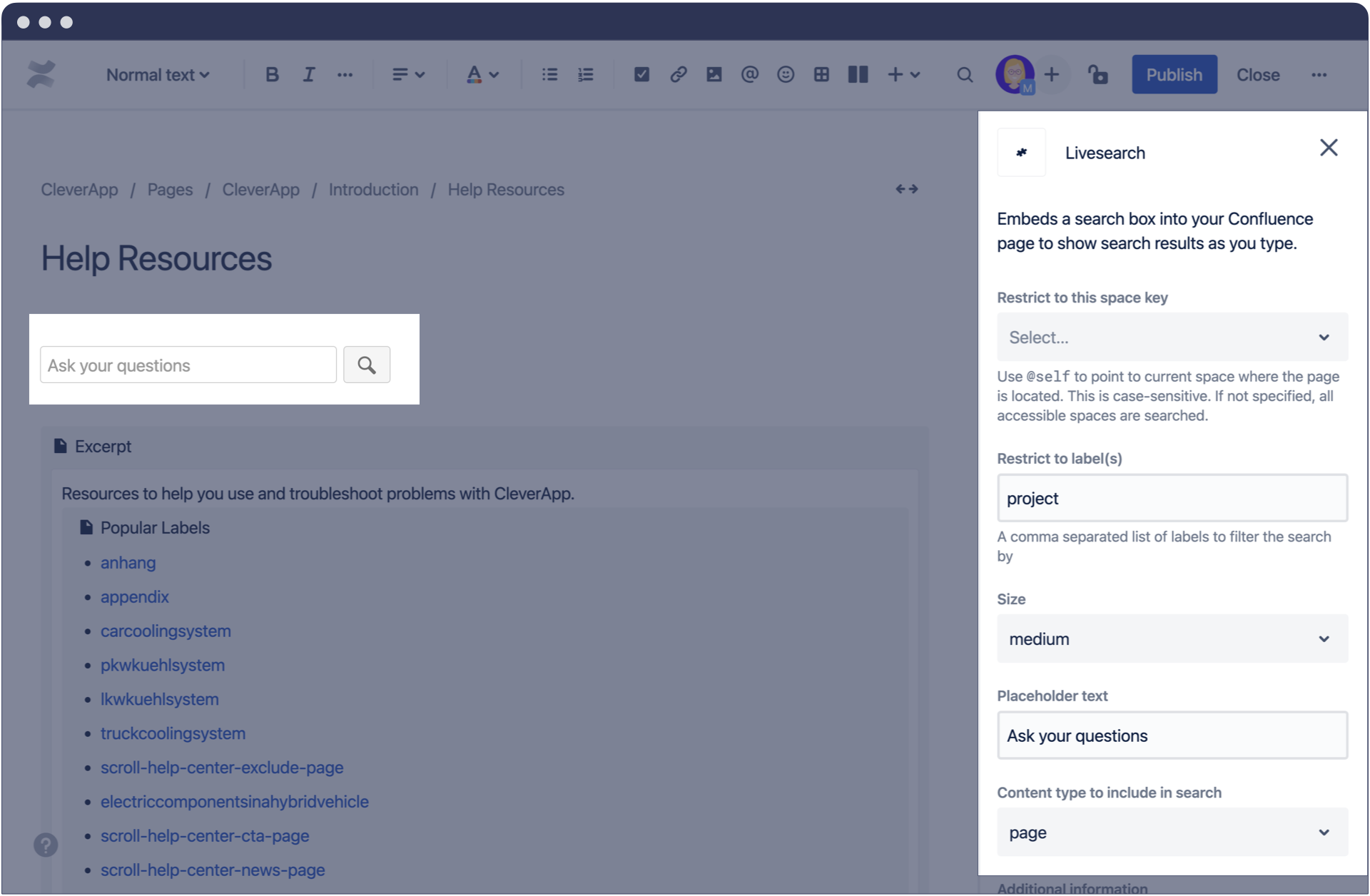
The Livesearch macro allows you to add a search field to your Confluence page. You can narrow down the search results that are output via this macro to specific labels beforehand, so that your users only get the information they really need.
Group a specific set of content
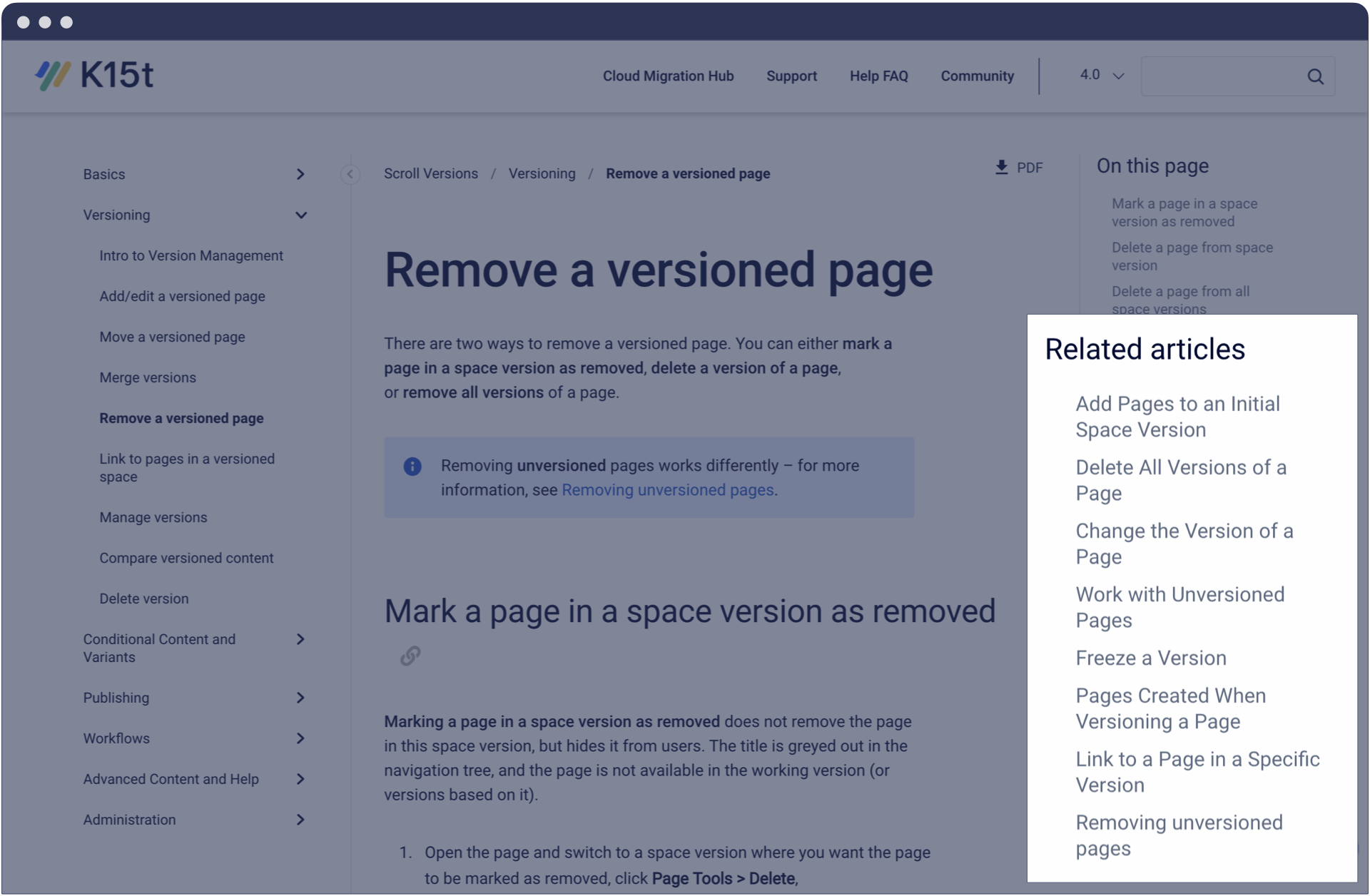
In some cases, pages cannot be clearly assigned to one label and fit into multiple topics. In this case you can use the Content by Label macro. Enter one or more labels and the macro will automatically create a list of pages where these labels are used.
We use this macro to show pages that relate to certain projects that aren't part of the sub page tree, but that still provide useful information for the reader about the project.
Filter for attachments
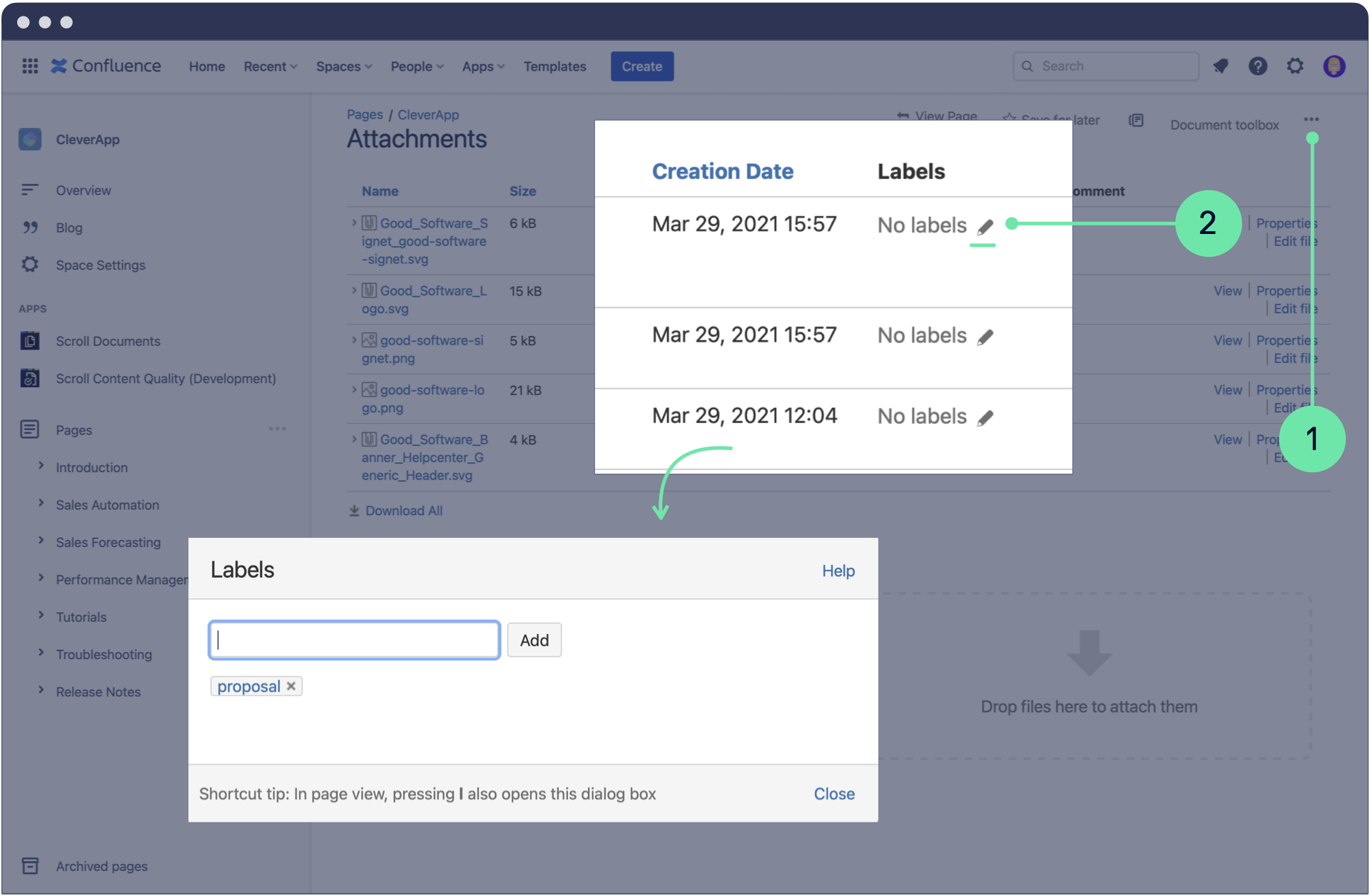
Using Confluence pages is more than just writing plain text content. You can also add attachments such as images, proposals, contracts or other documents as pdf, image file, Word file or other document file formats. Therefore it makes sense to label relevant attachments as well.
The quick search bar in the top right corner of a Confluence page allows you to quickly find specific attachments using a combination of content type attachment and the corresponding label.
If you manage lots of attachments and need a better overview of them, you can create a list using the Content by Label macro.
Tell Us Your Use Case
There are so many great ways to label your documentation in Confluence. What's your favorite? Let us know how your team works with labels in the comments.
If you liked this article, you can read the complete version on Rock the Docs, our guide for technical documentation in Confluence. We also have plenty more Confluence best practices to share in the guide. Check it out 👉


