Looking for ways to view all logged time by users in Jira? We've prepared a complete guide that will show you how to easily track and extract detailed reports, including who logged how much time. Keeping a simple record of hours spent helps you understand how long tasks actually take. It’s a small habit that can make a big difference for smoother project management.
How to View Logged Time in Jira
Jira comes with a built-in time tracking feature that lets users log the hours they spend working on tasks. It's a handy option if you just need a simple overview of where the time goes. But what if you're managing a bigger team, juggling multiple projects, or need more detailed reports? Jira's basic tools might not be enough. The good news is, there are also apps that make tracking and viewing logged time even easier. We’ve prepared a comprehensive overview of your options - using both Jira’s native features and external Jira apps. Let’s dive in!
Using Jira’s Built-in Time Tracking
Jira’s native features let you log and monitor time spent on work items (tasks, bugs, stories, etc.). It's a handy feature if you want a quick look at how time-consuming individual tasks were. You can access this data:
- By using Jira’s Time Tracking Report. It shows a list of work items, their estimated time, and the actual time logged by users. To access it:
- Click on "Reports" in the Menu.
- Select the "Time Tracking Report".
The report will display a list of work items, showing their estimated time and the actual time logged by users. You can access it from any project.
- By creating a custom filter with Jira Query Language (JQL):
project = "YourProjectName" AND worklogAuthor = currentUser()
With this query, you can find out how much time was logged for work items in a specific project. However, this filter won’t show you the total time each person logged, it just lists the tasks.
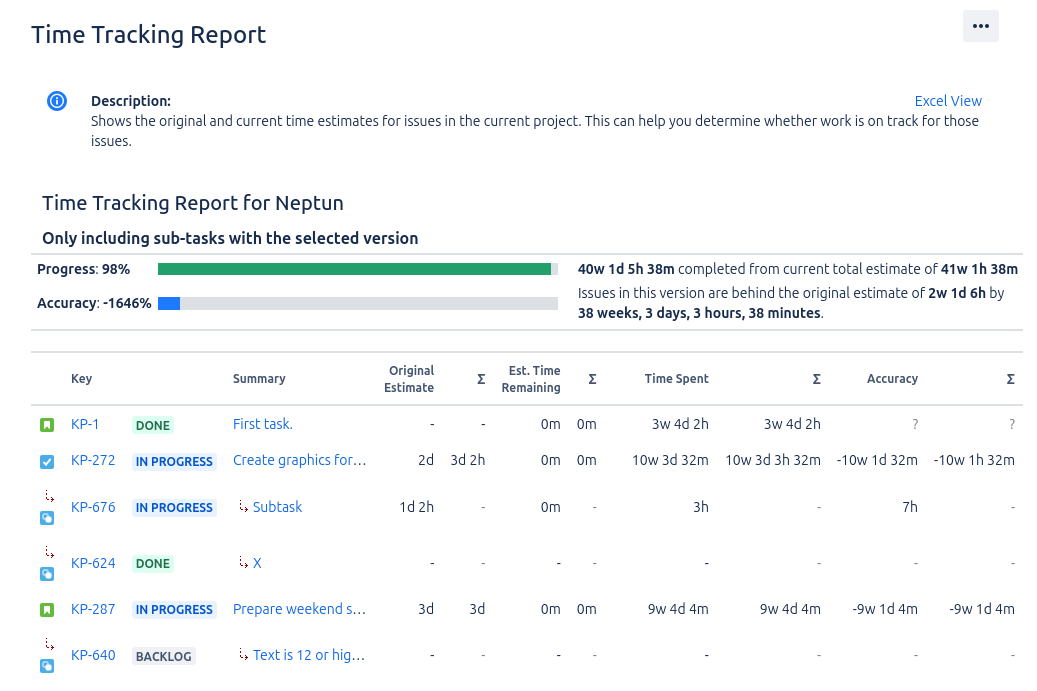
These native Jira features are a great starting point. But what if you need more? Let’s say you’d like to see the total hours summed up per user. In that case, you might want to explore Jira apps to save yourself from digging through individual logs and doing manual calculations. One such app is Worklogs - Time Tracking and Time Reports, a user-friendly tool that offers flexible time reports with customizable data export options.
Using a Jira App to View All Logged Time by Users in Jira
Keeping an eye on how much time each user has logged with Worklogs is quick and easy, giving you a clear overview of the total time logged without the hassle.
You can access the app directly from the menu or add it as a gadget on your dashboard for quick access. The data shows up right on your main dashboard, summarizing how much time your team has logged within the chosen date range. What’s great about Worklogs is the flexibility in letting you view the data in a way that works best for you.
You can group logged time by days, weeks, months, or even years - whatever suits your needs. You can also filter and categorize the data based on things like projects, users, groups, time estimation, sprint, priority, status, issue type, and more.
And what about viewing all the time logged by users? Here’s how you set up your Worklogs table for tracking:
- Project or Group: Set to "All projects"
- User or Group: Set to "All users"
- Categorize by: Set to "User"
- Group by: Set to "Project"
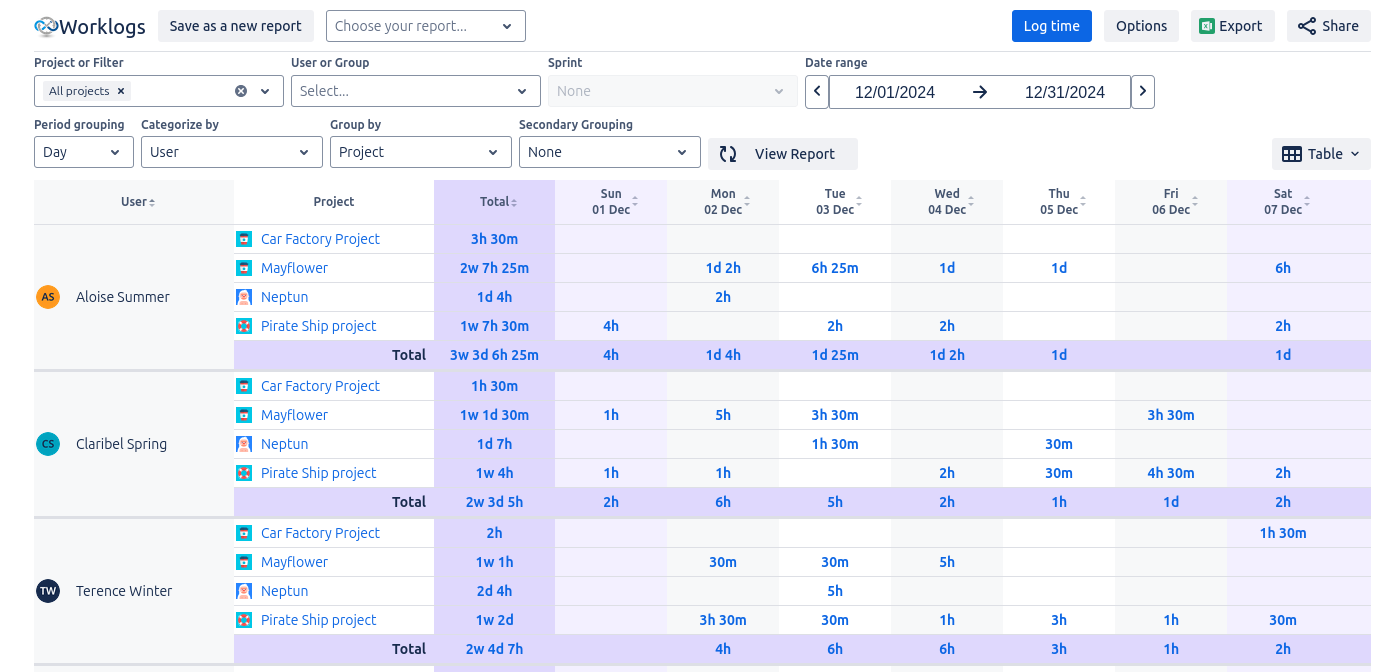
This setup will give you a nice summary of how much time each user spent on each project.
Want to take a deeper dive into how much time your team’s spending on individual tasks within a specific project? You can adjust the settings like this:
- Project or Group: Pick a specific project
- User or Group: Set to "All users"
- Categorize by: Set to "User"
- Group by: Set to "Issues"
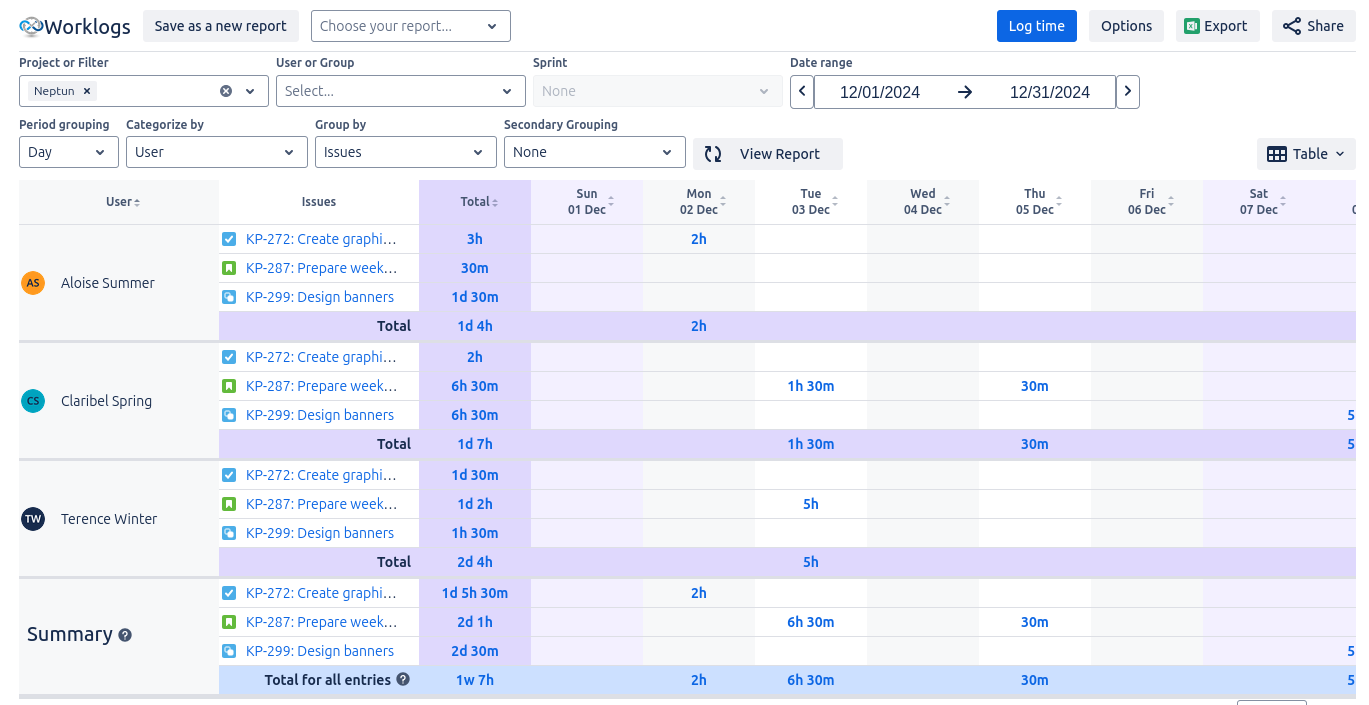
Now, you’ll get a detailed view of how much time all users have logged on each work item within that project. You can then export the report to an .xlsx file using the “Export” button if you want to analyze the data further or share it with others.
With Worklogs, you get a simple yet powerful way to see exactly how your team is spending their time, and the flexibility to customize your reports to match your needs. It saves you from having to dig through logs manually, so you can focus on what really matters - keeping your projects running smoothly.
When Does Tracking Logged Time by User Come in Handy?
There are many situations where it’s helpful to see exactly who logged time and how much. Having quick access to this kind of information can give you valuable insights into things like:
- How your team’s time is split across different projects.
- Whether any team members are overloaded (or underused).
- How much time was really spent on tasks when doing performance reviews.
- What resources you’ll need for upcoming projects.
Creating a report with all logged time by users in Jira will give you a quick answer to these questions.
Your Options for Tracking Logged Time by Users in Jira - Key Takeaways
From Jira’s native features like JQL and the Time Tracking Report to third-party apps, you have a variety of options to keep track of time more effectively. With Jira’s built-in tools, you can easily filter and view logged time, but to see time logged by specific users, you’ll need something like Worklogs - Time Tracking and Time Reports for a bit more flexibility. Remember that no matter which method you choose, understanding how your team spends their time can play a crucial role in project management, balancing workloads, and planning ahead with confidence.


