If the use of email issue creation is part of your Jira Service Management (JSM) project then you might find this article of interest.
With JSM Cloud you have two options for managing new customers: locked down or open.
If you want to control who can open issues in your project then you have your agents responsible for adding/removing customers. This can obviously be a tedious task and can be frustrating to your customers. More importantly you could miss important requests unless you make it a habit of combing thru your email logs for failures on a daily basis. So you opt for an open project. However, leaving the project open can result in unwanted customers being added to your project, leaving your team with a constant tidying exercise and inevitably spending time on requests that maybe they shouldn't.

If there were only a clean way to quarantine new customer requests until it can be determined that the customer should be added to the project and your agents should work the issue.
Automation to the rescue!
With a bit of Automation work and optionally some workflow changes, you can better control your customer onboarding process for open projects.
The solution at 50k feet

The idea is to inspect each new incoming email request to see if the Reporter has previously created any requests. If they have then the customer is assumed to be approved for the project. If not then the request is placed 'in quarantine' until the appropriate Agent has assessed the request to see if the customer should be added.
Time to pop the chute and get into the details

Here is the list of tasks to put this process into play:
- Add a "Quarantine" status (optional)
- Create the Automation rule
- Set up a Queue to monitor the new customer quarantine issues.
Automation rule
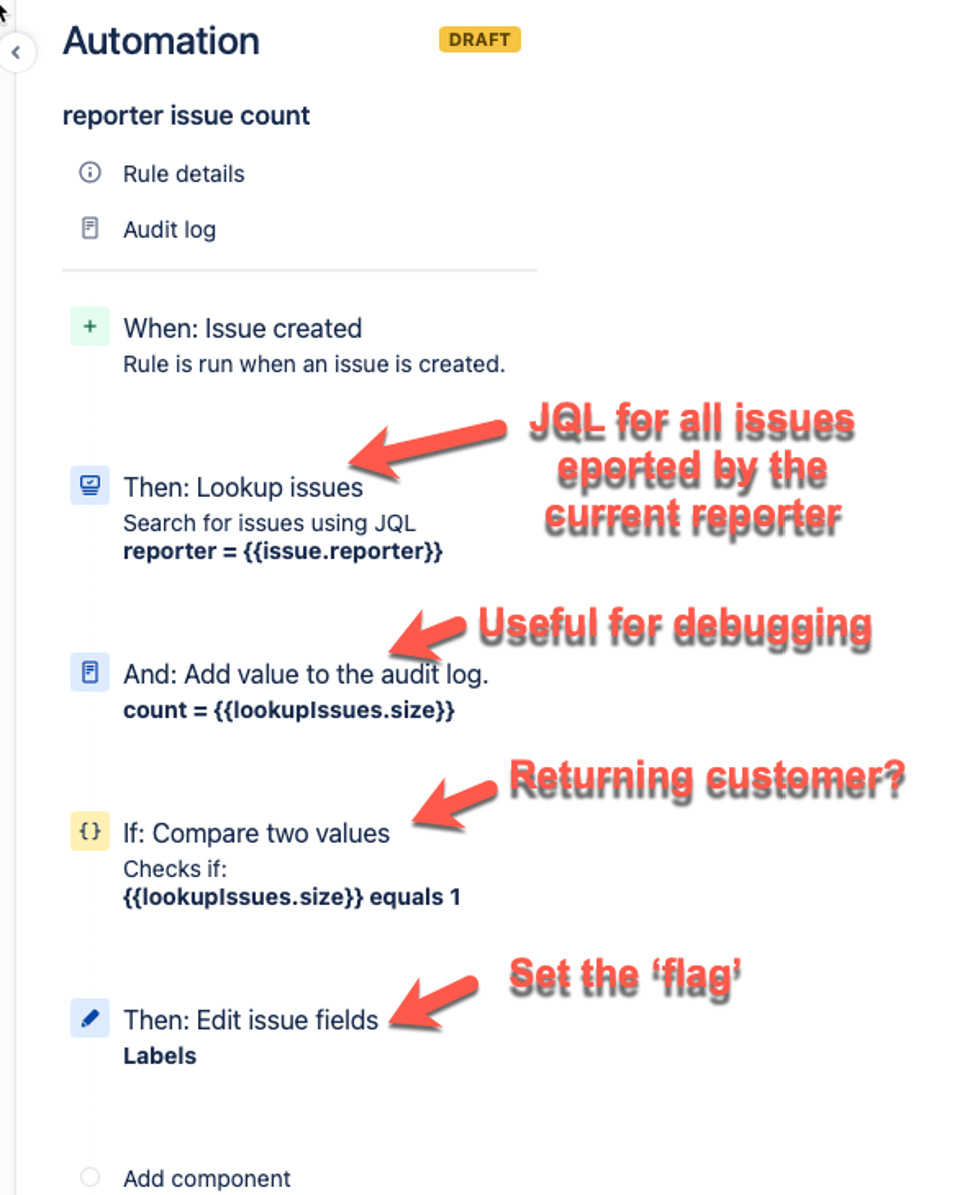
The automation rule will look something like the below image. But be creative and build it out to meet your needs. Make it your own! A special shout out to @Dirk Ronsmans for his support in working thru this rule syntax!
Explaining the rule
- Using the Lookup issues action and the reporter for the current issue you can search for all issues this reporter has created in the project.
- Optional but I really like to use the Action to add a value to the log for test purposes. The action will show you how many issues the Lookup found.
- Check to see if the reporter has previously created issues. The working assumption here is that if they have then they are already an approved customer. Feel free to add more qualifying conditions here if you like.
- Flag it! This is where you can flag the issue so that your team can easily locate issues that need to be assesed as New Customer requests. This is where the optional "Quarantine" status can really come in handy.
Stick the landing

After fully testing your rule and making the necessary changes it is time to put the process to work.
- Add a new queue "New Customer" using the flagging method you landed on. For example, if you created the new status then the queue would be defined by status = "quarantine" or whatever status name you chose.
- Train the team. Make sure the team knows to monitor the queue and process as required. If the request is to be rejected be sure to enter a comment to that effect and close the request. Also, go into User management > Jira Service Management and revoke access for the customer. Any future requests from that email address will be rejected as the customer is inactive. NOTE: if the customer is valid for some JSM projects and simply not this project then don't revoke access, rather just remove them from the project.
I hope you find this article useful and I would love to read your comments about how this could be made even better!
Cheers!


