Jira Align does support SAML 2.0 integration and you can watch a video here on how to set it up or read below for instructions.
Video How to enable single sign on SSO with Jira Align
Specific SAML 2.0 Articles:
Azure Active Directory SAML 2.0 Setup for Jira Align
Okta SAML 2.0 Setup for Jira Align
Ping One SAML 2.0 Setup for Jira Align
Setup SAML 2.0 with Jira Align
This article assumes you have configured your SAML 2.0 provider with the required settings to communicate with Jira Align.
1. Sign into Jira Align and click Administration > Platform > Security.
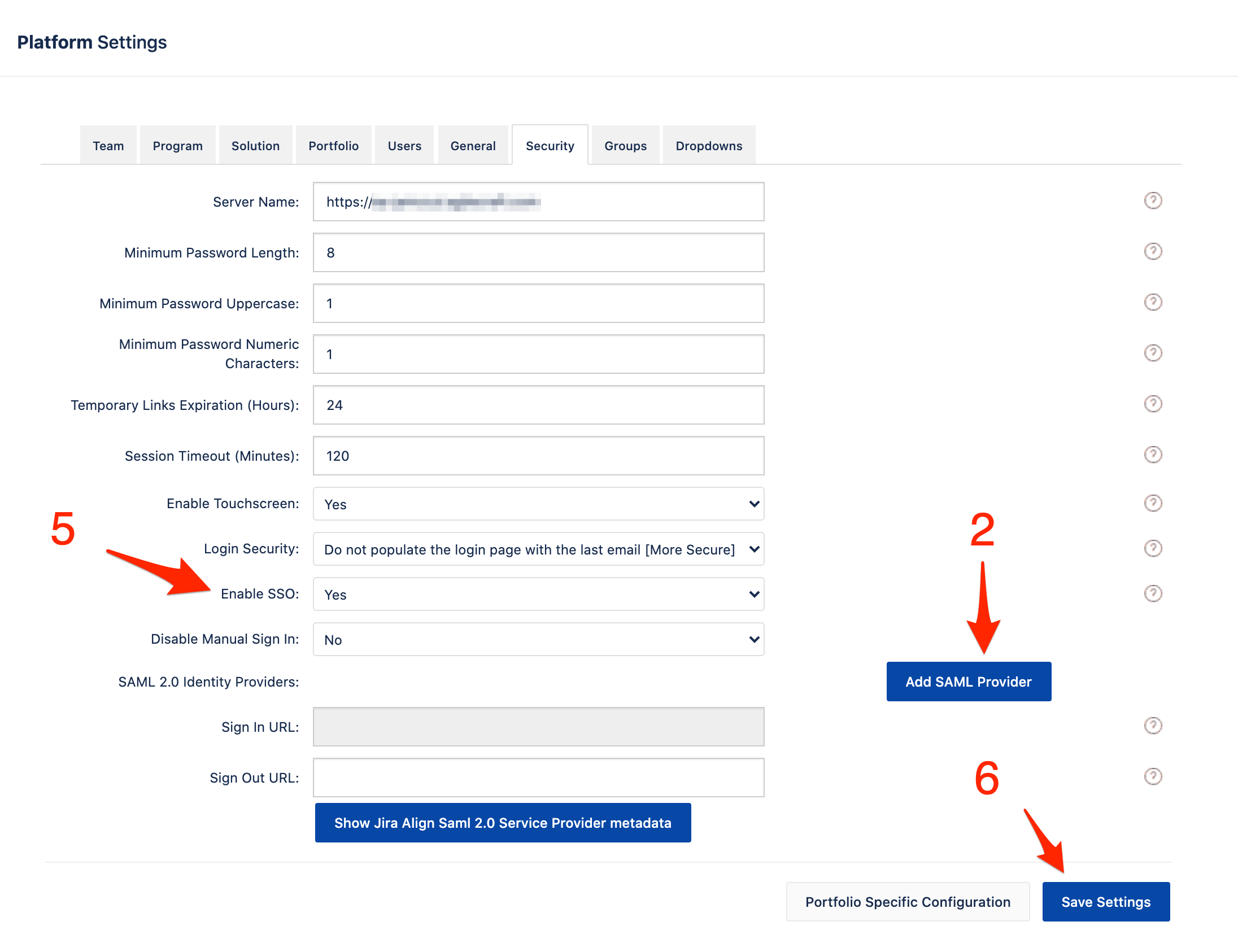
2. Click Add SAML Provider.
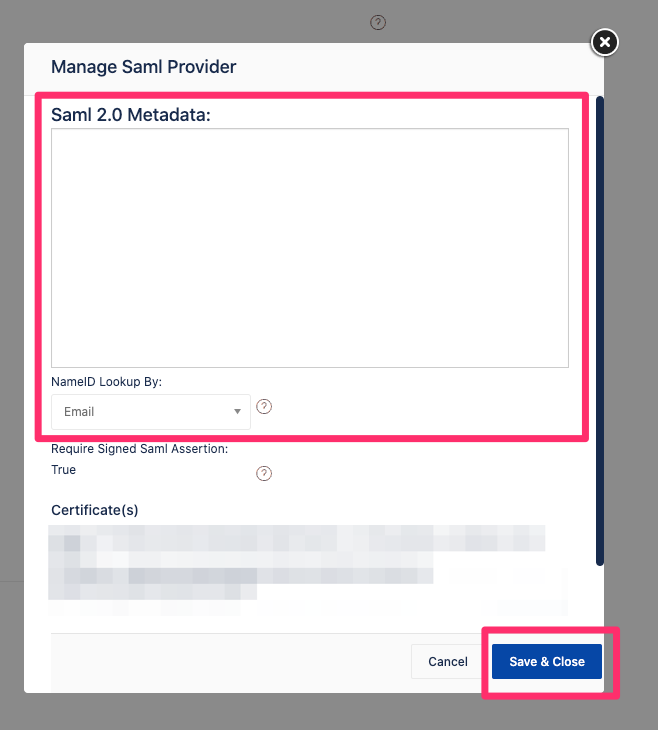
3. Paste in the SAML 2.0 Metadata from your SAML 2.0 provider.
4. Click Save & Close.
5. Set Enable SSO to Yes.
6. Click Save Settings.
Testing
7. Open up an incognito window in your browser and navigate to your provider's Sign In URL. Your SAML 2.0 provider may have a different name for the Sign In URL.
Additional Notes
- The user account you are testing from the SAML 2.0 provider must be also configured on the Jira Align side.
- User accounts on the Jira Align side can be created using the following methods:
- API 1.0
- Excel Import
- Manually created
- Users automatically integrated from Jira (the user must be assigned to an integrated issue)
-
It should be noted that Jira Align requires BOTH Signed Assertion and Signed Response for SAML 2.0 Providers. If you are only able to sign one of the two, then you will need to select Signed Response and open a Jira Align Support Ticket to have the assertion response requirement set to False.
See Step 2 to see the Require Signed Saml Assertion field in Jira Align.
Disable Manual Sign In
- Once you are confident that there are no known issues with SSO, you can go back to Platform Settings from earlier and set Disable Manual Sign In to Yes.
You'll need to open a ticket with Jira Align to regain access if you get locked out while Disable Manual Sign In is turned on.
- After you have set Disable Manual Sign In, you'll be able to fill out the following fields:
If for some reason your Sign In or Sign Out URL contain encoded characters (Example: %20 for space), you'll need to replace that with the non-encoded equivalent.
Additional Materials
10X SSO Support

