Hi Atlassian Community!
My name is Ivan, and I’m a Product Manager on Jira Software Cloud.
I’m pleased to announce that keyboard shortcuts have arrived for next-gen projects!
Keyboard shortcuts are a table-stakes feature of a modern cloud SaaS product in 2020. Admins and end-users across both SMBs to enterprises will realize valuable efficiency gains from keyboard shortcuts.
We’ve collected feedback from users around the lack of shortcuts, and we’re here to address that:
In next-gen projects, I miss the keyboard shortcuts badly. This is particularly true on the Board, but also in the Backlog. Too many operations require either a right click or--much worse--clicking through on the item to get to the issue mini-view. Too many clicks, too slow. The particular workflow I was trying to do today was assigning issues to folks from the Board. But the root of the pain is the lack of keyboard shortcuts.
A lot of the keyboard shortcuts no longer work. Navigating boards, assigning labels etc. This makes Jira much more time-consuming to use. Please fix this!
Nothing will speed up your work like keyboard shortcuts, making you efficient day-to-day.
 https://www.youtube.com/watch?v=z6medpHqy_s
Who doesn’t want to shave off those seconds navigating around Jira when all they need is a few taps on their keyboards? To know what shortcuts you have in next-gen, hit ? when you’re in a next-gen project. You’ll see the shortcuts specific to next-gen projects.
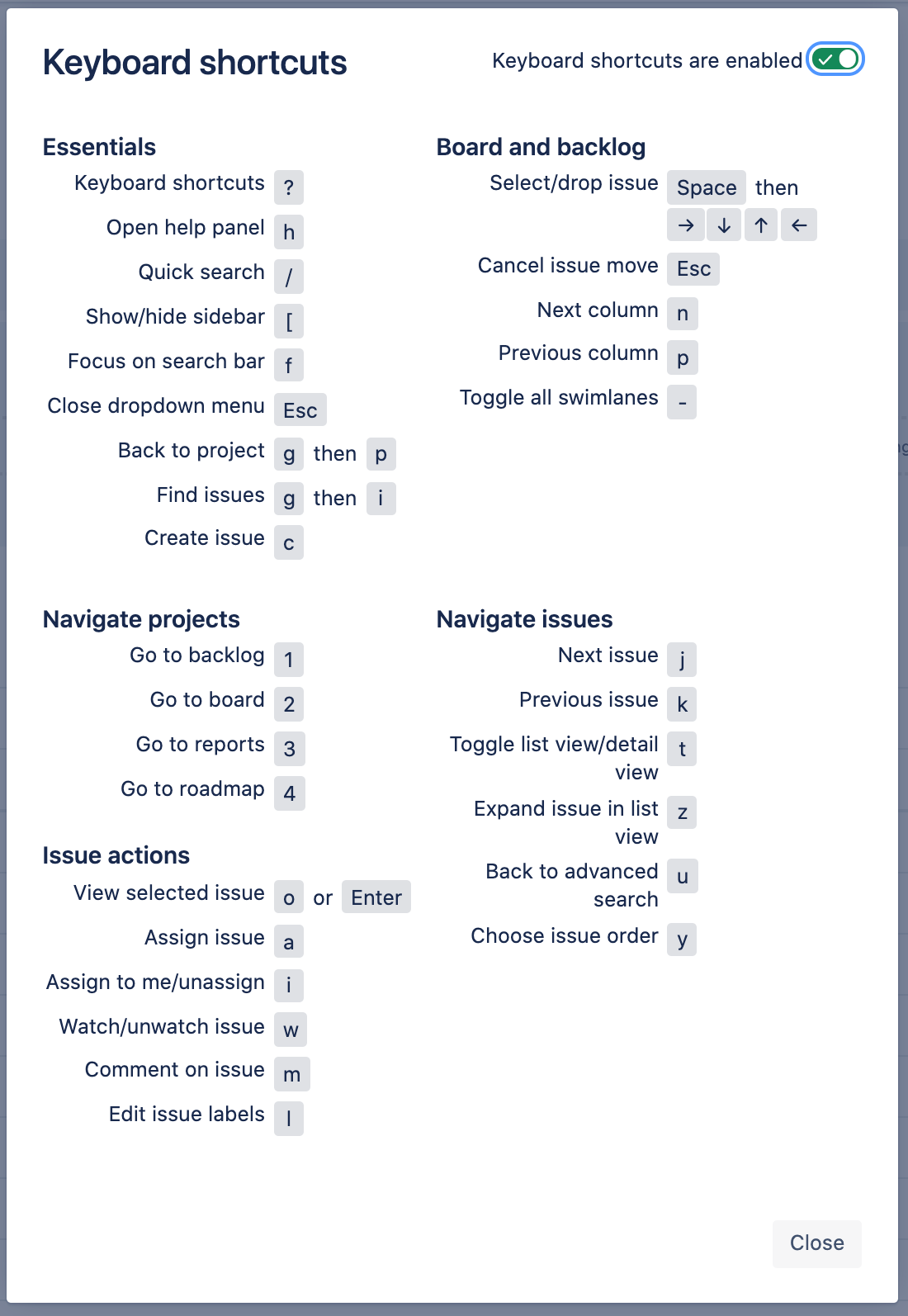
Now that you know what shortcuts, I’ll paint a few scenarios that will help you become a power user of Jira - so you can get your work done fast!
FOCUS
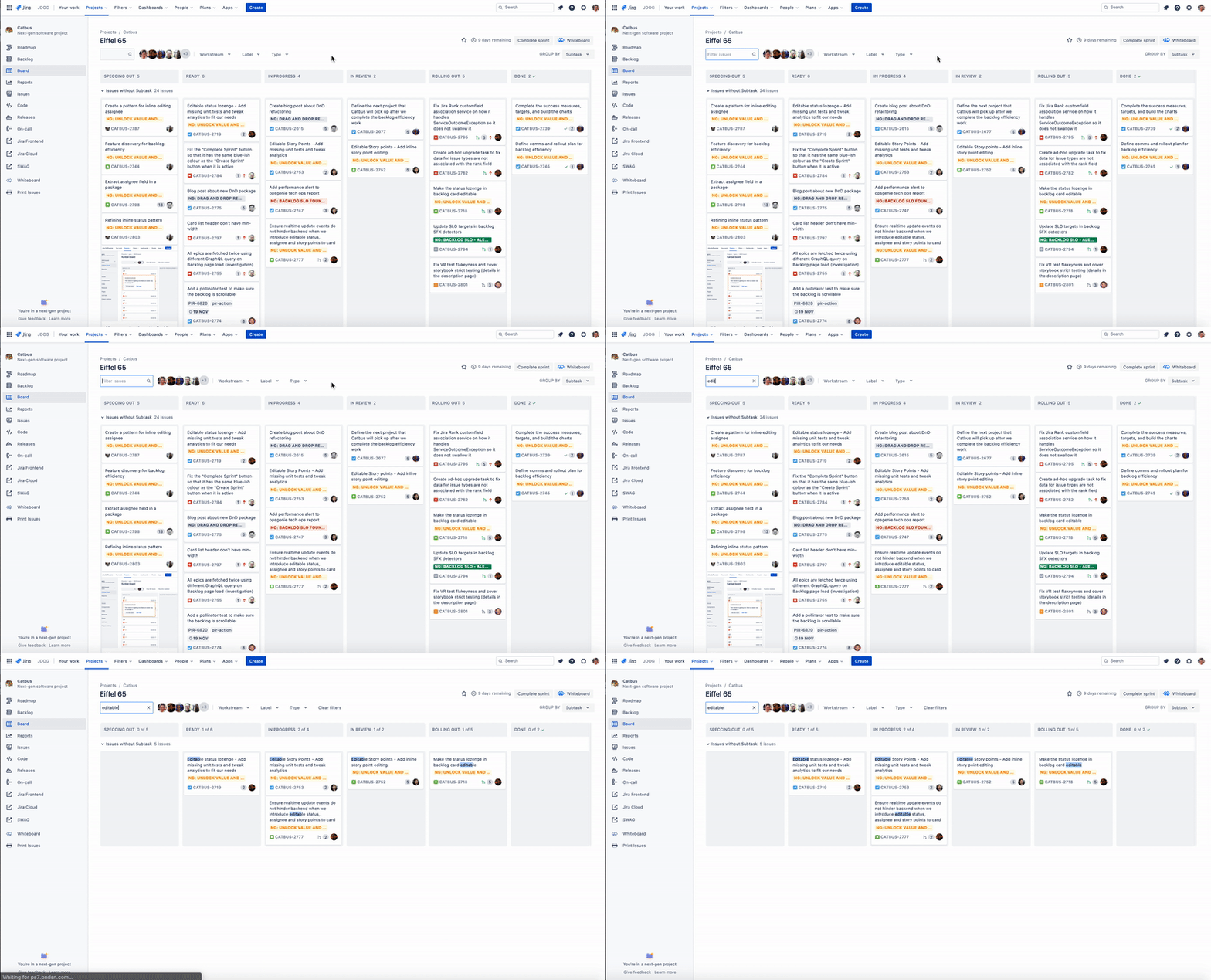
1. Find an issue quickly.
Focus your board and backlog on the issues that match your search field with f, collapsing all content that aren’t matching your searched field.
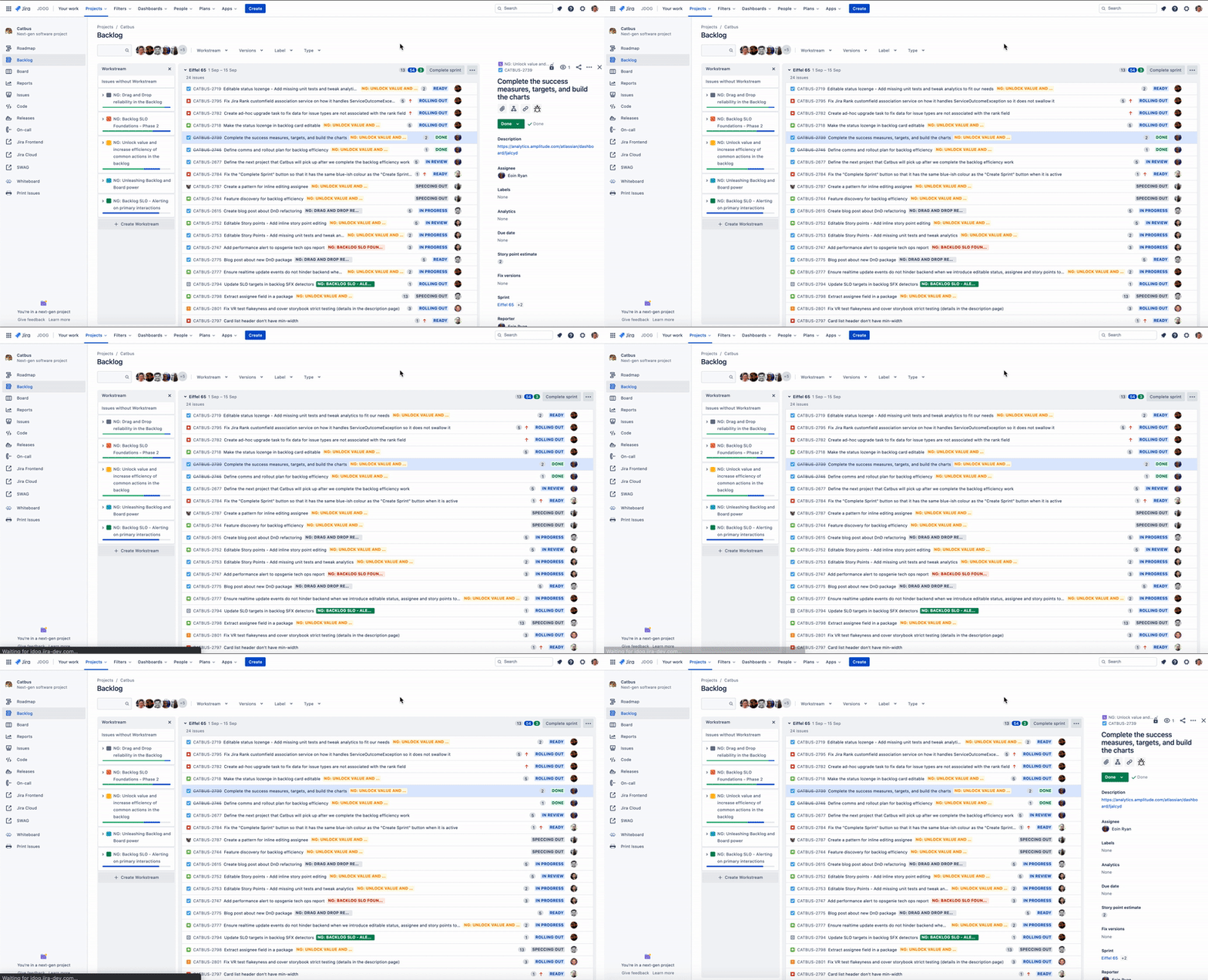
2. Open up a detailed view of the issue.
Open up an issue in a detailed view with o or enter and quit it via ESC, or toggle the detailed issue view with t when you’re in the sidebar panel view of the issue view on the board and backlog.
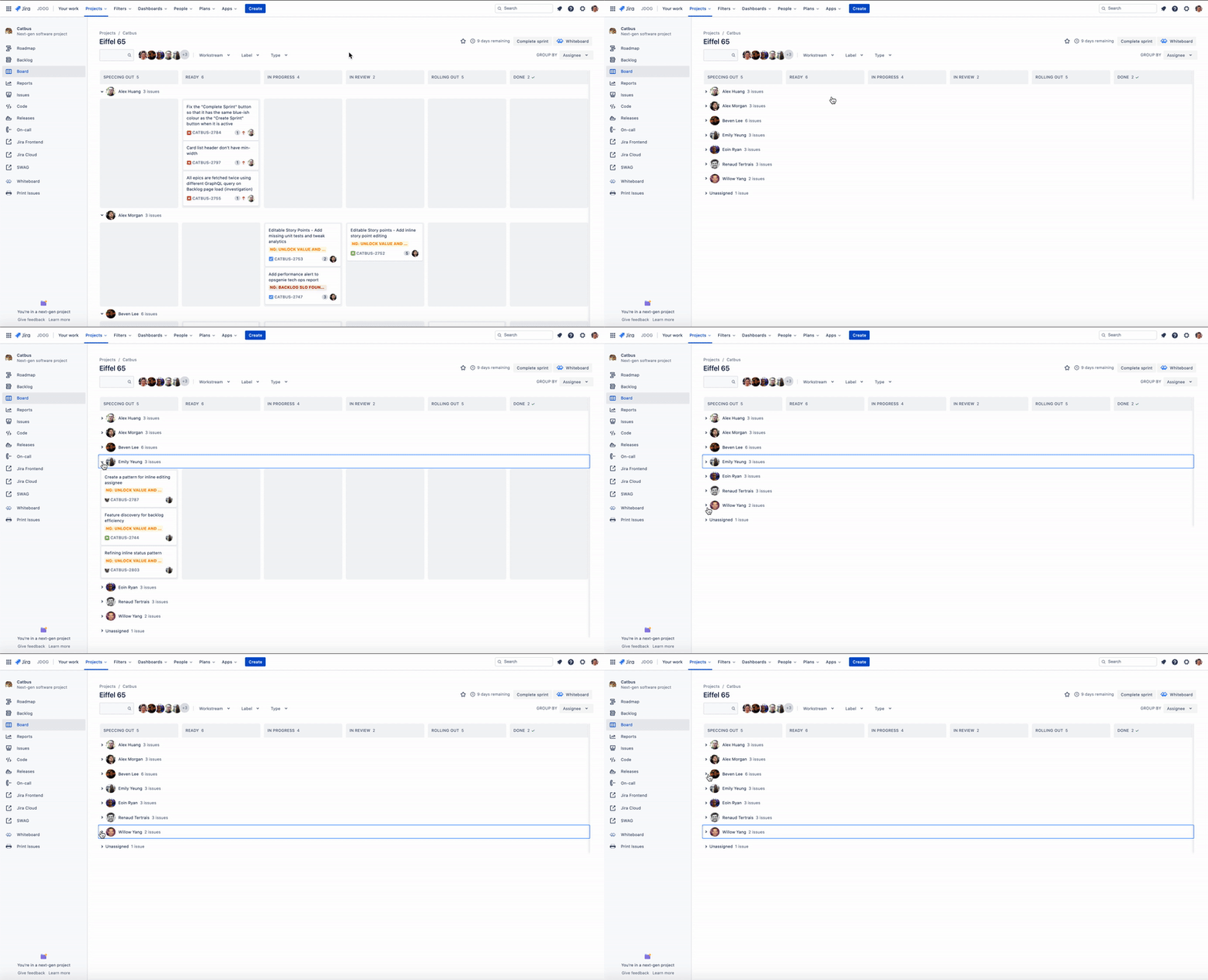
3. Toggle board swimlanes to get a quick view of their statuses, as well as their children.
Understand how a parent issue is progressing by reviewing its status, and collapse/expand during team stand-ups to focus on each assignee’s work with -.
ISSUE ACTIONS
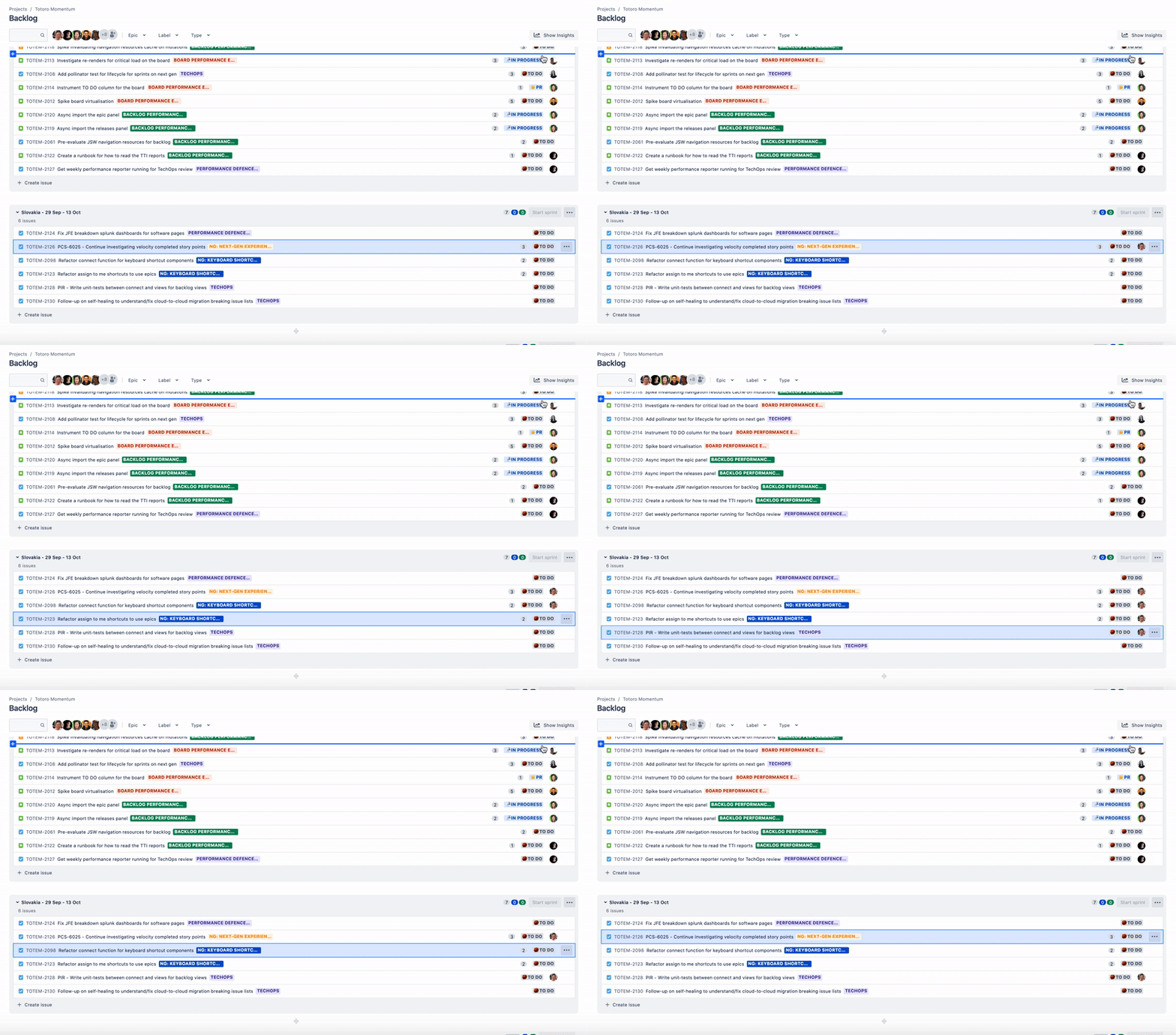
1. Assign an issue to yourself or others.
Assign an issue to yourself with i, or to others with a.
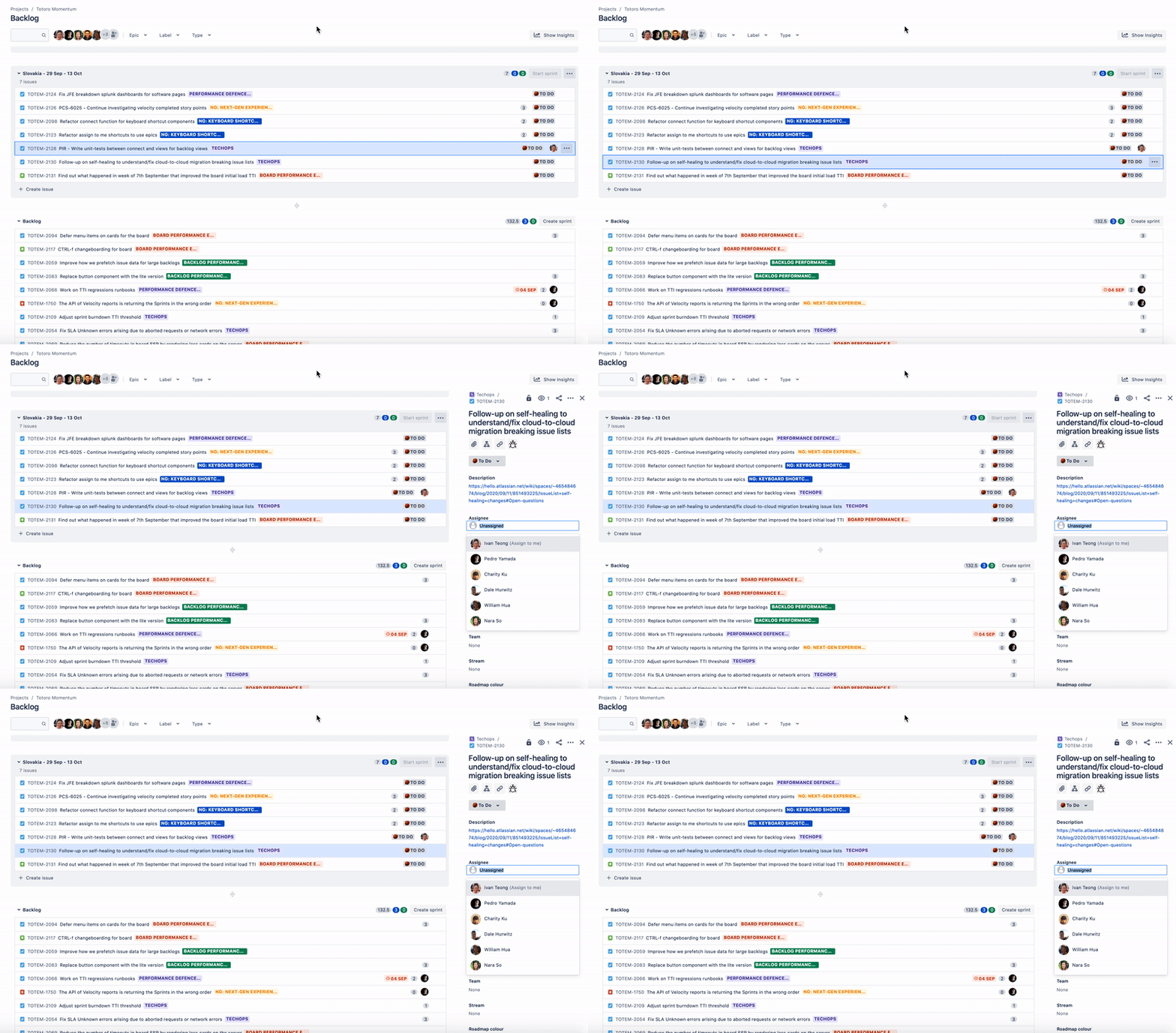
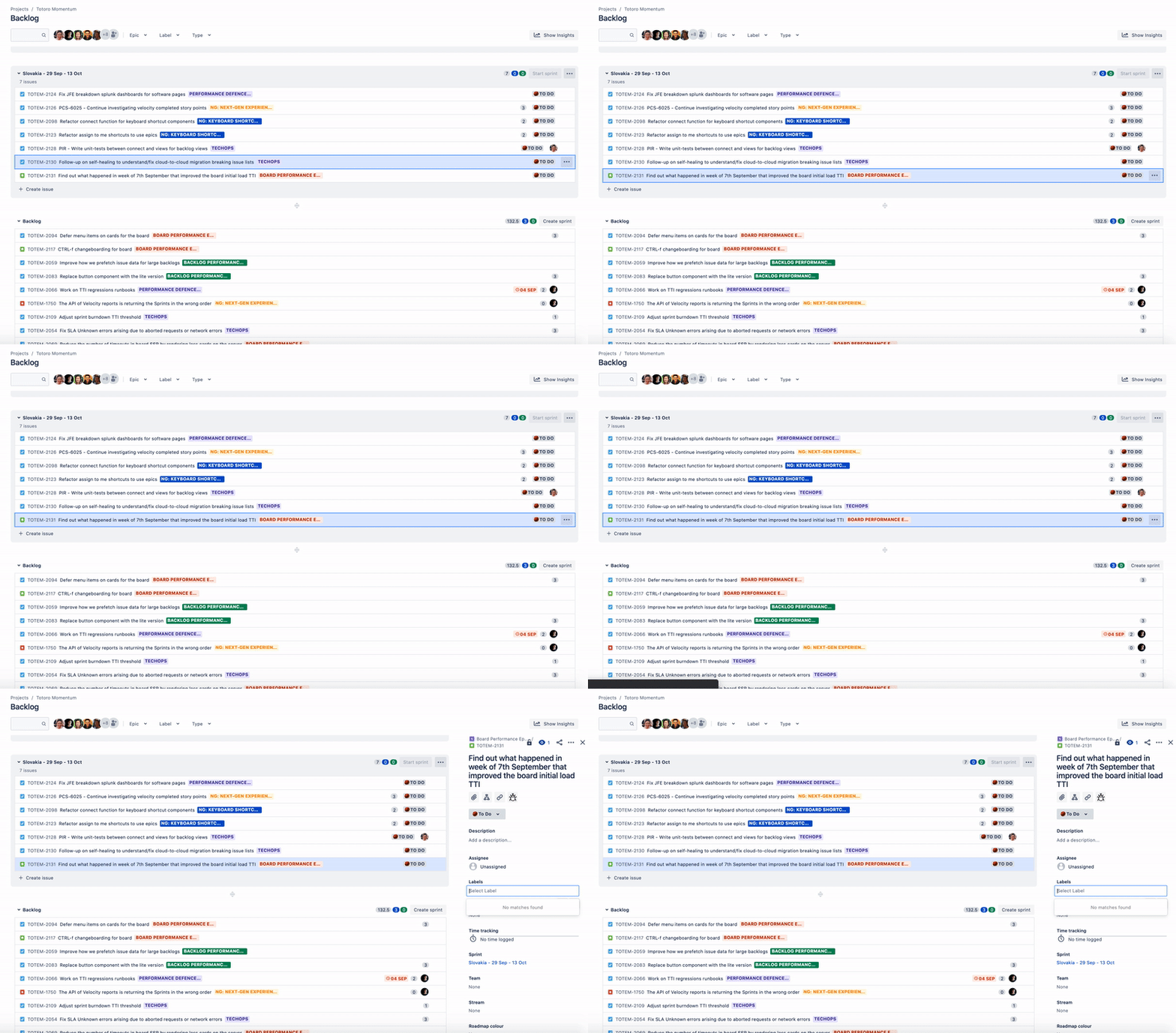
2. Edit labels.
Change the label that an issue is associated with through l.
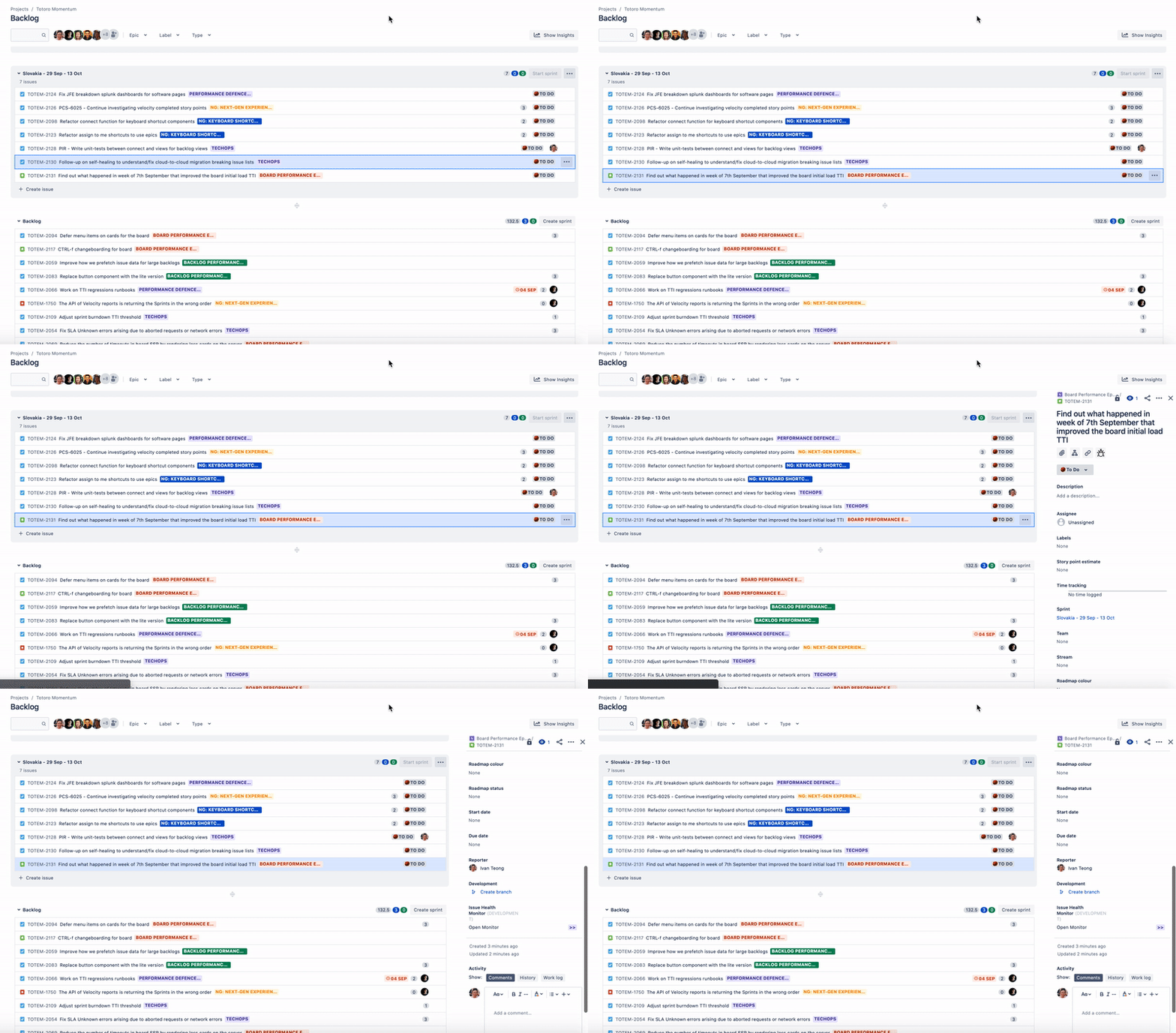
2. Comment on an issue.
Add an important comment quickly with m.
NAVIGATE
1. Switch between views of issues.
Switch between our most highly-used views, Backlog / Board / Reports / Roadmap with 1, 2, 3, 4.
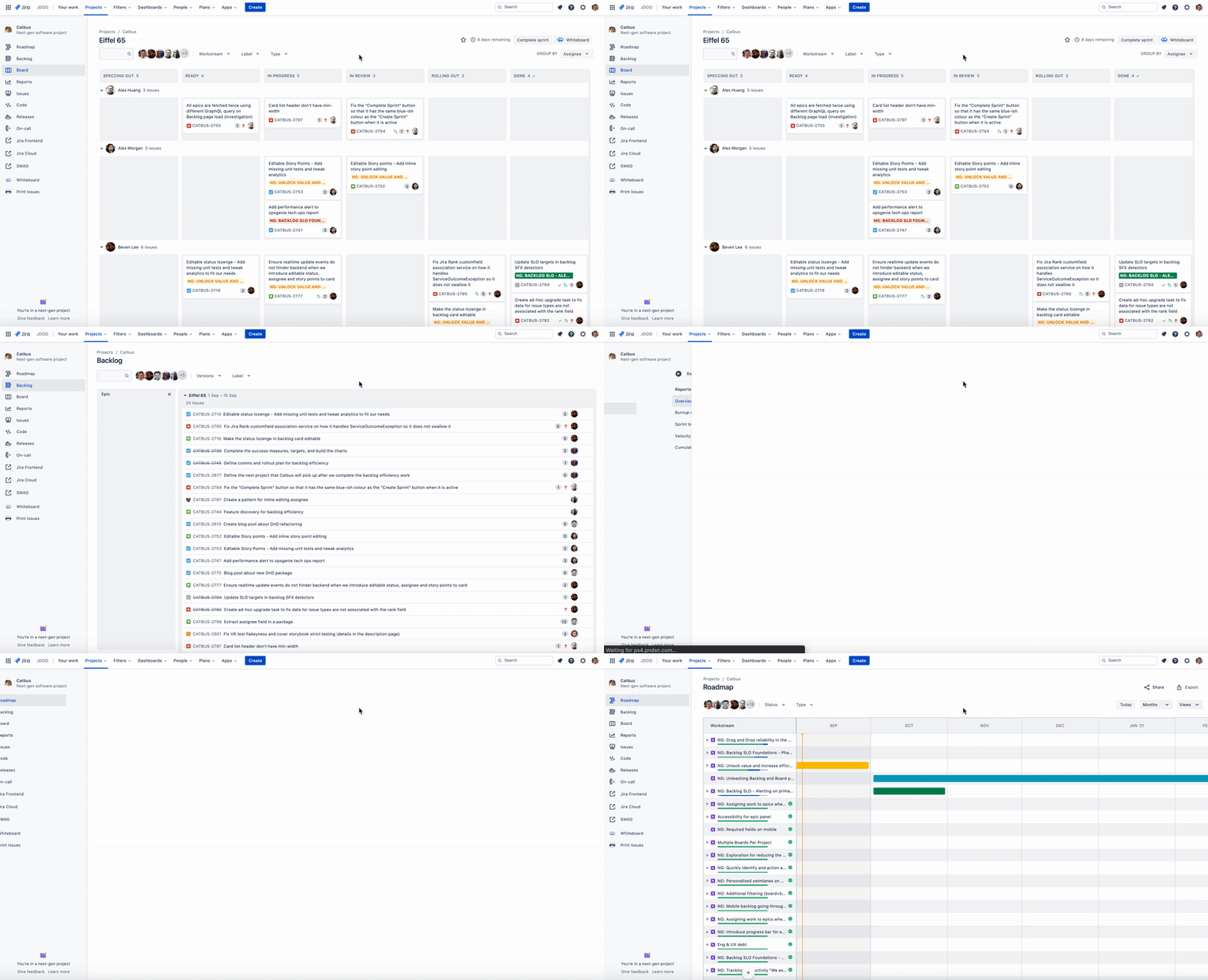
2. Go up/down issues within columns.
Navigate to the issue you want with the j, k shortcuts on the backlog and board. This goes back to the early days of UNIX, where J and K are mapped to previous and next before the advent of arrow keys. If you combine these with those in ISSUE ACTIONS, you can quickly assign/update issues without ever using your mouse!
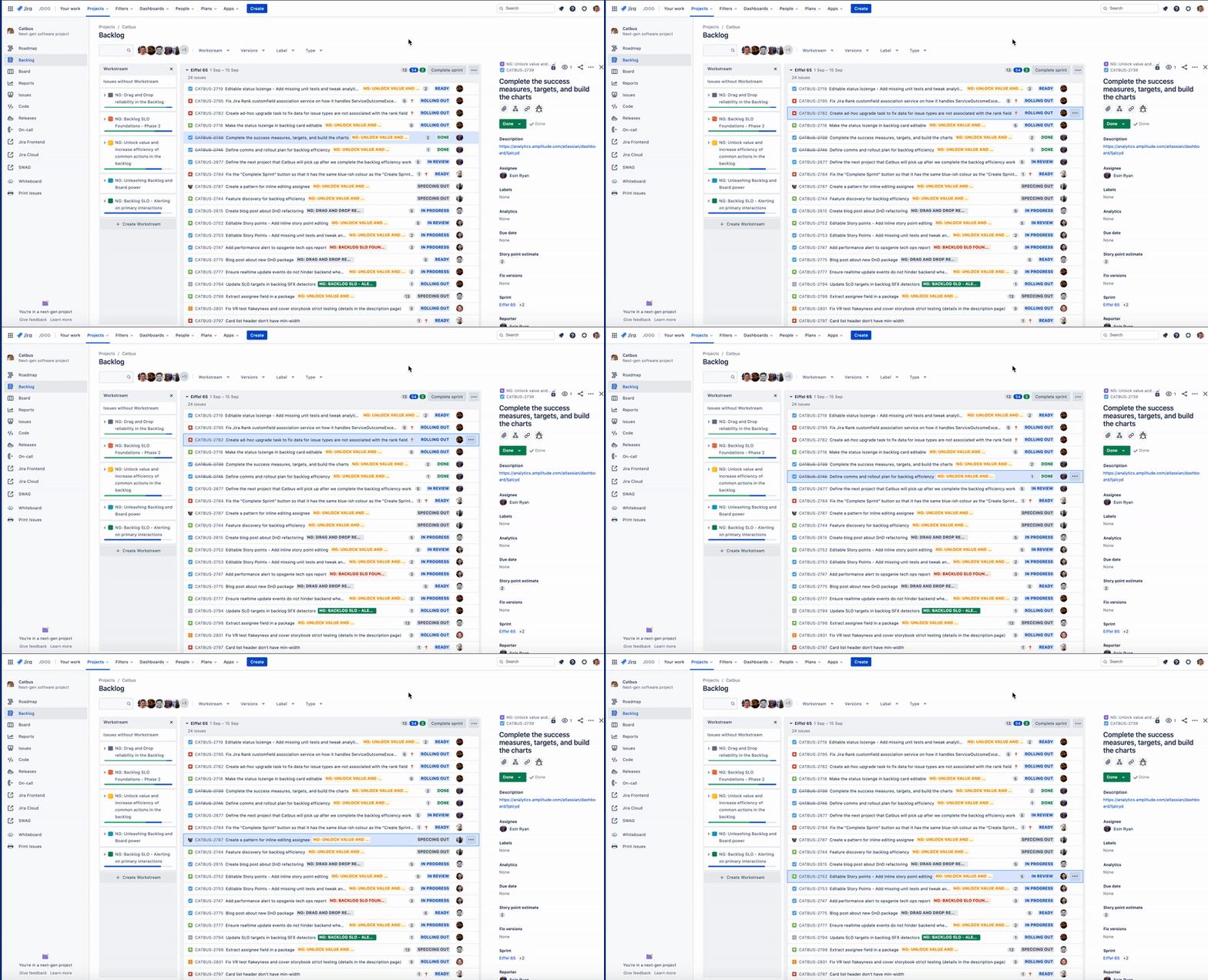
3. Jump between board columns.
Jump between board columns without having to go through each individual issue using n, p.
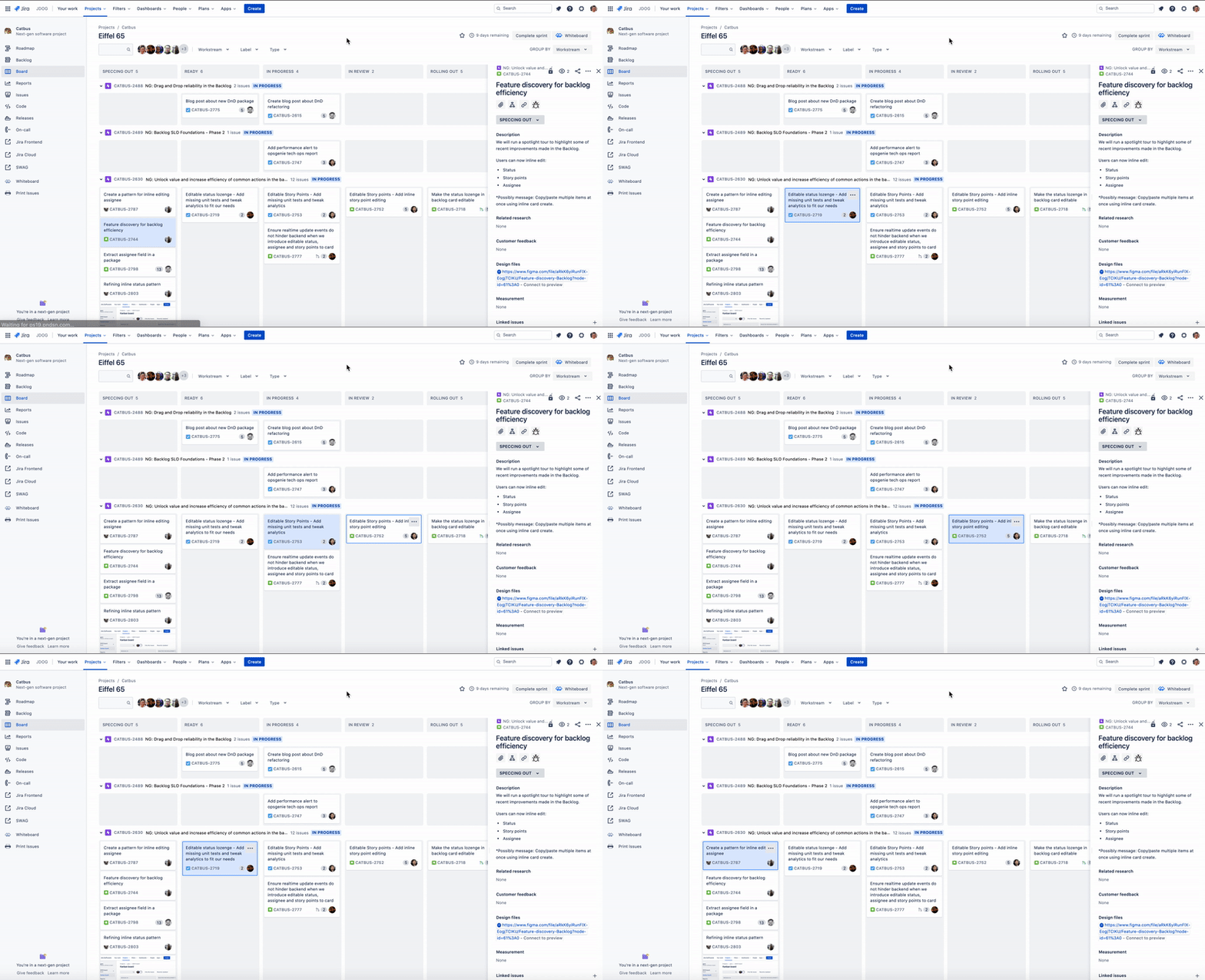
DISABLE
If you’re using a screen-reader and doesn’t want it to clash with these shortcuts, or dislike accidental triggers, you can also disable these shortcuts through the dialog menu with the disabling toggle.
WHAT'S NEXT?
I’ve got suggestions or questions – how can I provide feedback?
-
Provide feedback using the “Give feedback” link in the bottom left of your project navigation.
-
Feel free to reach out to our support team if you have any suggestions.
-
Learn more about using this feature in our support documentation.


