Hi Jira admins 👋
We are excited to announce that Space policies are now available in open beta to Standard, Premium and Enterprise customers across Jira, Jira Service Management, and Jira Product Discovery.
Space policies let teams create and manage team-managed spaces within guardrails you define. Teams get the freedom to shape Jira around how they work. Admins can protect site-wide consistency without handling every configuration request.
Without these guardrails, admins face a difficult choice. Keep team-managed space creation open and risk duplicate fields and inconsistent statuses, or restrict it and become the approval queue for every change.
Space policies give you a better option: define the boundaries once, then let teams self-serve inside them. Teams move faster, admins spend less time on routine configuration requests, and Jira stays within the standards your organisation needs.
What can you govern?
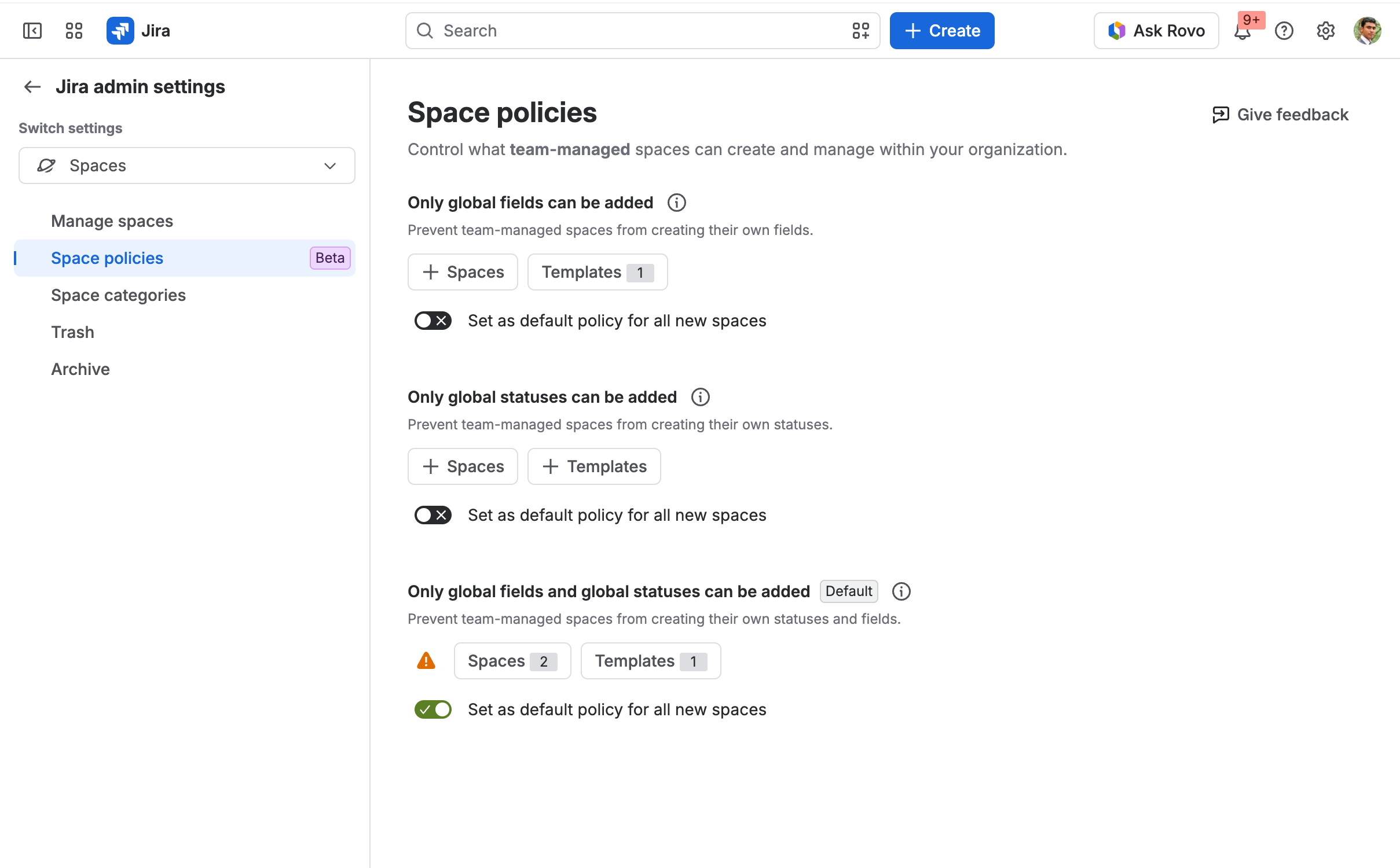
Space policies include three ready-to-use options:
-
Global fields only: Teams can use existing global fields, but cannot create new space-specific fields.
-
Global statuses only: Teams can use existing global statuses, but cannot create new space-specific statuses.
-
Global fields and statuses: Applies both rules together.
A team-managed space can have one policy at a time. When a policy is applied to an existing space, it takes effect immediately. Existing space-specific fields and statuses continue to work, but Jira shows conflicts so admins can review them over time. The policy prevents teams and apps from creating new space-specific configuration that breaks the guardrail.
Make governance the default
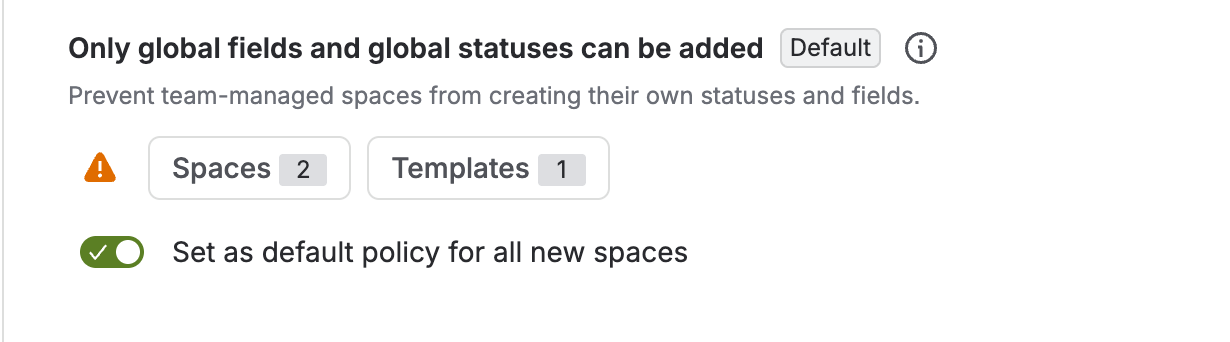
You can set one Space policy as the default for all new team-managed spaces. New spaces automatically receive that policy, so admins do not need to add each space manually.
Changing the default affects future spaces only. It does not change existing spaces or custom templates that already have a policy.
Apply policies through custom templates
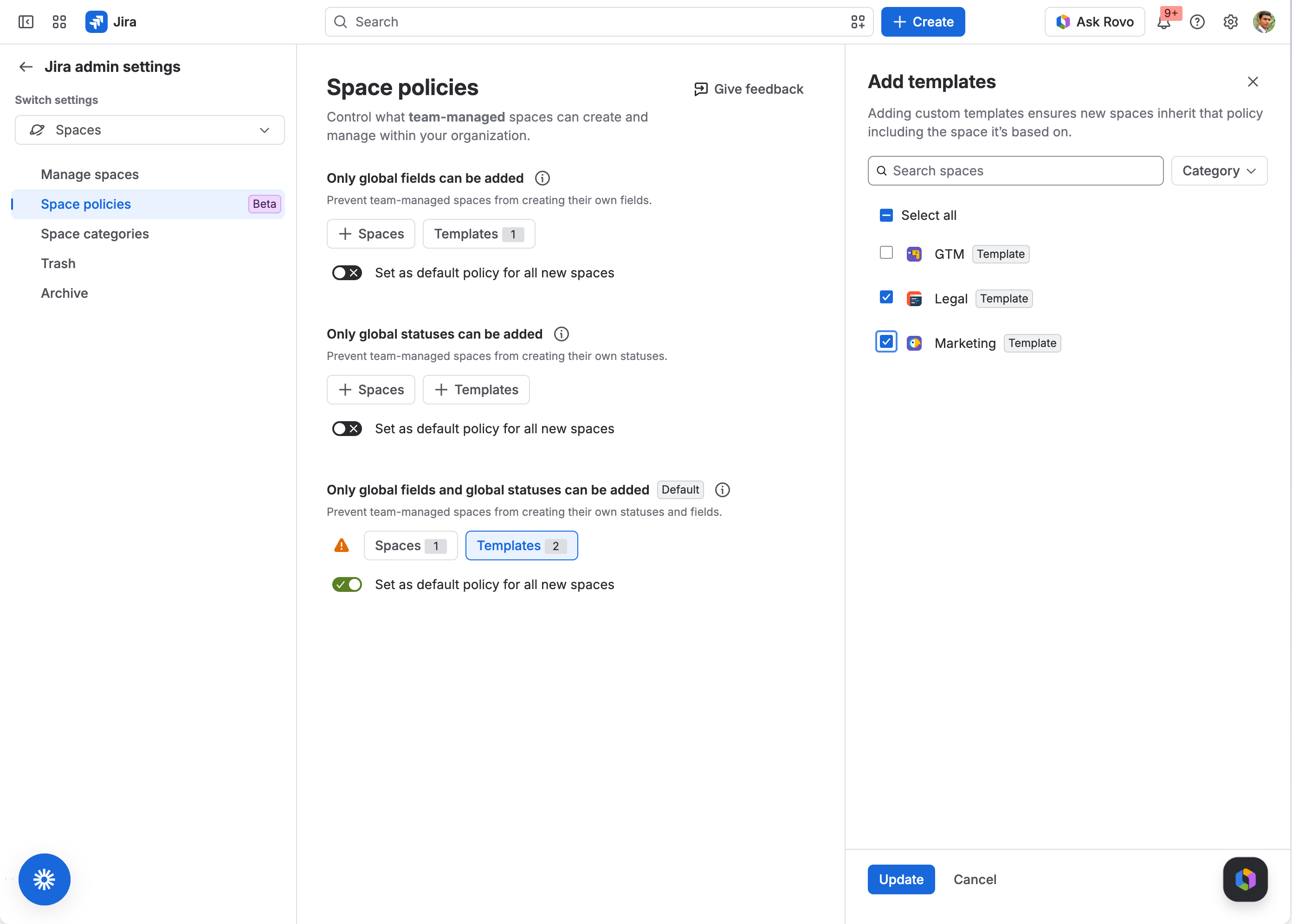
Space policies also work with custom templates. Add the space that backs a custom template to a policy. Every new team-managed space created from that template automatically inherits the policy. If a template doesn’t have a Space Policy associated with it, it will use the site’s default policy if enabled. The user creating the space does not need to take any extra steps.
How to get started
You must be a Jira admin to enable and manage Space policies.
-
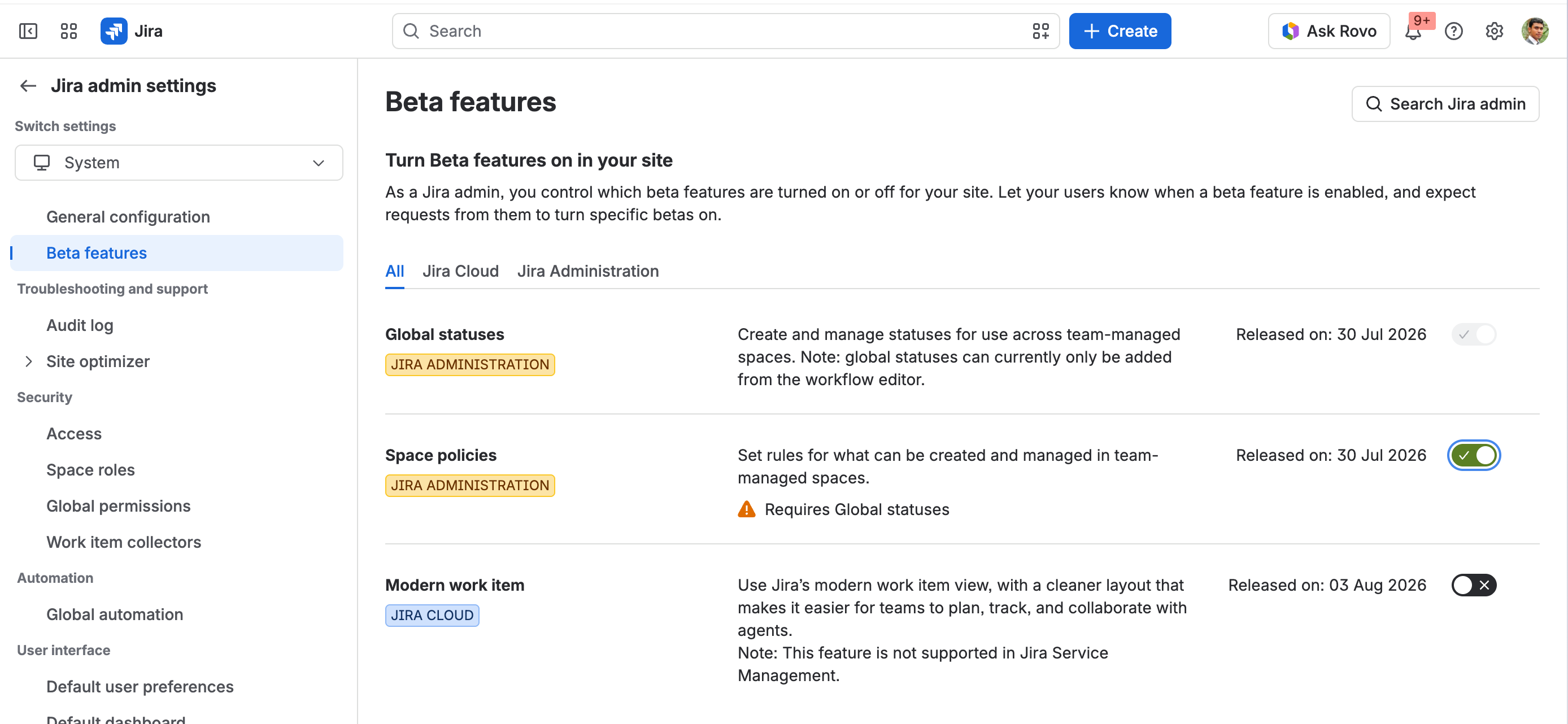
Select Settings, then System.
-
Select Beta features.
-
Find Space policies and turn it on. If Global statuses is not already enabled, Jira will ask you to enable both features.
-
Go to Settings, then Spaces, then Space policies.
-
Choose a policy and select Add spaces. Select the spaces or template spaces you want to govern, then save.
-
Optionally, set one policy as the default for all new team-managed spaces.
Space policies currently apply to team-managed spaces only.
Want to leave the Beta?
First remove all spaces from their policies, then turn off the beta feature.
Turning off the feature alone does not remove policy enforcement from spaces that already have a policy.
Help us improve Space policies
Once you have enabled the beta, select Give feedback on the Space policies page. Tell us:
-
Which policy rules would be most useful next?
-
What made the setup or conflict review difficult?
-
Do Space policies give you more confidence to let teams create and manage their own spaces?
You can also share questions and feedback in the comments below. Your feedback will help us decide what to improve before general availability.
Documentation can be found here.


