Use basic search to find information in Jira
5 min
Beginner
By the end of this lesson, you'll be able to:
- Find work items, boards, and spaces using the search bar
- Find work items using basic search
Use basic search to find work items
You know some of the information about the work item, but can’t remember its summary or key. Where do you start? In basic search, you can find work items by selecting specific criteria in dropdown menus.
👇 Here’s what basic search looks like.

You can also use basic search to find all work items that meet certain criteria, not just one specific work item.
👉 For example: Let’s say you just found out your coworker, Maya, is going to be out sick this week. You and Maya are working on an epic together. You want to see all work items Maya hasn’t yet finished in that epic, so you can prioritize the remaining work.
In basic search, you can use dropdown menus to search for all work items in that specific epic that are assigned to Maya and have a status of “To Do” or “In Progress.”
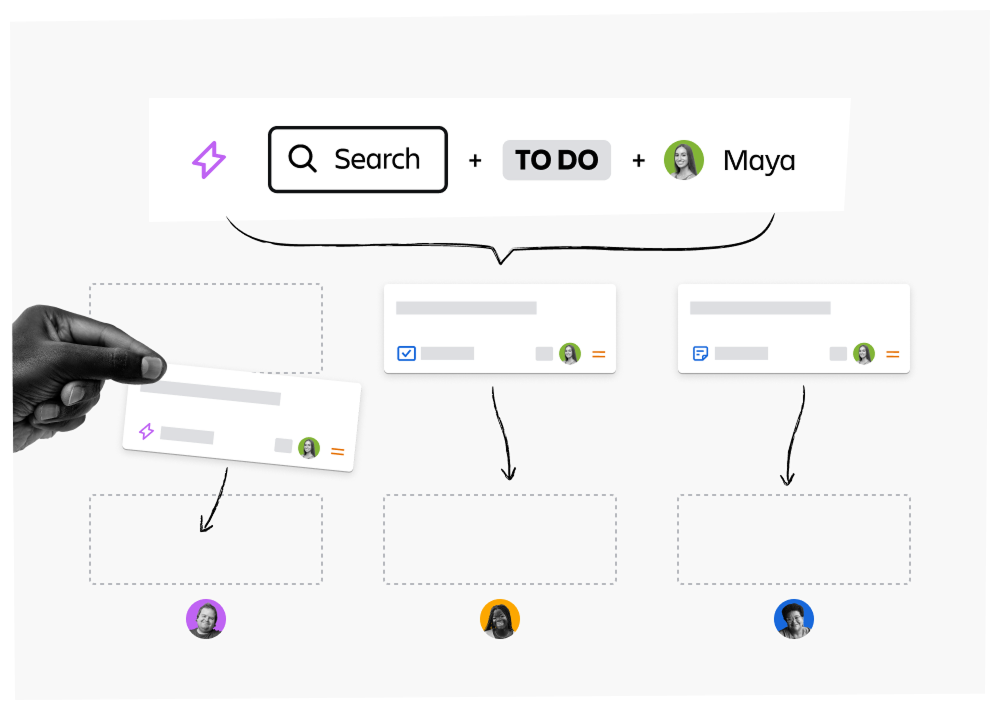
👇 Click the tabs below to learn how to use basic search.
Click the search bar. Press Return or Enter on your keyboard, or click Work items (JQL).

By default, basic search only shows work items created in the last 30 days. If you want to see older work items, simply click X to remove that search criteria.
Use the search bar
You can only use basic search to find work items, not spaces or boards. If you want to find a space or board, the search bar can help. The search bar is powered by Rovo, so as you type a keyword, Jira suggests results in real time.
You can also focus your search by selecting a category along the bottom of the search preview Work items, Boards, Spaces, Filters, Plans, or Teams to open a dedicated results page for that type of item and continue searching there.
👇Click a category to go to that specific search page.

Switch to advanced search
If the dropdown menus and criteria in basic search don’t meet your needs, you can use advanced search. In advanced search, you’ll write your own queries in Jira Query Language (JQL). These queries can handle complex searches with more specific criteria.
👇 To use advanced search, switch from Basic to JQL.

👇 Watch this video to learn how you can use Rovo to speed up your search process in JQL.
How was this lesson?
next lesson
Prioritize work with the List view in Jira
- What is the List view?
- Add the List view to your space
- Explore the List view
- Take bulk actions in the List view