Create custom Rovo Agents

20 min
Beginner

By the end of this lesson, you’ll be able to:

  • Identify the types of tasks Rovo Agents are best for
  • Duplicate and modify an existing Agent
  • Determine the type of custom Agent you need
  • Create a custom Agent with effective instructions, conversation starters, and knowledge
  • Edit an Agent

Do you need a custom Agent?

A custom Agent is a tailored Rovo Agent that can be created by users to fit their specific needs or contexts and integrate into their unique workflows. Custom Agents offer the flexibility to customize the specific tasks they perform, the instructions they follow, and the specialized knowledge they have access to. In contrast, the out-of-the-box Agents that customers can use when they enable Rovo provide standardized, ready-to-use functionalities that are ideal for general use cases. If an out-of-the-box Agent can’t perform a task that meets your needs, you may need to create a custom Agent.

Identify tasks that can benefit from a Rovo Agent

To identify tasks or use cases that can benefit from a Rovo Agent, start by auditing your workflows and documenting all the tasks you perform, including those that are adjacent to your primary responsibilities, such as asking others for feedback or compiling information for reporting. Focus on tasks you do frequently that are repetitive, time-consuming, and involve text-based outputs, as these are prime candidates for automation.
👇 Click the topics below to learn more about the criteria for a good Agent task.
👇 Watch this video to learn how a Project Manager creates a custom agent to handle repetitive tasks in Rovo.

Choose an approach to creating an Agent

Consider duplicating an existing Agent

Duplicating existing Rovo Agents can be a practical alternative to creating a new Agent from scratch, providing you with a template for customization. This process saves you time and ensures that the core functionalities and settings of the original Agent you enjoy working with are preserved.
You may consider duplicating an existing Rovo Agent in the following scenarios:
  • You want to create a similar Agent to an existing one, but with slight modifications.
  • You want to maintain consistency across different teams or spaces, but require some customization to fit your team’s unique workflows or context.
  • You want to experiment with different configurations or improvements while keeping the original Agent intact.
  • You are interested in creating an Agent, but just aren’t sure where to begin!
👉 For example: Alexander works in Customer Support and has been using a Rovo Agent to help handle common queries. He finds that it really improves his efficiency. He duplicates the existing Agent to create a new one tailored for a specific app line, ensuring quick adaptation without needing to start from scratch.
To duplicate an existing Rovo Agent:
  1. Open Rovo chat by selecting Ask Rovo at the top-right of your Atlassian app window.
  2. Click the Rovo chat menu then select View all agents.
  3. Locate the Rovo Agent you wish to duplicate. Hover over the Agent and click More actions (represented by ···), then select Duplicate Agent.
  4. Rename your duplicate, create a new description for it, modify the scenarios, instructions, and add or remove knowledge sources and skills.
👇 Duplicate an existing agent to customize it to your needs and context.
A Rovo agent toolbar shows a list of Rovo agents. The more options menu is selected on an existing Rovo agent and the Duplicate agent option is highlighted.

Determine whether your task requires a no-code or code Rovo Agent

If a similar Agent does not exist, you can create a new custom Agent that is relevant to your specifications. There are two types of custom Agents to cater to different user needs and technical expertise levels: no-code Agents and code Agents.
No-code Agents are easier for any user to create since they use natural language instructions, as they are created and customized directly within the Rovo platform without any programming knowledge. These Agents can be configured in Studio, a user-friendly text-based interface that allows users to create and configure agents.
On the other hand, code Agents are created using Forge, Atlassian's development platform, and are intended for users with programming skills. These Agents offer greater flexibility and customization options, enabling developers to write custom scripts, integrate with external APIs, and implement complex logic tailored to specific requirements. Code Agents are distributed or sold as apps through Atlassian Marketplace.

You can find information on how to create a Rovo Agent using Forge and example apps in Forge documentation.

Create a no-code Rovo Agent

Creating a new custom Agent from within Rovo is an ideal solution when you have identified specific tasks that could benefit from automation but find that duplicating an existing Agent does not meet your needs, and coding an Agent using Forge is not necessary. Creating a custom Rovo Agent from scratch allows you to tailor the Agent precisely to your unique requirements.

Studio admins can control who can create Agents. Agent creation can be available to all users, limited to selected groups, or limited to org admins only. If you can't create an Agent, contact your Studio admin.

👇 Click the tabs below to explore the two ways to create a Rovo Agent in Studio.
To create an Agent using Chat:
  1. Open Rovo Chat by clicking on the Ask Rovo button at the top-right of your Atlassian app window.
  2. Select the Rovo Chat menu, then click View all agents.
  3. Click the + icon to create an agent. You’ll be taken to Studio app.
  4. Answer the questions to help Rovo understand what you want your Agent to do.
  5. Click the Test button to test your new agent.
  6. Review, finalize, or manually edit elements of your Agent (like its name and descriptions).
  7. Once you’ve settled on a Name and conversation starters, click Publish to publish your Agent and start using it.
👇 Create a new Agent using Chat by answering questions.
A Rovo agent creation screenshot shows a chat conversation to collect details about a new Rovo agent to be created.

You can hide or show Agents even after you create them by editing the Agent. You can also restrict who can see and use a specific Agent by adding people individually. Restricting access by group isn't supported yet. Restricted Agents are hidden from Agent directories and automation options for anyone who doesn't have access. Agents always act on behalf of the person using them and don't grant additional access or permissions to any data or information, so people can only see content they have access to.

Write instructions for your Agent

When you create an Agent, you can provide instructions that define the way the Agent responds. These instructions customize the Agent to your needs.
These instructions customize the Agent to your needs. Instruction should also outline things such as:
  • What the role and persona is, what will be its job
  • How the agent should interact with people or what tone should it use
  • Guardrails and limitations to define, what it should not do
  • Format of the output
On top of the main instructions, you can add Subagents when creating or editing an Agent. Subagents are specialized helper Agents that a parent Agent can delegate work to. Each subagent is configured independently with its own:
  • Name and trigger (a routing description) which defines when the parent Agent delegates to this subagent
  • Instructions which tell the subagent what it should do
  • Tools, skills and knowledge sources
  • Deep research and web search settings
A parent Agent can delegate to many subagents simultaneously within a single task, enabling richer, multi-domain responses. Subagents return summarized results back to the parent Agent, keeping the main Agent's context clean and concise.

Create conversation starters for your Agent

Conversation starters are suggested questions or instructions for users when they start a chat with your Agent. They are helpful for people who may not know what to ask the Agent, and can be framed as questions or instructions. When someone starts a new chat with an Agent, they are presented with three clickable conversation starters in the chat window.
👇 Conversation starters appear as three clickable questions or instructions in the chat window.
A Rovo agent called "Progress Tracker" shows three conversation starters to guide users.
People interacting with your Agent can either:
  • Click on a conversation starter to send that message to the Agent and begin their chat.
  • Write their own question, instruction, or prompt.
Although not required, it is strongly recommended to create custom conversation starters for your Agent. Conversation starters provide people with the kinds of questions or instructions your Agent is best at working with. Try to use examples that show off what your Agent can do. If you leave the field blank, your Agent will use generic conversation starters.
👉 For example: An Agent that writes social media content for your brand might have the following conversation starters: “Write a short Instagram post”, “Create 15 hashtags I can use for this post”, “What’s a tagline I can use to get people’s attention on this post?”
👉 Another example: An Agent that helps you find subject matter experts might have the following conversation starters: “Who should I talk to about this work?”, “What team is responsible for this work?”, “Has anyone been working on similar subject matter to this page?”

Provide knowledge to your Agent

Knowledge, in the context of Agents, is the information and resources that you provide to an Agent to help improve the accuracy and helpfulness of its responses. All Agents have generic knowledge to work from, but providing specific, relevant knowledge sources helps the Agent behave in a more optimized, accurate way. Depending on the task your Agent is designed to perform and the information it needs to do it well, you might provide it with knowledge sources such as specific Confluence spaces or pages, a Jira space, Atlas goals, or even third-party products like Google Drive or SharePoint.
You can specify sources of knowledge for your Agent when you first create or later edit your Agent. Knowledge you provide an Agent will become its only source of information, and it will not reference other information in your instance to provide a response. For each knowledge type, you can start typing to search, then select the desired knowledge from the dropdown. Alternatively, you can paste a link.
👇 Specify specific knowledge sources for your Agent.
A Rovo configuration page shows options for sources of knowledge for the Agent being created.

Regularly update the knowledge sources linked to your Agent to keep it current and accurate.

Adding skills to your Agent
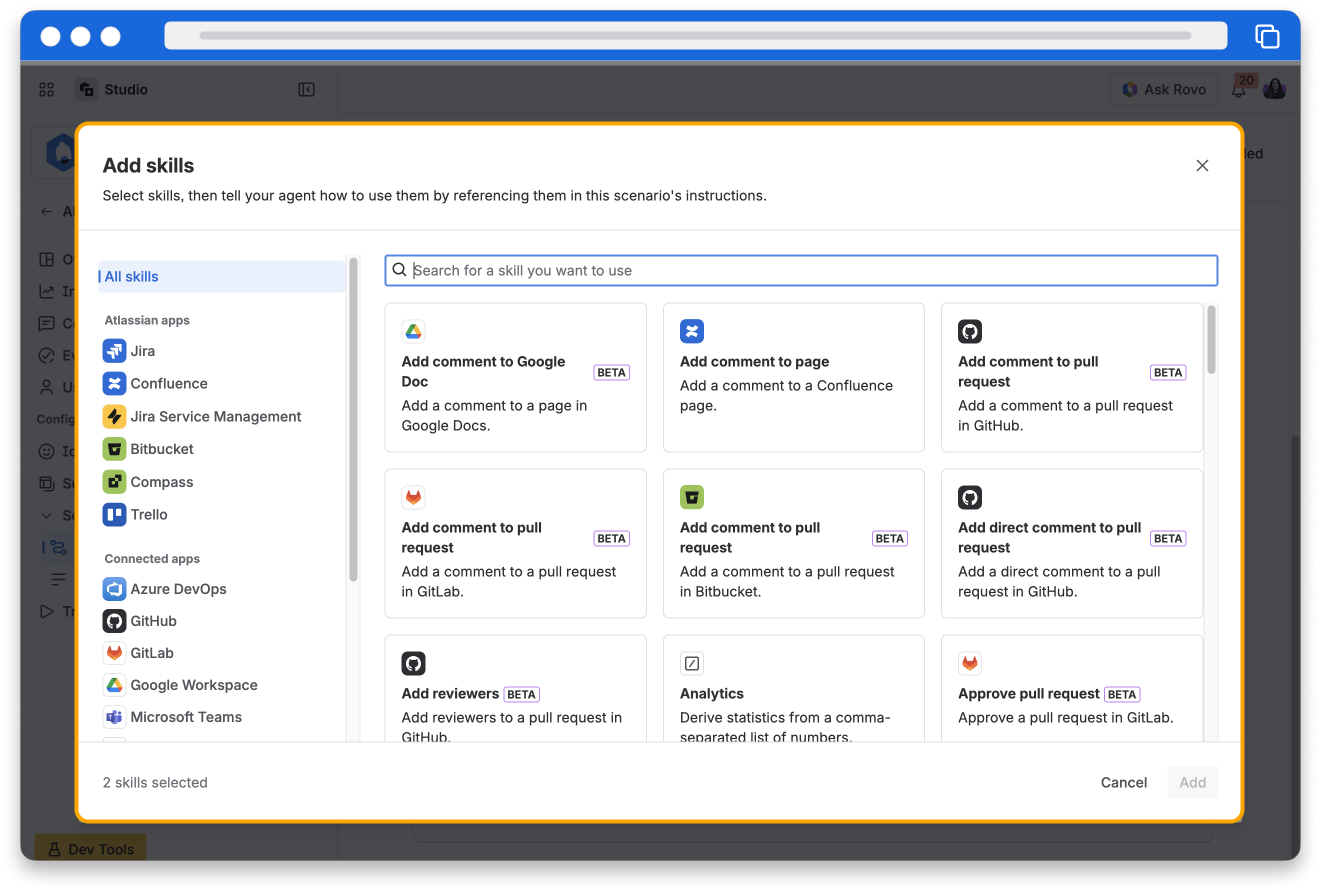
Skills allow you to choose what your Rovo agent can actually do, beyond just answering questions. Each skill connects your agent to a specific capability or data source (like creating work items, updating records, or pulling information from other tools). By adding the right skills, you make your agent more helpful and reliable, as it can take actions and fetch accurate context rather than just respond with static information.
👉 For example: Tyra builds an agent to help support engineers triage Jira work items and adds skills that look up related incidents, pull in recent deployment details, and update fields or transition work items based on clear rules. With these skills in place, the agent confidently handles routine triage steps end to end, allowing the team to focus on edge cases that require human judgment.
👇 This is where skills can be selected.
Add skills dialog showing all skills available to Rovo agents, including adding comments to Google Doc, approving a pull request, and adding reviewers.

Configure the surfaces your agent appears on

Once you’ve created a custom Rovo agent, you’re not limited to using it only inside Studio. Agents can show up across multiple “surfaces” so teams can work with them wherever they already are.
👇 Here are the different surfaces available to configure.

Test and edit your Rovo Agent

Writing good instructions is an art, and you’ll most likely need to iterate on your instructions a few times to get your Agent working exactly the way you want. After you create your new Agent, it’s important to do some testing and refinement so that you can identify and fix any inconsistencies or errors in the Agent’s responses.
👇 Click the tabs below to see some Agent testing tips.
Present the Agent with different test cases, and evaluate how the Agent performs.
Include common situations and edge cases for more thorough testing.

Evaluate your Agent with a dataset

Before you launch your Agent, you can test it using an evaluation dataset. An evaluation dataset is a CSV file of test prompts that represent the questions and requests people are likely to send your Agent.
To evaluate your Agent:
  1. Open your Agent in Studio.
  2. From the sidebar, select Evaluations, then select Create Dataset.
  3. Upload a CSV file containing up to 50 test prompts, then select Create.
An LLM judge scores each of your Agent's responses and produces a resolution rate for the dataset. You can review the results for each prompt to find where your Agent needs improvement, and download the results as a CSV file.

Edit your agent

Making edits to your Agent is very easy once you’re ready. You can make changes to any of the Agent’s details, including its name, description, subagents, skills conversation starters, knowledge, and visibility.
To edit your Agent:
  1. Open Rovo chat by clicking on the Ask Rovo button at the top-right of your Atlassian app window.
  2. Click the menu icon then select View all agents.
  3. Click on the My agents tab, which shows Agents you created. Alternatively, you can search for the Agent by name.
  4. Hover over the Agent and click More actions (represented by ···), then select Edit Agent.
  5. Edit the Agent fields, then click Save for each field you amend.
👇 Access the Edit Agent option from More actions on the Agent.
A Rovo agent screenshot highlights the option to edit the existing agent.

Only an Agent’s creator can edit the Agent.

Rovo agent triggers

When you edit an existing Rovo agent, a Triggers section appears in the sidebar. The Triggers section lets you see and define when and where your Rovo agent runs by connecting it to automations. You choose events (such as work item changes or form submissions) that automatically trigger a call to your agent, so it responds each time proactively without manual input.
How was this lesson?

next lesson

Work with Rovo Agents

  • Find existing Agents
  • Where to work with Agents
  • Interact with a Rovo Agent
  • Share an Agent with teammates
  • Try it yourself
Go to next lesson

Community

FAQsForums guidelines
Copyright © 2026 Atlassian
Report a problemPrivacy PolicyNotice at CollectionTermsSecurityAbout