Hello everyone,
I create this topic to help others who have problem to create a new plugin, and run the default Jira instance. Make this cause I passed many hours to try resolving problems when I try follow the Jira tutorial "Hello World", which is too old, or don't work to my computer (windows 10 family). I try many issues and now the origin project work and I want share this to you.
Needs:
- Install Java SE Development Kit (8 for me)
- Install SDK Jira
- Port 2990 free on your system
1- Create an add-on project using the atlas-create-jira-plugin command from a Command Prompt window :
atlas-create-jira-plugin
2- You will be prompted to provide some information about your plugin. For the purposes of this tutorial respond to the prompts as follows:
Define value for groupId: : com.atlassian.tutorial
Define value for artifactId: : myPlugin
Define value for version: 1.0.0-SNAPSHOT: :
Define value for package: com.atlassian.tutorial: :
Value 1 and value 2 need to be complete. 3 and 4, just press 'ENTER'.
And complete following prompt with ' Y ' :
Y: : Y
3- Now you can verify your installation works, need to have these components in the new ' myPlugin ' folder :
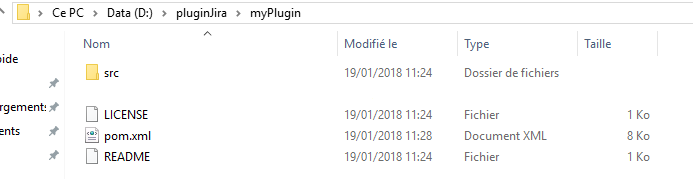
4- Need now to install different add-on before launching the server, start by prompt to go in the new folder:
cd myPlugin
And type :
atlas-create-jira-plugin-module
An installation is launched, and appear a list of many options, you need to type no of the type of plugin you want :
Choose Plugin Module:
1: Component Import
2: Component
3: Component Tab Panel
4: Custom Field
5: Custom Field Searcher
6: Downloadable Plugin Resource
7: Gadget Plugin Module
8: Issue Tab Panel
9: Keyboard Shortcut
10: JQL Function
11: Licensing API Support
12: Module Type
13: Project Tab Panel
14: REST Plugin Module
15: RPC Endpoint Plugin
16: Report
17: Search Request View
18: Servlet Context Listener
19: Servlet Context Parameter
20: Servlet Filter
21: Servlet
22: Template Context Item
23: User Format
24: Version Tab Panel
25: Web Item
26: Web Panel
27: Web Panel Renderer
28: Web Resource
29: Web Resource Transformer
30: Web Section
31: Webwork Plugin
32: Workflow Condition
33: Workflow Post Function
34: Workflow Validator
Choose a number (1/2/3/4/5/6/7/8/9/10/11/12/13/14/15/16/17/18/19/20/21/22/23/24/25/26/27/28/29/30/31/32/33/34):
I already try Gadget plugin module (9) and web item (25), their works, but have no idea of others. In this example we take web item, it's a simple plugin which launches a url by clicking on the main bar button.
You will be prompted to provide some information about your plugin module. An answer like that :
Enter Plugin Module Name My Web Item: : Google Search
Enter Section (e.g. system.admin/globalsettings): system.top.navigation.bar
Enter Link URL (e.g. /secure/CreateIssue!default.jspa): www.google.fr
And type ' N ' 2 times to show advanced setup and another plugin module :
Show Advanced Setup? (Y/y/N/n) N: : N
Add Another Plugin Module? (Y/y/N/n) N: : N
5- Now the module is installed, you need to manually add a Debugger in your project, the first installer doesn't do this alone. Then edit your pom.xml, in ' myPlugin ' with an editing text software like NotePad++, and add this part :
<plugin>
  <artifactId>maven-compiler-plugin</artifactId>
  <version>3.1</version>
  <configuration>
    <fork>true</fork>
    <executable>C:\Program Files\Java\jdk1.8.0_121\bin\javac.exe</executable>
  </configuration>
</plugin>
Modify the jdk path like being yours.
Your ' plugins ' part is now like that :
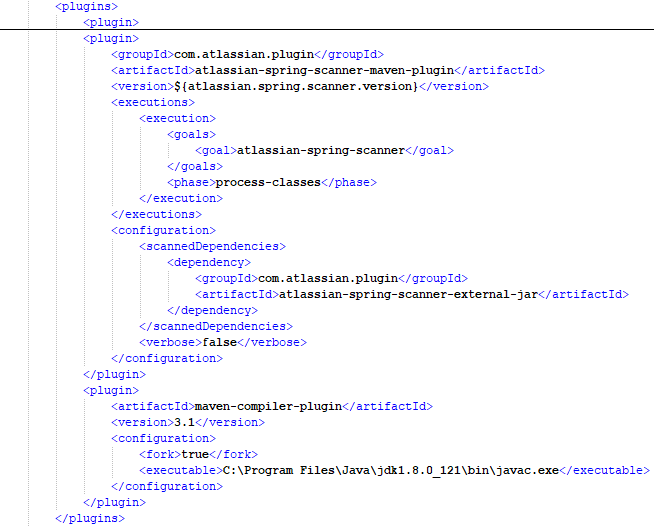
(Others plugin tags are hidden to minimize screenshot)
6- It's finished ! Your plugin now work, just have to launch him with the command :
atlas-run
When the server is launched, new lines stop to appear, and see this :
[INFO] Type Ctrl-D to shutdown gracefully
[INFO] Type Ctrl-C to exit
If the console say you connect to another port than 2990 (main Jira port) (example: localhost:50430/jira), you need to restart your PC, it reconfigure your ports automatically, now can restart your server with the same command than before :
atlas-run
You can now access your Jira local site, to ' localhost:2990/jira '.
The login page appear (default login is 'admin' and password 'admin') :
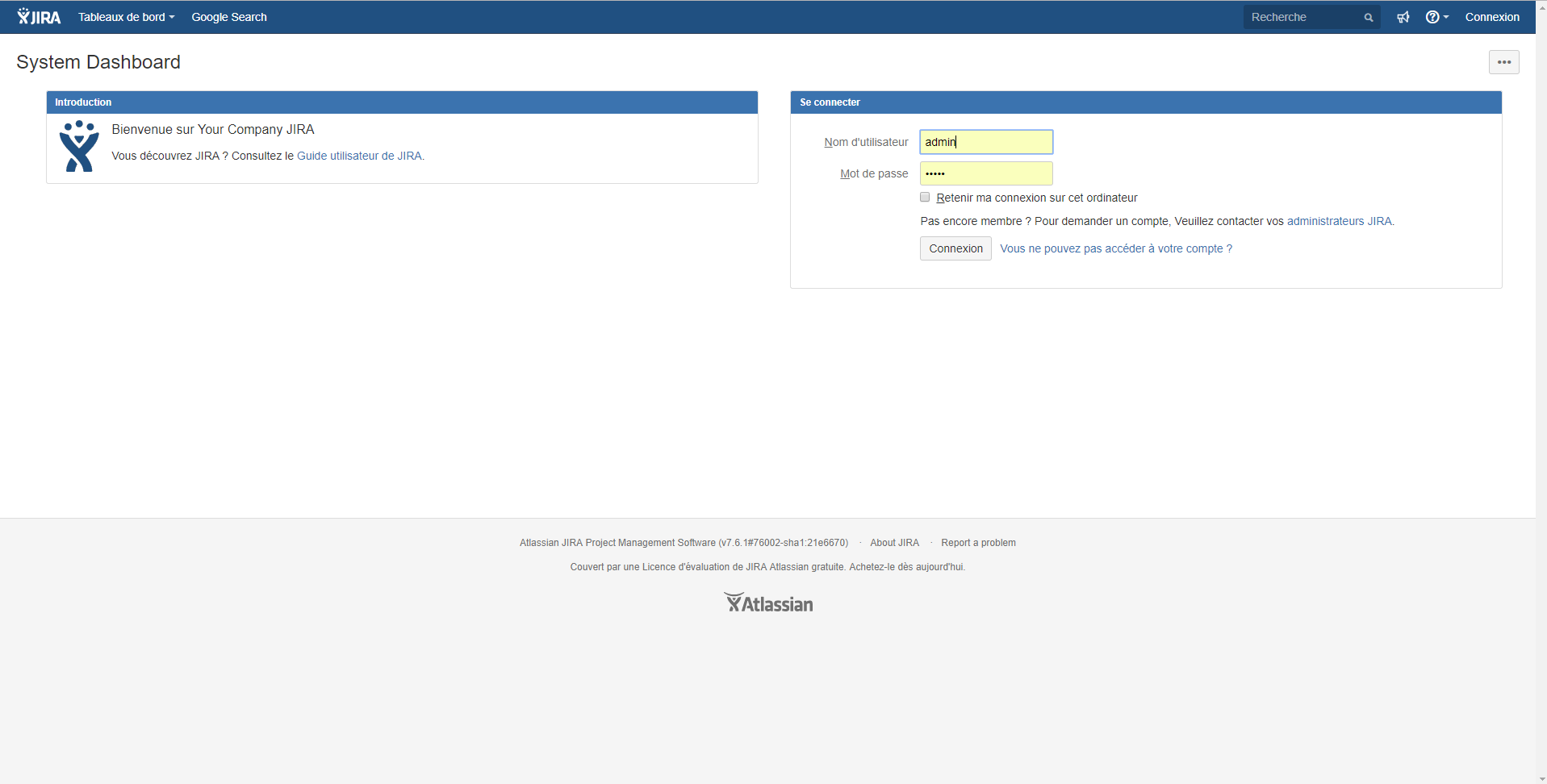
It's my first tutorial, thank to your comprehension, and sorry for my bad English (I'm french and not bilingual). If you have any questions, feel free to comment this tutorial.
Matthieu DAVID


