This article walks through importing host data from the Dynatrace OneAgents API into JSM Assets using OnLink, covering authentication, field mapping, pagination, and filtering.

TL;DR
OnLink connects to the Dynatrace environment API, fetches OneAgent host records as JSON, and maps the fields you choose to attributes on a JSM Assets object type. The flow is:
- Create or confirm the target Assets schema and object type (e.g., "Hosts").
- Configure an OnLink Assets Data Source that authenticates to Dynatrace with an API token.
- Point it at the OneAgents endpoint and fetch sample data.
- Map the JSON fields to Assets attributes and run the import.
OneAgent authentication
Dynatrace uses API tokens for authentication. A token has three dot-separated components:
<span>dt0s01.ST2EY72KQINMH574WMNVI7YN.G3DFPBEJYMODIDAEX454M7YWBUVEFOWKPRVMWFASS64NFH52PX6BNDVFFM572RZM</span>
Generate the token in Dynatrace (see the Dynatrace API authentication docs) with this scope:
| Scope |
Purpose |
|---|
oneAgents.read |
Grants access to GET requests of the OneAgents API |
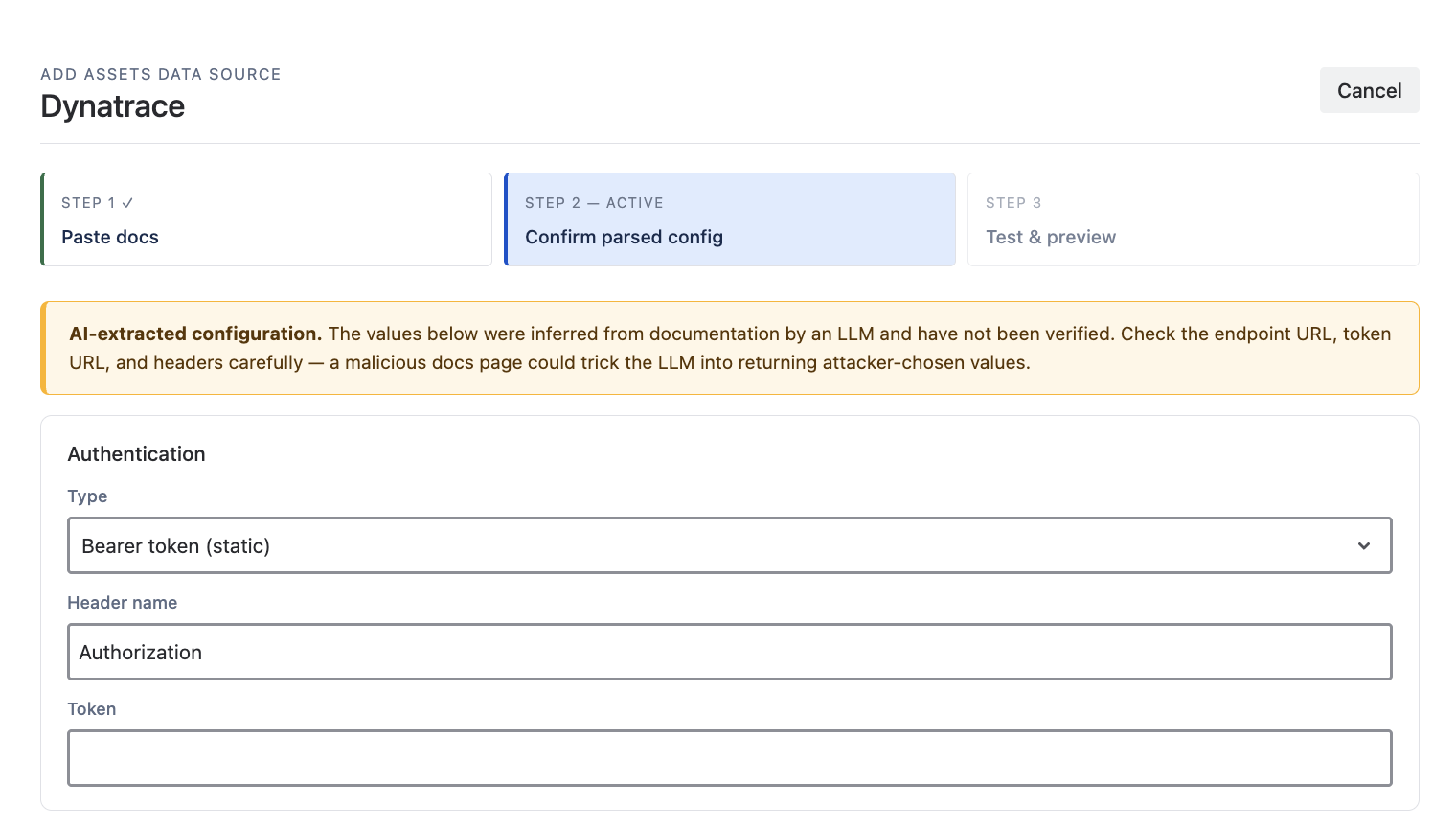
In the OnLink data source configuration:
- Add an Assets Data Source.
- Set Authentication Type to Bearer Token and paste the Dynatrace token.
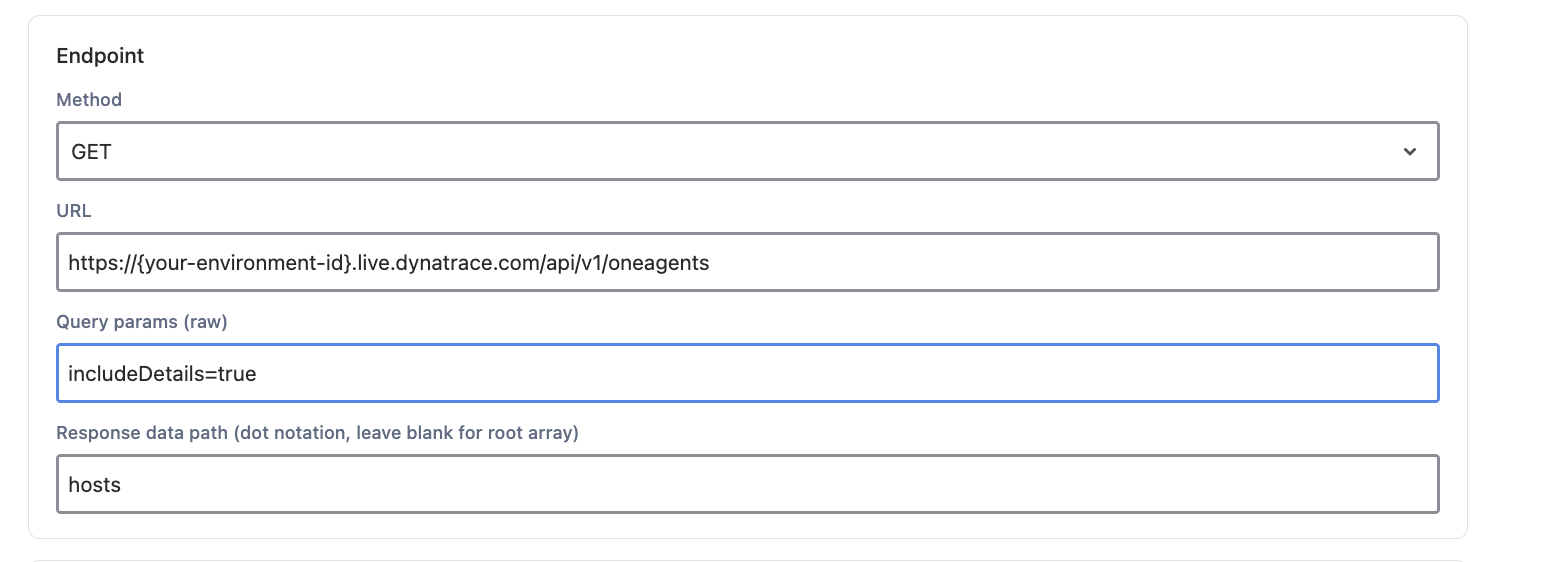
- Set Method to
GET and the URL to your environment's OneAgents endpoint:
<span>GET https://{your-environment-id}.live.dynatrace.com/api/v1/oneagents</span>
- Set Response data path to
hosts — the API wraps host records in a hosts array.
Assets Mapping
Once sample data is returned, map the JSON fields to your Assets object type attributes using OnLink mapping statements. Two statement types matter here:
key: — identifies the stable unique value used to match and update existing Assets objects. Always define exactly one.map: — copies a JSON field into an Assets attribute.
Example mapping for OneAgent hosts:
| Mapping |
Purpose |
|---|
key:entityId=Entity ID |
Uses the Dynatrace entityId as the unique key so re-imports update rather than duplicate objects |
map:displayName=Device Name |
Maps the host display name to Device Name |
map:osType=OS Type |
Maps the operating system type |
map:osVersion=OS Version |
Maps the OS version |
map:hypervisorType=Hypervisor Type |
Maps the hypervisor type |
A few tips:
- Start with the
key: mapping first, then add map: entries for each field you want in Assets.
- Compare the sample JSON with your object type attributes before importing — attribute names are case-sensitive.
- For nested values (most host details live under
hostInfo), inspect the sample output and use the field path supported by the OnLink mapping configuration.
- Use Get Data to preview results, verify the key field is unique, and only run the import once the preview looks right.
Filter query
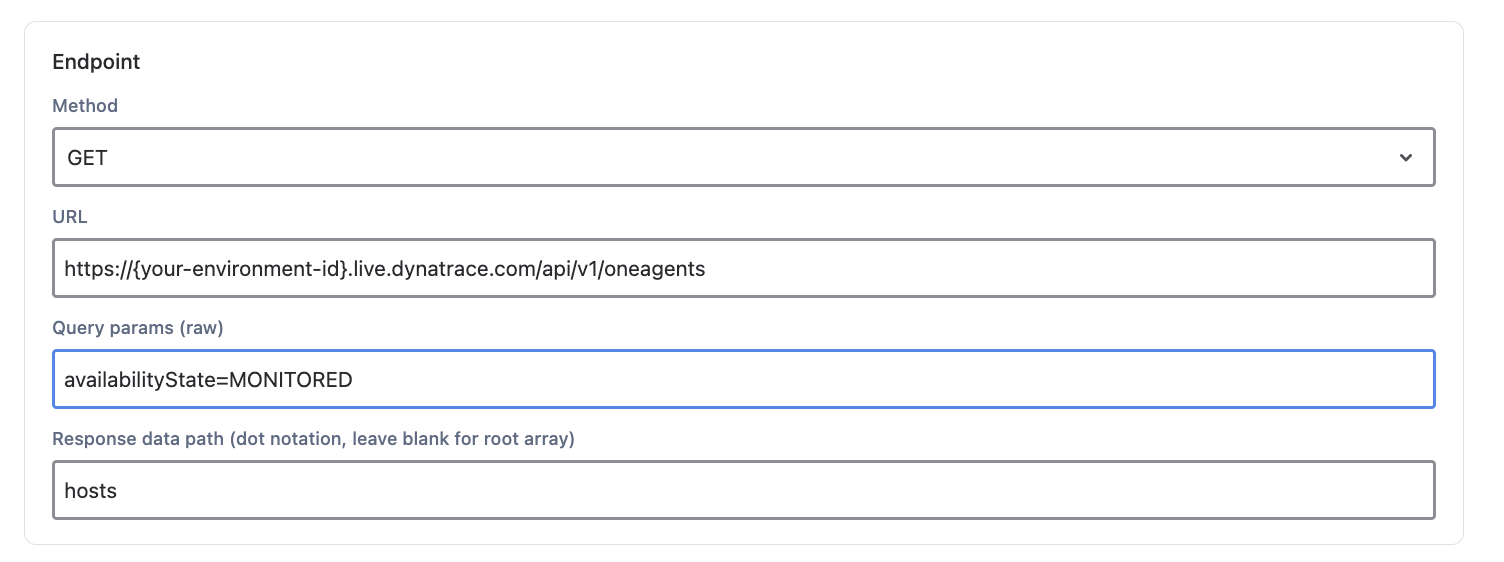
You usually don't want every host Dynatrace has ever seen. The OneAgents endpoint supports query parameters to limit results server-side — see the OneAgent API parameter reference.
For example, to import only hosts that are currently monitored, add:
<span>availabilityState=MONITORED</span>
Other useful filters include narrowing by management zone, network zone, or update status. Filtering at the API level keeps imports fast and avoids stale or decommissioned hosts landing in your CMDB.
Full step-by-step documentation: Dynatrace OneAgent to JSM Assets
If you are looking to import data from Dynatrace OneAgent without any on-premise installation or Adapter client and completely managed within your Atlassian JSM instance, give OnLink a try.
