This article walks you through importing device data from Device42 into Assets.
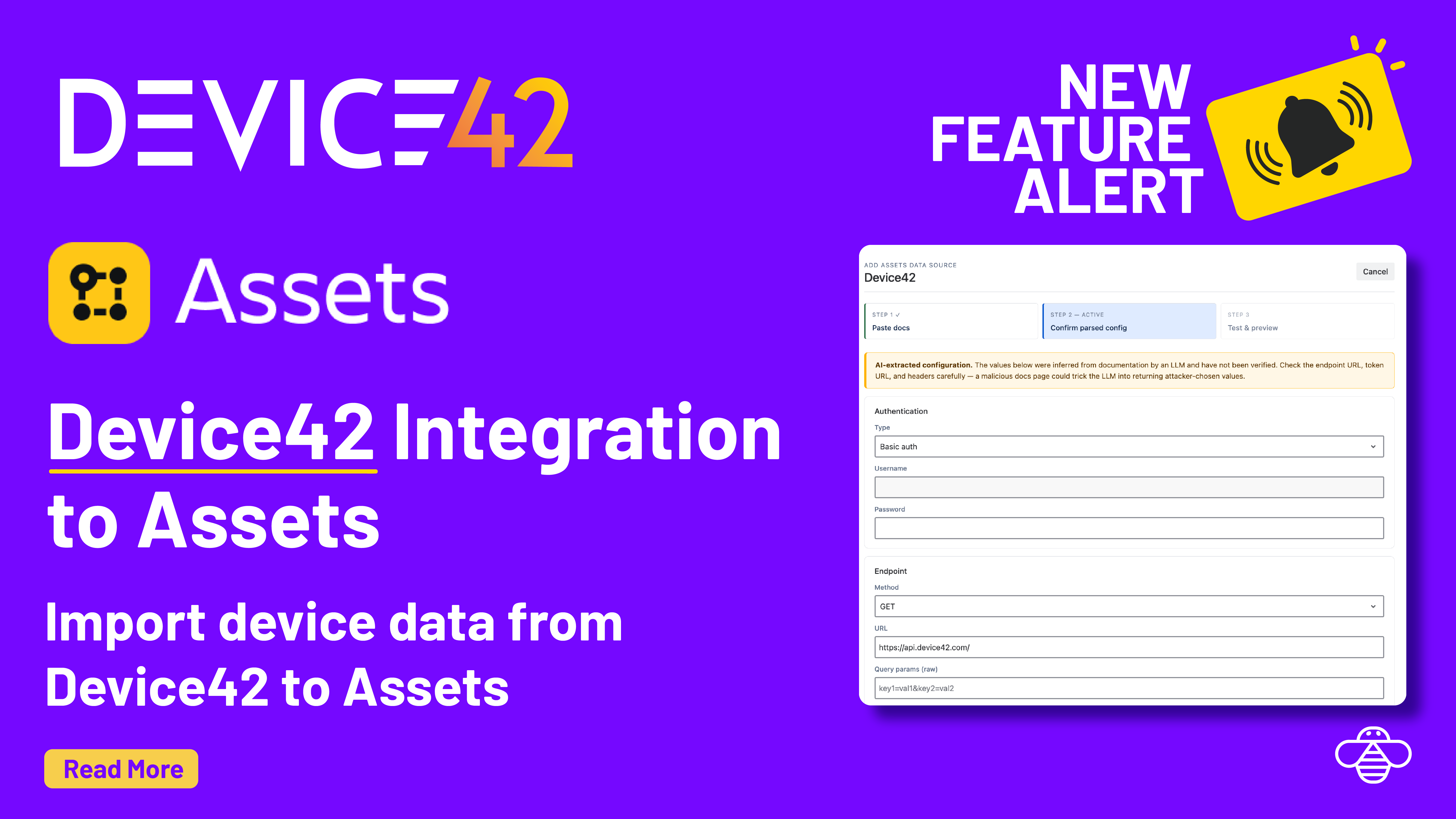
Step 1: Authenticate with the Device42 API
OnLink supports Basic Authentication against the Device42 API. You'll need your Device42 username and password.
- Add Assets Data Source
- Give a name to the connection
- Select source as API Docs
- Give URL as http://api.device42.com/
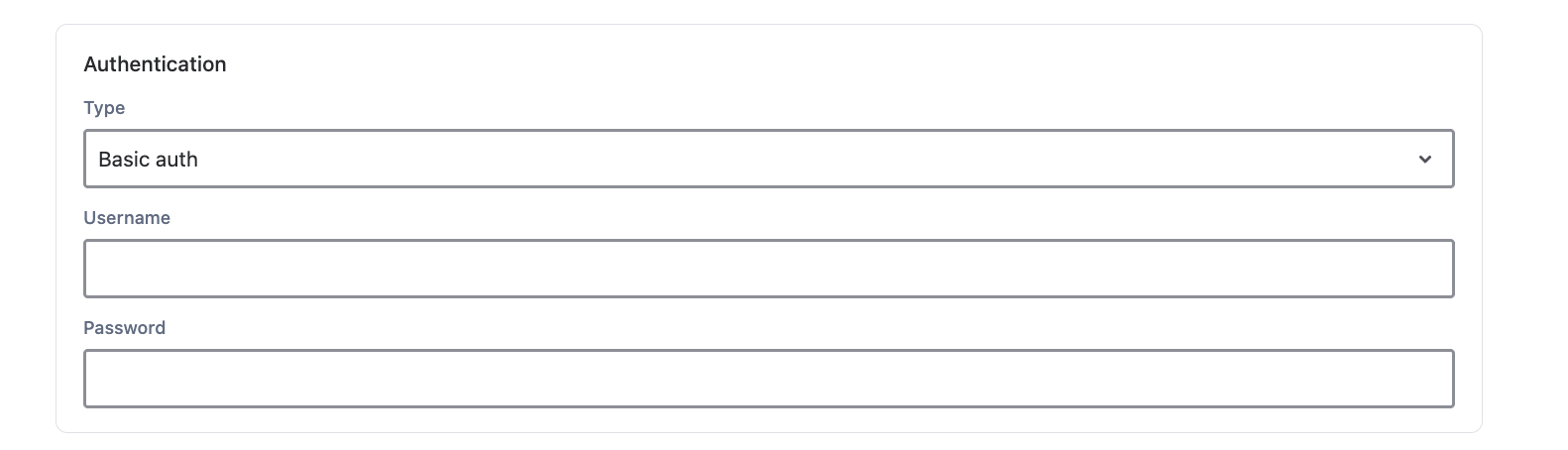
Refer to the Device42 API Authentication docs for full details.
Step 2: Choose Your Device Endpoint
Device42 offers two endpoints depending on how much detail you need.
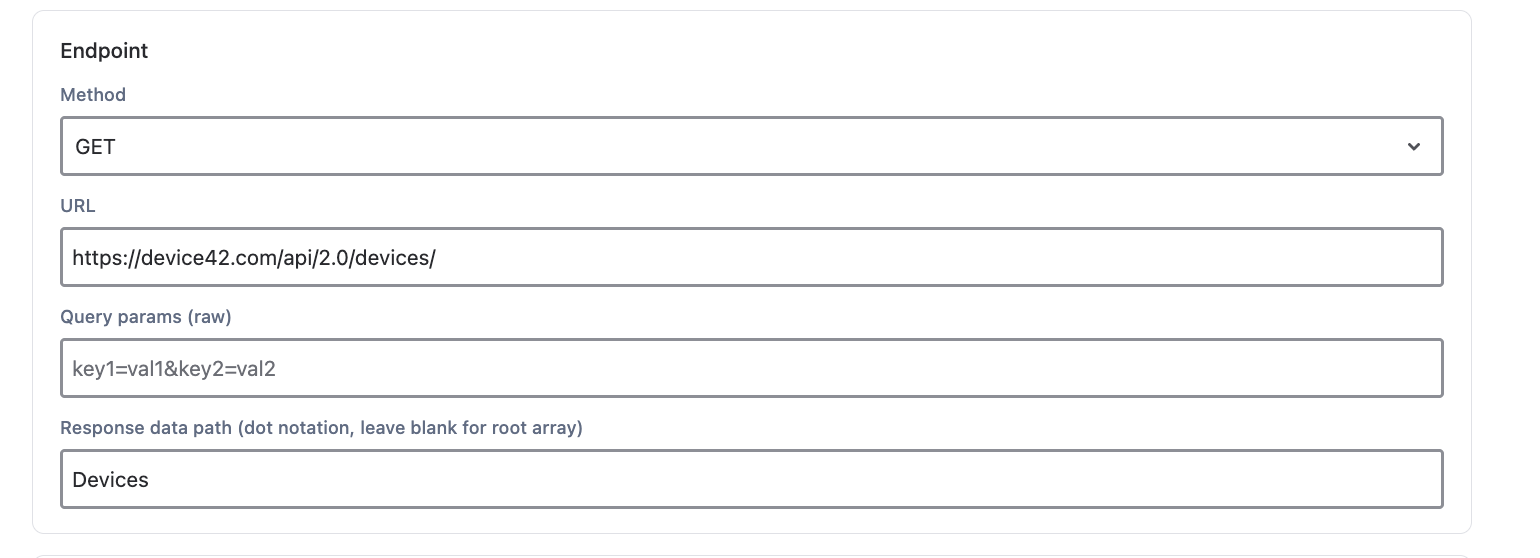
Option 1: Basic Device Data
GET /api/1.0/devices/
Returns core device information. Use this when you only need a lightweight import.
Sample fields:
| Device42 Field |
Assets Attribute |
|---|
name |
Name |
serial_no |
Serial Number |
asset_no |
Asset Number |
device_url |
Device URL |
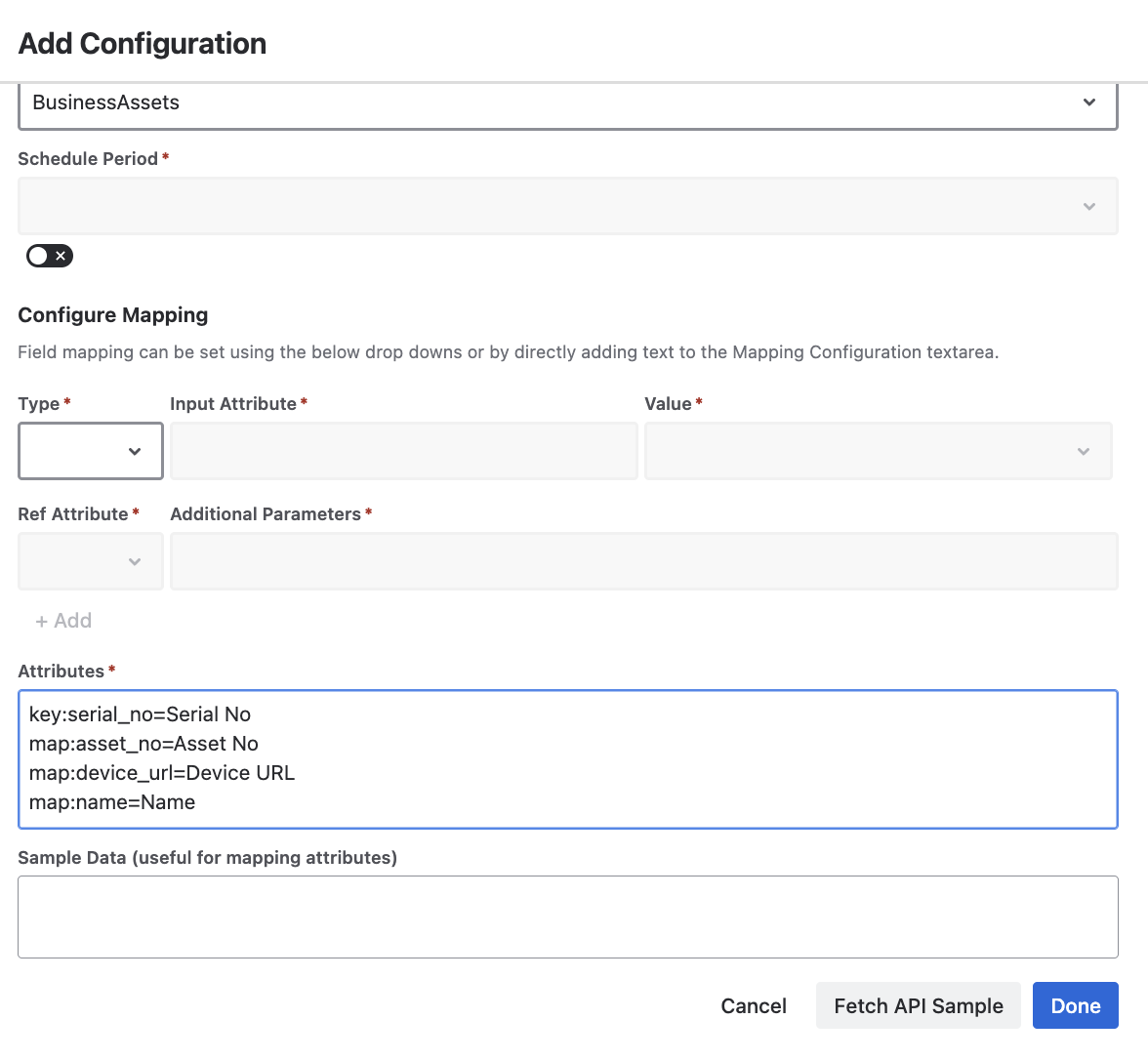
OnLink Field Mapping
key:serial_no=Serial No
map:asset_no=Asset No
map:device_url=Device URL
map:name=Name
OnLink Configuration
Option 2: Full Device Data
GET /api/1.0/devices/all/
Returns all device details including network and service information (available since v6.3.4). Use this when you need a comprehensive import.
Sample fields:
| Device42 Field |
Assets Attribute |
|---|
ip_addresses |
IP Addresses |
serial_no |
Serial Number |
hw_depth |
Hardware Depth |
device_id |
Device ID |
service_level |
Service Level |
OnLink Field Mapping
key:serial_no=Serial No
map:ip_addresses=IP
map:device_id=Device ID
map:service_level=Service Level
Step 3: Use Filters to Limit Records
Both endpoints support query parameters to narrow results and avoid pulling your entire inventory on every sync. Config:
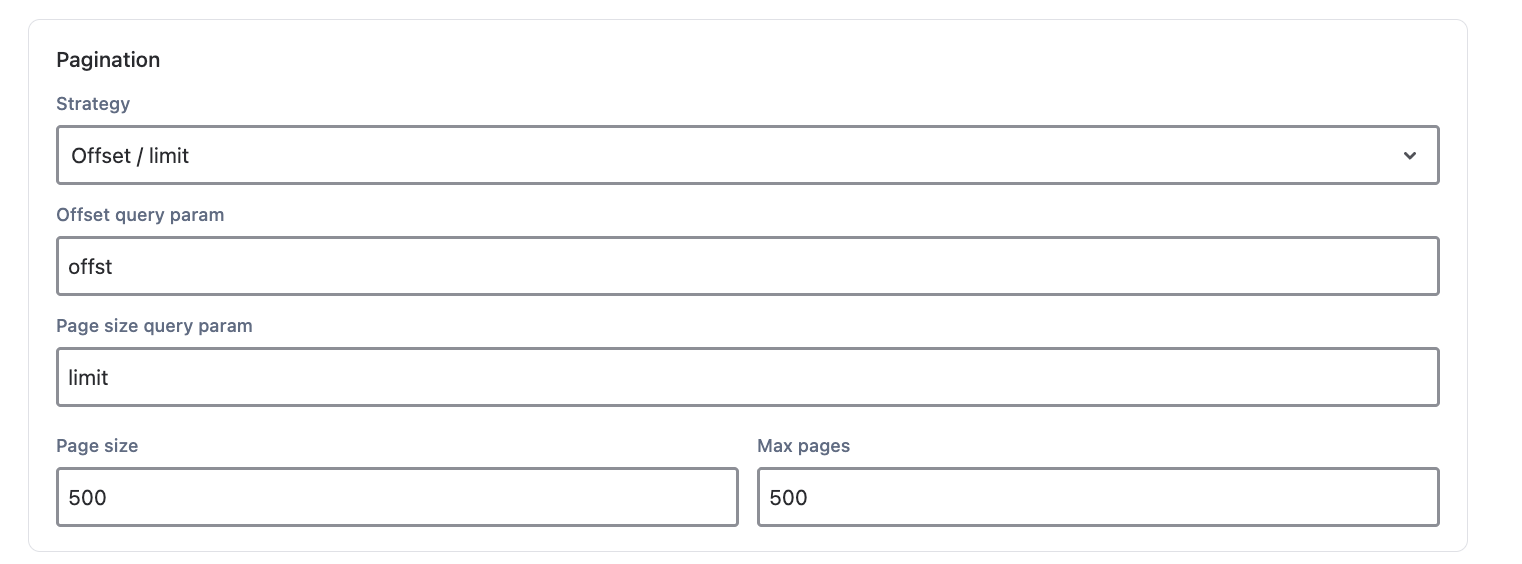
Use filters to target only the devices relevant to your Assets object schema. This keeps imports fast and avoids unnecessary data in your Assets.
Tip: Use the limit and offset parameters for pagination when working with large datasets.
Step 4: Import into OnLink and Verify in Assets
-
Configure the OnLink connection — Point OnLink to your Device42 API endpoint (either /api/1.0/devices/ or /api/1.0/devices/all/) with your Basic Auth credentials.
-
Map fields — In OnLink, map the Device42 response fields to your Assets object type attributes using the mappings from Step 2.
-
Run the import — Execute the import. OnLink will pull records from Device42 and create or update corresponding objects in Assets.
-
Verify in Assets — Navigate to Assets, and confirm that the imported objects appear with the correct attribute values.
Summary
| Step |
Action |
|---|
| 1 |
Authenticate using Basic Auth |
| 2 |
Choose /api/1.0/devices/ (basic) or /api/1.0/devices/all/ (detailed) |
| 3 |
Apply filters to scope the import |
| 4 |
Map fields in OnLink, run the import, verify in Assets |
If you are looking to import Device42 data into Assets, give OnLink a try.
