In this article, we walk through why bringing Intune data into Assets matter, the ITSM use cases that are possible, and how to automate the integration.
Why Bring Microsoft Intune Data into JSM Assets?
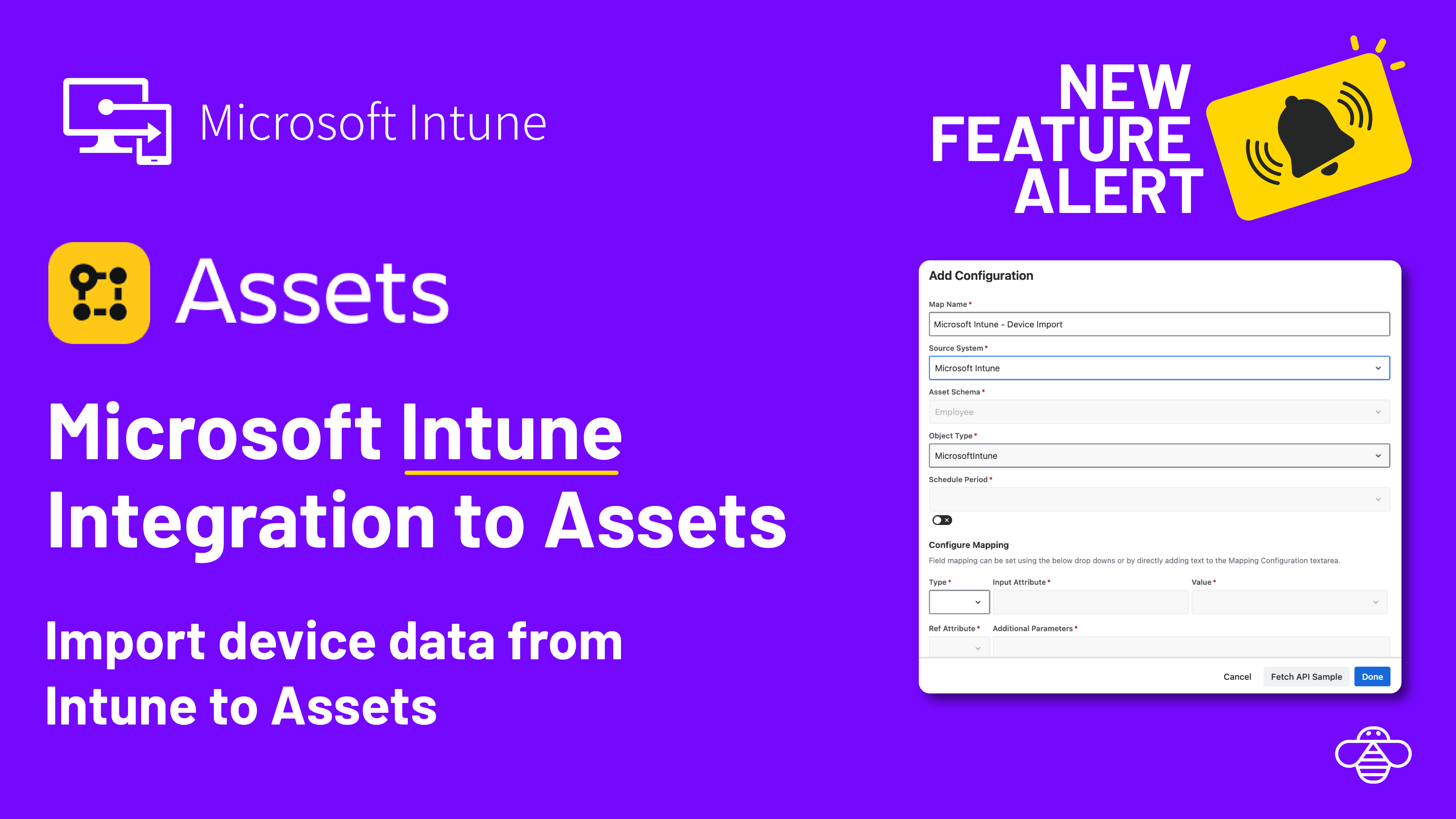
When you populate Assets with device data from Intune, we can enable high-impact ITSM use cases.
Look Up Asset Data for Device Issues and Replacements
When an end user raises a ticket saying "my laptop is slow" or "I need a replacement," the service desk agent needs answers fast. With Intune data in Assets, the agent can look up the device directly from the ticket and see the model, OS version, compliance state, management agent, and whether encryption is enabled.
Assign Devices During Employee Onboarding
Onboarding a new hire involves provisioning the right hardware and ensuring it is enrolled and compliant before day one. When your Assets database reflects the current Intune inventory, HR and IT workflows in JSM can reference available devices, match them to the new employee, and update the assignment. Linking the Intune user ID or email address to a Jira user means the device-to-person relationship stays accurate and auditable.
Collect Devices for Offboarding Requests
When an employee leaves the organization, IT needs to know exactly which devices are assigned to them so that hardware can be collected, wiped, and returned to inventory. Having Intune data synchronized into Assets gives the offboarding workflow a reliable source of truth.
How OnLink Imports Intune Device Data into Assets
OnLink connects to 100+ sources be it HRIS, Identity Provider or Devices. OnLink is all you need to import to Assets.
One App for All Your Asset Integration Needs.
Connecting OnLink to Entra ID
Because Intune is part of the Entra ID, OnLink authenticates through an Entra ID (Azure AD) app registration. The setup involves three steps:
- Register an application in the Azure portal (Azure Active Directory → App registrations → New registration). Give it a descriptive name such as "OnLink Connection."
- Grant API permissions. Under the app's API permissions blade, add Microsoft Graph application permissions (not delegated).
- Create a client secret under Certificates & secrets. Copy the secret value immediately — it will not be visible again.
You will need three values to complete the connection in OnLink: the Directory (tenant) ID, the Application (client) ID, and the Client Secret — all available from the app registration's Overview and Secrets pages.
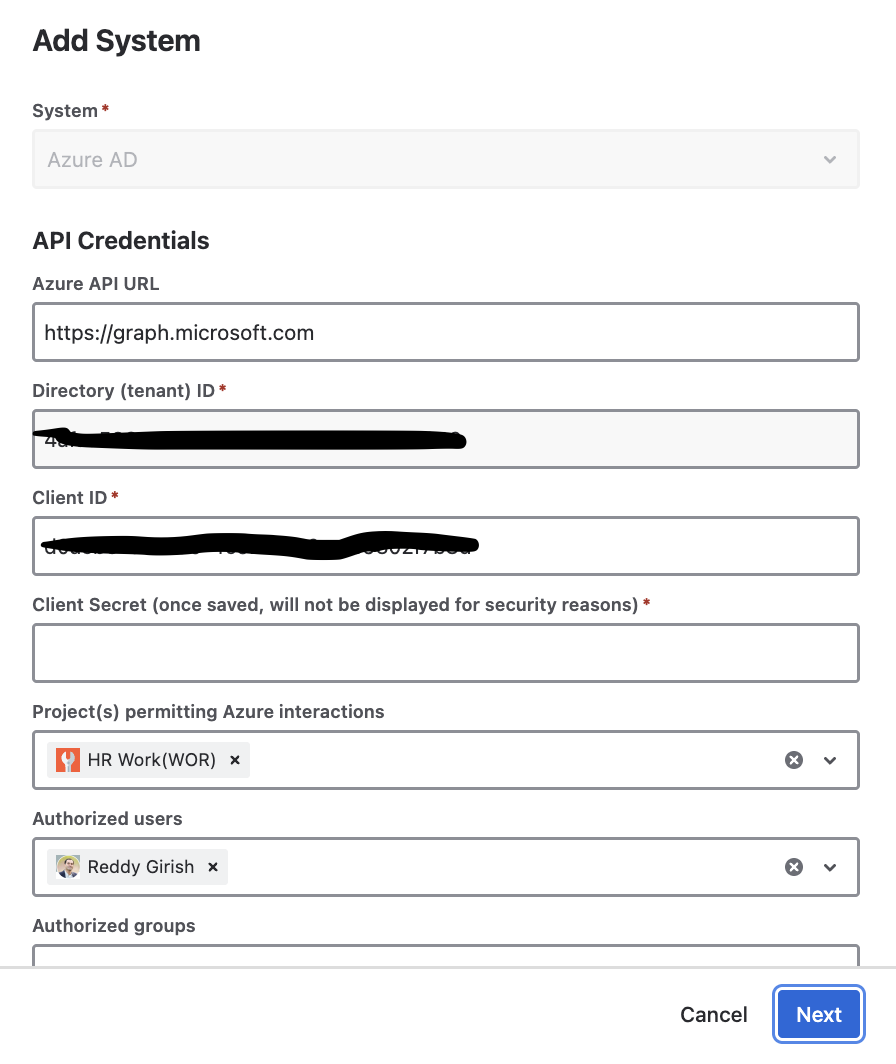
Full step-by-step instructions are available in the OnLink Entra ID documentation.
Permissions Required
The Entra ID app registration must have the following Microsoft Graph application permissions granted (with admin consent):
- DeviceManagementApps.Read.All — allows OnLink to read Intune app data, including detected applications on managed devices.
- DeviceManagementManagedDevices.Read.All — allows OnLink to read managed device properties such as model, OS, compliance state, and enrollment details.
These are read-only permissions, so OnLink will never modify your Intune environment
Field Mapping
Once the connection is established, you create an import configuration in OnLink and define the field mapping between Intune device properties and your JSM Assets object type attributes. OnLink uses a straightforward key/map syntax.
Supported Fields
Below are the commonly mapped Intune fields. Any property exposed by the Microsoft Graph managedDevice resource can be used as a source field.
| Intune Field |
Description |
|---|
| id |
Unique device identifier in Intune |
| userId |
ID of the user associated with the device |
| emailAddress |
Email of the user associated with the device |
| deviceName |
Name of the device |
| model |
Device hardware model |
| manufacturer |
Device manufacturer |
| serialNumber |
Device serial number |
| operatingSystem |
Operating system (Windows, macOS, iOS, Android) |
| osVersion |
OS version number |
| complianceState |
Compliance status (compliant, noncompliant, etc.) |
| managementAgent |
Management channel (mdm, eas, etc.) |
| enrolledDateTime |
Date and time the device was enrolled |
| azureADRegistered |
Whether the device is Azure AD registered |
| isEncrypted |
Whether disk encryption is enabled |
| jailBroken |
Jailbreak/root detection status |
| activationLockBypassCode |
Activation lock bypass code (iOS) |
| deviceCategoryDisplayName |
Device category assigned in Intune |
| managedDeviceName |
Managed device display name |
Sample Mapping
<span>key:id=id
</span><span>map:userId=userId
</span><span>map:emailAddress=Jira User
</span><span>map:deviceName=deviceName
</span><span>map:model=deviceModel
</span><span>map:operatingSystem=operatingSystem
</span><span>map:complianceState=complianceState
</span><span>map:managementAgent=managementAgent</span>
A few things to note about the mapping:
- The key line tells OnLink which field to use as the unique identifier, enabling upsert behavior (insert new records, update existing ones).
- When you map
emailAddress to a JSM Assets attribute of type User, OnLink automatically looks up the matching Atlassian user account — no manual matching required.
- You can also map
userId to a reference object (e.g., an Employee object) using the syntax map:userId=userIdRef|WorkerID=${userId}, which creates a relationship link between the device and the user object in your schema.
How to Get Apps Associated with Devices
Beyond device hardware details, OnLink can import the list of applications detected on each managed device. This is useful for software license tracking, compliance auditing, and security reviews.
To set this up, create a separate object type in your Assets schema for Apps with at least three attributes: AppID, AppName, and Devices (a reference to your Devices object type). Then create an OnLink importer with the following mapping:
<span>key:id=AppID
</span><span>map:displayName=AppName
</span><span>map:devices=Devices|ID=${devices}
</span><span>config:data_source=/v1.0/deviceManagement/detectedApps?$top=999
</span><span>config:section=devices</span>
This pulls detected applications from the Intune API and links each app to the devices where it is installed, giving you a complete software inventory inside JSM Assets.
Additional Features
OnLink offers several configuration options that help you tailor the import to your needs.
Filters
You can use the config:filter parameter to apply a filter expression to the Intune API query. For example, to exclude devices without a name:
<span>config:filter=deviceName eq null or deviceName eq ''</span>
Any valid OData filter expression supported by the Graph API can be used here, letting you narrow the import to specific device types, compliance states, or operating systems.
Data Limit
The config:data_limit parameter caps the number of records pulled from Intune in a single run. This is particularly useful during initial setup and testing — for example, config:data_limit=100 lets you validate your mapping against a small dataset before trying the full dataset.
Ready to get started? Install OnLink from the Atlassian Marketplace and try the Intune-to-Assets integration today. For detailed setup instructions, visit the OnLink documentation for Intune.
