While Jira Product Discovery isn't a dedicated resource management tool, its flexibility allows for lightweight capacity planning. In this article I'm sharing an example which helps you compare estimated effort against team size to spot bottlenecks early.
Use this framework to identify oversubscribed squads and adjust the roadmap before work begins. It is ideal for a broad, high-level overview, rather than detailed capacity tracking.
How to set it up
Step 1: create the following fields
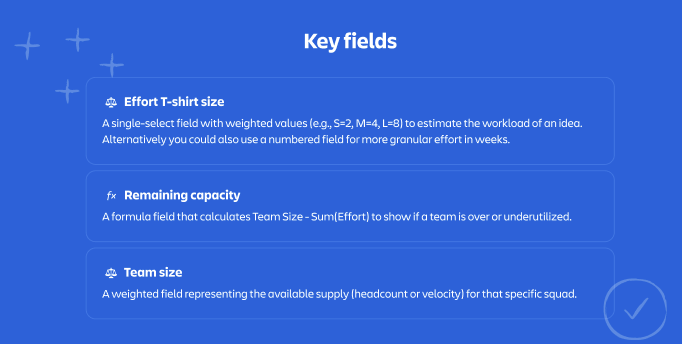
To make this work, you need to assign numerical values to "Effort" and "Team Size" using weighted fields. Create the following fields in your space:
1. Effort (single select field): to estimate the workload of an idea.
2. Squad / team (multi-select field): team(s) responsible for the delivery
3. Team size (multi-select) > apply weights: Assign a "budget" to represents the team's capacity, where 10 indicates a small team and 100 indicates a large team. The weights can be fully adjusted to fit your organization’s needs.
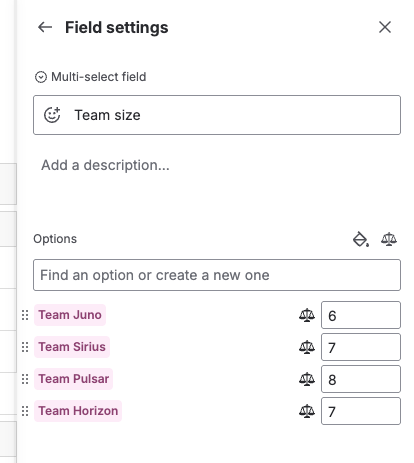
4. Remaining capacity (custom formula): to indicate if a team is oversubscribed. This calculates the "balance" left after the effort is subtracted from the team size.
Formula Expression: {Team size} - {Effort T-shirt size}
How to interpret the result:
Step 2: configure the view
Now, visualize the data to see the net capacity per squad.
-
Group by squad: In your List view, group the rows by the Squad field.
-
Calculate the total: On the Remaining Capacity column header, click the dropdown and select Sum.
- This will aggregate the formula results for every idea in that group, showing you immediately if the Squad is in the red (negative) or green (positive).
Quick tips
- Use this view to kick off resource conversations with Engineering Leads during roadmap planning for the upcoming Quarter, Half, or Fiscal Year.
- The "weights" in Step 1 are fully customizable. Tweak the values (e.g., 10 vs 100) until they accurately reflect the relative velocity of your teams.
- If a squad shows a negative sum, you can drag and drop ideas to a different squad or move them to a "Later" roadmap column to instantly see the capacity balance out.
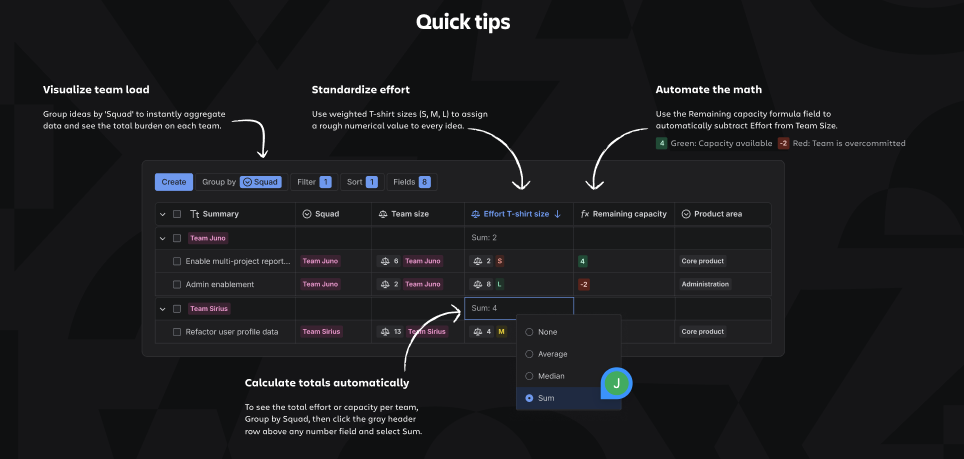
Learn more in this how-to video
See this example in action
Not sure where to start? Create a dedicated space with pre-built views to explore a real-life example for lightweight resource planning.
Note:


