A Practical Guide (how it works + how to use it well)
Some teams track time because they bill clients.
Others track time because they simply want to understand:
-
where effort goes,
-
which initiatives eat the most time,
-
which cost centers are expensive,
-
and whether workloads are realistic.
Jira already sits at the center of all that work — which makes it a natural place to track time.
This guide walks through:
-
how time tracking works in Jira
-
how to enable it and log time correctly
-
how to report on time spent using Jira’s native options
-
why Jira’s built-in time reporting is limited (by design)
-
how timesheets apps add the missing layer
-
how to choose the right timesheets solution for your needs
-
real-world scenarios: product teams, cost centers, and client work
-
how Worklog360 helps as a practical example (without the hype)
1️⃣ How time tracking works in Jira
Every issue in Jira — task, bug, story, ticket — can store:
-
Original estimate (what we planned)
-
Time spent (what actually happened)
-
Remaining time (what’s still outstanding)
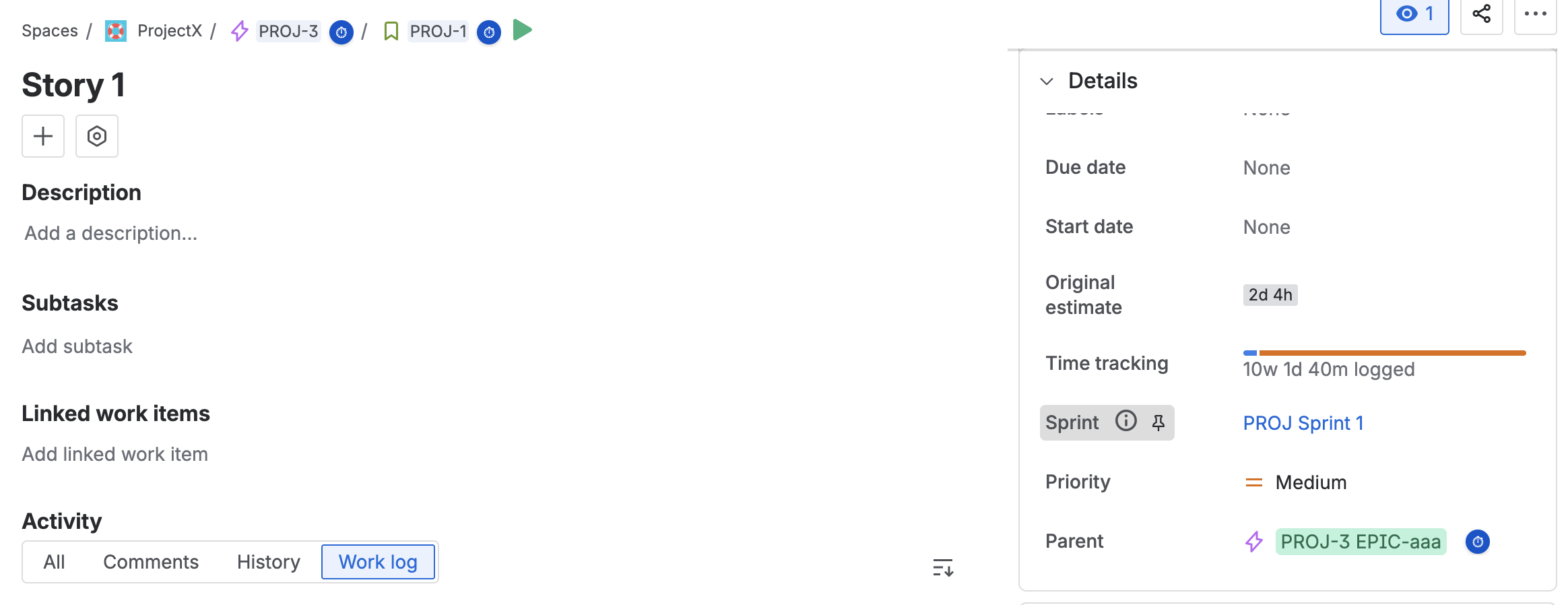
[Screenshot: Jira issue with estimate + time spent fields visible]
This gives you a simple but powerful truth:
work and time live together — in one place.
Whether you’re tracking client work or tracking internal initiatives, the mechanics are the same.
2️⃣ Enable time tracking in Jira (quick setup)
Go to:
⚙️ Settings → Work Items → Time tracking → Enable
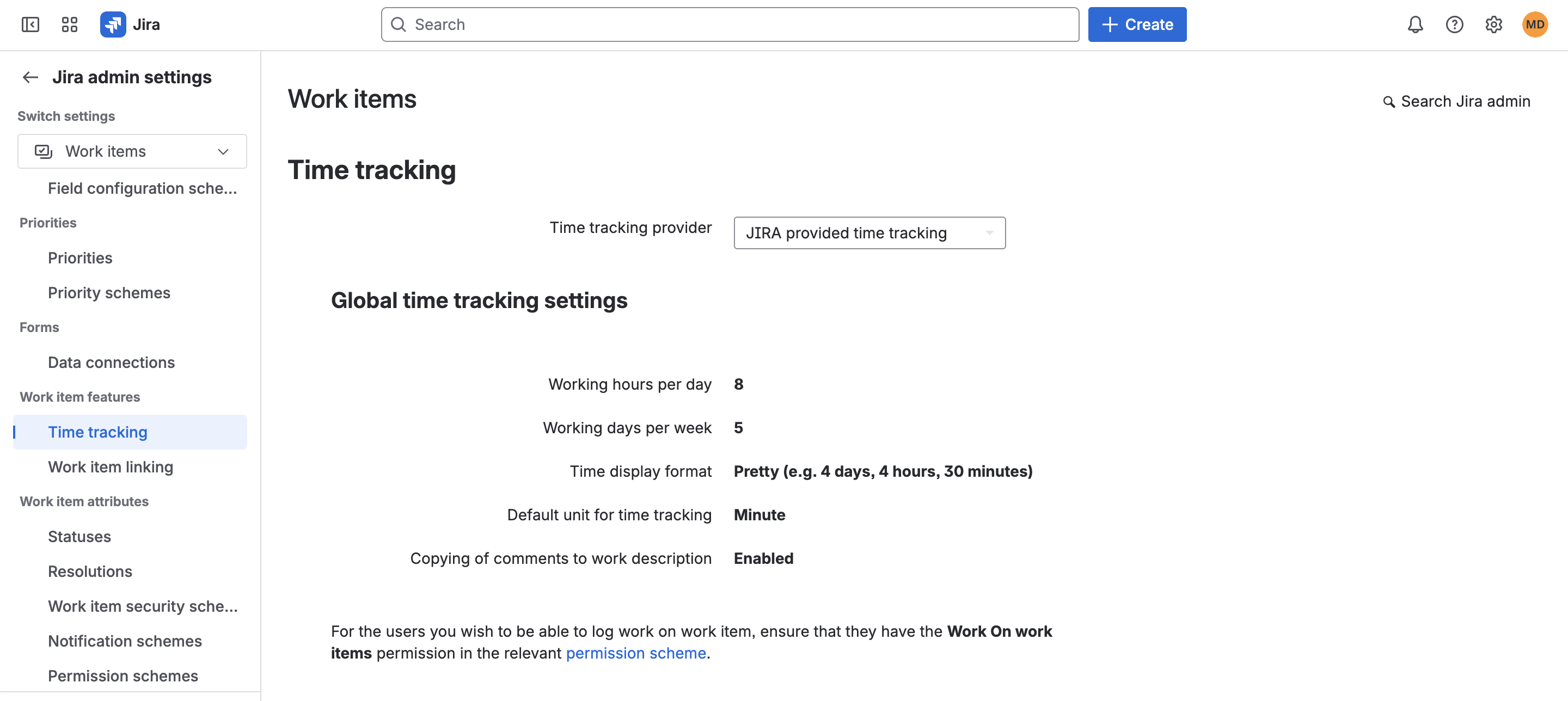
Then check:
-
hours per day (e.g., 8)
-
days per week (e.g., 5)
These settings affect reports, so it’s worth getting them right before you start.
To go into more details you can check the Atlassina Documentation here:
3️⃣ Logging time on work items/issues (your daily routine)
Open an issue → click Log time.
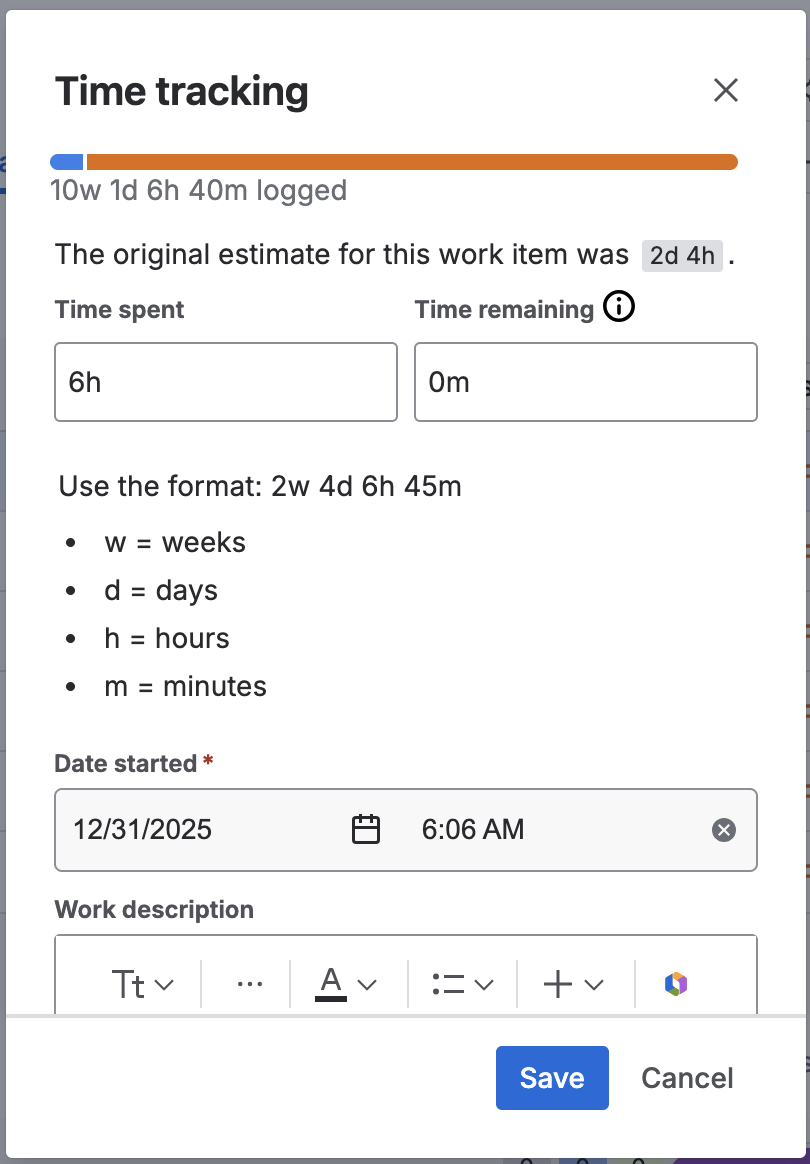
Add:
Tip:
log daily — memory fades fast, data accuracy drops.
4️⃣ How to report on time spent in Jira (native options first)
Once people start logging time, the next logical question is:
“Okay — where can I actually see all this time?”
Jira gives you a few built-in ways to report, even without extra apps.
Let’s walk through the most useful ones.
📊 Option 1: Issue Navigator + Time Columns
Go to:
Filters → View all Filters
Then add columns such as:
-
Time Spent
-
Original Estimate
-
Remaining Estimate
You can also filter by project, sprint, assignee, label, etc.
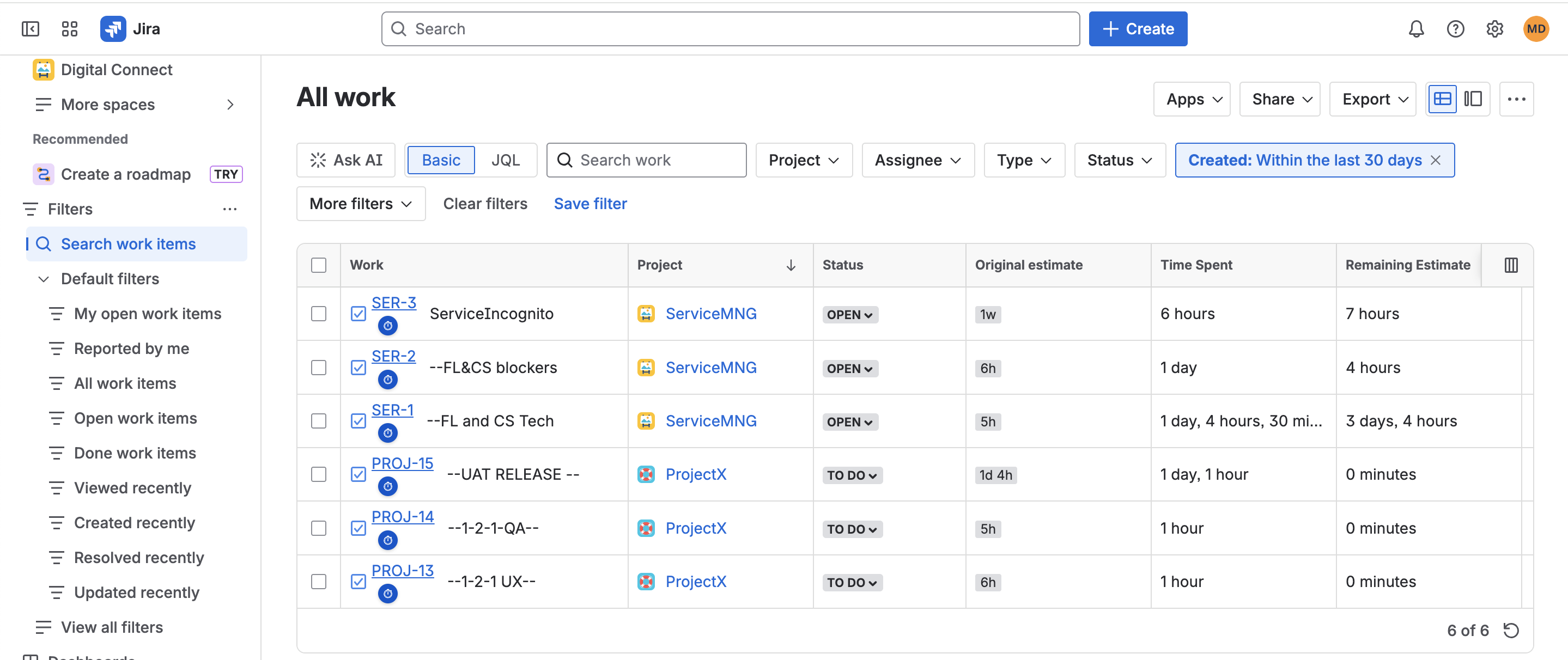
This works well when you want detail, like:
You can export to CSV if needed.
📈 Option 2: Worklog Reports (Jira Software)
If you’re using Jira Software, there is a native Time Tracking Report.
Go to:
Reports → Time Tracking Report
* You will see the report only if ALL of these are true:
✔ You’re on Jira Software (Cloud or Data Center) — not Jira Work Management
✔ The project is company-managed (formerly “classic”), not team-managed
✔ Time tracking is enabled in settings
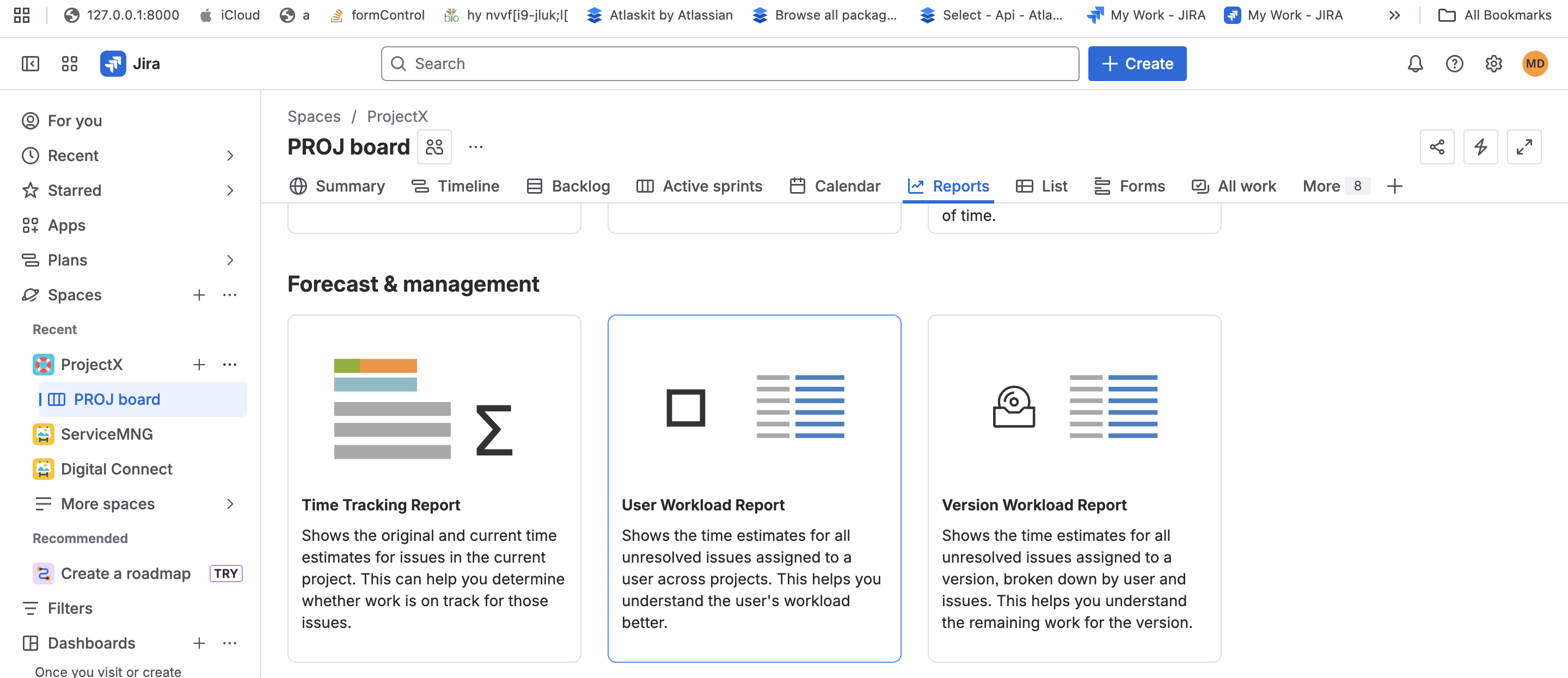
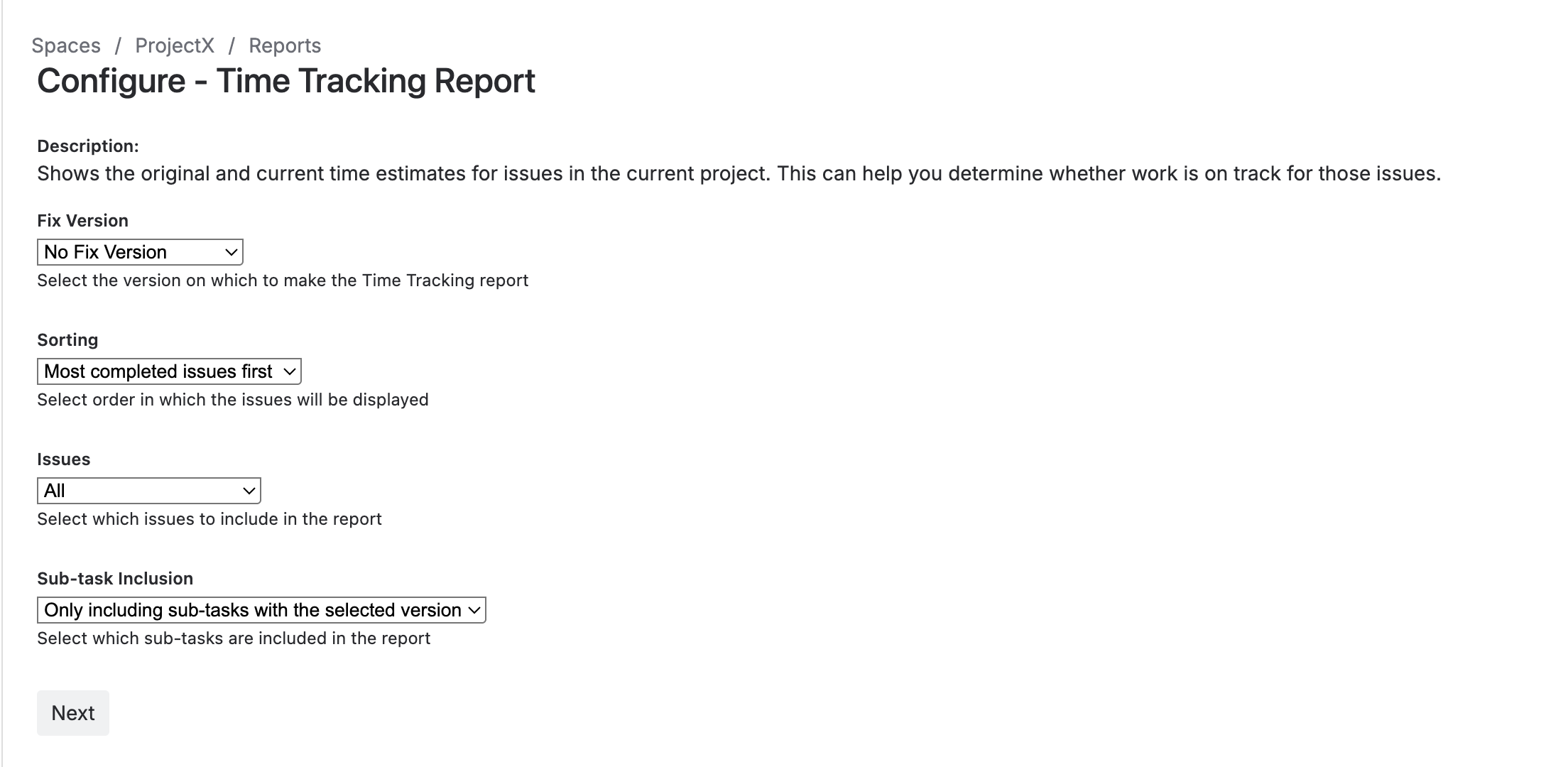
Open the Time Tracking Report and configure it:
Then you will see this time report:
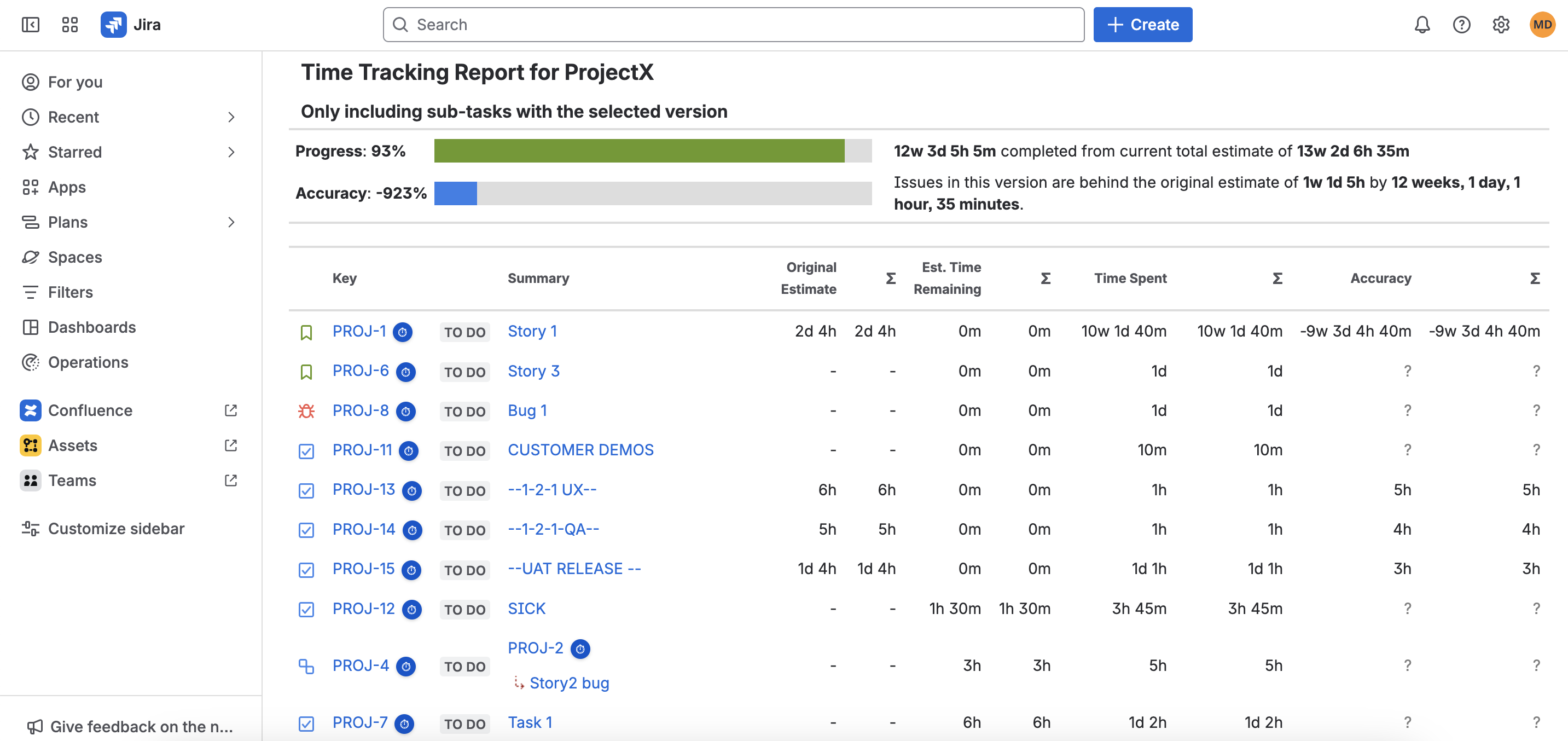
It’s simple — but surprisingly helpful for versions time spent retros.
🧭 Option 3: Dashboard gadgets
You can also build dashboards that show time info.
Useful gadgets:
Dashboards are great when managers want a quick overview without digging into reports.
5️⃣Hmmm ok, but .... Why Jira’s time reporting feels limited (and why that’s not a bug)
At this point, most teams feel something like:
“Okay… this is useful — but also kind of basic.”
And you’re right.
Jira gives only foundational time tracking:
-
log time
-
estimate time
-
see some basic reports
But it doesn’t go much further.
And there’s a reason for that.
Jira was designed as a general-purpose work management platform — used by:
Every one of those groups needs time tracking in very different ways.
So instead of building one “heavy” time tracking solution that fits nobody perfectly, Atlassian made a conscious choice:
Keep the core simple — and let the Marketplace provide specialized solutions.
That’s why there are so many apps for:
-
timesheets
-
cost tracking
-
billing
-
approvals
-
capacity & utilization
-
profitability
-
cost centers
-
invoicing
Some teams only need visibility.
Others need full financial workflows.
The Marketplace lets them choose instead of being forced into one rigid system.
(And honestly — that’s why Jira became so successful.)
✅ Native Jira is usually enough if you:
-
just want to know roughly where time goes
-
need to check estimates vs actual work
-
occasionally report time for one project
-
don’t care about budgets, approvals, billing, or cost centers
This is often fine for:
But…
🚧 You’ll quickly hit limits if you need to:
-
see weekly/monthly timesheets
-
summarize across many projects
-
review or approve logged time
-
track internal cost centers
-
connect hours to cost or revenue
-
follow budgets and project health
-
export structured data for finance
That’s when a timesheets app stops being optional — and becomes necessary.
And that’s the natural place to continue your article next:
👉 introduce timesheets as the next logical layer — not as a “sales pitch”.
7️⃣ Adding Timesheets on top of Jira (the missing layer)
Think of timesheets as:
“a clearer, more organized lens over everything people already log.”
They don’t replace Jira.
They simply take all those scattered worklogs and turn them into something understandable:
-
weekly / monthly calendars
-
totals by user / project / team
-
cost center breakdowns
-
approvals
-
exports
-
financial insights if needed
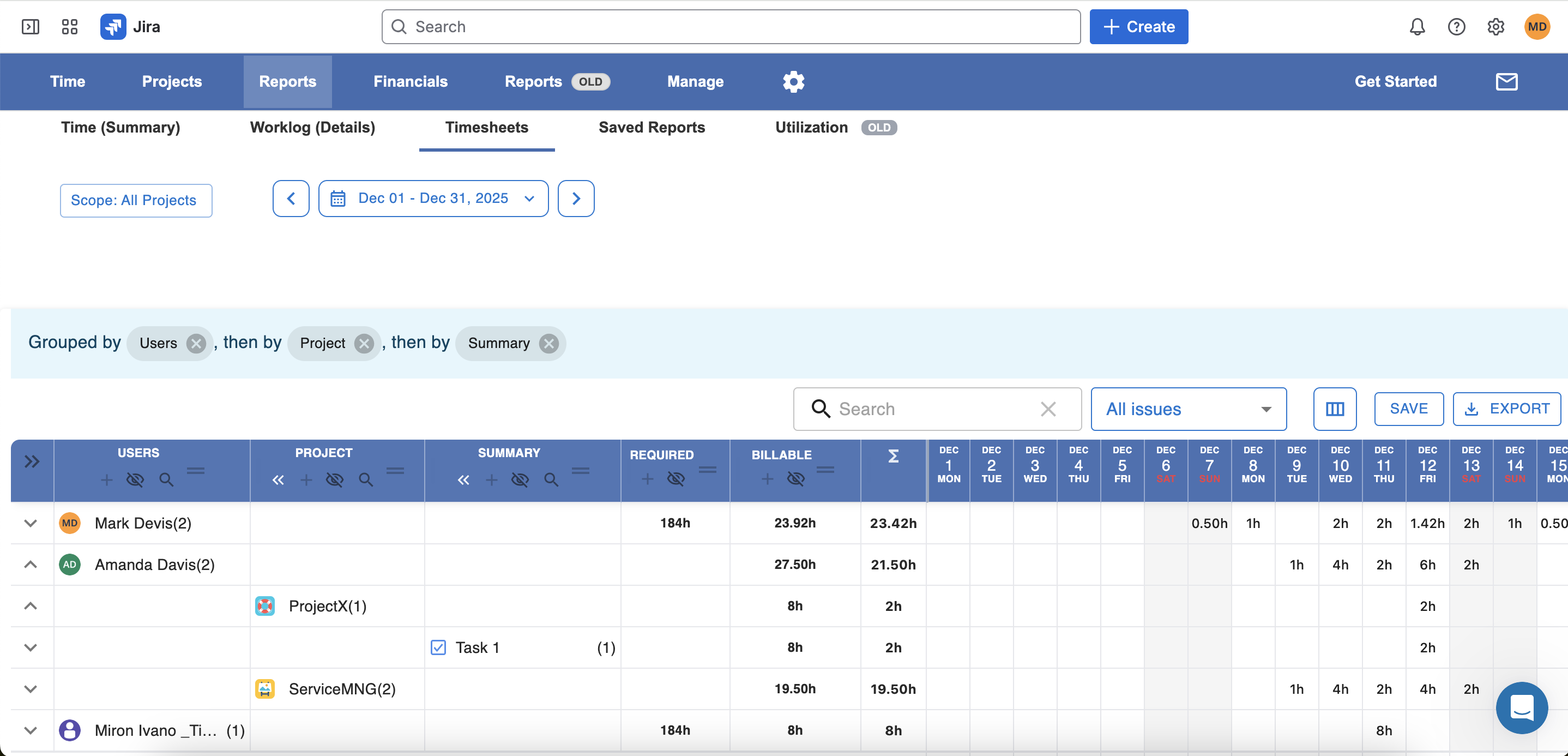
This is where most mature teams eventually end up.
7️⃣ How to choose a Jira timesheets app (without getting overwhelmed)
Once teams realize Jira’s native tools are limited, the next question is usually:
“Okay — so which timesheets app should we use?”
Open the Atlassian Marketplace and it can feel… intense.
There are dozens of apps, and many sound almost identical.
Instead of starting from features, start from your real use case. That makes choosing much easier.
Step 1: Be clear about why you track time
Different goals require different tools.
If your goal is visibility
You care about questions like:
-
“Where is our time going?”
-
“Which teams are overloaded?”
-
“How much did we spend on internal initiatives?”
You need:
✔ clean timesheets
✔ grouping by project / team / cost center / components / versions / epics / custom fields
✔ decent reporting
✔ easy export
No need for billing or invoicing.
If your goal is billing / client work
Typical questions:
-
“How many billable hours did we deliver?”
-
“Are we staying profitable?”
-
“What should go on the invoice?”
You need:
✔ billable vs non-billable
✔ rates (per project, per user, maybe per role)
✔ approvals
✔ export to accounting / invoicing
✔ budget tracking
You can check also this comparison apps here for more details
If your goal is cost control / internal finance
Questions sound like:
You need:
✔ cost rates
✔ budgets
✔ cost centers / departments
✔ reports across multiple projects
✔ ability to drill down when needed
Getting this clarity up front prevents disappointment later.
Step 2: Look at the essentials (the “must haves”)
No matter the type of team, a good time tracking app should:
-
be easy for people to log time
-
show weekly/monthly timesheets clearly
-
filter by user, project, team, cost center , jira custom fields , epics and many more
-
export without pain
-
work smoothly with Jira permissions
-
not slow Jira down
-
be maintained + well supported
If an app is powerful but nobody wants to use it, it’s the wrong app.
Step 3: Think about growth (future you)
Right now, maybe you only need:
“a simple way to see who worked what.”
But teams evolve.
Ask yourself:
-
Will we eventually want approvals?
-
Will finance need structured exports?
-
Will we track budgets or profitability later?
-
Will other departments start using it?
Choosing something that can grow saves re-migration headaches later.
8️⃣ What adding a timesheets app actually changes (day-to-day)
Here’s the key idea I always explain:
You don’t change how people work —
you change how clearly you can see the work.
Before:
After:
-
one clear place to review time
-
structure around teams, projects, cost centers
-
easier conversations about priorities, workload and cost
[Screenshot: Timesheet grouping by team / project]
This is why most teams eventually add this layer — not because they “love tracking time” but because they love clarity.
9️⃣ Example scenarios
🧩 Scenario 1: Internal product team
Goal: understand effort distribution.
They discover:
Now they have a conversation grounded in data — not feelings.
🏢 Scenario 2: Cost center (IT department)
Goal: justify budget and headcount.
They can show:
-
hours spent per internal client (HR, Sales, Operations)
-
backlog growth vs available capacity
-
trends over months
Suddenly budgeting meetings become easier.
🧾 Scenario 3: Agency / consulting team
Goal: stay profitable.
They monitor:
Issues get spotted early instead of at the invoice stage.
🔟 How Worklog360 fits into this picture (no hype)
By now, you’ve seen the pattern:
Jira = great place to store work
Native time tracking = useful, but basic
Marketplace apps = add structure and clarity
Worklog360 was built because we kept seeing the same thing across teams:
“We have the data — but it’s hard to actually see and use it.”
So instead of reinventing Jira, Worklog360 simply sits on top and makes time data easier to understand and manage.
Here’s how it helps across the main use cases we discussed.
⭐ 1) For teams that just want visibility
If your goal is:
-
“Where is our time going?”
-
“What are people actually working on?”
-
“Which initiatives consume the most effort?”
Worklog360 gives:
✔ clean weekly and monthly timesheets
✔ grouping by project, team, assignee, epic, etc.
✔ filters that make sense (no guesswork)
✔ easy export when you need to share data
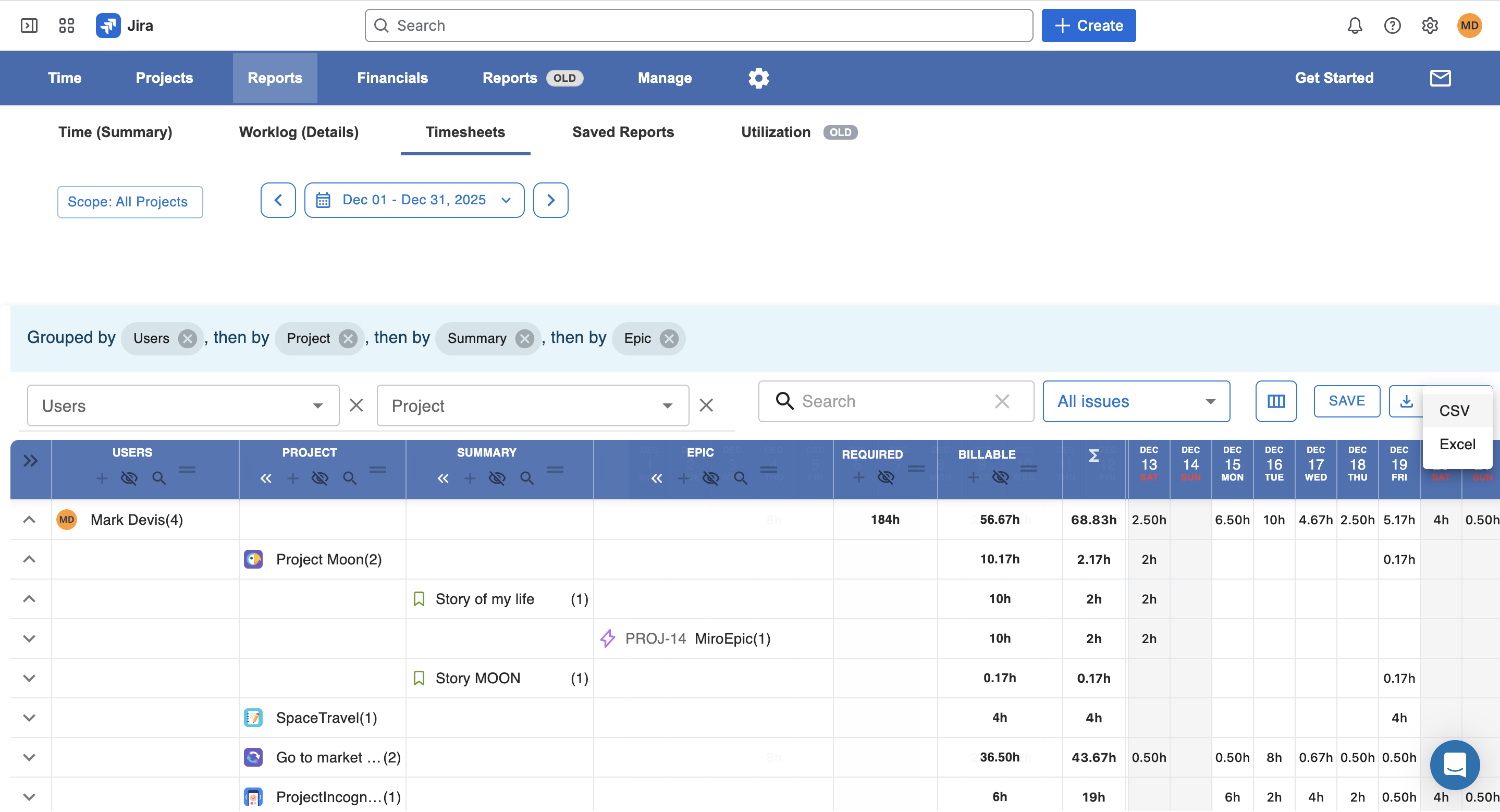
You don’t need to turn on billing, budgets, or anything financial if you don’t want to.
It works great simply as a clarity layer.
⭐ 2) For organizations with cost centers and internal budgets
If you’re tracking internal departments like:
-
IT
-
HR
-
Support
-
R&D
-
Marketing
You often need to answer:
-
How much did this department actually cost?
-
Which initiatives consumed capacity?
-
Are we staying within internal budgets?
Worklog360 allows you to:
✔ define cost centers (accounts in Worklog360)
✔ track effort per department(accounts)
✔ create internal budgets
✔ see trends over time (in progress)
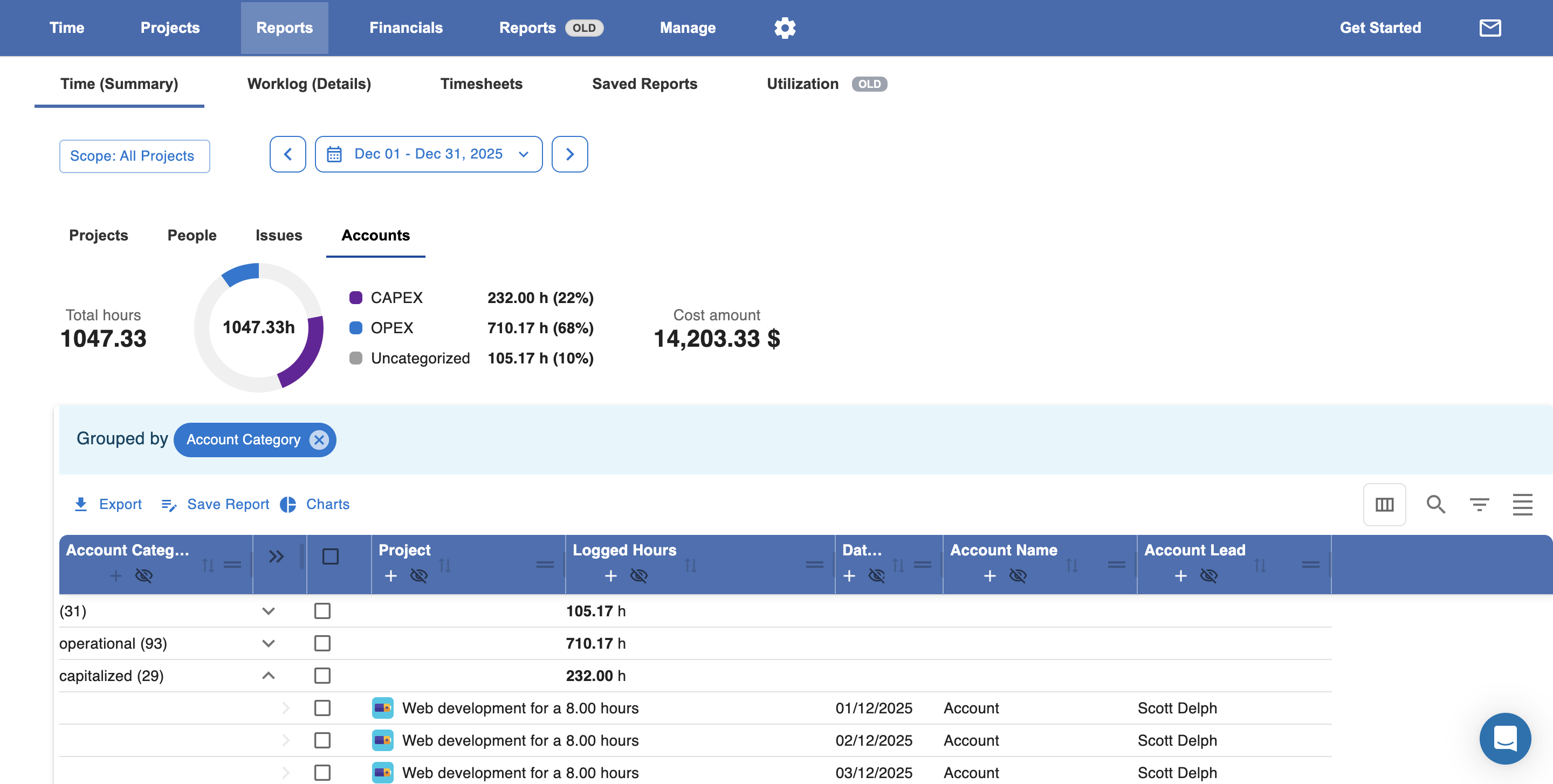
This isn’t about billing anyone — it’s about better planning and accountability.
⭐ 3) For teams working with clients (billable projects)
If you bill customers, your questions change:
-
Are we staying profitable?
-
How much should we invoice?
-
Are we burning budget too fast?
-
What part of the work isn’t billable?
Worklog360 supports that layer when you need it:
✔ billable vs non-billable
✔ per-project / per-user / per-role rates
✔ project budgets & alerts
✔ profitability insights
✔ invoicing from worklogs (when you want it)
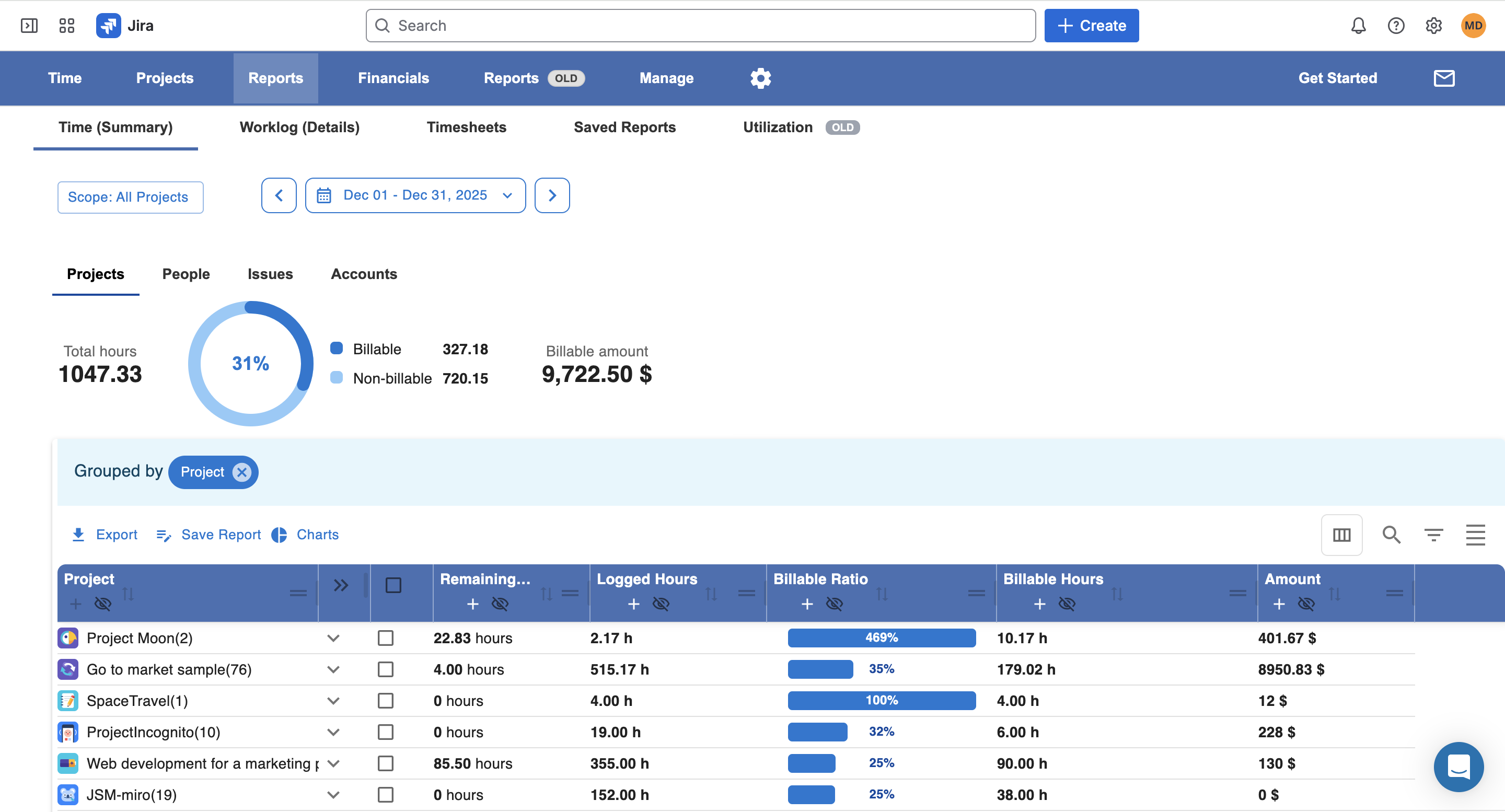
The important part:
👉 You can enable financial features gradually — only when your team is ready.
We designed it with a few principles:
1️⃣ Don’t change Jira — extend it.
Everything still lives in Jira issues, as it should.
2️⃣ Make reporting human.
You shouldn’t need three different exports and Excel formulas to answer:
“What did we actually spend time on?”
3️⃣ Serve internal teams AND agencies.
Many tools are either “pure billing” or “pure timesheets.”
Worklog360 supports both — without forcing one workflow.
4️⃣ Reduce complexity — not add more.
If people hate logging time, the system fails.
We try to make it as simple and forgiving as possible.
🛑 Important: You don’t have to use Worklog360
Choose a timesheet solution that matches how your team actually works — and that can grow with you.”
If Worklog360 happens to fit, great.
If another tool fits better, that’s fine too. 
