What You Need to Set This Up
To make this work, you’ll need:
-
Smart Forms for Jira installed and configured in your site
-
A form that’s set to “Create new work item” on submission
-
A Slack workspace with an incoming webhook set up
-
Jira Automation access to configure the rule
-
Proper permissions to post web requests via automation
Your form should be tested, with all the necessary fields mapped to the target issue type in Jira. Once it's ready,add form to work item and the sharable url will become avaliable to Automation Rule, which will be automatically distributed to Slack when the time is right.
How to Set It Up: Step-by-Step
Configure the Smart Form
Open your form in Smart Forms and set the submission type to Create Work Item. Choose the correct project and issue type the form will create. Then configure your form with all necessary fields—text fields, dropdowns, attachments, etc.—and apply conditional logic if needed.
By default public sharing is enabled, but if it was turned off, please ensure the public URL is avaliable. This ensures anyone in Slack can access it, even without a Jira account.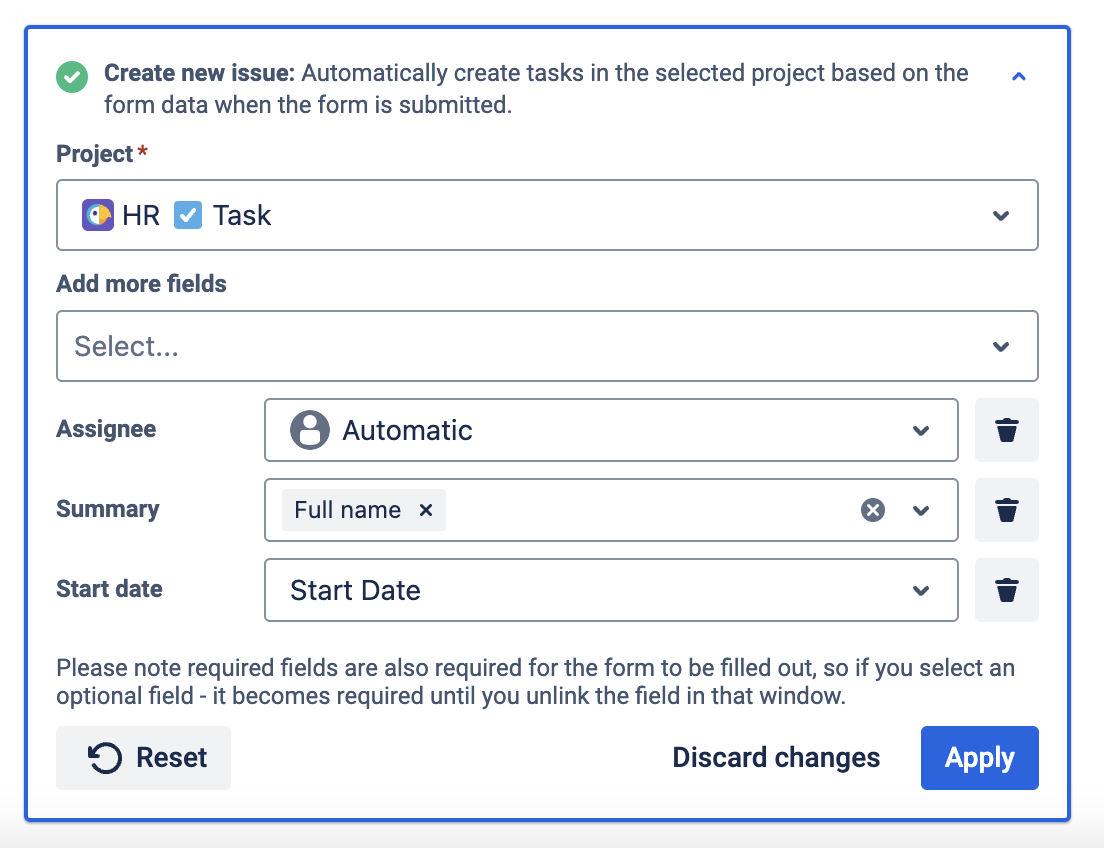
Test the form by submitting it yourself. Verify that a new issue is created in the right project with all field mappings applied.
2.1 How Smart Forms Generate Shareable URLs
Smart Forms can automatically generate unique URLs when attached to a Jira issue—either manually or via auto-attach rules. These URLs are saved in issue properties and can be retrieved using smart values in Jira Automation.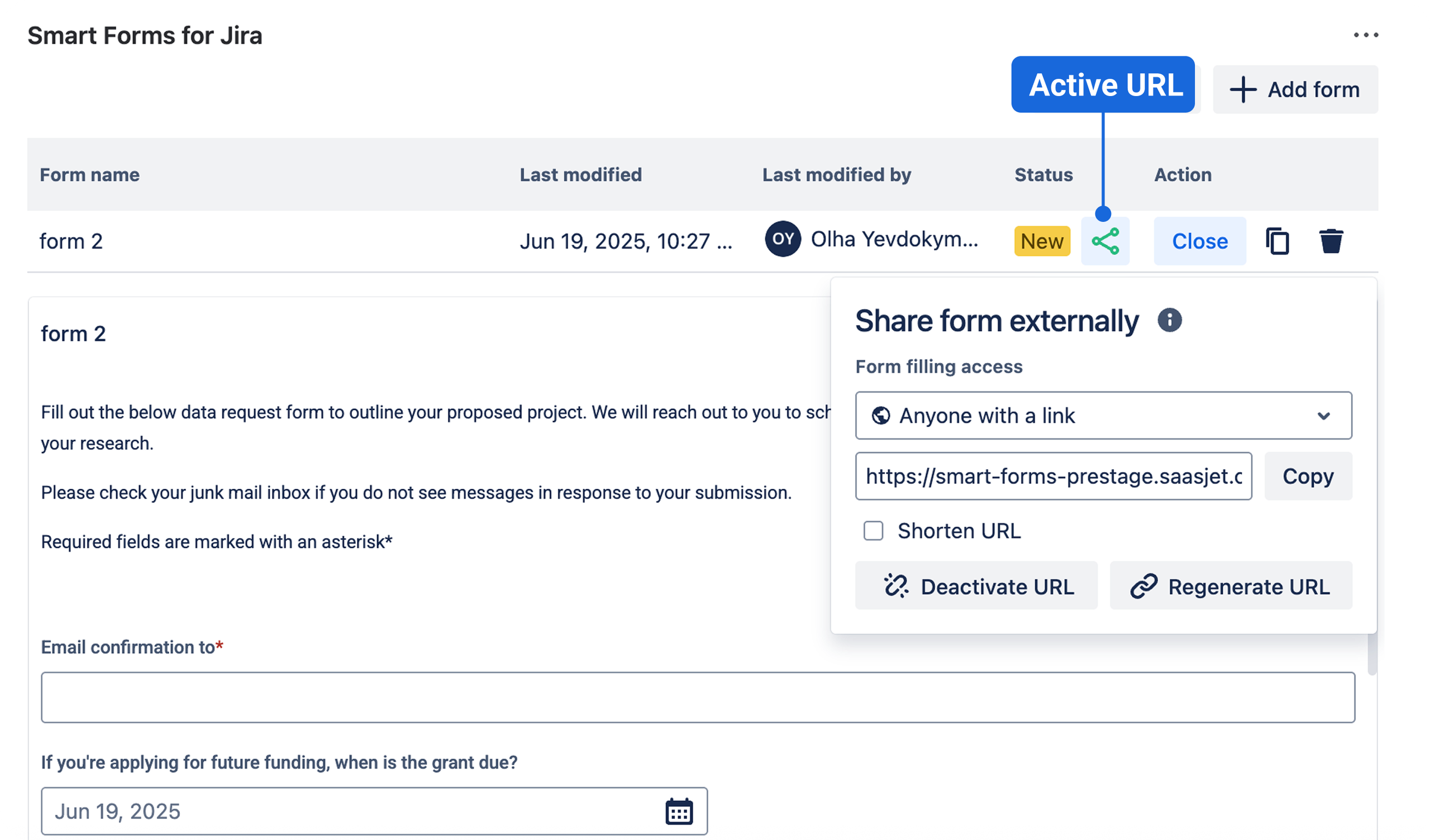
You can use this structure:
<span>{{#issue.properties."saasjet.forms.formsSharedUrls"}}
  {{#if(equals(formName, "Your Form Name"))}}{{url}}{{/}}
{{/}}</span>
🔐 Security Note:
Create a Slack Webhook
In your Slack workspace:
-
Search for Incoming Webhooks in Slack
-
Choose the Slack channel you want to post to (e.g., #new-requests, #vendor-access, #onboarding)
-
Slack will generate a Webhook URL—copy this for later use
Create the Jira Automation Rule
-
Go to Project Settings → Automation
-
Choose a trigger. For example:
-
“Scheduled” if you want to send the form link every Monday morning
-
“Issue created” if the form should be shared when a specific issue type is logged (e.g., New Hire, Incident)
-
“Status changed” if the form should go out when something is marked “Ready for input”
-
Add any necessary conditions:
-
Check for specific labels, issue types, or projects
-
Example: Only trigger if issue type = “Release Kickoff”
-
Add the Send Web Request action:
-
Method: POST
-
Webhook URL: paste your Slack webhook
-
Header: Content-Type: application/json
-
{ "New issue {{issue.key}} – {{issue.summary}} needs attention.",,
  "attachments": [
    {
      "color": "#36a64f",
      "fields": [
        {
          "title": "Submit a Request",
          "value": \{{#issue.properties."saasjet.forms.formsSharedUrls"}}<br>{{#if(equals(formName, "QA Assessment"))}}{{url}}{{/}}<br>{{/}},
          "short": false
        }
      ]
    }
  ]
}<span class="lia-inline-image-display-wrapper lia-image-align-inline" image-alt="Screenshot 2025-07-24 at 14.56.14.png" style="width: 999px;"><img src="https://us.v-cdn.net/6038660/uploads/images/400601i5983C526303FB6C1/Screenshot%202025-07-24%20at%2014.56.14.png" role="button" title="Screenshot 2025-07-24 at 14.56.14.png" alt="Screenshot 2025-07-24 at 14.56.14.png"></span>
Replace the value with your form’s name You can customize the message or even add dynamic elements like dates or project names using Jira smart values.
Use Cases That Bring This to Life
New Hire Workflows
When an issue of type “New Hire” is created in your HR project, the automation posts a form to #hr-onboarding. That form collects structured onboarding info from team leads, department heads, or the hiring manager. The submission creates a new “Onboarding Task” in Jira and keeps everything traceable.
Vendor Access Requests
Before contractors can access tools, IT or legal needs to collect key information. A weekly scheduled automation posts a form to #vendor-support, prompting managers to fill in vendor names, justification, and access needs. Each submission creates a tracked Jira issue and kicks off approval workflows.
Marketing Intake
When a product enters pre-launch, a “Release” issue is created in the marketing project. That triggers a form link in #marketing-requests, asking content, design, and social teams to submit campaign needs. The form routes all submissions into a shared Jira board, where nothing falls through the cracks.
Incident Post-Mortems
After an incident is marked resolved, a form link posts in #incident-response, allowing stakeholders to fill in impact assessments. Each submission creates a structured follow-up issue tagged to the right service or team, building a searchable record of incident responses.
Expanding with Advanced Logic
This automation doesn’t have to be static. You can route different forms to different channels, use smart values to personalize messages, and even chain multiple forms for multi-step workflows.
You can use conditional logic in your form itself to tailor sections based on the department, urgency, or request type. You can also restrict who can edit, view, or resubmit the form—ensuring security without compromising ease of access.
And when forms are submitted, your internal Jira workflow doesn’t miss a beat. Fields are updated, statuses change, SLAs start, and the submission becomes part of your issue lifecycle instantly.
Why It Matters
Without this setup, teams rely on scattered requests—Slack pings, emails, DMs. The intake is chaotic. Context gets lost. Follow-ups slip through the cracks.
By sending structured, standardized forms directly to Slack, you align intake with how people already work—without compromising on structure, traceability, or automation. Slack becomes a quiet assistant, delivering exactly the right form at exactly the right time.
No more chasing. No more missed requests. Just clean, trackable, actionable input—from Slack to Jira, in one click.


