When your team relies on forms to collect feedback, request changes, or manage approvals in Jira, one of the most common questions is: "How can I automatically send someone a form at the right time in the workflow?"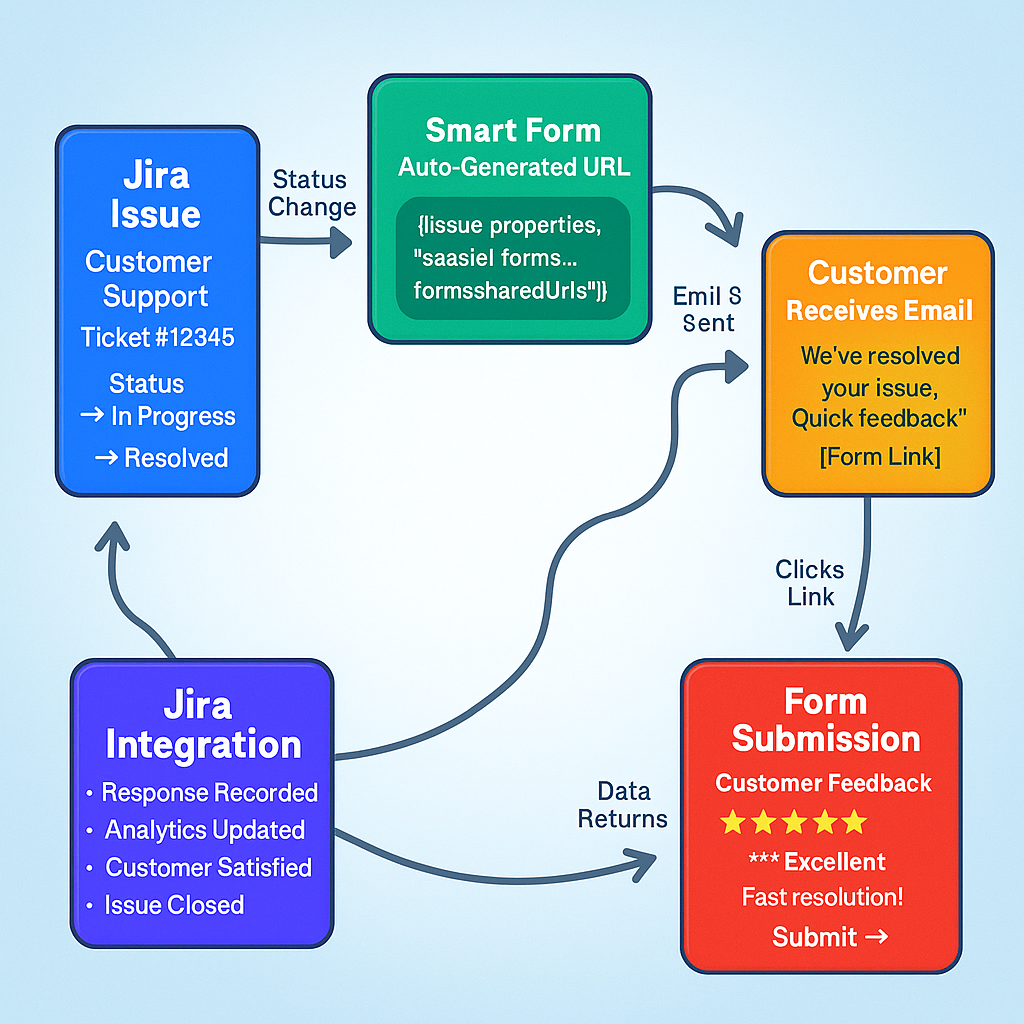
Good news — with Smart Forms for Jira, every form gets its own shareable URL that works seamlessly with Jira Automation. That means you can send form links when an issue changes status, a comment is added, or any other trigger occurs.
Why Use Automated Form Sharing in Jira?
Jira forms workflow automation helps teams:
- Send customer feedback forms automatically when support tickets are resolved
- Share handoff checklists with teammates when tasks reach "Ready for QA"
- Trigger vendor assessment forms to external partners without requiring Jira access
- Request additional context via forms before reopening closed issues
This is where auto-shared form URLs shine - and Smart Forms makes it ridiculously simple.
Real-World Jira Form Automation Use Cases
Customer Support Automation with Jira Forms
You've been there: ticket gets resolved, customer is happy, but getting feedback feels like pulling teeth. You send a generic "how did we do?" email three days later, and... crickets.
Smart Forms Solution:
- Customer issue transitions to "Resolved" status
- Jira automation waits 2 hours (cooling-off period), they get a professional email: "Hi Sarah, we've resolved your login issue. Quick feedback to help us improve: [form link]"
- Customer automatically receives feedback form with issue context
- Response rate improves
Why This Works: The automated form sharing provides immediate context while the resolution is fresh in the customer's mind.
The Handoff That Doesn't Get Lost
Your developer finishes a feature and moves it to "Ready for QA." Usually, this means hunting down the QA person, explaining what changed, hoping they remember to test the right things.
With automation:
- Status changes to "Ready for QA"
- QA person instantly gets a form with: feature details, test cases to focus on, known issues to watch for, expected behavior
- They have everything they need without a single Slack message or meeting
The External Vendor Process That Looks Professional
You need a security assessment from a new vendor. Normally, this means finding the right form, writing a professional email, explaining your process, hoping they fill it out correctly.
Automated version:
- Vendor gets approved → Assessment form automatically sent with personalized message
- Form includes your company branding and clear instructions
- Vendor thinks you're incredibly organized (you are, thanks to automation)
- No follow-up needed because they got exactly what they needed when they needed it
External Vendor Management
Traditional Process: Manually finding security assessment forms, writing professional emails, hoping vendors complete them correctly.
Jira Form Automation:
- Vendor approval triggers automated form sharing
- Professional email with branded forms sent immediately
- Complete vendor assessment process without manual intervention
How to Set Up Jira Form Automation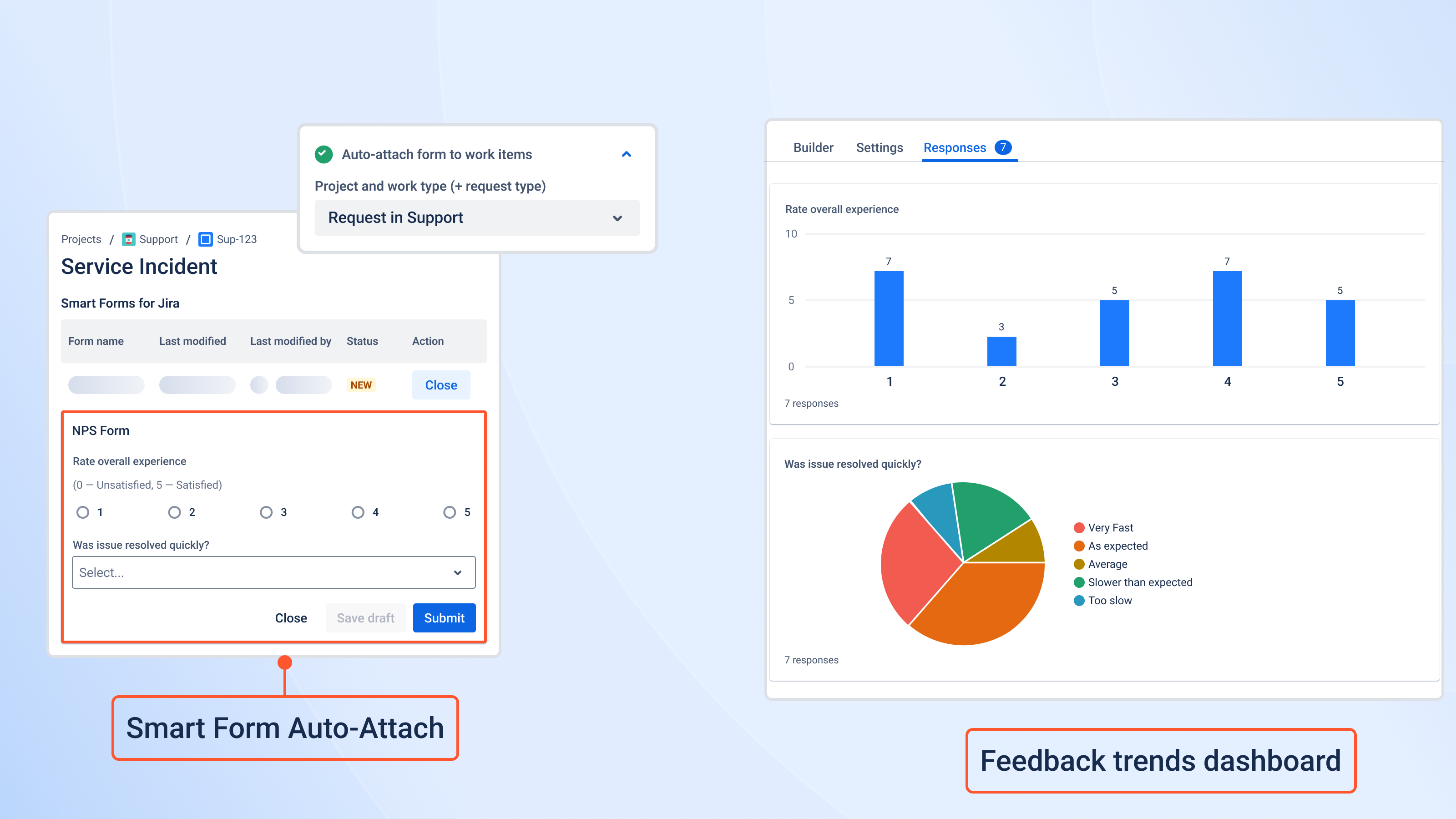
Step 1: Create Your Smart Form (2 minutes)
Form Creation Process:
- Build your Jira form in Smart Forms for Jira
- Add required fields and conditional logic
- Configure access permissions (internal teams vs. external users)
- Attach form to any Jira issue to generate shareable URL (auto or manually)
Step 2: Understanding Jira Form URLs
Every Smart Form attached to a Jira issue automatically generates a unique URL accessible through Jira automation smart values:
<span>{{issue.properties."saasjet.forms.formsSharedUrls"}}</span>
Important: This smart value provides access to ALL forms on an issue. Use filtering to target specific forms.
Step 3: Target Specific Forms in Jira Automation
Method 1: Filter by Form Name
 <span>{{#issue.properties."saasjet.forms.formsSharedUrls"}}
</span><span>{{#if(equals(formName, "Customer Feedback"))}}{{url}}{{/}}
</span><span>{{/}}</span>
Method 2: Filter by Form ID (Most Reliable)
<span>{{#issue.properties."saasjet.forms.formsSharedUrls"}}
</span><span>{{#if(formId.equals("feedback-form-v2"))}}{{url}}{{/}}
</span><span>{{/}}</span>
Method 3: Filter by Form Position
 <span>{{#issue.properties."saasjet.forms.formsSharedUrls"}}
</span><span>{{#if(formNumber.equals("1"))}}{{url}}{{/}}
</span><span>{{/}}</span>
Step 4: Create Your First Jira Automation Rule
Basic Customer Feedback Automation:
<span>Rule Name: "Automated Customer Feedback Collection"
</span><span>Trigger: Issue transitioned to "Resolved"
</span><span>Condition: Issue Type = "Customer Support"
</span><span>Action: Send email</span>
Email Template for Jira Form Automation:
<span>Subject: Quick feedback on your recent support case
</span>
<span>Hi {{issue.reporter.displayName}},
</span>
<span>We've resolved your issue: {{issue.summary}}
</span>
<span>Help us improve by sharing quick feedback:
</span><span>{{#issue.properties."saasjet.forms.formsSharedUrls"}}
</span><span>{{#if(equals(formName, "Customer Feedback"))}}{{url}}{{/}}
</span><span>{{/}}
</span>
<span>This form takes less than a minute to complete.
</span>
<span>Thanks,
</span><span>The Support Team</span>
🚀 Advanced Jira Forms Workflow Examples
Multi-Team Coordination Automation
Scenario: When development completes, multiple teams need different information simultaneously.
<span>Trigger: Issue transitioned to "Ready for Release"
</span><span>Actions:
</span><span>1. Send deployment checklist to DevOps team
</span><span>2. Send testing verification form to QA team
</span><span>3. Send documentation form to Technical Writers
</span><span>4. Send release notes form to Product Managers</span>
Ready to Begin?
The hardest part isn't the technical setup (that's actually pretty easy). The hardest part is picking which manual process to automate first.
Here's a tip: start with the one that happens most frequently or causes the most frustration when it gets forgotten.
Your future self will thank you when forms start sending themselves exactly when they should, to exactly the right people, with exactly the right context.
Ready to stop playing form coordinator? Try Smart Forms for Jira and watch your workflows start managing themselves.
