We’re excited to announce a powerful new addition to Loom’s toolkit—Screenshots! Whether you need to quickly capture a visual, annotate feedback, or highlight an issue, Loom now lets you snap, edit, and share screenshots—all without leaving your workflow.
Why Use Loom Screenshots?
Sometimes a quick screenshot says more than a thousand words (or a thousand Slack messages). Whether you're giving visual feedback, capturing bugs, or highlighting design updates, Loom's screenshot tool helps you communicate clearly and quickly - without switching between tools.
How It Works
👉 To take a screenshot you must have theLoom Desktop app or Chrome Extension installed.
-
Take a Screenshot
Open Loom and select Screenshot, then choose the area of your screen you’d like to capture.

-
Edit Instantly
Add annotations like arrows, text, or shapes to highlight what matters most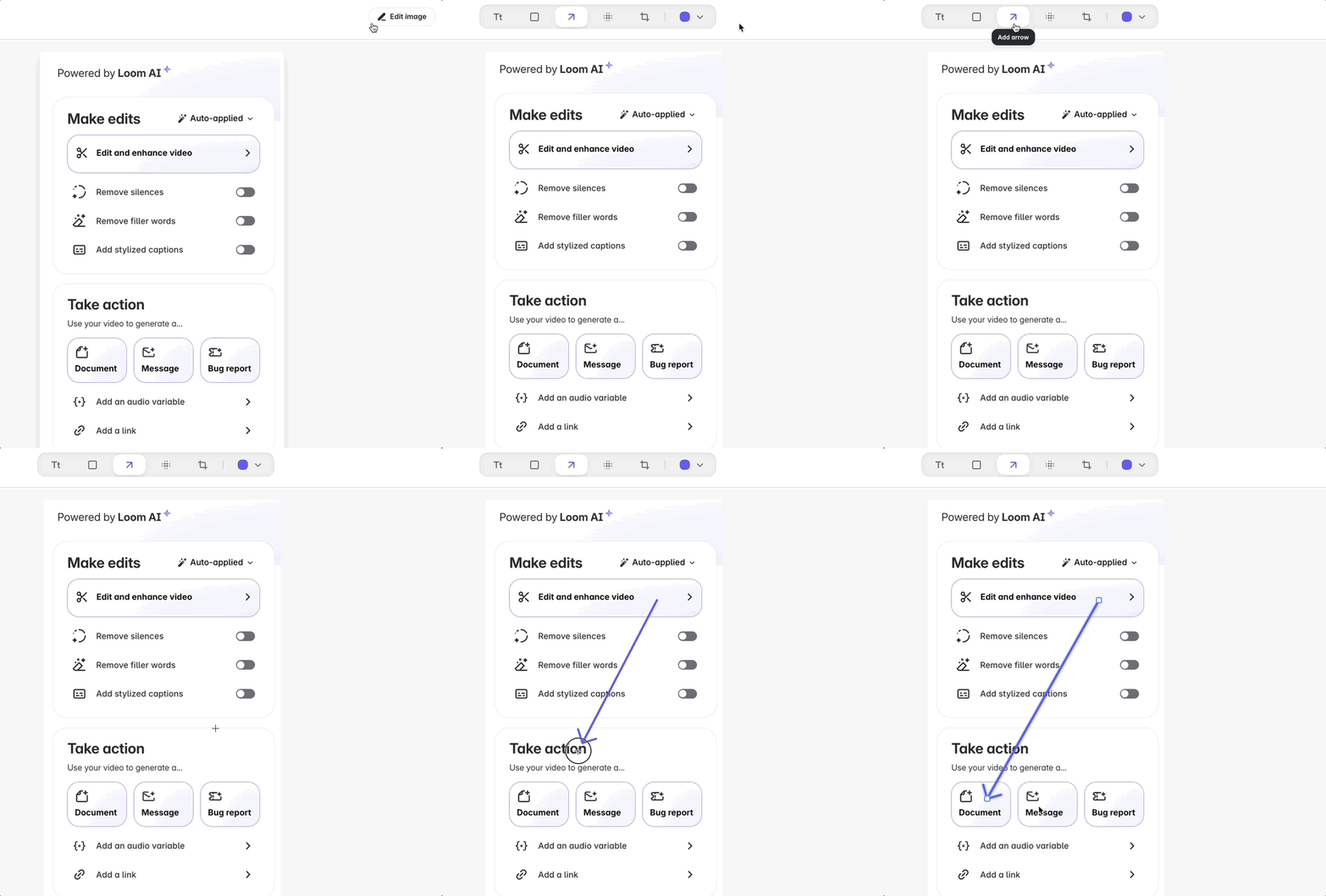
-
Share in a Snap
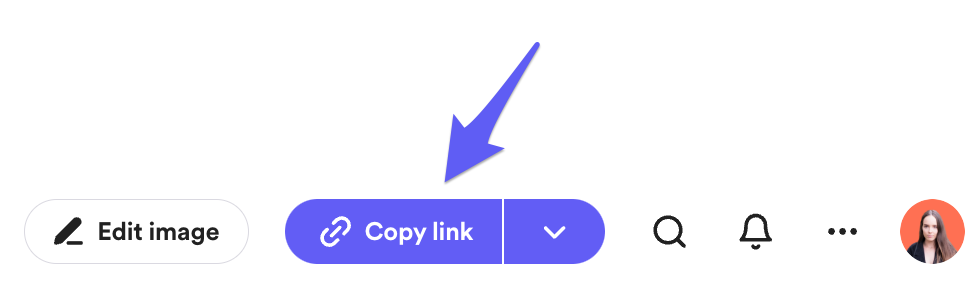
Once you’re done, your screenshot is automatically copied to your clipboard and uploaded to your Loom workspace. Just paste the link—or drop it in Slack, Jira, or an email.
Try It Out
Give it a spin and see how much faster your team can collaborate visually. We’d love to hear how you’re using screenshots to level up your communication game - drop your thoughts in the comments below!


